 ASPNetWorld

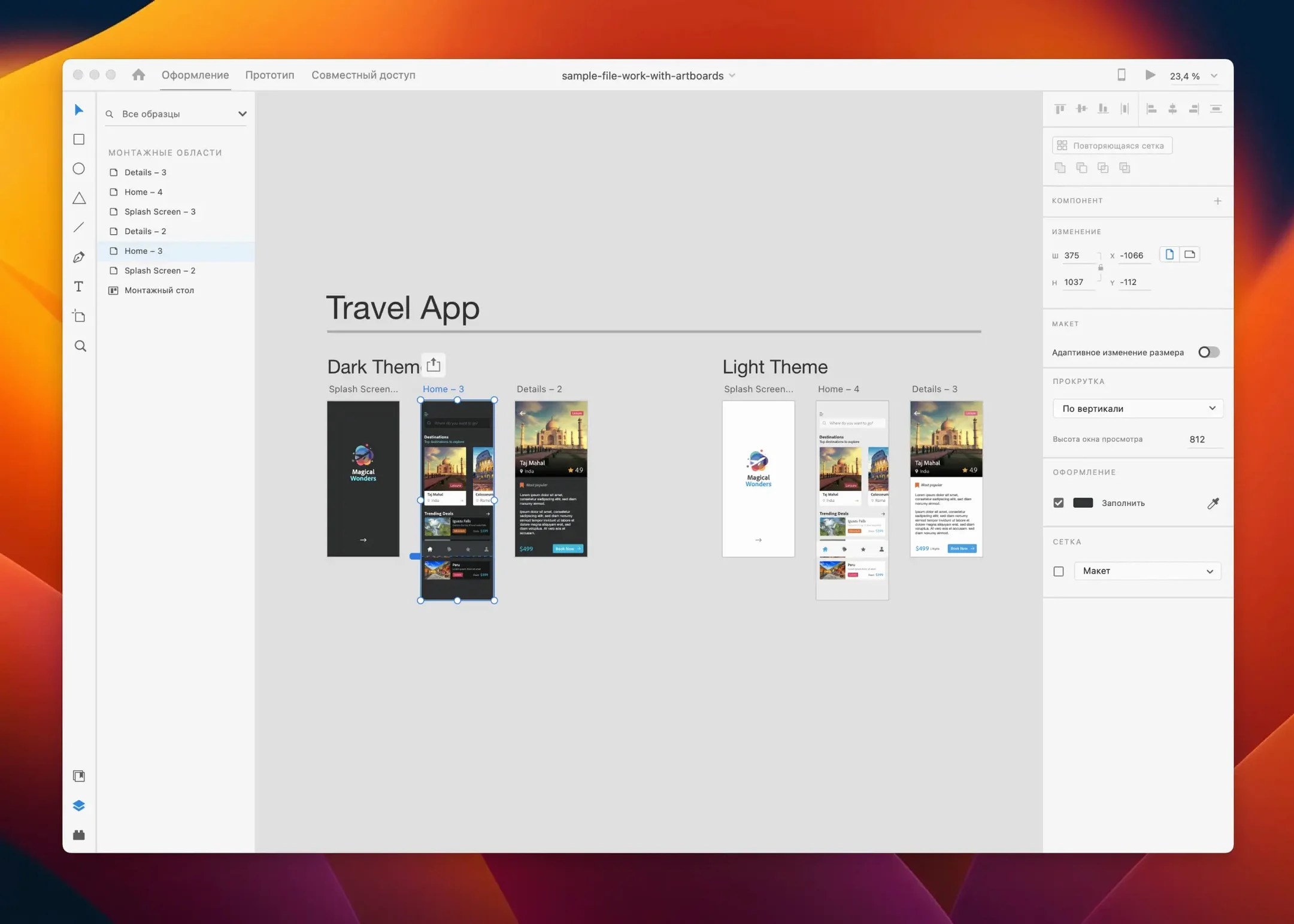
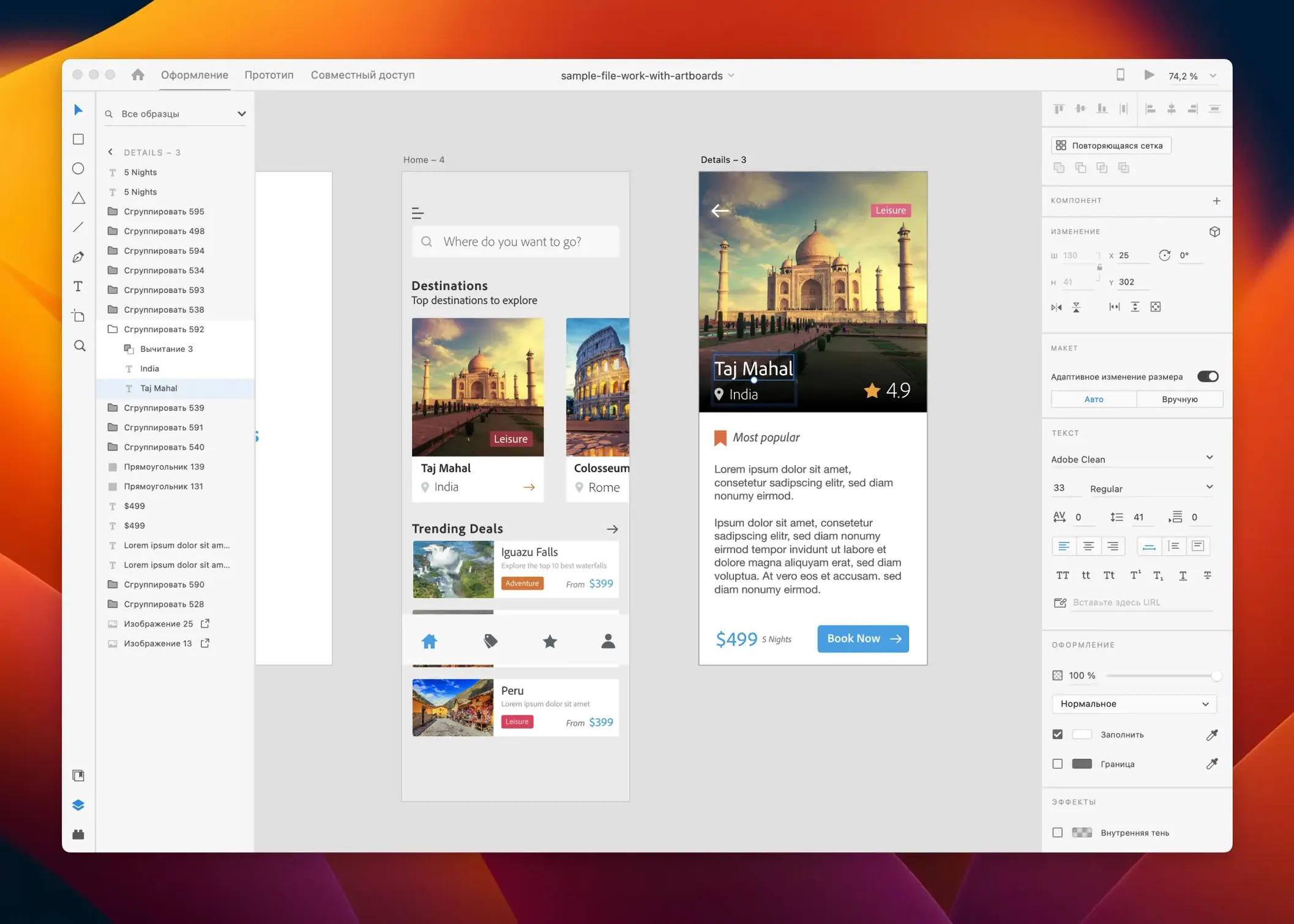
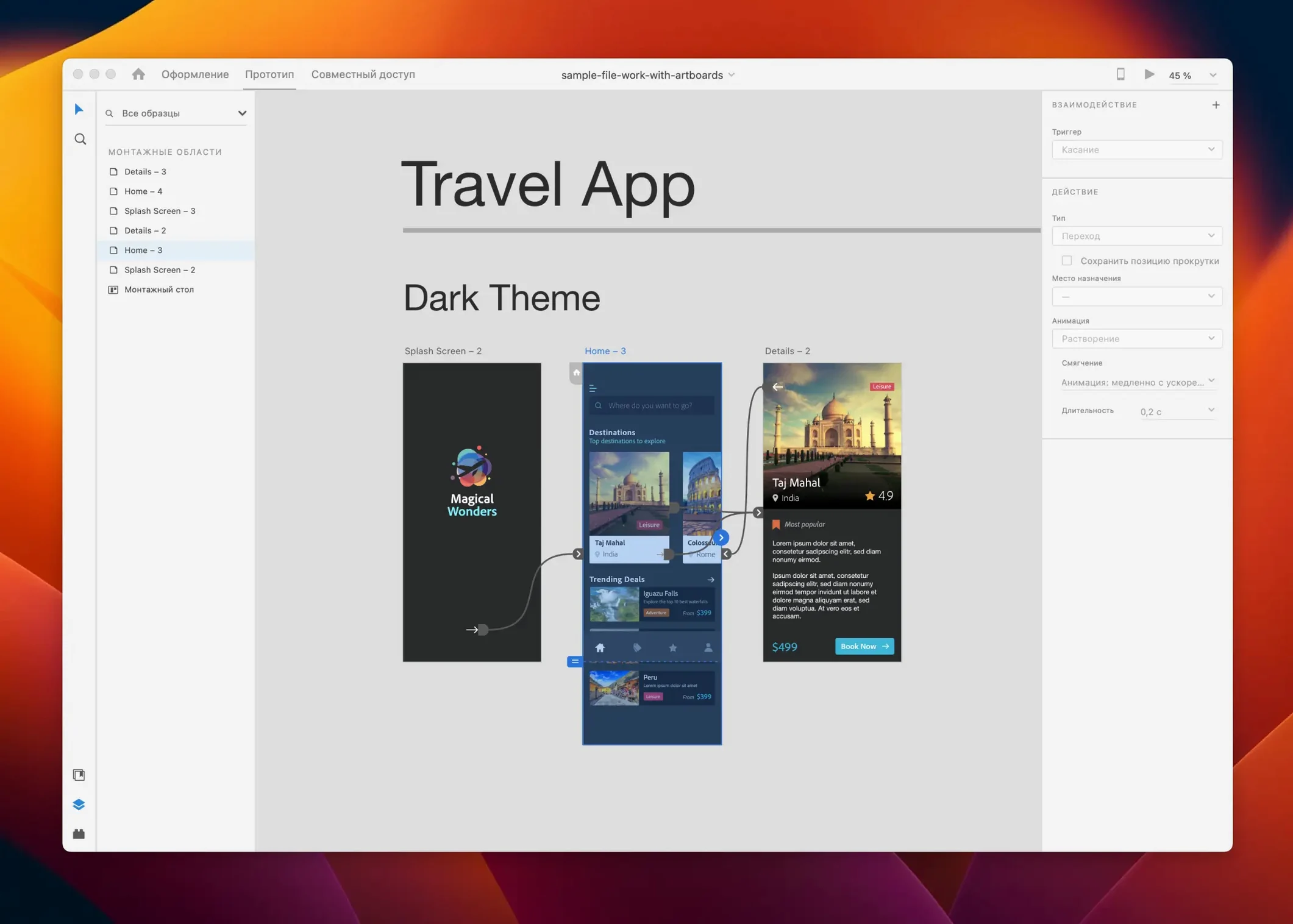
Adobe XD is a vector-based design platform built specifically for crafting the user experience and interface of websites, mobile apps, and other digital products. It covers the full workflow from initial wireframe to interactive prototype, letting you map out how a user moves through an application and test those decisions before a single line of code is written. Tight integration with Creative Cloud Libraries means assets and brand colours stay consistent across a team, while the prototyping engine turns static artboards into clickable, shareable previews that behave almost like the finished product.
- Repeat Grid — dragging out a single list item or image gallery and having it populate with real content instantly, saving the tedious work of copying and spacing dozens of identical elements.
- Auto-Animate — defining motion between artboards so micro-interactions, transitions, and loading sequences can be previewed as smooth, timed animations rather than simple jump cuts.
- Component States — managing hover, toggle, and disabled variations of a button or input field within a single master component, which keeps design systems clean and changes easy to propagate.
- Voice Prototyping — pairing visual screens with voice commands and speech playback, making it possible to design and test a voice interface directly on the canvas.
- Coediting and Design Specs — inviting stakeholders to inspect layers, grab measurements, and extract CSS snippets from a shared link, which bridges the gap between designer and developer without exporting static redlines.
The native Mac application runs smoothly on both Intel and Apple Silicon machines, and the July 2025 update brings a round of bug fixes that keep the workspace feeling responsive. Whether you are mocking up an email template, a game interface, or a full web application, the canvas stays fluid and the prototype previews are rendered faithfully in the desktop player.
Where Adobe XD sits in your wider toolkit
I tend to think of XD as the sketchbook that sits between pure graphics work and finished code. It overlaps with tools you almost certainly already have, and understanding those overlaps stops you duplicating effort or fighting the wrong app for the job.
With Photoshop and Illustrator the line is reasonably clean: build your raster textures and complex vector illustrations there, then bring them into XD as placed assets. A button background with subtle noise, a hero illustration with dozens of layered shapes — those belong in the specialist tools. XD is where they get arranged into a flow. One workflow I see often in evening classes is an Illustrator icon set dropped straight into a Creative Cloud Library, then pulled onto an XD artboard where it stays linked; tweak the original .ai file and the prototype updates without a re-export.
The relationship with After Effects is worth flagging because Auto-Animate covers a surprising slice of what people used to mock up in motion-graphics software. A loading spinner, a card sliding in from the edge of a mobile screen, a menu expanding — all of that lives happily inside XD now. After Effects only needs to get involved when the animation is heading for a sizzle reel rather than a usability test.
On the macOS side, XD plays nicely with the system clipboard for quick copy-paste into Keynote or Pages when you need a stakeholder deck, and the prototype player runs its own window so you can present full-screen on a second display without toolbars getting in the way. If you use Zeplin or Avocode for developer handoff you may find the built-in Design Specs link does enough that you can retire a subscription — the CSS snippets and layer measurements are generated straight from the shared prototype URL, and a developer needs nothing more than a browser to inspect them.
Four defaults I switch off before any real project
Fresh out of the box, XD makes a couple of assumptions that are sensible for a first look but get in the way once you are working day to day. These are the four I always tweak during the first session.
Nudge amount. The default keyboard nudge is a single pixel, which is too fine for layout work. I bump it to 8 px in Preferences so that a tap of the arrow keys moves an object by a standard spacing unit. Combined with the Shift modifier for 10×, you get fast coarse placement and precise fine-tuning without switching tools.
Grid defaults. XD ships with a square grid that looks like graph paper. For web work I switch it to a layout grid with 12 columns, a 16 px gutter, and a max width of 1140 px or whatever the project brief demands. Setting this once on a master artboard and saving it as a template stops you eyeballing alignment later.
Colour management. By default, the canvas uses an sRGB profile. If you are designing for iOS you might prefer Display P3, and the colour space setting lives in the document properties panel rather than the global preferences. It is easy to miss until you notice a prototype looks washed out on a device screen. Switching it per-document keeps colours predictable across the design-to-prototype pipeline.
Plugin permissions. XD’s plugin panel pulls from a marketplace that covers everything from placeholder data generators to accessibility checkers. I turn off automatic plugin updates in Preferences and do them manually before a project starts — nothing derails a tight deadline like a plugin changing its behaviour overnight.
Small teams who treat every screen as a conversation starter
The users I see take to XD fastest fall into a few clusters, and the common thread is that they need to test an idea with other people before committing it to code.
UX generalists in small teams. When one person handles research, wireframes, visual design, and prototype testing, switching between three different tools kills momentum. XD covers enough of that chain that you stay in flow, and the shared prototype link means a stakeholder on a Windows machine can click through a flow without you exporting a video or building a slide deck.
Front-end developers who design. If you write HTML and CSS but also need to produce mockups, the fact that XD speaks in boxes, padding, and text styles rather than freeform vectors makes the translation to code feel direct. The CSS snippets in Design Specs are not perfect — no automatic tool is — but they give you a head start on values for border-radius, font-size, and spacing that match the canvas.
Interaction designers prototyping micro-interactions. Auto-Animate plus the trigger system let you demonstrate a swipe-to-delete gesture, a pull-to-refresh, or a tap-and-hold menu in minutes. The prototype player renders these at device frame rates, which is far more convincing in a usability test than a series of static screens with arrows drawn on them.
Design system maintainers. The component and component-state model, backed by Creative Cloud Libraries, means a colour or a button style can be updated once and ripple through every artboard that references it. For a product team maintaining consistency across dozens of screens, that alone justifies building the master file in XD.
Running XD without the Creative Cloud background app
Does it work without a Creative Cloud subscription? The application runs as a standalone install on your Mac and does not require the Creative Cloud desktop app to be running in the background for day-to-day design work. You will need a free Adobe ID for activation, and features that pull from Cloud Libraries or shared prototypes obviously need a network connection, but the core design and prototyping tools are local.
How does it handle large files with dozens of artboards? I have worked on files with sixty-plus artboards covering entire app flows, and performance on Apple Silicon stays smooth. The Mac version loads artboards on demand rather than keeping every element live in memory, so the initial file open is fast and zooming between screens is responsive. The main bottleneck tends to be lots of high-resolution raster images placed at full size; flattening those to a sensible resolution before import keeps things snappy.
Can I open Sketch or Figma files directly? Not natively. XD can import Sketch files — the option is right in the File menu — though complex symbol overrides sometimes need a quick check after import. Figma files need an intermediate step, usually via a third-party converter or by copying SVG chunks, and some fidelity gets lost in translation. If you are migrating a whole design system, budget a few hours to rebuild components as native XD elements rather than hoping for a perfect automatic conversion.
Is it safe to install while Adobe is in maintenance mode? The application receives bug fixes and compatibility updates through the normal update mechanism. The July 2025 release is a case in point: no flashy features, but the kind of stability work that keeps it running on current macOS versions. For prototyping, wireframing, and interface design, the tool is feature-complete. Maintenance mode mainly means you should not expect brand-new headline capabilities, not that the app is abandoned.
Build a tiny fake project in the first hour
When I introduce XD in an evening class, the students who make fastest progress share a few habits. These are the things worth doing in the first hours after installation, before you commit to a real project.
Build a tiny throwaway prototype. Pick something absurdly simple — a three-screen login flow, a settings toggle, a photo gallery with five images. Wire it up with triggers and Auto-Animate transitions between every screen. Share the prototype link and open it on your phone. Doing this once teaches you more about the interaction model than reading documentation for an afternoon, and it surfaces the small decisions (tap versus drag targets, transition easing, scroll behaviour) that shape a real prototype later.
Set up a personal UI kit. Spend an hour making a master component file with the basic elements you reach for repeatedly: a button with hover and disabled states, a text input with a validation error variant, a card component, a simple navigation bar. Save this as a cloud document and use the “Link Assets” feature to pull components into new projects. After a fortnight you will have tweaked the kit to match your own visual habits, and starting a new design becomes dropping pre-built components onto artboards rather than drawing rectangles from scratch.
Learn the Repeat Grid shortcut by heart. Select any group of elements and press Cmd+R. Drag the handle. The grid populates from a text file or from the built-in data sources. Once that motion is muscle memory, you stop wasting time on repetitive layout and start thinking about how content scales, which is the whole point.
Test a prototype on a real device early. The desktop preview is accurate, but nothing replaces the feel of tapping through a flow on an iPhone or Android screen. The XD mobile app mirrors your canvas over USB or Wi-Fi, and the slight delay you notice on Wi-Fi is a useful reminder that real users experience latency too. Make a habit of device-testing before you show a prototype to a client or a researcher — it catches target-size issues and scroll-length problems that are invisible on a 27-inch monitor.
The July 2025 release (version 59.0.12) focuses on stability, with bug fixes and minor workflow improvements that make everyday tasks feel a little snappier.
- macOS 10.15 or newer
- Intel or Apple Silicon Mac
- Russian, English, German, Spanish, Chinese (Simplified), Korean, Portuguese, French, and Japanese interface languages available
Questions from the class 0
Sign in or join the class to ask a question.
Nobody has asked anything yet. If you have used it on a real job, say what the file did.
Also on the Adobe shelf
The whole Adobe shelf Adobe Substance 3D Painter
Paints textures and materials directly onto a 3D mesh.
Adobe Substance 3D Painter
Paints textures and materials directly onto a 3D mesh.
 Adobe Premiere Pro
Cuts and finishes professional video projects on a timeline.
Adobe Premiere Pro
Cuts and finishes professional video projects on a timeline.
 Adobe Photoshop
Rearranges pixels so edited photos look completely untouched.
Adobe Photoshop
Rearranges pixels so edited photos look completely untouched.
 Adobe Media Encoder
Handles the heavy encoding jobs queued from other Adobe apps.
Adobe Media Encoder
Handles the heavy encoding jobs queued from other Adobe apps.
 Adobe Lightroom Classic
Imports, develops and catalogues photos from local folders and drives.
Adobe Lightroom Classic
Imports, develops and catalogues photos from local folders and drives.
 Adobe Lightroom CC
Edits and syncs your photo library across all your devices.
Adobe Lightroom CC
Edits and syncs your photo library across all your devices.
 Adobe InDesign
Assembles long documents into print-ready pages and layouts.
Adobe InDesign
Assembles long documents into print-ready pages and layouts.
 Adobe InCopy
Lets writers edit text while a designer lays out the same document.
Adobe InCopy
Lets writers edit text while a designer lays out the same document.