 ASPNetWorld

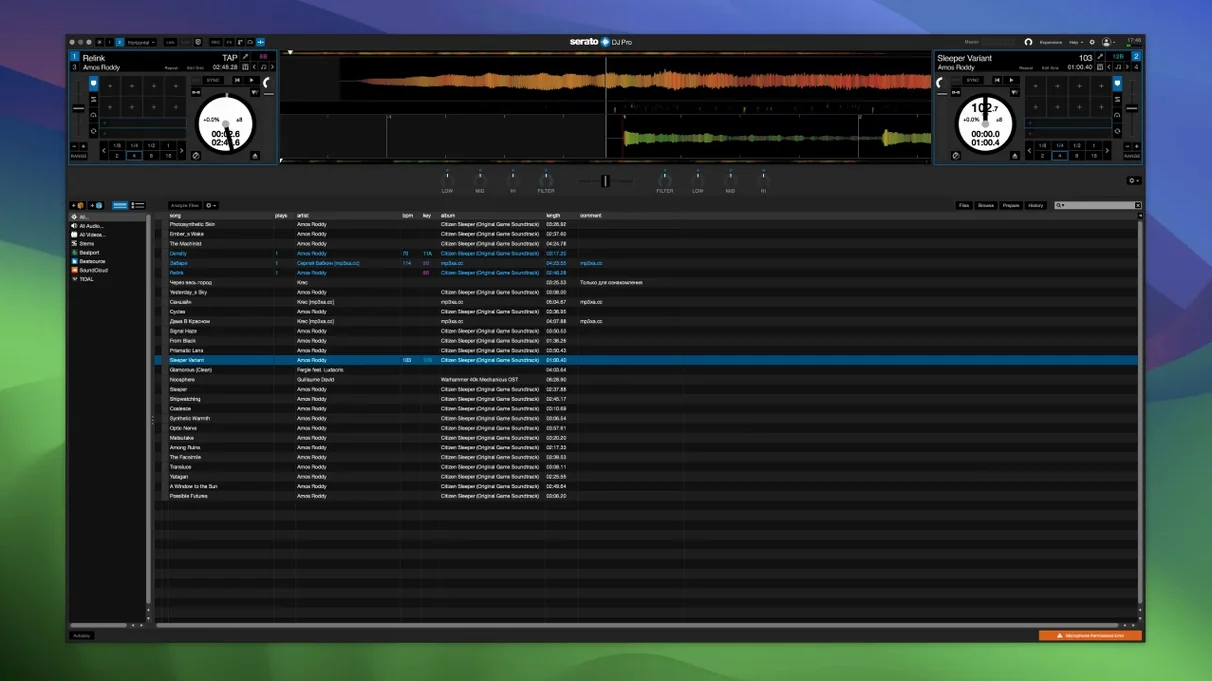
Club residents, mobile DJs and turntablists tend to reach for Serato DJ Pro when a set demands rock-solid reliability and deep hardware integration. It is the central app in the Serato suite, built around the idea that your laptop should feel like an extension of the mixer and decks, not a separate computer that happens to be playing tracks.
Building a crate on the fly
The library view lets you sort, tag and audition tracks without ever leaving the performance screens. A crate is simply a DJ's word for a playlist, and keeping them tidy means the right record is always within reach.
Shaping sound with built-in FX
Serato DJ Pro includes a set of built-in FX, and they sit right on the channel strips where your hand naturally falls. A high-pass filter, delay and reverb chain can be dialled in with a single knob on a supported controller, turning a straightforward blend into something that breathes.
Decks that feel like hardware
A mobile DJ’s Saturday night
Picture a wedding DJ with a four-hour set list, a controller in a flight case and a room full of guests ranging from eight to eighty. Requests come thick and fast — an aunt wants Motown, the best man asks for drum and bass, and the bride’s father insists on a waltz he last heard in 1974. The DJ doesn’t have time to browse folders or second‑guess key clashes.
On a night like this, the library’s colour‑coded tags earn their keep. Tracks pre‑tagged as Floor Fillers sit in one virtual crate, Dinner Jazz in another. A quick flick through the Requests crate reveals a Motown three‑pack dropped in earlier, and because the waveform overview shows phrase markers, the DJ knows exactly where the chorus hits without cueing in headphones. While one deck plays, the other loads a slow ballad; key analysis in the browser confirms it won’t fight the outgoing track harmonically, so the crossfade is smooth enough that nobody notices the tempo drop. Between tunes, the DJ taps the Stems pad to pull the bass out of a funk track, leaving just drums and guitar as a bed for the best man’s impromptu toast. The laptop stays closed. Everything happens from the controller.
Serato DJ Pro alongside three popular alternatives
Comparing DJ platforms is less about which one is “best” and more about how each fits a particular working style. Four apps dominate the conversation, and they all handle two‑deck mixing and controller support, but their personalities diverge quickly.
rekordbox
Pioneer DJ’s rekordbox is the obvious point of reference, especially if you prepare sets on a laptop and export to a USB stick for club CDJs. Where Serato DJ Pro treats the computer as a live performance partner, rekordbox leans harder into library preparation and Pioneer‑specific hardware workflows. The lighting control module in rekordbox is a genuine advantage if you run a DMX rig from the same machine. However, rekordbox’s real‑time stem separation arrived later and, in side‑by‑side tests, can feel slightly less responsive than Serato’s implementation. DJs who play on a mix of Pioneer and third‑party gear often find Serato’s ninety‑plus officially supported devices gives them more flexibility when they walk into a venue with an unfamiliar setup.
VirtualDJ
VirtualDJ packs more features into a single window than almost anything else on the market — video mixing, karaoke support, and an enormously deep scripting engine for custom controller maps. It can feel overwhelming on first launch, and the interface prioritises density over the clean, hardware‑mirrored deck layout Serato users know. Where VirtualDJ shines is in sheer versatility: a DJ who also runs a video wall or wants real‑time stem isolation on a budget laptop will find it remarkably capable. The trade‑off is that supporting so many formats and workflows can occasionally introduce small interface delays on older machines, whereas Serato DJ Pro’s narrower focus keeps the audio path taut even during heavy Stems processing.
Traktor Pro
Native Instruments’ Traktor Pro still commands a loyal following among techno and house DJs who value its loop‑centric workflow and the deep integration with NI’s own controllers. The remix decks — essentially clip‑launching slots layered over a traditional deck — remain unique, and the stem‑based remix files offer a different flavour of live arrangement. Traktor’s development cycle has been quieter in recent years, and its officially supported hardware list is shorter. DJs who want the widest choice of mixers and controllers, or who play open‑format sets spanning multiple genres, often migrate to Serato DJ Pro for its broader hardware ecosystem and more frequent feature updates.
Tweak library views and cue points so the interface never slows you down mid-set
A fresh install of Serato DJ Pro scans your music folders and builds a library, but the first week is about small tweaks that stop you fighting the interface mid‑set. Start by connecting your controller before launching the app; Serato detects the hardware and adjusts the on‑screen layout to match, so you’re not puzzling over greyed‑out controls that belong to a different device.
Next, spend twenty minutes auditioning tracks through the Prepare panel. This temporary holding area sits to the left of the main library and accepts tracks you drag in while browsing — think of it as a scratchpad for the next three or four tunes you might play. The habit of filling the Prepare panel before a set means you never stare at a screen wondering what to load next.
If you use streaming services, link your account early and let the offline locker sync overnight. Tracks stored locally skip the buffering hiccup that occasionally hits streamed files when venue Wi‑Fi wobbles. Finally, run through a five‑minute sound check with headphones and master output both active; adjust the cue/master blend knob on your controller until the headphone feed feels balanced, and save that as part of your default setup.
Drop the audio buffer to 10 ms or less and the software becomes second nature
Out of the box, Serato DJ Pro works, but a handful of preferences turn it from workable to second nature. Open Setup > Audio and confirm the buffer size. A setting of 10 ms or lower keeps latency imperceptible for scratching; if your Mac is a few years old and you plan to use Stems heavily, a buffer of 15–20 ms still feels tight while giving the processor breathing room.
Under Library + Display, switch on Show Key and set it to Camelot notation. The circle‑and‑number system makes harmonic mixing quicker to spot at a glance than traditional key names. While you’re there, enable Protect Library — it prevents an accidental click from deleting crates during a performance, a small tick box that has saved many a wedding playlist.
In the DJ Preferences tab, adjust Vinyl Speed to match the feel of your turntables. A slightly heavier setting gives scratching more bite; a lighter curve suits long blends. Turn on Smart Sync if you want tempo matching to follow the deck you designate as master, but leave Lock Playing Deck enabled so you can’t accidentally load a track onto a deck that’s live.
For Stems, visit the Stems section and set Default Stem Separation to On Load (Background). Tracks analyse quietly while idle, so by the time you cue them, the vocal, melody, bass and drum layers are ready without a beat‑grid stutter.
A crate called Warm‑Up kicks off the night with slow‑burn deep house
The laptop lid stays shut. A controller and a pair of turntables sit on the desk, the mixer’s channels glowing amber. The session starts with a crate called Warm‑Up — slow‑burn deep house, tracks that give a room time to settle.
First deck loads a kick‑heavy intro. The waveform stretches across the screen in Serato’s stacked view, the phrase markers clearly visible as white ticks along the timeline. A quick tap on the cue button jumps to the first downbeat of the breakdown, and the DJ holds it there, letting the outgoing ambient hum fade naturally. Release the cue, and the kick lands exactly on beat.
While the first track plays, the second deck loads a vocal cut. The key readout shows 8A — a perfect match for the outgoing track’s 8A, so no harmonic clash. The DJ nudges the jog wheel to align the snares, then opens the filter knob slowly, sweeping away the low end of the incoming track so only the vocal floats above the mix. Over sixteen bars, the basslines swap: the first track’s low EQ drops, the second’s rises, and the transition sounds like one record breathing into another.
Halfway through the set, energy needs a lift. The DJ highlights a track they know well, presses the Acapella button in the Stems panel, and the vocal isolates instantly — drums, bass and melody mute with a single press. That isolated vocal phrase loops over the next track’s instrumental, creating a live mashup that never existed before. A Stems Pad FX called Echoes is assigned to a performance pad; tapping it throws the loop into a rhythmic delay that decays over two bars, and the set pushes forward.
Near the end, a request comes in. The DJ types a partial name into the search bar, the library filters in real time, and a track they haven’t played in months appears. They drag it to the Prepare panel, check the BPM readout — close enough for a quick fade — and load it without ever stopping the music. The session closes with a slow fade on the master output, the room silent for a beat before applause fills the space.
Quick questions
Does Serato DJ Pro work without a controller? Yes, it runs in offline mode for library preparation, but you need a connected audio interface or controller to output sound to a PA system. Most DJs treat the laptop‑only mode as a crate‑building workspace between gigs.
Can I download an earlier version like 3.3.5 for an older Mac? Serato’s downloads page keeps recent versions available, and users running macOS versions that predate Monterey sometimes search for a serato dj pro 3.3.5 download mac to maintain compatibility. The current 4.0.5 build requires Monterey or later and runs natively on both Intel and Apple Silicon machines.
What happens if Stems analysis slows down my set? Switch the Stems preference to On Demand instead of background processing. The software only analyses tracks when you press a Stems pad, which keeps the CPU load predictable during performance at the cost of a short wait the first time you trigger the effect.
Each on-screen deck mirrors the layout of a physical CDJ or turntable, so the jump from hardware to screen feels almost muscle-memory.
- macOS 12 Monterey or later
- Apple Silicon or 64-bit Intel processor
- Interface language: English
Questions I keep hearing
Does Serato DJ Pro work with my controller?
It officially supports more than 90 hardware devices from major industry manufacturers, so most modern DJ controllers and mixers unlock the software automatically when connected.
Can I run it on an M1 or M2 Mac?
Yes, the application is built as a universal binary that runs natively on both Apple Silicon and 64-bit Intel processors, requiring macOS 12 Monterey or later.
Questions from the class 0
Sign in or join the class to ask a question.
Nobody has asked anything yet. If you have used it on a real job, say what the file did.
Also on the Audio shelf
The whole Audio shelf Serato Studio
Builds beats and full arrangements around your existing DJ library and its stem-separated parts.
Serato Studio
Builds beats and full arrangements around your existing DJ library and its stem-separated parts.
 SoundSource
Gives you a menu-bar panel to adjust the volume and output of every app on your Mac individually.
SoundSource
Gives you a menu-bar panel to adjust the volume and output of every app on your Mac individually.
 QLab
Controls audio, video and lighting cues for live performances.
QLab
Controls audio, video and lighting cues for live performances.
 Steinberg Nuendo
Edits dialogue and sound for film and games.
Steinberg Nuendo
Edits dialogue and sound for film and games.
 Studio One
Streamlines music production with drag and drop.
Studio One
Streamlines music production with drag and drop.
 Plugin Alliance Brainworx bx_mastering studio
Polishes a finished stereo mix with a few focused mastering controls.
Plugin Alliance Brainworx bx_mastering studio
Polishes a finished stereo mix with a few focused mastering controls.
 Swinsian
Plays and organises local music files.
Swinsian
Plays and organises local music files.
 Traktor Pro
Mixes on four decks and isolates drums, bass or vocals from a track in real time.
Traktor Pro
Mixes on four decks and isolates drums, bass or vocals from a track in real time.