 ASPNetWorld
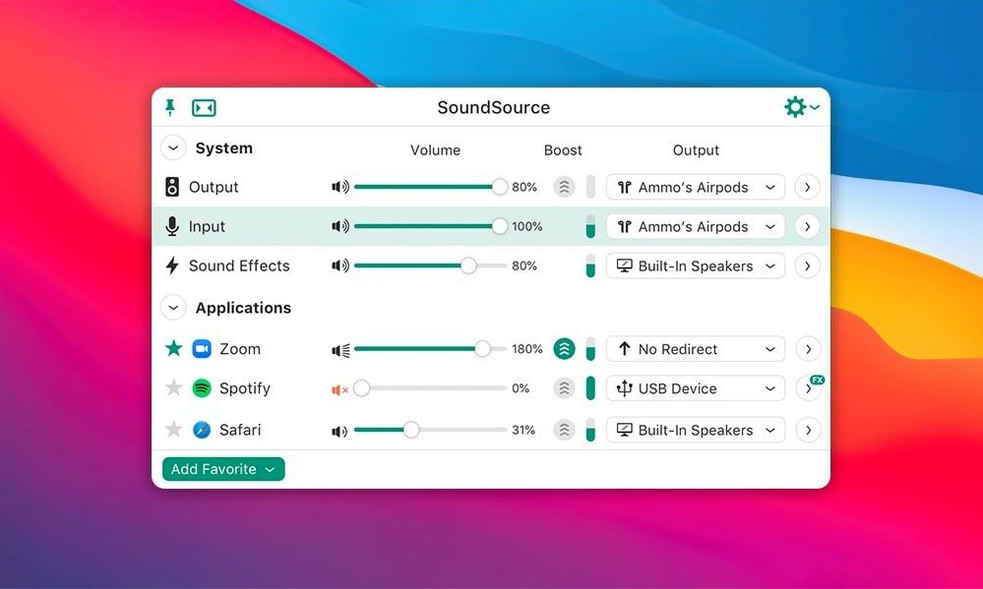
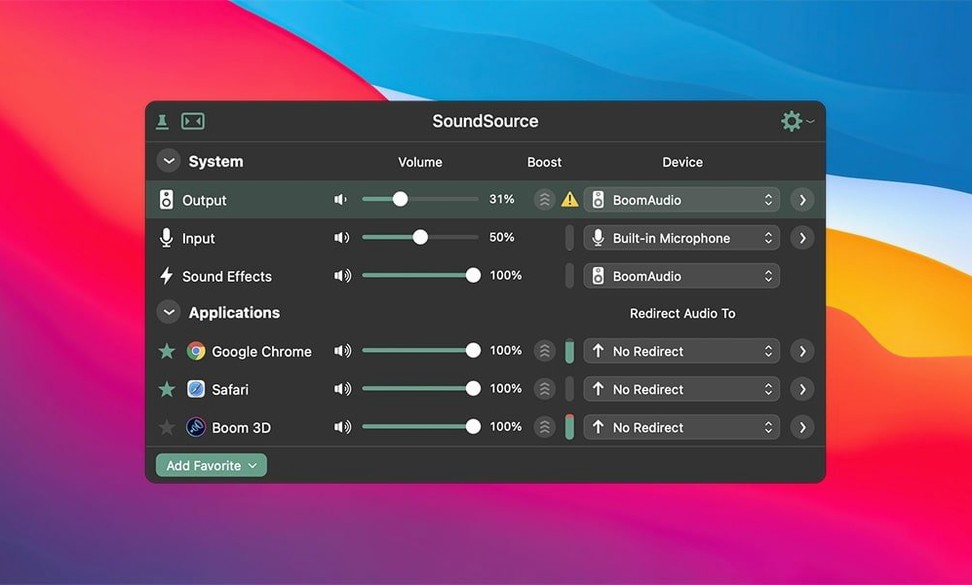
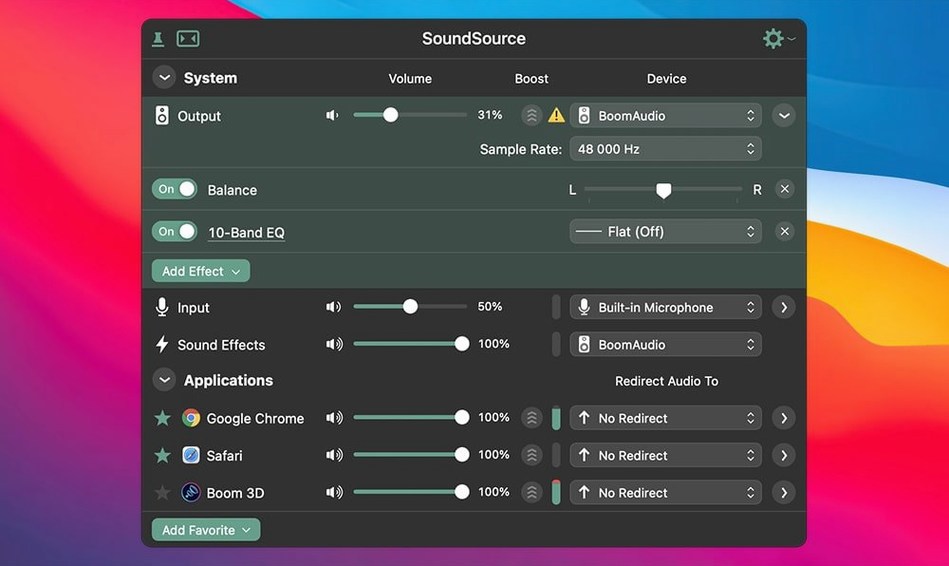
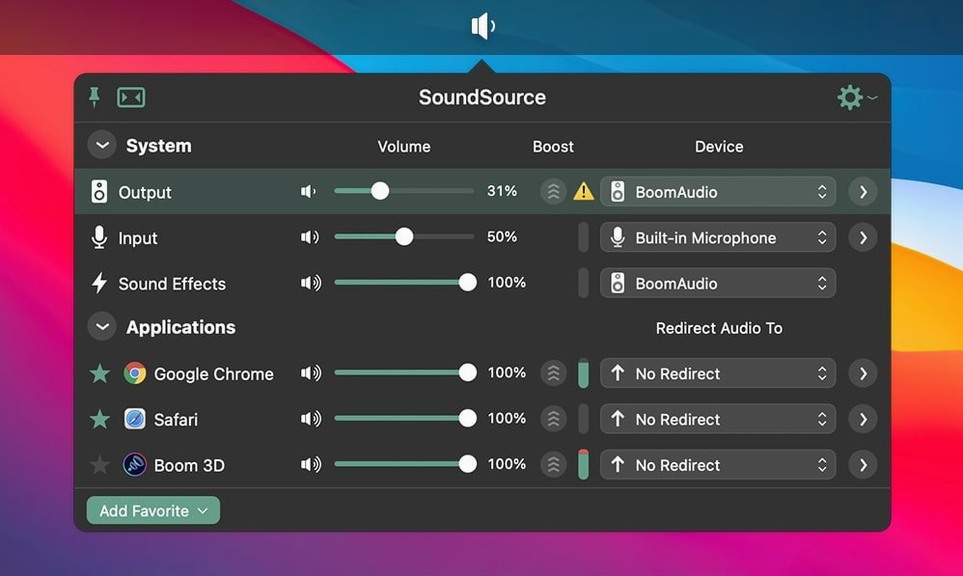
SoundSource lives with the people who spend their day hopping between a podcast recording, a video call, and a music library. It is a Rogue Amoeba creation, a compact Mac audio control panel that tucks into your menu bar and gives you immediate reach over every sound your computer makes. Think of it as a detailed mixing desk shrunk to fit a corner of your screen.
Per-app routing and two-click device switching from one window
- Per-app audio routing. You can send your music app to one set of speakers while keeping system alerts confined to the built-in output, all adjusted independently from the same compact window.
- Two-click device switching. Changing your input, output, or sound effects device no longer means digging through System Settings. SoundSource puts every available audio interface in a pop-up menu, ready to be selected on the fly.
- Complete audio snapshots. You can save a full configuration—which devices are active, which apps are muted, which equaliser curves are applied—and restore the whole setup with a single click when you return to your desk.
- Quick access to core settings. The app keeps the standard Mac volume knobs for every connected device within arm’s reach, so adjusting gain or muting a misbehaving input takes no time at all.
Requires macOS 15 and runs natively on Apple Silicon
- The current version requires macOS 15, so older machines still running Ventura or Monterey will need to stay on a previous SoundSource release.
- It is a 64-bit application that runs natively on both Apple Silicon and Intel Macs, which covers the vast majority of setups without emulation headaches.
Podcasters and livestreamers notice the change within an hour
Not every Mac user needs SoundSource, but a few specific groups notice the change within the first hour. Podcasters and livestreamers sit at the top of that list. They typically juggle a microphone, a pair of headphones, and a separate speaker for monitoring, and macOS alone gives them no clean way to route each app to the right output. SoundSource solves that by letting them send their recording software to the headphones while a soundboard app plays through the speakers, all without touching a cable.
People who work from home with a rotating cast of video-call apps benefit almost as much. One meeting runs in Teams, another in Zoom, and the Mac’s default audio behaviour treats them all the same. With per-app control, you can set your browser’s notification sounds to a different volume than your call—or mute the browser entirely during a presentation—without scrambling through preference panes. Anyone who owns an external DAC or audio interface also finds the app useful, because SoundSource gives those devices the same fast volume controls the Mac reserves for its built-in speakers.
Home listeners with good headphones or desktop speakers round out the group. The built-in Headphone EQ effect works per application, so you can sweeten the tone of a music player without colouring the voice on a video call. That kind of granularity is unusual in a menu bar utility, and it quietly changes how you think about your Mac’s sound.
Click the menu bar icon and resist tweaking everything at once
A clean install of SoundSource drops a small waveform icon into your menu bar. Clicking it reveals a panel that shows your current output device and a volume slider. The temptation is to start tweaking every setting immediately, but a gentler approach pays off in the long run.
Spend the first day simply observing. Play audio through a few different apps—Safari, Music, a video editor—and watch how each one appears in the SoundSource window. The app automatically lists every running program that produces or receives sound, so you can see which ones are noisy and which sit quiet. On day two, pick one small routing decision and try it. Perhaps you send Music to your external speakers while system alerts stay on the MacBook speakers. Let that run for a few hours and notice whether the behaviour matches your expectations. The next day, add a second routing rule. This gradual approach builds a setup that feels natural rather than a list of rules you have to keep debugging.
Early on, create one saved configuration, even if it is just your current state. Give it a descriptive name like “Desk Setup” and store it. Having a fallback snapshot means you can experiment freely, knowing that one click returns you to a working arrangement. It is the audio equivalent of saving a document before making drastic edits.
Augments the macOS sound panel instead of replacing it
SoundSource does not replace the macOS sound panel—it augments it. The two can coexist, though most users find they visit System Settings for audio far less often once the app is running. The key relationship is with the apps generating sound. SoundSource sits between macOS and your audio hardware, so any program that outputs audio through Core Audio shows up in its list automatically. That includes DAWs like Logic Pro, communication tools like Slack, and even the Finder’s alert sounds.
Audio Hijack, another Rogue Amoeba tool, pairs with SoundSource particularly well. Audio Hijack captures and records audio from specific apps, while SoundSource handles real-time routing and volume. A podcaster might use Audio Hijack to record a guest’s Skype call while SoundSource routes the caller to headphones and the intro music to a different output. Loopback, from the same developer, creates virtual audio devices, and SoundSource treats those devices like any other, letting you route the combined signal further downstream.
With AirPlay support built into version 6, SoundSource also works alongside the Mac’s native streaming. You can select an AirPlay speaker as an output device directly from the menu bar, or include it in an Output Group so music plays through your living-room speakers and your desktop monitors simultaneously. The system volume keys on your keyboard continue to work as normal, controlling whichever device SoundSource has set as the default output.
Muting an app then forgetting it happened days later
A common early stumble is muting an app inside SoundSource and then forgetting it happened. A week later, Safari seems to have lost its voice, and the user checks cables, restarts the Mac, and reinstalls browser extensions before remembering the mute toggle buried in the menu bar. SoundSource provides a subtle visual indicator when an app is silenced, but it is easy to overlook. The habit worth forming is to glance at the app list before any deeper troubleshooting.
Another mistake is setting per-app volumes at extremes. If you crank Spotify to 150% inside SoundSource and then turn your physical amplifier down to compensate, you have built a fragile setup where one accidental click on the system volume key can produce a startling blast. Better practice is to keep per-app adjustments moderate—small cuts and boosts relative to the master output—so the overall gain structure remains sensible.
Beginners also sometimes create Output Groups without testing the latency difference between devices. Sending audio to a Bluetooth speaker and a wired DAC simultaneously can produce a slight echo if the two devices process the signal at different speeds. SoundSource cannot synchronise inherently unsynchronised hardware, so it is worth listening critically when you first set up a multi-output arrangement. Often the fix is as simple as choosing devices that share a similar technology, like two AirPlay speakers, rather than mixing Bluetooth and wired outputs in the same group.
AirPlay streaming and Output Groups arrived in version 6
The jump to SoundSource 6 brought a macOS 15 requirement and native support for AirPlay streaming, which broadened the app’s reach beyond physically connected devices. Output Groups arrived in the same release, letting you route audio to several destinations at once without third-party routing tools. Those two additions alone shifted the app from a per-device controller to something that manages whole-room setups.
Version 6.1.4, the current build, focused on stability rather than new features. It updated the ARK plugin—the audio routing kernel that Rogue Amoeba uses across its product line—to version 13.5.4, which improved compatibility with newer macOS releases. More visibly for users, it fixed a crash that could occur with certain Bluetooth devices on macOS 27 when the hardware did not honour requested buffer sizes. Anyone who had experienced a sudden quit after connecting Bluetooth headphones would notice the difference immediately. The same update addressed broader Bluetooth output performance issues on macOS 27, so audio over wireless connections became more reliable in day-to-day use. These are not flashy changes, but they are the kind that keep a utility trustworthy as the operating system evolves underneath it.
SoundSource 6.1.5 rolls out Rogue Amoeba’s most recent round of maintenance fixes and subtle engine polishing.
- macOS 15 or later
- Works natively on both Apple Silicon and Intel 64-bit Macs
Questions from the class 0
Sign in or join the class to ask a question.
Nobody has asked anything yet. If you have used it on a real job, say what the file did.
Also on the Audio shelf
The whole Audio shelf Steinberg Nuendo
Edits dialogue and sound for film and games.
Steinberg Nuendo
Edits dialogue and sound for film and games.
 Studio One
Streamlines music production with drag and drop.
Studio One
Streamlines music production with drag and drop.
 Serato Studio
Builds beats and full arrangements around your existing DJ library and its stem-separated parts.
Serato Studio
Builds beats and full arrangements around your existing DJ library and its stem-separated parts.
 Swinsian
Plays and organises local music files.
Swinsian
Plays and organises local music files.
 Serato DJ Pro
Plays two or more audio tracks in sync and lets you blend them with hardware decks.
Serato DJ Pro
Plays two or more audio tracks in sync and lets you blend them with hardware decks.
 QLab
Controls audio, video and lighting cues for live performances.
QLab
Controls audio, video and lighting cues for live performances.
 Traktor Pro
Mixes on four decks and isolates drums, bass or vocals from a track in real time.
Traktor Pro
Mixes on four decks and isolates drums, bass or vocals from a track in real time.
 Plugin Alliance Brainworx bx_mastering studio
Polishes a finished stereo mix with a few focused mastering controls.
Plugin Alliance Brainworx bx_mastering studio
Polishes a finished stereo mix with a few focused mastering controls.