 ASPNetWorld

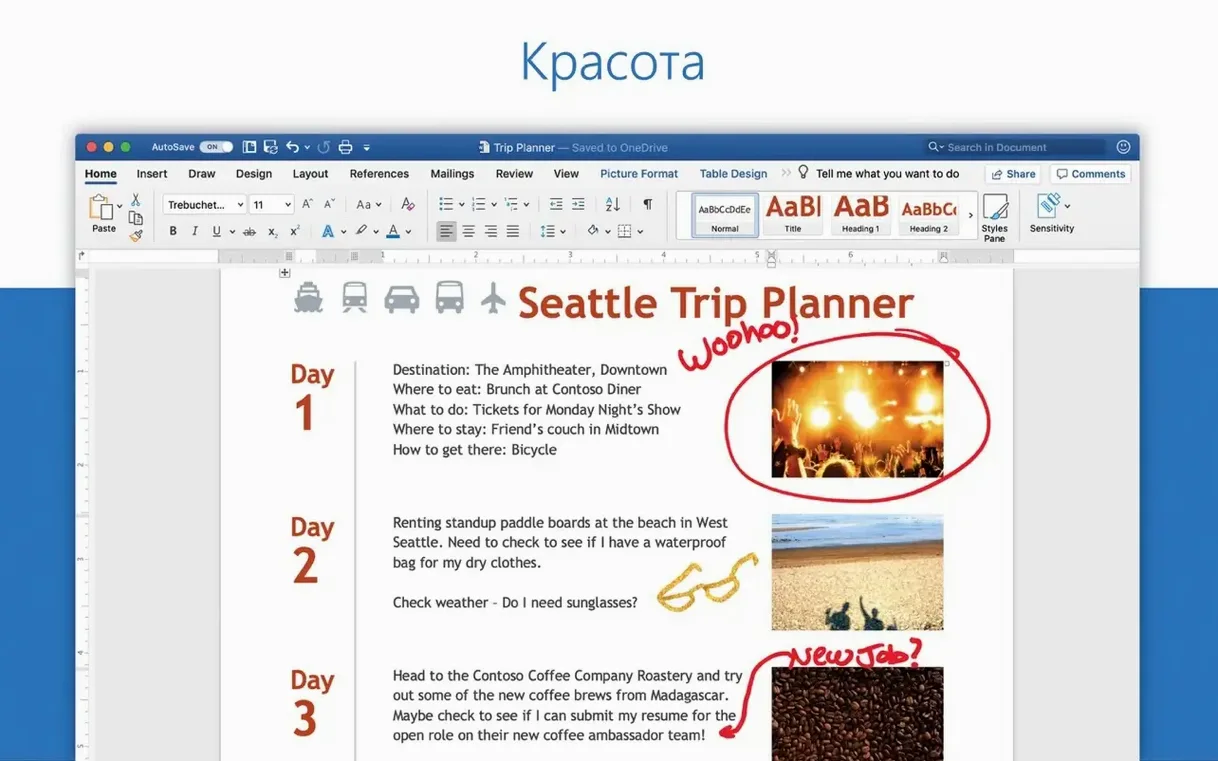
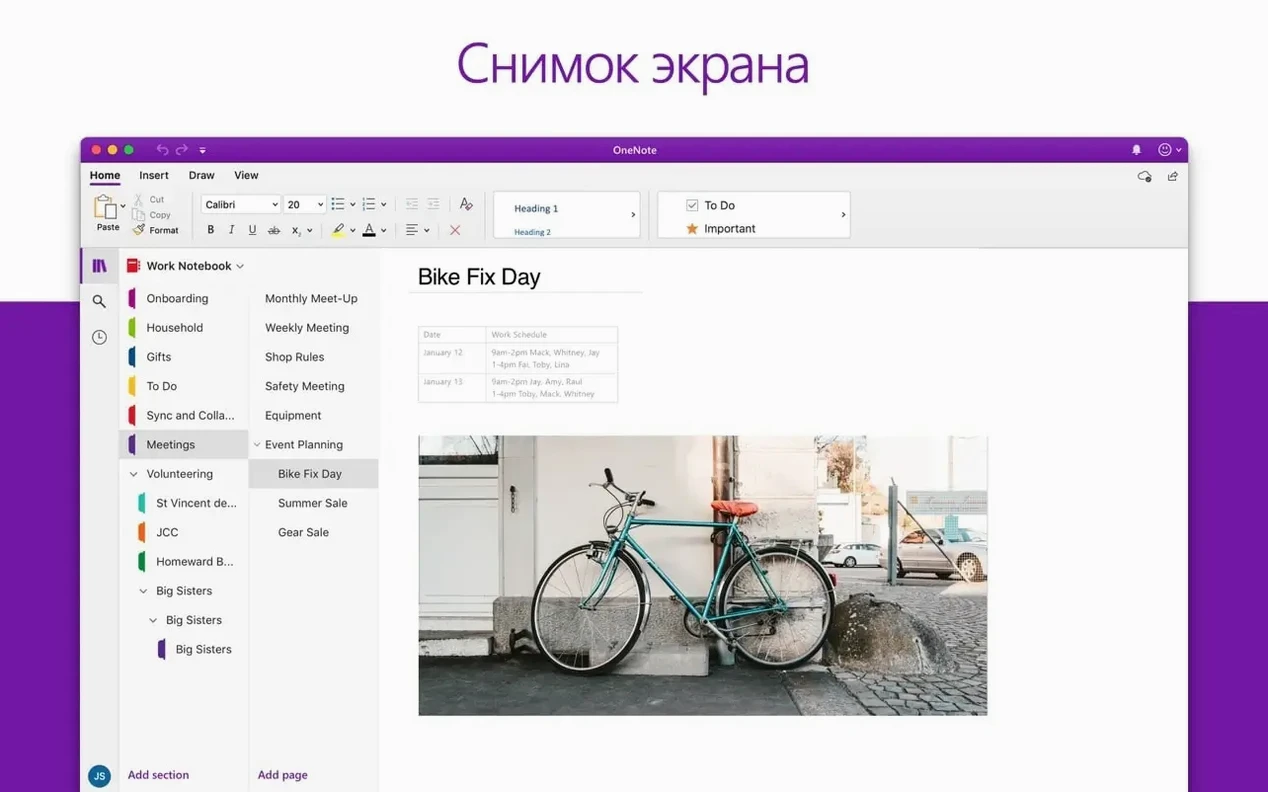
Students drafting essays, lawyers marking up contracts, writers shaping chapters — anyone whose day revolves around the written word eventually lands in Microsoft Word. It’s the heavy-lifting word processor, the one you open when a document needs proper structure, tracked changes, or a layout that won’t unravel between machines. The Mac version brings the same engine to macOS, sitting inside the Microsoft 365 family alongside Excel, PowerPoint and Outlook.
Predictable formatting holds up across hundreds of pages
- Long-form writing with serious formatting. Styles, automatic tables of contents, section breaks and multilevel numbering stay predictable across hundreds of pages — the kind of consistency that matters in a thesis or a business report.
- Collaboration with tracked changes. Comments, suggested edits and real-time co-authoring let multiple people work on the same document without stepping on each other’s sentences.
- Opening anything the office sends you. .doc, .docx, .rtf and .odt files open with their formatting intact, which spares you the “wrong font, missing margins” dance.
The ribbon’s density can slow first steps
- Word lives inside an ecosystem: you install it as part of the Office 2024 package, not as a standalone download.
- The interface is dense. Newcomers spend a while hunting for features tucked into the ribbon tabs.
- It expects macOS 13 or newer, so older Macs are left out.
Turn off automatic lists and show all formatting marks
Out of the box, Word makes a few assumptions about how you work. It assumes you want automatic bulleted lists, that you enjoy seeing pale-blue paragraph marks by default, and that your spelling checker should ignore words in uppercase. Changing half a dozen preferences before you start a serious document saves you from fighting the editor mid-flow.
First stop: AutoCorrect. Head into Tools → AutoCorrect Options and browse the “AutoFormat As You Type” tab. I turn off automatic numbered lists. Word guesses correctly about seventy percent of the time; the other thirty percent it numbers a line you never wanted numbered, and undoing it takes three clicks. Switch off “Automatic bulleted lists” while you’re there, unless you’re a heavy note-taker who genuinely uses them. The “AutoCorrect” tab itself is also worth pruning — remove any replacement you’ll never use, like the one that turns (c) into the copyright symbol every time you type a list in brackets.
Next, show invisibles but keep them subtle. Go to Word → Preferences → View and tick “Tab characters” and “Spaces”. You don’t need paragraph marks visible all the time — tap the ¶ button on the Home ribbon when you want them — but seeing tabs as little arrows and spaces as faint dots helps you spot inconsistent indentation without cluttering the screen. In the same panel, switch “Field shading” to “When selected”. That way, cross-references and table-of-contents fields don’t sit there looking like grey smudges on a printout, but you’ll still see their boundaries when you click inside one.
Third, the spelling and grammar defaults are worth a tweak. Under Tools → Spelling and Grammar, uncheck “Ignore words in UPPERCASE”. Acronyms are easy to mistype, and Word’s default leniency means a heading that reads “MANAGMENT SUMMARY” sails through unchecked. While you’re there, consider switching on “Check grammar with spelling” if it’s off, and set the writing style to “Grammar & Refinements” — it picks up wordiness, clichés and passive constructions that the simpler checker misses.
One last stop: file locations. Word defaults its local AutoRecover saves to a buried folder inside your user Library. Go to Word → Preferences → File Locations and set “AutoRecover files” to a folder you can actually find, like a “Word Recovery” folder in your Documents. If Word crashes — and on a hefty document with embedded images and tracked changes, it occasionally will — you want to locate that recovery file in seconds, not dig through ~/Library/Containers.
How Word for Mac compares with its neighbours
Word vs. Apple Pages
Pages is the obvious comparison because it ships free with every Mac. It’s lighter, prettier and far less cluttered. For a two-page letter, a recipe card or a school flyer with a photo and a drop cap, Pages feels effortless. Its template chooser is genuinely useful, and the way it handles images — placing, wrapping, masking — is more intuitive than Word’s sometimes baffling layout options.
But the moment you need a document to travel, Word pulls ahead. Pages exports to .docx, yet anyone who’s opened a Pages-exported .docx on a Windows machine knows the formatting lottery: line breaks shift, list indentation wanders, and custom fonts default to Calibri. Word’s .docx output is the reference implementation, so a Word document opened on another Mac, a PC or even the web version of Office looks the way you designed it. Tracked changes in Pages works for simple edits but becomes confusing when several people review the same file; Word’s revision pane and per-author colour coding handle multi-reviewer chaos far better. In short, Pages wins on grace; Word wins on gravity.
Word vs. LibreOffice Writer
LibreOffice Writer is the open-source alternative, and it’s remarkable how much it covers without asking for a subscription. Writer opens and saves .docx, .odt and .rtf, handles mail merge, and even manages a reasonable tracked-changes workflow. Its interface feels a decade older than Word’s, but it’s functional.
Where Writer stumbles is interoperability and polish. Complex Word documents — those with embedded Excel charts, SmartArt graphics or custom style sets — often arrive with elements repositioned or missing. The comment threading is less fluid, and real-time co-authoring simply isn’t there unless you pair it with a third-party cloud service. Writer also lacks an iOS counterpart that syncs cleanly; Word’s ecosystem spans Mac, iPad and iPhone with a consistent file format and near-identical rendering. If your documents are mostly text and you control the whole pipeline, Writer works. Once you start exchanging files with others who use Office, Word saves you hours of repair work.
Word vs. Google Docs (the browser-based rival)
Google Docs isn’t a Mac app in the traditional sense, but plenty of Mac users weigh it against Word because it runs in Chrome and costs nothing. Docs excels at simultaneous collaboration — seeing another person’s cursor move in real time, with edits appearing as they type, feels more alive than Word’s slightly delayed co-authoring. Sharing is a single link, version history is transparent, and there’s zero file-format anxiety because everything lives in the browser.
Word pushes back with depth. When a document needs a table of authorities, mail merge, cross-references that update on print, or a dozen custom paragraph styles, Docs hits its ceiling. Print layout in Docs is a rough approximation; Word’s pagination engine is precise down to the line, which matters for anything that will meet a printer. Offline access on a Mac is also more natural in a native app — you open Word, you work, it syncs later. Docs offline requires forethought and a Chrome extension. For quick, social writing, Docs wins. For documents that need to survive a corporate style guide or a book publisher’s submission process, Word is the safer bet.
Pressing Enter for spacing creates uneven gaps
Almost every Word newcomer on Mac makes the same handful of errors. They’re not obvious until someone points them out, because the software quietly lets you do things the hard way.
Pressing Enter to make space between paragraphs. It works visually, but it’s a formatting time bomb. The moment you change the font size, that extra paragraph mark creates an awkward gap. Set your paragraph spacing in the style instead — add six or twelve points of “After” spacing to the Normal style, and let the stylesheet control the breathing room. The same goes for page breaks: never hammer Enter until you land on a new page. Use Insert → Page Break or Cmd+Enter. The page will survive edits to the text above it.
Direct formatting instead of styles. Highlighting a heading and making it bold and 16pt feels faster than applying “Heading 1”, but it robs you of automatic tables of contents, the Navigation Pane, and the ability to restyle every heading in the document with a single edit. Styles are not an advanced feature — they’re the whole scaffolding. Learn five: Normal, Heading 1, Heading 2, Title, and Caption. That small investment pays back for years.
Ignoring the Navigation Pane. Many beginners scroll endlessly through a sixty-page document looking for Section 4. The Navigation Pane (View → Navigation Pane) lists every heading and lets you jump with a click. It also lets you drag sections to reorder them, which is surprisingly reliable even in heavily formatted documents.
Pasting from the web without cleaning up. Copying text from a browser brings along invisible formatting: odd fonts, hyperlink colours, background shading. Use Edit → Paste Special → Unformatted Text or, better, the little clipboard icon that appears after pasting, and choose “Keep Text Only”. Word then inherits the formatting of the surrounding paragraph.
Not setting the proofing language. A document written in British English with the proofing language still set to US English will underline “colour” and “catalogue” as errors. Select all text (Cmd+A), then Tools → Language, and pick your regional flavour. Do this before you send the file to someone else, because the red underlines make you look careless.
How Word fits with other apps and macOS features
Word on a Mac is not an island. It cooperates with the broader Office suite, Apple’s own apps, and macOS itself in ways that smooth out daily workflows.
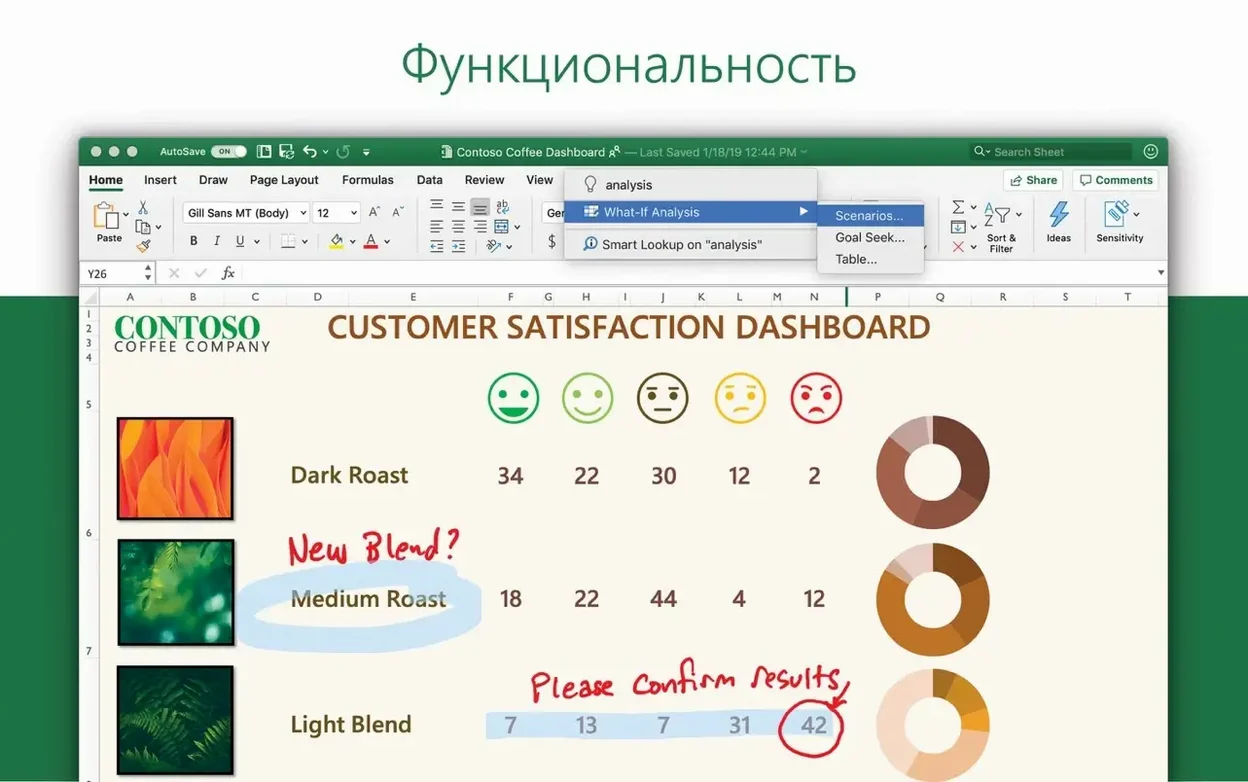
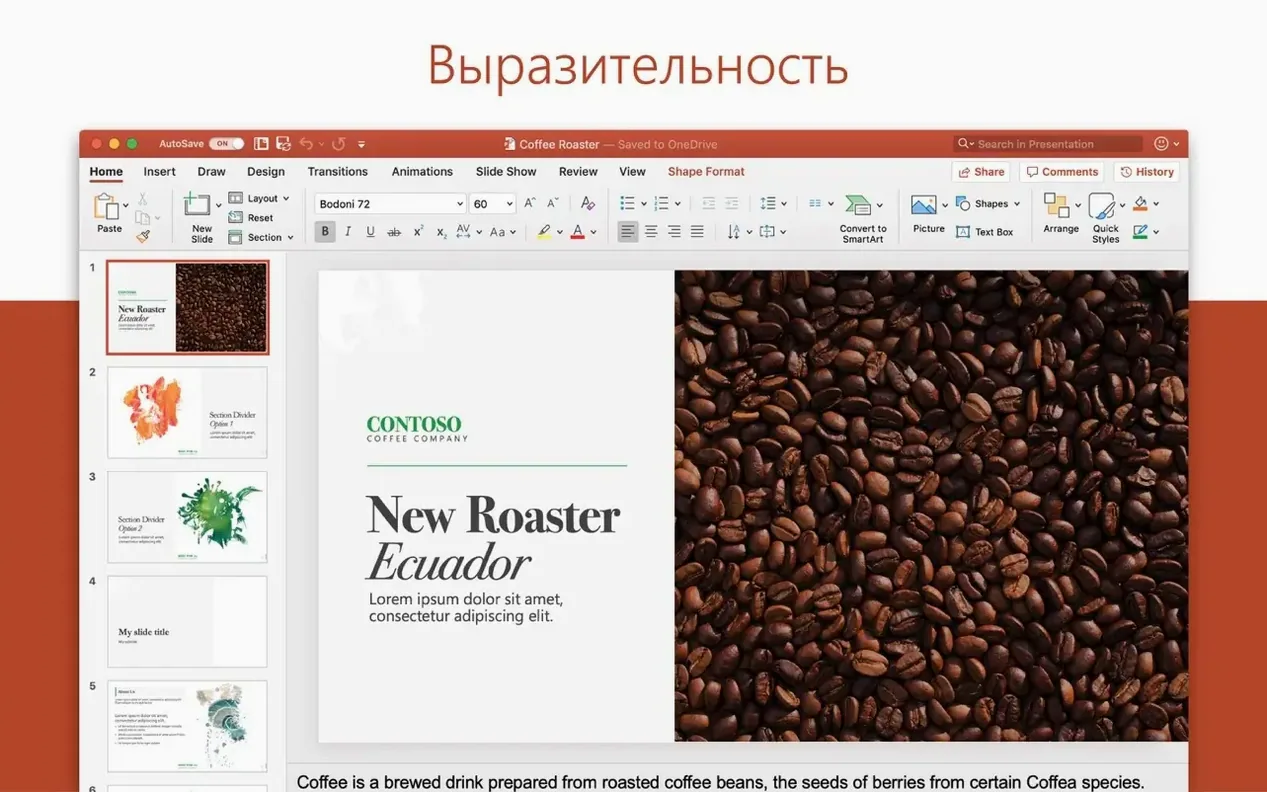
Excel and PowerPoint integration. Copy a chart from Excel, paste it into Word, and you get a choice: embed it as a static picture or link it so the chart updates when the spreadsheet changes. The Mac version handles linked objects cleanly, and the chart’s source data stays in Excel where it belongs. When a report needs both financial tables and a narrative section, building the tables in Excel and the prose in Word keeps each tool in its comfort zone. PowerPoint also borrows from Word’s outline view — export a structured .docx as a PowerPoint deck via File → Send to PowerPoint (available in some Office configurations) and each Heading 1 becomes a slide title.
Outlook and email workflows. Word can act as your email editor if you use the desktop Outlook app. More practically, you can send any open document as an attachment directly from Word via File → Share → Send as Attachment, which hands the file to the Mac’s default mail client. For users who receive .docx files as email attachments, Word’s “Open in Word” option preserves layout better than Preview’s rendering, which occasionally mangles tables and embedded graphics.
macOS sharing and continuity. Word shows up in the Mac’s Share menu, so you can send a document via Messages or AirDrop without digging through Finder. The Handoff feature lets you start a paragraph on your Mac, stand up, and resume on an iPad or iPhone where Word is installed — the document appears as a Dock icon on the second device. iCloud Drive works as a save location, but for collaborative documents you’re better off with OneDrive or SharePoint, because Word’s real-time co-authoring and version history rely on Microsoft’s cloud backend.
Finder Quick Actions and Spotlight. Select a .docx file in Finder, tap the spacebar, and Quick Look shows a clean preview of the document — enough to check whether it’s the right version. Spotlight indexes the full text of Word documents by default, so searching for a phrase inside a lost file works from the menu bar without opening Word at all. This is one of those integrations that sits quietly in the background until you need to find “invoice 2473” from six months ago.
Automator and Shortcuts. The Mac version of Word exposes a decent set of AppleScript commands, which means Automator and the newer Shortcuts app can batch-process documents. A simple workflow can convert a folder of .docx files to PDF, apply a standard template, or extract all comments into a text file. For a publishing workflow where dozens of manuscripts arrive in Word format, this kind of automation is genuinely useful.
Shift+F5 jumps back to your last edit across documents
Word’s ribbon is a billboard; its most useful features are often tucked into right-clicks and key combinations that the interface never advertises.
Shift+F5 jumps to the last place you edited, even if that place is in another document you closed and reopened. For long editing sessions, this single shortcut replaces minutes of scrolling.
The spike is a multi-item clipboard that predates the modern copy-paste system. Select some text, press Cmd+F3, and Word cuts it to the spike. Repeat for several chunks from different parts of the document. When you press Cmd+Shift+F3, Word pastes everything from the spike in order, each item separated by a paragraph mark. It’s perfect for assembling a summary from scattered paragraphs.
Focus mode (View → Focus) strips away the ribbon, the toolbar, and every other distraction, leaving just your text on a neutral background. It’s not the same as macOS full-screen — the menu bar disappears and the page centres itself in a calm, paper-like frame. For a first draft, it’s surprisingly effective.
Tell Me is the search box on the right of the ribbon (or accessible via Cmd+Option+Space). Type “two columns” or “watermark” and it offers the relevant command immediately. It’s the fastest route to features you know exist but can’t locate among the tabs.
Read Aloud (on the Review tab) uses macOS speech synthesis to read your document back to you. Hearing your own prose catches rhythm problems and duplicated words that the eye skims over. The voice quality varies by macOS version, but even the standard voices are clear enough for proof-listening.
Format Painter is well-known, but many users miss its double-click ability. Double-click the paintbrush icon and Word keeps the painter active until you press Escape, letting you apply the same formatting to multiple scattered paragraphs without returning to the source each time.
Custom keyboard shortcuts are simpler to create than people assume. Go to Tools → Customize Keyboard, find any command — even obscure ones like “Distribute Rows Evenly” in a table — and assign a shortcut. Word remembers these per-user, so they survive updates and even carry over to other Macs if you migrate your preferences.
One final detail: holding the Option key while dragging a selection in Word copies the text to the new position rather than moving it. It’s a tiny thing, consistent with Finder’s behaviour, yet plenty of users never discover it because they expect drag-and-drop to always copy — in Word, it moves by default. Option reverses that.
Version 16.93, released mid-January 2025, tidies up a handful of rough edges rather than adding new tools.
- General quality and performance refinements keep the app snappy during long editing sessions.
- A fix for equation editing — previously, tweaking an equation could refuse to apply your changes, which was particularly frustrating in scientific documents.
- macOS 13 (Ventura) or later
- Apple Silicon or Intel processor
Questions I keep hearing
Does Word for Mac support real-time collaboration?
Yes. Comments, tracked changes and co-authoring let several people work on the same document.
What changed in version 16.93?
It is a quality and performance update, and it fixes an issue where editing equations might not work as expected.
Questions from the class 0
Sign in or join the class to ask a question.
Nobody has asked anything yet. If you have used it on a real job, say what the file did.
Also on the Office shelf
The whole Office shelf Microsoft PowerPoint
Builds slide decks for talks and presentations.
Microsoft PowerPoint
Builds slide decks for talks and presentations.
 Microsoft Outlook
Manages your email, calendars and contacts in one place.
Microsoft Outlook
Manages your email, calendars and contacts in one place.
 Microsoft Office
Brings together the core apps for documents, spreadsheets and email.
Microsoft Office
Brings together the core apps for documents, spreadsheets and email.
 Microsoft Excel
Organises numbers and data into spreadsheets for analysis and charts.
Microsoft Excel
Organises numbers and data into spreadsheets for analysis and charts.
 Money Pro
Tracks personal finances, budgets, and bills across all your accounts in one place.
Money Pro
Tracks personal finances, budgets, and bills across all your accounts in one place.
 Nitro PDF Pro
Lets you edit text, swap images, and sign documents right inside a PDF without converting it first.
Nitro PDF Pro
Lets you edit text, swap images, and sign documents right inside a PDF without converting it first.
 Notebooks
Holds all your writing, notes, and task lists inside a single personal organiser that also handles PDFs.
Notebooks
Holds all your writing, notes, and task lists inside a single personal organiser that also handles PDFs.
 Numbers Creator Studio
Builds spreadsheets, charts, and pivot tables with Apple’s clean, collaborative workbook environment.
Numbers Creator Studio
Builds spreadsheets, charts, and pivot tables with Apple’s clean, collaborative workbook environment.