 ASPNetWorld

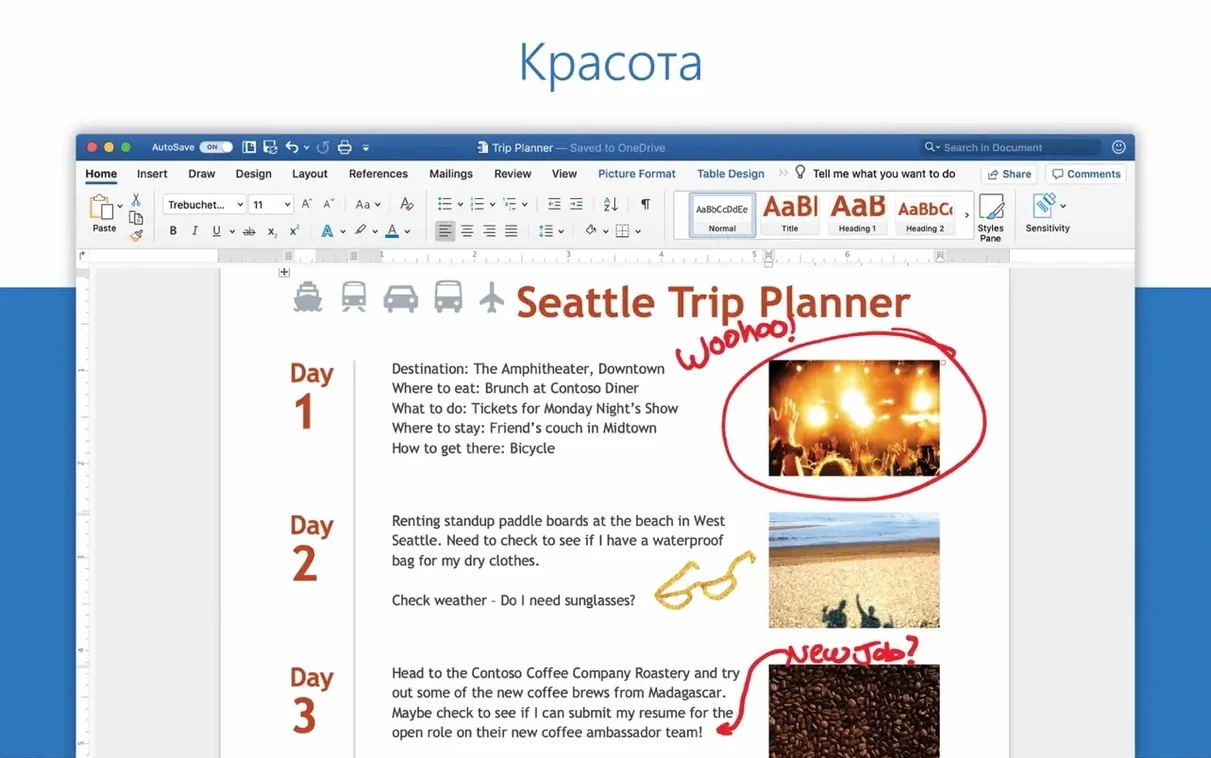
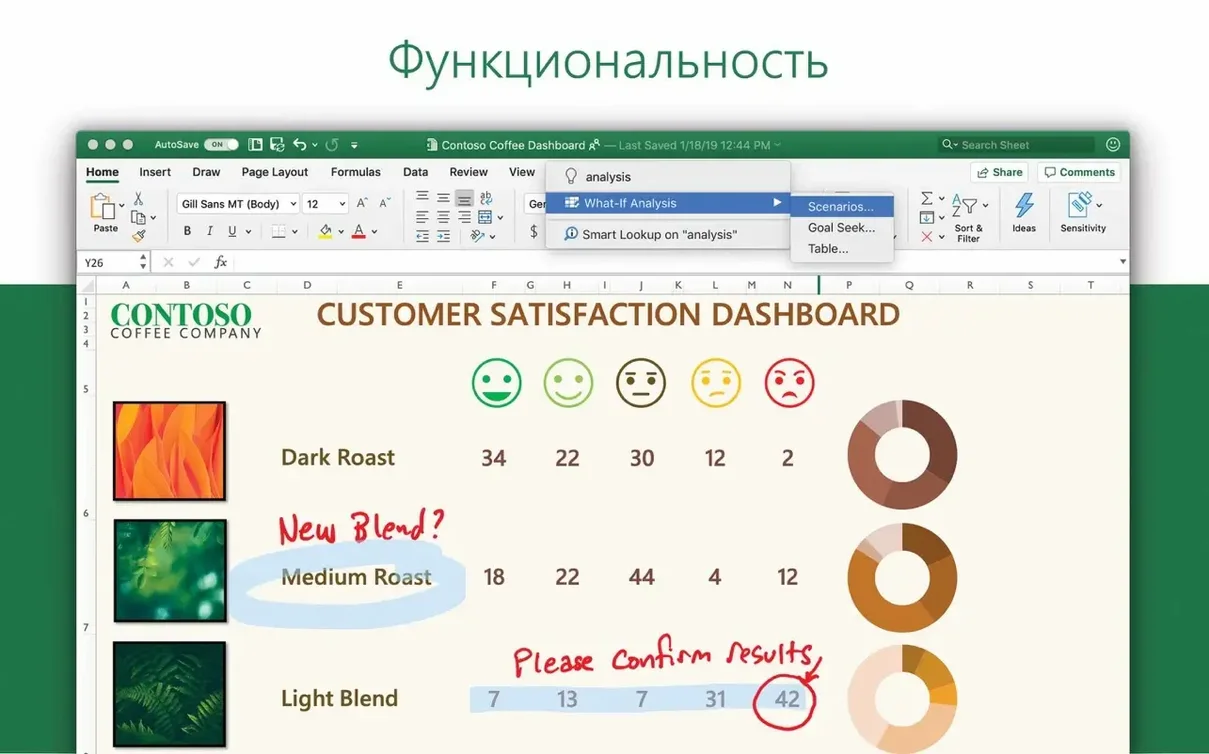
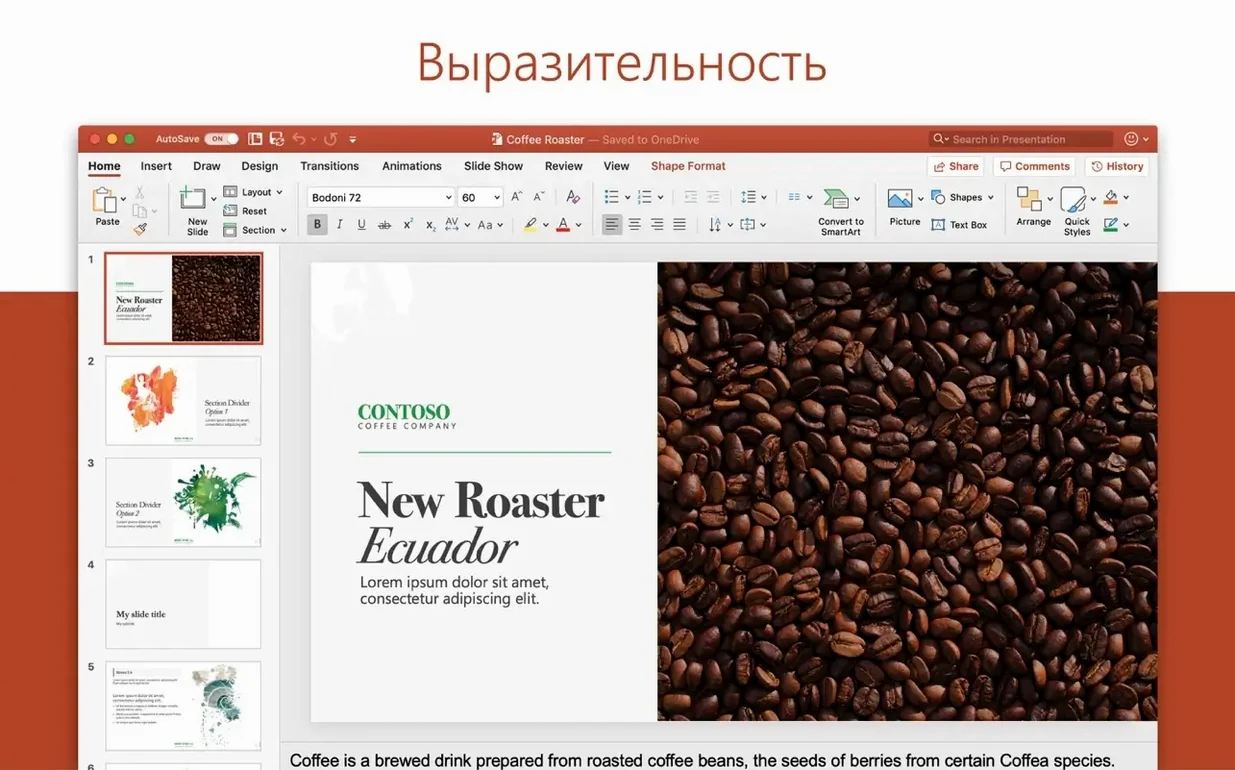
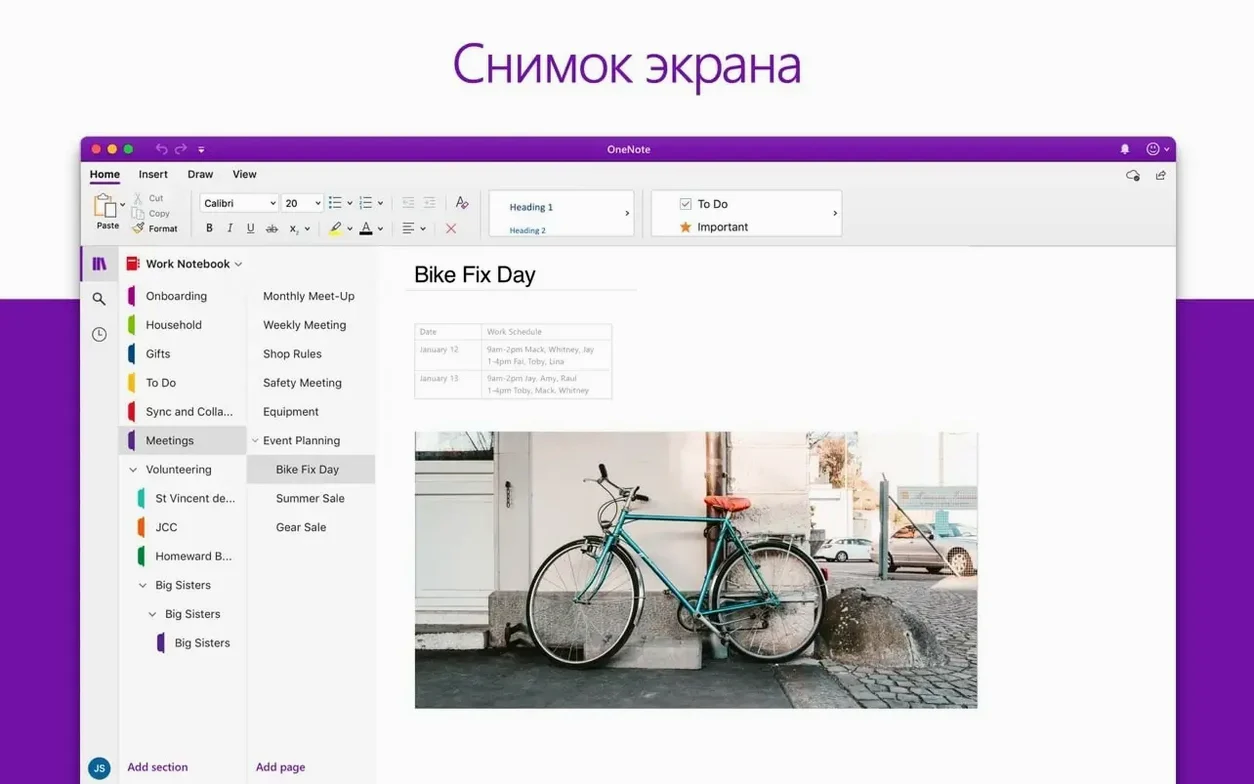
Outlook for Mac arrives as part of Office LTSC Standard for Mac 2024, sitting alongside Word, Excel, PowerPoint, OneNote, and OneDrive. It runs natively on both Apple Silicon and Intel machines, and Microsoft has made macOS integration a priority — the most visible example being support for Profiles, which lets you keep a work identity and a personal identity in the same app without mixing settings.
Schedule a meeting without leaving an email
Because the calendar and inbox live inside the same window, you can turn an email thread into a calendar event with a couple of clicks. The app pulls in your saved contacts and any shared calendars already set up in your Mac’s accounts, so the invitation fields populate quickly.
Share a document from Word or Excel
A recent fix improves sharing content from other Office applications straight into an Outlook message. Practically, that means you can send a draft from Word as an attachment without saving it to the desktop first, which keeps the workflow inside the suite.
Switch contexts with macOS Profiles
The Profiles feature hooks into macOS account separation. You might have one profile that bundles a work email, a work calendar, and a focused set of notifications, and another that shows only your personal mail — toggling between them changes what Outlook displays without signing in and out.
Set your default font and turn off email grouping upfront
The default setup works, but a few tweaks make the app feel less like a generic mail client and more like yours. Open Outlook > Settings (or press ⌘,) and scan the panes in the left column — the ones that repay attention aren't always the obvious ones.
First stop: Reading. Outlook's default is to mark a message as read the moment you click it. If you skim an inbox by tapping the down arrow, you'll leave a trail of false reads behind you. Switch the behaviour to mark as read only when opened in a separate window, or add a short delay. While you're there, check Automatically download pictures — turning it off speeds up rendering and gives you one more click before a sender learns you opened their mail.
Under Composing, set your default font and signature. Outlook for Mac respects the same signature editor that Office users know from Word, so you can drop in a styled block with a logo and have it appear automatically on new messages and replies. The tick box for automatically include my signature on messages I forward is off by default, and that's usually the right call.
The Notifications pane deserves a considered minute. Outlook can ping you for every message, or only for messages from people in your contacts. If you get a lot of automated mail — build notifications, CI alerts, forum digests — restricting alerts to known senders stops the app feeling like an anxiety machine. On a similar note, the Ignore button in the ribbon removes an entire thread from your inbox and sends future replies straight to the deleted items; it's the quietest way to escape a thread that's outlived your involvement.
Type 'tomorrow' or 'next Tuesday' straight into any date field
Some of the best features don't announce themselves with a menu item. Natural-language date entry has been in Outlook for a while, but many people still reach for the calendar picker. Click into a date field — a task deadline, a meeting reminder — and type next Thursday or 15 March. Outlook parses it and fills the field. The same parser works in the search box: emails from Sarah last Monday narrows the results faster than constructing a filter by hand.
The pin icon next to any message in the inbox keeps it at the top of the list regardless of sort order. It's more subtle than flagging and better suited to holding a hotel confirmation or a meeting link where the action is "look at this again in three days" rather than "reply by tonight". Pinned items sync across devices if you're using a Microsoft 365 or Outlook.com account.
In the calendar pane, Time Zone controls sit inside the meeting window, but the smarter shortcut is to add a second time zone to the week view. Open Outlook > Settings > Calendar and label it — "Melbourne", "UTC", whatever you need — and a slim second column runs alongside the main grid. If you schedule calls across borders, that thin strip replaces half a dozen mental conversions.
Right-clicking the dock icon reveals a mini-menu: New Message, New Event, and a count of unread items. If you keep Outlook running but out of sight, that's often faster than switching to the full window. And for anyone who lives in search, ⌥⌘F jumps straight to the search field no matter where you are in the app.
Managing three calendars and a dean's inbox from a MacBook Air
Picture someone who manages course timetables, fields queries from lecturers, and keeps a dean's diary in order — all from a MacBook Air that moves between an open-plan office and home. In the morning, they open Outlook to find three threads about room changes, each with a different urgency. They drag the first message to the calendar icon in the sidebar; Outlook creates a draft meeting with the email body as the note. Fifteen seconds later, they've added the room as a resource, checked availability, and hit send. The second thread is a long chain they've been copied on for politeness rather than action — they click Ignore and it vanishes. The third gets a flag for Friday, with a reminder set for Thursday afternoon, because that's when the timetable data becomes final.
Midday, they switch to a personal profile to check a dentist appointment confirmation. The work inbox, with its unread badge and notification rules, stays silent behind the profile boundary. After lunch, a lecturer stops by and asks for a copy of a course handbook that was emailed three weeks ago. Our administrator types handbook from Chris has attachment into the search box, and Outlook returns the exact message in under a second — the attachment preview lets them forward it without opening the file.
The scenario isn't glamorous, but it illustrates what Outlook for Mac gets right: it rewards people who stay in one place. The fewer times you switch to a browser or a separate calendar app, the less friction accumulates across a working day. And when you download Outlook for Mac as part of the Office suite, that integration extends outward — a timetable draft in Excel can be shared to a meeting request without a detour through Finder.
The early-2025 updates that calmed sync and search complaints
The 16.93 line, which arrived in early 2025, didn't rewrite the interface, but it did address several friction points that had been nagging regular users. The January releases — 16.93.1 on the 21st and 16.93.2 on the 28th — tightened the sharing behaviour between Office apps. Before the fix, sending a document from Word or Excel to an Outlook message occasionally failed if the source app hadn't been saved locally first; now the handoff handles temporary files more gracefully, so you're not left staring at an empty attachment field.
Apple's own listing notes a macOS 14.0 minimum, which suggests version 16.93 uses frameworks that weren't available in macOS 13, even though the Office suite officially supports the older OS. In practical terms, if you're running macOS 14 or 15, you may notice smoother window resizing and quicker sync when waking a Mac from sleep — small improvements that add up if you're the kind of person who opens the lid and wants the inbox ready before the coffee's poured. The ARM-native build continues to feel snappier than the Intel version on Apple Silicon machines, a gap that's been widening since the M1 days and shows no sign of closing.
Outlook was refreshed as part of the Office suite release 16.93, with a pair of stability updates following within the same month.
- January 21, 2025 — update 16.93.1 included Outlook alongside the rest of the suite.
- January 28, 2025 — update 16.93.2 brought a further round of fixes for the same applications.
- macOS 13 or later
- Works on both Apple Silicon and Intel Macs
Questions I keep hearing
Can I install Outlook on its own, or do I need the whole Office suite?
You can download the Outlook package separately using the provided links, though it requires activation like the rest of the suite.
Does Outlook for Mac work natively on Apple Silicon?
Yes, it is a native macOS app that runs on both Apple Silicon and Intel processors.
Questions from the class 0
Sign in or join the class to ask a question.
Nobody has asked anything yet. If you have used it on a real job, say what the file did.
Also on the Office shelf
The whole Office shelf Microsoft Office
Brings together the core apps for documents, spreadsheets and email.
Microsoft Office
Brings together the core apps for documents, spreadsheets and email.
 Microsoft PowerPoint
Builds slide decks for talks and presentations.
Microsoft PowerPoint
Builds slide decks for talks and presentations.
 Microsoft Excel
Organises numbers and data into spreadsheets for analysis and charts.
Microsoft Excel
Organises numbers and data into spreadsheets for analysis and charts.
 Microsoft Word
Writes and formats long documents with styles and tracked changes.
Microsoft Word
Writes and formats long documents with styles and tracked changes.
 Money Pro
Tracks personal finances, budgets, and bills across all your accounts in one place.
Money Pro
Tracks personal finances, budgets, and bills across all your accounts in one place.
 Nitro PDF Pro
Lets you edit text, swap images, and sign documents right inside a PDF without converting it first.
Nitro PDF Pro
Lets you edit text, swap images, and sign documents right inside a PDF without converting it first.
 Notebooks
Holds all your writing, notes, and task lists inside a single personal organiser that also handles PDFs.
Notebooks
Holds all your writing, notes, and task lists inside a single personal organiser that also handles PDFs.
 Numbers Creator Studio
Builds spreadsheets, charts, and pivot tables with Apple’s clean, collaborative workbook environment.
Numbers Creator Studio
Builds spreadsheets, charts, and pivot tables with Apple’s clean, collaborative workbook environment.