 ASPNetWorld

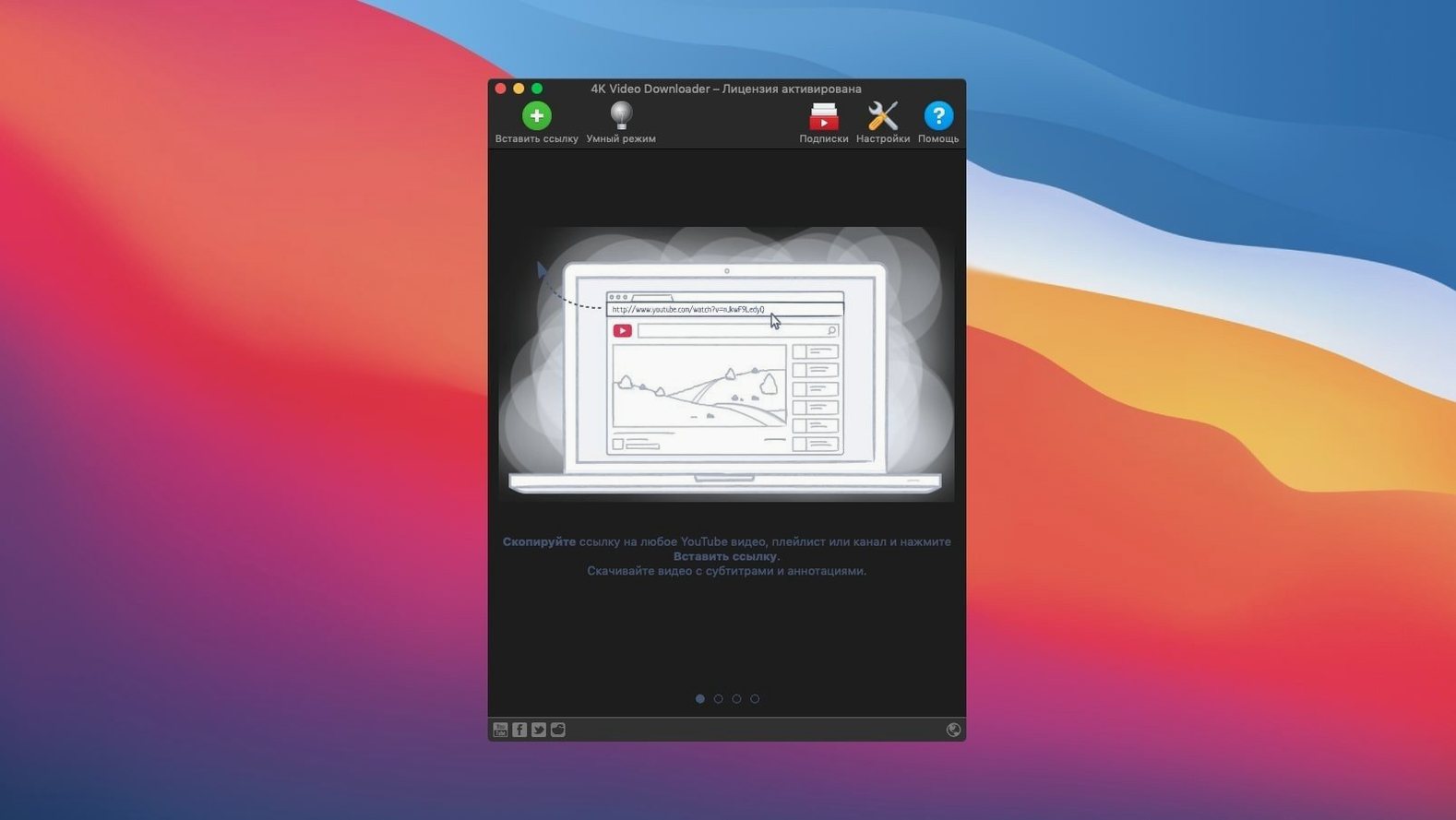
If you have ever used a download manager like Folx or JDownloader, the core idea behind 4K Video Downloader will feel familiar. It sits on your Mac and handles the fetching, parsing, and saving of media so you do not have to fiddle with browser extensions or terminal tools. Let us walk through what actually happens, step by step.
The download workflow
- Copy the video link. This is the same action you would perform for any clipboard-based tool. The app watches for compatible URLs from YouTube and other supported sites.
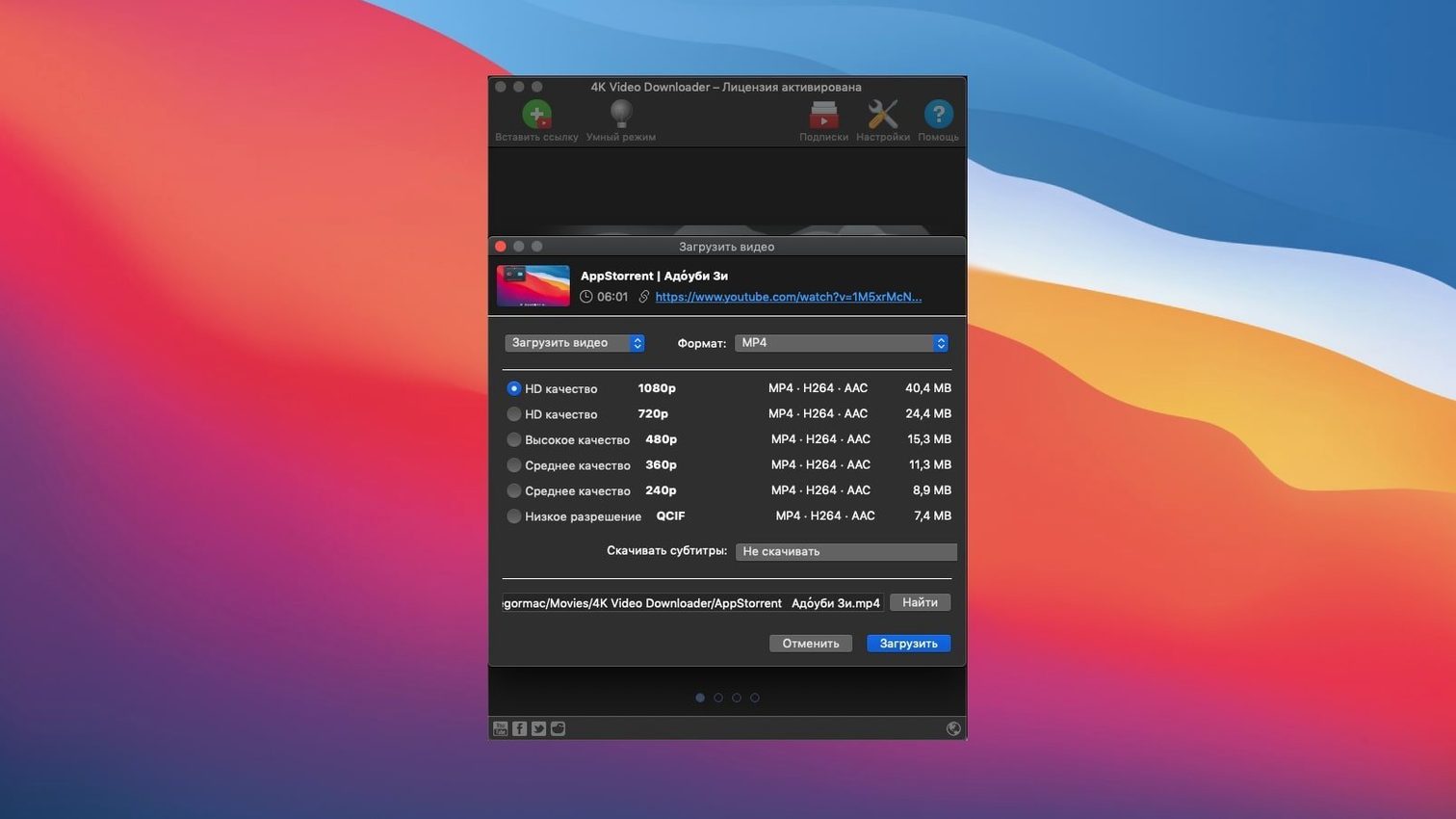
- Choose your format. A dialogue appears letting you pick MP4, MKV, M4A, MP3, FLV or 3G output. You can also grab embedded subtitles or pull audio-only versions.
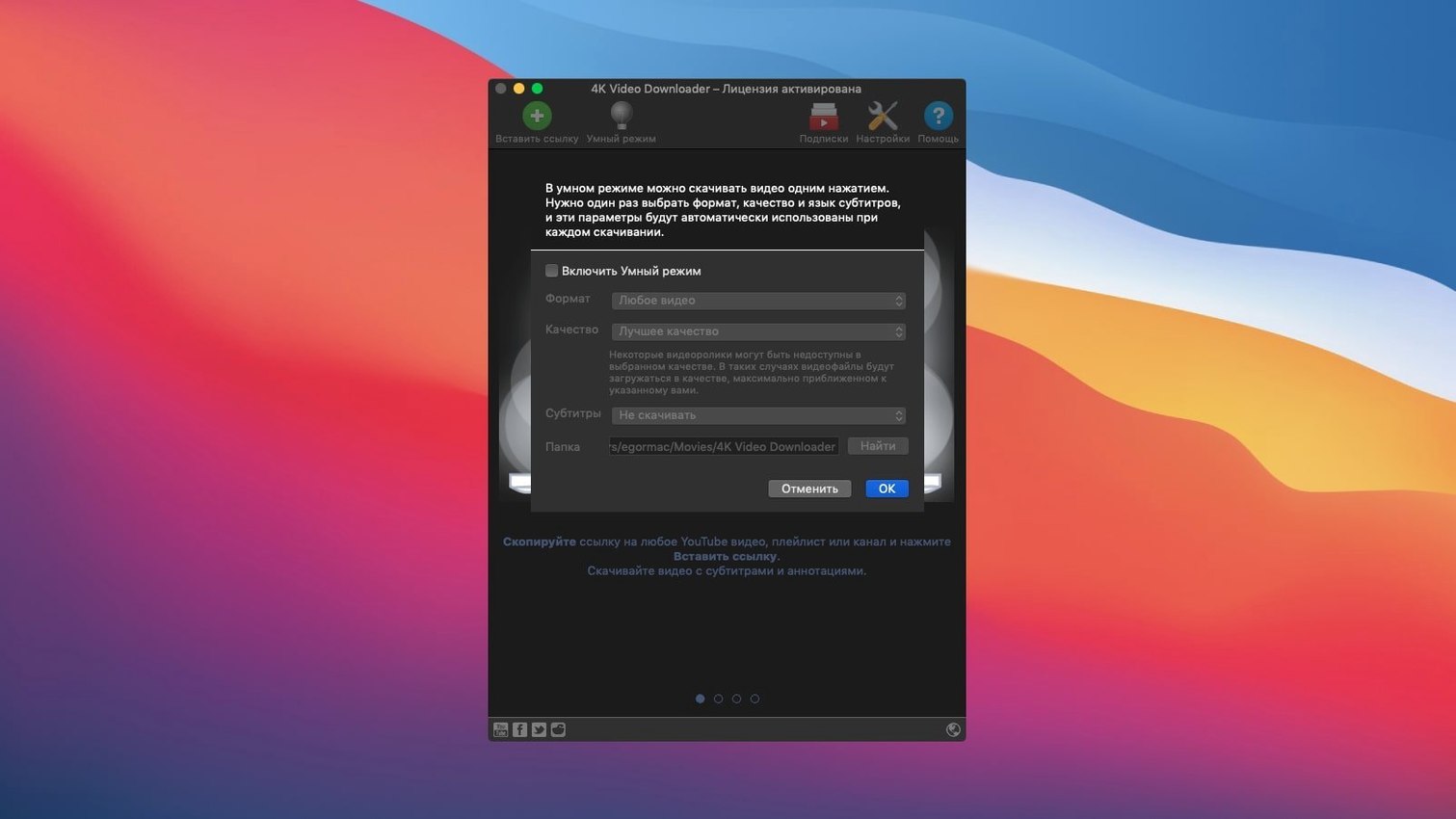
- Set a quality preset with Smart Mode. Think of Smart Mode as a template. You toggle it on, select your preferred resolution — 1080p, 4K, or a smaller file size — and every subsequent download follows those rules without asking again.
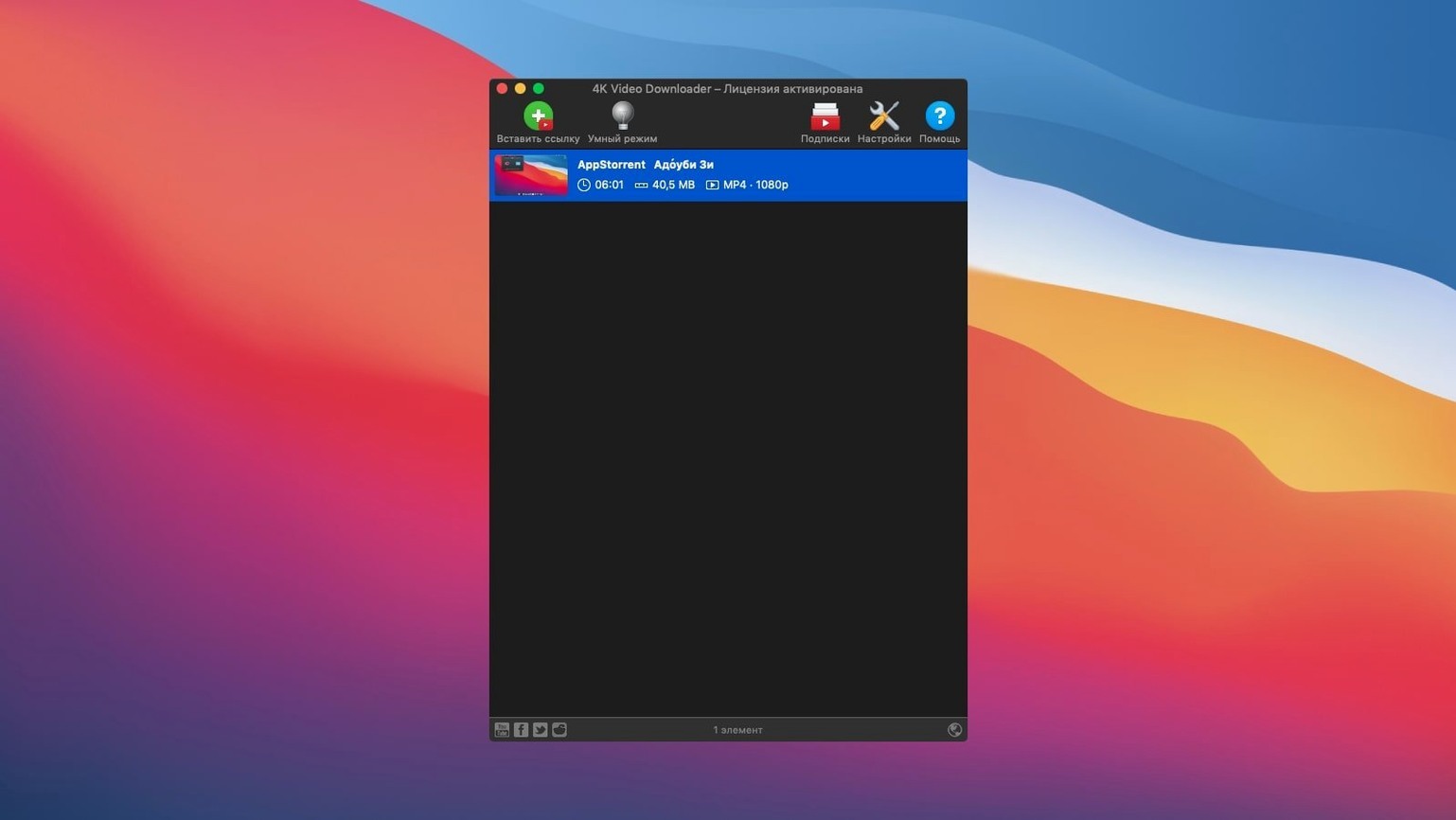
- Parse and save. The app processes the link, downloads the media, and writes it to your chosen folder.
What the Plus edition adds
The Plus edition is the current member of the 4K Video Downloader family. Alongside ordinary videos it can save 3D video and pull embedded YouTube clips out of ordinary web pages, which is handy when a blog post or course page wraps the video in its own layout. Subtitles come down with the video if you ask for them, so a foreign-language lecture arrives ready to watch.
First days: a handful of settings worth changing right away
The out-of-the-box behaviour is sensible enough, but a few tweaks make the first week smoother. Head into the Preferences pane — it is the gear icon on the toolbar — and deal with these three things before you queue up anything serious.
Pick a download folder you can find without hunting. The default lands in a 4K Video Downloader folder inside your Movies directory. That works, but if you keep a dedicated media drive or a synced folder for offline viewing, point the app there now. A minute spent here saves a dozen trips to Finder later.
Set the subfolder pattern for playlists. By default, every playlist dumps its files into one flat directory. Tick the box labelled “Create a subfolder for each playlist” and the app keeps things tidy. Open a channel with forty videos and you will thank yourself when you see forty neatly named folders instead of a single scrolling mess.
Decide what Smart Mode actually remembers. Smart Mode is the most useful feature nobody reads about before toggling it. Open its settings and lock in your preferred format, quality, and subtitle handling. If you mostly pull MP3 audio for a podcast backlog, tell it now — otherwise every YouTube link will default to MP4 720p and you will be changing it manually a dozen times a day.
Memory sits around 150–180 MB while a queue runs
On an Intel Mac running macOS 12 Monterey, 4K Video Downloader sits lightly in the background. Memory use hovers around 150–180 MB with a moderate queue running, and the CPU graph barely twitches while a single video parses. The real work happens during the actual download, and even then it rarely pushes a single core above twenty per cent. If you have ever watched a browser tab eat half a gigabyte just to buffer a YouTube page, the difference is stark.
Parsing a playlist is where the app shows its character. A channel with three hundred videos takes roughly twenty to thirty seconds to scan fully — not instant, but the progress bar moves with a steady rhythm and you can carry on copying other links while it works. The queue system never stutters; you can dump a link, a ten-video playlist, and a single MP3 request into the list and they will process in order without protest.
Stability has been uneventful in the best sense. Across a week of pulling forty or fifty videos daily, the app did not beachball once. Downloads that failed because a site changed its delivery URL simply appeared with a “Failed” marker in the queue, and a right-click lets you retry without re-entering anything. If your Mac goes to sleep mid-download, the queue pauses cleanly and resumes when you wake the machine. No corrupted files, no half-written MP4s that refuse to play.
The one resource note worth flagging: downloading video at 4K resolution writes a fair amount of data to disk in a short burst. If you are working on an older Mac with a spinning hard drive, queuing twenty 4K files back-to-back will make other apps feel sluggish during the write phase. An external SSD or a modern internal drive handles it without breaking stride.
Straightforward fixes when a link won’t parse
No piece of software that relies on parsing third-party websites is entirely frictionless. The good news is that most snags with 4K Video Downloader have straightforward fixes, and the community around the app has documented them thoroughly.
The “Cannot parse link” error. This is the most frequent complaint, and nine times out of ten it means the URL you copied is incomplete or points to a page the app does not yet support. YouTube Shorts links, for instance, sometimes come through with extra tracking parameters. Strip everything after the video ID — the bit that looks like dQw4w9WgXcQ — and paste again. If the page genuinely is not supported, the clipboard parser is honest about it rather than pretending to work.
Subtitles not appearing. The app can grab subtitles in two ways: as a separate SRT file or embedded in the video container. If you ticked “Embed subtitles” and they are missing in QuickTime, the issue is almost always the container format. MKV embeds them natively; MP4 support depends on the subtitle codec. Switch to downloading subtitles as a separate SRT file and drag it into a player like IINA or VLC, where it will display properly every time.
Download speed dropping after a few videos. Some streaming platforms throttle aggressive downloaders. The app is not doing anything wrong — it is simply hitting rate limits that exist to protect the server. Pause the queue for five minutes and resume. If the problem persists, reduce the number of simultaneous downloads to one in Preferences. Slower and steadier often finishes the job faster than hammering a server and getting throttled.
Gatekeeper blocking the app after an update. Since the Intel build is distributed outside the App Store, macOS may throw up the familiar “cannot be opened” dialogue. The fix is the same as the initial install: open Terminal, type xattr -cr followed by a space, drag the app icon into the Terminal window to fill in the path, and press Return. Launch it once from Applications and macOS remembers the decision.
Playlist parsing that seems to hang. Very large playlists — north of five hundred videos — can take a minute or more to enumerate. The progress bar sometimes appears to freeze at the end of the scan. Give it thirty seconds; the app is writing the list of discovered links into the queue and will finish without intervention. If it genuinely stalls for several minutes, quitting and restarting the app and pasting the playlist link again resolves it.
Grabbing a documentary series, playlist, and soundtrack in one afternoon
Here is how a working afternoon with 4K Video Downloader actually unfolds. Imagine you have just found a documentary series on YouTube — six episodes, plus a behind-the-scenes playlist, plus the soundtrack as a separate upload. You want everything on your Mac before a long flight the next morning.
1. Set up Smart Mode for the job. You open the app and toggle Smart Mode on. For this session you choose MKV at 1080p, with subtitles embedded. The documentary has soft-coded English captions and you want them baked into the file so they survive the trip to an iPad that does not handle separate SRT files gracefully.
2. Grab the main playlist. You copy the playlist link from your browser. The moment you click back into 4K Video Downloader, the app detects the clipboard contents and offers a “Download Playlist” button. You click it. A small dialogue asks whether you want the whole playlist or a range of videos. You take all six. The queue populates instantly, each video showing a thumbnail, title and estimated file size.
3. Add the audio rip while the queue runs. You remember the soundtrack upload. You copy that link, but this time you want MP3 only. You toggle Smart Mode off temporarily — it takes one click — and select “Extract Audio” from the format picker, choosing MP3 at 256 kbps. Paste the link, click download, toggle Smart Mode back on. The MP3 job slots into the queue after the videos already running.
4. Pull the behind-the-scenes extras. The second playlist is smaller — four short clips. You paste the link, choose MKV 1080p, and let it join the queue. The app is now processing three separate requests: a six-video playlist, a single audio extraction, and a four-video playlist. The queue window shows every item with a status badge — downloading, processing, or complete — and the overall progress sits in the corner of the window.
5. Check a finished file. The first episode completes in about two minutes on a decent broadband connection. You right-click the completed item and choose “Show in Finder.” The MKV file opens in your default player. Subtitles are embedded and synced. You scrub through a few timestamps to confirm everything rendered correctly, then close the player and let the queue carry on.
6. Let the queue drain. The remaining episodes process without intervention. The audio extraction finishes last because the queue processes items in the order they were added, and the MP3 request came in after the first playlist. Total time from pasting the first link to having everything on disk: roughly eighteen minutes. The app sits idle, the queue window empty, and the download folder contains neatly named folders for each playlist plus the lone MP3 file.
The session leaves no browser tabs open, no half-loaded video buffers hogging memory, and no risk of a page refresh wiping your place. Everything lives on local storage, playable in whatever app you prefer.
A few workflow tips that stick
After the first few days, you develop small habits that make the app feel like a natural part of the desktop rather than a tool you have to think about.
Use the clipboard watcher selectively. The app can monitor the clipboard constantly, but if you copy URLs throughout the day for other reasons, the pop-up dialogue becomes a nuisance. Disable the automatic watcher in Preferences and rely on the “Paste URL” button in the toolbar instead. One extra click, but far fewer interruptions when you are copying text for a document or an email.
Name your downloads on the way in. When you paste a single video link, the dialogue includes an editable filename field. Take the two seconds to type something meaningful — “Interview with Sarah” rather than the auto-filled video title that might be forty characters of keyword stuffing. Searchable file names are a gift to your future self.
Keep an eye on the format list. Not every resolution is available for every video. A clip uploaded at 720p will not offer a 1080p or 4K option, and the app does not upsample. The format picker shows only what the source actually provides, so if 4K is missing, the uploader simply did not supply it.
Smart Mode is per-session, not permanent. One common point of confusion: Smart Mode stays toggled until you turn it off. If you set it for 4K video on Tuesday and come back Wednesday wanting a quick MP3 grab, you will accidentally download a multi-gigabyte video unless you switch it off first. The toggle sits prominently on the main window for exactly this reason — glance at it before every new session.
- macOS 12 or later
- Intel 64-bit processor
Questions I keep hearing
What is the "Plus" in the name?
4K Video Downloader Plus is the current edition in the 4K Video Downloader family; it covers video, audio and subtitle downloads, 3D video and embedded YouTube clips on ordinary web pages.
What does Smart Mode do?
It stores your preferred format and quality once and then applies those settings to every new download, so you are not asked the same questions each time.
Questions from the class 0
Sign in or join the class to ask a question.
Nobody has asked anything yet. If you have used it on a real job, say what the file did.
Also on the Video Downloaders shelf
The whole Video Downloaders shelf 4K YouTube to MP3
Strips the audio from an online clip and saves it locally.
4K YouTube to MP3
Strips the audio from an online clip and saves it locally.
 AmpliTube
Models guitar amps and cabs for crafting your own virtual rig tones.
AmpliTube
Models guitar amps and cabs for crafting your own virtual rig tones.
 Downie
Grabs a video file from almost any website when you paste its link.
Downie
Grabs a video file from almost any website when you paste its link.
 Folx Pro
Manages all your downloads and torrents in one queue.
Folx Pro
Manages all your downloads and torrents in one queue.
 HarborDrop
Takes over downloading so you control exactly how files arrive on your Mac.
HarborDrop
Takes over downloading so you control exactly how files arrive on your Mac.
 iDownerGo
Grabs the media stream the moment you press play on a supported site.
iDownerGo
Grabs the media stream the moment you press play on a supported site.
 iTubeGo
Grabs online video and audio and saves it to your Mac in a format you choose.
iTubeGo
Grabs online video and audio and saves it to your Mac in a format you choose.
 Musify
Downloads music from streaming platforms and saves tracks as playable offline audio files.
Musify
Downloads music from streaming platforms and saves tracks as playable offline audio files.