 ASPNetWorld

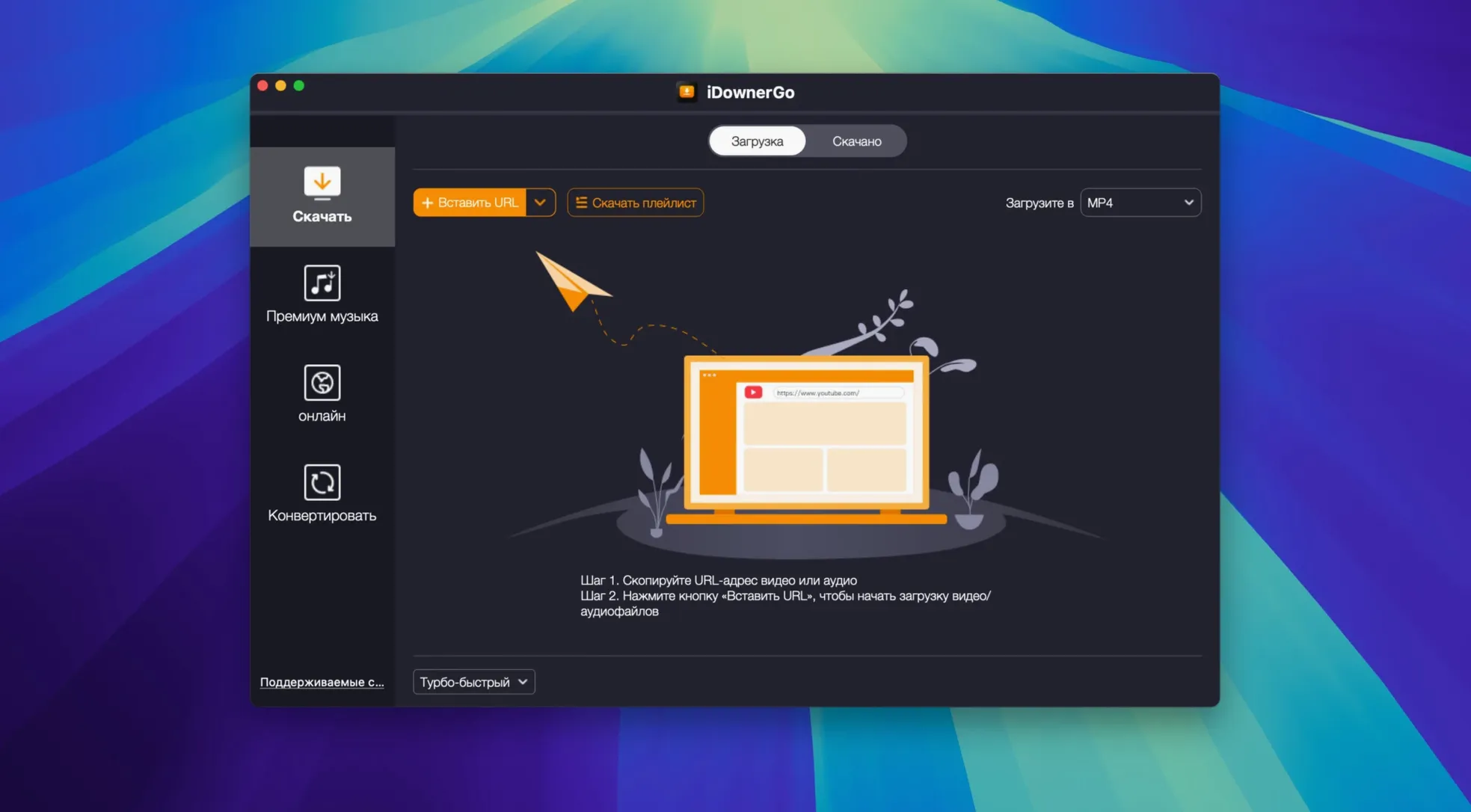
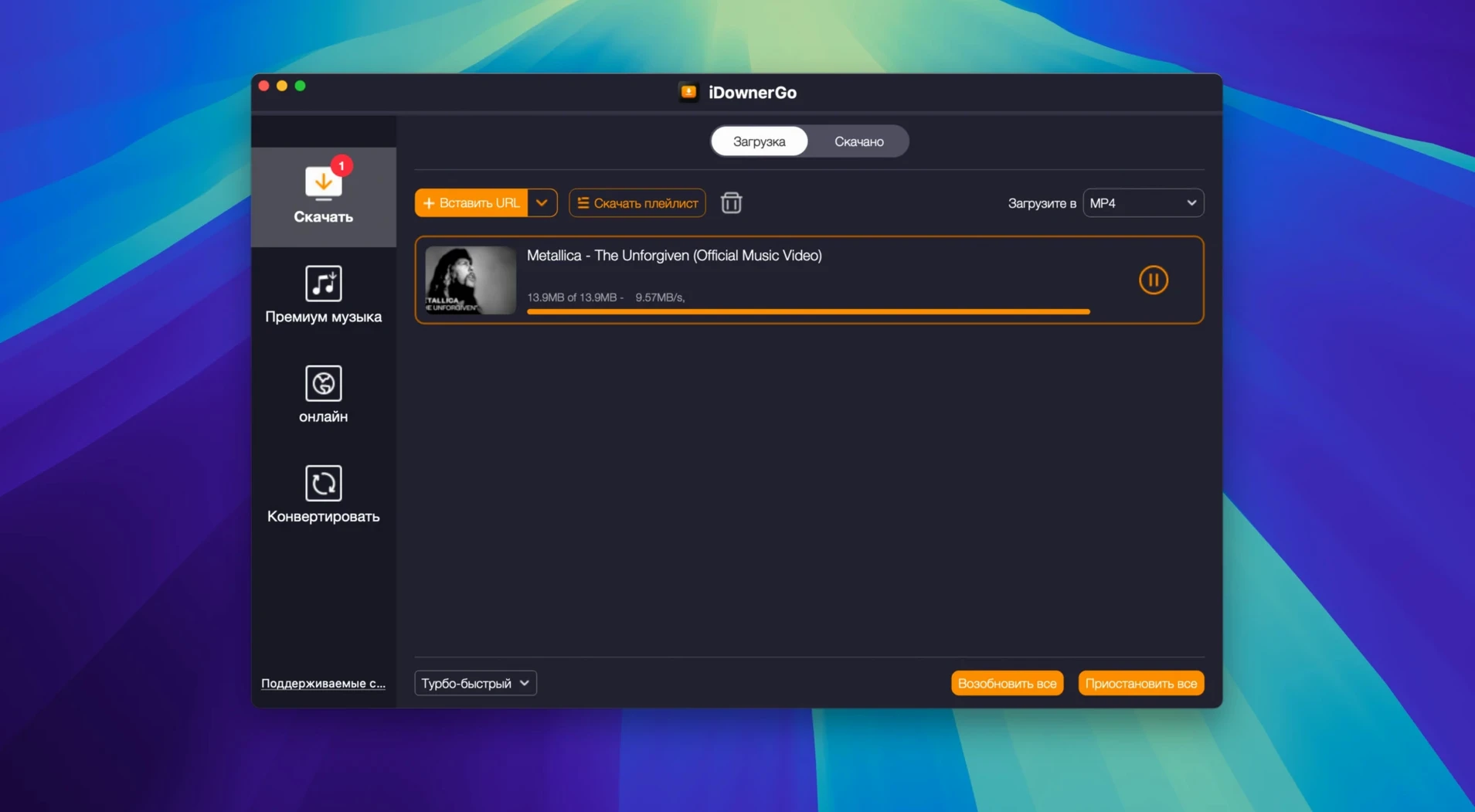
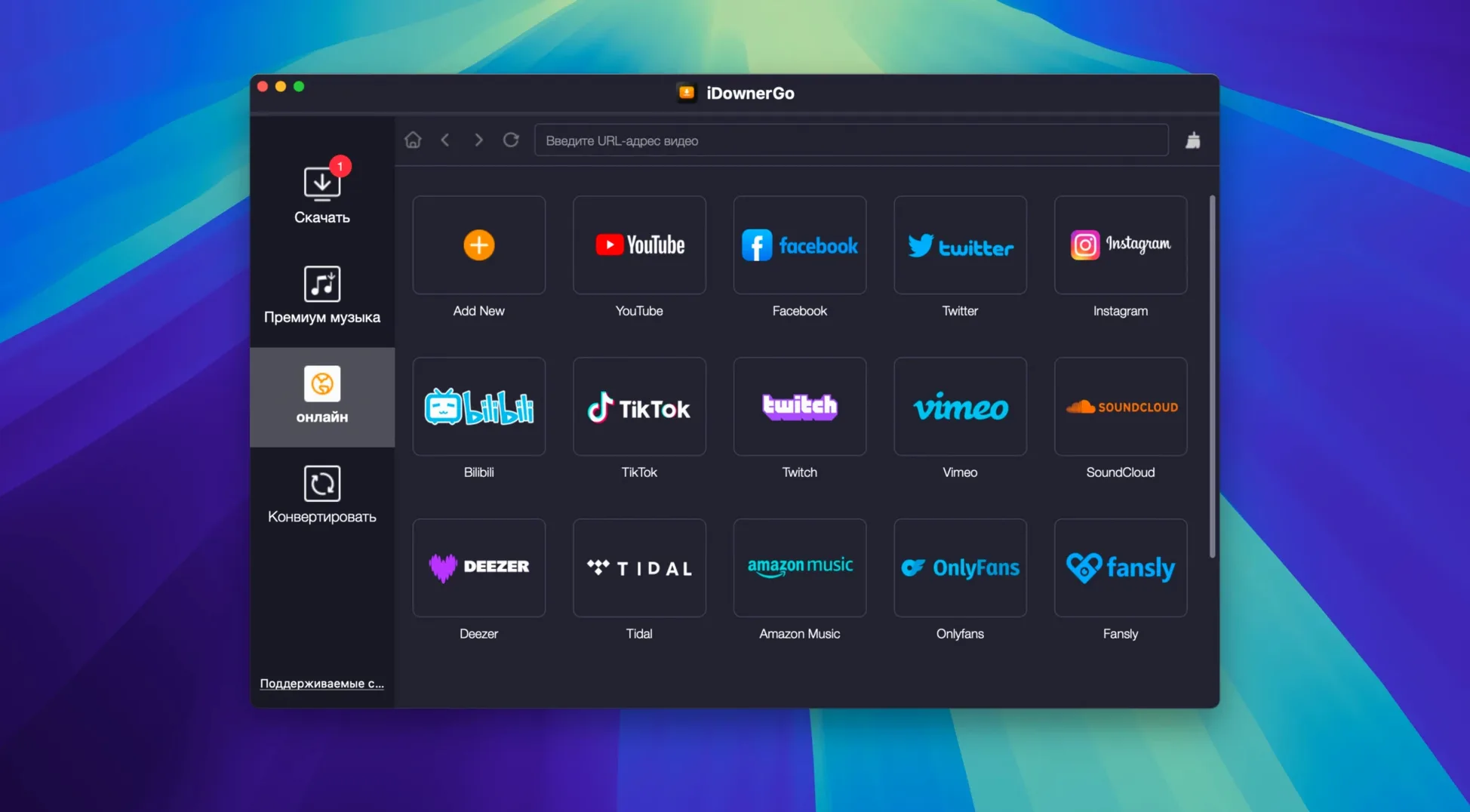
Real-time download detection kicks in the moment you press play. iDownerGo watches for the media stream and grabs it as the data arrives, which means you are not waiting for a page to fully load before the file starts coming down. That same real-time engine works across the 10,000-plus sites the app recognises, from Dailymotion clips to a Bandcamp album you want to keep offline. The app pulls full playlists in one pass, too, so a long mix or a season of short videos lands as a batch rather than a dozen separate clicks.
- Open the website you want inside the app's built-in browser and navigate to the video or audio page.
- Start playback. The software detects the available stream and presents a list of format and quality options — anything from a compact standard-definition file up to 4K Ultra HD or even 8K if the source provides it, all without recompressing the original stream.
- Pick your format and quality, then hit the download button. The file saves straight to your chosen folder with no extra conversion step in between.
The format support is broad because the app is designed as a universal grabber in a product line that also includes site-specific tools. Whether you are saving a TikTok short, an Instagram story, or a long lecture from a lesser-known education portal, the behaviour stays consistent. It runs on Intel Macs right back to OS X 10.10 Yosemite, and the interface can switch between twenty-five languages, so a studio with a multilingual team can set it up once and let everyone work in their own tongue.
Grabbing an Instagram story before it vanishes: end‑to‑end
Stories are the perfect test of real‑time capture because there is no permanent page to revisit. I open the built‑in browser, log into Instagram once so the session cookie sticks, and navigate to the profile whose story I want. The moment I tap the story to start playback, iDownerGo notices the stream and pops a small download icon in the corner of the window. I click it rather than the usual “Download” button in the toolbar — stories sometimes resolve to a single best quality, so the choice is already made. The file lands in my default folder as an MP4, named with the uploader’s handle and a timestamp. That is useful when you are archiving a series from the same account over several days; you can drop the folder into Final Cut Pro later without renaming a thing.
If you need only the audio — say it is a musician teasing a new track — switch the format picker to “Audio Only” before you start the capture. The app extracts the AAC stream and saves an M4A straight away. No transcoding pass, no quality guesswork. For TikTok, the flow is identical: paste the share URL into the address bar, let the video start playing, and choose between the standard watermarked file and the HD version the creator uploaded, provided the app can see it in the stream manifest.
Settings worth changing in the first five minutes
Out of the box the download folder points to ~/Downloads, which gets messy fast if you are pulling playlists. I suggest creating a dedicated folder — something like “iDownerGo Inbox” — and setting it in Preferences before the first batch. That one change keeps raw media separate from your other downloaded clutter.
Next, pop into the “Downloads” tab and check “Keep original filename when possible.” The app sometimes sanitises names into lowercase slugs, which is tidy but loses the capital letters and punctuation some video titles rely on. Ticking this box preserves the title exactly as the site serves it.
The third tweak is in the “Network” section. If you are on a connection that throttles long downloads, drag the concurrent tasks slider down to one or two instead of the default four. Fewer simultaneous streams can actually finish faster when the bottleneck is your ISP, not the app.
Lastly, if you work with subtitles, enable “Download subtitles automatically when available.” The software grabs the SRT or VTT file alongside the video and keeps the filename stem identical, so VLC or IINA picks up the captions without any manual pairing.
Mistakes beginners make (and how to avoid them)
The most common slip is treating the built‑in browser like Safari. It is not a general‑purpose browser; it is a capture tool with a web view. People log into a site, close the iDownerGo window, and expect the session to persist the way it does in Chrome. It does not — the cookie jar clears when you quit the app unless you explicitly tell it to remember the session. For sites that require login, finish your downloads before closing iDownerGo, or you will be re‑authenticating every time.
Another trap: pasting a YouTube‑style “share” link and hitting download before the page finishes loading its media player. The app needs the actual video element to appear in the DOM. If you jump the gun, you get an empty format list and assume the site is blocked. Wait until the play button is visible and the thumbnail resolves, then try again. Nine times out of ten it works.
Beginners also misunderstand the automatic format selection. The app picks the highest resolution it detects, but some sites serve 4K only after a few seconds of buffering. If you click download immediately, you might get 1080p and think 4K is unsupported. Let the video run for ten seconds, then open the format picker — the higher tiers often appear during playback.
Finally, people occasionally drag the app straight from the disk image to the Dock without copying it to Applications first. That works for a session, but the next time you restart the Mac, the Dock icon turns into a question mark. The install notes say to copy to Applications, and they mean it.
Who benefits most — and why
iDownerGo suits media hoarders who still want a local copy of everything they love. If you have an iPod classic in a drawer, a Plex server under the telly, or a folder called “Live Sets” that goes back a decade, the combination of playlist batch‑grabbing and direct‑stream audio extraction saves hours of fiddly conversion work. The app does not re‑encode, so the file you get is the file the server sent — no generation loss.
Language teachers and students get a quieter sort of value. Downloading a short news clip or a cooking tutorial from a foreign‑language site, then playing it back offline in a classroom where the Wi‑Fi is flaky, turns a stressful lesson plan into a reliable one. The subtitle auto‑grab helps too, because you can print the transcript or load it into a separate study app.
Musicians and DJs who scour Bandcamp, SoundCloud‑style platforms, and social media for samples will appreciate that the audio‑only extraction bypasses the need to separate the soundtrack from the video later. You point the app at the page, choose MP3 or M4A, and the file arrives ready to drag into a DAW. The format support is wide enough that you do not need a supplementary converter in the chain.
Older‑Mac owners running an Intel machine on OS X 10.10 or 10.11 are a surprisingly good fit too. Many current download managers have dropped support for anything before macOS 10.13, but iDownerGo’s 64‑bit Intel build still runs on Yosemite. If you keep a vintage MacBook around as a download server — something that sits on the shelf quietly pulling media overnight — the system requirements line up nicely.
What ties these groups together is the need for a predictable, no‑transcode pipeline. The software does not try to be a media player, an editor, or a library manager. It pulls the stream and writes it to disk. For people who already have their own tools for the rest, that narrow focus is exactly what makes it fit into a workflow rather than take it over.
- OS X 10.10 or later
- Intel 64-bit processor
Questions I keep hearing
Does iDownerGo work on Apple Silicon Macs?
The build is for x86 64-bit Intel Macs; on Apple Silicon it would rely on Rosetta 2 translation rather than running natively.
Can it download a whole YouTube playlist?
Yes, iDownerGo can save full playlists in one batch, pulling video, music or mixed-media lists from supported sites in the quality you select.
Which websites does it actually support?
The app claims compatibility with over 10,000 sites, including Facebook, Instagram, Dailymotion, TikTok and Bandcamp, covering video, music and playlist downloads.
Questions from the class 0
Sign in or join the class to ask a question.
Nobody has asked anything yet. If you have used it on a real job, say what the file did.
Also on the Video Downloaders shelf
The whole Video Downloaders shelf iTubeGo
Grabs online video and audio and saves it to your Mac in a format you choose.
iTubeGo
Grabs online video and audio and saves it to your Mac in a format you choose.
 HarborDrop
Takes over downloading so you control exactly how files arrive on your Mac.
HarborDrop
Takes over downloading so you control exactly how files arrive on your Mac.
 Folx Pro
Manages all your downloads and torrents in one queue.
Folx Pro
Manages all your downloads and torrents in one queue.
 Downie
Grabs a video file from almost any website when you paste its link.
Downie
Grabs a video file from almost any website when you paste its link.
 Musify
Downloads music from streaming platforms and saves tracks as playable offline audio files.
Musify
Downloads music from streaming platforms and saves tracks as playable offline audio files.
 PullTube
Downloads online videos from websites for offline viewing.
PullTube
Downloads online videos from websites for offline viewing.
 AmpliTube
Models guitar amps and cabs for crafting your own virtual rig tones.
AmpliTube
Models guitar amps and cabs for crafting your own virtual rig tones.
 SiteSucker Pro
Downloads an entire website so you can browse every page and image offline.
SiteSucker Pro
Downloads an entire website so you can browse every page and image offline.