 ASPNetWorld

A friend sends you a link to a guitar tutorial on YouTube, but you're about to board a train with patchy Wi-Fi. You paste it into PullTube 1.8.6.40, pick 4K quality, and a few seconds later the file is sitting on your desktop, ready for an offline practice session.
Runs natively on Apple silicon and Intel without Rosetta
PullTube works natively on both Apple silicon and Intel Macs, so you won't lose any performance to Rosetta translation. The single firm requirement is macOS 11 (Big Sur) or later. If your Mac is running an older system you'll need to look elsewhere, but for the vast majority of machines still in daily use, you're all set.
Paste a link or drag it to sniff video, audio, and subtitle streams
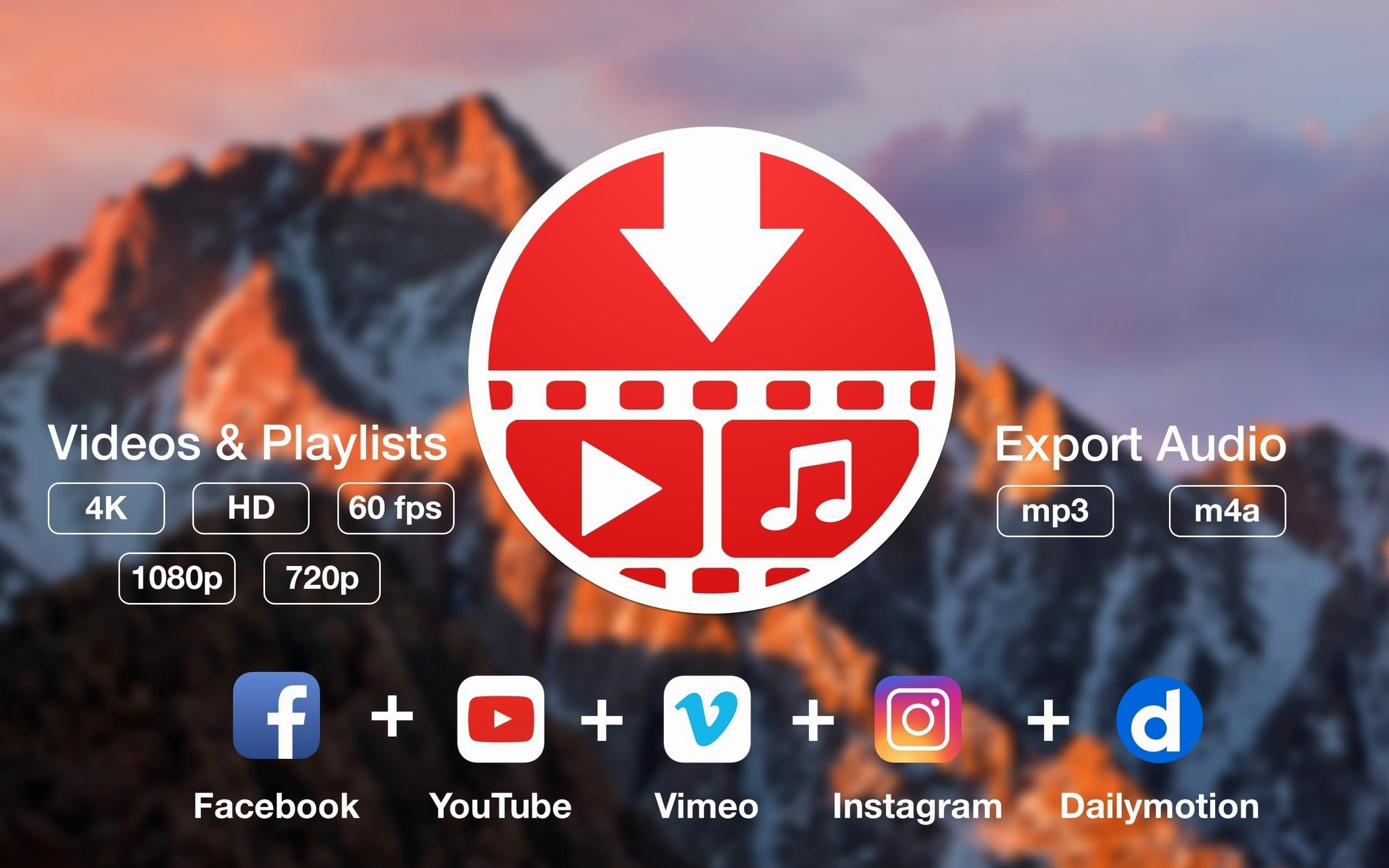
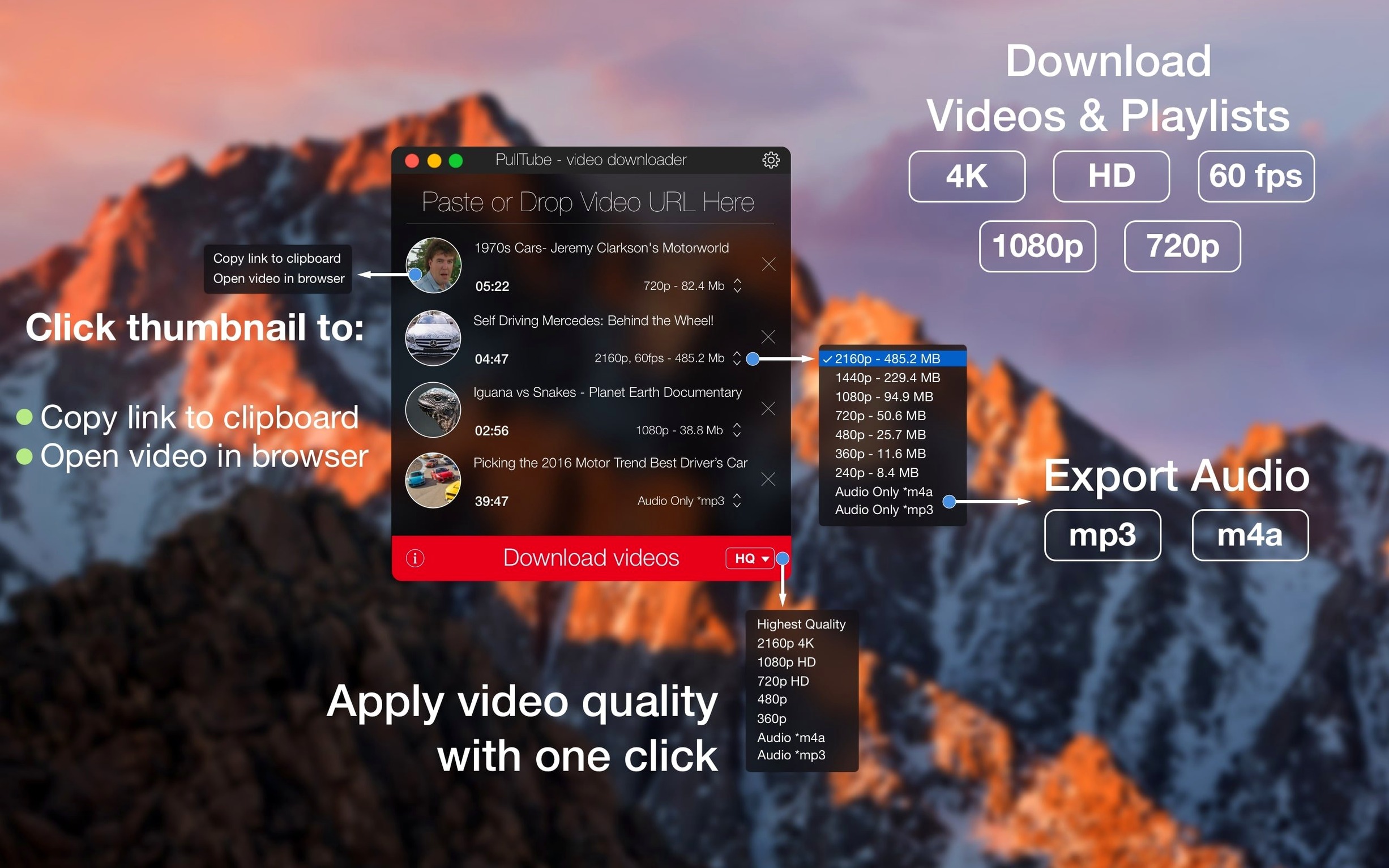
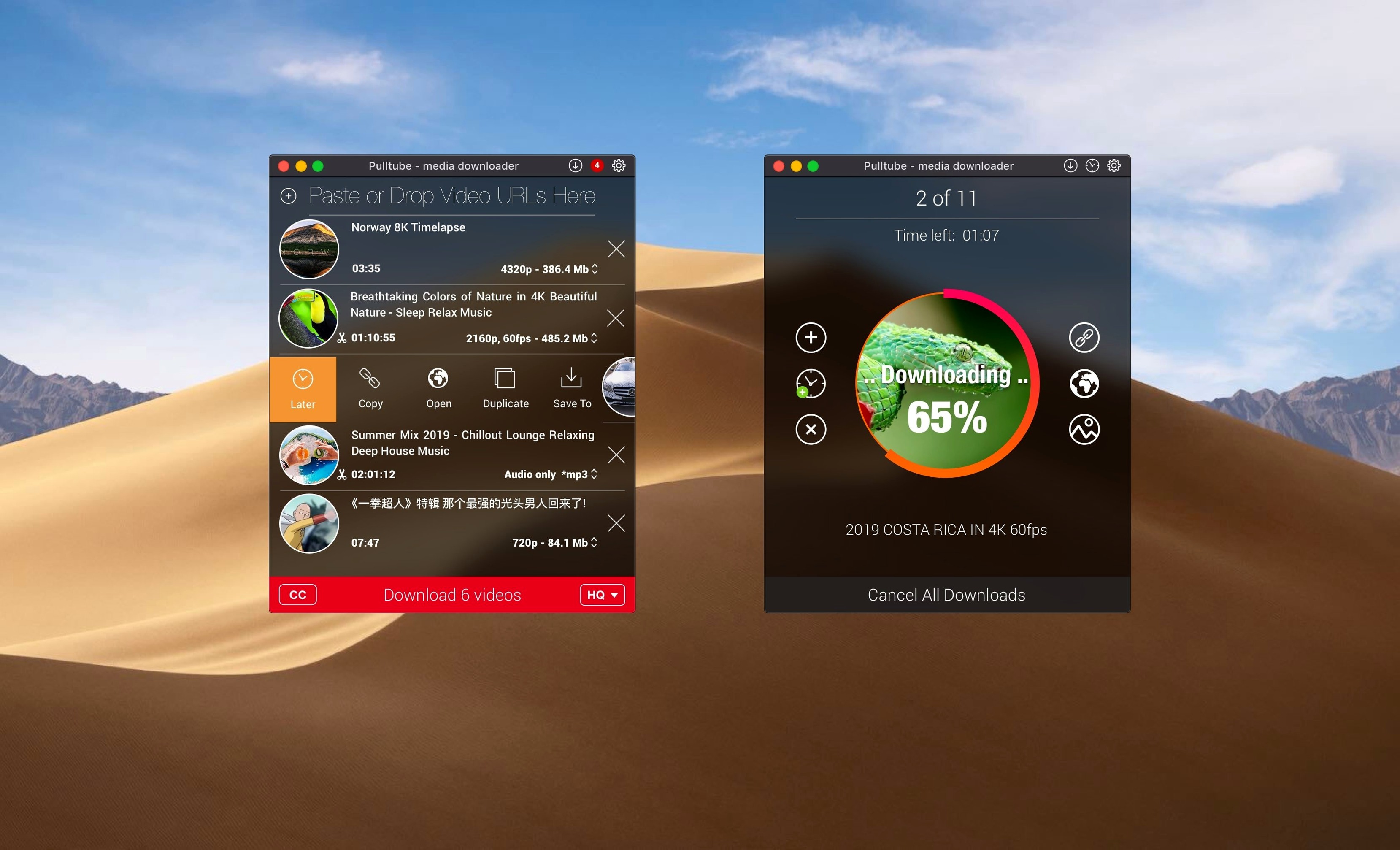
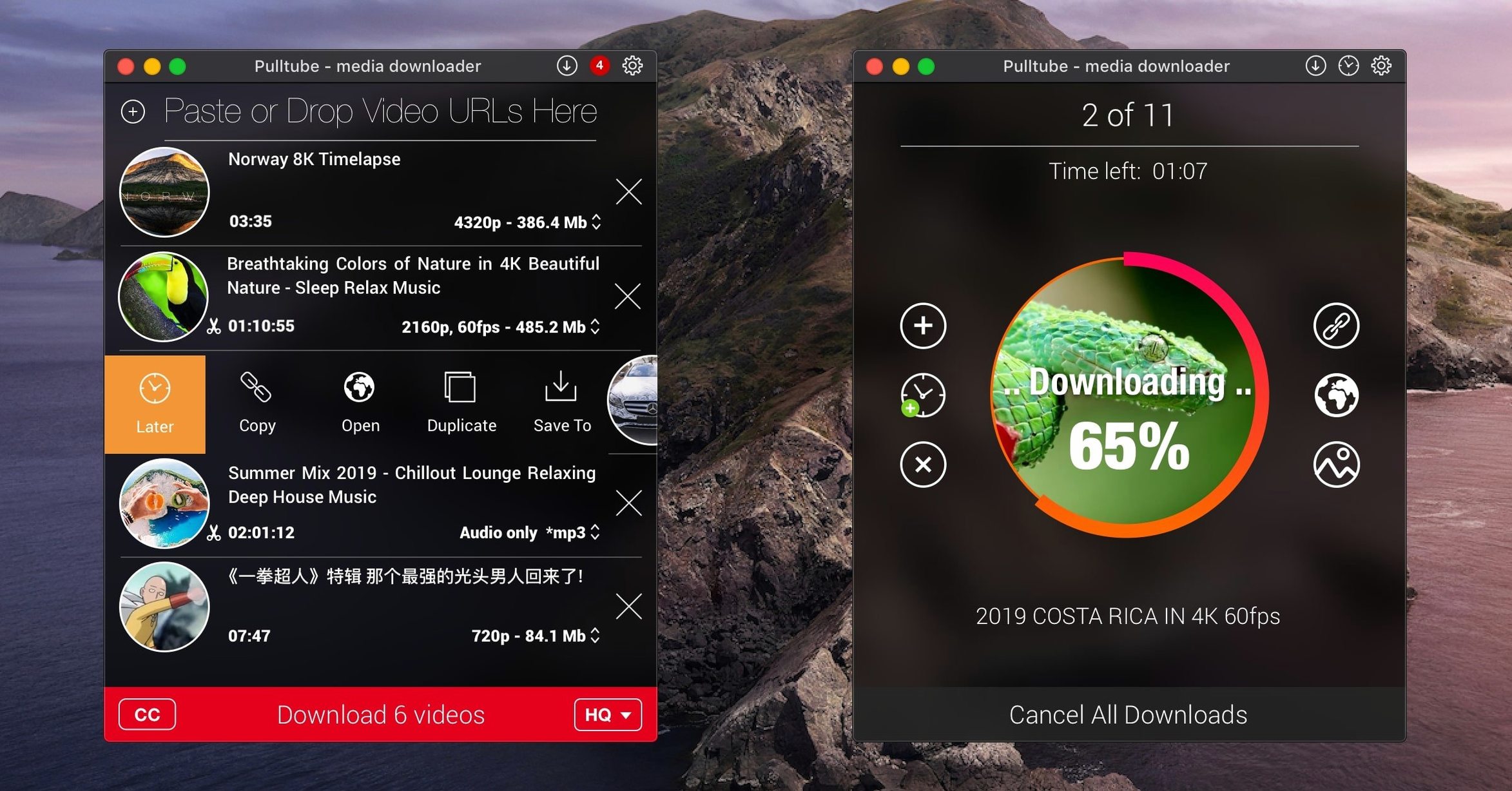
PullTube is a straightforward media downloader that talks to over a thousand websites. Paste a link or drag it onto the window and the app sniffs out the available video, audio, and subtitle streams. YouTube, TikTok, Vimeo, and SoundCloud are all listed as supported, and the app can recognise a full playlist from a single pasted URL—useful when you want to grab an entire lecture series or album in one go. Output choices range from compact normal quality right up to 4K, so you can balance file size against picture clarity depending on where the file is headed. A small but thoughtful touch is the option to have PullTube quit automatically after all downloads finish, perfect for those overnight batch grabs.
What surprises most people in the first 48 hours isn’t the downloading itself — that’s almost anticlimactically quick — but how much control sits in the preferences. Open PullTube’s settings straight away and tick Append quality to filename. It adds a short suffix like “1080p” or “4K” to every saved file, which stops you squinting at Finder icons six months later trying to remember which version of a talk you grabbed. While you’re there, set a default download folder that makes sense for your workflow. PullTube defaults to your Movies folder, but pointing it at a dedicated “Incoming” directory on an external drive keeps your main disk lean when you’re hoarding large 4K files.
The second thing worth doing is training yourself to use the drag-and-drop link import. It sounds trivial, but once you get into the habit of dragging a URL straight from Safari’s address bar onto the PullTube window — or even onto its Dock icon — you stop bothering with copy and paste entirely. It’s noticeably faster when you’re queuing up half a dozen clips.
Where PullTube fits in a Mac workflow
PullTube isn’t trying to be a media player, an editor, or a library manager, and that narrow focus is exactly what makes it slot neatly between other apps. A typical chain looks like this: PullTube grabs the raw file, you drag the output into QuickTime Player or IINA for playback, and perhaps into Audacity or Logic Pro if you extracted audio as an M4A that needs a quick trim. Because PullTube writes standard MP4 and M4A containers, nothing downstream complains about format weirdness.
There’s also a quiet synergy with Finder tags and Spotlight. Once you’ve set that quality suffix in the preferences, you can tag downloads by topic — #tutorial, #reference, #sample — and locate them later with a Spotlight search. macOS Quick Look works on the files immediately, so pressing the spacebar on a freshly downloaded video shows you exactly what you’ve got before you open any app.
If you use Automator or the Shortcuts app, you can build a simple folder action that watches your PullTube download directory and automatically moves video files into dated subfolders. It’s not a feature PullTube provides itself, but the app’s predictable output makes the integration painless.
A 20-video queue won't beachball while a 4K file finishes
Speed is heavily dependent on the source server, not the app, but PullTube’s handling of multiple simultaneous downloads is efficient. Queuing up a 20-video playlist while a single 4K file is still finishing doesn’t slow the interface or cause beachballs on an M1 Mac. The app spawns separate download threads and doesn’t seem to throttle them artificially. On an Intel MacBook Pro from 2019, fans become audible during sustained 4K batch work, but that’s the hardware decoding video data, not PullTube leaking resources.
Memory usage stays modest. With five concurrent downloads running, Activity Monitor typically shows PullTube using between 180 and 250 MB of RAM — less than a single Safari tab streaming the same content. CPU load is visible but brief, spiking when the app parses a long playlist or finishes a file and writes it to disk, then dropping back to near-idle. PullTube’s Apple silicon native build means there’s no Rosetta overhead, so efficiency on newer Macs is genuinely good rather than merely adequate.
Stability has been solid through the 1.8.x releases. The app doesn’t crash when a server returns an unexpected response; it simply marks the download as failed and moves on to the next item in the queue. That resilience matters at 2 a.m. when you’ve left it running unattended.
Playlist URLs now resolve without clicking Extract twice
Version 1.8.6.40 tightened up playlist detection, which had occasionally tripped over non-standard URL formats on certain sites. The change is subtle — a playlist link that would have previously required you to click “Extract” a second time now resolves on the first attempt in most cases. There was also a quiet fix for subtitle downloading from Vimeo, where some embedded subtitle tracks weren’t appearing in the stream picker. If you rely on subtitles for tutorials or foreign-language content, that update made a practical difference. The automatic quit-after-download feature received a small refinement too: PullTube now waits a few extra seconds after the last file finishes, letting the disk finish writing before the app closes, which eliminates the rare “file not finalised” warning some people saw in earlier builds.
Beginner habits worth unlearning
The most common stumble is treating PullTube like a Finder window and trying to open files before they’ve finished. The progress bar on each download is clear, but impatience leads some people to double-click the partially written file, which does nothing useful. Wait until the status reads “Complete” — the thumbnail turns from dimmed to full colour as a visual cue.
Another mistake is choosing “highest quality” without checking what that actually means for a given video. On YouTube, the highest available stream is sometimes a 4K VP9-encoded file that older Macs struggle to play back smoothly. Unless you specifically need 4K for archiving, the “HD” preset — typically a 1080p H.264 stream — gives you a file that plays instantly on anything, takes up far less space, and still looks sharp. Think about where the file will end up: an iPhone for a flight, a Plex server, or just a reference copy you’ll watch once.
Finally, some newcomers assume PullTube can only handle YouTube and Vimeo because those are the names they recognise. The app’s reach is far broader — paste a link from Bilibili, Twitch, or a public Facebook video and you’ll get the same stream picker. If a site isn’t explicitly listed, it’s still worth trying the paste; the extraction engine is smarter than the marketing copy suggests.
PullTube 1.8.6.41 rolls out a fresh set of maintenance adjustments so downloads stay reliable.
- macOS 11 (Big Sur) or later
- Runs natively on both Apple Silicon and Intel 64-bit Macs
Questions I keep hearing
Can PullTube download an entire YouTube playlist?
Yes. When you paste a playlist link, PullTube detects it and can queue up every video in the list for download.
Does PullTube work on M1 and M2 Macs?
Yes. The app supports Apple silicon as well as Intel processors, so it runs natively on modern Macs.
What video quality can PullTube save?
It offers a range from normal definition through HD and up to 4K, letting you pick the best balance of quality and file size.
Questions from the class 0
Sign in or join the class to ask a question.
Nobody has asked anything yet. If you have used it on a real job, say what the file did.
Also on the Video Downloaders shelf
The whole Video Downloaders shelf SiteSucker Pro
Downloads an entire website so you can browse every page and image offline.
SiteSucker Pro
Downloads an entire website so you can browse every page and image offline.
 Musify
Downloads music from streaming platforms and saves tracks as playable offline audio files.
Musify
Downloads music from streaming platforms and saves tracks as playable offline audio files.
 YT Saver
Grabs video or audio from streaming sites through a built-in browser and saves it as a local file.
YT Saver
Grabs video or audio from streaming sites through a built-in browser and saves it as a local file.
 YTD Video Downloader PRO
Downloads online videos from various platforms and stores them on your desktop for offline viewing.
YTD Video Downloader PRO
Downloads online videos from various platforms and stores them on your desktop for offline viewing.
 iTubeGo
Grabs online video and audio and saves it to your Mac in a format you choose.
iTubeGo
Grabs online video and audio and saves it to your Mac in a format you choose.
 iDownerGo
Grabs the media stream the moment you press play on a supported site.
iDownerGo
Grabs the media stream the moment you press play on a supported site.
 HarborDrop
Takes over downloading so you control exactly how files arrive on your Mac.
HarborDrop
Takes over downloading so you control exactly how files arrive on your Mac.
 Folx Pro
Manages all your downloads and torrents in one queue.
Folx Pro
Manages all your downloads and torrents in one queue.