 ASPNetWorld

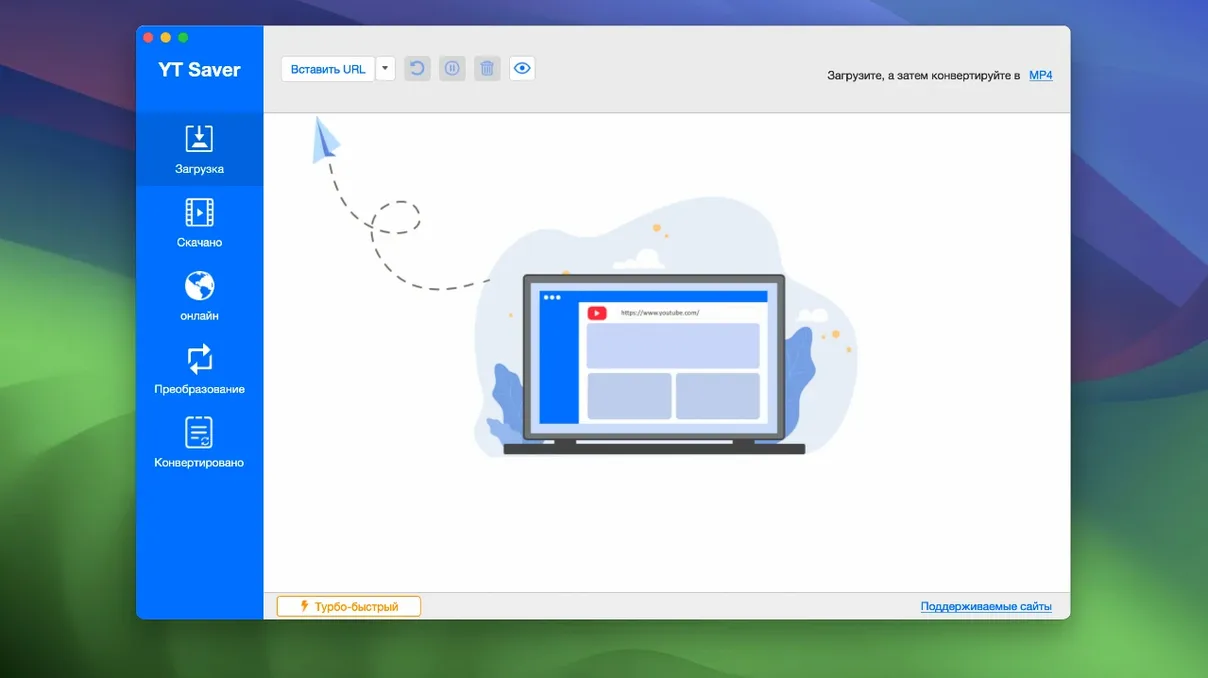
The built-in browser hasn't gone anywhere. You still open it inside the app, visit a video or music site, and pull video or audio straight from the page without juggling separate windows. Version 10.15.0 keeps that workflow intact, which means the core loop — browse, grab, convert — works the same way as before.
Format flexibility across video and audio
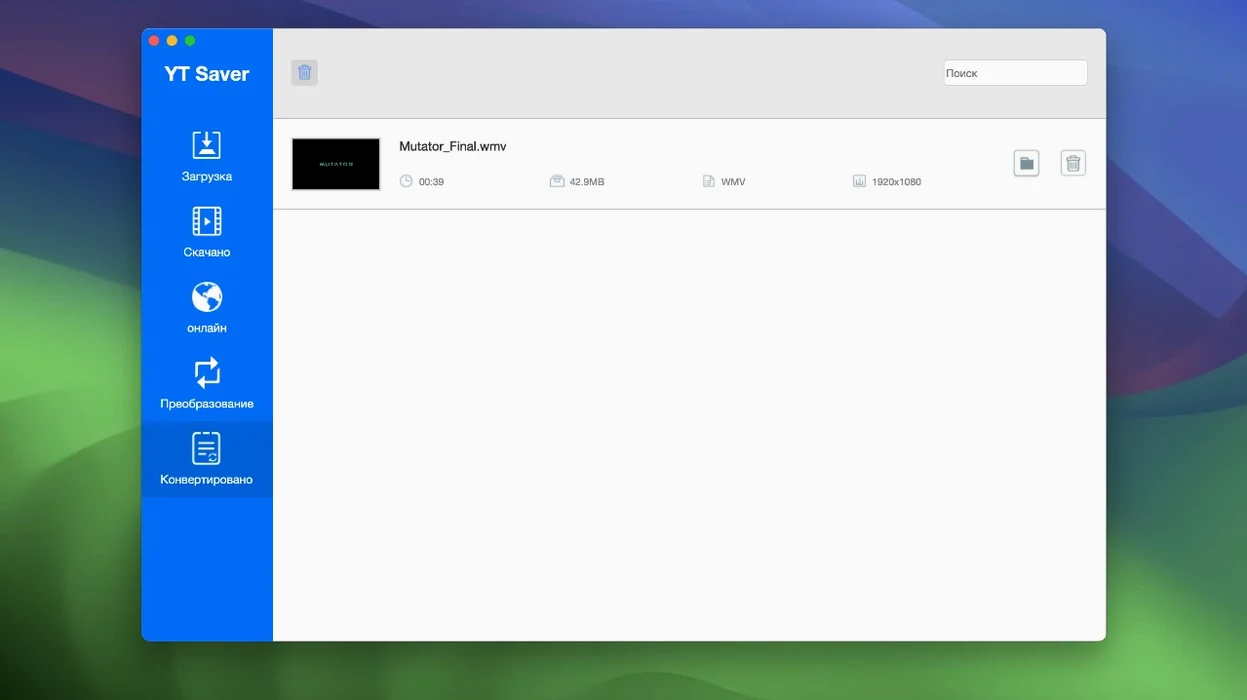
What you do after the download is where YT Saver Pro spreads out. Input isn't fussy: MP4, M4V, MKV, FLV, WEBM, AVI, MOV, VOB, TS, RMVB, 3GP, ASF, WMV and MPEG all come through without complaint. For video output you get a long list — standard MP4 and MOV sit alongside HEVC MP4, HEVC MKV, AVI, WMV, FLV, 3GP, and device-tailored presets for iPhone, iPad, Android phones and Android tablets. The conversion engine is the same one that handles audio extraction, spitting out M4A, MKA, WAV, AAC, FLAC, AIFF and OGG when you only need the soundtrack. A batch queue ties it together: stack your source files, pick a target format for each, and let the app work through them while you get on with something else.
A stable tool on older hardware
The system requirements haven't shifted. YT Saver still runs on OS X 10.10 and later on Intel Macs — no Apple Silicon native binary has appeared yet, so it rides through Rosetta 2 on newer machines. The interface ships in twelve languages, including Russian, Indonesian, Korean, Japanese and both Traditional and Simplified Chinese, which suggests the developer expects a wide audience. Nothing under the bonnet has changed in this release. What you get is a straightforward downloader that leans heavily on its format conversion and that in-app browser as the main selling points.
Where YT Saver fits in a Mac workflow
YT Saver isn't trying to be a media player or a library manager, and that's precisely why it slots in so neatly. Once a download finishes and the conversion engine has done its work, the resulting file lands in your chosen folder — usually the Mac's Movies or Music directory by default. From there, Finder's column view gives you an instant preview with Quick Look, so you can tap the spacebar to check a clip before dragging it into Final Cut Pro, dropping it onto a USB stick, or syncing it to an iPhone through the Finder sidebar. Because the app writes standard MP4 and AAC files, everything from iMovie to Logic Pro accepts them without a second thought. If you work with DJ software, the FLAC and AIFF output options are a quiet blessing — you can pull a high-resolution audio stream from a concert upload, convert it to a lossless format inside YT Saver, and have it sitting in Serato or rekordbox before the kettle has boiled.
The built-in private mode ties into macOS's own security thinking rather than fighting against it. When you toggle the password-protected folder on, the downloads vanish from the default directory and tuck themselves away inside an encrypted container. Spotlight won't index what it can't see, which means a downloaded lecture or a client reference clip doesn't accidentally pop up in a screen-share session. You set the password once, the app remembers it for the session, and macOS Gatekeeper stays quiet because the sandboxing happens at the application level, not the system level.
A typical working session, step by step
Imagine a Thursday evening. You have a playlist of guitar tutorials to grab, a long interview in WEBM format that needs converting to MP4 for an iPad, and a live music stream you only want as a WAV file. Here's how YT Saver handles all three without turning into a puzzle box.
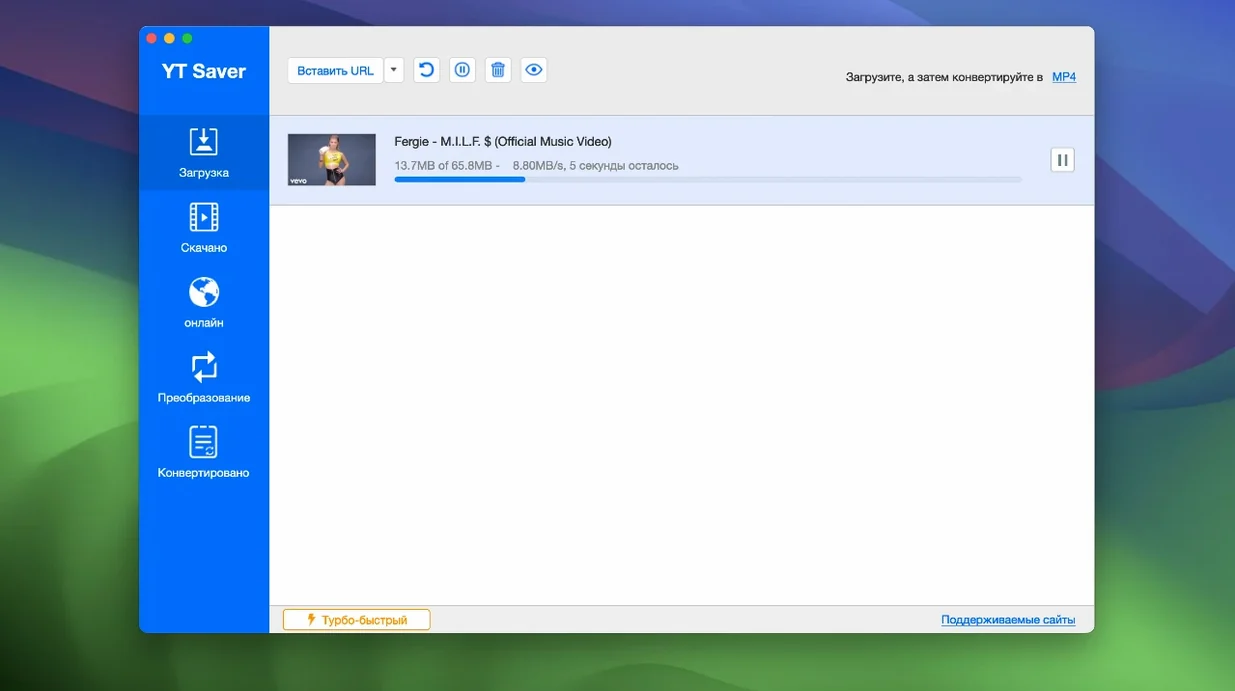
You launch the app and click the Built-in Browser button — a small globe icon near the top left. The browser opens to a blank tab with an address bar at the top. You paste the playlist URL and press Return. The page loads inside the app's own Chromium-based frame, looking exactly as it would in Safari. YT Saver sniffs the page, finds every video on it, and a small floating panel lists them by title and duration. You tick the five tutorials you need, leave the rest, and click Download Selected. They join the queue in the main window, each one showing a progress bar and an estimated time that updates as the connection speed fluctuates.
While those tick away, you switch to the Converter tab — no browser needed this time. You drag the WEBM interview file from your desktop straight onto the dotted drop zone. The app reads its metadata instantly: one hour twelve minutes, 720p, stereo AAC audio. You open the output format dropdown, scroll past the video presets and choose iPad. The preset automatically sets H.264 video at the tablet's native resolution and packages it in an M4V wrapper. You click Convert and it slots into the queue below the still-downloading playlist items.
Last, the music stream. Back in the built-in browser, you visit the streaming site and navigate to the recording. When the page loads, the same floating panel appears, but this time you click the small audio-wave icon next to the video title. A pop-up asks for the preferred audio format — you select WAV from the list of seven options. YT Saver extracts the audio stream directly, bypassing the video entirely, which saves bandwidth and skips the step of converting and then stripping out the soundtrack afterwards. The WAV lands in your Music folder a couple of minutes later, 24-bit and ready to edit.
By the time you have poured a cup of tea, the queue is empty. Three different tasks — a batch playlist download, a format conversion for a tablet, and an audio extraction — all ran in parallel inside one window, without touching a browser extension or a separate converter.
Small conveniences worth knowing
A few touches make daily use smoother and they are easy to overlook when you first install the app. The Paste URL button on the main toolbar watches your clipboard: if you have copied a link in Safari or Firefox before switching to YT Saver, clicking the button automatically populates the address field and starts analysing the page. You skip the built-in browser entirely for single videos from sites you already have open elsewhere.
The queue panel supports drag-and-drop reordering. If you suddenly need that WAV before the iPad conversion, just grab its row and pull it to the top — the app reshuffles the processing order without cancelling anything already in progress. Right-clicking any completed item reveals a Show in Finder command, which saves you from hunting through folder hierarchies when you have set a custom download location earlier in the week and forgotten where it points.
Keyboard shortcuts are sparse but the ones that exist are genuinely useful. Cmd-N opens a fresh browser tab inside the app; Cmd-D starts a download from the currently active tab without touching the mouse. If you keep the main window small while working in another app, the dock icon shows a combined progress badge — a small pie-chart overlay that lets you glance at the overall queue status without switching back. On Macs running older OS X versions where Notification Center is less intrusive, completed downloads fire a standard banner that includes a Reveal button, letting you jump straight to the file.
One last detail: the device presets in the conversion panel are named after real hardware generations — "iPhone 8", "iPad Pro", "Galaxy S20" — which makes them easier to trust than abstract resolution labels. You are not guessing whether "1080p High Profile" will play smoothly on an ageing tablet; you pick the device and the app matches the codec profile to what that screen actually supports.
- OS X 10.10 or later
- Intel processor (x86 64-bit)
Questions from the class 0
Sign in or join the class to ask a question.
Nobody has asked anything yet. If you have used it on a real job, say what the file did.
Also on the Video Downloaders shelf
The whole Video Downloaders shelf YTD Video Downloader PRO
Downloads online videos from various platforms and stores them on your desktop for offline viewing.
YTD Video Downloader PRO
Downloads online videos from various platforms and stores them on your desktop for offline viewing.
 SiteSucker Pro
Downloads an entire website so you can browse every page and image offline.
SiteSucker Pro
Downloads an entire website so you can browse every page and image offline.
 PullTube
Downloads online videos from websites for offline viewing.
PullTube
Downloads online videos from websites for offline viewing.
 Musify
Downloads music from streaming platforms and saves tracks as playable offline audio files.
Musify
Downloads music from streaming platforms and saves tracks as playable offline audio files.
 iTubeGo
Grabs online video and audio and saves it to your Mac in a format you choose.
iTubeGo
Grabs online video and audio and saves it to your Mac in a format you choose.
 iDownerGo
Grabs the media stream the moment you press play on a supported site.
iDownerGo
Grabs the media stream the moment you press play on a supported site.
 HarborDrop
Takes over downloading so you control exactly how files arrive on your Mac.
HarborDrop
Takes over downloading so you control exactly how files arrive on your Mac.
 Folx Pro
Manages all your downloads and torrents in one queue.
Folx Pro
Manages all your downloads and torrents in one queue.