 ASPNetWorld

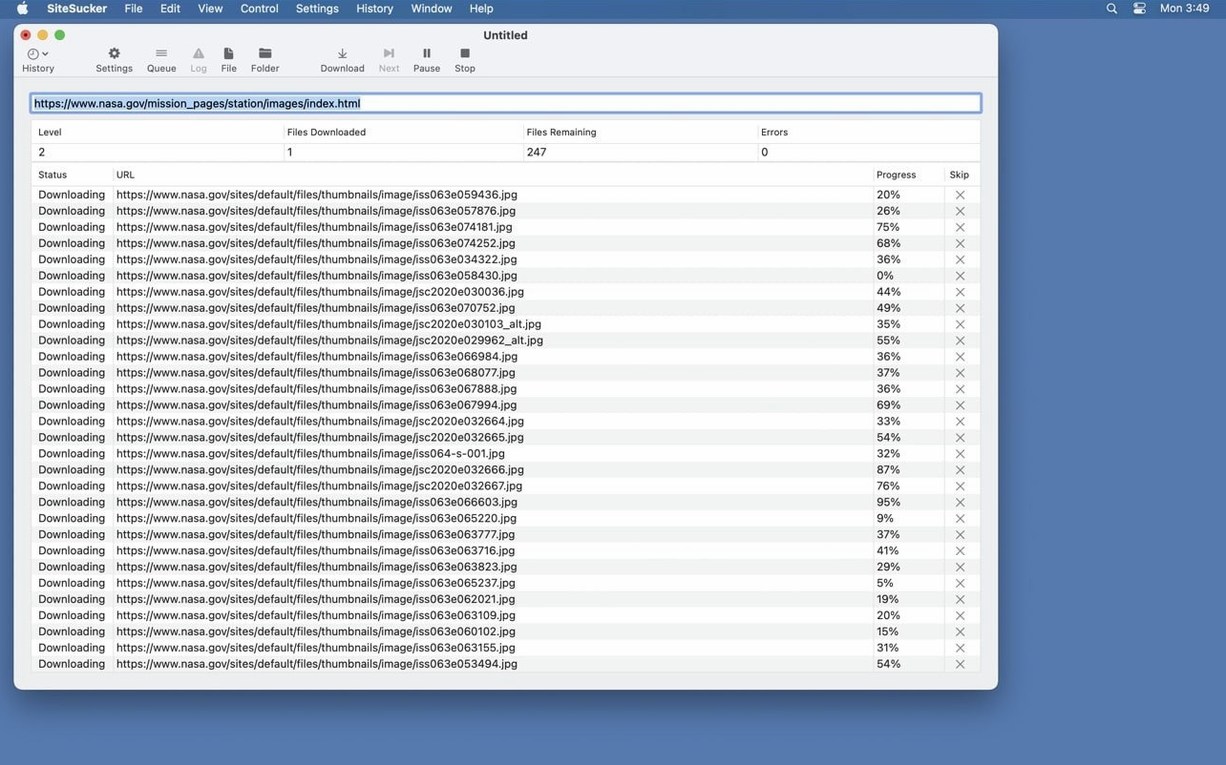
SiteSucker is a Mac app that copies a website to your local disk so you can browse it without an internet connection. It pulls down pages, images, stylesheets, PDFs and other files, rebuilding the site structure in a folder of your choosing. Think of it as a snapshot tool that sits comfortably alongside your regular browser and your Finder — you visit the site in Safari or Firefox, but when you want a permanent local copy, SiteSucker does the heavy lifting.
Good for
- Grabbing reference material or documentation you want available offline later.
- Keeping a personal archive of a site whose content might change or disappear.
- Studying the files that make up a simple website — it’s a neat way to see how things fit together on disk.
- Working with the Pro edition to download embedded video files that a browser alone won't easily save.
Keep in mind
- By default, the app respects
robots.txtrules and skips files site owners have asked crawlers to avoid. - Complex web apps that rely heavily on server-side code won’t work as local copies; SiteSucker is best with page-based sites.
- The operation log, viewable in Console, grows from the moment downloading starts — useful for troubleshooting but worth a look if a site didn't come across cleanly.
Questions people usually ask before installing
Will SiteSucker turn a multi‑gigabyte video platform into a folder on my desktop overnight? It’ll try, but that’s rarely what you actually want. The limits panel is your friend. You can cap the download depth — how many links away from the starting page the app follows — and set a maximum total file count. Once SiteSucker hits either limit, it stops politely and logs exactly why. Most people set the depth to three or four and the file count to a few thousand on their first proper run; you quickly get a feel for what’s reasonable.
What about login‑protected areas? SiteSucker works at the HTTP level, so it can handle basic authentication if you supply credentials in the settings, but sites that rely on complex session cookies or two‑factor flows will usually defeat it. Think of it as a public‑web archiver first, with just enough smarts to handle a simple password gate.
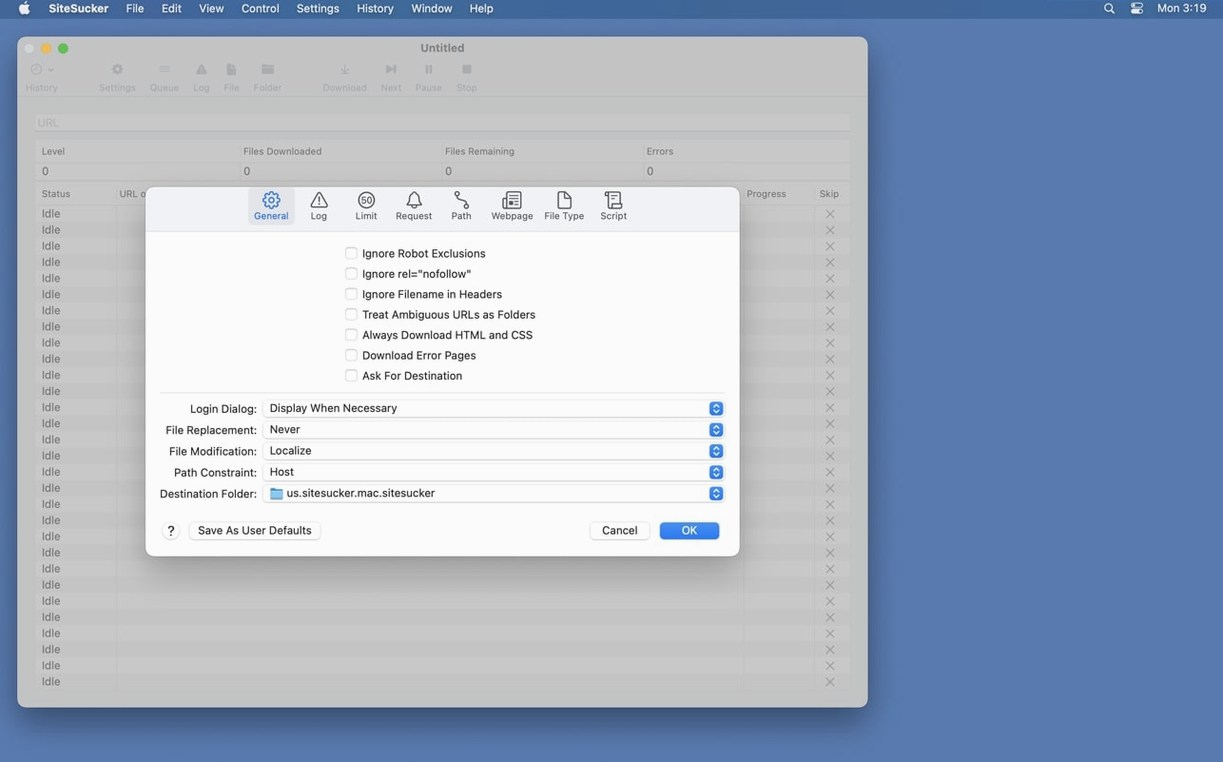
And does it respect a site’s robots.txt exclusions? By default, yes — files and paths that the site owner has marked off‑limits to crawlers are skipped. The toggle to turn that behaviour off is right there in the General settings if you need it, but it’s designed so you make a conscious choice rather than accidentally trampling over a webmaster’s wishes.
How SiteSucker fits with other apps and macOS features
Once a site lands on your disk, Spotlight indexes the local copy like any other folder, so you can search page titles and filenames without opening a browser. HTML files open in Safari or whichever browser you’ve set as default, and stylesheets and scripts are left intact — you’re browsing a real mirror, not a flattened PDF.
The Console integration is understated but genuinely useful. When a download finishes and something feels off — perhaps a handful of images are missing or a sub‑page came through with broken styling — you can click Open Log on the toolbar and Console pops up with the full session log. It’s the same Console app developers use to debug their own software, which means you can copy error lines and send them straight to a colleague or tuck them into a note for later. In practice, I’ll often keep Notes or BBEdit open alongside Console while I’m archiving a fiddly site, snipping the relevant log lines into a project note so I remember which paths needed a manual tweak in the Paths settings.
SiteSucker also plays nicely with Quick Look. After a download, select an HTML file or an image in Finder, hit the spacebar, and you get an instant preview without launching anything. If you’ve pulled down a site full of PDF white papers, you can zip through them with Quick Look and decide which ones to keep, rename or share.
How it compares with similar Mac apps
You might hear people mention sitesucker alongside tools like HTTrack or Wget. HTTrack is powerful and battle‑tested, but it doesn’t offer a native Mac interface — you’ll be running it through a compatibility layer or compiling it yourself, and the experience feels more like a Linux utility that happens to work on macOS. SiteSucker Pro wraps the same concept in a focused, single‑window Mac app where every option sits in a labelled preferences pane rather than a command‑line flag you need to memorise.
Wget is brilliant for scripting and server‑side automation, and if you’re comfortable with Terminal you can replicate a lot of what SiteSucker does with a carefully written wget command. The difference is that SiteSucker remembers your settings between sessions and gives you visual feedback: a progress bar, a running file count, and a log you can open in a single click. For one‑off archival grabs where you want to tweak depth, file types and user‑agent on the fly, the GUI saves you from looking up flags.
Then there’s Sitesucker Pro itself versus the standard edition. The Pro version adds embedded video downloading — including YouTube and Vimeo embeds — which is the feature that moves it from “handy page grabber” to “proper media archiver.” If you’re pulling down a blog with twenty embedded video clips, the standard version leaves you with empty placeholder rectangles; the Pro edition fetches the actual video files and stores them alongside the page, so the local copy plays back as if it were online.
A typical working session
Let’s walk through a realistic evening with the app. I want to archive a photography tutorial site — about forty pages, heavy on images, with half a dozen embedded Vimeo clips — before I head somewhere without reliable Wi‑Fi.
First, I open SiteSucker Pro and paste the site’s homepage URL into the address field. Before hitting Download, I jump into the Limits section: I set the link depth to four so it captures the main tutorials and their sub‑pages but doesn’t wander into unrelated external links. I cap the file count at 2,000, which is generous without being runaway, and set a minimum file size of 1 KB to skip tracking pixels and invisible spacer images.
Next, I switch to the File Types tab and tell it to download images, stylesheets, PDFs and HTML — I leave fonts unchecked this time because the site uses system fonts. Over in Paths, I add a rule to skip a /shop/ directory I don’t need, and another to force‑include a /downloads/ folder the robots.txt file would otherwise block.
I click Download, and the progress bar starts filling. The log window shows each file as it arrives, and I can see the Vimeo embeds being spotted and queued — the Pro‑specific video handling kicks in automatically. After about four minutes, the bar hits 100% and the app plays its completion sound. I open the destination folder in Finder, hit Command‑F and type “.mp4” to verify all six video files landed correctly. They did.
Finally, I browse a couple of tutorial pages in Safari directly from the local copy. The layout, images and video play as expected. I spot one broken CSS rule on a contact page — nothing to do with SiteSucker, it turns out; the original site had a typo in the stylesheet path — and I make a mental note that the archive is faithful to the source. Then I pop open the log in Console, scan for any “404” lines (there are none), and close the app. The entire folder is now ready to drop onto my iPad via AirDrop for offline reading on the train.
Version 6.2.2 is a tidy maintenance update with one new option and a pair of bug fixes. The Format HTML setting, now in Webpage preferences, gives you cleaner markup in local copies, while PDF creation is more reliable after a few edge-case bugs were squashed.
- macOS 26 or later
- Intel or Apple Silicon Mac
Questions I keep hearing
What’s the difference between SiteSucker and the Pro edition?
SiteSucker Pro adds the ability to download embedded video files, which the standard edition leaves on the remote server.
Can I limit how much of a site is downloaded?
Yes — the Limits section lets you cap link depth, total file count, and set minimum or maximum file sizes so a crawl doesn’t run away from you.
How do I stop it downloading certain file types?
Head to the File Types settings and choose to download only selected types, or use the Paths section to force specific links to be skipped entirely.
Questions from the class 0
Sign in or join the class to ask a question.
Nobody has asked anything yet. If you have used it on a real job, say what the file did.
Also on the Video Downloaders shelf
The whole Video Downloaders shelf PullTube
Downloads online videos from websites for offline viewing.
PullTube
Downloads online videos from websites for offline viewing.
 Musify
Downloads music from streaming platforms and saves tracks as playable offline audio files.
Musify
Downloads music from streaming platforms and saves tracks as playable offline audio files.
 YT Saver
Grabs video or audio from streaming sites through a built-in browser and saves it as a local file.
YT Saver
Grabs video or audio from streaming sites through a built-in browser and saves it as a local file.
 YTD Video Downloader PRO
Downloads online videos from various platforms and stores them on your desktop for offline viewing.
YTD Video Downloader PRO
Downloads online videos from various platforms and stores them on your desktop for offline viewing.
 iTubeGo
Grabs online video and audio and saves it to your Mac in a format you choose.
iTubeGo
Grabs online video and audio and saves it to your Mac in a format you choose.
 iDownerGo
Grabs the media stream the moment you press play on a supported site.
iDownerGo
Grabs the media stream the moment you press play on a supported site.
 HarborDrop
Takes over downloading so you control exactly how files arrive on your Mac.
HarborDrop
Takes over downloading so you control exactly how files arrive on your Mac.
 Folx Pro
Manages all your downloads and torrents in one queue.
Folx Pro
Manages all your downloads and torrents in one queue.