 ASPNetWorld

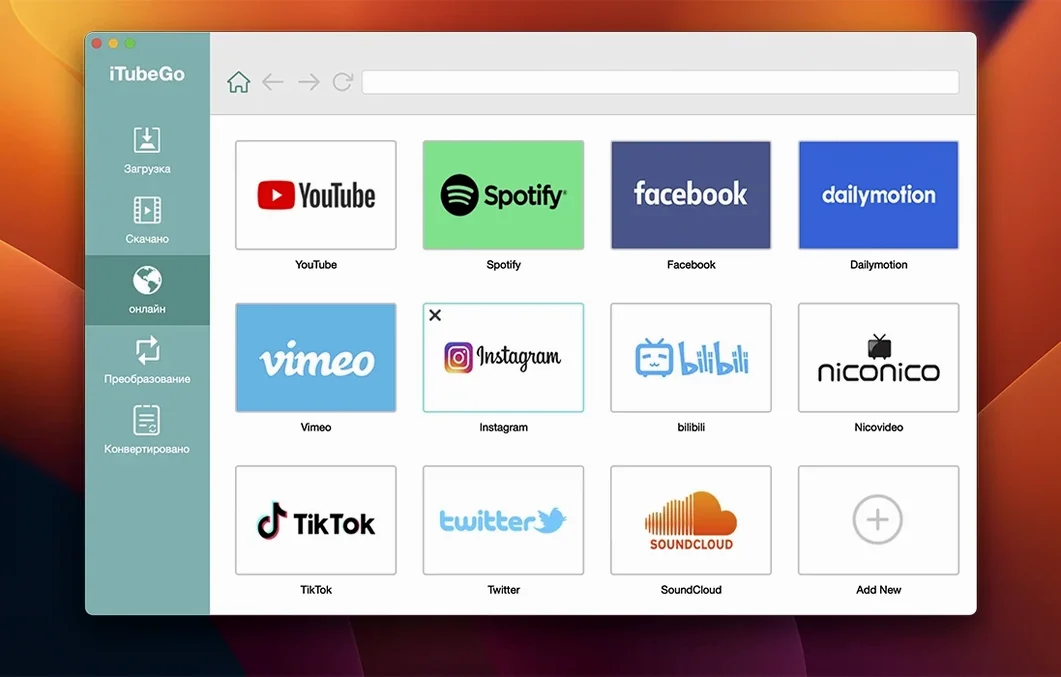
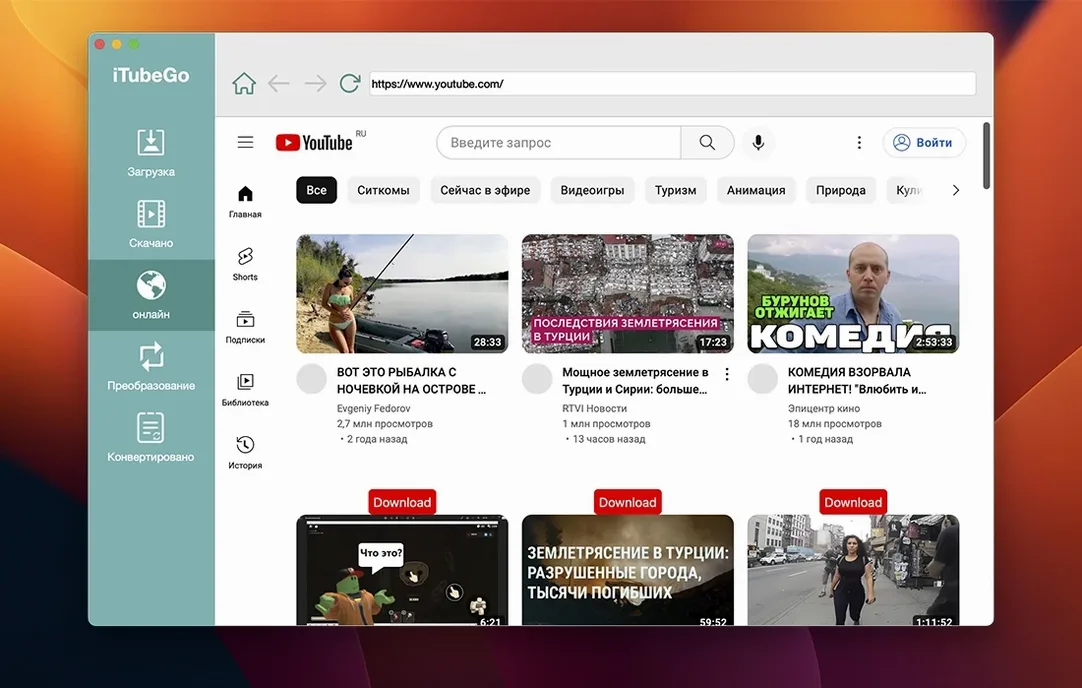
iTubeGo is a desktop downloader that pulls online video and audio straight onto your Mac, then converts the result into a format that suits the rest of your kit — whether that's an editing timeline, a music library, or a phone that doesn't play nicely with webm files.
Where iTubeGo sits in a Mac workflow
Think of it as a bridge between a streaming tab and the apps you actually use to watch, cut, or listen. Here's a typical route through the software:
- Find the source. Use the built-in browser to navigate to a video on YouTube, Vimeo, TikTok, or any of the thousands of sites the app recognises. You're not hopping between Safari and a separate downloader — it's all in one window.
- Set the quality and format. Pick a resolution from 480p right up to 8K, if the source offers it. For audio-only grabs, you can target MP3 at 320 kbps. The format list includes MP4 alongside other common containers, so the output drops neatly into Final Cut Pro, DaVinci Resolve, or the TV app without a separate transcode step.
- Download and save. iTubeGo writes the file to a folder you choose. From there it's ready to drag into a Logic Pro session, add to a Finder-managed sample library, or sync to an iPhone via the Finder sidebar. No extra conversion pass needed.
The app runs on Intel Macs back to OS X 10.10 and speaks thirteen interface languages, including Russian, German, Japanese, and both Simplified and Traditional Chinese. Its site list covers the obvious video hubs — YouTube, Facebook, Instagram, Dailymotion — and a long tail of smaller platforms, many of them adult sites, which is worth knowing if you share a machine with the family.
Because iTubeGo handles the fetch and the conversion in one go, it saves you from chaining together a browser extension, a command-line tool like yt-dlp, and a separate transcoder. That's the real fit: it compresses a multi-app tangle into a single drag-and-drop operation.
Where iTubeGo fits with other apps and macOS features
An app like this never really works in isolation. Its value comes from how quietly it slots into the habits you already have on a Mac — the Finder tags you use, the scripting you've set up, the way you drop files into a watch folder. iTubeGo doesn't try to be a media player or an editor; it's content acquisition, and it hands off cleanly to the tools that do the rest.
The most obvious companion is QuickTime Player. An MP4 file you've pulled from a Dailymotion tutorial can be opened and trimmed with QuickTime's trim tool before it goes anywhere near a student's project folder. If you've asked iTubeGo to extract audio to MP3 at 320 kbps, the result lands in Music.app (or iTunes on older macOS builds) without any warning about incompatible bitrates. The Finder's column view makes it easy to audition a download with a tap of the spacebar — Quick Look plays the MP4 or MP3 straight away, so you can check you've grabbed the right clip before renaming it.
For people who build sample libraries, Automator and Folder Actions are worth mentioning. You can point iTubeGo's output to a folder that has an Automator workflow attached: new audio files get automatically copied into a Logic Pro project folder, or tagged with a specific Finder label. That sort of quiet integration turns a manual download session into something that feeds a production pipeline without extra clicks.
The built-in browser also plays nicely with macOS Services and the share sheet — not directly inside iTubeGo, but once the file is on disk. You can right-click a freshly downloaded MP4 in the Finder and send it to iMovie, or use the share menu to ping it to a contact via Messages. The app itself stays focused on the fetch-and-convert job; the operating system handles the distribution.
A start-to-finish task: pulling a live concert clip for a podcast
Let's walk through a specific scenario. A university lecturer runs a music-analysis podcast and wants to use a thirty-second excerpt from a live performance posted on YouTube. The clip needs to be high-resolution video for the podcast's video edition, and a separate MP3 extract for the audio-only feed. Here's how that task flows through iTubeGo.
First, open the app's built-in browser and paste the YouTube URL. The page loads inside iTubeGo, and the app immediately recognises there's video content on the tab. A small overlay button appears, offering download options. You're not hunting through Safari's download list or copying URLs into a separate window — the recognition happens in place.
For the video version, you pick MP4 at 1080p. That gives the editor enough resolution for zoom-ins without bloating the project with 4K data. The download begins, and a progress bar shows the transfer. Once it finishes, you switch the format selector to MP3 at 320 kbps and run the same URL again. The second pass takes a fraction of the time because the app has already fetched the source stream; it's just transcoding the audio track.
Both files land in a folder named after the artist and date — a naming convention you set once in iTubeGo's preferences. From there, the MP4 goes into a DaVinci Resolve timeline, and the MP3 drops straight into Ferrite Recording Studio on an iPad via AirDrop. The whole job, from opening iTubeGo to having both files ready, takes under three minutes. No browser extensions, no terminal commands, no secondary converter.
Pulling reference footage in a real evening pitch session
Imagine a Thursday evening. A freelance motion designer is pulling reference footage for a pitch. The session goes like this:
6:45pm. Launch iTubeGo. The app opens with the built-in browser showing a blank tab and a row of recognised site icons across the top — shortcuts to YouTube, Vimeo, TikTok. The designer clicks the YouTube shortcut and searches for "kinetic typography reel 2024".
6:47pm. Three promising videos appear in the search results. The first one is opened. As soon as the page loads, iTubeGo's detection kicks in and a small download icon pulses in the toolbar. The designer clicks it, chooses 4K MP4 from the quality dropdown, and the download queues up. The queue panel sits at the bottom of the window, showing filename, resolution, and a growing green bar.
6:49pm. Two more videos are added to the queue without waiting for the first to finish. iTubeGo can handle simultaneous downloads — the site mentions up to ten at once — and the queue lists all three with individual progress indicators. The designer switches to the second tab in the built-in browser, this time on Vimeo, and grabs a short film at 1080p.
6:54pm. All four downloads are complete. The designer opens the output folder from iTubeGo's "Show in Finder" button, selects all four MP4 files, and drags them into a new After Effects project. Quick Look confirms each clip plays smoothly. The entire session — four quality downloads from two different platforms — took under ten minutes, and the only apps touched were iTubeGo and the Finder.
There's no drama in that session, and that's the point. The software removes the friction that usually comes with grabbing reference material from multiple sources. You stay in one window, you queue what you need, and you walk away with a folder full of ready-to-use files.
How iTubeGo compares with similar Mac downloaders
Mac users looking for a video downloader will bump into a few familiar names. Standing iTubeGo next to two of them helps clarify where it fits.
Downie is the obvious comparison. It's a well-loved Mac-native downloader with a similar site-coverage claim and a clean interface. Downie leans heavily on drag-and-drop and a menu-bar helper; you drop a URL onto its dock icon or use a Safari extension. iTubeGo takes the alternative approach of putting a browser inside the app. If you prefer staying in one window and not touching Safari at all, iTubeGo's built-in browser feels more self-contained. Downie's strength is in its per-site customisation and its extremely macOS-native feel — it's the app that feels like it grew out of a Mac developer's brain. iTubeGo, by contrast, feels like a cross-platform tool that happens to have a solid Mac build. The conversion options in iTubeGo are more prominent in the interface, and the MP3 extraction — including the 320 kbps target — is surfaced as a first-class feature rather than an afterthought.
4K Video Downloader is another common pick. Its name tells you the headline: 4K is the draw. The interface is simpler than iTubeGo's, almost sparse, and it handles playlists and channels well. Where iTubeGo pulls ahead is in the built-in browser and the bulk-queue visibility. In 4K Video Downloader, you paste a URL and get a single download dialogue; iTubeGo gives you a tabbed browser, a persistent queue panel, and the ability to browse and download from multiple sites without touching a separate web browser. The converter in iTubeGo also supports a wider range of output formats out of the box, which matters if you need a specific container for an older editing suite or a hardware media player.
If your workflow revolves around copying URLs from Safari and you want the lightest possible tool, Downie or 4K Video Downloader might feel more at home. If you'd rather do everything inside one application — browse, detect, queue, convert — iTubeGo's all-in-one design makes a stronger case, especially for bulk sessions where you're pulling from several platforms in one sitting. The built-in browser also means you never lose a download because you accidentally closed a Safari tab.
Why people searching for cracks find the Mac version already covers most needs
When people search for itubego mac crack or itubego torrent, they're often looking for a way to try the full feature set without barriers. What they find is that itubego for mac already covers most of what a download-and-convert workflow demands: high-bitrate MP3 extraction, 4K and 8K video grabs, and a queue system that doesn't choke on ten simultaneous tasks. A itubego mac torrent might circulate, but the app's own site-recognition engine works straight away on a clean install, and the interface languages — thirteen of them — make it usable for a global audience without any tinkering. The real value is in how quickly the
- OS X 10.10 or later
- Intel 64-bit processor (runs on Apple Silicon via Rosetta 2)
Questions I keep hearing
Can iTubeGo extract just the audio from a video?
Yes. You can save audio as an MP3 at up to 320 kbps, which is useful for pulling a clean soundtrack or a podcast clip without the video track.
Which video resolutions does iTubeGo support?
It lists options from 480p up to 8K, though the actual ceiling depends on what the source website provides for that particular clip.
Does iTubeGo work on Apple Silicon Macs natively?
This build is for x86 64-bit Macs, so on Apple Silicon machines it runs via Rosetta 2.
Questions from the class 0
Sign in or join the class to ask a question.
Nobody has asked anything yet. If you have used it on a real job, say what the file did.
Also on the Video Downloaders shelf
The whole Video Downloaders shelf iDownerGo
Grabs the media stream the moment you press play on a supported site.
iDownerGo
Grabs the media stream the moment you press play on a supported site.
 HarborDrop
Takes over downloading so you control exactly how files arrive on your Mac.
HarborDrop
Takes over downloading so you control exactly how files arrive on your Mac.
 Folx Pro
Manages all your downloads and torrents in one queue.
Folx Pro
Manages all your downloads and torrents in one queue.
 Downie
Grabs a video file from almost any website when you paste its link.
Downie
Grabs a video file from almost any website when you paste its link.
 Musify
Downloads music from streaming platforms and saves tracks as playable offline audio files.
Musify
Downloads music from streaming platforms and saves tracks as playable offline audio files.
 PullTube
Downloads online videos from websites for offline viewing.
PullTube
Downloads online videos from websites for offline viewing.
 AmpliTube
Models guitar amps and cabs for crafting your own virtual rig tones.
AmpliTube
Models guitar amps and cabs for crafting your own virtual rig tones.
 SiteSucker Pro
Downloads an entire website so you can browse every page and image offline.
SiteSucker Pro
Downloads an entire website so you can browse every page and image offline.