 ASPNetWorld

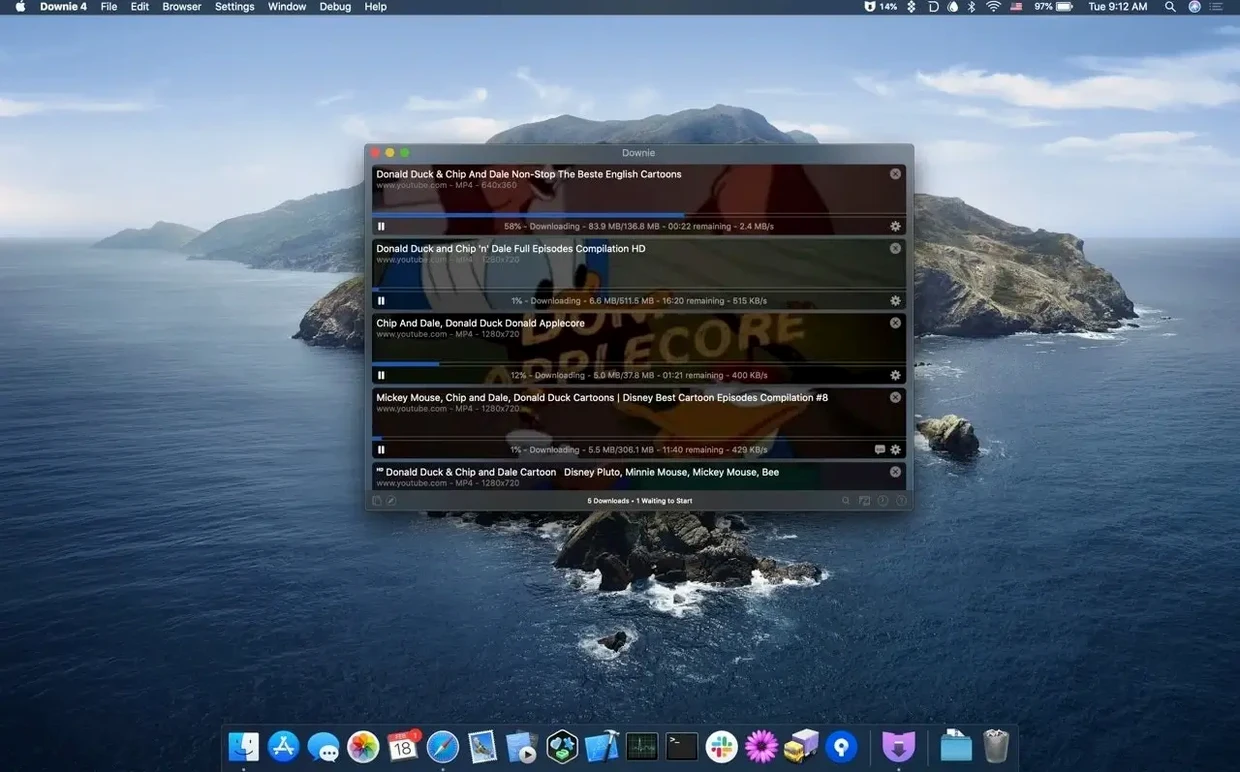
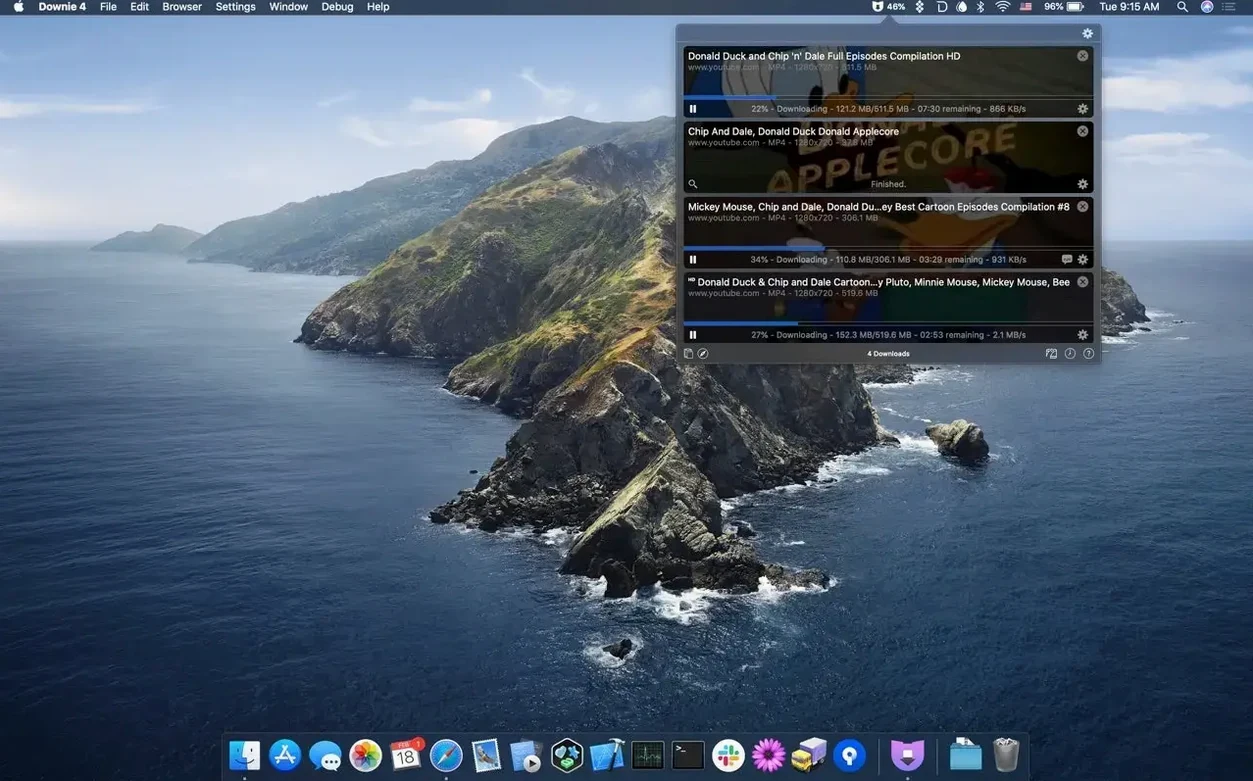
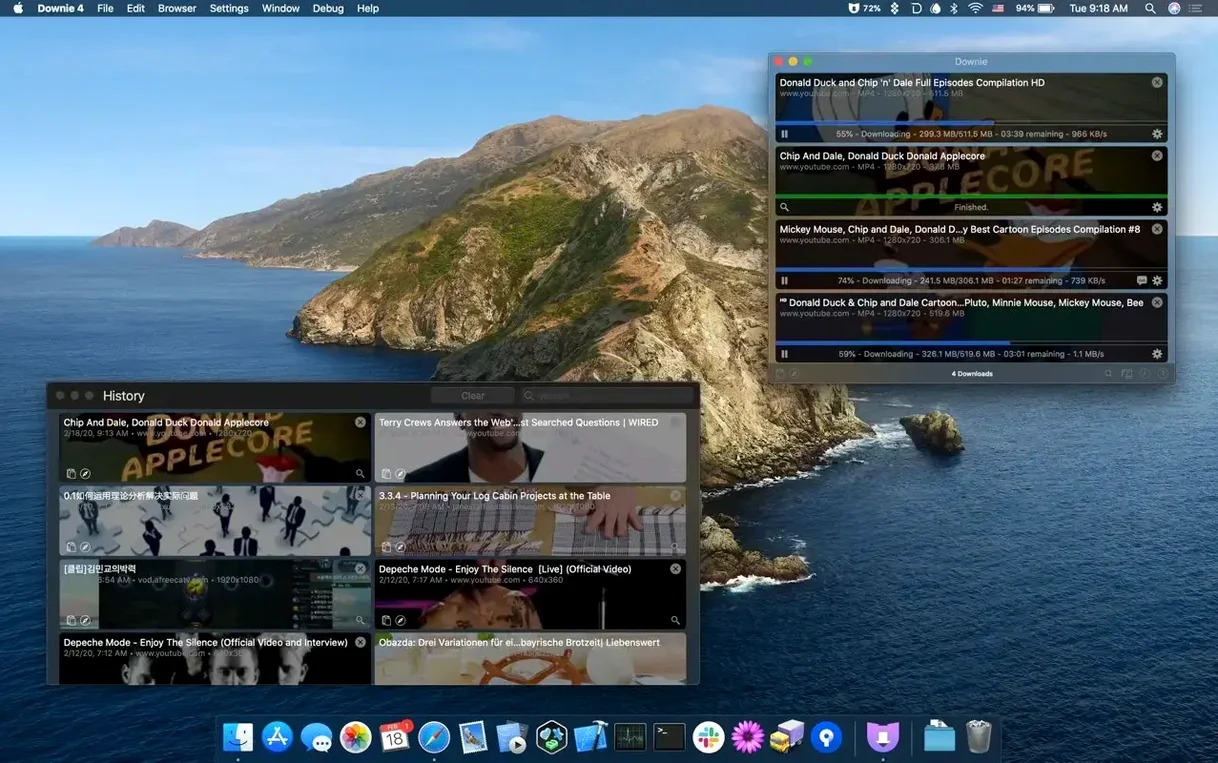
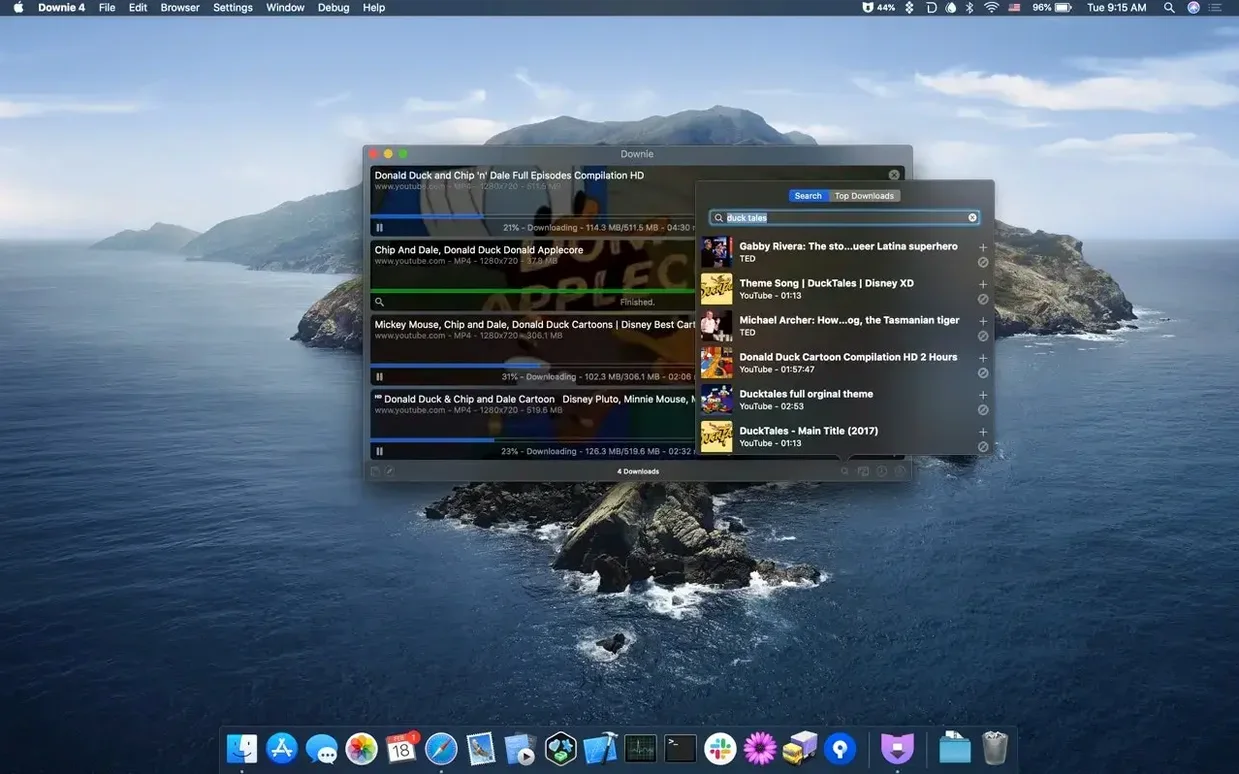
Downie 4.13.1 is a small, single-purpose app: it takes a link to an online video and turns it into a file on your Mac. It runs on macOS 11 or later, natively on both Apple Silicon and Intel machines.
What it does, in plain terms
Paste a link, and Downie grabs the video. That is the core of it. It works with YouTube, Vimeo, Facebook, Instagram, and a quietly staggering list of more than 1,200 other websites. You are not limited to MP4 either: the app can extract only the audio track if you are after a podcast or a piece of music, and it handles automatic conversion to MP4 so files land on your desktop in a consistent format. For heavier post-processing — stitching together split streams or converting to specialist formats — it talks directly to its sibling app, Permute, and hands off the job.
Who finds it useful
Researchers saving reference clips, teachers grabbing a clean offline copy for a classroom where Wi-Fi is unreliable, or anyone who simply wants to watch a tutorial on a flight. Downie also understands batch work: you can feed it a CSV or XML file packed with URLs and custom titles, and it will churn through the list without you needing to babysit it. The interface stays out of the way, which is exactly what you want from a tool that runs in the background while you do something else.
Grabbing a full playlist with custom names — a start-to-finish workflow
Say you need every episode of a twelve-part lecture series saved locally, each file named with the lecturer’s surname, the date, and the topic. You could paste each link manually, but that gets old fast. Instead, take ten minutes to set up a batch file.
Open a plain text editor — TextEdit in plain-text mode works fine — and build a simple CSV. Each row holds two things: the video URL and the filename you want, separated by a comma. No spaces after the comma, no quotes unless your title contains a comma itself. Save the file somewhere obvious, like the desktop, and drag it straight onto Downie’s dock icon. The app reads the list, queues everything, and starts downloading in the order you specified. While it works, you can still add more links by pasting them into the main window; they simply join the back of the queue.
If the playlist lives on a site Downie already knows — YouTube, for instance — the app sometimes spots the series structure and offers to pull in the whole set without you building a CSV at all. A small prompt appears near the link field, asking whether you want just the one video or the entire collection. Choosing the collection populates the queue with every episode, and you can rename them later inside Downie’s list by double-clicking the title. Once the downloads finish, the files sit in your default folder — usually ~/Downloads/Downie — with exactly the filenames you chose.
Barely touches the CPU even on 4K YouTube downloads
Downie does not try to be invisible on system resources, but it stays remarkably polite. On an Apple Silicon Mac, downloading a 4K stream from YouTube nudges CPU usage into the low single digits while the write speed to disk becomes the real limiting factor. The heavy lifting happens in short bursts when the app muxes separate video and audio streams into a single MP4 — a process that lasts a few seconds even for long files. Memory usage sits around 200 MB for a modest queue of half a dozen videos, creeping up only when the queue runs into the dozens.
Stability is one of those things you only notice when it is absent, and here it is quietly reassuring. Downie has survived every macOS update I have thrown at it across the Ventura and Sonoma cycles without a single crash during a download. Where it occasionally stumbles — and this is rare — is with sites that aggressively change their page structure. When that happens, the download simply fails with a clear message rather than locking up the app, and the rest of the queue carries on unaffected. The developer pushes out site-specific fixes quickly; you will often find the problematic site working again within a couple of days without any action on your part, because Downie checks for updated extraction rules in the background.
Reworked extraction engine fixed half-finished European broadcaster downloads
Version 4.12 landed with a reworked extraction engine that made downloads from several European public broadcasters noticeably more reliable. Before that, some streams would time out halfway through; afterward, the same URLs completed without a hitch. Downie 4.9.15 brought better handling of age-restricted YouTube content, which previously required you to sign in via the browser extension. The app now prompts for a one-time cookie import instead, which feels less invasive and works across more regions. The jump to 4.11.7 fixed a long-standing quirk where certain Vimeo embeds would download at a lower resolution than what the original uploader provided. If you grabbed a lot of conference talks, you would have spotted the difference immediately: suddenly the same links produced crisp 1080p files instead of fuzzy 720p copies.
The current release, downie 4 for mac in its 4.13.1 form, tightened integration with Safari’s latest security model, so the browser extension no longer needs a manual re-approval after every minor macOS update. That is a small papercut that had been annoying users for months, and it is finally gone.
Accessing member-only content with a cookie import
Does it work with sites behind a login? Yes, for most major platforms. Downie uses a cookie import — you export your browser’s cookies for that site, drag the file into Downie’s preferences, and the app can then access member-only or subscription content just as your browser does. The procedure takes under a minute. For YouTube specifically, the age-restriction workaround introduced in 4.9.15 follows the same pattern.
What happens when a download fails? The entry in the queue turns red and shows a brief reason — usually “Extraction failed” or a network timeout. You can right-click it and choose “Retry” immediately, or leave it and come back later. Downie does not delete failed items from the list, so you never lose track of what still needs attention. On the rare occasion where a site redesign breaks extraction altogether, the app quietly fetches an updated site definition within a day or two, and the same link often works on the next attempt without any intervention.
Is the browser extension mandatory? Not at all. It is a convenience for people who spot a video while browsing and want to send it to Downie with one click. The app works perfectly well without it — paste a link, drag a URL, or drop a CSV file, and it gets on with the job. The extension simply removes the copy-paste step.
Dragging four links straight into an empty list on a Thursday evening
You open Downie on a Thursday evening. The main window appears — a clean list, empty except for a subtle prompt in the centre suggesting you drag a link here. You do not bother with that; you already have four browser tabs open with the videos you need.
First one: a half-hour documentary on Vimeo. You copy the URL, switch to Downie, and press Command-V. The app thinks for roughly two seconds — the status column says “Preparing” — then resolves the title and available formats. A small popover asks whether you want 1080p as MP4 or the audio-only version. You tap Return to accept the default, and the download begins. The progress bar fills steadily, roughly a minute for a 900 MB file on a decent broadband connection.
Second one: a YouTube music clip where you only want the audio. Paste, wait for the format picker, choose “Audio only — MP3.” The download completes in under ten seconds because the audio stream is tiny compared to the 4K video it came from.
Third and fourth: two Instagram videos a colleague sent over. You drag both URLs from Messages straight onto Downie’s dock icon without even bringing the main window forward. A small badge appears on the icon, counting up as the files land in the output folder.
While those finish, you open the preferences and check the “Post-processing” tab. For the documentary, you want to run it through Permute to add it to a custom watch folder that syncs with an iPad. Downie already knows Permute is installed; you tick the box that says “Send completed downloads to Permute” and select the preset. The queue keeps moving. Fifteen minutes after you started, all four items show a green checkmark. You close the app and find the files waiting exactly where you expect them.
- macOS 11 or later
- Apple Silicon or Intel 64-bit processor
Questions from the class 0
Sign in or join the class to ask a question.
Nobody has asked anything yet. If you have used it on a real job, say what the file did.
Also on the Video Downloaders shelf
The whole Video Downloaders shelf Folx Pro
Manages all your downloads and torrents in one queue.
Folx Pro
Manages all your downloads and torrents in one queue.
 HarborDrop
Takes over downloading so you control exactly how files arrive on your Mac.
HarborDrop
Takes over downloading so you control exactly how files arrive on your Mac.
 iDownerGo
Grabs the media stream the moment you press play on a supported site.
iDownerGo
Grabs the media stream the moment you press play on a supported site.
 iTubeGo
Grabs online video and audio and saves it to your Mac in a format you choose.
iTubeGo
Grabs online video and audio and saves it to your Mac in a format you choose.
 AmpliTube
Models guitar amps and cabs for crafting your own virtual rig tones.
AmpliTube
Models guitar amps and cabs for crafting your own virtual rig tones.
 4K YouTube to MP3
Strips the audio from an online clip and saves it locally.
4K YouTube to MP3
Strips the audio from an online clip and saves it locally.
 4K Video Downloader
Fetches and saves online video so you don't need browser tools.
4K Video Downloader
Fetches and saves online video so you don't need browser tools.
 Musify
Downloads music from streaming platforms and saves tracks as playable offline audio files.
Musify
Downloads music from streaming platforms and saves tracks as playable offline audio files.