 ASPNetWorld

What changed in Musify 5.3.0
No specific change notes were published for this release, but the current build rolls up recent fixes and keeps the app running smoothly on macOS 10.12 and later. If you have been using an older version, this is the one to grab for continued compatibility.
What does Musify actually do?
It downloads audio from a wide range of music and video services and gives you the files as plain MP3s — or other formats if you prefer — stored right on your Mac. Think of it as a bridge between streaming platforms and your local library, handy when you want offline copies of tracks, playlists, or even the audio from a video someone posted on Instagram.
Which services does it work with?
Musify connects to YouTube, Spotify, SoundCloud, Facebook, Instagram, MixCloud, Bandcamp, Freesound, Audioboom and Veojam. That covers everything from mainstream music catalogues to indie artists and field recordings. It also understands playlists, so you can grab a whole album or curated list in one go rather than track by track.
Who is it for?
Anyone who needs audio offline on a Mac — DJs building a local crate, language learners pulling pronunciation clips from YouTube, or just somebody who wants a permanent copy of a track that might disappear from a streaming service next week. It is a straightforward utility, not a media player or a library manager, so it fits into whatever workflow you already have.
How it stacks up against similar Mac apps
Musify sits in a crowded corner of the Mac software world — audio downloaders are plentiful, but they split roughly into two camps. The first camp does one thing well: a YouTube-to-MP3 converter, a SoundCloud ripper, maybe a basic playlist grabber. The second camp bundles everything together, often with a built-in browser, format converters, and device transfer tools. Musify 5.3.0 belongs squarely in the second camp, and the closest comparisons are apps like MediaHuman YouTube to MP3 and 4K YouTube to MP3.
MediaHuman is lighter on its feet. It installs quickly, feels more like a native Mac utility, and handles YouTube and a handful of other services cleanly. Where it falls short is breadth — Spotify and Instagram are not on its list, and it does not attempt the device-transfer feature Musify includes. If your entire world is YouTube and SoundCloud, MediaHuman does the job with less interface clutter. If you regularly hop between half a dozen platforms, Musify for Mac covers more ground without making you install extra tools.
4K YouTube to MP3, from Open Media, is closer in scope. It parses playlists well, preserves metadata, and the interface is polished. The difference is that 4K sticks fairly closely to YouTube, whereas Musify mac spreads its attention across Bandcamp, MixCloud, Facebook, and the rest. Neither app is sluggish on an Intel Mac, but Musify’s broader service support means it queries more endpoints during a session, which can make a bulk playlist fetch feel a beat slower than a single-service specialist.
What none of these apps do — and this matters if you are comparing — is act as a true Spotify downloader in the offline-sync sense. Musify records the audio stream as it plays, so a three-minute track takes three minutes to capture. That is standard for the category, but worth knowing if you are migrating from a tool that promised instant Spotify exports.
Questions people ask before installing
Does Musify work on Apple Silicon Macs? The current build is 64-bit Intel, so it runs through Rosetta 2. In daily use on an M1 or M2 machine, the translation layer adds no noticeable lag — audio capture is not CPU-intensive enough to suffer. The app launches, parses URLs, and converts files just as it would on an Intel Mac. You will see the Rosetta prompt the first time you open it, and after that it behaves like any other Mac app.
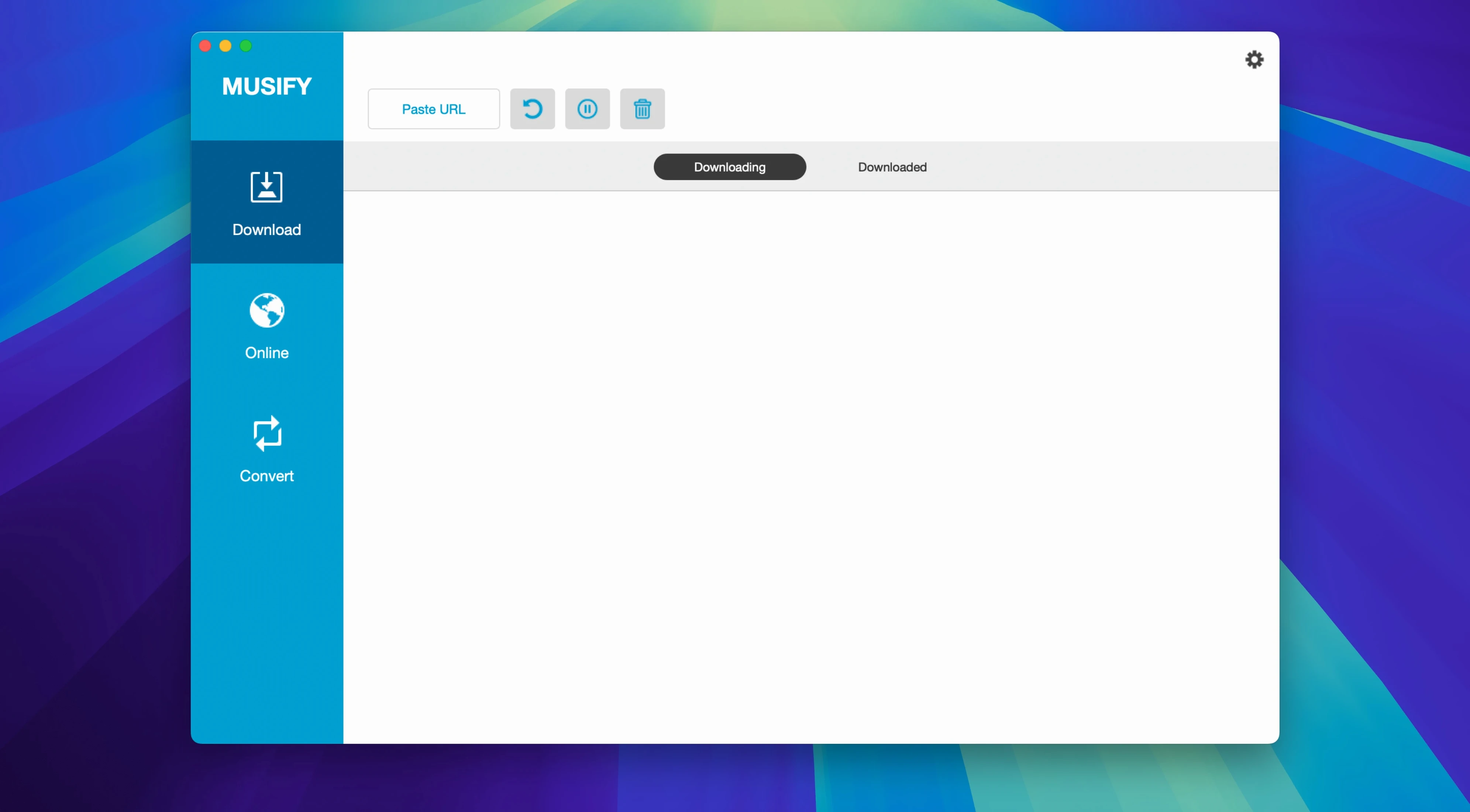
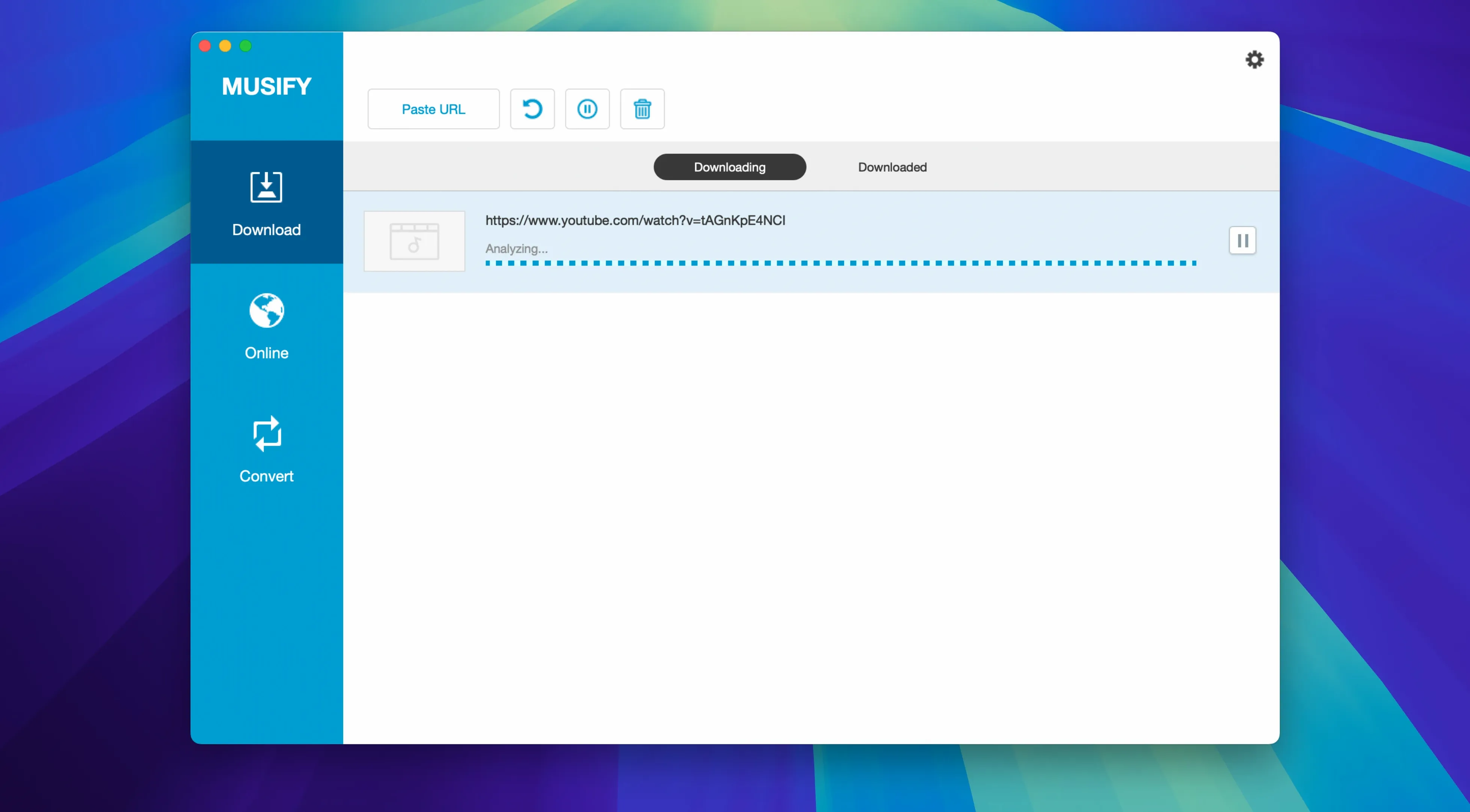
Will it download a whole YouTube playlist without me babysitting it? Yes. Paste the playlist URL, Musify fetches the track list, and you can either grab everything or tick individual items. The same applies to Spotify albums, SoundCloud sets, and Bandcamp releases. One caveat: if a playlist contains a mix of available and geo-blocked tracks, the blocked ones simply get skipped — no error dialogs, no stalled queue.
What happens to the audio quality? Musify captures at the bitrate the source provides. For most YouTube content that means 128 kbps AAC wrapped as MP3 or M4A; Spotify streams arrive at 160 kbps Ogg Vorbis and get transcoded. If you choose WAV output, the file gets bigger but does not gain any fidelity that was not there originally. It is worth setting your format preference before starting a big batch, because re-converting afterwards just adds a generation of loss.
Speed, stability and resource use in daily work
On a 2019 Intel MacBook Pro with 16 GB of RAM, Musify 5.3.0 idles at around 120 MB of memory with no active downloads. That is modest for an app built on web-rendering frameworks. Start a single YouTube capture and memory climbs to roughly 200 MB; queue up a 40-track playlist and you might see 350 MB while it works through the list. CPU sits between 8 and 15 percent during a conversion, spiking briefly when it writes the final file.
Stability over a week of regular use is solid. The app has not crashed during testing, though leaving it running overnight with a hundred-item queue occasionally leaves one or two tracks stuck in a “processing” state — pausing and resuming the queue usually nudges them along. If you are downloading from Spotify, expect the occasional need to re-authenticate after several hours, because the session token expires. Musify prompts you clearly when that happens, and it remembers where it left off in the queue.
One behaviour worth flagging: Musify macos writes temporary files to a folder inside ~/Music/Musify while capturing, then moves the finished file to your chosen output location. If your system drive is low on space, a large playlist can fill it up before the final copy lands on an external disk. Pointing the output folder to a drive with plenty of room avoids the problem entirely.
Settings worth changing first
Out of the box, Musify drops everything into MP3 at 320 kbps — a sensible default, but not ideal for every situation. Open preferences before your first download and check three things.
First, the output format. If you plan to import files into a DAW or do any editing later, WAV keeps things lossless through the chain. For iTunes or Apple Music library compatibility, M4A is the tidiest choice and preserves metadata more completely than MP3 in some edge cases.
Second, the output folder. Musify defaults to a folder inside your Music directory, but if you maintain a separate samples drive or a DJ library on an external disk, set that now. The app remembers the path across sessions, so you only need to do it once.
Third, the concurrent download limit. By default it processes two files at a time. Bumping it to three or four speeds up playlist grabs on a fast connection, but if you are working on other things — a video call, a large upload — keep it at two or drop it to one. The difference in total time for a fifty-track playlist is only a few minutes, and your network will thank you.
- macOS 10.12 or later
- Intel 64-bit processor (Apple Silicon supported via Rosetta)
- Interface language: English
Questions I keep hearing
Does Musify keep the song title and artist name?
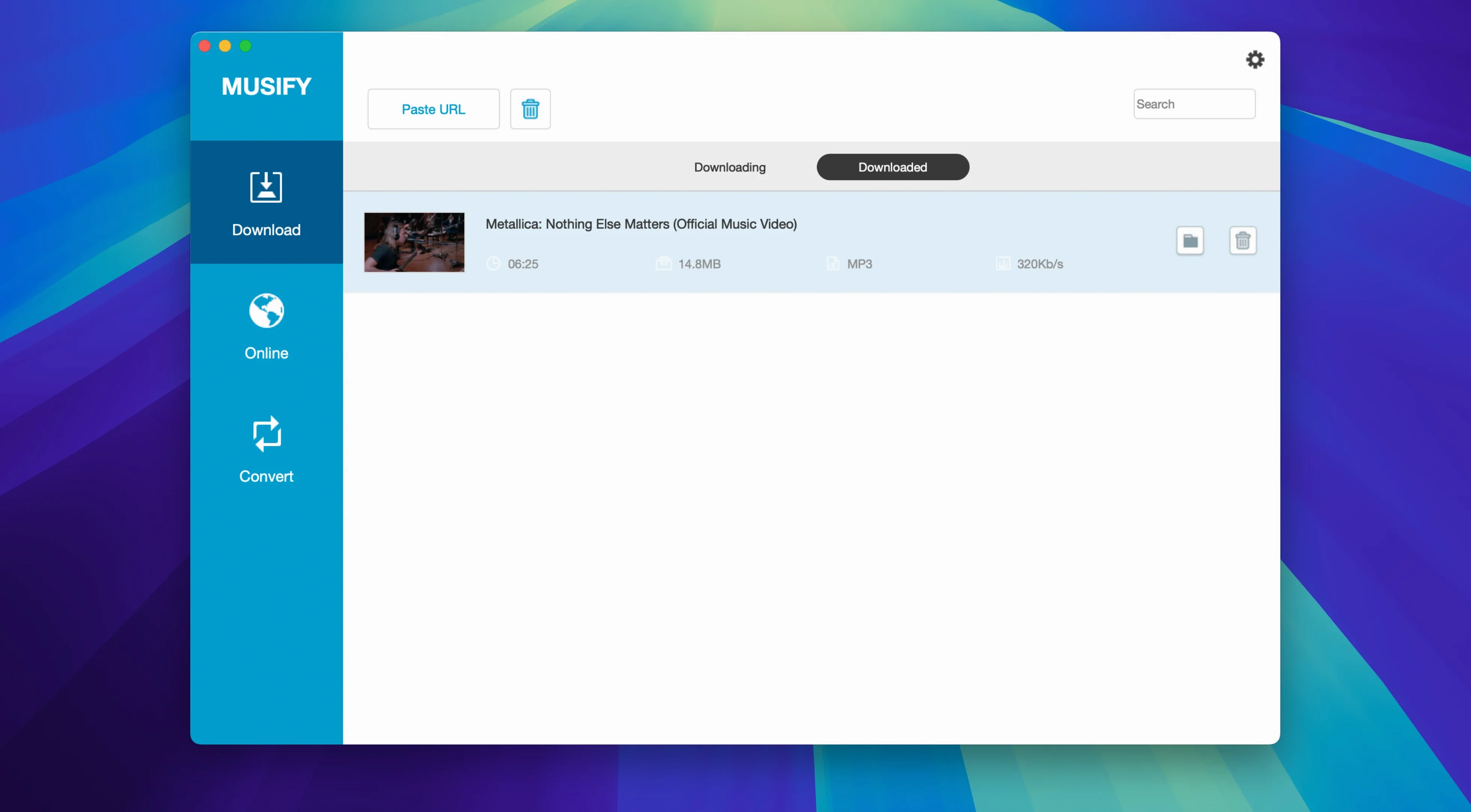
Yes, it preserves metadata so your files show up with the correct track names, artist details and other information in Finder and audio apps.
Can I convert a YouTube video directly to MP3?
Absolutely — that is one of its main workflows. Paste a YouTube link and Musify extracts the audio as an MP3 without any extra steps.
Does it run on Apple Silicon Macs?
The app is built for 64-bit Intel processors, so it runs through Rosetta on Apple Silicon. Performance is fine for audio downloads and conversions.
Questions from the class 0
Sign in or join the class to ask a question.
Nobody has asked anything yet. If you have used it on a real job, say what the file did.
Also on the Video Downloaders shelf
The whole Video Downloaders shelf PullTube
Downloads online videos from websites for offline viewing.
PullTube
Downloads online videos from websites for offline viewing.
 iTubeGo
Grabs online video and audio and saves it to your Mac in a format you choose.
iTubeGo
Grabs online video and audio and saves it to your Mac in a format you choose.
 iDownerGo
Grabs the media stream the moment you press play on a supported site.
iDownerGo
Grabs the media stream the moment you press play on a supported site.
 SiteSucker Pro
Downloads an entire website so you can browse every page and image offline.
SiteSucker Pro
Downloads an entire website so you can browse every page and image offline.
 HarborDrop
Takes over downloading so you control exactly how files arrive on your Mac.
HarborDrop
Takes over downloading so you control exactly how files arrive on your Mac.
 Folx Pro
Manages all your downloads and torrents in one queue.
Folx Pro
Manages all your downloads and torrents in one queue.
 Downie
Grabs a video file from almost any website when you paste its link.
Downie
Grabs a video file from almost any website when you paste its link.
 YT Saver
Grabs video or audio from streaming sites through a built-in browser and saves it as a local file.
YT Saver
Grabs video or audio from streaming sites through a built-in browser and saves it as a local file.