 ASPNetWorld

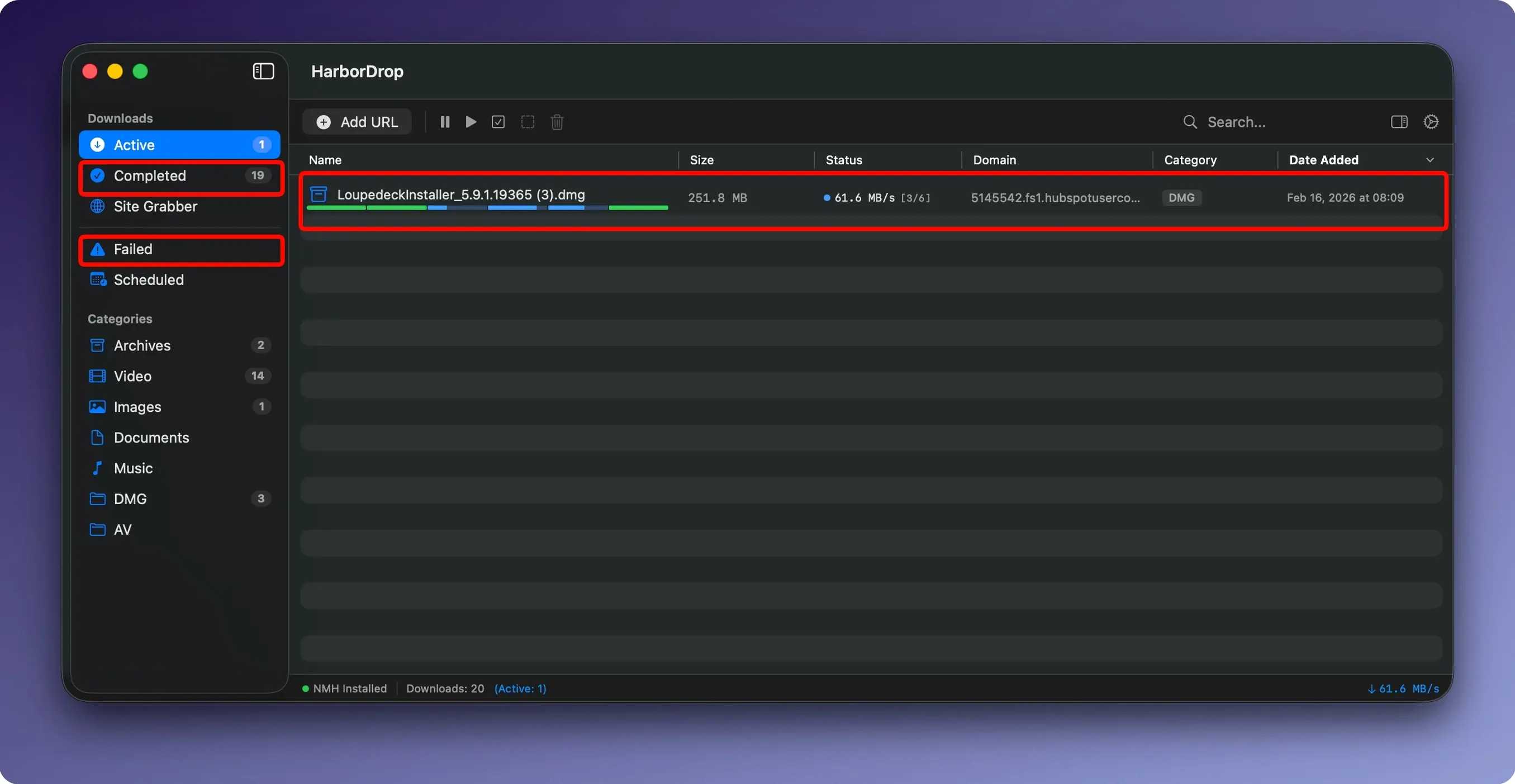
HarborDrop runs on any Mac with macOS 12 or later, whether it uses an Intel processor or Apple Silicon. It handles the downloading so you don't have to babysit progress bars — it is designed for people who find a browser's built-in manager too basic, and who want proper control over how files arrive and what happens next.
How does it speed up large downloads?
Instead of pulling a file down in one long stream, HarborDrop splits it into parts — six by default, though you can adjust the count — and fetches them in parallel. Each segment gets its own connection, so you are making full use of your bandwidth rather than waiting on a single trickle. For big disk images or video archives, the difference in wall-clock time is noticeable.
It resumes broken downloads and can intercept file links from a page
Browser download managers are fine for a PDF or a small zip, but they give up on interrupted transfers and offer no way to automate what happens afterwards. HarborDrop can intercept file links from a page, resume broken downloads, and grab non-DRM video from supported websites for offline viewing. You can also send media links straight to the app, bypassing the browser's download queue altogether.
Can it run tasks once a download finishes?
Yes, and this is where it pulls ahead of simpler tools. You can set HarborDrop to run a Shell script, a JavaScript snippet, or an AppleScript after a download completes. That means you could auto-extract an archive, rename a file based on its metadata, or trigger a notification in another app — all without lifting a finger once the bits have landed.
You automate multi-step file processing, not just grab an occasional PDF
There is a particular type of Mac user who will feel instantly at home with HarborDrop. It is not the person who downloads the occasional PDF from a university reading list, nor the one who grabs a single app update once a fortnight. The sweet spot sits with people whose day involves moving large chunks of data around: video editors pulling raw footage from cloud storage, developers grabbing nightly builds and disk images, or anyone who regularly saves non-DRM media for offline viewing and wants the process to be fast and predictable.
People who work across several Chromium-based browsers — Chrome, Edge, Brave, Arc — tend to appreciate the consistent capture experience the extension provides. Instead of learning a different download workflow for each browser, you get the same interception and send-to-app behaviour everywhere. The Site Grabber, with its configurable crawl depth, also appeals to researchers and archivists who need to collect a batch of linked resources from a page without clicking each one by hand.
Mac users who already tinker with automation will find the post-download scripting genuinely useful. If the idea of writing a short Shell script to sort finished downloads by type, or an AppleScript that tags files in the Finder, sounds like a pleasant afternoon rather than a chore, you are exactly the audience the developer had in mind. HarborDrop doesn't force automation on anyone, but it doesn't hide it either.
The browser extension must be installed and given permission to intercept links
The most common stumble is treating it like a default browser manager and assuming it will catch every download automatically. You do need to install the browser extension and give it permission to intercept links; without that, HarborDrop sits quietly in the background and files land in your ordinary Downloads folder as they always have. It is a small setup step that gets missed surprisingly often.
Another early misstep is cranking the segment count up to the maximum on a connection that cannot sustain it. Six parallel parts usually work well on a decent home broadband line, but on a patchy café Wi-Fi network, too many segments can cause timeouts rather than faster speeds. It is worth dialling the number back to two or three if you notice transfers stalling — you can always experiment later when the connection is more solid.
Beginners also sometimes ignore the post-download actions panel entirely, either because they assume it is a developer-only feature or because they do not realise it exists. Even a simple AppleScript that opens the containing folder in Finder saves a few clicks per download, and those clicks add up over a working week. You do not need to be a coder to paste in a one-liner someone else has shared.
A missing referrer header or cookie can block the download from starting
One snag that crops up is a download that refuses to start in HarborDrop but works fine in a browser. This often happens with sites that require a specific referrer header or cookie to authorise the request. The fix is usually to use the browser extension's "send to HarborDrop" option on the link itself, which passes along the session context. Dragging a URL straight into the app window can bypass that context, so the server rejects the request.
Another issue is video capture not detecting a stream on a page. HarborDrop supports HLS and m3u8 playlists, but only for non-DRM content. If a site wraps its video in a DRM layer, the app cannot touch it — that is a legal and technical boundary, not a bug. For unprotected streams, refreshing the page with the extension active often helps it spot the playlist file on the second pass.
Post-download scripts that silently fail are usually a permissions problem. If you are calling a Shell script that moves files to a protected directory, macOS will block it unless the app has been granted Full Disk Access in System Settings. The script itself might be perfectly written; the operating system just needs to be told it is allowed to run. A quick visit to System Settings > Privacy & Security > Full Disk Access sorts this out.
A minor but persistent irritation: the app sometimes places the HarborDrop Mac icon in the Dock rather than keeping it in the menu bar, which can feel cluttered. There is a preference to switch it to a menu bar accessory, and most people find that once they have set up their automation rules, they prefer the app to stay out of sight until a download actually finishes.
You choose which file types and sites get handed to HarborDrop
Will this replace my browser's download manager completely? It can, but you get to decide how much it takes over. The browser extension lets you choose which file types and which sites get handed to HarborDrop; everything else stays with your browser's built-in handler. Some people let HarborDrop manage anything over 100 MB and leave smaller files alone. You set the boundaries.
Does it work with Safari, or only Chromium-based browsers? The extension currently supports Chrome, Edge, Brave, Arc, and Firefox. Safari users can still use HarborDrop by pasting links manually into the app, but they will not get the automatic interception or the right-click send-to-app convenience. If Safari is your daily driver, you will be doing a little more copy-and-paste.
Is the segmented downloading going to annoy my ISP or get me flagged somewhere? Highly unlikely. The segments are all connections to the same server requesting the same file, which looks like a normal, slightly more efficient download from the network's point of view. It is standard behaviour for download managers and does not resemble the sort of traffic pattern that raises flags on residential connections.
- macOS 12 or newer
- Intel or Apple Silicon Mac
- Interface languages: English, German, Korean
Questions from the class 0
Sign in or join the class to ask a question.
Nobody has asked anything yet. If you have used it on a real job, say what the file did.
Also on the Video Downloaders shelf
The whole Video Downloaders shelf iDownerGo
Grabs the media stream the moment you press play on a supported site.
iDownerGo
Grabs the media stream the moment you press play on a supported site.
 Folx Pro
Manages all your downloads and torrents in one queue.
Folx Pro
Manages all your downloads and torrents in one queue.
 iTubeGo
Grabs online video and audio and saves it to your Mac in a format you choose.
iTubeGo
Grabs online video and audio and saves it to your Mac in a format you choose.
 Downie
Grabs a video file from almost any website when you paste its link.
Downie
Grabs a video file from almost any website when you paste its link.
 Musify
Downloads music from streaming platforms and saves tracks as playable offline audio files.
Musify
Downloads music from streaming platforms and saves tracks as playable offline audio files.
 AmpliTube
Models guitar amps and cabs for crafting your own virtual rig tones.
AmpliTube
Models guitar amps and cabs for crafting your own virtual rig tones.
 PullTube
Downloads online videos from websites for offline viewing.
PullTube
Downloads online videos from websites for offline viewing.
 4K YouTube to MP3
Strips the audio from an online clip and saves it locally.
4K YouTube to MP3
Strips the audio from an online clip and saves it locally.