 ASPNetWorld

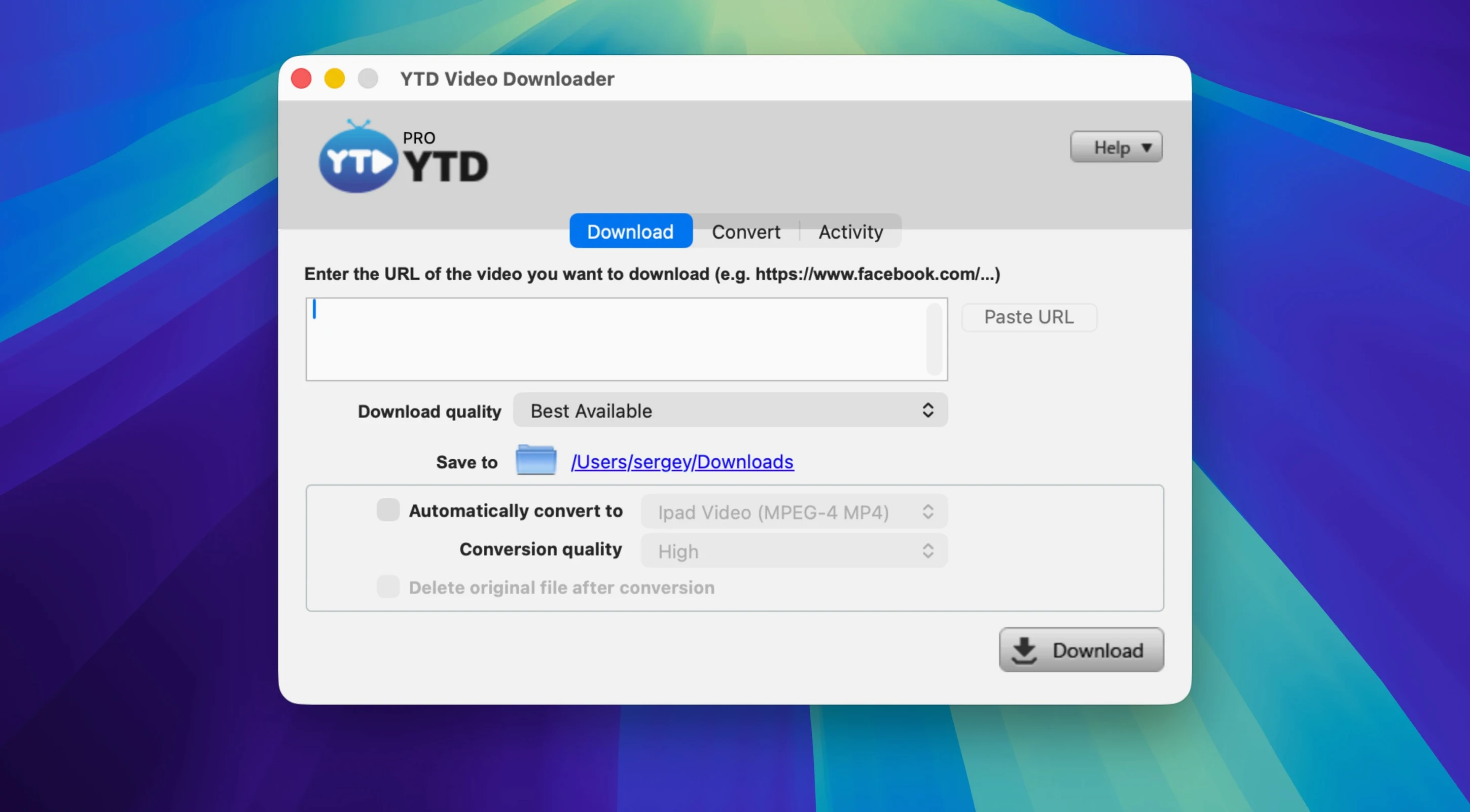
You’ve just spotted a long tutorial on YouTube that you’d rather watch offline, or perhaps a friend sent a TikTok clip you want to keep before it vanishes from your feed. YTD Video Downloader for Mac slots into that gap between finding something online and needing it as a proper file on your desktop. Paste a copied link — the app notices it from the clipboard — and you’re already deciding whether to save the video as-is or pull out just the audio as an MP3.
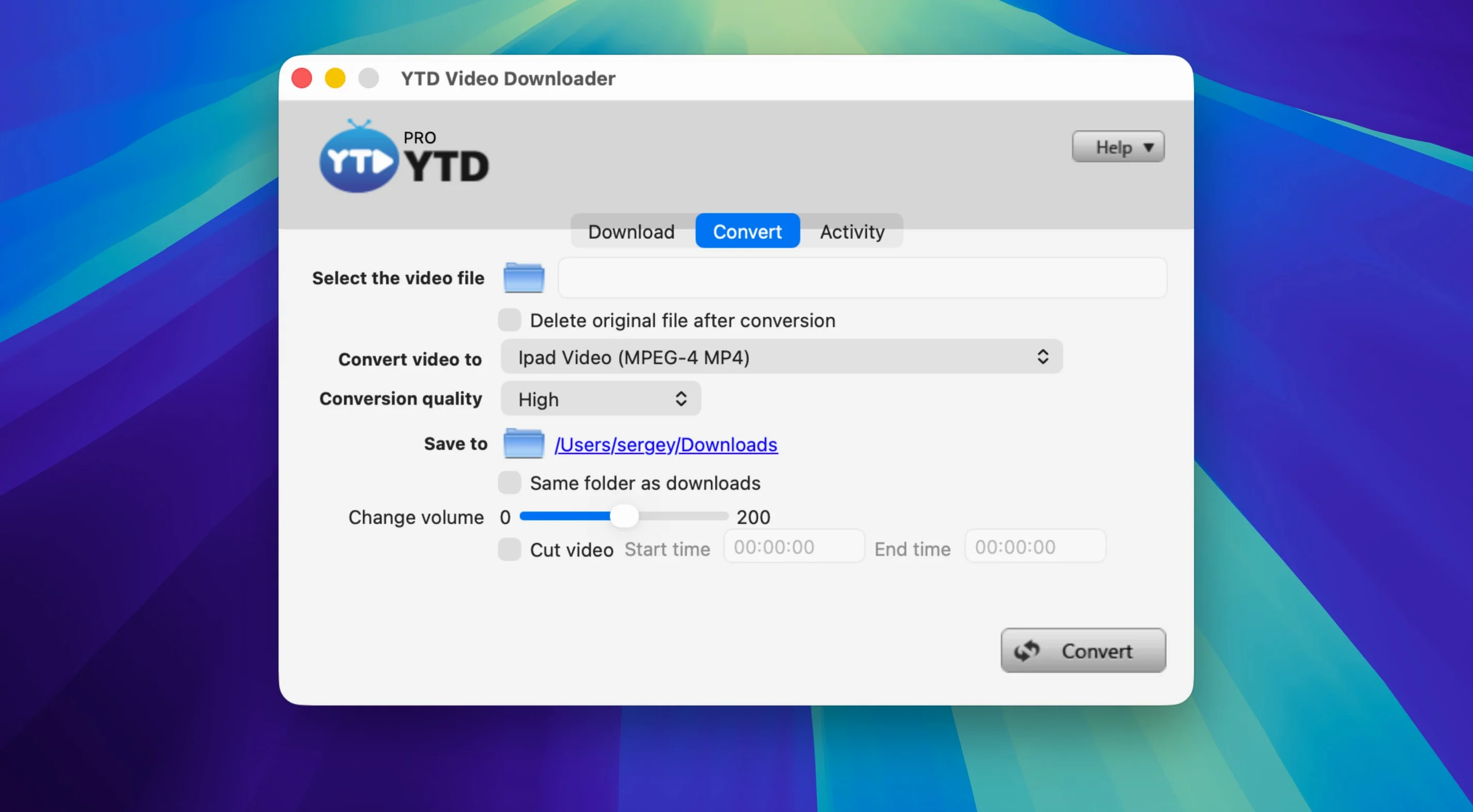
The workflow stays local, so there’s no queue on a remote server and no account to set up. That matters when you’re pulling down an entire playlist: set it going, and if the connection wobbles, the download pauses and resumes rather than starting from scratch. The built-in converter handles a sensible spread of formats — .mp4, .mov, .avi, .mp3 and a few others — which means you don’t have to round-trip the result through another tool just to get it into QuickTime Player or Apple Music.
Where it fits alongside your usual Mac apps is in the unglamorous moments. It doesn’t try to be a media library, an editor or a cloud sync service. It pulls a video from TikTok, Instagram, Facebook, X or LinkedIn, optionally strips the audio to AAC, and leaves the file in a folder you already organise with Finder. The app keeps no download history, so the only record of what you grabbed is the file itself.
Beginners sometimes fire up the app, paste a link and stare at an idle queue, wondering why nothing happens. The first thing to check is whether the link is a full URL, not a shortened one. Services like bit.ly or t.co wrap the real address in a redirect, and the clipboard detection doesn't always chase that down. Paste the expanded URL from your browser's address bar instead — the one that starts with https://www.youtube.com/watch rather than youtu.be — and the download will kick off immediately. Another early stumbling block is the format picker. It sits quietly at the bottom of the window and remembers your last choice, so someone who converted a video to MP3 yesterday might be confused when today’s download arrives as an audio file. Glance at the output format before you click the download button, especially if you share the Mac with someone else who uses the app differently.
People also overlook that the app downloads at the resolution the source platform serves by default, which isn't always the highest available. If you want 1080p rather than 720p from a YouTube link, or a specific bitrate for a music video, open the download options dropdown — that small gear icon next to the paste field — and pick the quality tier before the transfer begins. The app won't re-download a file to upgrade it retrospectively, so that half-second of checking saves a second pass.
A pause button that doesn't panic when the connection drops
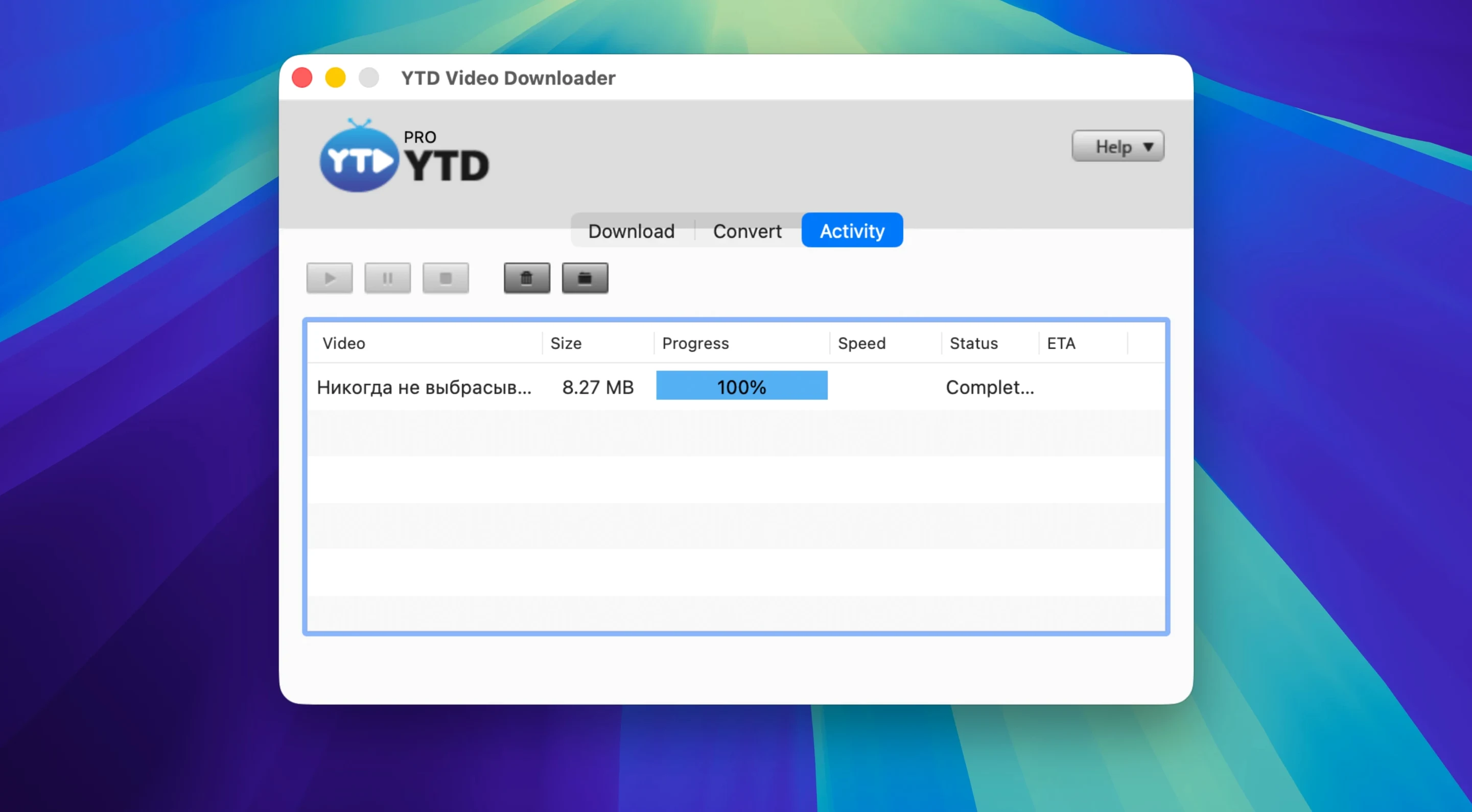
The pause-and-resume behaviour works without a progress bar that freezes and panics you. When the connection drops, the row dims and shows "Paused" in grey; you can also pause it yourself by clicking the entry. What the interface doesn't shout about is that you can quit the app, reopen it tomorrow and still resume the same partial download, provided the source server hasn't removed the video in the meantime. For a long playlist grabbed overnight on patchy Wi‑Fi, that's the difference between waking up to a complete folder and waking up to a failed queue.
Playlist handling has its own quiet logic. Drop a playlist link and the app asks whether you want the whole list or just the first video. If you pick the whole list, it numbers the files in order and appends the video title, so your Finder folder reads sensibly rather than as a scramble of random strings. A minor but thoughtful touch is that the app strips out silent pre‑roll and trailing blank space when converting to MP3 — a quirk of some platforms that leaves you with three seconds of nothing at the start of a track. You won't find a checkbox labelled "trim silence"; it just does it.
Another easily-missed feature: drag a video file from Finder straight into the app window and it bypasses the download stage, jumping to the converter. That's useful when someone sends you a .flv from an older screen recording or a .wmv from a Windows colleague, and you need it in .mov for Keynote or iMovie without hunting for a separate converter. The same drag-and-drop trick works for a batch of files, so you can queue up a morning's worth of conversions while you make coffee.
It can't grab videos that require a login
Does it handle age‑restricted or private videos? No downloader can fetch a video that requires a login to view, and ytd for mac behaves the same way. If you can watch it in a private browser window without signing in, the app can probably grab it. If the platform puts a login wall in front of the content, the app will report a failure and move on to the next item in the queue rather than locking up.
Will it keep working when a video site changes its page layout? The app relies on pattern matching rather than a hard‑coded page structure, so small cosmetic changes to a site rarely break the download. Major overhauls — the kind where a platform rewrites its entire video delivery pipeline — can cause a temporary gap, and the developer tends to issue an update within days. Because the processing stays local and doesn't phone home to a licensing server, an older version keeps converting local files even if the download module waits for a patch.
How much space do the converted files take? A rough rule of thumb on a Mac with a Retina display: a ten‑minute 1080p clip lands at around 200–400 MB as an .mp4, depending on the source compression. Converting the same clip to .mp3 at 256 kbps gives you roughly 18 MB. The app shows an estimated file size once you pick a format, so you can decide before committing. People using ytd video downloader for mac on a laptop with a 256 GB drive usually set the output folder to an external SSD from the preferences pane, which takes about ten seconds to configure.
A playlist-to-USB workflow, step by step
Imagine a Friday evening ritual. You're about to drive to a cottage with patchy mobile signal, and you want a dozen music videos from a YouTube playlist saved as audio on a USB stick for the car stereo.
Open your browser and copy the playlist URL from the address bar — the long one that includes ?list=. Switch to the app. The link already sits in the paste field because the clipboard detection picked it up. A dialogue appears asking whether you want one video or the entire playlist; choose the playlist option. From the format dropdown at the bottom, select MP3 and set the quality to 256 kbps in the small pop‑out next to it. Click the download button. The queue populates with twelve rows, each showing the video title and a progress indicator.
While the first track downloads, open the preferences and set the output folder to a folder on your USB stick — the app writes each file as it finishes, so you don't have to wait for the whole batch to complete before moving anything. Halfway through the third track, your Wi‑Fi glitches. The active row pauses, waits a few seconds, then resumes automatically. By the time you've packed your bag, all twelve MP3s sit on the USB stick, named in playlist order and trimmed of any leading silence. Eject the stick, close the app and you're done — no history log, no leftover temporary files, just the folder you pointed it at.
- macOS 10.10 or later
- Intel processor
Questions I keep hearing
Can YTD for Mac grab a full playlist in one go?
Yes, it can download an entire playlist with a single action rather than adding each video individually.
What happens if the internet connection drops mid-download?
The app can automatically retry after a connection break and supports pausing and resuming, so you won't lose progress.
Questions from the class 0
Sign in or join the class to ask a question.
Nobody has asked anything yet. If you have used it on a real job, say what the file did.
Also on the Video Downloaders shelf
The whole Video Downloaders shelf YT Saver
Grabs video or audio from streaming sites through a built-in browser and saves it as a local file.
YT Saver
Grabs video or audio from streaming sites through a built-in browser and saves it as a local file.
 SiteSucker Pro
Downloads an entire website so you can browse every page and image offline.
SiteSucker Pro
Downloads an entire website so you can browse every page and image offline.
 PullTube
Downloads online videos from websites for offline viewing.
PullTube
Downloads online videos from websites for offline viewing.
 Musify
Downloads music from streaming platforms and saves tracks as playable offline audio files.
Musify
Downloads music from streaming platforms and saves tracks as playable offline audio files.
 iTubeGo
Grabs online video and audio and saves it to your Mac in a format you choose.
iTubeGo
Grabs online video and audio and saves it to your Mac in a format you choose.
 iDownerGo
Grabs the media stream the moment you press play on a supported site.
iDownerGo
Grabs the media stream the moment you press play on a supported site.
 HarborDrop
Takes over downloading so you control exactly how files arrive on your Mac.
HarborDrop
Takes over downloading so you control exactly how files arrive on your Mac.
 Folx Pro
Manages all your downloads and torrents in one queue.
Folx Pro
Manages all your downloads and torrents in one queue.