 ASPNetWorld

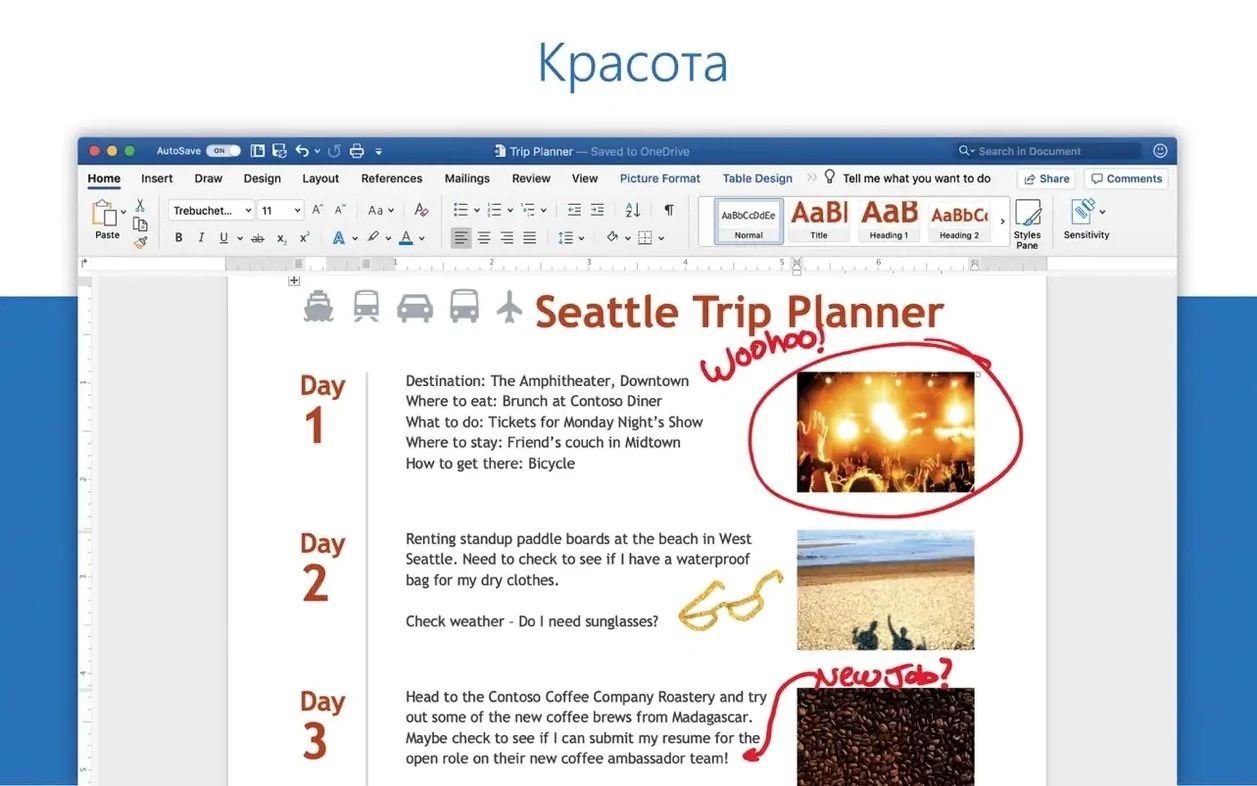
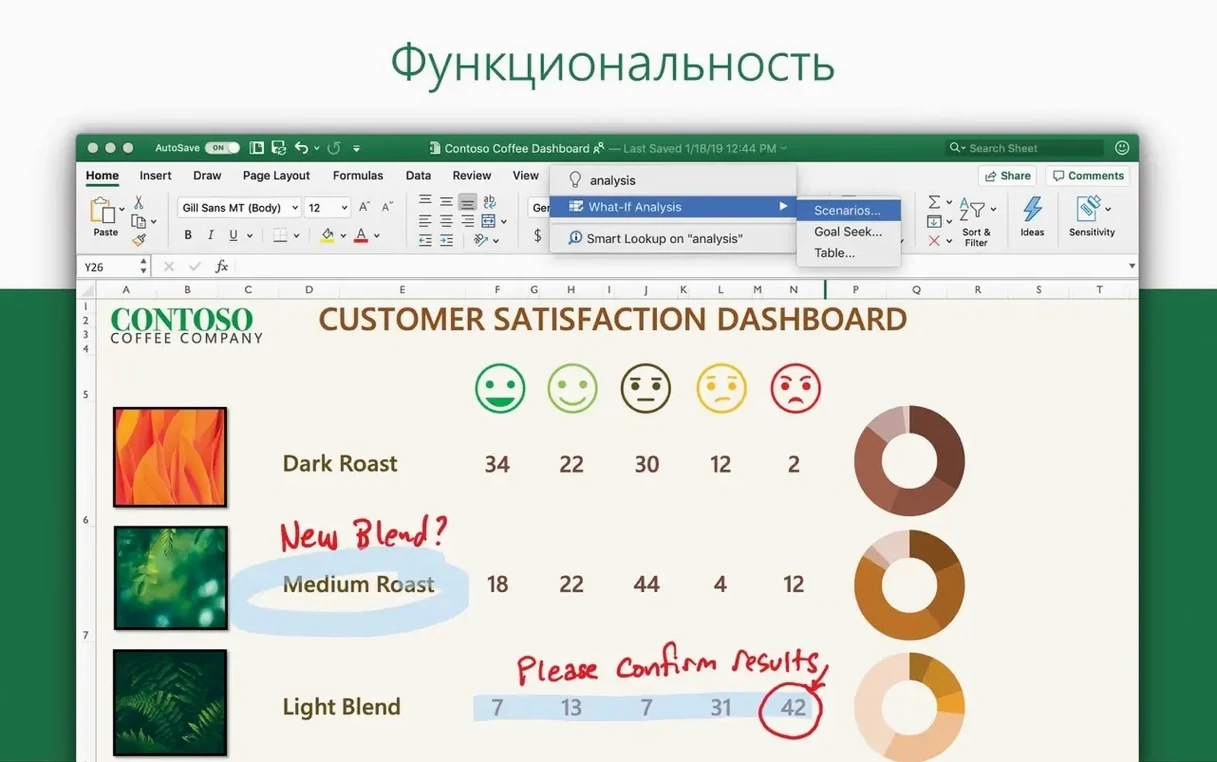
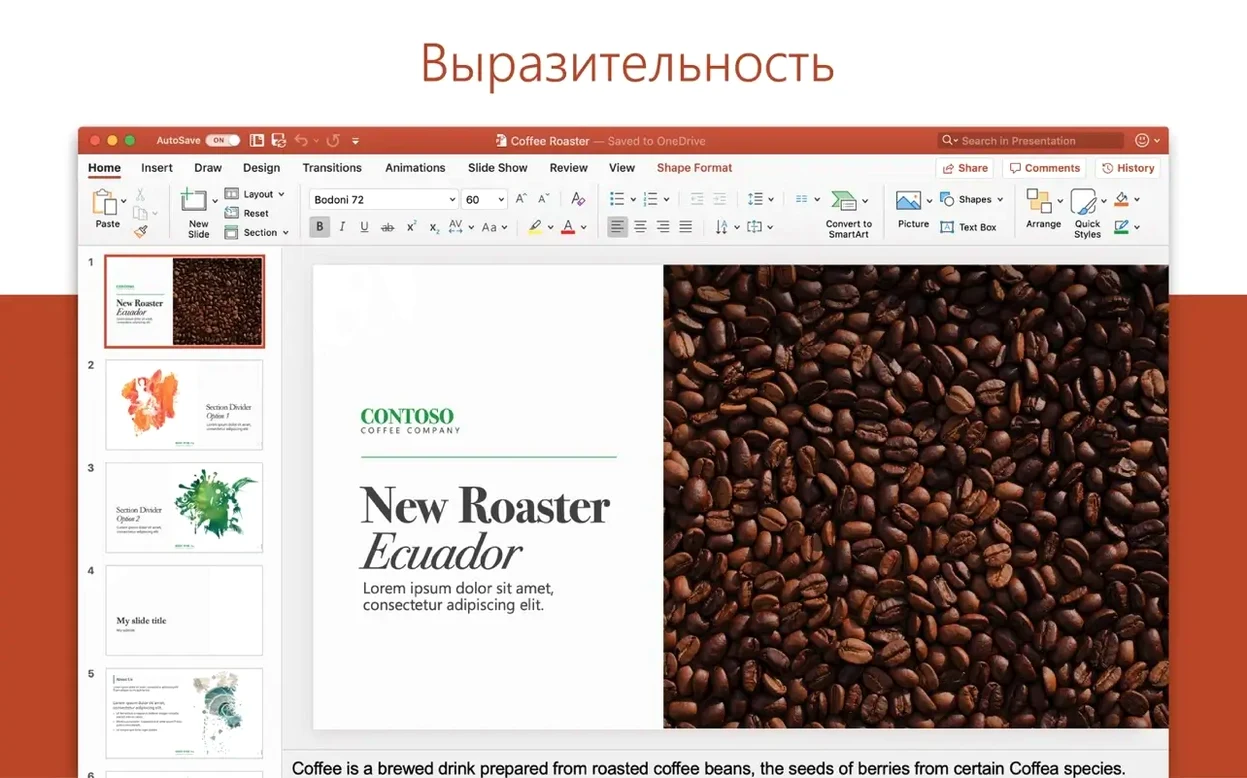
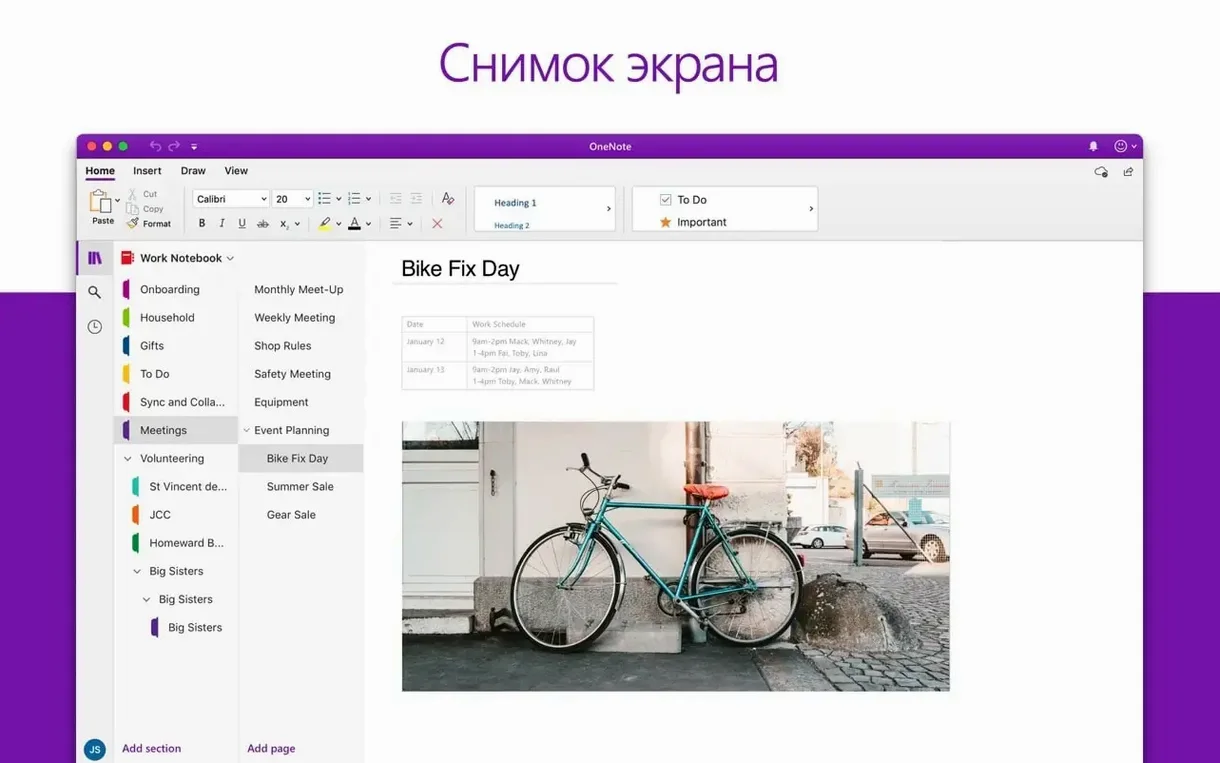
People who have been using Office on the Mac for years tend to develop a particular rhythm — they stop clicking through menus and start reaching for the features that actually carry the day. This is the audience that will notice what version 16.93 brings to the table, and which tools are worth keeping close.
- Excel's Ideas feature — point it at a table of figures and it suggests trends, outliers and chart shapes you might not have spotted on your own.
- OneNote as a planning surface — not just notes, but a place where meeting minutes, screenshots and to-do lists sit next to each other without fighting for space.
- Word's mail attachment handling — editing a document that arrived inside an email message works without round-tripping it through the Finder first.
- Monthly update cadence — the suite refreshes roughly once a month, which matters when you coordinate with a team on Windows.
- 64-bit architecture throughout — the suite and individual app packages for Word, Excel, PowerPoint, Outlook and OneNote are built for current Macs, Intel and Apple Silicon alike.
The monthly rhythm means small changes accumulate. If you last looked closely at the suite a year ago, version 16.93 will feel like a different set of applications in the details.
Fighting the Ribbon instead of hiding it
I see the same handful of missteps every term when new students first open Office on a Mac. They are almost never about missing features — they are about fighting the software's own logic.
The big one: treating the Ribbon as a fixed landscape. People click the Home tab and assume what they see is the full story. A tab like Draw in Word or Data in Excel stays hidden until the app decides you need it. Right-click any tab and choose Customize the Ribbon — you can surface tabs that match your actual work rather than the ones Microsoft guessed you wanted.
Another classic is pasting Excel charts into PowerPoint as live objects, then wondering why the file size ballooned. A chart pasted with a link back to the source workbook pulls in the entire spreadsheet under the hood. Unless you genuinely need that live connection, paste using Edit > Paste Special and pick a static format. The presentation stays lean and you avoid the dreaded "Linked file unavailable" alert when you email it to someone else.
Beginners also overlook that OneNote's notebooks live inside OneDrive by default for a reason. Saving a notebook to a local folder breaks syncing across devices, and I have met people who lost weeks of meeting notes because they did not realise the notebook had stopped talking to the cloud. The sync status icon — a small cloud or tick in the top-right of the notebook pane — is worth glancing at once a day.
Finally, Outlook's default search scope catches people out. It searches the current folder, not the whole mailbox. If you cannot find an email you know arrived, click the search bar, then choose All Mailboxes from the scope dropdown that appears. It is right there, but the label blends into the toolbar so thoroughly that nobody sees it on day one.
Hold Option while dragging for a vertical text selection
Some of the best time-savers in Office never announce themselves. They sit in right-click menus or behind modifier keys, waiting for someone to stumble across them.
In Word, hold Option while dragging a vertical selection. Normally the mouse selects whole lines; with Option held, you can grab a rectangular column of text — incredibly useful for trimming leading spaces off a pasted list or pulling a column out of a plain-text table.
Excel's Control + Option + V brings up the Paste Special dialog without taking your hands off the keyboard. From there you can paste only values, formats or column widths. Combined with Command + Shift + 4 for a screenshot and Command + K to insert a hyperlink, you can build a report sheet almost entirely from the keyboard.
PowerPoint's Selection Pane — tucked under Home > Arrange — lists every object on a slide by name. When you have stacked shapes, transparent overlays and grouped icons, clicking through the layers on the canvas is a lottery. The pane lets you select, hide or reorder anything with a single click. Rename the objects as you go; "Rectangle 13" tells you nothing, but "Hero image mask" saves you ten minutes when you revisit the slide a month later.
Outlook has a quiet gem for anyone who writes similar messages repeatedly: Signatures can hold entire boilerplate replies, not just contact details. Under Outlook > Settings > Signatures, create a signature with a full response template and give it a clear name. When replying, click the Signature button in the toolbar and select it — the whole block drops into the message body, ready to tweak.
OneNote's Quick Notes — accessed with Control + Option + N — opens a tiny floating window that is separate from your main notebooks. It is designed for the thought that strikes while you are reading a document in Word or studying a spreadsheet. The note saves into the Quick Notes section automatically, and you can file it properly later.
Pulling messy CSV data into a presentation-ready chart within an hour
Here is a scenario I walk through with my evening class: pulling quarterly sales figures from a messy CSV, building a presentation-ready chart, and dropping it into a slide deck — all within an hour.
Start in Excel. Open the CSV — version 16.93 handles UTF-8 encoding reliably, so accented characters and currency symbols survive the import. Select the data range and press Command + T to format it as a table. Tables give you filter arrows automatically and make formulas read like English when you use structured references.
Next, clean the numbers. A quick way to spot anomalies: select the revenue column and click Home > Conditional Formatting > Data Bars. Cells with negative values or wildly out-of-range figures jump out visually. Fix any obvious errors, then head to the Data tab and click Ideas. The Ideas pane suggests trends and outliers — in a quarterly dataset it often flags seasonal patterns you might not have planned to highlight.
Build a chart from the table by selecting the date and revenue columns, then pressing Option + F1. That shortcut creates a chart on the same sheet instantly. Switch the chart type to a line with markers via the Chart Design tab — lines read better than columns for time-series data in a boardroom. Right-click the vertical axis, choose Format Axis, and set the number format to match your currency with no decimal places. Small formatting choices like this stop a director squinting at the screen and asking what the numbers mean.
Now open PowerPoint. Create a blank slide and choose Insert > Chart > From Excel. Browse to the workbook and place the chart. Because we are presenting once, not linking to a live data source, I recommend pasting as a static image instead: copy the chart in Excel, switch to PowerPoint, and use Edit > Paste Special > Picture. The chart lands as a crisp vector graphic that scales without blurring.
Add a title slide before it — Command + Shift + N in the slide sorter — and jot speaking notes into the Notes pane below each slide. Save the presentation to OneDrive so it appears on any Mac you sign into later. Total time: comfortably under an hour, with a result that looks far more polished than a screenshot hastily pasted into Keynote.
Spend ten minutes on setup before you write a single document
Before you write a single document, spend ten minutes on setup. The defaults are reasonable, but a handful of adjustments make the suite feel as though it has been tuned to your own habits.
First, open any Office app — Word is fine — and visit Preferences > AutoCorrect. Switch off the entries that irritate you: automatic numbered lists, automatic bulleted lists, and the habit of capitalising the first letter of every new line. These features help some people, but if you regularly paste code snippets or write technical notes, they create more work than they save.
Next, set your default save location. Under Preferences > File Locations, point Default Local File Location at a folder inside your OneDrive directory. Every new document then syncs to the cloud without you having to remember to move it later. If you work offline for stretches, the files catch up the moment you reconnect.
Install Microsoft AutoUpdate if it did not arrive with the suite. The app lives in /Library/Application Support/Microsoft/MAU2.0 and ensures the monthly updates download while you sleep. Open it once and tick Automatically keep Microsoft apps up to date. You can still check manually — Help > Check for Updates in any Office app — but automatic updates mean you never discover a collaborator is on a newer build than you in the middle of a shared editing session.
Customise the Quick Access Toolbar. This is the thin strip above the Ribbon with a floppy-disk icon and an undo arrow. Click the dropdown arrow at its right edge and add Print Preview, Spelling & Grammar and New Comment. These three commands sit outside the Ribbon's tab structure and having them one click away smooths out dozens of small frictions in a working day.
Finally, sign into OneNote and create a notebook called "Inbox". Point every stray thought, screenshot and meeting scribble at it during your first week. At the end of the week, spend five minutes filing the notes into proper notebooks. This habit — capture first, organise later — stops you losing ideas while you are still learning where everything lives.
The green triangle in Excel cells is error-checking, not a glitch
The same few frustrations surface in my inbox each term. Here is the troubleshooting advice I give out most often.
"Excel keeps showing a green triangle in the corner of my cells." That is the error-checking indicator, and it usually means a number is stored as text. Select the offending cells, click the warning icon that appears, and choose Convert to Number. If it happens on an entire column you imported, use Data > Text to Columns and click Finish without changing any settings — Excel re-parses the column and fixes the type in one pass.
"Word keeps jumping to the next line when I type a web address." The auto-formatting has turned your URL into a hyperlink and the line-breaking algorithm cannot split it. Right-click the link, choose Edit Hyperlink, and remove the link formatting if you do not need it. Alternatively, insert a No-Width Optional Break character — Insert > Symbol > Special Characters — at a sensible split point in the URL, such as after a forward slash.
"Outlook notifications stopped appearing." macOS has its own notification settings that override Outlook's internal ones. Open System Settings > Notifications > Outlook and confirm that Allow Notifications is on and the alert style is set to Banners or Alerts. While you are there, check that Focus modes are not suppressing Outlook during working hours — a common culprit after a macOS update.
"PowerPoint exports a video and the audio is out of sync." This typically happens with long presentations that include embedded audio files recorded at different sample rates. Before exporting, select each audio clip on the timeline, open the Playback tab, and check the Start setting. Set all clips to In Click Sequence rather than Automatically. Then export using File > Export > Create a Video and choose H.264 — the encoder handles mixed audio sources more gracefully than the HEVC option.
"OneNote says the notebook is read-only." This almost always means the notebook was opened from a location that OneNote does not have write permission for, such as a shared network drive or a folder with restricted permissions. Move the notebook to your OneDrive folder, then open it by going to
Version 16.93 arrived on 14 January 2025 as a combined build for the whole Mac suite — Word, Excel, PowerPoint, Outlook and OneNote all move forward together, with the familiar monthly cadence keeping everything in step.
- macOS 13 or later
- Intel or Apple Silicon Mac
- 64-bit only
Questions I keep hearing
Does Microsoft Office for Mac support Apple Silicon?
Yes. The current build runs on both Intel and Apple Silicon Macs as a 64-bit application, with macOS 13 or later required.
What is included in the Office suite for Mac?
The suite includes Word, Excel, PowerPoint, Outlook and OneNote, all updated together on a roughly monthly schedule.
Questions from the class 0
Sign in or join the class to ask a question.
Nobody has asked anything yet. If you have used it on a real job, say what the file did.
Also on the Office shelf
The whole Office shelf Microsoft Excel
Organises numbers and data into spreadsheets for analysis and charts.
Microsoft Excel
Organises numbers and data into spreadsheets for analysis and charts.
 Microsoft Outlook
Manages your email, calendars and contacts in one place.
Microsoft Outlook
Manages your email, calendars and contacts in one place.
 Microsoft PowerPoint
Builds slide decks for talks and presentations.
Microsoft PowerPoint
Builds slide decks for talks and presentations.
 Microsoft Word
Writes and formats long documents with styles and tracked changes.
Microsoft Word
Writes and formats long documents with styles and tracked changes.
 Money Pro
Tracks personal finances, budgets, and bills across all your accounts in one place.
Money Pro
Tracks personal finances, budgets, and bills across all your accounts in one place.
 Nitro PDF Pro
Lets you edit text, swap images, and sign documents right inside a PDF without converting it first.
Nitro PDF Pro
Lets you edit text, swap images, and sign documents right inside a PDF without converting it first.
 Notebooks
Holds all your writing, notes, and task lists inside a single personal organiser that also handles PDFs.
Notebooks
Holds all your writing, notes, and task lists inside a single personal organiser that also handles PDFs.
 Keep It
Gathers notes, web links, images and files into one searchable library on your Mac.
Keep It
Gathers notes, web links, images and files into one searchable library on your Mac.