 ASPNetWorld

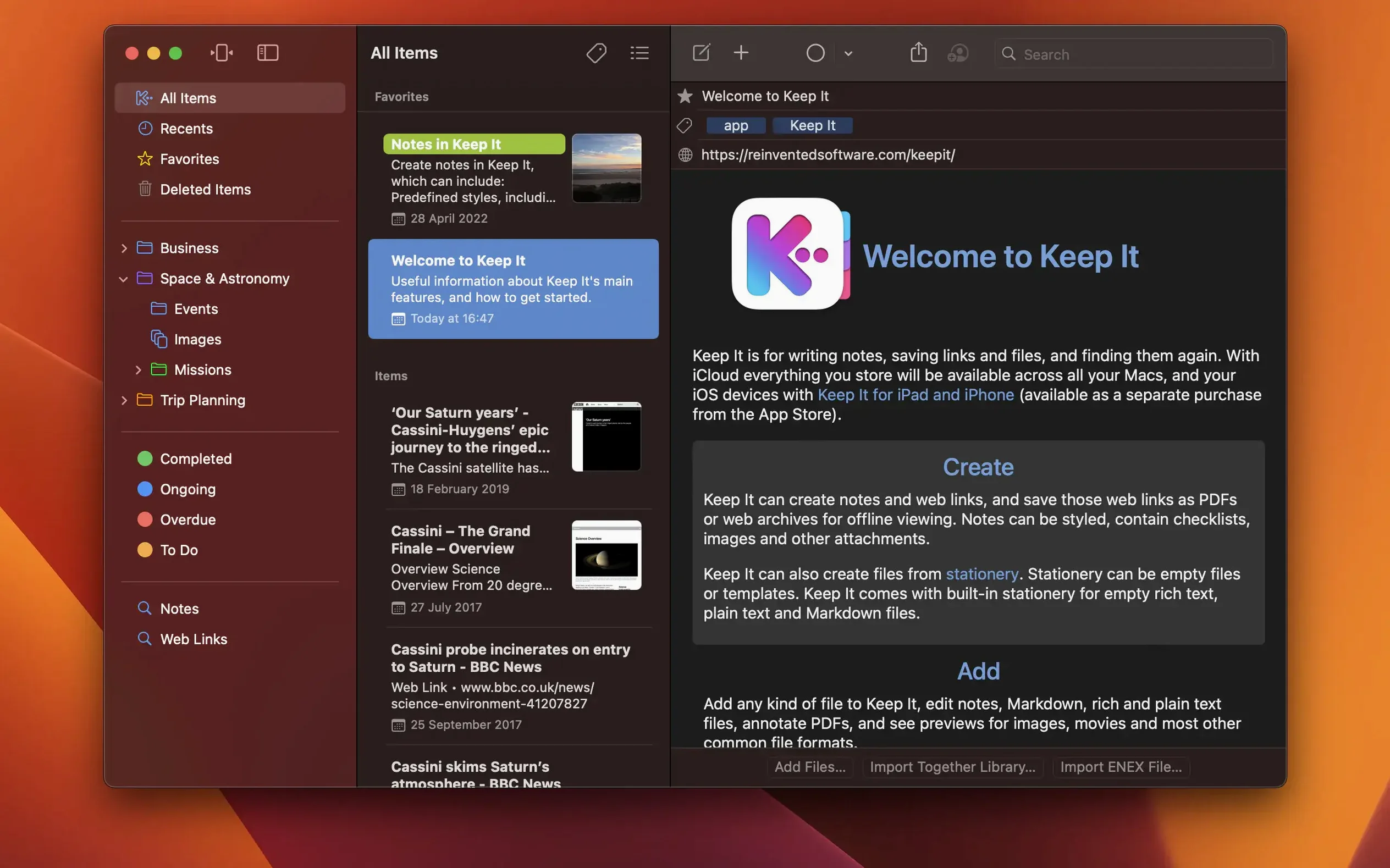
Keep It 2.9.1 needs macOS 15 Sequoia and runs natively on both Apple Silicon and Intel Macs — nothing exotic, just a modern Mac. If you are still on an older system, this version won’t install, so check that first.
Once it’s running, the daily rhythm tends to follow a few familiar steps. Here is a workflow that tends to settle in after the first week.
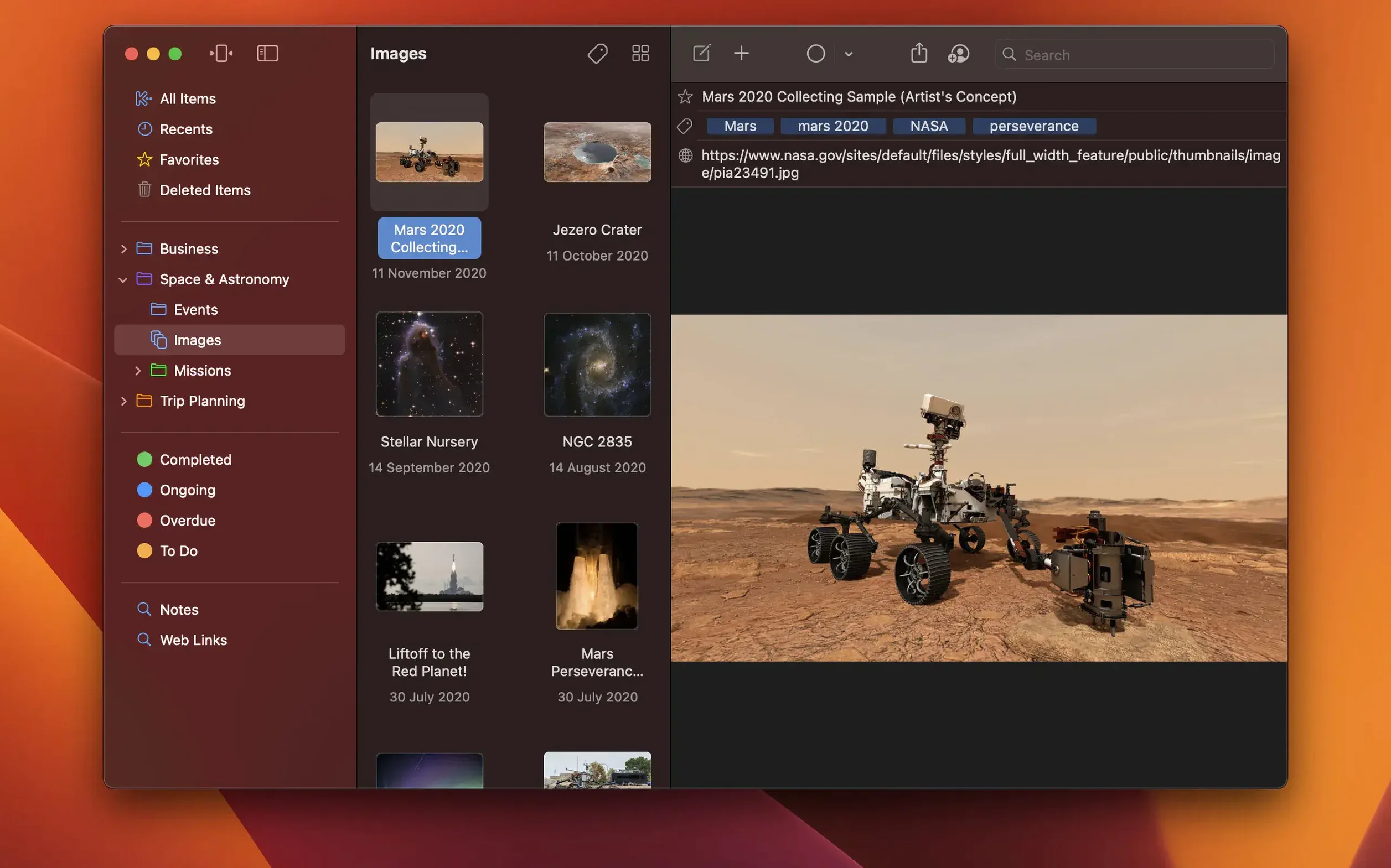
- Catch everything in one move. Drag in a PDF, a web link, an image, or a mail message. Keep It stores the original and lets you view it inside the app, open it in a browser, or convert a web link into an editable note. No separate import dialogues — you just drop things where you want them.
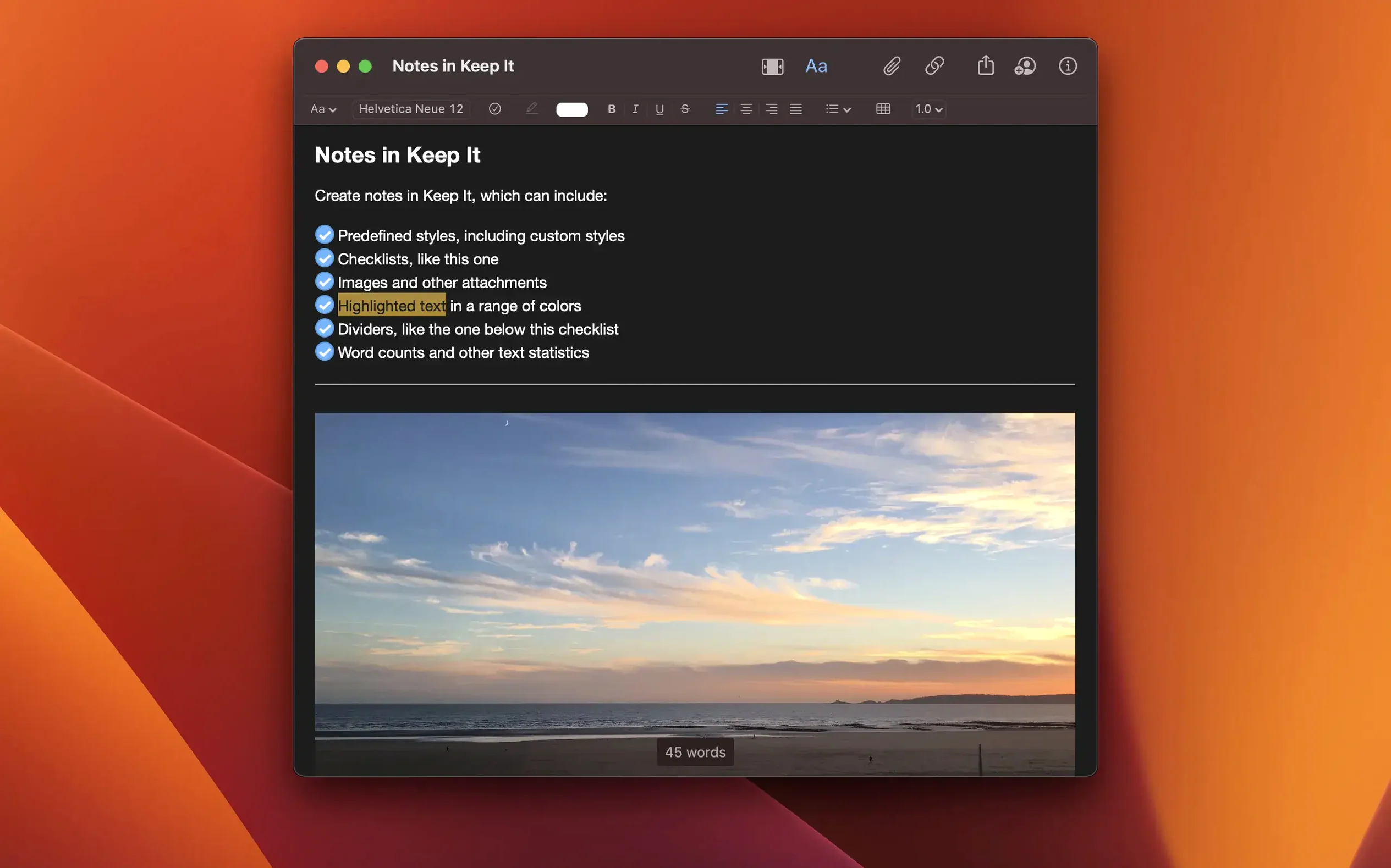
- Write in whatever style suits the note. A quick plain-text reminder, a formatted document, or a Markdown file — the app edits all three without forcing you into a single format. Markdown rendering is live, so you see the headings and bold text as you type.
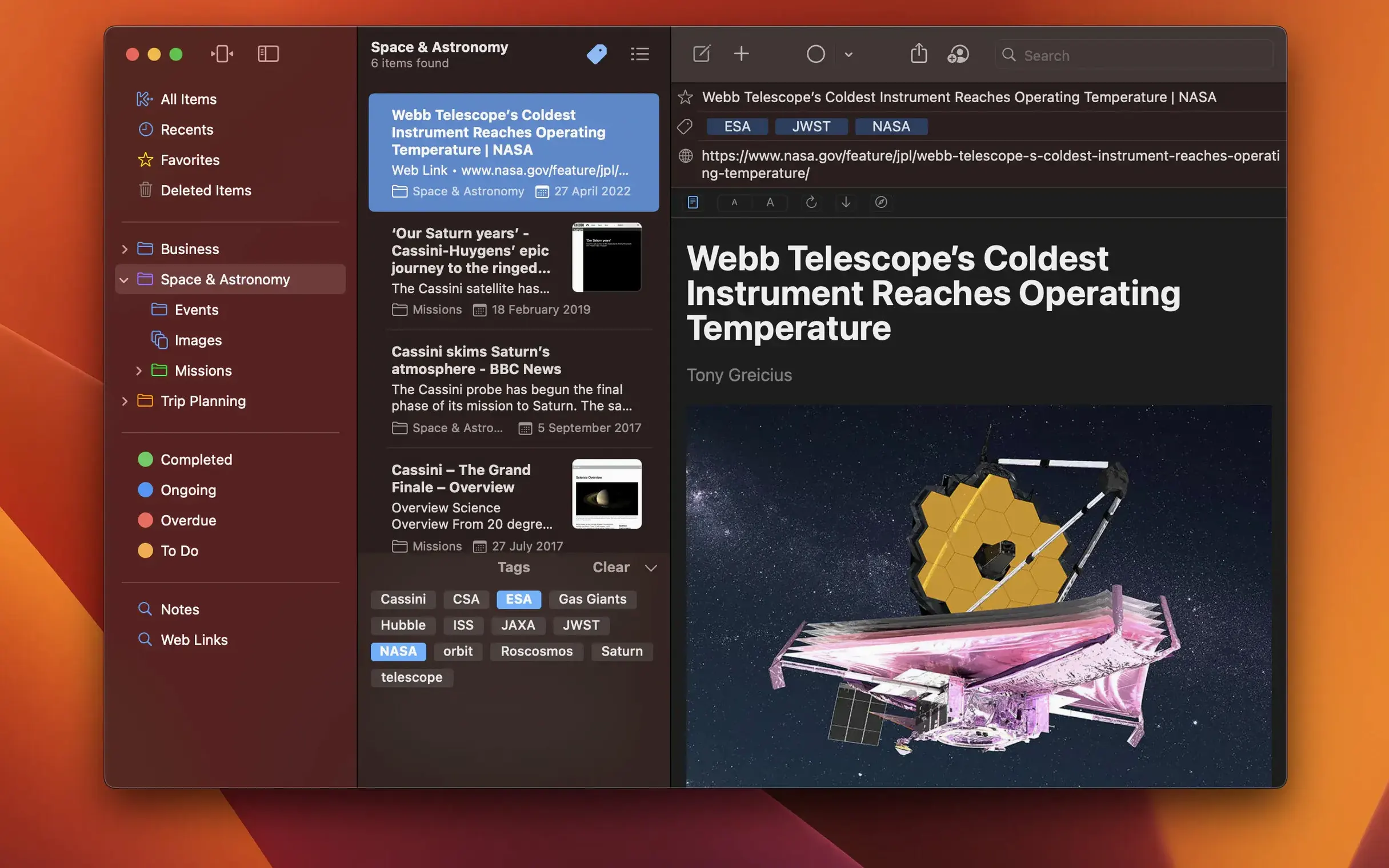
- Find things with the Tag Filter. Click a tag to see every matching item, then layer on a search term and the currently selected list. The combination feels like building a quick query without writing one. It’s the feature that keeps the sidebar from becoming a dumping ground.
- Switch to compact mode when you need focus. One click collapses the app into a single-column view. It suits a laptop screen when the sidebar feels like clutter; on a large display, the full view returns with another click.
- Annotate a PDF without leaving the library. Highlights and notes sit right on the PDF pages inside the app. They stay with the file when you share it, and they are searchable through Spotlight because Keep It hands its indexed text to the system.
Sharing happens through iCloud. You can share a whole top-level folder or a single item with other Keep It users — Mac, iPhone, or iPad — and everyone sees the same notes and attachments. For automation, AppleScript and Shortcuts can add items, run searches, or move files between folders, and Time Machine backs everything up because the library is just a Finder-friendly package.
A researcher’s afternoon catch-up
Imagine a PhD student coming back from a library session with a camera roll full of book pages, three PDFs from JSTOR, and a scribbled list of shelf marks on a sticky note. She opens keep it for mac and drops the whole lot onto the folder named “Thesis – Chapter 3.” The PDFs land as expected, but what surprises her the first time is that the iPhone photos of printed pages become searchable inside the app an hour later — Keep It quietly runs text recognition on scanned images in the background. Later that evening, back on the iPhone, she highlights a key passage on the bus. The highlight is waiting on the Mac the next morning. That loop — capture on one device, annotate on another, search across everything — is where the software earns its keep.
Convert a web link into an editable note with a right-click
A few touches live just beneath the surface and tend to surface only after a week or two of regular use.
Right-click any web link stored in the library and you’ll see an option to convert it into an editable note. The page’s text and images pull into a clean, scrollable document; ads and sidebars are stripped out. It is not a full web clipper, more like a “keep the substance” button.
Labels act as silent organisers. Drag a coloured label onto an item and it gains a small colour bar in the sidebar list. You can filter by colour later, which feels especially useful when a folder holds thirty items and three of them need action this week. No extra clicks — just drag the label chip.
When you tag an item that already belongs to several bundles, the Tag Filter respects the bundle context. Select a bundle first, then click a tag, and you see only tagged items inside that bundle. The combination is easy to miss because it does not advertise itself; the filter simply narrows the view in the background.
The Recent list does double duty: it shows items added lately, but also those you have just viewed. A quick ⌘1 jumps to it from anywhere, making it a handy breadcrumb trail when you remember reading a file but not where you filed it. A small thing, but a real time-saver if you tend to get distracted mid-task.
Pulling together client research with the tag filter
It is 9:30 on a Tuesday. The morning’s task is to pull together research notes for a client proposal. The library already holds twenty tagged items from last week’s calls.
- Open the Tag Filter. Click the tag “client-acme” and see eighteen notes and PDFs. One of them, a meeting summary, has a password lock because it contains budget numbers. A quick tap of the password reveals the full text; the lock icon in the sidebar tells you it is protected at a glance.
- Narrow the view with a saved search. A saved search called “Q3 proposals” combines the tag with a date range. Select it from the sidebar and the eighteen items shrink to the four most recent. No retyping of search terms — the saved search remembers the scope bar settings too.
- Add a web find and convert it. Drag a competitor’s pricing page from Safari into the bundle “Proposal materials.” Right-click, choose “Convert to Note,” and the page becomes an editable document with the figures formatted as a bulleted list. The original web link stays archived alongside it, so the source is never lost.
- Annotate the client’s specification PDF. Open the twelve-page document, highlight three paragraphs, and add a short note: “Check delivery timeline with ops.” The highlight colour matches the label you assigned to the folder — a visual thread that ties the annotation to the project at a glance.
- Switch to compact mode for writing. The sidebar folds away. For the next hour, the screen shows only the editable note where you draft the proposal summary. The Markdown headings help structure the argument, and the live preview keeps the formatting clean without switching views.
- Share the folder with a colleague. Right-click the top-level “Proposals” folder, choose the sharing option, and send the i
Version 2.9.1 is a maintenance update that squashes several visual and stability bugs. No new features this time, but a few rough edges are now smooth.
- Fixed a crash when dragging mail messages into the app on macOS 27.
- Fixed the search scope bar showing wrong information after selecting a saved search.
- Fixed missing list colour icons in File and sidebar menus.
- Fixed missing app icons in “Open With” menus.
- Fixed stale information occasionally appearing in Finder previews.
- macOS 15 Sequoia or later
- Apple Silicon or Intel Mac
Questions I keep hearing
What file formats can Keep It edit directly?
It edits plain text, rich formatted text, and Markdown files natively, with live preview of Markdown formatting.
Can I protect individual notes?
Yes, any item can be locked with a password, so a shared Mac can still keep a private journal or a confidential document hidden.
How does Keep It work with Finder and Spotlight?
Files added to the app remain searchable in Spotlight, and the library itself is a standard Finder package that Time Machine can back up incrementally.
Questions from the class 0
Sign in or join the class to ask a question.
Nobody has asked anything yet. If you have used it on a real job, say what the file did.
Also on the Office shelf
The whole Office shelf iA Writer
Clears away every toolbar so only your current sentence stays in focus.
iA Writer
Clears away every toolbar so only your current sentence stays in focus.
 GraphPad Prism
Combines statistics, graphing and curve fitting in a single research workspace.
GraphPad Prism
Combines statistics, graphing and curve fitting in a single research workspace.
 GrandTotal
Creates clean, custom invoices and estimates free of spreadsheet clutter.
GrandTotal
Creates clean, custom invoices and estimates free of spreadsheet clutter.
 GoodNotes
Brings your handwritten iPad notes to the Mac desktop for editing and organising.
GoodNotes
Brings your handwritten iPad notes to the Mac desktop for editing and organising.
 Microsoft Excel
Organises numbers and data into spreadsheets for analysis and charts.
Microsoft Excel
Organises numbers and data into spreadsheets for analysis and charts.
 Microsoft Office
Brings together the core apps for documents, spreadsheets and email.
Microsoft Office
Brings together the core apps for documents, spreadsheets and email.
 Microsoft Outlook
Manages your email, calendars and contacts in one place.
Microsoft Outlook
Manages your email, calendars and contacts in one place.
 Microsoft PowerPoint
Builds slide decks for talks and presentations.
Microsoft PowerPoint
Builds slide decks for talks and presentations.