 ASPNetWorld
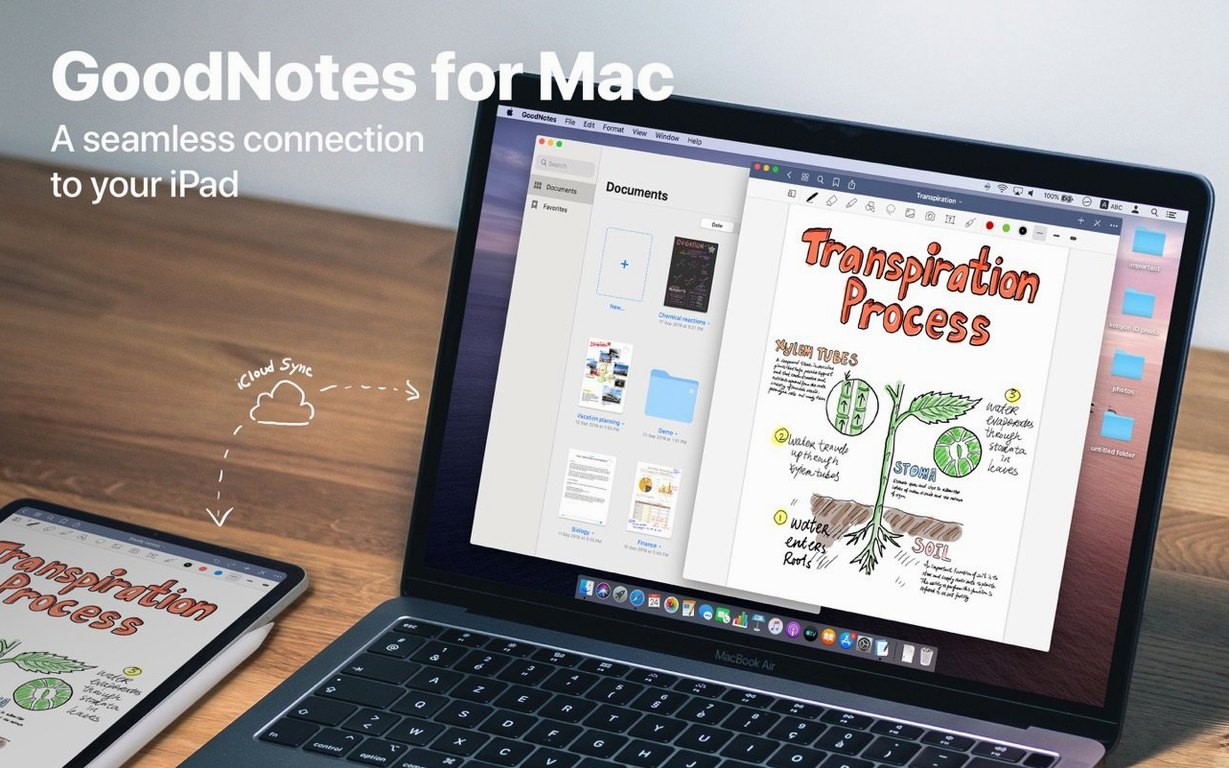
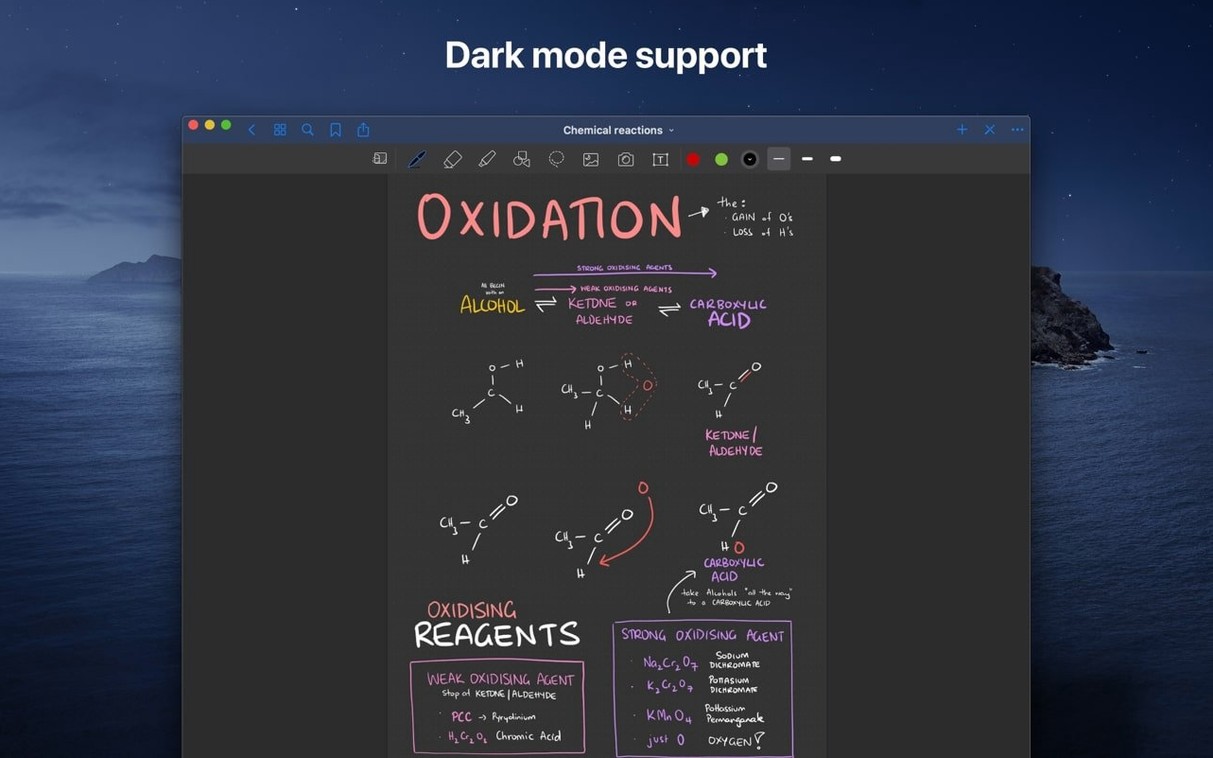
Students who scribble lecture notes on an iPad, architects marking up plans with a Pencil, and anyone who thinks better with a pen in hand will find their digital paperwork waiting for them on the Mac desktop. GoodNotes 5 for Mac is the desktop companion that lets you view, edit, and organise every document you have created on your other devices.
What travels from your iPad
Open the Mac app and your whole library is there, mirrored through iCloud. The handwriting, the highlighter ink, the typed text boxes, and the drawings all appear as you left them. You can move a sketch around, resize a chunk of handwritten meeting notes, or recolor a diagram without picking up a tablet. The sync is quiet and continuous: mark up a PDF on an iPhone on the train, and the annotated version is ready on the Mac when you sit down at your desk.
Adding fresh material is a simple drag-and-drop affair from the Mac hard drive, and you can pull finished pages out the same way, exporting single sheets or whole documents as PDF files just by dragging them to a folder.
Keeping a busy notebook tidy
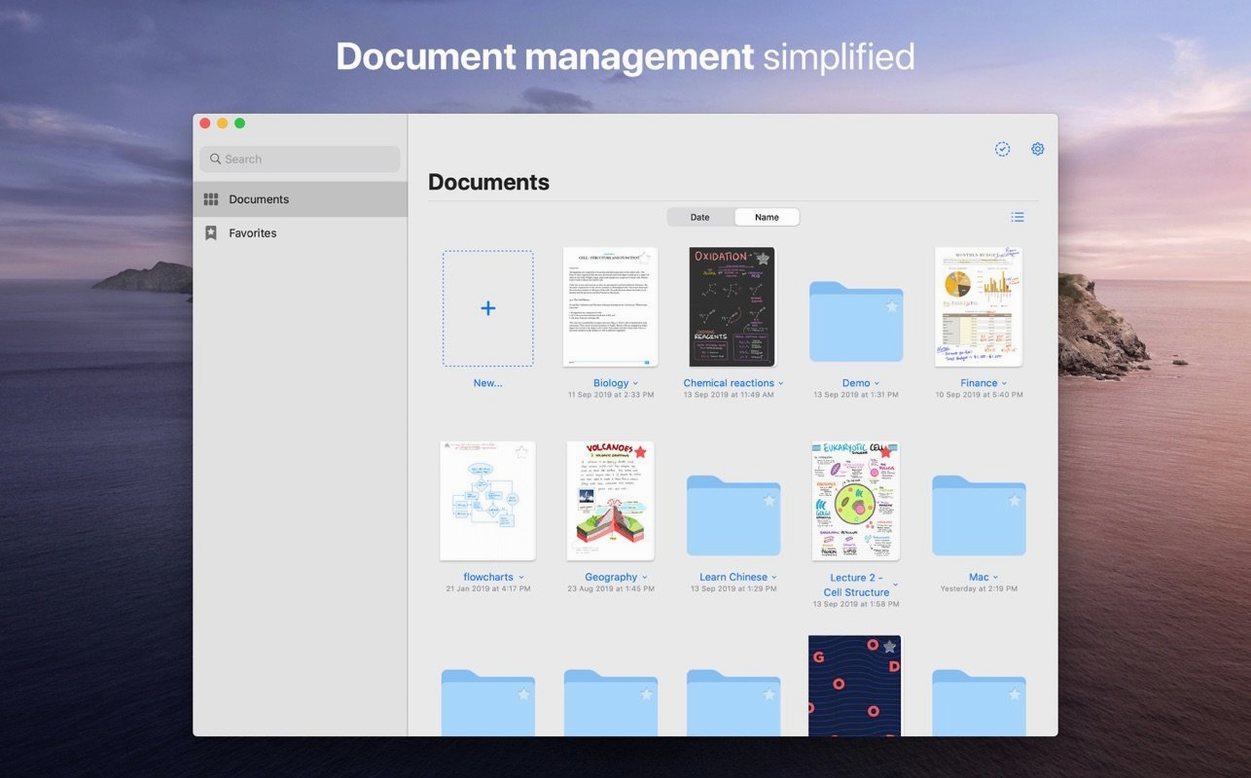
GoodNotes treats your documents like a proper ring-binder collection, with folders and subfolders that make sense once you have more than a handful of notebooks. A small but thoughtful detail: the eraser tool can be set to wipe away only highlighter ink, leaving the underlying notes untouched. It is a quiet timesaver for anyone who marks up textbooks or scripts and then wants to strip the colour back without undoing their own annotations.
A practical workflow: turning a scanned chapter into study notes
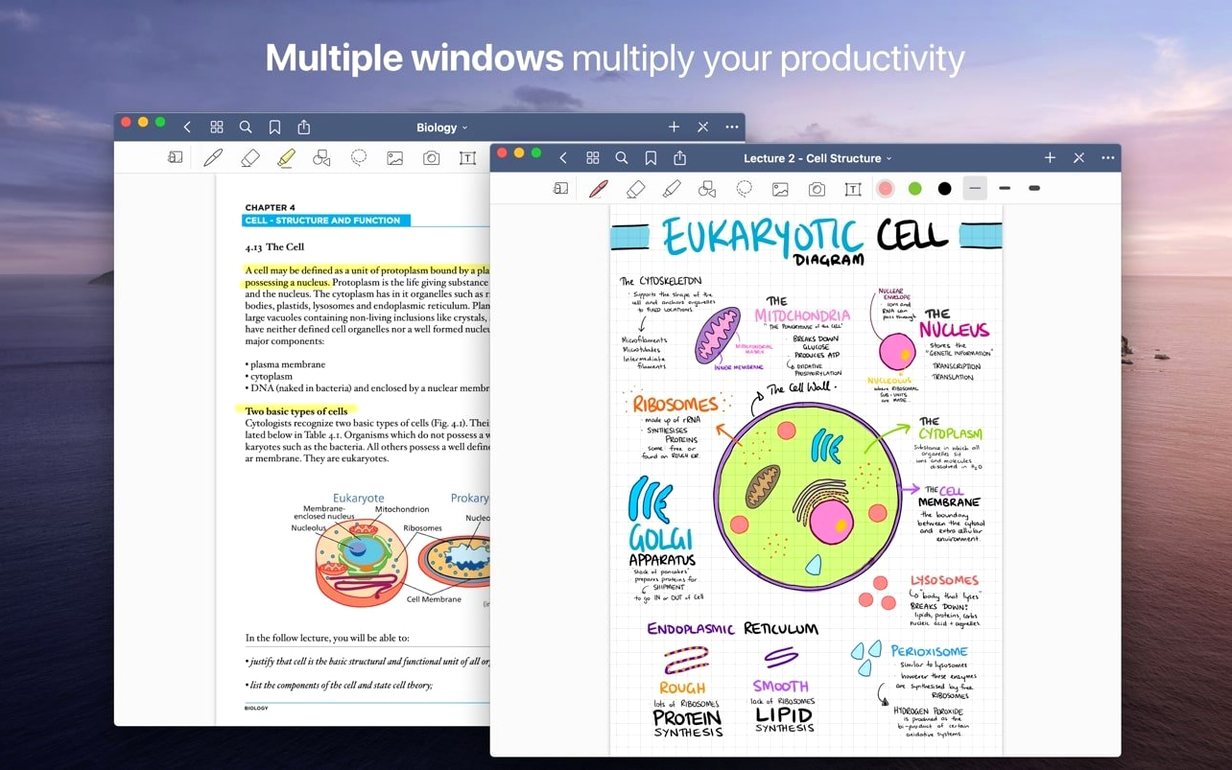
Imagine a history student faced with a dense book chapter, a phone photo of the reading list, and a half-finished essay outline scrawled on a napkin. The Mac app ties those loose ends together in a single, searchable notebook. Start by dragging the scanned chapter PDF from the desktop straight onto a folder in the GoodNotes sidebar. The app renders it as a new document, and any live hyperlinks in the original file stay functional, so clicking a footnote still jumps to the right page.
Switch to the highlighter and work through the text with the marker-only erase option turned on. Later, when the fluorescent yellow starts to feel overwhelming, a single swipe of the eraser lifts the marker ink while the ballpoint annotations underneath remain untouched. Next, drop the photo of the reading list onto a blank page, then use the Shapes tool to draw a clean timeline connecting the primary sources. Hold the line at the end of the stroke and GoodNotes snaps it into a straight vector line, which you can recolor to match your colour-coding system. Type a short summary in a text box beneath each source, add the page to Favourites so it sits one tap away during revision, and finally drag the finished page out to the desktop as a PDF to share with a study group.
Handwriting strokes stay editable instead of locking into an image
Apple Notes is the obvious neighbour, and for quick typed jottings it is hard to beat. The difference appears when handwriting enters the picture. Apple Notes syncs handwriting, but it does not let you select, move, and recolor individual strokes after the fact the way GoodNotes does, and it lacks the marker-only erase mode. OneNote matches GoodNotes on cross-platform sync and folder depth, and its infinite canvas appeals to mind-mappers, yet its ink engine can feel floaty on a graphics tablet; GoodNotes keeps the stroke rendering tight and responsive, close to the resistance of a real nib. Notability sits closer still, and many users move between the two. Notability’s strength is audio recording synced to notes, a feature GoodNotes has never chased. GoodNotes counters with its Favourites system, custom tables of contents, and a PDF export that preserves internal hyperlinks, which makes it the stronger choice for anyone who lives inside marked-up documents rather than recorded lectures.
Hyperlink-friendly PDFs and marker erase speed up annotation work
Students who annotate long readings gain the most immediate benefit, because the combination of hyperlink-friendly PDFs, marker erase, and drag-and-drop export cuts the friction out of working with secondary sources. Researchers and academics will lean on the custom table of contents: you can drop a contents entry onto any page of a notebook and build a clickable navigation panel that reflects your argument structure, not the original document’s pagination. Designers and architects who sketch on an iPad in the field and then refine layouts at a desk appreciate that the Shapes tool behaves the same on both platforms, so a rough floor plan drawn on site becomes a clean, scaled diagram once you push the strokes around on a larger screen. Anyone who has tried a goodnotes mac download simply to view iPad notes on a bigger display often stays for the editing side, because reordering pages, recolouring ink, and retyping text boxes feels more precise with a trackpad and keyboard than it does with a finger.
An Inbox folder keeps drag-and-drop imports from cluttering the sidebar
Resist the urge to dump everything into one notebook. Create a folder called “Inbox” and set it as the default destination for drag-and-drop imports; you can sort the contents into subject folders later, which stops the sidebar from turning into a scrollable museum of half-read PDFs. Spend ten minutes setting up a Favourites list that is genuinely useful rather than exhaustive. Pin the current week’s lecture notes, the reading list, and a single blank template page, and leave last month’s material in its folder. The Favourites bar works best when it fits on screen without scrolling.
Check the eraser settings on day one. Tapping the eraser icon twice opens a panel where you can switch between “Erase Entire Stroke” and “Erase Only Highlighter.” The second option is easy to miss and saves hours of re-inking if you tend to highlight in layers. If you work with a Wacom tablet or a sidecar-connected iPad, turn off the Mac’s built-in handwriting recognition in System Settings while you draw; GoodNotes handles the stylus input itself, and the double interpretation can introduce tiny lag or stray marks. Finally, export a single test page as a PDF by dragging it to the desktop before you need to send a real assignment. The drag handle appears when you hover over the page thumbnail in the sidebar, and the muscle memory for that gesture is worth building early, because hunting for an export button five minutes before a deadline is never pleasant.
- macOS 10.15 (Catalina) or later
- Works natively on both Apple Silicon and Intel 64-bit Macs
Questions from the class 0
Sign in or join the class to ask a question.
Nobody has asked anything yet. If you have used it on a real job, say what the file did.
Also on the Office shelf
The whole Office shelf GrandTotal
Creates clean, custom invoices and estimates free of spreadsheet clutter.
GrandTotal
Creates clean, custom invoices and estimates free of spreadsheet clutter.
 GraphPad Prism
Combines statistics, graphing and curve fitting in a single research workspace.
GraphPad Prism
Combines statistics, graphing and curve fitting in a single research workspace.
 Final Draft
Formats your screenplay as you type, keeping character names and cues tidy.
Final Draft
Formats your screenplay as you type, keeping character names and cues tidy.
 iA Writer
Clears away every toolbar so only your current sentence stays in focus.
iA Writer
Clears away every toolbar so only your current sentence stays in focus.
 EndNote
Collects, organises, and cites your research references inside a word processor.
EndNote
Collects, organises, and cites your research references inside a word processor.
 Keep It
Gathers notes, web links, images and files into one searchable library on your Mac.
Keep It
Gathers notes, web links, images and files into one searchable library on your Mac.
 DjVu Reader Pro
Opens and lets you read archived DjVu documents and scanned books reliably.
DjVu Reader Pro
Opens and lets you read archived DjVu documents and scanned books reliably.
 Complete Anatomy
Reveals the true spatial dance of nerves and organs that a flat textbook page cannot show.
Complete Anatomy
Reveals the true spatial dance of nerves and organs that a flat textbook page cannot show.