 ASPNetWorld

Final Draft 13 needs macOS 12 Monterey or later. This build is for Intel Macs, so on Apple Silicon it runs through Rosetta 2, Apple's translation layer. An active internet connection is needed during the initial sign-in.
Write a script that looks the part
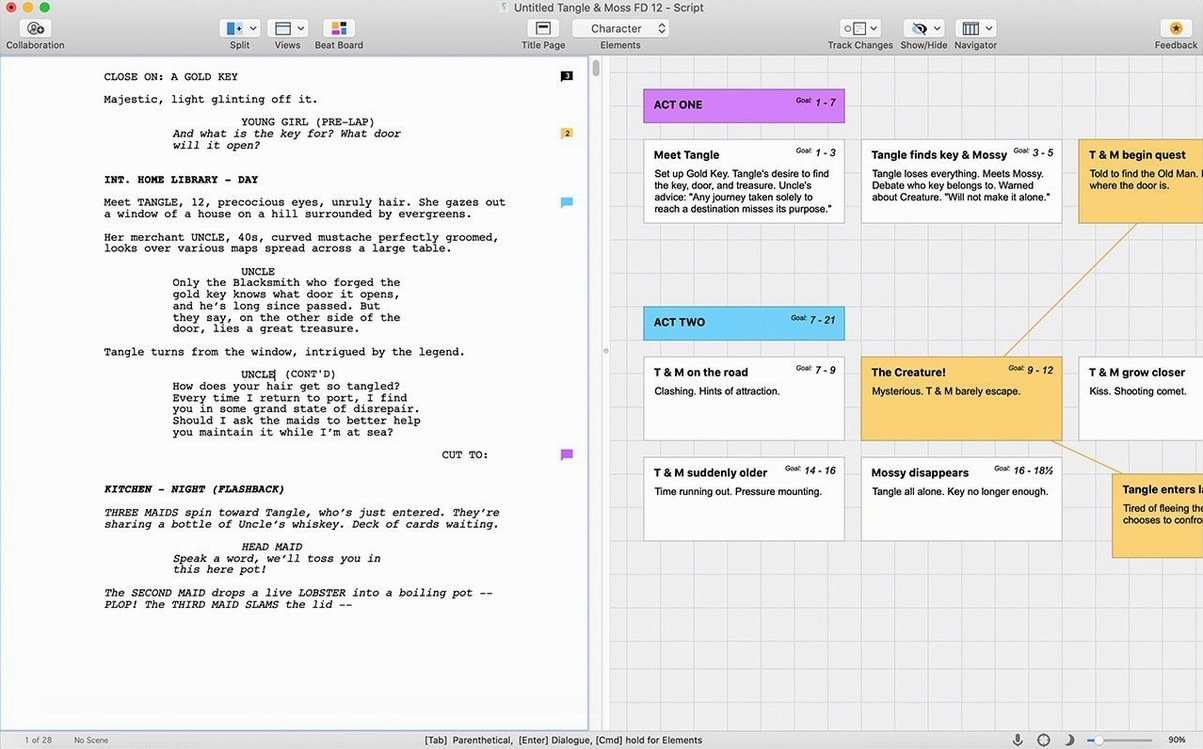
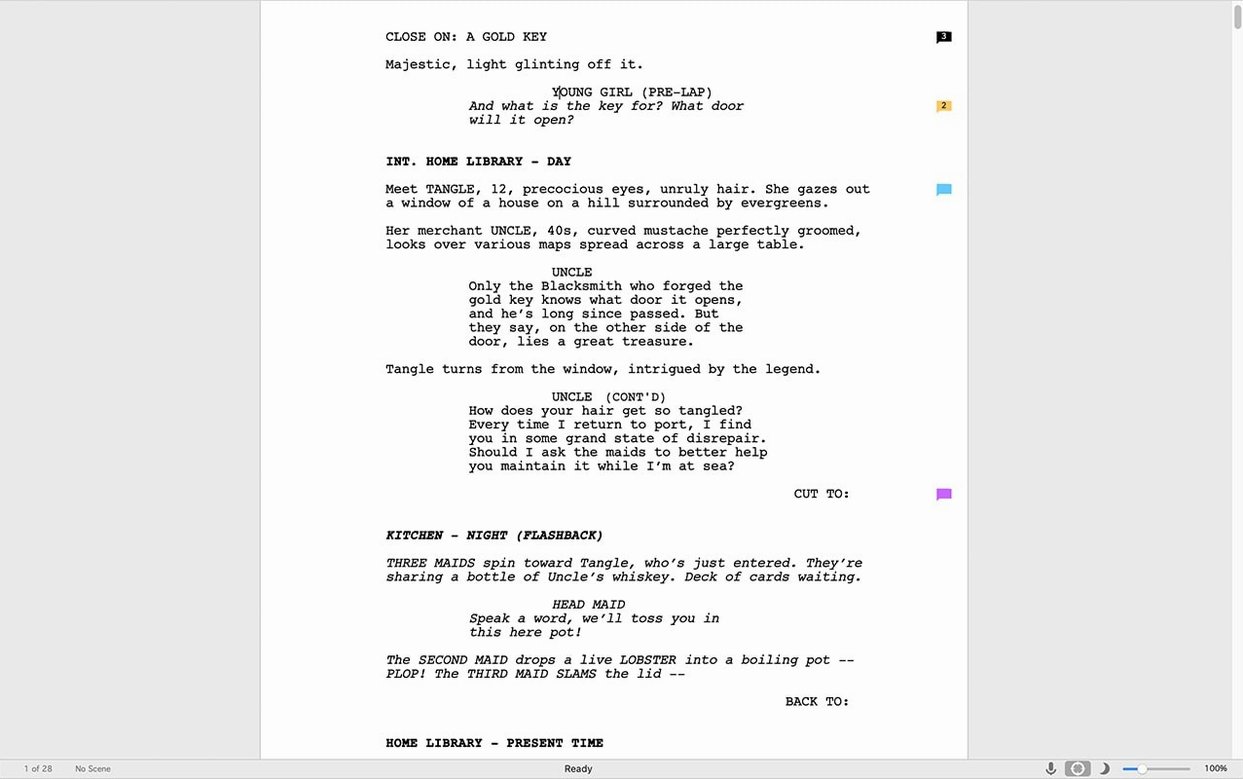
Final Draft formats as you type. Character names, dialogue, scene headings — every element snaps into the correct position automatically, matching the layout that script readers, producers and agents expect. No fiddling with margins or tab stops required.
Move between Mac and mobile
If you pair the desktop app with Final Draft Go on iOS, you can sketch a scene on your iPad on the train, then pick it up later on your Mac without missing a beat.
Manage a bigger project
Tab and Enter do more than you think
Some of the most useful features in Final Draft aren't the headliners — they're tucked behind a keystroke or an unassuming menu item, and they quietly take the friction out of a long writing day.
Tab and Enter are smarter than they look. When you finish a line of dialogue and hit Enter, the app doesn't just move to a new line — it reads the context. If a character has just spoken, Enter gives you a new Character element, ready for the next speaker. If you're in a Scene Heading, it drops you into Action. This isn't random; it's the built-in grammar of a screenplay, and the more you trust it, the less you think about formatting. Pressing Tab cycles through the logical next elements — from Action to Character to Parenthetical to Dialogue — without ever touching the mouse.
Typewriter scrolling. Buried in the preferences is an option called Typewriter Scrolling, which keeps your current line locked at a comfortable height on screen. Instead of your eyes chasing text to the bottom of the window, the page moves around you. It's a small ergonomic detail, but after a four-hour writing session, the difference in neck strain and focus is real.
SmartType remembers everyone. Start typing a character name you've used before, and Final Draft finishes it. The same applies to scene locations. In a script with thirty named characters and a dozen settings, this alone can save hundreds of keystrokes. The list builds itself as you write, so there's no setup — just use the names, and the app catalogues them.
The Navigator panel is a fast map. Open it with Cmd-4 and you get a collapsible outline of every scene, sorted by heading. Click a scene title, and the main window jumps straight there. If you're hunting for the moment your protagonist first enters the police station, you don't scroll — you scan the Navigator and click. It also shows scene lengths, which is handy when a producer says "that chase feels long" and you need to check the page count at a glance.
Split panes, one script. Under the View menu sits Split Vertically and Split Horizontally. You can look at scene twenty-three in the top pane while rewriting scene seven in the bottom one, all in the same file. For an episode with cold opens, act breaks and tags, this removes the need to flick back and forth and lose your place.
A working writer's afternoon
Imagine a television writer on a six-episode drama series. She has a script draft due to the showrunner by Friday, and the notes from yesterday's story meeting are still fresh — and slightly conflicting. One producer wants the second act tightened; another wants the B-story given more room to breathe.
She opens Final Draft on her Intel MacBook Pro. The script sits in the title page exactly as the production office expects, with her name, the episode number and the draft date already in place. She doesn't touch the layout — the template holds firm. A quick Cmd-4 brings up the Navigator, and she scans the scene list. Act Two has six scenes. The third one, an argument in a hospital corridor, runs to four pages. She clicks it and the view jumps there.
She splits the window horizontally. The top pane holds the hospital scene; the bottom pane shows the scene immediately after it, where the B-story character gets a phone call. She trims a page of dialogue from the argument, tightens the parentheticals, then checks the B-story scene to make sure the emotional rhythm still works. Seeing them stacked vertically means she can compare the pacing without scrolling.
Halfway through, the showrunner emails a revised outline. A new scene, a brief moment in a car, needs to slot in before the hospital. She drags the Navigator entry for her new scene into position, and the page numbering adjusts automatically. She doesn't need to renumber scenes manually or fix broken page references — Final Draft recalculates everything.
At the end of the afternoon, she runs the Format Assistant to catch any double-spaces, missing punctuation or unintended blank lines, then exports a watermarked PDF for the production coordinator. The whole session, from opening the file to sending the draft, happens inside a single application.
It opens before you finish clicking the icon
Final Draft 13.4.0 on an Intel Mac feels settled. That's the word that comes to mind after several weeks of daily use. It isn't flashy, and it doesn't chase the latest macOS design trends — it loads quickly, responds to keystrokes without perceptible lag, and doesn't beachball when you're ninety pages deep. On a 2019 MacBook Pro with 16 GB of RAM, a seventy-page script with moderate use of notes and revision markers scrolls smoothly. The app's memory footprint hovers around 250 MB, which is modest for a document-based tool of its type.
Apple Silicon Macs run it under Rosetta 2, and the translation layer is efficient enough that you'd be hard-pressed to spot the difference in everyday writing tasks. Opening a large script takes perhaps a beat longer than on a native ARM app, but once the document is loaded, the experience is indistinguishable. One thing to note: the initial launch after installation takes a few extra seconds while Rosetta does its first-time translation. After that, it's cached.
Stability is strong. Over a month of daily use — opening, closing, saving, exporting, printing to PDF — the app crashed once, and that was while opening a corrupted file from an ancient version. Autosave kicks in every few minutes by default, configurable in the preferences, and the backup folder quietly stores the last several versions. If you haven't poked around in ~/Documents/Final Draft/Backup, it's worth knowing it's there.
On the resource-use front, Final Draft doesn't tax the GPU and barely registers on the CPU unless you're running the Read Aloud feature, which uses macOS speech synthesis and nudges the processor briefly. The fan stays quiet. Battery life on a laptop doesn't suffer noticeably compared to working in a text editor — this isn't a video renderer or a 3D modeller, and it behaves accordingly.
Gatekeeper blocks the installer on first launch
No app that has been around as long as Final Draft is free of quirks. The good news is that the most frequent hiccups have straightforward fixes.
Gatekeeper blocks the installer. This is the most common bump in the road on macOS. After you mount the disk image and try to run the installer, macOS may refuse because the software wasn't notarised through Apple's developer programme. The workaround is simple: open Terminal, type xattr -cr (with a trailing space), drag the installer into the Terminal window to fill in the path, and press Enter. Then launch the installer normally. This clears the quarantine flag and lets the process continue.
The sign-in screen hangs. An active internet connection is mandatory for the first launch, and if your firewall or VPN is interfering, the sign-in window can sit there spinning. Temporarily disabling the VPN, or adding Final Draft to your firewall's allow list, usually resolves it. Once you're signed in, you can work offline without interruption.
Scrivener integration doesn't see the script. If you've linked a Scrivener project and the script pane comes up blank, check that both applications are updated to versions that talk to each other. Occasionally, restoring the Final Draft file to a shorter path — moving it out of a deeply nested folder onto the Desktop — clears a path-length issue that can confuse the link.
Page numbering goes awry after a revision. Rare, but when it happens, the culprit is usually a manual page-break inserted accidentally. Run Format Assistant from the Tools menu and check for "Manual Page Breaks" — remove any that aren't intentional, and the numbering snaps back into line.
Dialogue breaks across pages awkwardly. Final Draft tries to keep character names attached to at least two lines of dialogue at the bottom of a page, but occasionally a long speech splits in an ugly spot. The "Widow/Orphan Control" setting inside the Page Layout preferences tightens this up; reducing the allowed orphans to one line usually fixes the worst cases.
Television staff writers depend on it daily
Final Draft is a specialist's tool, and it rewards certain kinds of writer more than others.
Television staff writers live in Final Draft because their workflow depends on it. A writers' room produces revisions constantly — script coordinator sends the draft, notes come back, pages get locked, colour revisions stack up. The revision system, with its automatic page colours and locked page numbering, is built precisely for this environment. A staff writer who doesn't know how to produce a blue revision with locked A-pages is in trouble, and Final Draft makes the process mechanical rather than arcane.
Film writers with representation use it because it signals professionalism. When a manager sends a script to a production company, the expectation — often unspoken, occasionally stated — is that the file will open as a properly formatted Final Draft document. Other screenwriting apps can export FDX, and that works most of the time, but being in the native format removes a variable from the chain.
Playwrights who work in both theatre and screen find the stage-play templates genuinely useful, not just reskinned film layouts. Character lists, act structures and dialogue formatting follow the conventions a theatre literary department recognises. The dual-use case — writing a play and a pilot in the same month — is where the template switching earns its keep.
Students in screenwriting programmes often find Final Draft is the expected software, and learning it early means one less thing to worry about when deadlines pile up. The educational familiarity carries forward: many graduates stick with it simply because muscle memory for the keyboard shortcuts, the element switching and the revision workflow is too ingrained to abandon.
Novelists who dabble in screen are an interesting edge case. The Scrivener integration is clearly aimed at them — keep the novel's research, character sketches and world-building in Scrivener, then draft the adaptation in Final Draft. The two apps complement rather than compete, and a writer who uses both gets a bridge between long-form prose and the terse, structural demands of a script. If your brain works in prose but your project needs to end up as a ninety-page feature, this pairing makes the transition feel less alien.
What all these users share is a need for format that disappears. The software handles the layout so the writer can think about story, character and rhythm without the persistent, low-grade worry that the margins are wrong. Final Draft's real value isn't in its feature list — it's in the trust that what you type will look correct when it lands on a producer's desk, and that you can get on with the actual writing.
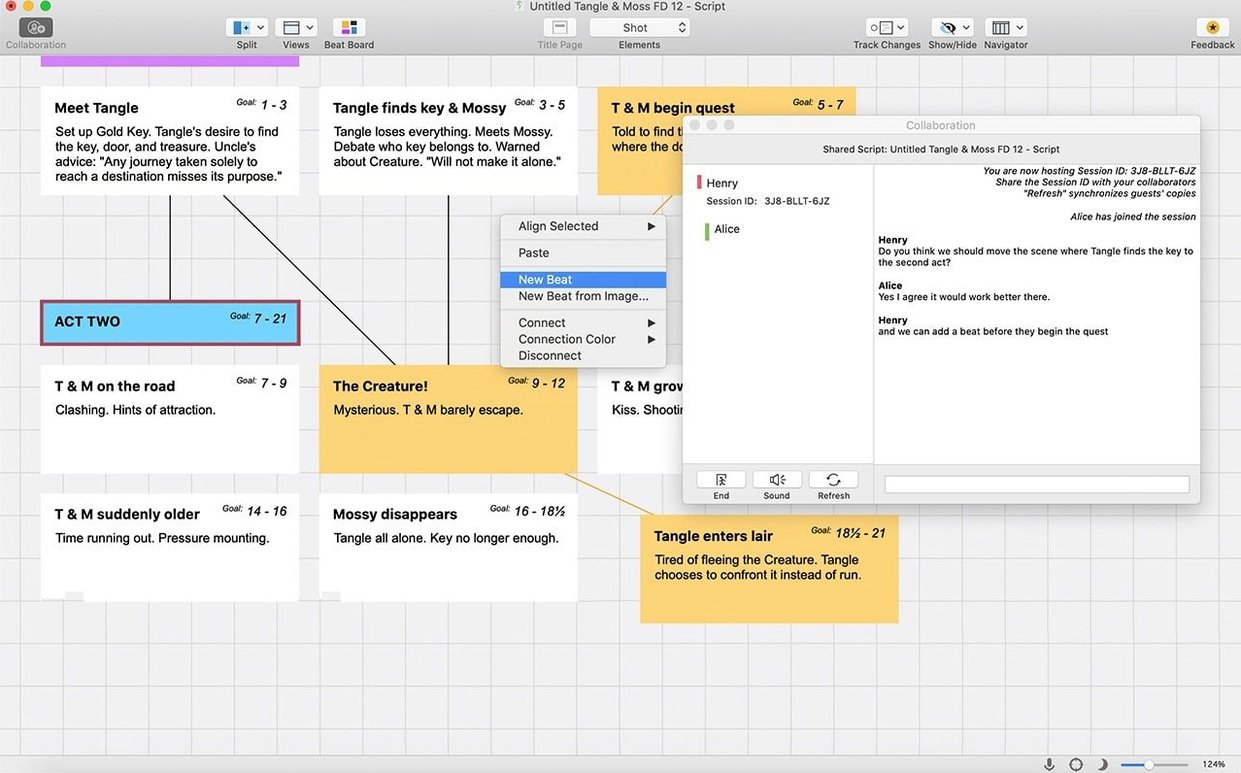
When a script grows into a complex production, the Scrivener integration helps you keep research, notes and draft scenes organised alongside the screenplay itself.
Version 13.4.0 tidies up a few loose ends.
- Minor bug fixes that improve overall stability.
- macOS 12 Monterey or later
- Intel processor (Apple Silicon via Rosetta 2)
- Active internet connection for initial sign-in
Questions from the class 0
Sign in or join the class to ask a question.
Nobody has asked anything yet. If you have used it on a real job, say what the file did.
Also on the Office shelf
The whole Office shelf EndNote
Collects, organises, and cites your research references inside a word processor.
EndNote
Collects, organises, and cites your research references inside a word processor.
 GoodNotes
Brings your handwritten iPad notes to the Mac desktop for editing and organising.
GoodNotes
Brings your handwritten iPad notes to the Mac desktop for editing and organising.
 GrandTotal
Creates clean, custom invoices and estimates free of spreadsheet clutter.
GrandTotal
Creates clean, custom invoices and estimates free of spreadsheet clutter.
 GraphPad Prism
Combines statistics, graphing and curve fitting in a single research workspace.
GraphPad Prism
Combines statistics, graphing and curve fitting in a single research workspace.
 DjVu Reader Pro
Opens and lets you read archived DjVu documents and scanned books reliably.
DjVu Reader Pro
Opens and lets you read archived DjVu documents and scanned books reliably.
 iA Writer
Clears away every toolbar so only your current sentence stays in focus.
iA Writer
Clears away every toolbar so only your current sentence stays in focus.
 Complete Anatomy
Reveals the true spatial dance of nerves and organs that a flat textbook page cannot show.
Complete Anatomy
Reveals the true spatial dance of nerves and organs that a flat textbook page cannot show.
 Keep It
Gathers notes, web links, images and files into one searchable library on your Mac.
Keep It
Gathers notes, web links, images and files into one searchable library on your Mac.