 ASPNetWorld

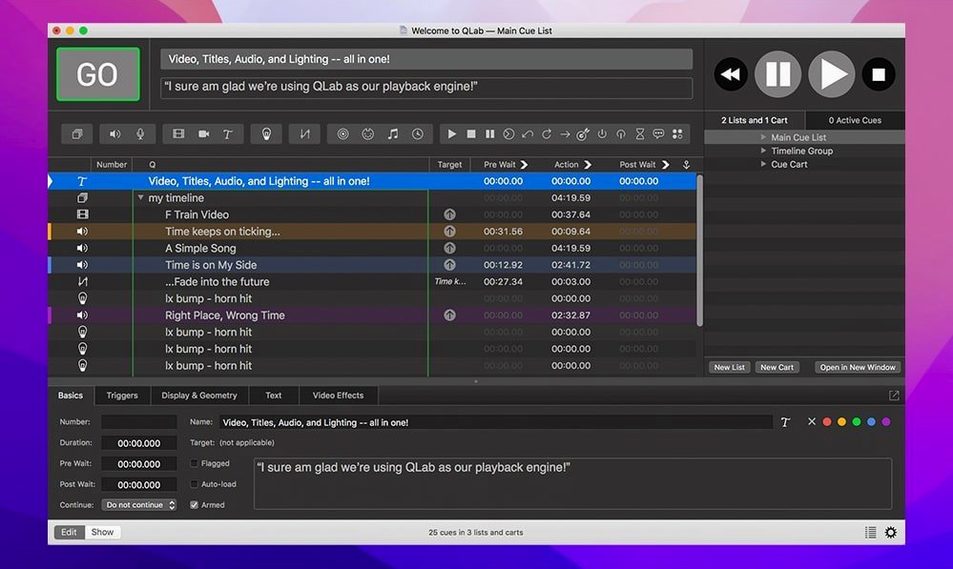
Version 5.6.3 is a small but welcome maintenance release for seasoned users, addressing a rare crash when stopping video playback and introducing helpful visual warnings in the Light Library for misconfigured instrument definitions. For those who live inside complex cue lists, QLab’s value lies in the deeper toolkit that keeps a single operator in command of an entire auditorium. These are the tools that transform a playback machine into a design studio:
- Syphon integration — route live video between QLab and other Syphon-enabled applications on the same Mac, letting you process footage through external creative software without rendering intermediate files.
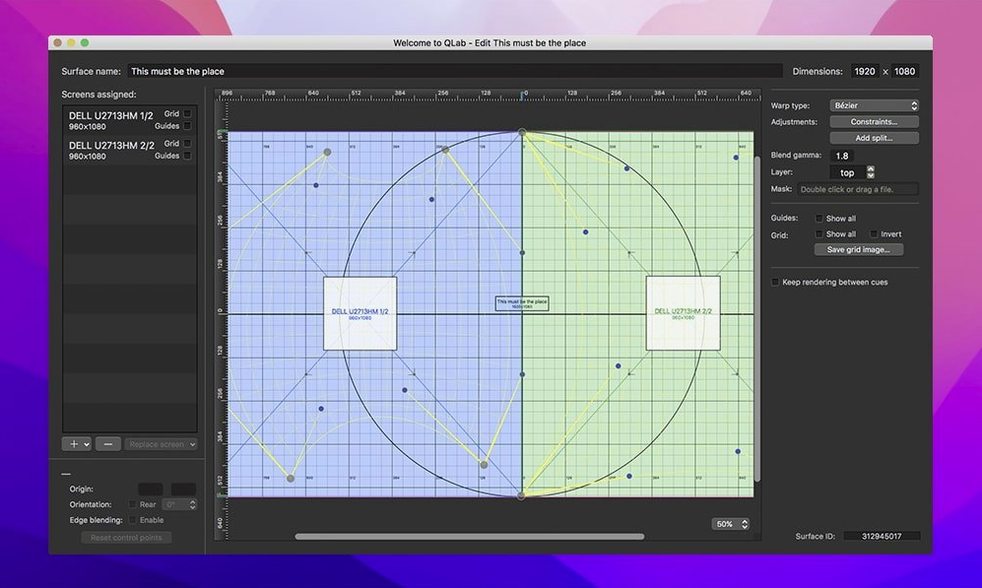
- Projector geometry — reverse or centre a video image directly from the cue editor, compensating for rear-projection setups or unusual screen placements without needing to pre-process your media.
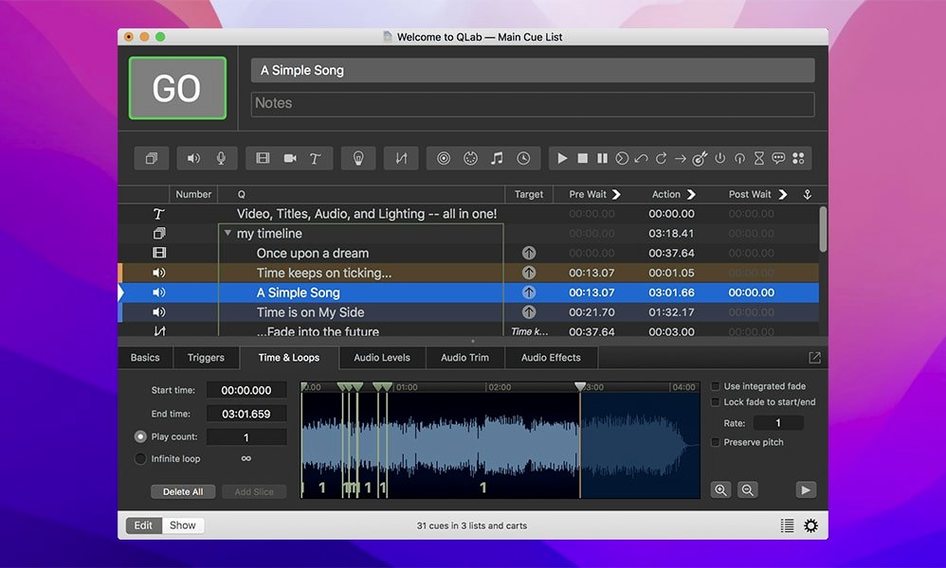
- Adjustable playback speed with pitch control — change the tempo of a sound cue while preserving its pitch, or let the pitch shift naturally for a varispeed effect, all via faders or OSC commands.
- Network device migration — workspaces from older versions now migrate neatly to the built-in definition for Right On Cue Services Stage|Tracks, tidying up a previously manual configuration step.
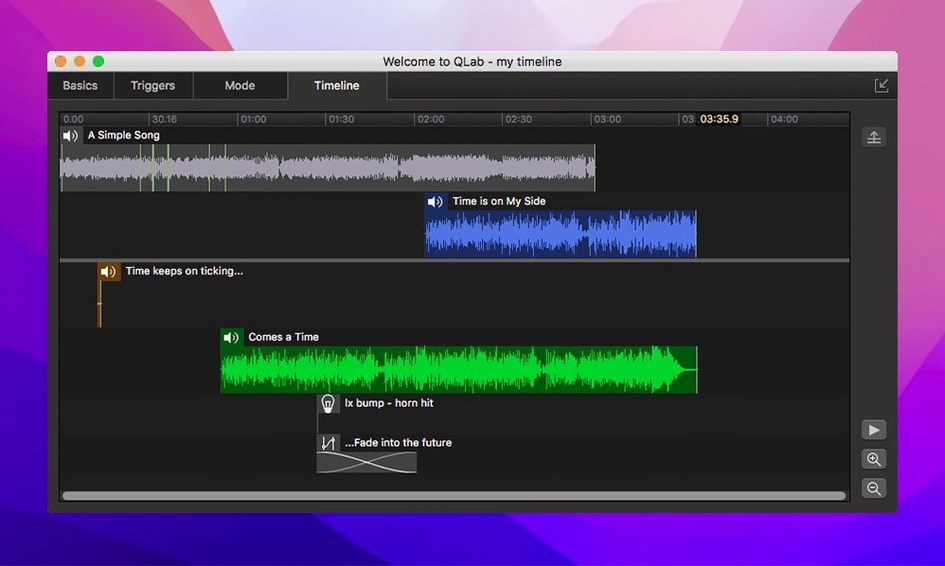
- Unified workspace — control audio, video, MIDI, and OSC from one timeline, meaning a lighting change, a sound effect, and a projector fade can all be triggered by a single press of the space bar.
Beyond the obvious playback duties, QLab gives you animation tools and a rack of audio and video effects that sit right on the cue, so a designer can iterate without bouncing between half a dozen specialist apps. The fader controls for both sound and picture are built directly into the cue list, letting you ride levels during a tech rehearsal and have those moves recorded as part of the show file.
Barely a pulse on Apple Silicon during playback
Nobody wants to think about system resources during a dress rehearsal. In my experience, QLab earns its place on show Macs by staying out of the way. On Apple Silicon machines it barely registers a pulse during straightforward audio playback – a handful of Group cues and a dozen stereo files might nudge Activity Monitor to 3 or 4 percent CPU. The real test comes with multi-channel audio and HD video running simultaneously onto separate outputs, and here the software leans intelligently on the GPU. I’ve watched a Mac Mini M2 Pro handle eight channels of 48 kHz audio, two 1080p video surfaces, and a stream of OSC commands without a single frame drop or audible glitch.
Stability is the currency that matters most. A crash during a blackout is not a teaching moment; it’s a phone call to a very unhappy producer. The 5.6.3 fix for that rare video-playback crash is exactly the sort of housekeeping that keeps me sleeping soundly after a tech week. Because QLab saves an undo history within the workspace, a fumbled edit five minutes before curtain doesn’t have to become a minor tragedy – you just step backwards through your changes and the show file is whole again.
Memory usage grows with workspace complexity, naturally. A project stuffed with uncompressed ProRes files and long-duration audio beds will consume several gigabytes of RAM, so I tend to keep show Macs at 16 GB or above. Disk speed matters too, especially when triggering dozens of cues in rapid succession. An internal SSD will laugh it off; an old spinning external drive might stutter. For most theatre setups, even an entry-level M-series Mac leaves headroom to spare, which means the operator can focus on the performance rather than babysitting the computer.
One morning in the booth
Let me walk you through a session, because the workflow is where QLab’s design philosophy really reveals itself. I arrive at the theatre at nine, coffee in hand, and open yesterday’s workspace. The cue list stretches down the screen: sound effects, projector fades, a MIDI patch change for the keyboard rig, and a couple of Network cues that poke the lighting desk. The first job is trimming a new voiceover the director emailed late last night.
I drag the WAV file straight from Finder into the cue list. QLab creates an Audio cue and places it under the selected row. I double-click the cue to open the inspector and switch to the Audio Levels tab, where the integrated waveform editor shows me the full recording. I set an in-point just after the mic bump and an out-point before the rustle of paper, dragging the trim handles with the kind of precision you used to need a separate DAW for. Total time: maybe forty seconds. I hit the space bar and the voiceover plays back through the house system, exactly as the audience will hear it.
A few cues later, I need the projector to warm up on a blacked-out slide. I select the existing Video cue, check the Geometry tab, and flip the image horizontally because this screen is rear-projection. Keystone correction tweaks the corners by a couple of pixels to square everything up against the masking. I drop a Fade cue below it to bring the opacity from zero to full over three seconds, then target the same fade at the audio level of the voiceover so both rise together. One press of the space bar now triggers a cascade: black screen fades up, voice fades in, and a silent OSC message tells the lighting desk to switch to the warm front-wash. That’s the unified workspace in action – three disciplines, one go button.
By ten thirty I’m in the middle of a cue-to-cue. The director wants the storm sound to linger longer under the scene change. I grab the duration field, type a new value, and QLab recalculates the fade envelope without touching the underlying file. The change is immediate. This is the rhythm of a QLab session: small, surgical edits made while the creative team watches, with no rendering, no exporting, no apology for the delay.
Where QLab sits next to Isadora for live video
There’s a handful of Mac applications that orbit the same live-performance world, and it’s worth understanding how QLab positions itself alongside them. QLab versus Isadora is a conversation that comes up whenever live video manipulation enters the brief. Isadora excels at generative, camera-reactive video processing – the kind of thing that turns a dancer’s silhouette into a rippling kaleidoscope in real time. QLab doesn’t try to be a node-based video playground; instead, it treats video as one more cued element in a theatrical sequence. If your show needs frame-accurate playback locked to sound and lighting, QLab’s linear timeline is far more intuitive. If you need interactive, algorithmic visuals, Isadora speaks that language natively. Many designers use both, routing video via Syphon from Isadora into QLab so the projection operator still has a single cue list to run.
QLab versus Ableton Live surfaces among musicians and sound designers who already know Live’s session view. Live is a brilliant instrument for looping, warping, and performing music on the fly, but it was never designed to fire a lighting cue or talk OSC to a video switcher. QLab’s whole architecture is built around theatrical cue disciplines: pre-programmed sequences that execute identically night after night, with manual overrides when the actor skips half a page. I’ve seen productions run sound from Live and control it via MIDI cues sent from QLab, which is a perfectly sensible arrangement when the sound designer wants Live’s real-time audio stretching and the stage manager wants QLab’s rock-solid show control.
QLab versus Millumin is the video-mapping matchup. Millumin specialises in complex projection mapping onto irregular surfaces, with a timeline that feels more like a video editing suite. QLab’s video tools are simpler – corner pinning, keystone, basic masking – but they sit alongside audio and lighting. If you’re projecting onto a flat screen or a cyclorama, QLab does the job cleanly. If you need to map onto the curved hull of a set piece shaped like a ship’s bow, Millumin’s warping engine is purpose-built for that task. Again, the two applications talk to each other happily over Syphon, so a QLab cue can trigger a Millumin timeline and the audience never knows two pieces of software are shaking hands backstage.
Stumbles I see newcomers make
Teaching evening classes has given me a front-row seat to the same handful of early mistakes, and they’re almost never about technical skill. The most common is ignoring the cue numbering system. QLab assigns decimal numbers to cues, and newcomers often leave them as auto-generated gibberish – 1.0, 2.0, 3.5, 4.1 – then wonder why they can’t find the “second blackout” during a panic. Spend five minutes numbering logically: whole numbers for major scene changes, decimals for sub-cues within a sequence. Your future self, standing in the dark with a headset on, will thank you.
Another classic is forgetting to set a stop target on looping cues. A sound designer drops a rain loop into the workspace, sets it to infinite repeat, and then discovers during the dress rehearsal that there’s no way to fade it out gracefully. Attach a Fade cue that targets the loop’s volume envelope, and set the loop to stop when that fade completes. The loop ends when you want it to, not when the scene awkwardly runs out of dialogue.
I also see people overloading a single workspace with unused media. Dragging an entire sound-effects library into the cue list “just in case” bloats the file and slows down workspace loading. QLab can reference files from anywhere on your drive, so keep the workspace lean and point it at an organised folder structure. The cue list is your show script, not your hard drive.
Finally, there’s the assumption that QLab will magically talk to every device on the network. OSC and MIDI configuration needs a few minutes of attention: IP addresses, port numbers, and a quick test cue. Run that test before the first rehearsal, not while the director is tapping their watch.
Who clicks with QLab, and why
This is not a one-audience application, and the variety of people who thrive with it tells you something about how flexible its metaphor is. Theatre technicians and stage managers are the core constituency, and they value QLab for the same reason a pilot values a checklist: the show must run the same way every night, and the software must never surprise them. The cue list is their script, the space bar is their baton, and the reliability of the engine means they can devote their attention to the actors and the audience rather than the screen.
Sound designers for live performance get a different kind of benefit. The integrated editor, the pitch-controlled playback speed, and the 48-output audio architecture mean they can build elaborate soundscapes without leaving the application. They can place an effect directly on a cue, audition it during tech, and tweak parameters while the director listens – a workflow that feels more like live sound reinforcement than post-production editing.
Installation artists and museum exhibit designers use QLab as a hands-off show controller. A workspace can be set to loop indefinitely, triggered by external sensors over OSC, and left running for months. The Syphon pipeline lets them feed generative video from another application into QLab’s reliable playback engine, combining creative freedom with the stability that a public installation demands.
Musicians and band technicians who need click tracks, backing tracks, and automated patch changes find QLab a simpler solution than a full DAW session. A cue can send a program change to a guitar processor, fire a stereo backing track, and display a countdown on a secondary screen – all from a single go command. For a touring band that wants the same set every night without carrying a laptop running a complex Ableton project, QLab is a lean, dependable alternative.
What ties these groups together is a need for repeatable, cued control over multiple technical systems. If your work involves pressing a button and knowing that sound, light, and picture will all move in lockstep, QLab’s design vocabulary will feel like it was built for you – because it was.
QLab 5.6.3 brings a couple of practical improvements for designers who spend their days inside cue lists and light definitions. There's a new visual cue when something is wrong, and a smoother path forward for workspaces using a particular network device.
- Rows in the Light Library or Light Definition editor now change colour when an instrument definition in that row is misconfigured, making it much easier to spot a problem before a cue fires.
- Workspaces created in 5.6.2 and earlier now migrate automatically to the built-in network device definition for Right On Cue Services Stage|Tracks, removing the need to reconfigure that connection by hand.
- macOS 11 or newer
- Apple Silicon and Intel Macs supported
Questions I keep hearing
Does QLab 5.6.3 fix the crash that occurred when stopping video playback?
Yes, this update specifically addresses a rare crash that could happen when stopping video playback, improving stability during demanding cue sequences.
Questions from the class 0
Sign in or join the class to ask a question.
Nobody has asked anything yet. If you have used it on a real job, say what the file did.
Also on the Audio shelf
The whole Audio shelf Plugin Alliance Brainworx bx_mastering studio
Polishes a finished stereo mix with a few focused mastering controls.
Plugin Alliance Brainworx bx_mastering studio
Polishes a finished stereo mix with a few focused mastering controls.
 Serato DJ Pro
Plays two or more audio tracks in sync and lets you blend them with hardware decks.
Serato DJ Pro
Plays two or more audio tracks in sync and lets you blend them with hardware decks.
 Serato Studio
Builds beats and full arrangements around your existing DJ library and its stem-separated parts.
Serato Studio
Builds beats and full arrangements around your existing DJ library and its stem-separated parts.
 SoundSource
Gives you a menu-bar panel to adjust the volume and output of every app on your Mac individually.
SoundSource
Gives you a menu-bar panel to adjust the volume and output of every app on your Mac individually.
 Steinberg Nuendo
Edits dialogue and sound for film and games.
Steinberg Nuendo
Edits dialogue and sound for film and games.
 Studio One
Streamlines music production with drag and drop.
Studio One
Streamlines music production with drag and drop.
 Native Instruments Reaktor
Gives you a workbench to build your own synths and effects from oscillators, filters, and envelopes.
Native Instruments Reaktor
Gives you a workbench to build your own synths and effects from oscillators, filters, and envelopes.
 Swinsian
Plays and organises local music files.
Swinsian
Plays and organises local music files.