 ASPNetWorld
Silent Camera LED flash
Notifications slide in silently all the time, but when you are in a Focus or Do Not Disturb session they vanish into Notification Centre without a trace. The whole point of deep work is that you do not want a banner interrupting you, yet you still need to know when something lands. attn LED solves this by repurposing the one indicator that is visible from anywhere in a room: the camera LED next to your MacBook screen.
Whenever a notification arrives, the green light blinks. It is a gentle but unmistakable physical signal that costs you zero screen real estate. Because the light is hardware-level, it works regardless of what macOS Focus mode you are in — something a standard on-screen banner cannot do. Under the hood, the app monitors the system notifications database via FSEvents, so it can sidestep Focus Mode restrictions and still catch every alert.
Auto-pause for video calls
A blinking light next to your face during a FaceTime call would be distracting for everyone. The app detects active video conferences and stops the blink automatically, resuming only after the call ends. You do not need to toggle anything; it just steps aside when the camera is genuinely in use.
Designed for the deep-focus desk
attn LED is built for a specific scenario: you are coding, writing, or editing with Focus Mode active, your phone is face-down, and the only thing you want breaking your concentration is a small pulse of green light you can glance at when you choose. There is no pop-up to dismiss, no sound to silence — just a hardware indicator Apple already built into the machine, now given a new job.
How attn LED compares with similar Mac notification tools
Most silent notification helpers for macOS fall into two camps. The first camp re-routes alerts to a secondary screen, a menu bar icon, or a subtle haptic tap on a paired device. The second camp — and this is where attn LED sits — borrows hardware you already own and gives it a second purpose. Two apps often mentioned in the same breath are BannerBypass and GlowBrief, though they approach the problem from different angles.
BannerBypass intercepts notifications before Focus Mode swallows them and flashes a coloured dot in the menu bar. It is clever, but the dot measures about sixteen pixels on a Retina display. If you are pacing the room while dictating or standing at a whiteboard, that dot is invisible. attn LED takes the opposite approach: the signal is big, bright, and independent of whatever is on your screen. GlowBrief sits somewhere in between — it can trigger a connected smart bulb to change colour, which is lovely in a darkened editing suite but demands extra hardware and a reliable Wi-Fi handshake. attn LED needs nothing beyond the MacBook already on your desk.
The trade-off is specificity. BannerBypass lets you set per-app blink colours; GlowBrief ties into Shortcuts for elaborate automations. attn LED does one thing — camera LED on, camera LED off — and refuses to become a notification manager. For the person who just wants a physical pulse when Slack or Mail stirs, that restraint is the whole appeal.
A workflow: catching the urgent Slack message without breaking flow
Imagine a Tuesday morning. You have three hours blocked for writing, Focus Mode is active, and every non-essential app is silenced. Your team knows that a direct message on Slack means “needs a reply within twenty minutes,” but you do not want to check the app compulsively.
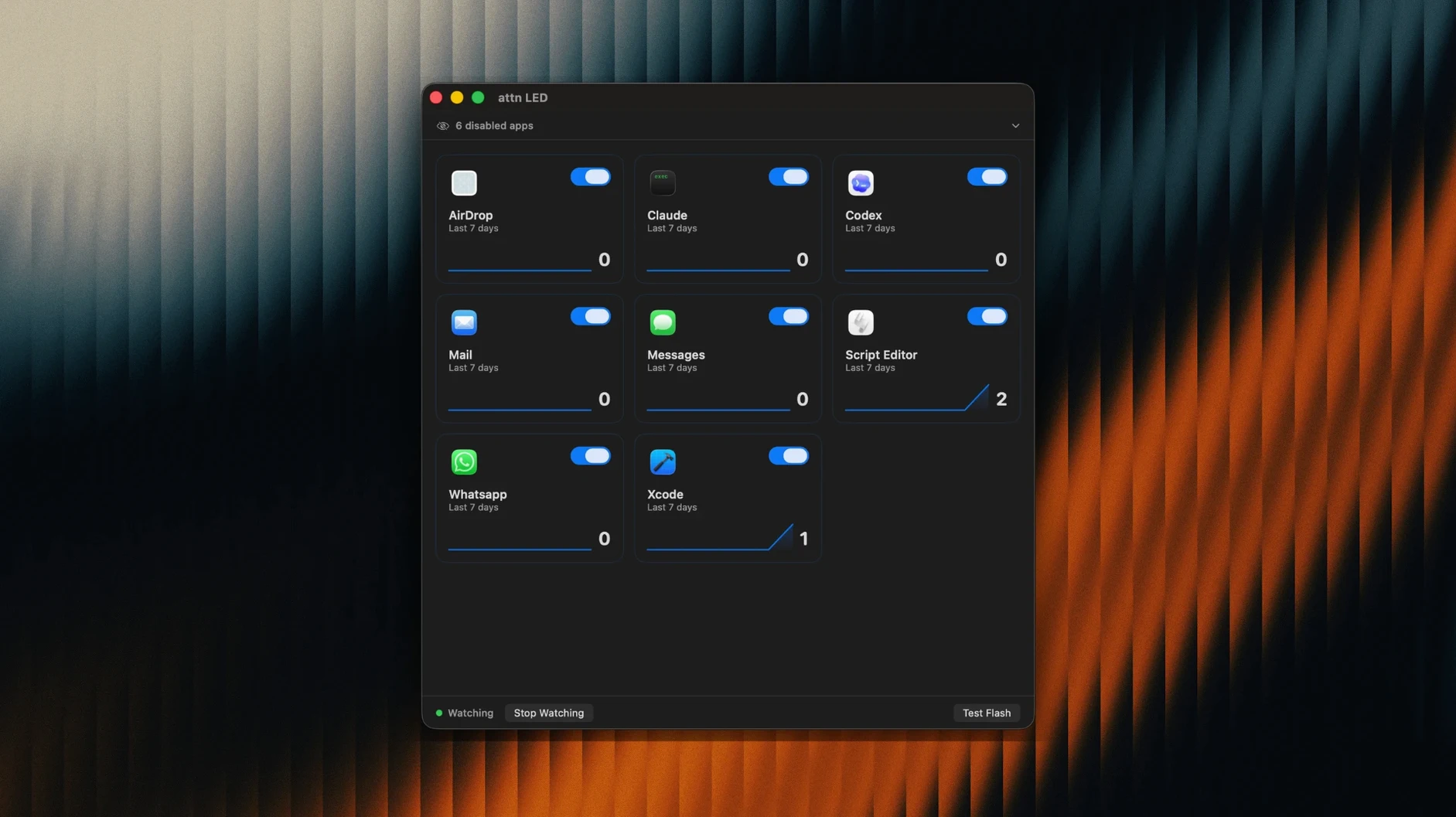
- Set the filter. Open attn LED and tick only Slack in the app list. The auto-detect feature will have already found it; if not, send yourself a test message and the app picks it up immediately.
- Verify the blink behaviour. Ask a colleague to ping you. The camera LED starts its steady pulse. You acknowledge it mentally and carry on typing your paragraph — no banner, no sound, just a green light in your peripheral vision.
- Stay in flow until a natural pause. The LED keeps blinking, which is the critical design choice. It does not time out after thirty seconds. When you reach the end of a section, you glance up, see the light still going, and switch to Slack.
- Opening the app dismisses the blink. You reply, close Slack, and the LED goes dark. Focus Mode never lifted. The whole exchange cost you zero context switches you did not choose.
This loop works identically for a Telegram ping from a family member during Do Not Disturb or a Teams message while you are presenting locally. The LED becomes a polite tap on the shoulder rather than a shout.
Grant permissions so it can watch your calendar
Installation is the usual disk-image dance — open the downloaded .dmg, drag the app into Applications, and launch it from Launchpad. After that, a handful of small tweaks make the first week smoother.
Start by granting the app permission to monitor notifications when macOS prompts you. Without that, the FSEvents trick cannot read the notifications database and the LED stays dark. It is a one-time request, but it is easy to miss if you click through dialogue boxes on autopilot.
Next, resist the urge to tick every app in the list. The LED is most useful when it signals something genuinely worth interrupting your focus. Tick two or three communication apps and leave the rest unchecked for a day. You can always add more later, but if the light blinks for every software update and calendar reminder, it quickly becomes background noise.
Test the video-call auto-pause on a low-stakes call. Open FaceTime with a friend, send yourself a test notification from a second device, and confirm the LED stays off. This builds trust that you will not become the person with a flickering green light during a client presentation.
Finally, position your MacBook so the LED is in your line of sight when you are in your usual working posture. On a clamshell setup with an external monitor, the laptop lid may need to stay open for the LED to be visible — a small ergonomic consideration that pays off quickly.
Fitting attn LED into a wider Mac setup
attn LED works best when it is one piece of a deliberate focus environment. Combine it with macOS Focus Modes that share across devices: your iPhone and iPad respect the same Focus schedule, so the only alert that reaches your desk is the camera LED. Notifications still arrive on all devices, but the physical blink gives you a single, central signal you can check at a glance.
Pair it with a timer app like Be Focused or a Pomodoro utility. During a timed work block, the LED becomes your sole interruption channel. Everything else — email banners, calendar alerts, system notifications — stays hidden behind Focus Mode, exactly where you want them.
Because the app monitors FSEvents rather than relying on Notification Center delivery, it also plays nicely with third-party launchers and window managers. Alfred, Raycast, and Keyboard Maestro workflows carry on undisturbed; attn LED does not hook into the event queue in a way that interferes with them. And if you use a Stream Deck or a macro pad for scene switching, you can toggle Focus Modes from a button and trust that the LED will follow the same rules you have already set — no additional scripting needed.
- macOS 12 or later
- Apple Silicon or Intel Mac with a built-in camera LED (MacBook, MacBook Air, MacBook Pro)
Questions I keep hearing
Does attn LED use the camera itself, or just the light?
It only controls the camera LED indicator; the camera sensor is not activated, and the app automatically pauses the blink during FaceTime and other video calls.
Questions from the class 0
Sign in or join the class to ask a question.
Nobody has asked anything yet. If you have used it on a real job, say what the file did.
Also on the Mac Apps shelf
The whole Mac Apps shelf Astro Gold
Builds detailed natal charts and lets you fine-tune them with dozens of aspect and orb filters.
Astro Gold
Builds detailed natal charts and lets you fine-tune them with dozens of aspect and orb filters.
 AutoCAD
Drafts precise 2D and 3D technical drawings inside a workspace rebuilt around Apple's Metal engine.
AutoCAD
Drafts precise 2D and 3D technical drawings inside a workspace rebuilt around Apple's Metal engine.
 Bandizip
Browses inside archives before extraction and handles a wide range of compression formats in one window.
Bandizip
Browses inside archives before extraction and handles a wide range of compression formats in one window.
 BAO Mask Avenger
Builds complex, animated After Effects masks from a series of simple spline strokes.
BAO Mask Avenger
Builds complex, animated After Effects masks from a series of simple spline strokes.
 Aspect Ratio
Lives in your menu bar and calculates precise, locked proportional dimensions for any layout task.
Aspect Ratio
Lives in your menu bar and calculates precise, locked proportional dimensions for any layout task.
 Bartender
Hides, rearranges, and tidies your menu bar icons so only the essentials remain visible.
Bartender
Hides, rearranges, and tidies your menu bar icons so only the essentials remain visible.
 Beauty Box Photo
Smooths skin and reduces shine in portraits automatically, saving you from manual retouching.
Beauty Box Photo
Smooths skin and reduces shine in portraits automatically, saving you from manual retouching.
 BetterDisplay Pro
Unlocks full resolution, brightness, and colour control for any display attached to your Mac.
BetterDisplay Pro
Unlocks full resolution, brightness, and colour control for any display attached to your Mac.