 ASPNetWorld

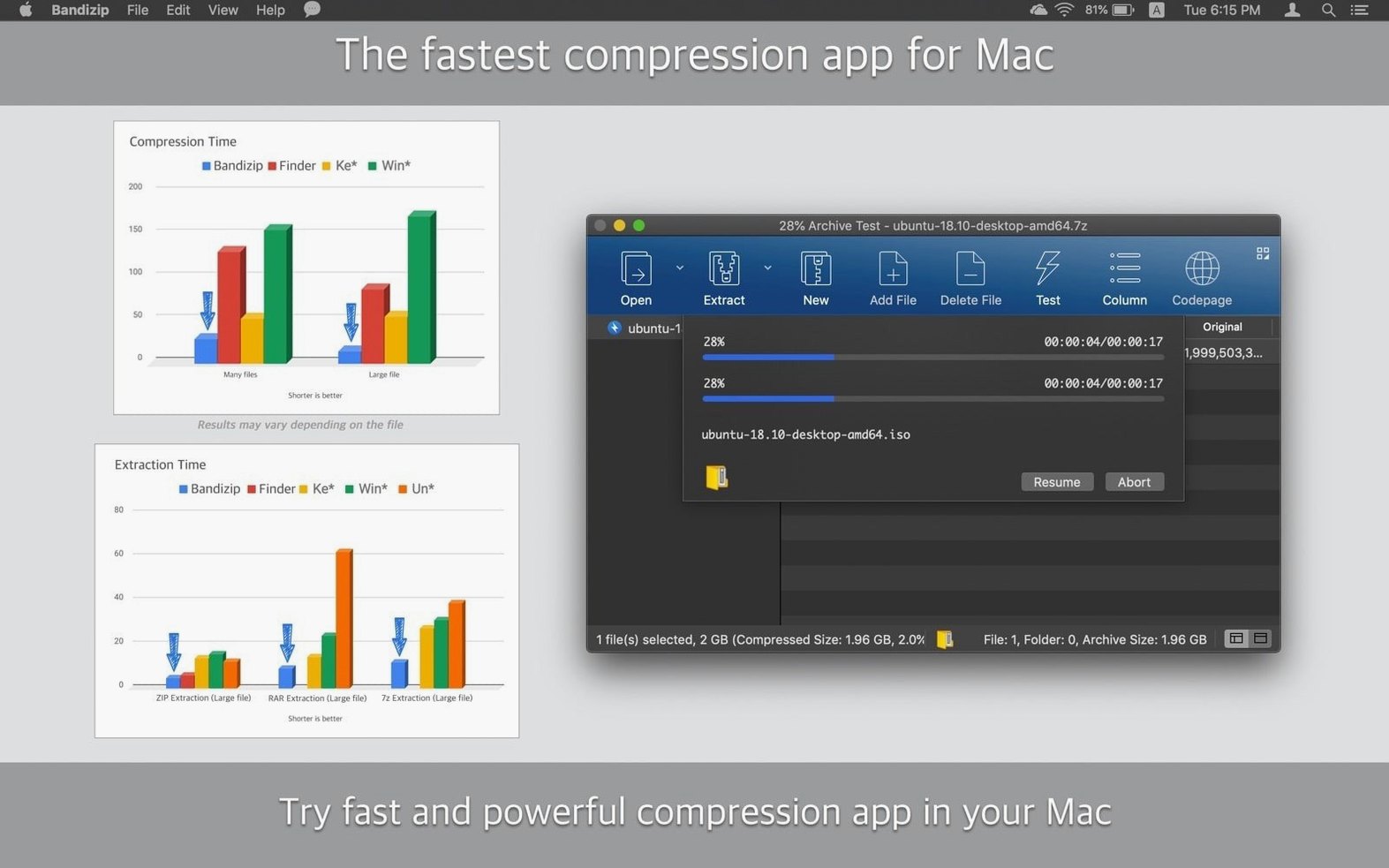
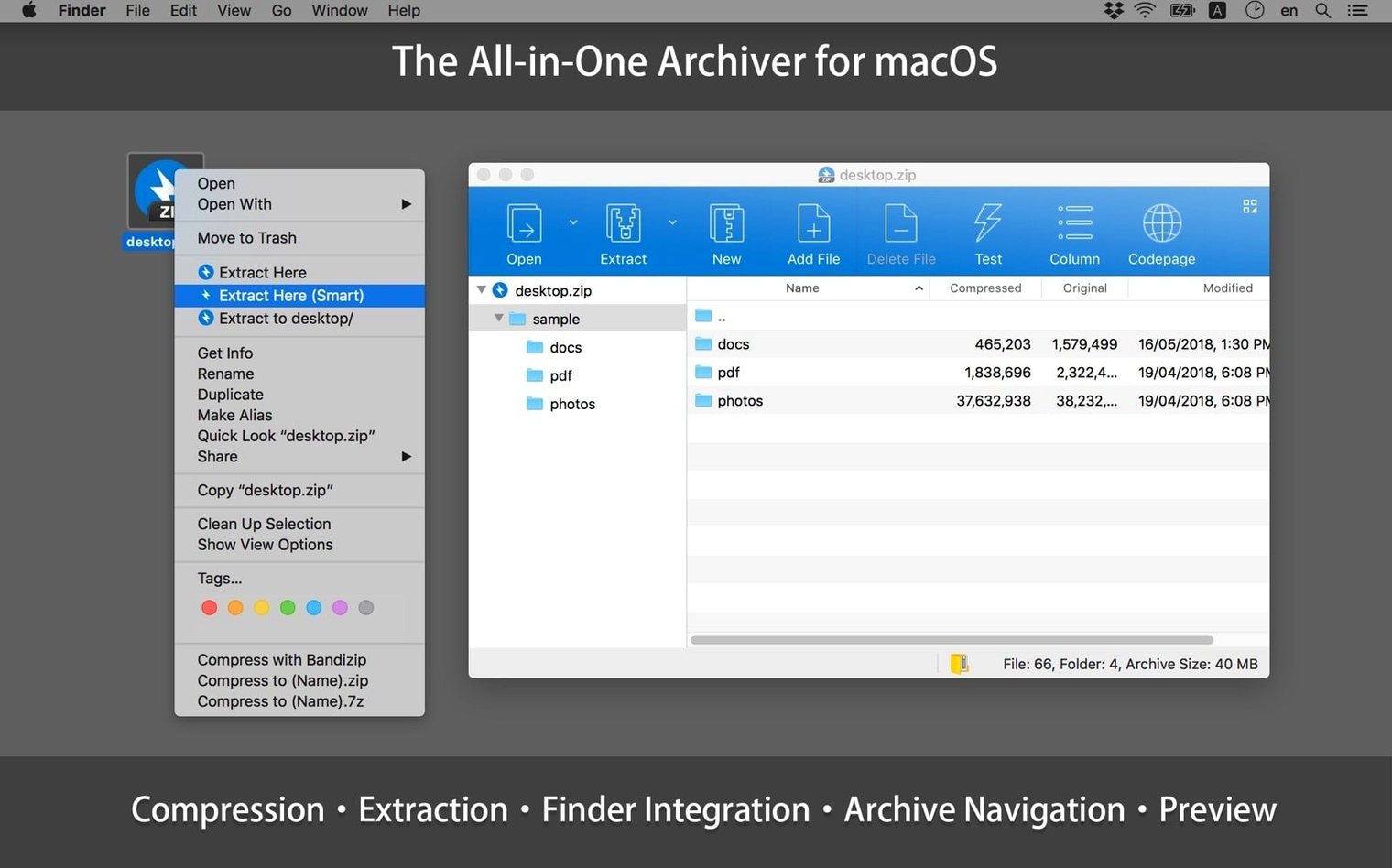
If you've ever found the Mac's built-in Archive Utility a bit too quiet—it silently compresses or expands and then disappears—Bandizip is the more talkative, capable cousin. It stays open so you can browse inside archives without extracting them first, and it bundles the whole toolkit (zipping, unzipping, editing, integrity checking) into a single window rather than scattering the work across the Finder.
Browse archives without extracting them first
A few situations where Bandizip earns its place on the dock:
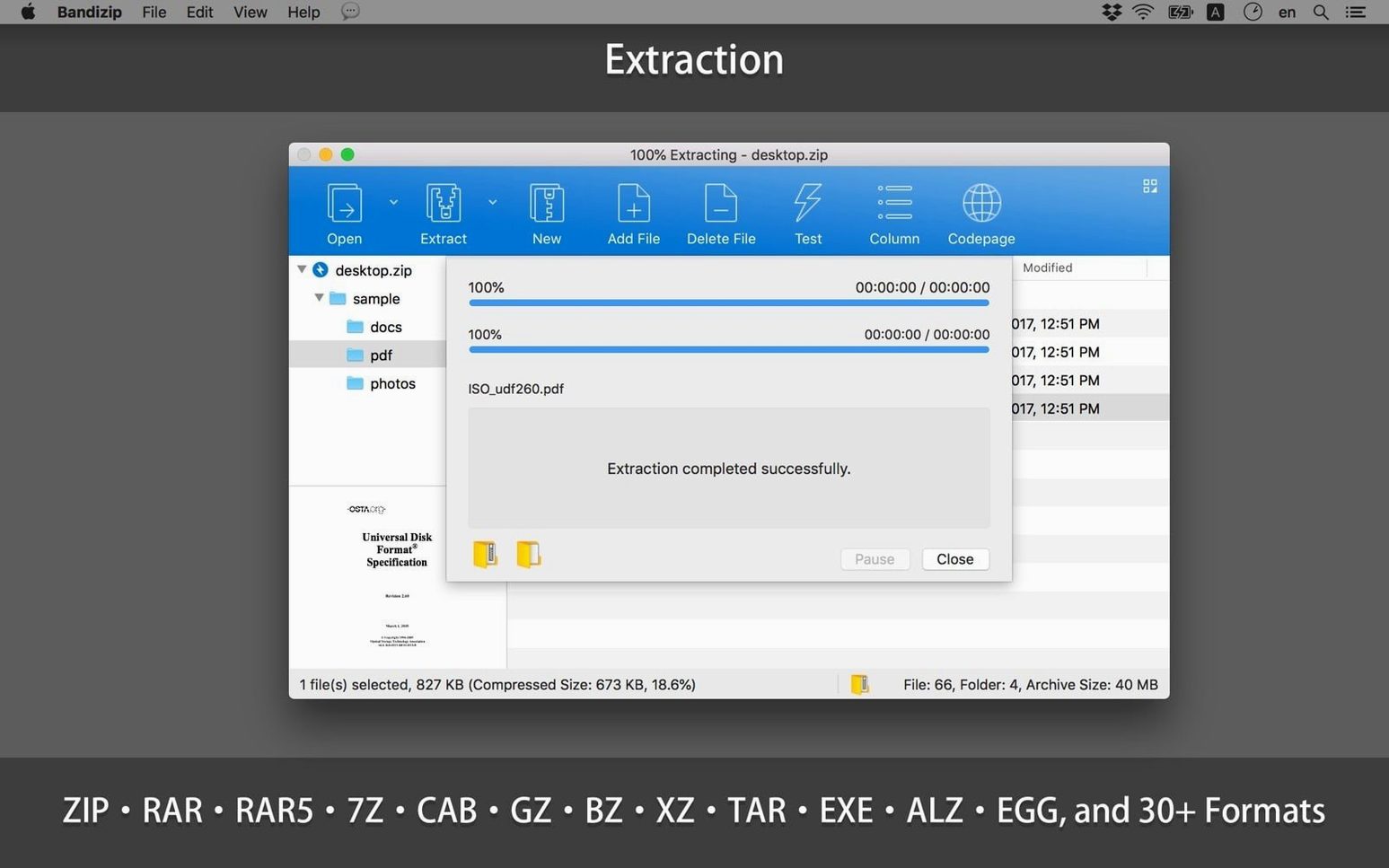
- Peeking inside archives. You can browse the contents of a zip, 7z or rar file as if it were a folder, complete with file sizes and modification dates, and drag individual items out without unpacking the whole thing.
- Encrypted sharing. AES256 encryption is built in, so you can password-protect sensitive documents before they leave your machine. It also opens password-protected archives you receive, including multi-volume splits.
- Checking file health. The integrity-checking feature verifies that an archive hasn't been damaged during download or transfer—useful when a corrupt zip could mean a wasted afternoon.
Requires High Sierra and leans on a utilitarian design
No app fits every workflow. Here's what you should know before you commit:
- It requires macOS 10.13 High Sierra or later—perfectly reasonable for most, but worth checking if you're nursing an older machine along.
- The interface is functional rather than minimal; it shows you plenty of detail, which is great for control but feels busier than Apple's own stripped-back approach.
- Finder integration is handled via Services, so you'll find Bandizip options in the right-click menu rather than a separate system extension.
Imagine a designer in a small studio who's just been sent a client's project folder as a password-protected, multi-volume RAR set. The Mac's built-in tools shrug at it, and the deadline is already tight. With Bandizip, they right-click the first .part01.rar in Finder, pick the Services menu entry, and type the password once. A few seconds later the whole folder tree appears in the main window, with all subfolders and assets intact. They drag only the vector files onto the desktop, leave the rest in the archive, and get straight to work — no third utility, no command-line tinkering. That's where the app earns its spot: it handles the oddball formats and split archives that turn up in collaborative work without forcing you to learn a new tool on the fly.
Folder-size calculations now match the Finder
The jump to version 7.39 was largely a maintenance and security pass, but it tweaked a few things you'll notice in everyday use. The most practical change is the way Bandizip now handles file-size calculations when you select a folder: the numbers update more responsively as you browse, so you're not left staring at a stale estimate while deciding whether to compress a project directory. The compression-format list has also been reordered, putting the most commonly used types closer to hand — less scrolling when all you want is a quick zip or 7z. Behind the scenes, several security-related vulnerabilities were patched, which matters if you regularly open archives from unknown sources. The rest falls under the umbrella of minor UI adjustments and stability work; nothing that rewrites the user experience, but enough to keep things feeling steady.
Open the app once to restore the missing right-click menu
A handful of friction points crop up often enough to be worth addressing here.
"The right-click menu doesn't show Bandizip." This is almost always down to macOS not having registered the service yet. Open the app once properly — double-click it in the Applications folder rather than launching it from the disk image — then log out and back in. The Services menu should now include Bandizip under the right-click context menu in Finder.
"A password-protected archive won't open, but I know the password." Check whether the archive uses a different encryption method than you assumed. Bandizip handles ZIP's AES256 and the standard RAR encryption, but some older tools use proprietary or legacy schemes. If the password contains non-English characters, make sure the archive was created with Unicode support; otherwise, the character encoding may not match on extraction.
"The app feels sluggish when browsing a large archive." Archives containing tens of thousands of small files — think raw photo dumps or log collections — take a moment to index. Let the listing finish populating before you start dragging items out; cancelling mid-index can leave Bandizip confused. On Apple Silicon Macs this is rarely an issue, but older Intel machines benefit from closing other large apps first if you're wrestling with a multi-gigabyte 7z file.
"I can't modify a RAR archive by adding files." That's expected. Bandizip's edit features — adding, deleting, renaming entries — work on ZIP archives only. For RAR and 7z, you'll need to extract, repackage, and recompress if the archive structure must change. It's a format limitation, not a bug, and it's the same reason bandizip mac users sometimes pair it with a dedicated RAR tool for niche editing tasks.
Version 7.39 is largely a security and polish update. The headline fix patches several vulnerabilities that could be exploited by a specially crafted archive, so updating is sensible even if nothing else has changed for your workflow. Alongside that, a handful of small refinements arrived:
- Fixed multiple security-related vulnerabilities.
- The app now updates file sizes more reliably when you select a folder before archiving.
- The compression format list has been reordered for a more logical flow when creating a new archive.
- Tidied up a few rough edges in the interface and improved general stability.
- macOS 10.13 (High Sierra) or later
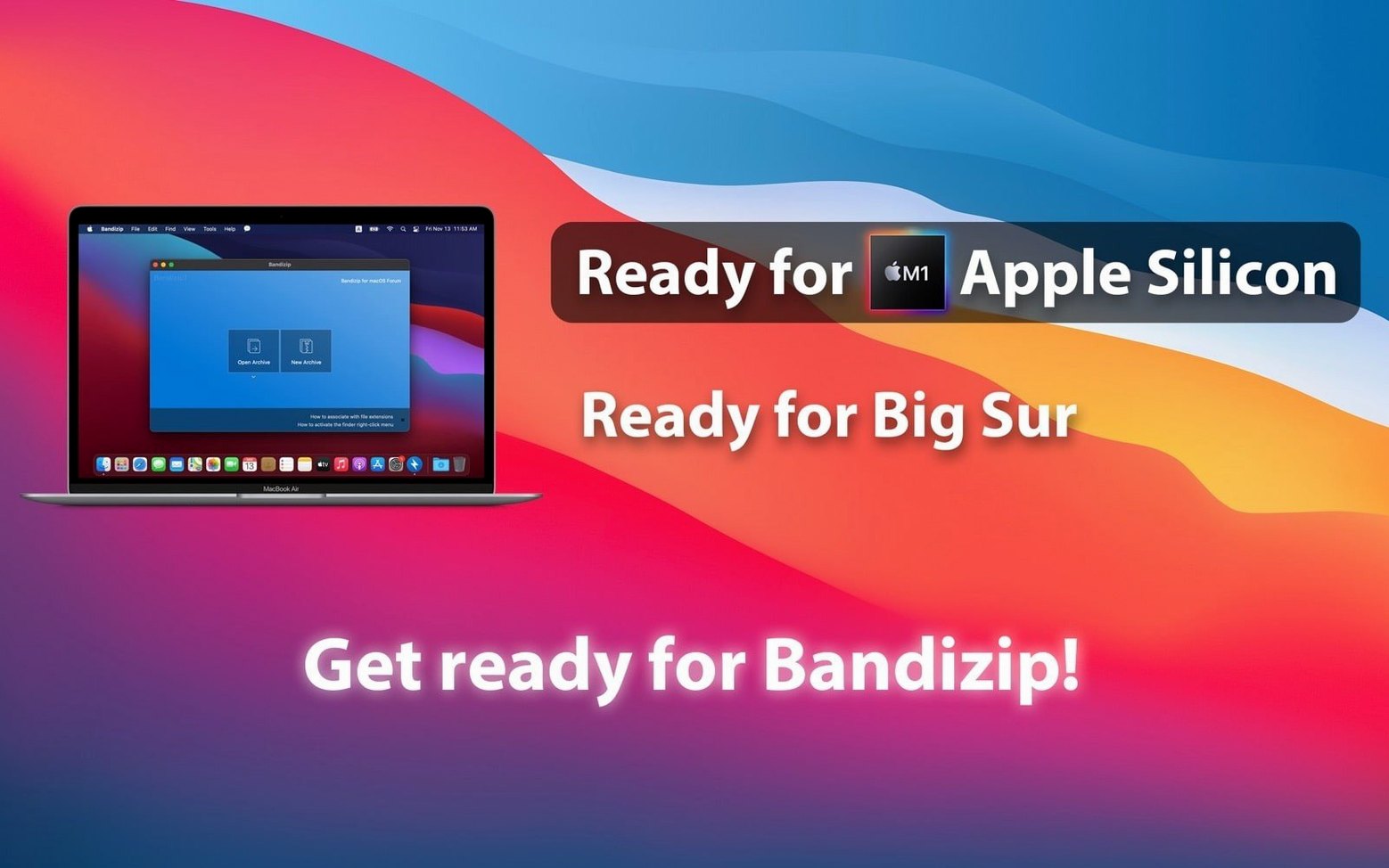
- Runs natively on both Apple Silicon and Intel 64-bit Macs
Questions I keep hearing
Does Bandizip on Mac handle password-protected files?
Yes—it opens and creates password-protected archives and supports multi-volume splits, so you can work with encrypted zip sets without reaching for another tool.
What languages does the macOS version include?
The interface comes in eight languages: English, Russian, German, Spanish, French, Japanese, Korean, and both Simplified and Traditional Chinese.
Questions from the class 0
Sign in or join the class to ask a question.
Nobody has asked anything yet. If you have used it on a real job, say what the file did.
Also on the Mac Apps shelf
The whole Mac Apps shelf BAO Mask Avenger
Builds complex, animated After Effects masks from a series of simple spline strokes.
BAO Mask Avenger
Builds complex, animated After Effects masks from a series of simple spline strokes.
 AutoCAD
Drafts precise 2D and 3D technical drawings inside a workspace rebuilt around Apple's Metal engine.
AutoCAD
Drafts precise 2D and 3D technical drawings inside a workspace rebuilt around Apple's Metal engine.
 Bartender
Hides, rearranges, and tidies your menu bar icons so only the essentials remain visible.
Bartender
Hides, rearranges, and tidies your menu bar icons so only the essentials remain visible.
 attn LED
Flashes your MacBook camera LED silently so you can spot urgent notifications during deep work.
attn LED
Flashes your MacBook camera LED silently so you can spot urgent notifications during deep work.
 Astro Gold
Builds detailed natal charts and lets you fine-tune them with dozens of aspect and orb filters.
Astro Gold
Builds detailed natal charts and lets you fine-tune them with dozens of aspect and orb filters.
 Beauty Box Photo
Smooths skin and reduces shine in portraits automatically, saving you from manual retouching.
Beauty Box Photo
Smooths skin and reduces shine in portraits automatically, saving you from manual retouching.
 BetterDisplay Pro
Unlocks full resolution, brightness, and colour control for any display attached to your Mac.
BetterDisplay Pro
Unlocks full resolution, brightness, and colour control for any display attached to your Mac.
 BetterTouchTool
Transforms any trackpad, mouse, or keyboard gesture into a custom shortcut tailored to your workflow.
BetterTouchTool
Transforms any trackpad, mouse, or keyboard gesture into a custom shortcut tailored to your workflow.