 ASPNetWorld
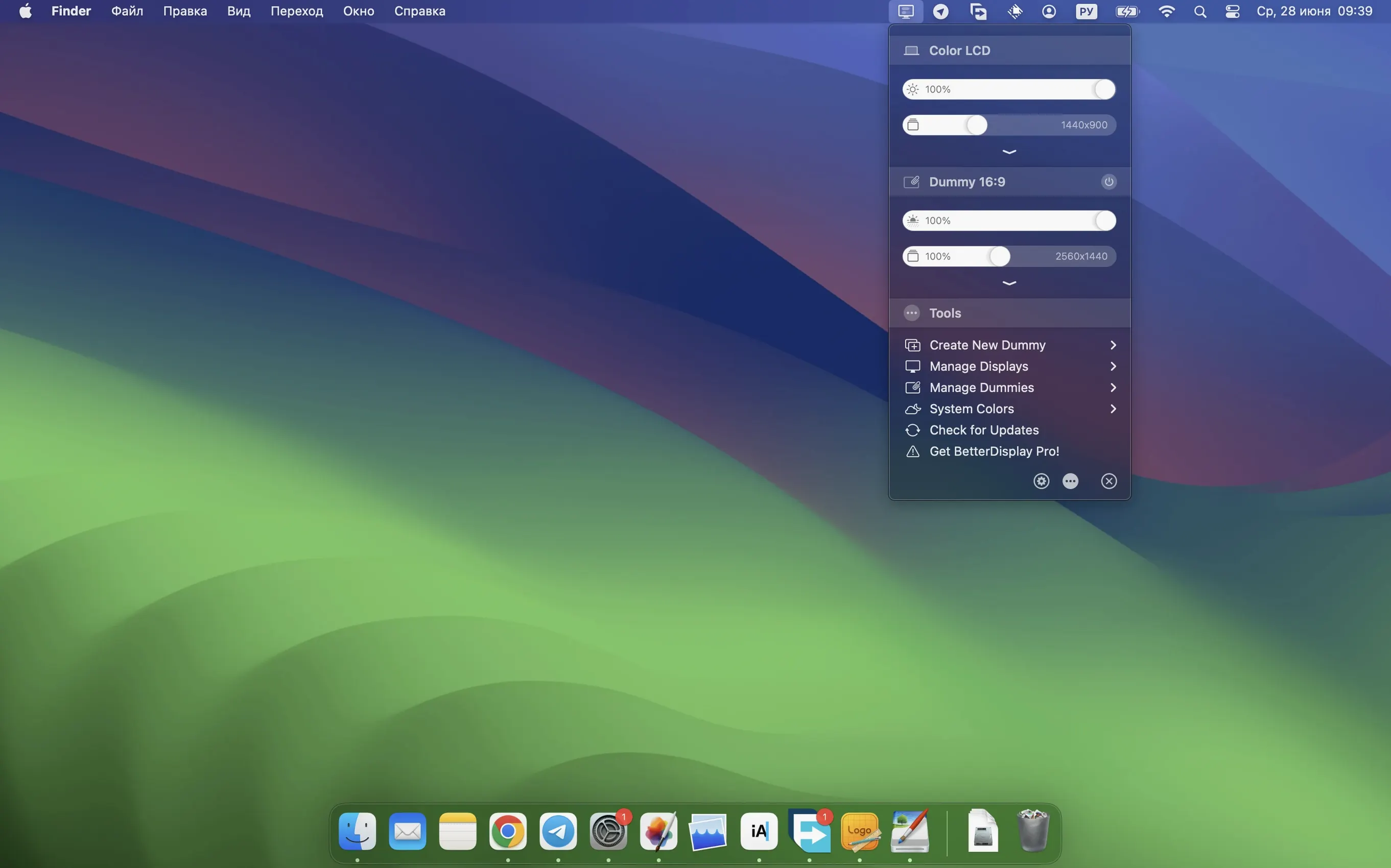
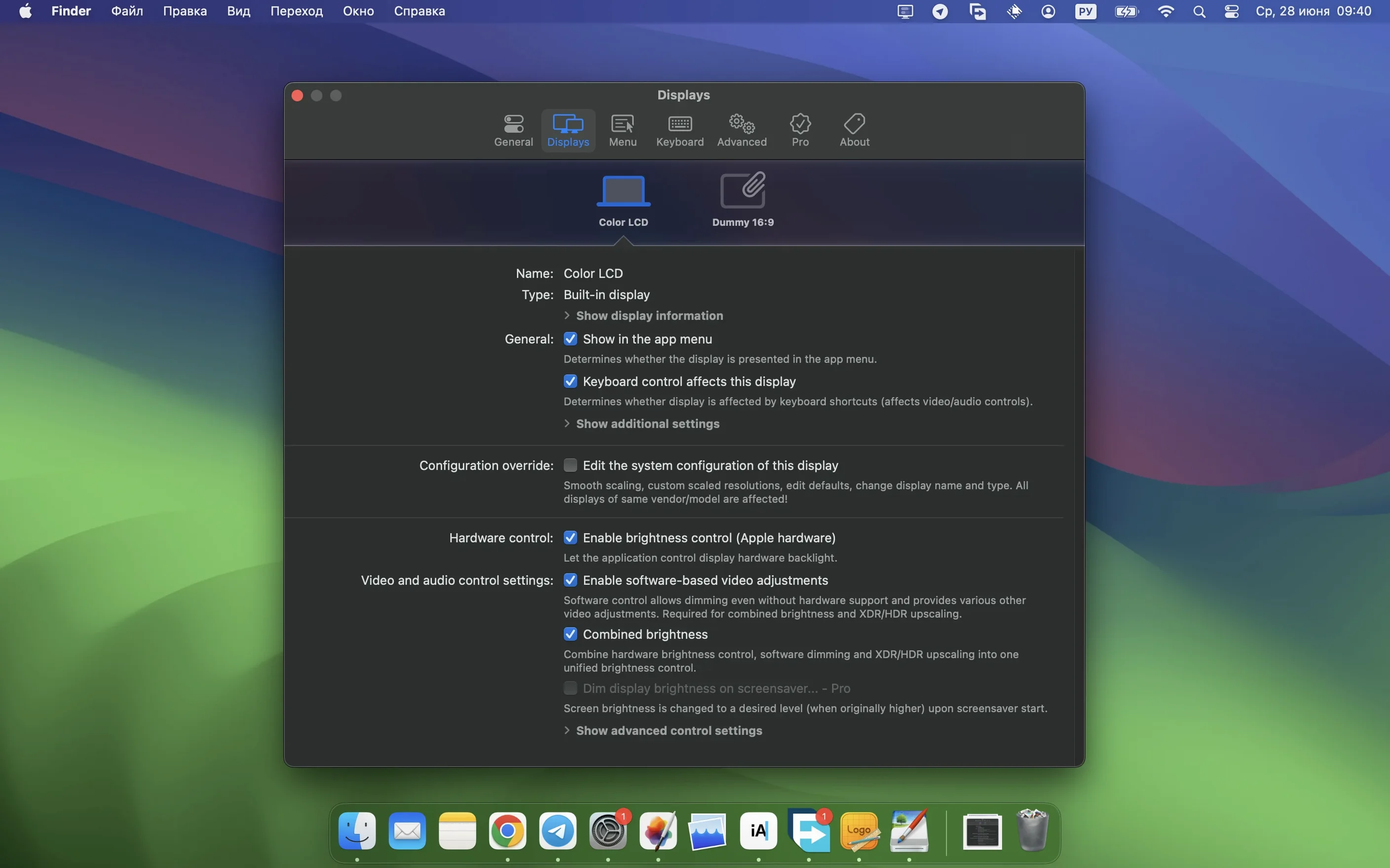
BetterDisplay Pro is a Mac menu bar app that turns any connected display into a fully scalable screen with granular control over resolution, brightness, and colour. It’s a toolkit for anyone who has ever squinted at tiny interface elements or wished their external monitor behaved more like a native Apple display.
How does the HiDPI scaling actually work?
The app intercepts macOS’s display handling to offer a much wider range of scaling options than System Preferences normally allows. You can create custom virtual resolutions that render the interface at one size while driving the panel at its native pixel count, so text and icons stay crisp without forcing you into Apple’s limited set of “larger text” or “more space” presets.
What can I do with the picture-in-picture feature?
The picture-in-picture window gives you a live, resizable preview of any connected display. It’s useful for watching a second machine’s output, keeping an eye on a rendering process, or simply grabbing a portion of a larger screen and docking it in the corner of your main workspace.
How deep does the hardware control go?
Beyond software-level tweaks, BetterDisplay uses DDC and HDMI-CEC protocols to talk directly to a monitor’s internal hardware. That means you can adjust physical brightness and contrast from the menu bar or keyboard without ever reaching for the display’s own fiddly buttons, and you can script those changes for different times of day.
Is this purely about resolution?
No, the colour management tools are just as detailed. You can apply custom 3D LUTs for colour grading, modify XDR and HDR brightness values on Pro Display XDR and MacBook Pro screens, and use the new stream video filter automation in version 5.0.6 to ensure colour corrections stay active during full-screen video playback.
Mistakes beginners make with BetterDisplay Pro
New users often approach the app as a simple brightness slider tucked in the menu bar, then wonder why their external monitor suddenly looks soft. The most common slip is picking a custom resolution without enabling HiDPI mode first. When HiDPI is off, macOS treats the chosen resolution as a raw pixel grid and scales the interface naively, which leaves text looking as though it's been drawn with a blunt crayon. Before you touch any resolution slider, check that the HiDPI toggle is lit for the display you're adjusting.
Another early stumble involves DDC control. The app can talk to many monitors over DisplayPort and HDMI, but not every cable passes DDC signals reliably. Someone plugs in a third-party USB-C to HDMI adapter, finds the brightness controls greyed out, and assumes the feature is broken. It isn't — the adapter is simply filtering the command channel. Swapping to a direct USB-C to DisplayPort cable or a Thunderbolt dock often restores full hardware control without a single settings change inside the app.
A subtler mistake is stacking multiple display override tools on top of each other. macOS remembers its own display plists, and if you've previously used a utility that writes custom overrides, BetterDisplay can end up negotiating with a ghost configuration. The symptom is a screen that flickers briefly during login or snaps back to a default scaling level after waking from sleep. The fix is straightforward: open the app's display configuration pane, locate the overrides section, and clear any stale entries that predate your BetterDisplay install.
What the latest versions changed in everyday use
Version 5.0.6 didn't add splashy new menu items, but it quietly smoothed several daily workflows. The simplified device control configuration means you no longer need to dig through a nested preferences tree to assign a keyboard shortcut for a specific monitor's brightness. The app now detects which display your cursor is sitting on and can apply adjustments contextually, so the same F1/F2 keys operate on the screen you're actually looking at rather than the one you configured last Tuesday.
Faster multi-display DDC control addresses a long-standing irritation: when waking three monitors from sleep, the old command queue occasionally paused on the slowest display and held up the other two. With 5.0.6, the app issues DDC commands in parallel where the hardware permits, so all three screens settle at their saved brightness levels within a second or two instead of shuffling through a hesitant relay race.
The stronger sharpening effects are purely visual but noticeable on lower-resolution panels. If you're driving a 1080p monitor at a scaled resolution that pushes the pixel density beyond what the panel resolves cleanly, the enhanced sharpening filter can claw back a surprising amount of edge definition in small interface text. Combined with the new stream video filter automation, which ensures colour and sharpening profiles persist when a full-screen video player takes over the graphics pipeline, the result is a setup that behaves consistently whether you're reading emails or watching a film.
Practical tips for the first days after installing
Spend your first afternoon setting up per-display profiles rather than hunting for a single universal setting. Connect every display you regularly use, open each one's configuration tile, and save a named profile that captures the resolution, scaling mode, brightness, and colour preset. The profiles can then be triggered automatically by a display's EDID when it reconnects, which removes the need to re-tweak every time you undock a laptop.
If you work with a MacBook Pro's XDR screen alongside an external monitor, enable XDR brightness upscaling early. The feature pushes the internal panel's peak luminance higher than the stock slider allows, and the difference is most obvious in a sunlit room where the standard 500-nit ceiling feels dim. Pair it with the full black dimming option — the app can drop the backlight to near zero on dark screens, which deepens blacks without crushing shadow detail.
Virtual displays deserve a cautious first test. Create one at a sensible HiDPI resolution, perhaps 1920×1080 HiDPI on a 4K panel, and use it as a secondary workspace for a few hours before you attempt more exotic configurations. The virtual screen appears to macOS as a real monitor, so windows, Spaces, and full-screen apps treat it normally. Once you're comfortable, the picture-in-picture window for that virtual display becomes a handy scratchpad: drag it to the corner of your main screen and keep a terminal or a reference document visible without swallowing a whole physical monitor.
How BetterDisplay compares with similar Mac apps
SwitchResX has been the go-to for custom resolutions on the Mac for years, and it still offers a deep set of override tools. Where BetterDisplay pulls ahead is in the combination of hardware control and scaling in a single app. SwitchResX handles resolution quirks well, but it doesn't talk DDC to your monitor's backlight, and it lacks the picture-in-picture and virtual display features. If your needs stop at resolution overrides, SwitchResX is a capable veteran; if you want brightness, colour, and scaling in one package, BetterDisplay covers more ground.
Lunar focuses almost exclusively on brightness and contrast via DDC, and it does that job elegantly with adaptive brightness curves and sensor-driven adjustments. BetterDisplay's brightness controls are less obsessed with automation and more interested in giving you direct, manual command over every connected display, including XDR headroom on Apple's own panels. If you're hunting for a smart brightness manager that follows ambient light, Lunar is the specialist. If you're after a display toolkit that treats brightness as one of a dozen adjustable parameters, BetterDisplay is wider in scope.
DisplayBuddy shares some territory — it manages brightness, colour presets, and input switching for monitors that support DDC. The interface is friendlier than diving into BetterDisplay's detailed configuration panes, and for someone who just wants to pick an sRGB clamp and a brightness level, DisplayBuddy feels immediate. BetterDisplay is the deeper tool; it gives you custom 3D LUTs, virtual screens, and HiDPI scaling that goes far beyond what DisplayBuddy attempts. The two can coexist on a machine, but users who start with DisplayBuddy often drift toward the better display when they need the finer-grained scaling controls and want a single menu bar icon that does everything.
Quick questions after a week of use
Why does my menu bar show two brightness icons?
You probably still have macOS's native Display menu bar item enabled alongside BetterDisplay's. Open System Preferences, head to Control Centre, and set the Display module to "Don't show in Menu Bar." BetterDisplay's icon replaces it entirely.
Can I use the betterdisplay pro free feature set indefinitely?
The app's core functionality — resolution scaling and basic brightness control — stays available without time limits. The Pro-only features like XDR upscaling, 3D LUTs, and virtual displays are the extras layered on top.
Does a betterdisplay mac download include both Intel and Apple Silicon builds?
Yes, the disk image you get from a better display download is a universal binary. It runs natively on ARM Macs and 64-bit Intel machines under macOS 26 or later, and the installer handles the architecture selection automatically when you drag the app to your Applications folder.
Version 5.0.6 tightens up the device control workflow and adds more muscle to the image processing. The update brings:
- A reworked configuration panel that simplifies setting up DDC and HDMI-CEC commands.
- Noticeably faster response when adjusting multiple displays via DDC.
- Stronger sharpening effects for fine-tuning text clarity.
- Stream video filter automation, so your colour corrections stay locked in during full-screen playback.
- macOS 26 or later
- Works on both Apple Silicon and Intel Macs
Questions I keep hearing
Does BetterDisplay Pro work with Apple Silicon and Intel Macs?
Yes, the app runs natively on both Apple Silicon and Intel-based Macs as a universal binary, requiring macOS 26 or later.
What does the stream video filter automation do?
Introduced in version 5.0.6, this feature correctly applies colour and filter adjustments when video players switch to full-screen mode, preventing unwanted resets of your calibration settings.
Questions from the class 0
Sign in or join the class to ask a question.
Nobody has asked anything yet. If you have used it on a real job, say what the file did.
Also on the Mac Apps shelf
The whole Mac Apps shelf Beauty Box Photo
Smooths skin and reduces shine in portraits automatically, saving you from manual retouching.
Beauty Box Photo
Smooths skin and reduces shine in portraits automatically, saving you from manual retouching.
 BetterTouchTool
Transforms any trackpad, mouse, or keyboard gesture into a custom shortcut tailored to your workflow.
BetterTouchTool
Transforms any trackpad, mouse, or keyboard gesture into a custom shortcut tailored to your workflow.
 BetterZip
Opens, edits, and creates archives in dozens of formats without needing to extract them first.
BetterZip
Opens, edits, and creates archives in dozens of formats without needing to extract them first.
 Beyond Compare
Spots every difference between folders or files by laying them side by side for instant visual comparison.
Beyond Compare
Spots every difference between folders or files by laying them side by side for instant visual comparison.
 Binary Ninja
Opens up compiled code so you can study, patch, or understand how a program really works.
Binary Ninja
Opens up compiled code so you can study, patch, or understand how a program really works.
 Bartender
Hides, rearranges, and tidies your menu bar icons so only the essentials remain visible.
Bartender
Hides, rearranges, and tidies your menu bar icons so only the essentials remain visible.
 BAO Mask Avenger
Builds complex, animated After Effects masks from a series of simple spline strokes.
BAO Mask Avenger
Builds complex, animated After Effects masks from a series of simple spline strokes.
 Bandizip
Browses inside archives before extraction and handles a wide range of compression formats in one window.
Bandizip
Browses inside archives before extraction and handles a wide range of compression formats in one window.