 ASPNetWorld

BetterZip 6.0.6 asks for macOS 13.5 or later and runs as a universal binary, so Apple Silicon and Intel Macs both get native performance. The 7z helper inside it has just been updated to v26.03 with Apple Silicon assembler optimisations, which means heavier 7z work leans on the hardware properly.
Strip a single file from an archive without extracting everything
- Removing one or more files directly from an archive without extracting everything first — a genuine time-saver when you spot a stray log file or an outdated readme inside a zip.
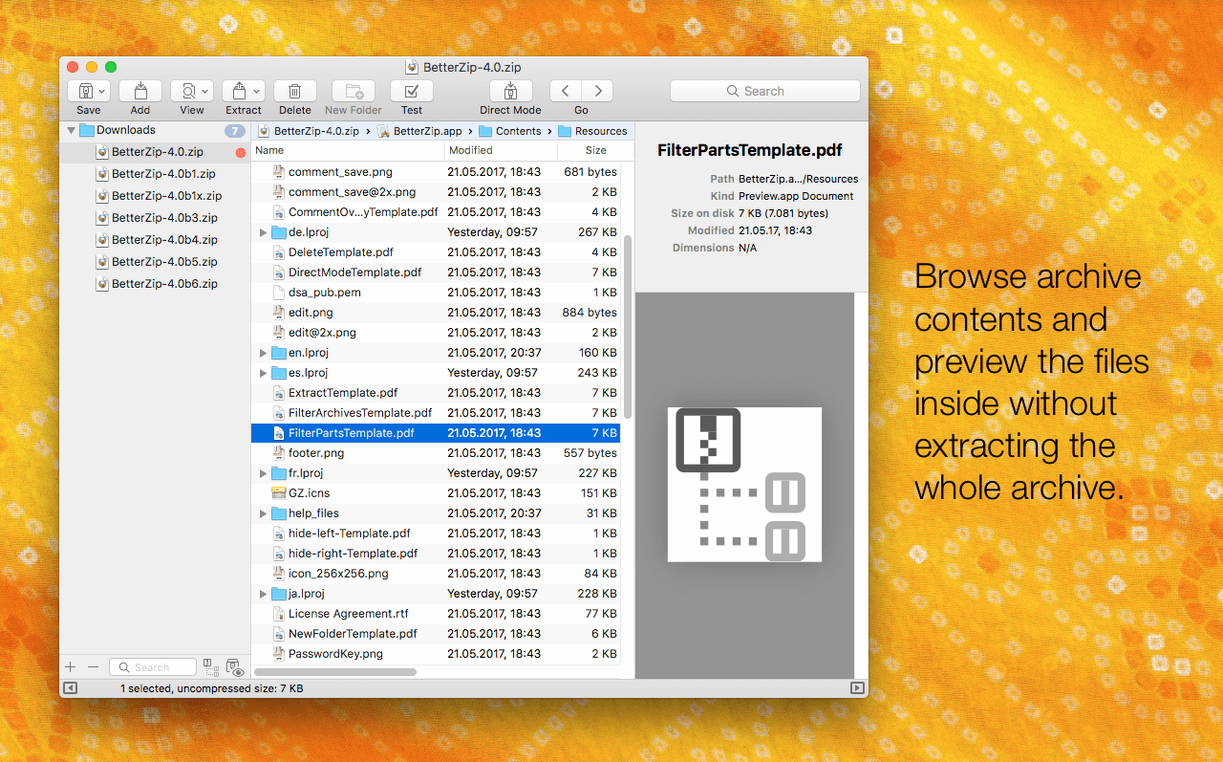
- Previewing files with Quick Look before you commit to extraction.
- Opening and managing 7z archives on a Mac without reaching for the command line.
- Building an automated routine around archives via AppleScript integration.
- Adding comments to RAR archives, which helps when you are labelling snapshots for a client or archiving project milestones.
- Generating strong passwords straight from the app rather than pasting something weak from memory.
- Extracting ISO disk images alongside standard archive formats.
The queue expects you to set parameters and walk away
- The operations queue is built for direct compression and extraction without interaction — powerful, but you need to be comfortable setting parameters upfront and letting the queue run unattended.
- Version 6.0.6 adds an option to avoid restoring macOS metadata during extraction, which is useful when moving archives to non-Mac systems, though it is off by default and easy to miss if you don't dig into preferences.
Flip a few defaults behind the cog icon before your first archive
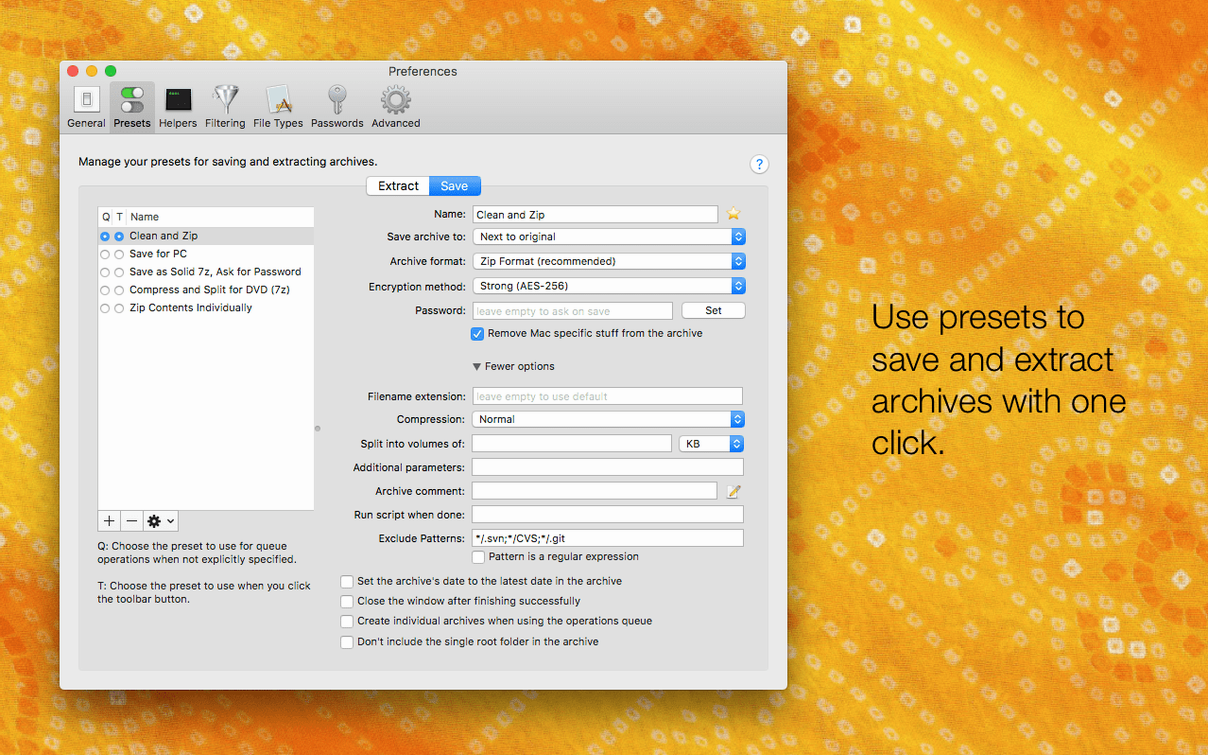
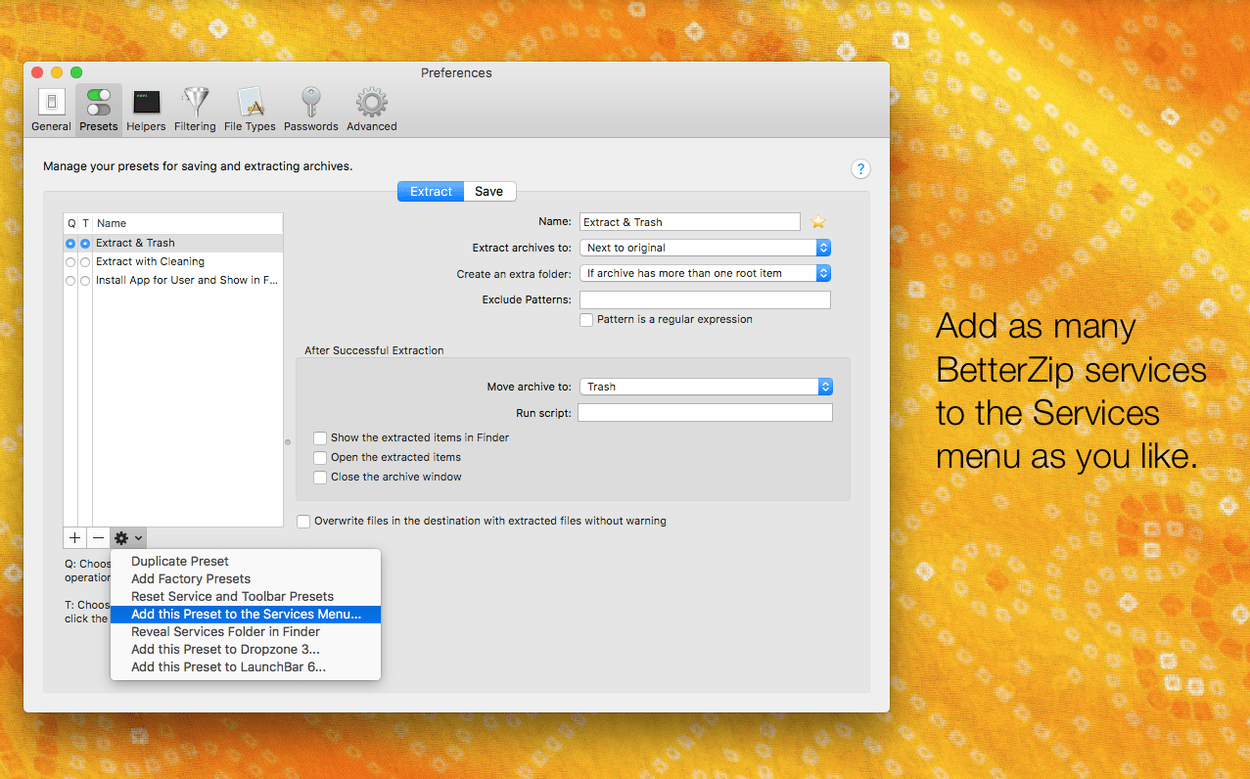
Open BetterZip’s preferences straight after installation — there are a few defaults that reward a quick tweak. None of them are hidden, but they sit behind a cog icon that is easy to ignore when you just want to unzip something and move on.
First, head to the General tab. The option labelled Delete original archive after extraction is off, which suits most people fine. If you routinely unzip, use the contents and archive the result elsewhere, switching it on keeps your Downloads folder from filling up with redundant zips. Right below it, the Always extract in a new folder named after the archive checkbox is worth turning on if you have ever unzipped a poorly packaged archive that sprayed twenty files across your desktop. It wraps everything in a tidy folder automatically.
Move to the Extraction tab next. Version 6.0.6 introduced Avoid restoring macOS metadata and it is off by default. Turn it on if you regularly share archives with Windows or Linux colleagues: it strips the invisible ._ resource fork files that macOS tacks on, which otherwise clutter the other end as unreadable junk. While you are there, set a default extraction folder — a dedicated Unpacked directory somewhere predictable saves you from navigating the save dialogue every single time.
Finally, in the Password tab, let BetterZip’s generator earn its keep. It can produce strings of arbitrary length with a mix of character classes. Tick Use generated passwords for new archives by default and set a comfortable length — 20 characters is a sensible floor — so every encrypted archive you create gets proper protection without you having to think up yet another phrase.
Apple Silicon gets native 7z optimisations, not translated Intel code
Does BetterZip work on the latest Apple Silicon Macs? Yes, and the 6.0.6 update specifically tunes the 7z helper with Apple Silicon assembler optimisations, so you are not running translated Intel code for heavy compression work. The universal binary covers both architectures without fuss.
Will it handle password-protected archives from Windows users? It handles AES-256 encrypted zips and 7z files, plus standard zip encryption. If someone sends you a password-protected RAR, BetterZip prompts for the password on opening and lets you add comments to RAR archives as well — useful when you want to annotate what the password actually protects.
Can I see what is inside an archive without extracting everything? That is one of the core reasons people pick BetterZip over the built-in Archive Utility. Quick Look previews work directly inside archives, and you can delete individual files, rename folders, or add comments without repacking the whole thing. If you receive a 2 GB zip and only need three files from it, you extract those three and leave the rest untouched.
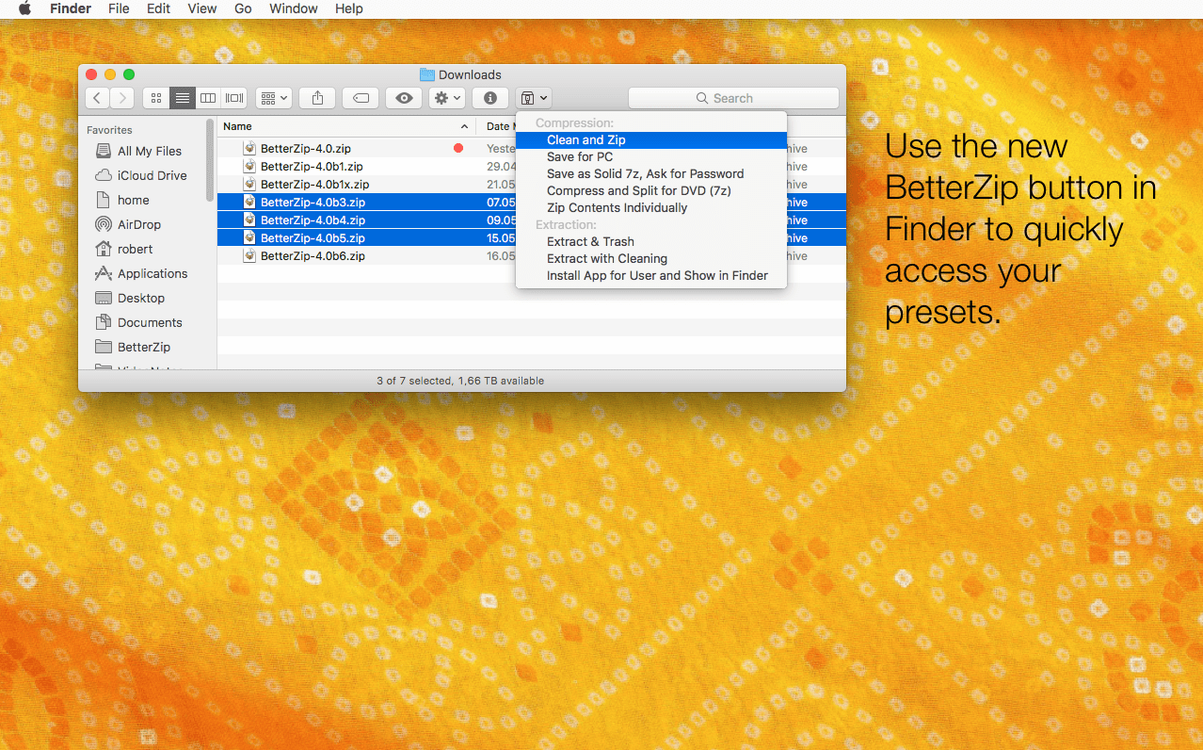
Is there a Finder extension, or do I have to open the app every time? The contextual-menu integration means you can right-click any supported archive in Finder and choose extraction or compression options without launching the main window. The operations queue runs those tasks in the background, so you can queue up a batch of extractions and walk away.
A specific workflow: cleaning and re-encrypting a project archive for a client
Say a client sends you a 7z archive with project assets — images, a spreadsheet, some font files and a stray notes.txt they forgot to remove. You need to strip the unnecessary file, add a comment identifying the delivery version, re-encrypt with your own password and send it back. Here is how that plays out in BetterZip without extracting a single file to disk.
Open the 7z archive in BetterZip. The main window shows the contents as a familiar file tree. Select notes.txt — the client’s internal note they did not intend to share — and press the Delete key. BetterZip removes it from the archive listing immediately, though the change is not written until you save. While you are in there, right-click the archive’s name in the sidebar and choose Add Comment. Type something like Project Delphinium — revised asset pack v2, cleaned for handover. The comment embeds into the archive metadata where Finder cannot see it, but anyone opening the file in BetterZip or a compatible tool will spot it right away.
Now go to File → Save As. Choose 7z or zip — zip is safer for cross-platform compatibility — and tick the encryption box. BetterZip offers its password generator; accept a 24-character random string and set AES-256 encryption. Save the new archive to a client-facing folder. The original remains untouched in case you need to refer back. Total time: under a minute, and no temporary folders to clean up afterwards.
Thursday morning with a RAR, an ISO, and a batch of archives
Imagine it is a Thursday morning and you have accumulated a handful of archives from various sources — a vendor sent a RAR full of spec sheets, your backup routine dropped a large ISO in your home directory, and you need to package a batch of Logic Pro stems for a collaborator who uses betterzip mac as their go-to extraction tool.
You start by selecting the vendor’s RAR in Finder. A right-click brings up the BetterZip extraction menu; you choose Extract Here because the desktop is clear and you will file things properly afterwards. The operations queue icon bounces once in the menu bar and the extraction finishes silently. No dialogue boxes interrupted your train of thought.
Next, the ISO. You double-click it, BetterZip opens and displays the disk image contents as though it were a regular folder. You browse the file tree, Quick Look a few PDFs to confirm they are the right revision, then drag the three you need onto the desktop. The rest stays inside the ISO, which you close without extracting.
Now the stems. You select the project folder in Finder, right-click and choose Compress with BetterZip. A settings sheet appears; you pick zip format, tick encryption and let the password generator create a strong key. You copy the password to your clipboard and paste it into a secure note for sharing separately. The queue processes the compression in the background while you answer an email. By the time you look up, the archive is ready and the password is stored safely, not scrawled on a sticky note.
The whole session took perhaps four minutes of actual attention, spread across three distinct tasks. None of them required opening the main BetterZip window except the ISO browse, and even that was more about verifying contents than wrestling with extraction tools. The Finder extension and queue did the heavy lifting, exactly as they are designed to do.
BetterZip 6.0.6 focuses on control and under-the-hood polish.
- An option to run the app in a language different from your system language, so you can keep the interface in English while the rest of your Mac runs German or Japanese.
- An option to skip restoring macOS metadata during extraction — useful when the destination isn't another Mac.
- The 7z helper moves to v26.03 with Apple Silicon assembler optimisations, which gives a noticeable lift on M-series chips.
- A rare crash linked to communication with external helper tools has been fixed.
- macOS 13.5 or later
- Apple Silicon or Intel Mac
Questions I keep hearing
Can BetterZip edit a file inside an existing archive?
You can remove files directly from an archive and the app updates the container without a full re-compression cycle.
Does the current version handle 7z archives on Apple Silicon Macs well?
Yes — the 7z helper was updated to v26.03 with Apple Silicon assembler optimisations, so compression and extraction use the hardware efficiently.
Can I stop macOS metadata from tagging along when I extract an archive?
Version 6.0.6 introduced an option to skip restoring macOS metadata during extraction, which keeps the output clean for Windows or Linux destinations.
Questions from the class 0
Sign in or join the class to ask a question.
Nobody has asked anything yet. If you have used it on a real job, say what the file did.
Also on the Mac Apps shelf
The whole Mac Apps shelf Beyond Compare
Spots every difference between folders or files by laying them side by side for instant visual comparison.
Beyond Compare
Spots every difference between folders or files by laying them side by side for instant visual comparison.
 BetterTouchTool
Transforms any trackpad, mouse, or keyboard gesture into a custom shortcut tailored to your workflow.
BetterTouchTool
Transforms any trackpad, mouse, or keyboard gesture into a custom shortcut tailored to your workflow.
 BetterDisplay Pro
Unlocks full resolution, brightness, and colour control for any display attached to your Mac.
BetterDisplay Pro
Unlocks full resolution, brightness, and colour control for any display attached to your Mac.
 Binary Ninja
Opens up compiled code so you can study, patch, or understand how a program really works.
Binary Ninja
Opens up compiled code so you can study, patch, or understand how a program really works.
 Beauty Box Photo
Smooths skin and reduces shine in portraits automatically, saving you from manual retouching.
Beauty Box Photo
Smooths skin and reduces shine in portraits automatically, saving you from manual retouching.
 Bloom
Lets you browse, tag, and preview files across local and cloud storage from a single window.
Bloom
Lets you browse, tag, and preview files across local and cloud storage from a single window.
 Bartender
Hides, rearranges, and tidies your menu bar icons so only the essentials remain visible.
Bartender
Hides, rearranges, and tidies your menu bar icons so only the essentials remain visible.
 BAO Mask Avenger
Builds complex, animated After Effects masks from a series of simple spline strokes.
BAO Mask Avenger
Builds complex, animated After Effects masks from a series of simple spline strokes.