 ASPNetWorld

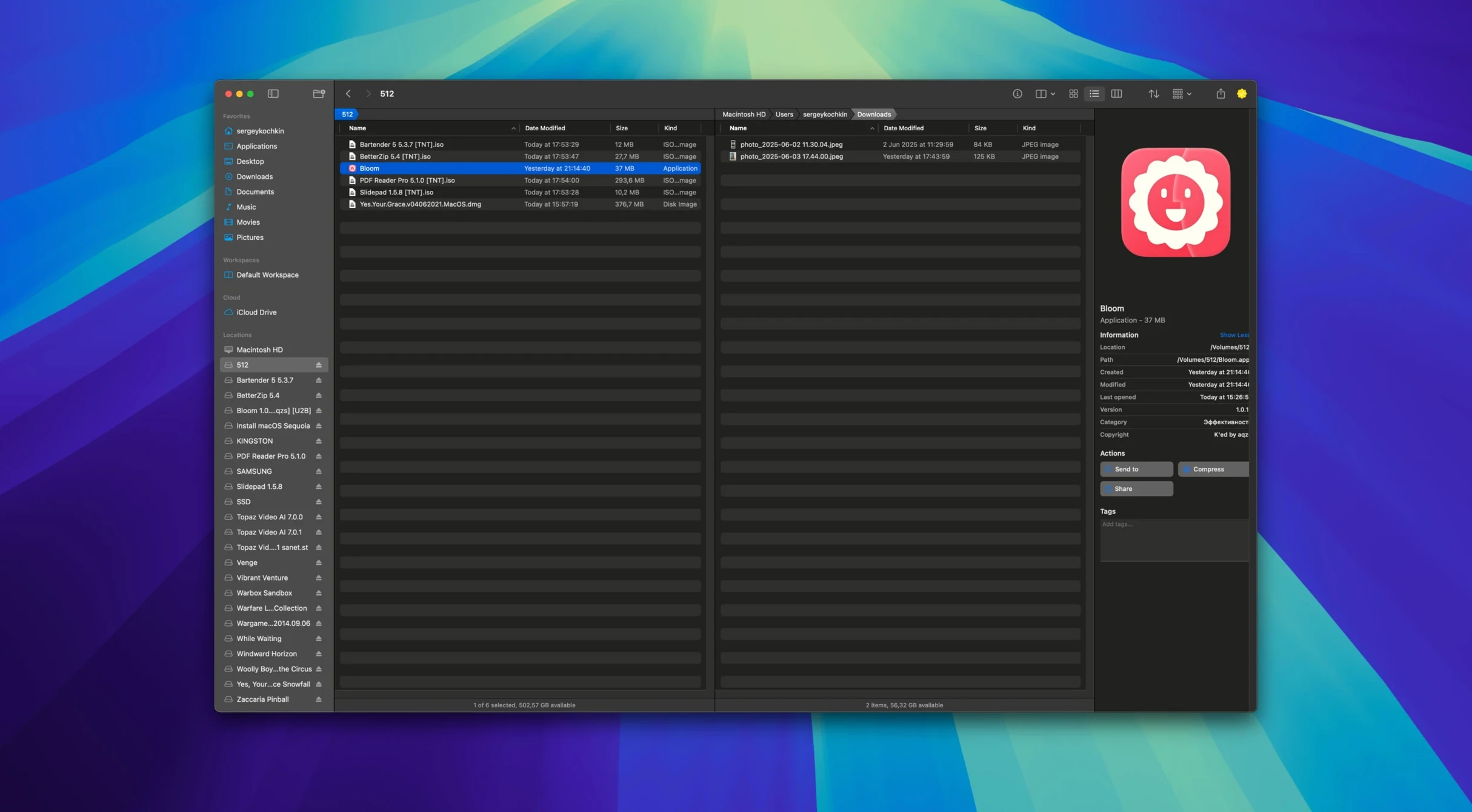
Version 1.5.42 is a maintenance release, so if you are jumping in now you are getting the most settled build so far — no flashy new buttons this round, just a steady foundation. Before you commit to a new file manager, a few practical questions tend to come up, and they are worth answering directly.
Common questions before switching
Moving away from Finder is a small leap of faith, so here is what most people want to know first:
- Does it remember what I just did? Bloom records every file operation so you can undo moves and renames, which takes the sting out of reorganising a messy project folder.
- Can I get straight into Terminal? Yes, you can launch a Terminal session from the current folder without opening it separately and typing out a path.
- What about quick previews? Text, images and PDFs under 10 MB preview in-line, so you can check a script or a shot list without launching a heavy editor.
- Is there a distraction-free view? Portal mode strips the window down to a compact frame — no sidebar, no preview — which is handy when you are dragging files between apps and just need a clean drop target.
What sits under the hood
The task scheduler is the quiet powerhouse here. You can queue up copy operations or bulk renames — including regular expression patterns — and let them run while you carry on working. Combined with instant jumping to system locations via ⌘⇧⏎ and folder-scoped search with ⌘F, the navigation feels engineered for people who think in paths and shortcuts rather than clicking through a sidebar all day. It is not a radical visual departure from what you know; the real shift is in how much less you have to leave the window to get a job done.
You stop noticing it after a week, and that is the point
After a week of using Bloom as the default file browser for a messy media drive and two iCloud-synced project folders, the thing you notice first is how little you notice it. On an Apple Silicon machine it launches in a single bounce — sometimes less — and the main window draws before you have finished moving your hand back to the keyboard. Scrolling through a directory with a few thousand RAW files stays smooth, with no beachballing, and the treemap view for disk usage builds itself in under a second even on an older spinning drive attached over USB‑3. Memory pressure hovers around 90–110 MB for a single window with a Portal pane tucked to the side, which puts it in the same postcode as a lightweight text editor rather than a full-blown file manager.
Stability so far has been uneventful — the kind of uneventful you want. I have thrown a few oddball archive formats at the preview engine, queued a batch rename on three hundred files while Spotlight was reindexing the same volume, and left Portal mode pinned overnight on a secondary display. No crashes, no leaked windows, and the undo stack kept every rename action in order so I could step back through them one by one the next morning. The only flicker of hesitation came when previewing a nested .tar.gz inside a folder that was itself being written to by a backup task, but even then Bloom simply showed a stale listing until I tapped ⌘R to refresh — sensible behaviour rather than a freeze. For a version 1.5.x release this is genuinely boring in the best sense: it does the job and stays out of the way.
Playing nicely with other apps and macOS
Bloom does not try to replace the macOS pasteboard or the system share sheet, which turns out to be a quiet strength. Drag an image out of a Portal window and drop it into a Photoshop canvas or a Figma frame and it behaves exactly as if you had dragged it from a Finder window — the file path lands, the receiving app handles it, and no extra clipboard gymnastics happen in between. The same holds for iCloud Drive integration: files stored remotely show the same download-on-demand behaviour you are used to, with the cloud icon visible in the list, and Bloom does not try to force a local copy until you actually open or preview the item.
Terminal integration is worth a closer look because it solves a tiny but persistent friction point. Hitting the shortcut to open a shell in the current folder drops you into the default Terminal profile with the working directory already set — no need to type cd and drag a folder icon. If you use oeksound bloom Mac torrent searches to track down a particular plug-in installer or sample pack, you can jump straight from the search result into a shell for batch processing, then back to the Bloom window to queue up a move operation. It is the kind of hand-off that Finder technically offers via Services, but here it is a single keystroke rather than a right-click menu journey.
ForkLift reaches for a Swiss Army knife while Bloom sharpens a single blade
Stack Bloom next to ForkLift and the design philosophies split quickly. ForkLift is a dual-pane workhorse built for remote server connections, synchronisation jobs and an integrated FTP engine. It feels like a digital swiss-army knife aimed at web developers and sysadmins who live in transfer queues. Bloom does not touch remote protocols at all — there is no SFTP pane, no Amazon S3 mount — so if your daily work involves uploading to a staging server, ForkLift covers ground Bloom simply ignores. What Bloom gives you instead is a lighter, more keyboard-driven local experience with a genuinely useful Portal overlay that ForkLift does not have an answer for.
Compared with Path Finder, the difference is one of ambition versus restraint. Path Finder has spent years accumulating features — a module-based interface, batch file attribute editing, an integrated text editor, Drop Stack for temporary file holding — and the result is powerful but visually dense. Bloom pares that down to a single-window philosophy with the task scheduler and Portal mode as the headline tools. It feels closer to a next-step Finder than a whole new operating environment, which suits users who want to search a Bloom torrent directory of samples and rename everything with a regex in under a minute without wading through preference panels first.
Marta is the other natural comparison because it, too, is a free, native macOS file manager with a keyboard-first approach and a clean visual design. Marta is even more stripped back — it defaults to a dual-pane layout but lacks the treemap view, the task scheduler or any preview beyond text. Both apps compete for the same power-user slot, but Marta leans toward developers who want a configurable, text-file-driven setup, while Bloom aims at a broader creative workflow where image conversion, tag management and a floating Portal window earn their keep daily. If you have ever grabbed a Bloom KSHMR Mac torrent production suite and needed to inspect Kontakt libraries and WAV previews without opening three different utilities, Bloom has the edge in immediacy.
Untangling four hundred field recordings with a few clicks
Imagine a sound designer who has just received a delivery of field recordings — four hundred WAV files spread across a dozen subfolders, inconsistently named, with a few rogue MP3s and a PDF of mic placement notes mixed in. She mounts the drive, opens Bloom and navigates to the top-level folder. First step: ⌘F to filter for .pdf, preview the notes in-line, then drag them to a reference folder in the sidebar. Next she uses the advanced rename tool with a regex that strips leading numbers and replaces underscores with spaces, previews the result in the confirmation list, and queues the operation. While the scheduler works through the batch she switches to treemap view to spot which subfolder is hogging disk space — it turns out one folder has duplicated recordings at 96 kHz — and she uses the task scheduler to queue a move of those duplicates to a separate archive drive. Portal mode gets pinned to the screen edge so she can drag the cleaned-up folders directly into her DAW's browser while keeping an eye on the rename progress. Two empty coffee cups later, the entire library is tagged, organised and ready to use, and she never opened Finder once.
- macOS 14 (Sonoma) or later
- Runs natively on both Apple Silicon and Intel 64-bit Macs
Questions I keep hearing
Does Bloom replace Finder entirely?
It sits alongside Finder as an alternative — you use it for the tasks where you want undo, scheduled operations or quick Terminal access, and macOS carries on as normal.
Questions from the class 0
Sign in or join the class to ask a question.
Nobody has asked anything yet. If you have used it on a real job, say what the file did.
Also on the Mac Apps shelf
The whole Mac Apps shelf Binary Ninja
Opens up compiled code so you can study, patch, or understand how a program really works.
Binary Ninja
Opens up compiled code so you can study, patch, or understand how a program really works.
 Bootstrap Studio
Turns a drag-and-drop library of responsive components into a complete website front-end.
Bootstrap Studio
Turns a drag-and-drop library of responsive components into a complete website front-end.
 Beyond Compare
Spots every difference between folders or files by laying them side by side for instant visual comparison.
Beyond Compare
Spots every difference between folders or files by laying them side by side for instant visual comparison.
 BricsCAD
Draws and models in the DWG format so a team can share files without converting a single line.
BricsCAD
Draws and models in the DWG format so a team can share files without converting a single line.
 BetterZip
Opens, edits, and creates archives in dozens of formats without needing to extract them first.
BetterZip
Opens, edits, and creates archives in dozens of formats without needing to extract them first.
 Camo Studio
Turns a phone or tablet into a studio webcam with manual focus and a virtual green screen.
Camo Studio
Turns a phone or tablet into a studio webcam with manual focus and a virtual green screen.
 BetterTouchTool
Transforms any trackpad, mouse, or keyboard gesture into a custom shortcut tailored to your workflow.
BetterTouchTool
Transforms any trackpad, mouse, or keyboard gesture into a custom shortcut tailored to your workflow.
 BetterDisplay Pro
Unlocks full resolution, brightness, and colour control for any display attached to your Mac.
BetterDisplay Pro
Unlocks full resolution, brightness, and colour control for any display attached to your Mac.