 ASPNetWorld

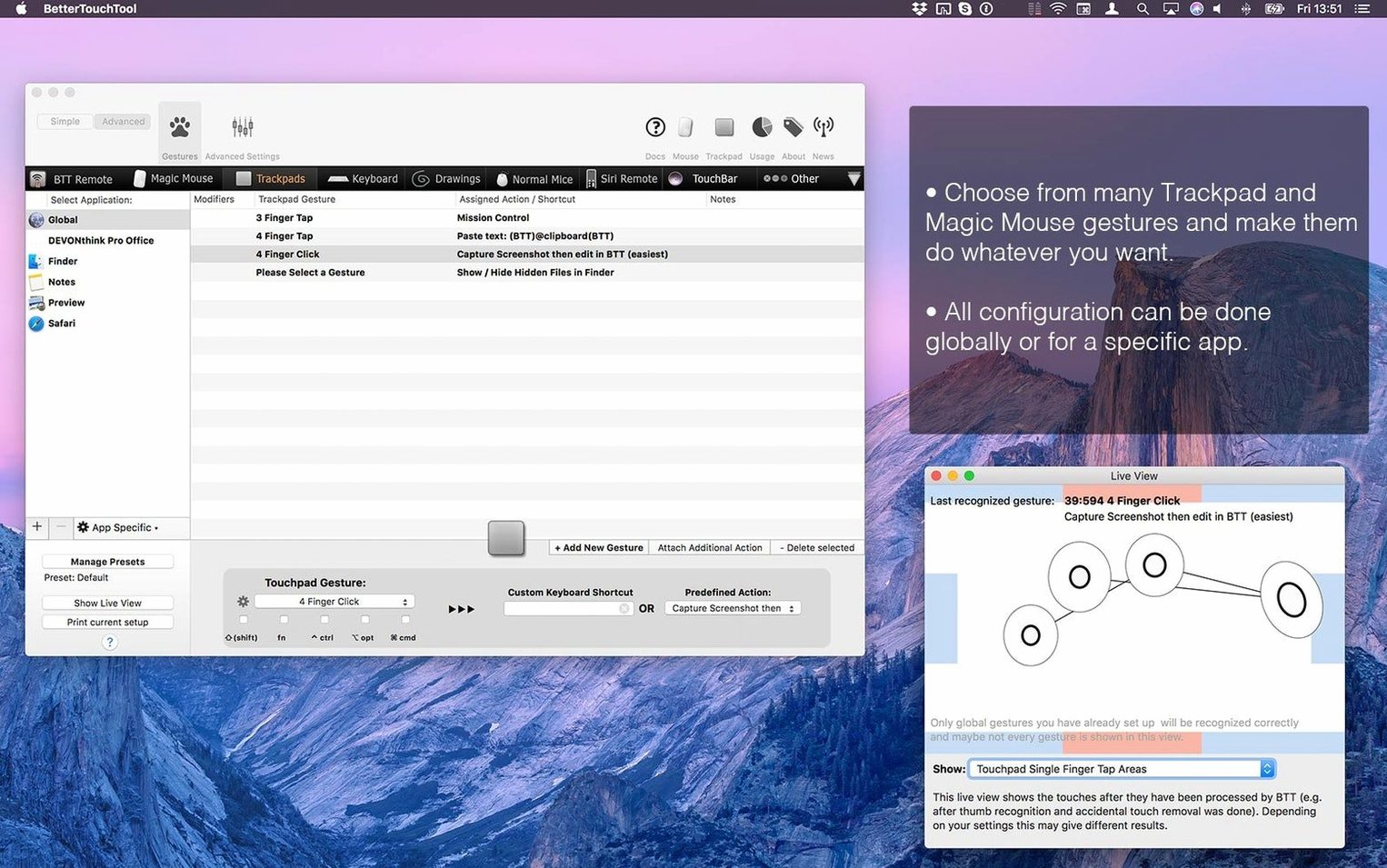
Standard input devices ship with a one-size-fits-all approach, yet your workflow is anything but generic. A simple scroll wheel could be a volume knob in your browser, or a right-click on the desktop might instantly tidy your files. This is the kind of problem BetterTouchTool exists to solve, bridging the gap between the hardware on your desk and the actions you perform a hundred times a day.
Building a gesture from scratch
Let’s give a plain two-button mouse a new trick: holding the right button and scrolling to control system volume. The process starts by opening the app’s main preferences and selecting your mouse from the device sidebar, creating a brand new trigger.
- Click the ‘+’ button and choose ‘Right Click & Scroll’ as the trigger type.
- Define the direction—‘Scroll Up’ for volume increase—and attach the ‘Volume Up’ system action.
- Add a second trigger for ‘Scroll Down’ mapped to ‘Volume Down’, and you have a silent, tactile volume control that works in any application without reaching for the keyboard.
Assigning a conditional scope
An unrefined global gesture can become a nuisance. BetterTouchTool allows you to restrict triggers to a specific application, so that same right-click scroll can do something completely different inside your video editor. By selecting an app from the floating condition menu attached to your trigger, you build a layered input map. The mouse behaves normally everywhere else, but becomes a precision jog wheel or timeline zoom tool the moment you switch focus, keeping your customisations helpful rather than chaotic.
Four-finger swipe for comparison modes in Resolve
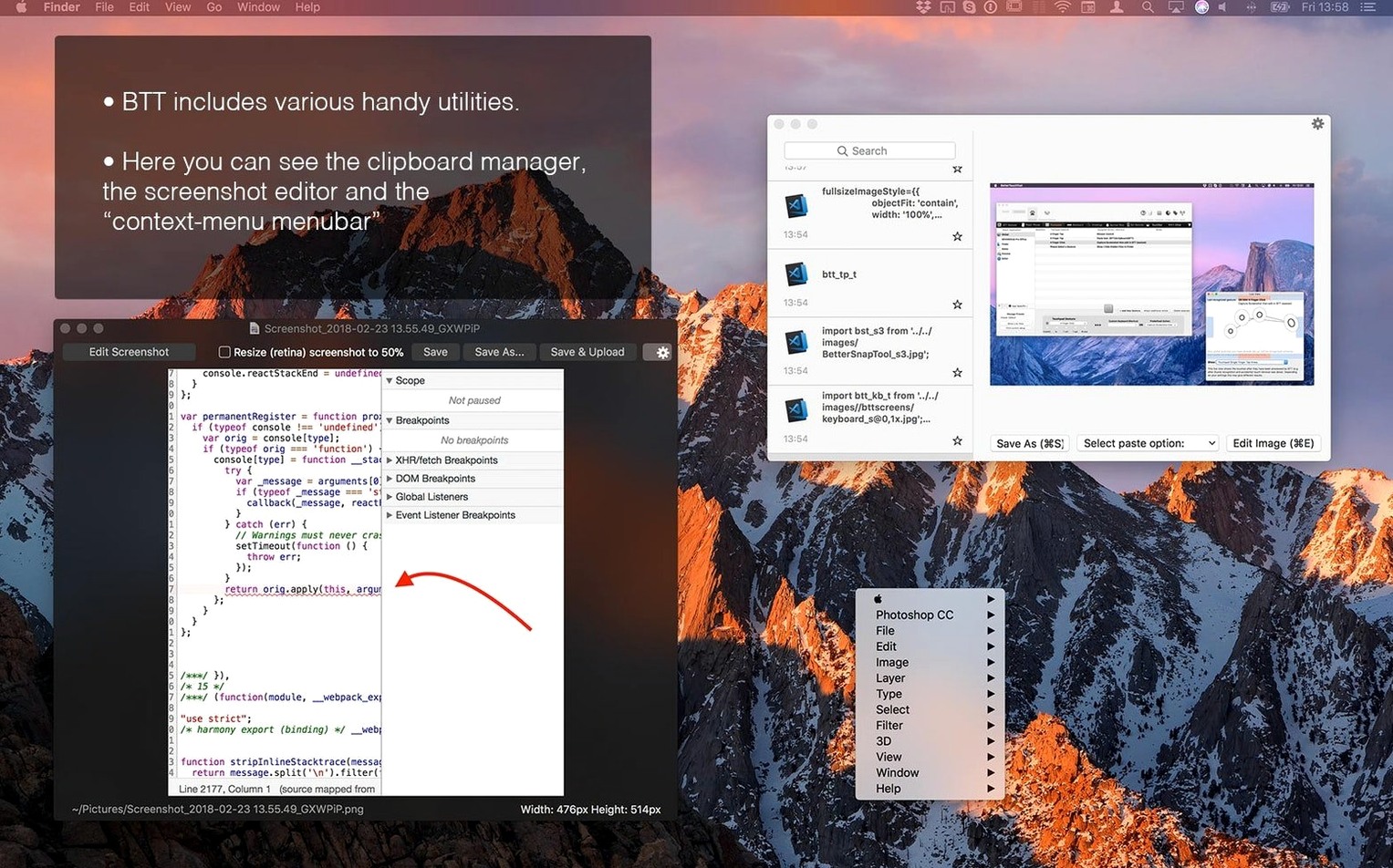
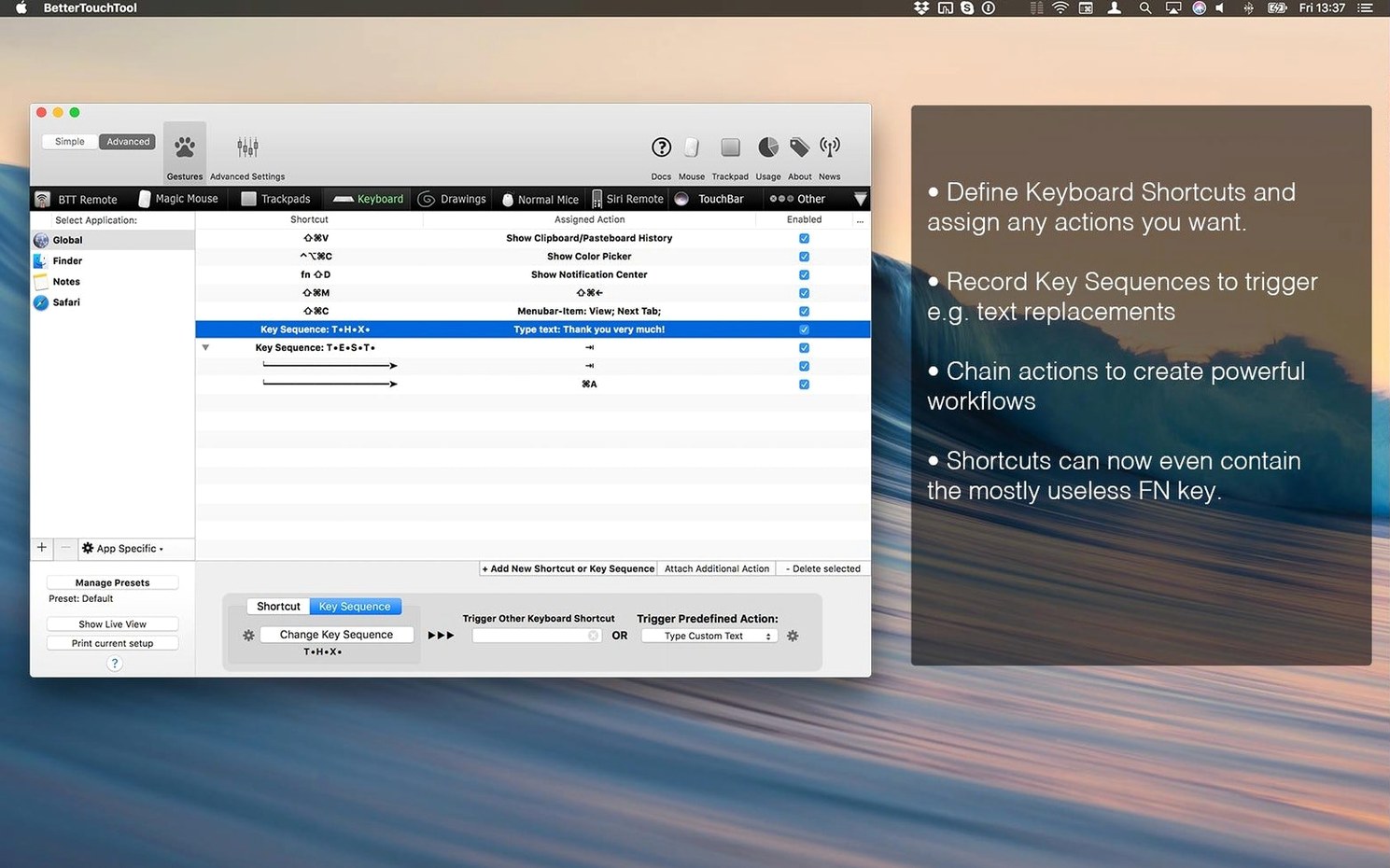
Imagine a freelance colourist working in DaVinci Resolve, balancing three client projects on a tight deadline. She uses BetterTouchTool to bind a four-finger vertical swipe on her Magic Trackpad to cycle through comparison modes, while a three-finger force-click captures a still and drops it straight into the built-in screenshot tool for a quick annotated note. The same setup remaps her tablet's side buttons to copy stills into the clipboard manager, and a single keyboard chord fires off an AppleScript that renders a review clip and attaches it to an email, all without lifting her pen. By the end of the afternoon she has halved the number of mouse trips to the menu bar, and the repetitive strain that used to come from juggling the standard Resolve shortcuts has noticeably eased.
How it stands alongside the alternatives
Three apps tend to come up when Mac users talk about customising their input devices: BetterTouchTool, Keyboard Maestro, and Karabiner-Elements. They overlap in places but are shaped by different philosophies, so comparing them feels less like picking a winner and more like choosing the right tool belt.
Keyboard Maestro is a heavyweight automation engine. It can trigger macros from almost any event—time of day, network changes, a window appearing—and it handles complex branching logic beautifully. Where it pulls back is device-level input: its gesture support is thinner and it does not speak the language of a Magic Mouse or Touch Bar with the same fluency. BetterTouchTool, by contrast, treats the hardware as its native territory. The gesture builder is more visual, the per-device settings run deeper, and the Touch Bar editor is essentially unmatched.
Karabiner-Elements excels at raw keyboard remapping. If you want to turn Caps Lock into a hyper key or tweak the behaviour of a non-Apple mechanical keyboard, Karabiner is the scalpel. Its configuration files can describe intricate key-overload rules, but the learning curve is steep and the interface is text-based JSON. BetterTouchTool wraps much of that same remapping power in a graphical editor and adds trackpad drawings, mouse chords, and Siri Remote support—things Karabiner deliberately leaves alone.
In practice many users run BetterTouchTool alongside one of these apps rather than trying to replace them. The combination of a strong better touch tool mac crack style setup—where the app handles the physical input layer—and Keyboard Maestro running the application logic behind those triggers is surprisingly common in power-user circles. BetterTouchTool becomes the hands-on switchboard and Keyboard Maestro the backstage crew.
Three groups who bond a single app to muscle memory
Three groups tend to extract the most value from BetterTouchTool. The first is anyone who works inside a single application for hours at a stretch—video editors, 3D artists, audio engineers—and who wants the same gesture to mean different things depending on which window is active. The per-app scoping turns a generic trackpad into a control surface that changes its identity with every application switch.
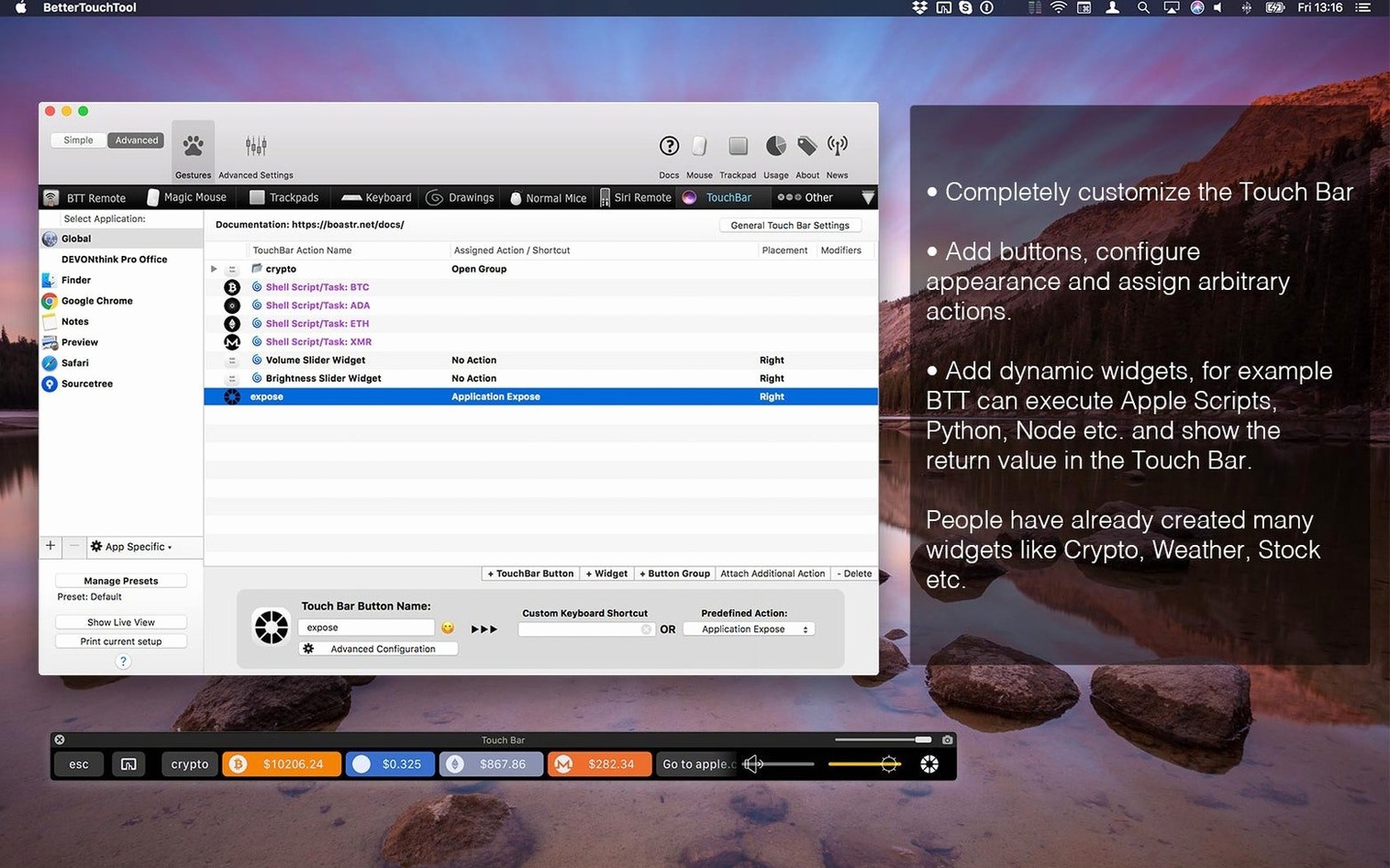
The second group is Touch Bar MacBook owners who feel the standard strip never reached its potential. With BetterTouchTool you can populate it with live system stats, a mini calendar, custom workflow buttons that kick off shell scripts, or even a tiny web view showing your task list. It transforms the Touch Bar from a strip of occasionally useful suggestions into a personalised instrument panel.
The third group is less obvious: accessibility-minded users. People who find certain key combinations uncomfortable can offload them onto a tap sequence or a simple mouse gesture. A single-finger corner tap can replace a three-key chord, and a gentle Magic Mouse swipe can substitute for a scroll wheel click that aggravates an old injury. Because the app sits below the application layer, these reassignments work everywhere without asking each program for permission.
Turn on Window Snapping before you do anything else
Out of the box, BetterTouchTool is a blank canvas, and a handful of tweaks make it feel immediately more useful. The first is Window Snapping, tucked away in the preferences under its own tab. Enabling it gives you a lightweight window manager that rivals dedicated apps—drag a window to the top of the screen to maximise it, or to the left edge for a half-screen split. The sizing margins and animation speed are adjustable, and you can turn off the parts of macOS’s own window management that conflict with it.
Next, head to the Clipboard Manager settings and increase the history size from the default. The tool stores text, images, and file references, and assigning a simple gesture—such as a three-finger force-click or a corner tap—to paste from the history turns it into something you will use dozens of times a day. Enabling the paste-with-formatting-stripped option saves an extra trip to a plain-text editor when copying from styled sources.
Finally, visit the Trackpad or Magic Mouse tab and create one drawing gesture. Drawing a small circle with two fingers to refresh a browser page, or a quick downward zigzag to minimise the frontmost window, gives you a taste of how much faster spatial memory can be than hunting for a keyboard shortcut. Once that first drawing gesture beds into muscle memory, the temptation to map a dozen more becomes difficult to resist—and with a setup this stable, there is little reason to hold back.
Version 6.726 arrives as a maintenance and stability update. While it doesn't introduce headlining features, the developer has concentrated on refining existing actions and tightening overall performance.
- Resolved a memory leak that could occur during extended use with complex Touch Bar widgets.
- Improved reliability of HTTP request triggers on Apple Silicon Macs.
- Fixed a rare crash when assigning keyboard shortcuts to media keys.
- macOS 10.15 or later
- Apple Silicon or Intel processor
Questions from the class 0
Sign in or join the class to ask a question.
Nobody has asked anything yet. If you have used it on a real job, say what the file did.
Also on the Mac Apps shelf
The whole Mac Apps shelf BetterDisplay Pro
Unlocks full resolution, brightness, and colour control for any display attached to your Mac.
BetterDisplay Pro
Unlocks full resolution, brightness, and colour control for any display attached to your Mac.
 BetterZip
Opens, edits, and creates archives in dozens of formats without needing to extract them first.
BetterZip
Opens, edits, and creates archives in dozens of formats without needing to extract them first.
 Beyond Compare
Spots every difference between folders or files by laying them side by side for instant visual comparison.
Beyond Compare
Spots every difference between folders or files by laying them side by side for instant visual comparison.
 Beauty Box Photo
Smooths skin and reduces shine in portraits automatically, saving you from manual retouching.
Beauty Box Photo
Smooths skin and reduces shine in portraits automatically, saving you from manual retouching.
 Binary Ninja
Opens up compiled code so you can study, patch, or understand how a program really works.
Binary Ninja
Opens up compiled code so you can study, patch, or understand how a program really works.
 Bartender
Hides, rearranges, and tidies your menu bar icons so only the essentials remain visible.
Bartender
Hides, rearranges, and tidies your menu bar icons so only the essentials remain visible.
 Bloom
Lets you browse, tag, and preview files across local and cloud storage from a single window.
Bloom
Lets you browse, tag, and preview files across local and cloud storage from a single window.
 BAO Mask Avenger
Builds complex, animated After Effects masks from a series of simple spline strokes.
BAO Mask Avenger
Builds complex, animated After Effects masks from a series of simple spline strokes.