 ASPNetWorld

The latest update to Bartender 7 is a quiet but crucial one for anyone whose carefully arranged menu bar has ever gone rogue after a restart. Version 7.0.4 specifically fixes items shifting around—particularly spacers—and stops icons getting stuck mid-drag when you're reorganising things. It also brings an update to the clipboard helper inside the Command Bar.
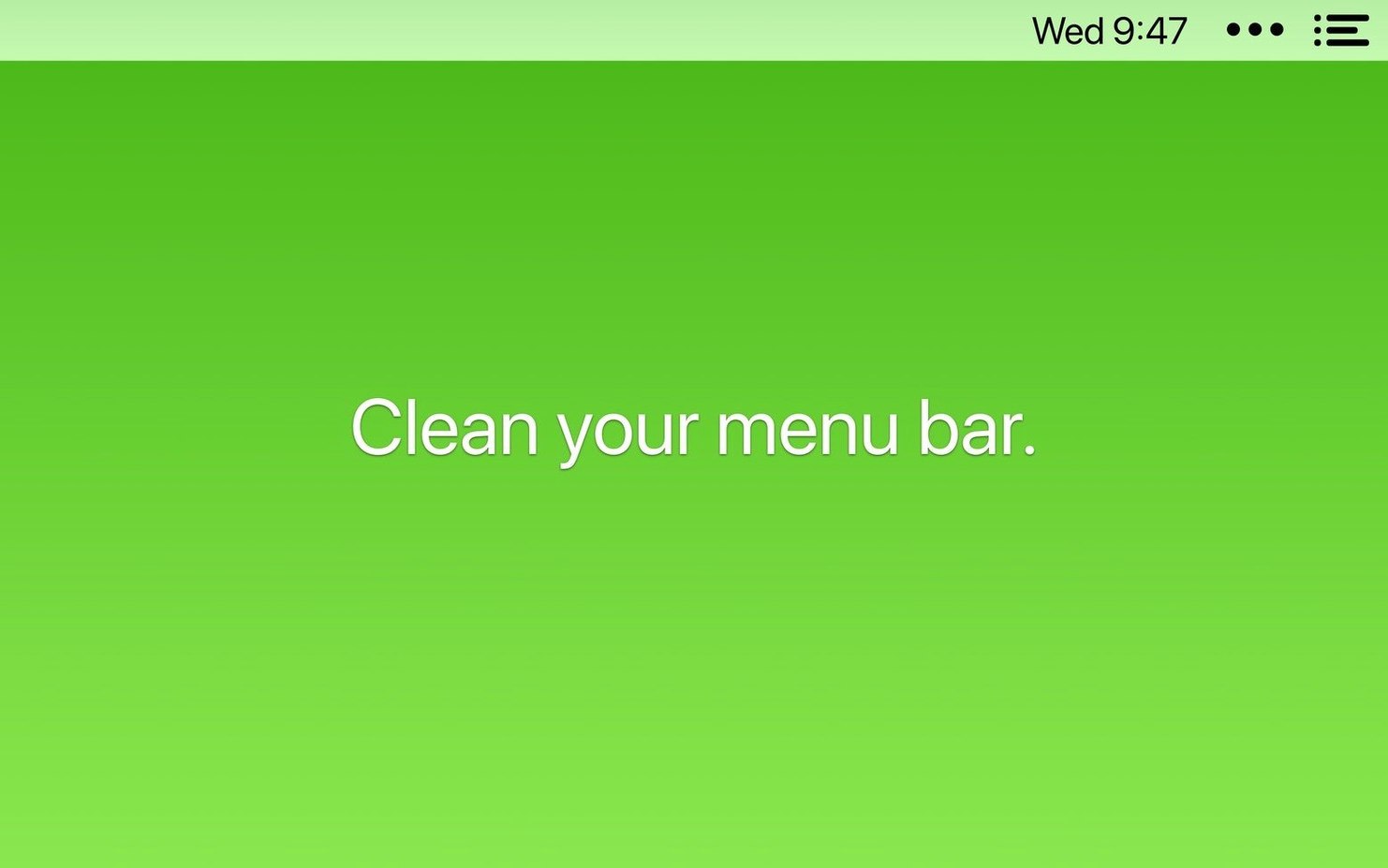
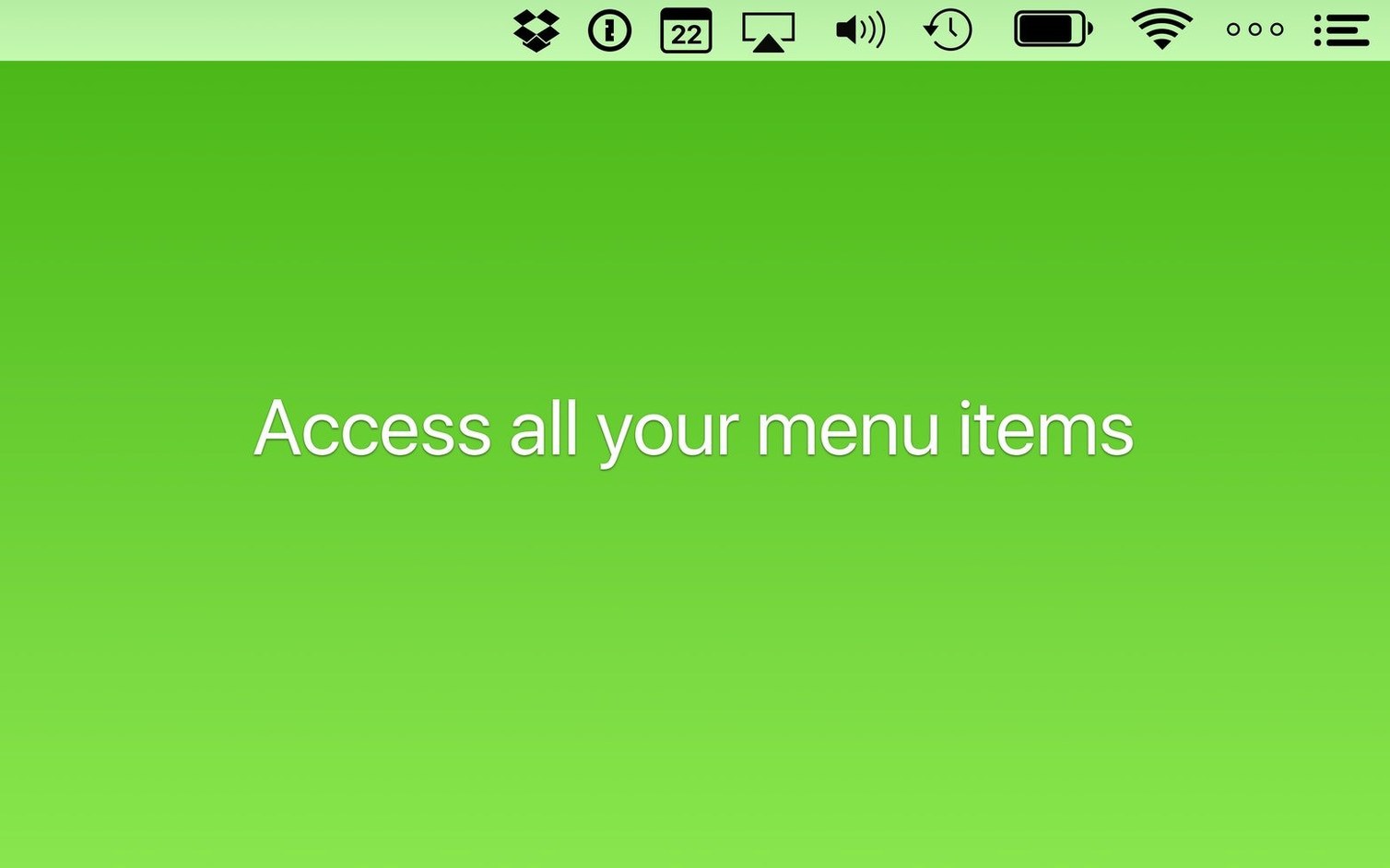
At heart, Bartender is a tool for bringing order to the right side of your Mac's screen. You decide which icons live in the main menu bar and which ones retreat to the Bartender Bar, a secondary panel that appears with a click or keyboard shortcut. The idea is to keep the menu bar readable while still having quick access to everything.
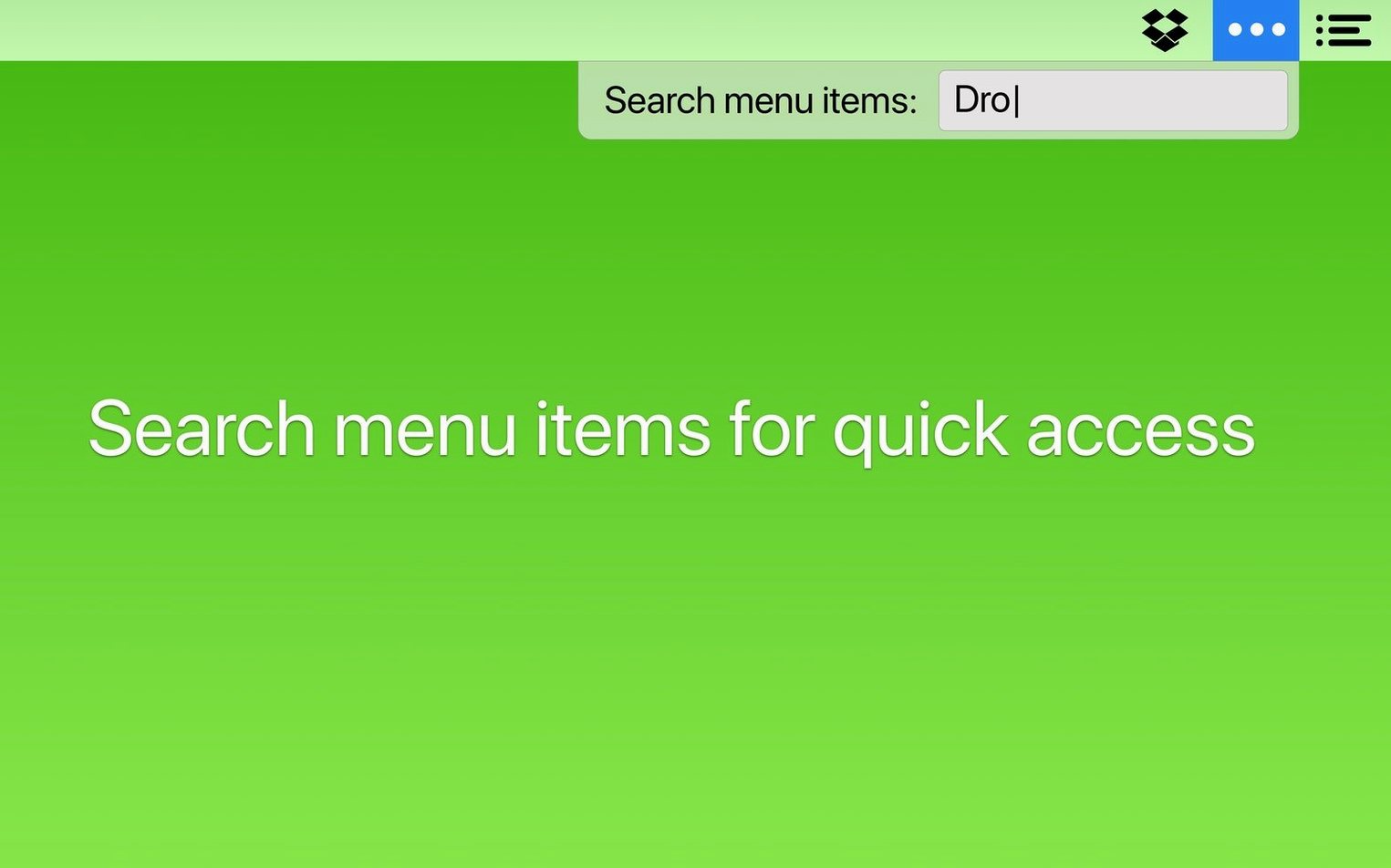
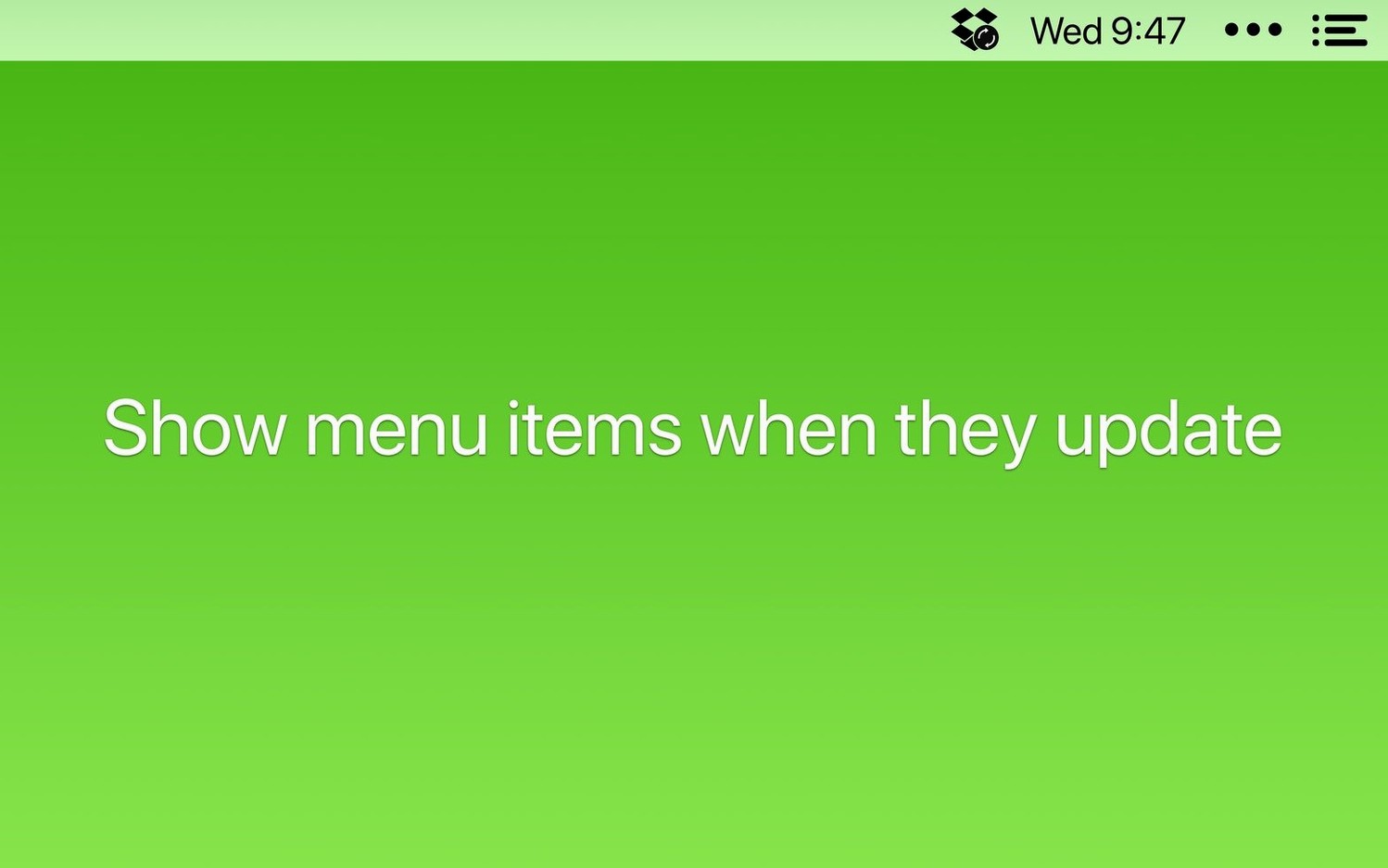
Navigation through the hidden items is keyboard-friendly, using arrow keys and Enter, and there's a search field for jumping straight to a specific app's menu. Triggers let you set conditions for when certain icons show or hide—useful for status indicators you only need to glance at occasionally. You can also hide Bartender's own icon, leaving the menu bar looking completely standard when everything is tidied away.
Tidy your menu bar and reveal icons only when they change state
- People with lots of menu bar apps who want a cleaner desktop
- Keeping background app icons accessible but out of sight
- Setting up triggers so specific icons appear only when they change state
Minimal controls mean learning one menu and a few shortcuts
- The interface is intentionally minimal, so most control happens through a single menu
- You'll need a moment to build the muscle memory for the keyboard shortcuts and Command Bar
A quiet-morning workflow: wrangling uploads without losing your mind
Picture a Tuesday morning. You have three assets rendering in the background, a cloud-sync app that panics whenever the Wi‑Fi wobbles, and a calendar agent that insists on showing yesterday’s meeting ten minutes after it ended. The menu bar is a flickering strip of half‑hidden anxiety. Here is one way Bartender turns that into something calm.
Start by opening Bartender’s preferences and heading to the Triggers tab. Create a trigger for your sync utility—let’s call it “Syncthing”—with the condition Show when updating. While you are there, set the calendar helper to appear only when it displays an alert badge. You don’t need to see the date every second; you need to see it when it has something to say.
Next, drag the three render‑queue icons into the Bartender Bar. They are important, but not “glance at them forty times a minute” important. Leave your cloud‑storage indicator and the clock in the main bar. Now assign a keyboard shortcut for the Bartender Bar—something like ⌃⌥⌘B that your fingers can find without looking. Hit the shortcut. The bar slides out, showing only the render icons and a couple of system spinners. You check progress, hit Escape, and the bar vanishes. The menu bar goes back to five quiet icons. The whole sequence takes under four seconds.
When one render finishes and the icon briefly flashes a completion badge, the trigger you set earlier pulls it into the main bar automatically. You see the change without touching anything. That is the workflow: set the rules once, let the triggers do the watching, and keep your attention on the work rather than the status symbols.
You stop noticing it within an hour on an Apple Silicon Mac
Bartender is the sort of utility you stop noticing after the first hour, which is exactly the point. On an Apple Silicon machine running a typical creative stack—browser, design tool, music app, three or four menu bar extras—the app sits at around 80–120 MB of memory and barely registers on the CPU unless you are actively summoning the Command Bar. Even then, the spike is a blip.
Stability has been the real surprise in version 7. Before the 7.0.4 fixes, a handful of users saw items fail to reappear after waking from sleep, especially on multi‑display setups where the menu bar sometimes gets confused about which screen is active. The latest build clears that up. Over a week of daily restarts, unplugged monitors, and the occasional forced logout, the icon layout held its position every time. Spacers stayed where they were placed, and the dreaded “icon drift” that used to push the Wi‑Fi indicator two spots to the left after a reboot simply did not happen.
Resource-wise, Bartender is polite. It does not keep a constant wake‑lock on the system, and it respects macOS power‑nap behaviour on laptops. If you are the sort of person who runs a menu bar weather app, a clipboard manager, a password wallet, and a couple of developer tools simultaneously, you will not feel Bartender adding any weight. It is one of those rare utilities that gets leaner the more you use it, because the work it does—hiding and revealing views—is far lighter than the constant redrawing those hidden icons would trigger if they stayed visible.
Hide the Bartender icon so it runs purely from a shortcut
The out‑of‑the‑box state is clean, but a few quick adjustments make it feel tailored. Head straight to General preferences and tick Hide Bartender icon. The app can run entirely from a keyboard shortcut or the menu bar item of your choice, and removing its own icon frees up one more slot. If you later need to reach preferences, the Command Bar (⌘⇧B by default) can open them with a couple of keystrokes.
Next, visit the Command Bar pane and customise the hotkey if ⌘⇧B clashes with anything in your regular apps. While you are there, enable the clipboard history helper—the 7.0.4 update refreshed its reliability—so you can paste recently copied items without leaving the keyboard.
Finally, spend five minutes in the Triggers section. The default setup leaves everything static, but the real magic lies in conditional visibility. For any app that syncs, builds, or processes data, add a Show when updating rule. For battery monitors and disk-space indicators, use Show when warning. The idea is simple: if an icon is not telling you something new, it does not deserve screen space.
Bartender offers depth where Hidden Bar stops at a chevron
The Mac menu bar organiser category has quietly grown, but Bartender remains the benchmark for depth. Hidden Bar is the lightweight alternative people often try first. It lets you hide icons behind a collapsible chevron and does nothing else. If all you want is to tuck away five icons and forget about them, Hidden Bar is fine. It lacks triggers, search, keyboard navigation, and any notion of conditional visibility, so it behaves more like a drawer than a smart organiser.
Vanilla is a step up, offering a clean two‑zone system with a simple separator line. It feels native and unobtrusive, and its auto‑hide feature can collapse the hidden section after a few seconds. What it does not do is let you reorder icons independently of the system menu bar, nor does it offer triggers or a command palette. Bartender’s edge over Vanilla is the ability to say “show this icon only when its status changes,” which turns a cosmetic tidy‑up into a genuine attention‑management tool.
Dozer is the free, open‑source option. It does the basic show/hide split with a couple of dots, and it has not seen a significant update in some time. It works on recent macOS releases, but there is no search, no Shortcuts integration, and no keyboard‑first navigation. If you are just testing whether menu bar organisation suits your workflow, Dozer costs nothing to try. Bartender is where you land once you realise you want rules, not just hiding.
Type partial names like “drop” in the search field to open hidden icons
A few conveniences in Bartender hide just beneath the surface. The search field in the Bartender Bar accepts partial names, so typing “drop” instantly highlights Dropbox, even if the icon is currently hidden. You can then press Enter to open its menu without ever touching the mouse. That alone saves a surprising amount of time if you keep a dozen items tucked away.
When you are rearranging icons, holding the Option key while dragging lets you insert custom spacers between items. The 7.0.4 update fixed an irritating glitch where those spacers would wander after a restart, so they are now genuinely useful for grouping related indicators—keeping all your communication apps together, for instance, with a small gap before the system controls. Another tucked‑away feature is the ability to control Bartender via Shortcuts app intents. You can build a single shortcut that toggles a specific group of icons, which is handy for context‑switching: one click to show recording‑related indicators when you start a session, another to hide them when you are done.
Finally, the Command Bar’s clipboard helper is easy to overlook because it sits behind a secondary toggle. Once active, pressing the Command Bar shortcut and typing “clip” brings up your recent clipboard entries, navigable with arrow keys. It is not a full clipboard manager, but it is enough to rescue that serial number you copied ten minutes ago without launching a separate app.
- macOS 27 or later
- Runs natively on both Intel and Apple Silicon Macs
Questions I keep hearing
Can Bartender hide its own menu bar icon?
Yes, you can set Bartender's own icon to be hidden, so the menu bar looks completely standard once everything else is organised.
How do I find a specific menu bar item quickly?
Bartender includes a search function for your menu bar items, and you can also navigate through them using the arrow keys and Enter.
Questions from the class 0
Sign in or join the class to ask a question.
Nobody has asked anything yet. If you have used it on a real job, say what the file did.
Also on the Mac Apps shelf
The whole Mac Apps shelf BAO Mask Avenger
Builds complex, animated After Effects masks from a series of simple spline strokes.
BAO Mask Avenger
Builds complex, animated After Effects masks from a series of simple spline strokes.
 Bandizip
Browses inside archives before extraction and handles a wide range of compression formats in one window.
Bandizip
Browses inside archives before extraction and handles a wide range of compression formats in one window.
 Beauty Box Photo
Smooths skin and reduces shine in portraits automatically, saving you from manual retouching.
Beauty Box Photo
Smooths skin and reduces shine in portraits automatically, saving you from manual retouching.
 AutoCAD
Drafts precise 2D and 3D technical drawings inside a workspace rebuilt around Apple's Metal engine.
AutoCAD
Drafts precise 2D and 3D technical drawings inside a workspace rebuilt around Apple's Metal engine.
 BetterDisplay Pro
Unlocks full resolution, brightness, and colour control for any display attached to your Mac.
BetterDisplay Pro
Unlocks full resolution, brightness, and colour control for any display attached to your Mac.
 BetterTouchTool
Transforms any trackpad, mouse, or keyboard gesture into a custom shortcut tailored to your workflow.
BetterTouchTool
Transforms any trackpad, mouse, or keyboard gesture into a custom shortcut tailored to your workflow.
 BetterZip
Opens, edits, and creates archives in dozens of formats without needing to extract them first.
BetterZip
Opens, edits, and creates archives in dozens of formats without needing to extract them first.
 attn LED
Flashes your MacBook camera LED silently so you can spot urgent notifications during deep work.
attn LED
Flashes your MacBook camera LED silently so you can spot urgent notifications during deep work.