 ASPNetWorld

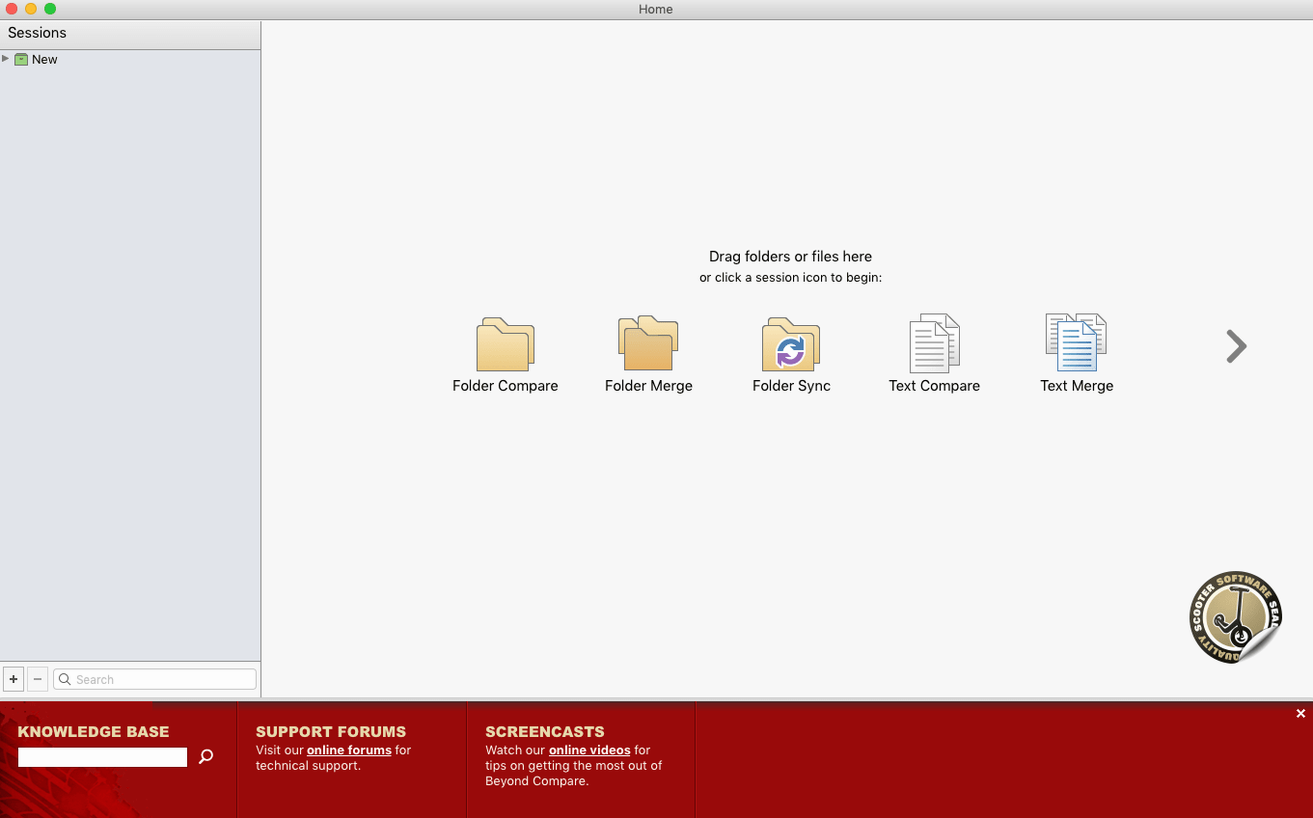
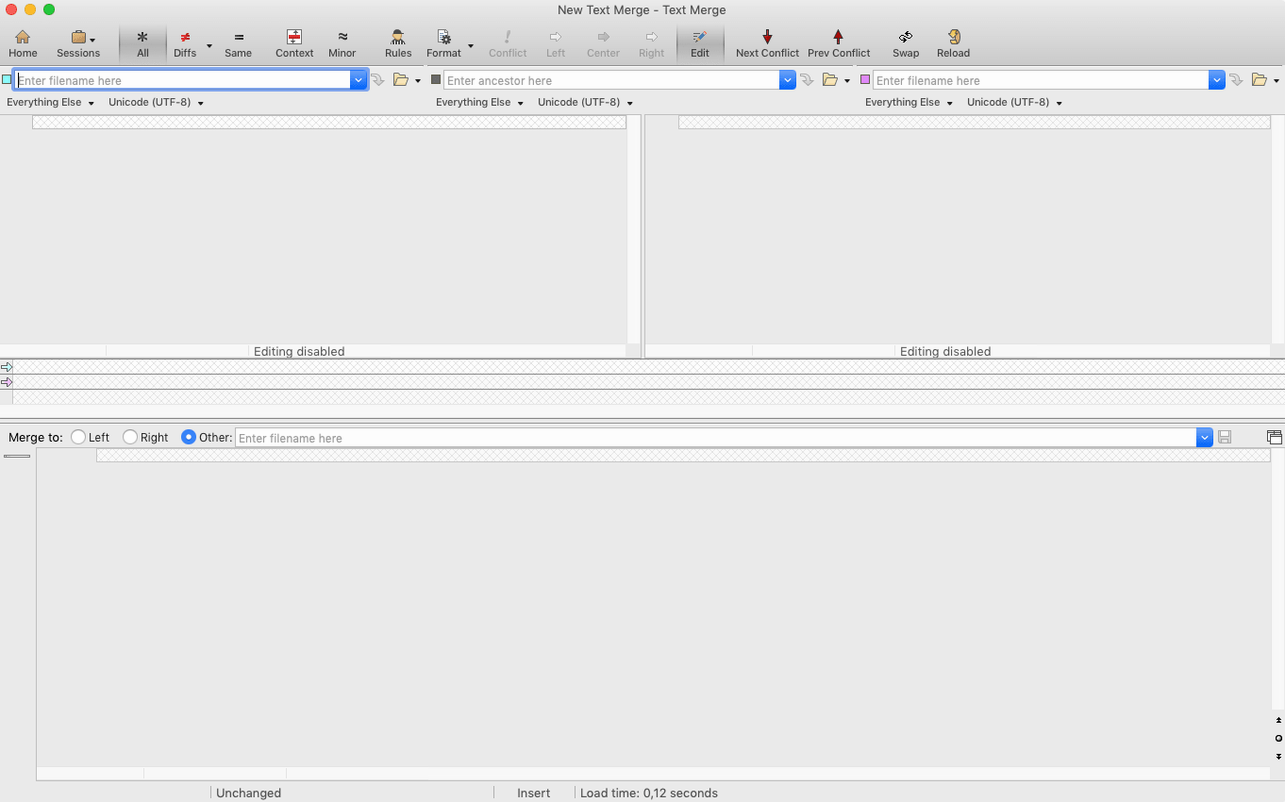
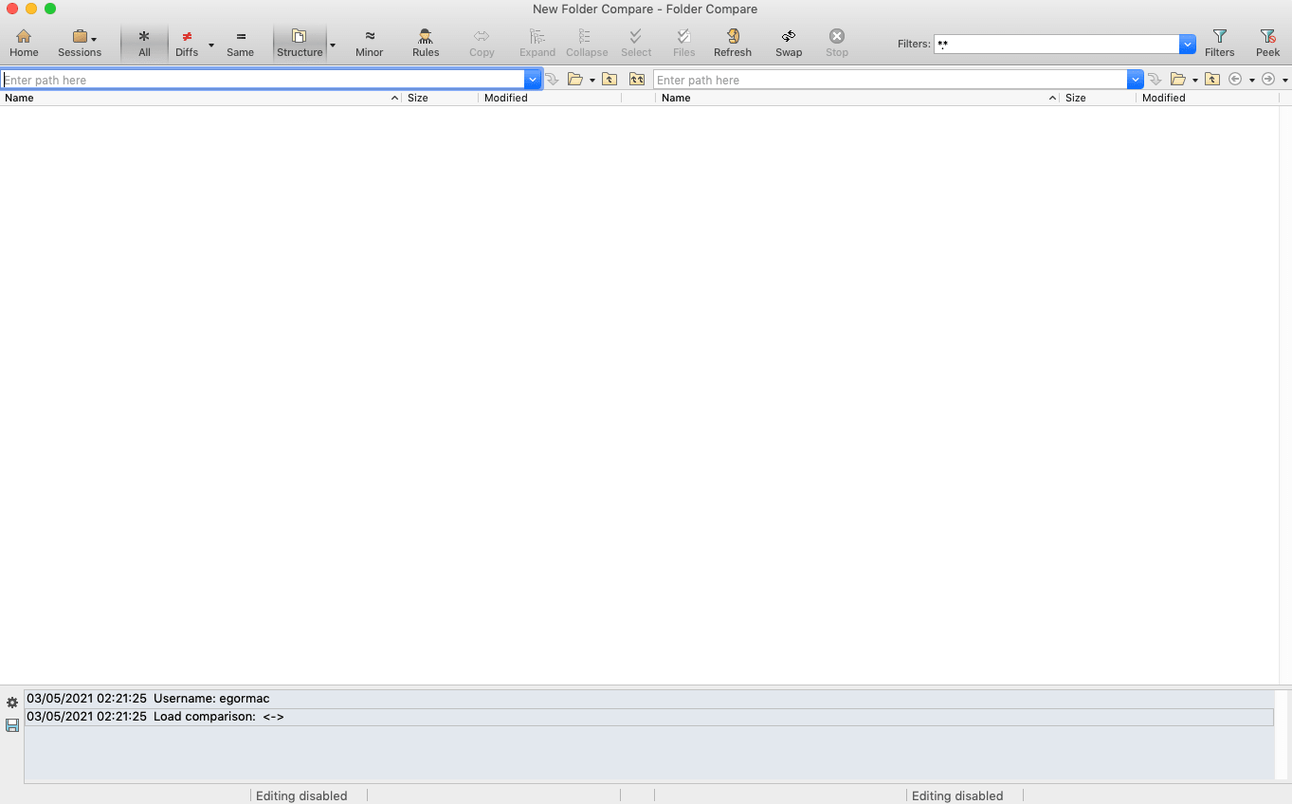
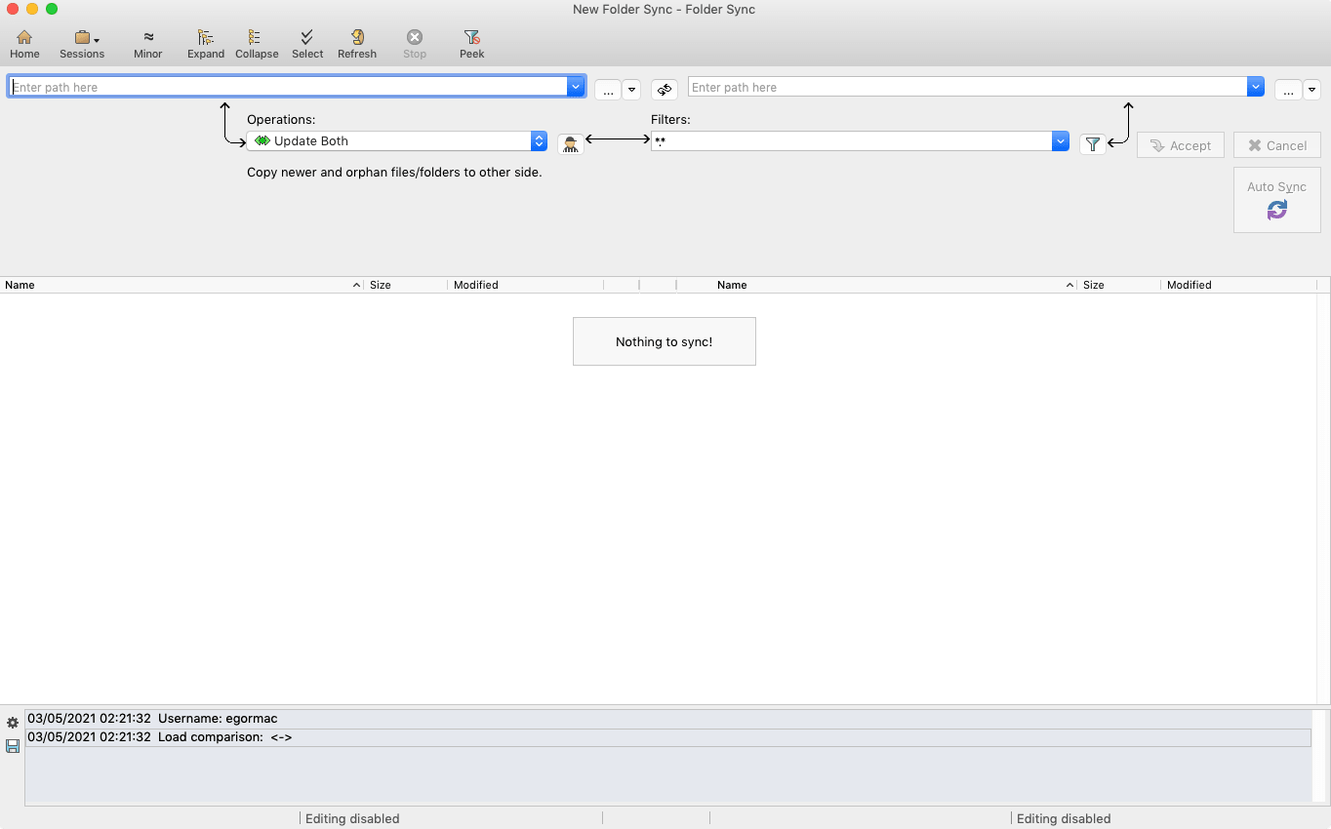
When two folders hold hundreds of near-identical research notes, or a script you swore was finished has somehow sprouted a broken twin, eyeballing the differences stops being practical. Beyond Compare is a macOS utility built for that moment — it lays files and directories side by side so you can spot what changed, merge the good bits, and synchronise what you want to keep.
- Run a quick folder comparison. Drop two folders into the left and right panes. Colour-coded rows show orphans and mismatches immediately, and you can copy or move files right from the toolbar.
- Open the built-in text merge. Load two variants of a file, then step through every difference line by line. Pick which version to keep and save a clean merged file without pasting manually.
- Sync a working copy to a backup drive. Use the Folder Sync session. The mirror mode pushes changes one way, and the preview panel confirms exactly what will be copied or deleted before you commit.
- Compare images visually. Open two screenshots or exported frames and Beyond Compare overlays them with a slider, making minor rendering shifts obvious in a way a byte count never could.
- Switch between light and dark mode. Version 5 respects your macOS appearance setting, which is a small but welcome comfort during long diff sessions.
The application speaks English, German, Simplified Chinese, French and Japanese, so it slots into multilingual workflows without friction. Start with a folder comparison — it is the quickest way to understand the tool — then let the text merge and sync features grow into your routine as you need them.
It reads NTFS, APFS, exFAT and network mounts at the file level
People often wonder whether Beyond Compare handles the file systems they actually use. The short answer is yes — it reads NTFS, APFS, exFAT and most network mount formats without fuss, because it works at the file and folder level rather than trying to parse raw volumes. Another recurring question is about large folder pairs. A side‑by‑side comparison of two 200‑gigabyte project trees loads quickly; the app scans the directory structures first and defers full file reads until you actually open a difference, so you are not waiting for a progress bar to crawl across the screen.
A third concern is whether the tool can follow symbolic links and aliases. Beyond Compare treats them as links by default, showing you the path they point to rather than chasing them down, but you can flip that behaviour in the session settings if you need a deep comparison that resolves every alias. And yes, the app remembers your last session — if you close it mid‑review, the same folder pair reappears when you launch it again, which saves a surprising amount of clicking over a week of intermittent work.
A start‑to‑finish workflow: verifying a website deploy
Imagine you have just pushed a static site to a staging server and you want to confirm the uploaded files match your local build folder exactly. You know a stray cached file or a mistimed FTP upload can break a page in subtle ways, so a manual spot‑check will not cut it. Here is one reliable path through the problem.
Open Beyond Compare and start a Folder Compare session. Drag your local _site directory into the left pane. For the right pane, mount the server via SFTP — the app includes built‑in support for FTP, SFTP and Amazon S3, so you connect directly without a separate client. The two folder trees appear side by side, and within a few seconds the colour highlights tell you where things stand: grey for identical files, red for differences, blue for orphans that exist on only one side.
You spot a red‑flagged styles.css. Double‑click it to open the Text Compare view. The left pane shows your local version; the right pane shows the server copy. A block of minified CSS on the server side is missing three rules that your build step added yesterday — the deployment script must have skipped the minification pass. You click the arrow button between the panes to copy the local version across to the server side, then save. The row turns grey. You repeat the scan once more to be certain nothing else drifted, and the status bar reads “No differences found.” The staging site now matches your build folder byte for byte, and the whole check took under four minutes.
Open a saved folder pair from yesterday and spot the divergence
You open Beyond Compare mid‑morning with a coffee and a nagging feeling that two branches of a documentation project have diverged more than you remember. The session list on the left shows a saved folder pair from yesterday — Docs – main vs. feature‑rewrite — and you click it rather than setting up the paths again. The two panes populate and the bottom status strip reads “14 differences.”
You click the first red row, a Markdown file, and the Text Compare tab opens in the lower half of the window. The gutter between the panes shows small coloured blocks marking each changed paragraph. You use the Next Difference button — a down‑arrow in the toolbar — to jump from change to change, accepting the newer wording from the right pane for the first three blocks, then typing a small edit directly into the centre merge output. That merged output sits in its own pane, building up as you go, so you never lose track of which version won each argument.
Halfway through, you realise the feature branch has an extra folder full of screenshots that does not exist on main. The folder row is blue — orphan on right. You right‑click it, choose Copy to Left, and the orphan disappears from the comparison. Now both sides have the same screenshots, and the difference count drops to nine.
You save the merged file, close the text tab, and move on to a pair of JSON configuration files. The built‑in Sorted compare option is useful here — you toggle it on so the app sorts both files before comparing, ignoring the fact that the two files list keys in a different order. The panes immediately show only one real difference: a timeout value that changed from 30 to 45 seconds. You note it, close the session, and let the saved session remember where you left off for tomorrow. The whole session ran inside a single window, with no extra apps and no manual diff‑checking, and the coffee is still warm.
Beyond Compare 5.2.6 lands with the latest round of under-the-hood fixes and stability improvements from Scooter Software.
- macOS 10.12 or later
- Works natively on both Apple Silicon and Intel 64-bit Macs
Questions I keep hearing
Does Beyond Compare run natively on Apple silicon?
Yes, version 5 introduced native Apple silicon support, alongside performance improvements for macOS.
Can I use the toolbar to delete files during a comparison?
Absolutely — the toolbar lets you delete and move files directly while you work through the differences.
Questions from the class 0
Sign in or join the class to ask a question.
Nobody has asked anything yet. If you have used it on a real job, say what the file did.
Also on the Mac Apps shelf
The whole Mac Apps shelf BetterZip
Opens, edits, and creates archives in dozens of formats without needing to extract them first.
BetterZip
Opens, edits, and creates archives in dozens of formats without needing to extract them first.
 Binary Ninja
Opens up compiled code so you can study, patch, or understand how a program really works.
Binary Ninja
Opens up compiled code so you can study, patch, or understand how a program really works.
 BetterTouchTool
Transforms any trackpad, mouse, or keyboard gesture into a custom shortcut tailored to your workflow.
BetterTouchTool
Transforms any trackpad, mouse, or keyboard gesture into a custom shortcut tailored to your workflow.
 BetterDisplay Pro
Unlocks full resolution, brightness, and colour control for any display attached to your Mac.
BetterDisplay Pro
Unlocks full resolution, brightness, and colour control for any display attached to your Mac.
 Beauty Box Photo
Smooths skin and reduces shine in portraits automatically, saving you from manual retouching.
Beauty Box Photo
Smooths skin and reduces shine in portraits automatically, saving you from manual retouching.
 Bloom
Lets you browse, tag, and preview files across local and cloud storage from a single window.
Bloom
Lets you browse, tag, and preview files across local and cloud storage from a single window.
 Bartender
Hides, rearranges, and tidies your menu bar icons so only the essentials remain visible.
Bartender
Hides, rearranges, and tidies your menu bar icons so only the essentials remain visible.
 BAO Mask Avenger
Builds complex, animated After Effects masks from a series of simple spline strokes.
BAO Mask Avenger
Builds complex, animated After Effects masks from a series of simple spline strokes.