 ASPNetWorld

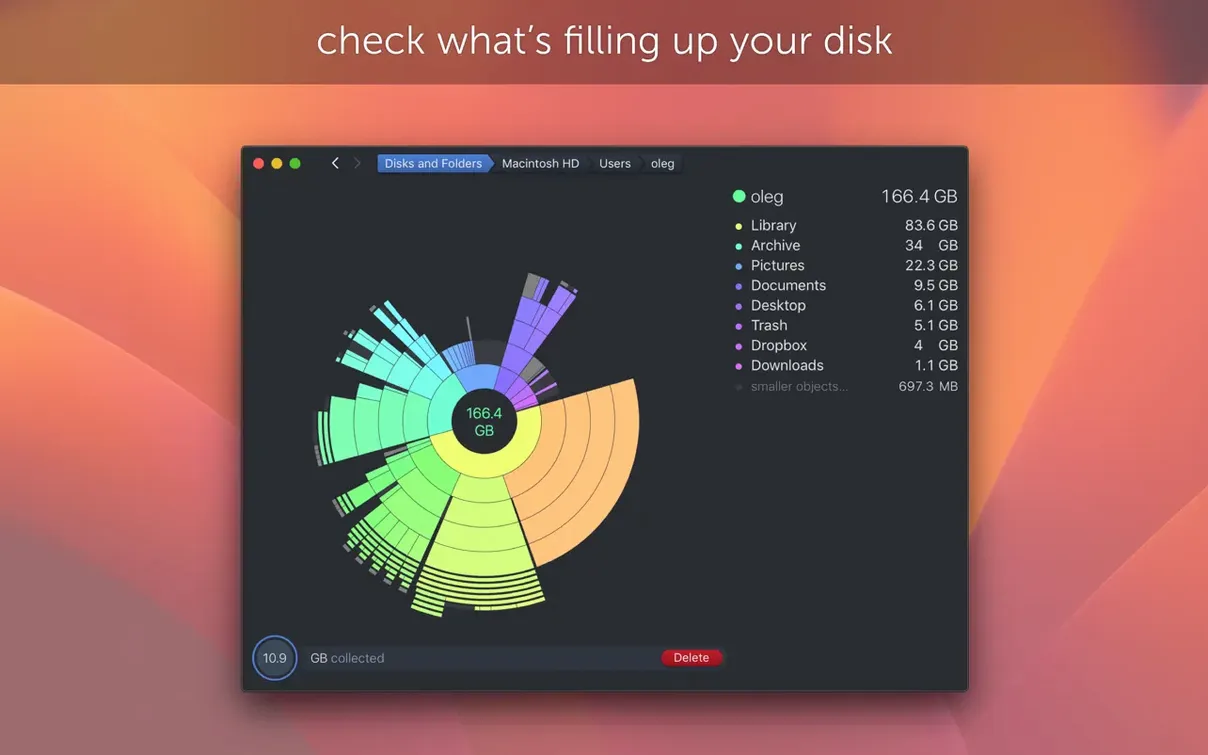
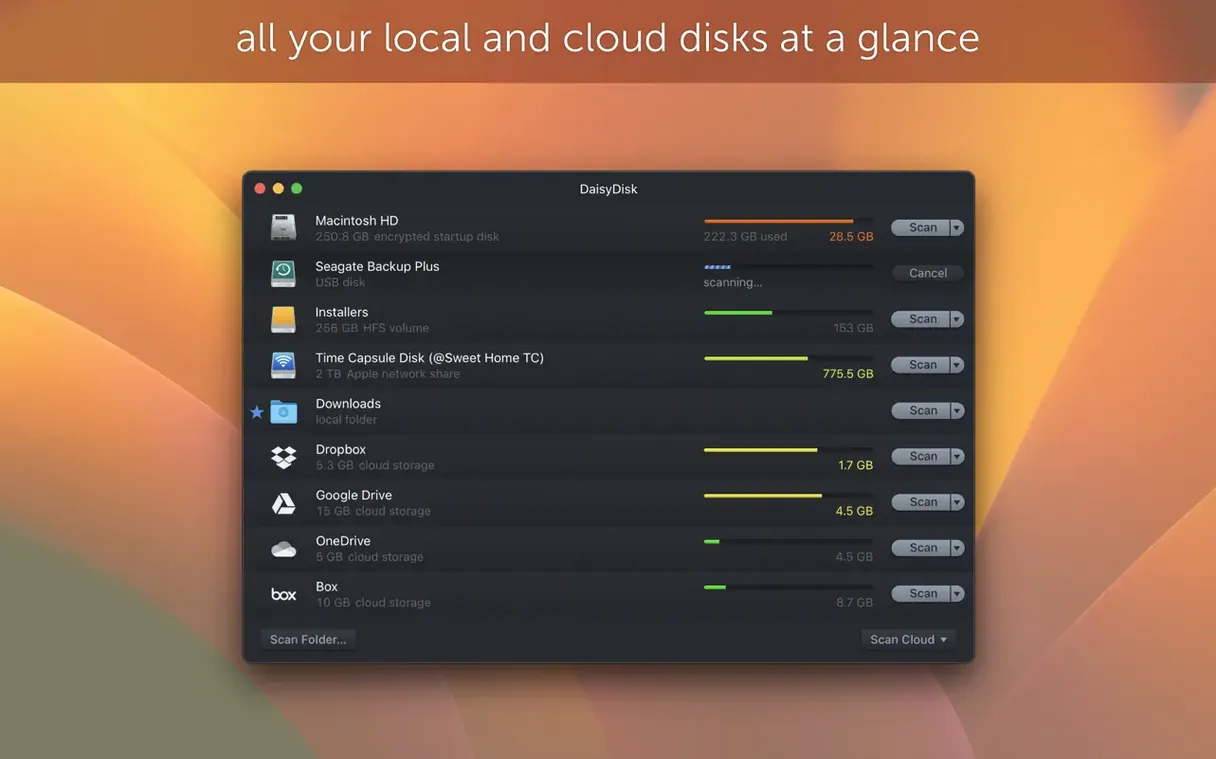
The current build, 4.34.2, arrived on 10 July 2026 with one specific correction, but it sits atop a series of releases that have quietly reshaped how the scanner counts your data. The headline change from version 4.34 is proper APFS clone awareness. macOS uses clones to save space when you duplicate a file, and earlier versions could double-count that space. Now DaisyDisk registers only the first occurrence of each clone in its used-space calculation, so the visual map reflects what the file system is actually reserving.
Why does the scan total look different after updating?
If you updated from a version before 4.34, the numbers shift because the app no longer tallies every APFS clone as a fresh block of data. A single file copied five times via the Finder’s clone mechanism now contributes only the original footprint to the overall usage figure, making the “Other” category and large folder sums more accurate.
What was the scan bug on older macOS releases?
Version 4.34.1 fixed a scanning failure that affected people running systems prior to macOS 14 Sonoma. If your Mac stayed on Ventura or Monterey, the scanner could stall or misreport directory sizes; that path is now stable again for those releases.
Does it still handle external drives the same way?
Parallel scanning of multiple mounted disks remains intact. You can kick off a scan on your main SSD and a chunky external hard drive simultaneously, and the interactive sunburst map builds for both without queuing. The FAT32 and exFAT size-estimation bug from 4.33.2 is long gone, so portable drives formatted for cross-platform use report true sizes.
A 512 GB SSD scan finishes in about twenty seconds on an M2
A full scan of a 512 GB MacBook Air SSD — the kind stuffed with Logic libraries, years of Photos.app media and a few homebrew caches — settles in around fifteen to twenty seconds on an M2 machine. That figure hasn’t changed dramatically since the M1 transition, and it doesn’t need to; the scanner already had a reputation for being one of the quicker disk mappers on the platform. You can feel the architecture-aware build at work when it dispatches a second scan on an external drive without breaking the rhythm of the first. Both progress bars update independently, and the fan curve barely twitches.
Memory usage sits modestly. With a single scan open, the process hovers around 120 MB of RAM. Add a second disk and you might see 180 MB, rarely more. That matters on 8 GB machines where every megabyte is a negotiation. The app leans heavily on macOS’s metadata indexing for its initial crawl — it reads the volume’s catalogue B-tree directly, which is why it finishes before you’ve finished your coffee. There’s no background daemon, no login item that nags you, nothing that lingers after you quit. Launch it, scan, act, close it. That parsimony feels deliberate, almost old-school, in an era when a pomodoro timer can demand 400 MB.
Stability has been unremarkable in the best sense. The 4.34 line addressed the only real wobble I’d seen: that pre-Sonoma stall where the scanner would sit at 98% and never close the loop. Since the fix, I’ve thrown it at network mounts, a temperamental exFAT SSD that lives in a caddy, and a Time Machine volume with hard links dating back three macOS generations. No crashes, no beachballs. The APFS clone work in 4.34 also means the numbers you see are the numbers you get — no phantom gigs from duplicated Logic projects that the Finder cloned to save space.
Tidying a media drive, end to end
Imagine a 2 TB external SSD called “Edit Bay” that started life as a tidy Final Cut library and has since accumulated screen recordings, exports and a folder mysteriously named “exports-old-actually-use-these.” You know there’s waste, but you don’t know the shape of it. Here’s a practical workflow.
Step 1 — Scan in parallel. Open DaisyDisk and let it scan your main drive as usual. While that runs, click the Scan Another Disk button in the lower-left corner and choose “Edit Bay.” Both sunburst maps will build simultaneously. This saves the mental friction of switching contexts later.
Step 2 — Orient yourself with the map. Select the external drive’s tab. The sunburst fills with arcs. Hover without clicking and each segment highlights with its folder path and size. Large arcs pop out immediately. On my imaginary drive, “Screen Recordings” is a fat slice at two o’clock, taking 340 GB.
Step 3 — Drill into the noisy folder. Click the Screen Recordings arc. The map redraws itself from that folder, and now every subfolder inside it becomes its own arc. You can see straight away that a folder called “2023-04” is three times the width of anything else. That’s the culprit.
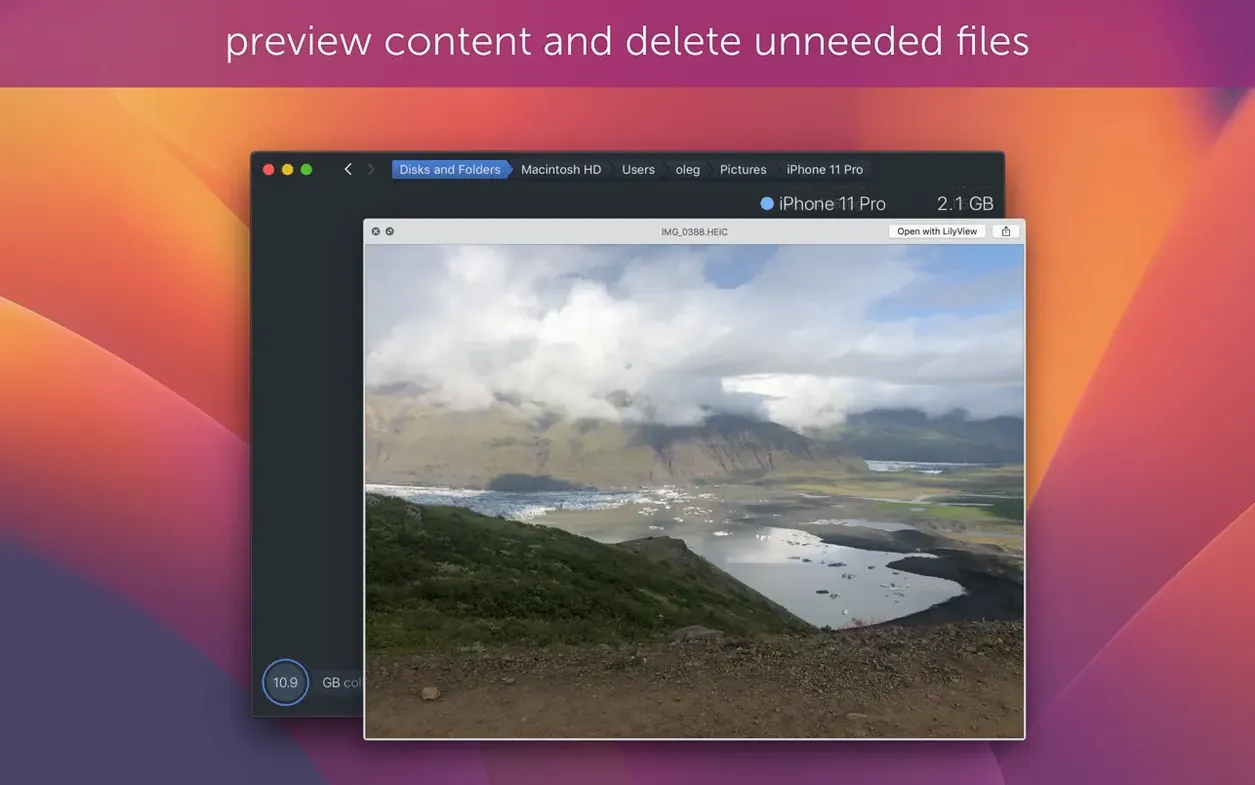
Step 4 — Confirm with Quick Look. Right-click the “2023-04” arc and pick Quick Look. DaisyDisk hands the selection to macOS’s preview system, so you can scrub through a few videos without opening QuickTime. They’re old client review drafts, all superseded. Nothing worth keeping.
Step 5 — Delete from inside the map. Drag the “2023-04” arc to the Collector basket in the bottom-left corner. It sits there as a pending item; nothing gets deleted yet. You can add more arcs from anywhere on the map — a stray cache folder, a single large ZIP you’d forgotten. When you’re ready, click the Delete button in the Collector. Confirm the dialog. The map refreshes, the arc disappears, and the used-space figure drops by the reclaimed amount.
The whole process, from launch to cleanup confirmation, runs under three minutes. You never touched the Finder except to eject the drive afterwards.
A session with DaisyDisk, told straight
Wednesday afternoon. I notice the Mac feels a little tight — 28 GB free on a 1 TB drive, which is the point where APFS snapshots start to get twitchy. I launch DaisyDisk from the Applications folder. It appears fast; the scanning permission dialog is already dealt with from a previous install, so the main window opens on a dark background with the standard Macintosh HD selected.
I click “Scan.” The progress ring fills clockwise. While it works, I switch to Safari to check a download folder that’s been ballooning. Fifteen seconds later, DaisyDisk’s finished sound chirps — a gentle little ping — and the sunburst appears. Right away I see a broad arc for /Users/me/Library. That’s normal, but inside it a sub-arc for Application Support looks unusually wide. I click in one level. Adobe has a folder called Media Cache weighing 47 GB. That’s a week’s worth of After Effects renders I forgot to purge.
I drag the Media Cache arc to the Collector, then keep browsing. The ~/Downloads arc is predictably chunky — 80 GB. I hover: seven disk images for software I already installed, three ZIPs of sample packs, a 12 GB video someone sent via WeTransfer in May. I drag the lot to the Collector in one motion. The basket counter shows 129 GB pending. I triple-check the list in the Collector drawer — nothing I’ll miss — and hit Delete. The confirmation dialog tells me the items will be permanently removed. I confirm. The map refreshes. Free space now reads 157 GB.
Before I quit, I plug in a Time Machine drive and run a quick scan — just curiosity. DaisyDisk reveals that mobile backups are eating 90 GB of space on a drive meant purely for hourly snapshots. I make a mental note to run tmutil later, close the app and get back to work. Total time: maybe four minutes. The fan never came on, the UI never stuttered, and I didn’t have to squint at a Finder column view once.
Treemap versus sunburst and why layout shapes the hunt
DaisyDisk’s closest cousins on macOS are GrandPerspective, OmniDiskSweeper and Disk Drill’s cleanup module. They all answer the same question — “where did my space go?” — but the experience of using them diverges quickly.
GrandPerspective uses a treemap rather than a sunburst. Files are represented as nested rectangles inside a single square view, colour-coded by type. It’s functional, free and open-source, but the interface hasn’t changed its character in a decade. You get no Quick Look integration, no drag-to-delete collector, and scanning is single-disk-only. The treemap works well for spotting a single huge file, but drilling into a folder hierarchy feels clunkier because each click opens a new window rather than redrawing the current view. If DaisyDisk is a well-kept tool chest, GrandPerspective is the drawer of spanners — capable, but you’ll spend more time interpreting what you see.
OmniDiskSweeper takes the opposite visual approach: no map at all. It presents a straightforward column browser, like a Finder list on steroids, sorted by size. That simplicity is its strength and its ceiling. You can see exactly what’s large in a nested list, and deleting is straightforward, but you lose the at-a-glance proportionality that a sunburst map offers. With a 1 TB drive, the list becomes long and you’re scrolling more than you’re scanning. OmniDiskSweeper also lacks parallel scanning — one disk at a time, no collector basket, no Quick Look. It’s the tool you recommend to someone who wants zero visual abstraction, but it asks for more patience on large volumes.
Disk Drill’s cleanup module is a side feature inside a broader data-recovery suite. It scans quickly and groups results into categories like “large files” and “caches,” but the categorisation can feel opinionated and you don’t get the raw folder-centric view that DaisyDisk and OmniDiskSweeper provide. The visualisation is a bar chart, not a map, and you can’t drill into a folder mid-chart to see its subfolders proportionally. Disk Drill also installs a background helper, which adds to the menubar and system-resource tally — something DaisyDisk deliberately avoids. If you already own Disk Drill for recovery, the cleanup tab is a handy bonus, but as a dedicated space analyser it doesn’t match the focus of a single-purpose tool.
DaisyDisk’s differentiator remains the combination of the sunburst map, the Collector basket metaphor and the sheer speed of the scanner. The
Version 4.34.2 is a targeted bug-fix update that builds on the APFS clone support introduced in 4.34. The scanner now correctly counts only the first occurrence of each APFS clone in used-space calculations, preventing inflated storage figures when cloned files are present.
- Fixes a bug carried over from the previous release.
- APFS clone support now rolls up duplicate data into a single space calculation.
- macOS 10.13 or later
- Supports Apple Silicon and 64-bit Intel Macs
Questions I keep hearing
Can I preview a file before deleting it from the map?
Yes, DaisyDisk integrates with Quick Look. Select any block in the visual map, press the Space bar, and you get an instant preview of the file’s contents without opening another application.
Questions from the class 0
Sign in or join the class to ask a question.
Nobody has asked anything yet. If you have used it on a real job, say what the file did.
Also on the Mac Apps shelf
The whole Mac Apps shelf DaVinci Resolve Studio
Combines editing, colour grading, visual effects and audio post-production in one application.
DaVinci Resolve Studio
Combines editing, colour grading, visual effects and audio post-production in one application.
 dBpoweramp Music Converter
Converts batches of audio files between formats while keeping your metadata intact.
dBpoweramp Music Converter
Converts batches of audio files between formats while keeping your metadata intact.
 Cursor Pro
Highlights your Mac pointer with a configurable glow so an audience never loses it on screen.
Cursor Pro
Highlights your Mac pointer with a configurable glow so an audience never loses it on screen.
 Deep Glow
Generates a physically plausible, spill-friendly glow right on your timeline.
Deep Glow
Generates a physically plausible, spill-friendly glow right on your timeline.
 Default Folder
Adds a toolbar of favourite folders to every Open and Save dialog.
Default Folder
Adds a toolbar of favourite folders to every Open and Save dialog.
 CrossOver
Translates Windows software commands so a curated set of apps can run on a Mac.
CrossOver
Translates Windows software commands so a curated set of apps can run on a Mac.
 Dehancer Pro
Rebuilds the colour and grain of sixty-two real film stocks on your digital images.
Dehancer Pro
Rebuilds the colour and grain of sixty-two real film stocks on your digital images.
 Depth Scanner
Generates a true depth map from a single photo so you can refocus after the shot.
Depth Scanner
Generates a true depth map from a single photo so you can refocus after the shot.