 ASPNetWorld

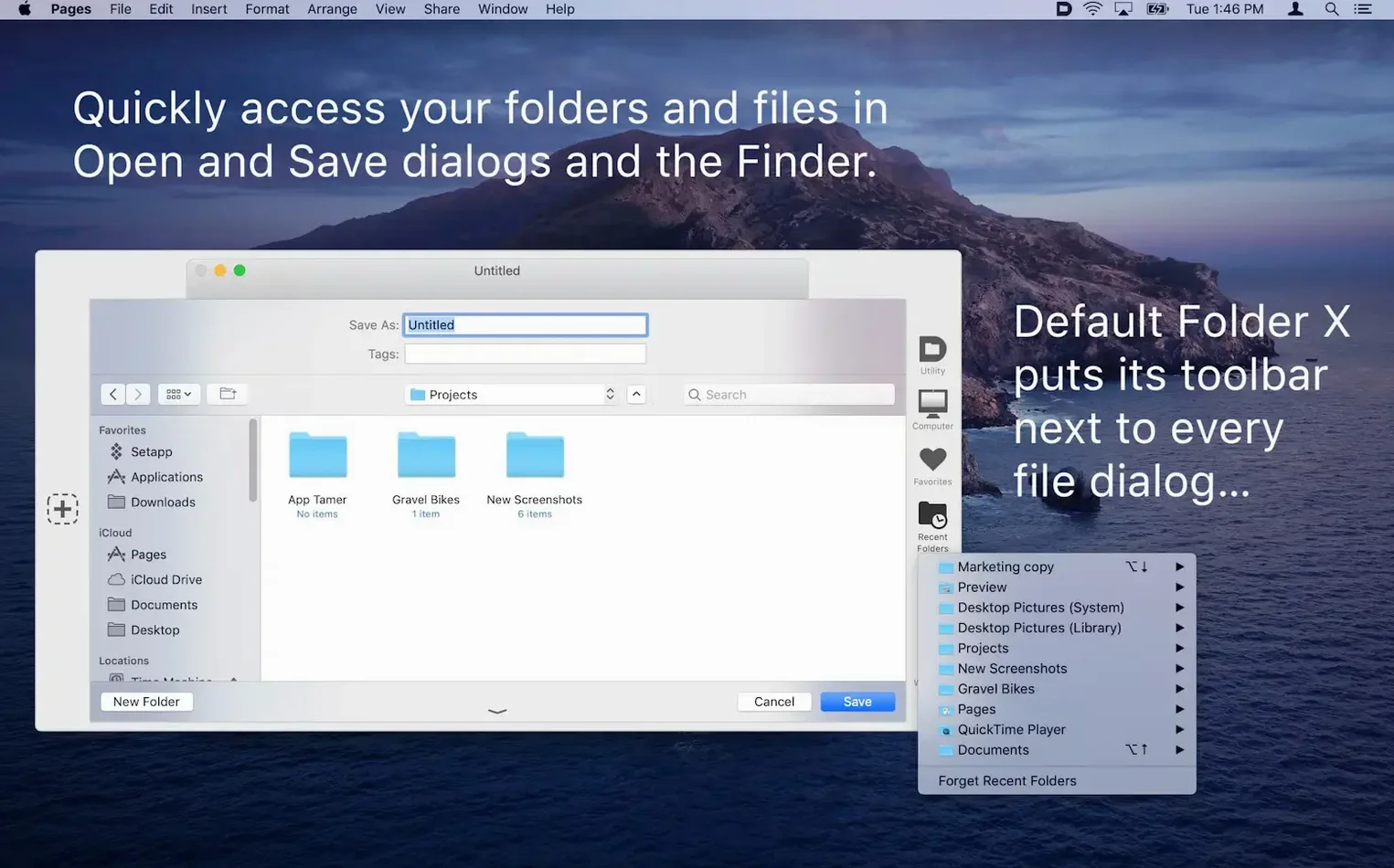
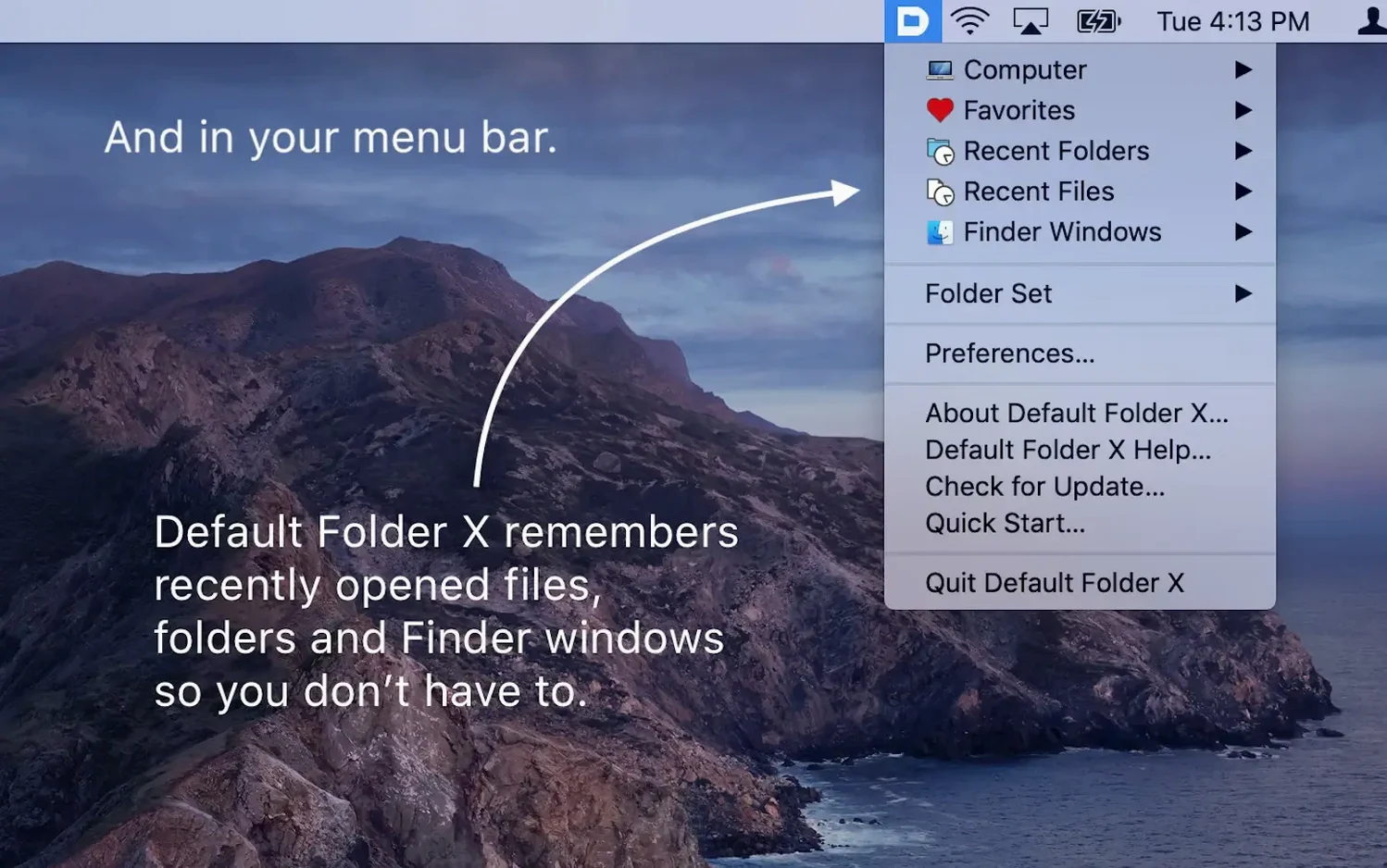
Default Folder macOS is a utility that lives inside your Open and Save dialogs and Finder windows, giving you a persistent toolbar of favourite locations, recent folders, and file management commands that Apple leaves out.
Fix a Save dialog that drops menus behind the window
macOS 27 introduced a strange behaviour where popup menus in Save sheets would render behind the dialog itself, making them unclickable. Version 6.3.1 restores the menus to their proper place so you can pick a format or destination without hunting for a ghost.
Stop List View clicks from jumping into folders
On the same system, clicking once on a folder in a Save dialog’s List View could immediately open it — a problem when you just wanted to select a sibling folder nearby. The update treats a single click as selection again, matching what every other Mac view does.
Sync pinned folders through iCloud without waiting
If you pin a folder on one Mac and expect it to appear on another, the sync used to wait until the app next launched. Now iCloud pushes the change straight away, so a folder you mark on the desktop is ready on the laptop within seconds.
The save sheet doesn't slow down because it uses native frameworks
A common worry is whether Default Folder slows down the Save sheet that already appears in every Mac app. The toolbar it adds is drawn by the system's own frameworks, and the app listens for dialog events rather than polling, so the extra draw time is measured in fractions of a frame. On anything from an old Intel MacBook Air to an M3 machine, you will not feel a delay.
Another question is about default folder mac app permissions. The utility asks for Automation and Accessibility access — not because it wants to read your screen, but because it needs to send click commands to Open and Save dialogs and read folder paths from behind the scenes. The wording changed in recent macOS builds to "Device Control and Data Access," which sounds more alarming than it is. You are granting the app permission to talk to Finder and file dialogs, and nothing else.
People also ask whether the mac default folder concept applies per app or system-wide. The answer is both. You can set a global default folder that every dialog opens to, then override it for specific applications — your Screenshots app might default to the Desktop, while Pages defaults to a Documents/Manuscripts folder. The app remembers your per-application choices silently.
Finally, some users worry about conflicts with other Finder extensions. Default Folder coexists with cloud-sync services and launchers without fighting for menu bar space. Its icon sits quietly unless you drag a file onto it, at which point version 6.3.1 reveals a drop target below the icon — a small visual cue that appears only during the drag.
Opening twelve hundred raw files in three different apps from one dialog
Imagine a wedding photographer back at the desk after a Saturday shoot. The SD card holds twelve hundred raw files, and the editing workflow means opening them in three different applications: a raw converter, a pixel editor, and a layout tool for the album preview. Without Default Folder, each Open dialog starts at the last-used or default location, which could be anywhere — a client folder from last week, an exports directory, the desktop.
With the utility installed, the photographer has set a favourite folder for each application. The raw converter opens straight to the card reader's DCIM folder. The pixel editor defaults to the working folder where corrected TIFFs land. The layout tool opens to the album-templates directory. In the Save dialog, Spotlight comments and tags get added before the file is written, so "Bride prep," "Ceremony," and "First dance" go into the metadata while the export runs. The photographer never opens Finder itself during the whole session — every file move, rename, and folder jump happens inside the dialog toolbar, cutting perhaps twenty minutes of window management from the afternoon.
It hooks directly into Cocoa dialogs instead of running as a separate layer
There are a few apps that try to fix the same dialog fatigue. Default Folder X macOS is the one we are discussing — it is the most tightly integrated, hooking directly into the Cocoa dialog system rather than running a separate floating palette. It reads the dialog context in real time, so the folder you see is the folder you are in.
Another approach is FinderPop, which leans on contextual menus more than toolbar overlays. It lets you drill into a folder hierarchy from a right-click anywhere, but it does not alter the Open and Save dialogs themselves. You still have to navigate the standard sheet before its menus become useful, which can feel like an extra step rather than a removed one.
Keyboard Maestro can be scripted to jump to frequent folders, and for power users who already live in its macro editor it does the job. The trade-off is that you build every shortcut yourself — there is no recent-folder tracking, no per-application default, and no preview thumbnails in the dialog. Where Default Folder anticipates, Keyboard Maestro waits for a trigger you have to remember you set up.
For most people looking for a default folder x download that works the moment it is installed, Default Folder's always-present toolbar and per-app memory make it the closest thing to Apple adding the feature themselves. The others require more deliberate setup or change less of the dialog experience.
Version 6.3.1 is a focused maintenance release that tidies up several macOS 27-specific quirks and adds a small workflow improvement. A drag target now appears below the menu bar icon when you drag files or folders in the Finder, giving you a drop zone for quick access. The update also fixes Save dialog popup menus, corrects a List View click-through bug in Save sheets on macOS 27, and makes iCloud syncing of pinned-folder changes instantaneous rather than waiting for the next launch.
- macOS 10.13 or later
- Runs on both Intel and Apple Silicon Macs
- Interface languages: English, German, Danish, French, Japanese
Questions from the class 0
Sign in or join the class to ask a question.
Nobody has asked anything yet. If you have used it on a real job, say what the file did.
Also on the Mac Apps shelf
The whole Mac Apps shelf Deep Glow
Generates a physically plausible, spill-friendly glow right on your timeline.
Deep Glow
Generates a physically plausible, spill-friendly glow right on your timeline.
 Dehancer Pro
Rebuilds the colour and grain of sixty-two real film stocks on your digital images.
Dehancer Pro
Rebuilds the colour and grain of sixty-two real film stocks on your digital images.
 Depth Scanner
Generates a true depth map from a single photo so you can refocus after the shot.
Depth Scanner
Generates a true depth map from a single photo so you can refocus after the shot.
 Disk Drill
Recovers deleted files and lost data from any drive you connect to your Mac.
Disk Drill
Recovers deleted files and lost data from any drive you connect to your Mac.
 DisplayBuddy
Lets you control every external display’s brightness and colour straight from the menu bar.
DisplayBuddy
Lets you control every external display’s brightness and colour straight from the menu bar.
 dBpoweramp Music Converter
Converts batches of audio files between formats while keeping your metadata intact.
dBpoweramp Music Converter
Converts batches of audio files between formats while keeping your metadata intact.
 DaVinci Resolve Studio
Combines editing, colour grading, visual effects and audio post-production in one application.
DaVinci Resolve Studio
Combines editing, colour grading, visual effects and audio post-production in one application.
 DaisyDisk
Scans your drive and draws an interactive map so you can spot the files eating your space.
DaisyDisk
Scans your drive and draws an interactive map so you can spot the files eating your space.