 ASPNetWorld
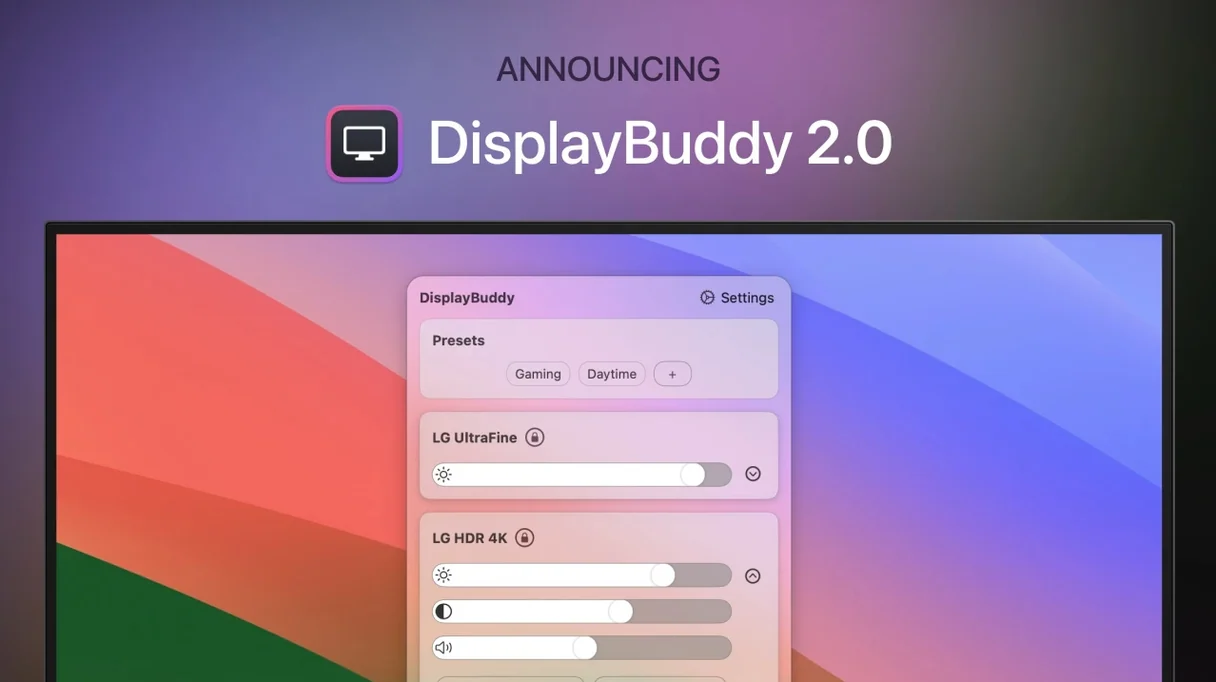
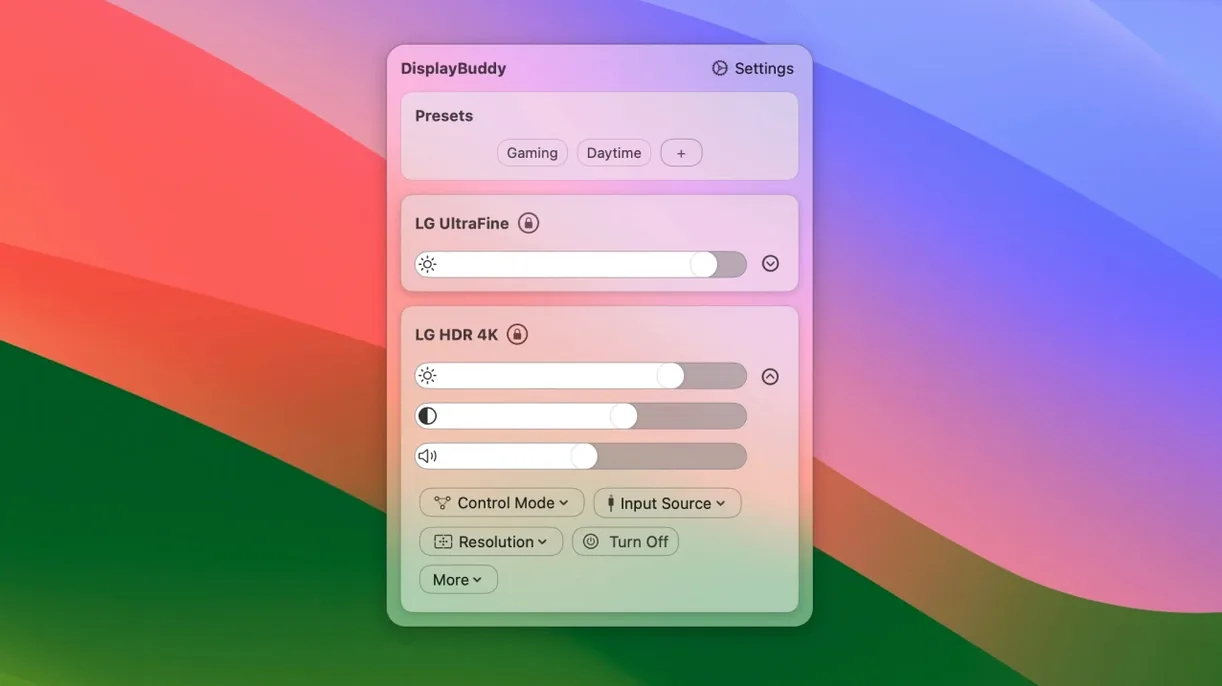
Say you've just picked a colour profile for your main screen and you'd like the second display to match without opening System Settings and clicking through four different panes. That's the kind of small friction DisplayBuddy removes. It lives in your menu bar and gives you direct access to the settings your external monitors actually need — brightness, contrast, volume, input source, and now colour profiles and macOS Display Presets on compatible screens.
What it controls, and how
The app talks to your displays over DDC — a control channel that's been hiding inside HDMI, DisplayPort and USB-C connections for years, mostly ignored by the operating system. Through that channel, DisplayBuddy can adjust brightness and contrast on almost any external monitor, change the volume on models with built-in speakers, and switch between inputs without you ever reaching for the physical buttons. You can also hand those controls over to your Mac's keyboard: the brightness and volume keys that normally only affect the built-in screen or speakers can be reassigned to manage your external displays instead. If you work with two or three monitors side by side, there's an option to synchronise brightness and contrast across all of them, so you're not forever tweaking each one individually.
Presets and the Apple display family
Any arrangement of brightness, contrast, input and colour settings can be saved as a named preset and recalled with a single click — useful if you regularly switch between a daylight photo-editing setup and a dimmer evening configuration, or if you share a display between a Mac and a games console on different inputs. DisplayBuddy has explicit support for Apple's own displays, including the Studio Display, Pro Display XDR, Thunderbolt Display and even older iMacs used in target display mode, so the controls map cleanly to what those screens actually support. The latest update tightens up the software's response to Dark Mode, Night Shift and True Tone changes, which means your presets won't lag behind when the ambient light shifts or the schedule kicks in.
Common stumbles when you first set it up
Most hiccups aren't bugs — they're assumptions. The big one is expecting every cable to carry DDC. That cheap HDMI lead in the drawer might pass a picture perfectly and still strip out the control data. DisplayPort and USB-C are more reliable, but if the app sees your monitor yet the brightness slider stays grey, try a different cable before anything else. Another trap: some displays need DDC explicitly enabled in their own on-screen menu. It's often called something bland like DDC/CI and it ships switched off, so the app is sending commands the monitor simply ignores.
Then there's the habit of quitting the app and wondering why the keyboard shortcuts stopped. DisplayBuddy needs to stay running in the menu bar for those reassigned brightness and volume keys to work; closing the window isn't quitting, but ⌘Q is. Finally, people sometimes create a preset, switch displays around, and can't work out why the colours look off. A preset stores absolute values for a specific monitor — it won't magically remap to a different model. Name your presets after the screen they belong to and you'll save yourself a quiet moment of confusion.
Companion tool that lives beside System Settings
DisplayBuddy sits best alongside the tools you already use, not instead of them. It doesn't replace the Displays pane in System Settings for setting resolution or refresh rate, and it won't handle full calibration — that's still a job for a colorimeter and software like DisplayCAL. Think of it as the layer between macOS's broad system controls and the fiddly buttons on your monitor's bezel. For day-to-day adjustments, it's faster than either.
It also pairs neatly with macOS's built-in display presets, which you can now select directly from the app, and with Shortcuts: if you trigger a particular preset when your ambient light sensor reports a big jump, you've got a rough automatic brightness schedule without writing a line of code. Widgets on the Sonoma desktop bring presets one click closer, which is handy if you share a Mac and want to give someone a single button for "make the screens readable" without explaining anything. The app even cooperates with f.lux and Night Shift rather than fighting them — the 3.9.6 improvements to Dark Mode and True Tone responsiveness mean you're less likely to see a brief flash of the old settings when the system transitions.
Version 3.9.6 brings colour profiles and macOS Display Presets into the menu bar. You can now select a profile or a full system preset directly from DisplayBuddy on displays that support the feature, without opening System Settings. The update also fixes a couple of interface rough edges — the volume slider no longer hides itself unexpectedly on certain DDC displays, and a clipping bug in the presets menu has been sorted. Dark Mode, Night Shift and True Tone controls feel snappier across the board.
- Colour profile and macOS Display Preset selection for compatible displays
- Fixed hidden volume slider behaviour on some DDC monitors
- Preset menu no longer clips at the edge of the screen
- Improved responsiveness for Dark Mode, Night Shift and True Tone controls
- macOS 10.13 or later
- Apple Silicon or Intel Mac
- English interface
Questions I keep hearing
Does DisplayBuddy work with any external monitor?
It works with most modern displays that support DDC over HDMI, DisplayPort or USB-C. Some older or budget monitors may have limited DDC implementation, so a subset of controls might not be available.
Can I control brightness on an Apple Studio Display?
Yes. DisplayBuddy supports the Apple Studio Display, Pro Display XDR, Thunderbolt Display and compatible iMacs, mapping its controls to what those screens support natively.
Questions from the class 0
Sign in or join the class to ask a question.
Nobody has asked anything yet. If you have used it on a real job, say what the file did.
Also on the Mac Apps shelf
The whole Mac Apps shelf Disk Drill
Recovers deleted files and lost data from any drive you connect to your Mac.
Disk Drill
Recovers deleted files and lost data from any drive you connect to your Mac.
 DMG Canvas
Builds polished disk-image installers with a custom background and licence window.
DMG Canvas
Builds polished disk-image installers with a custom background and licence window.
 Depth Scanner
Generates a true depth map from a single photo so you can refocus after the shot.
Depth Scanner
Generates a true depth map from a single photo so you can refocus after the shot.
 DockView
Shows a live preview of any app’s open windows when you hover over its Dock icon.
DockView
Shows a live preview of any app’s open windows when you hover over its Dock icon.
 Dehancer Pro
Rebuilds the colour and grain of sixty-two real film stocks on your digital images.
Dehancer Pro
Rebuilds the colour and grain of sixty-two real film stocks on your digital images.
 Default Folder
Adds a toolbar of favourite folders to every Open and Save dialog.
Default Folder
Adds a toolbar of favourite folders to every Open and Save dialog.
 Deep Glow
Generates a physically plausible, spill-friendly glow right on your timeline.
Deep Glow
Generates a physically plausible, spill-friendly glow right on your timeline.
 dBpoweramp Music Converter
Converts batches of audio files between formats while keeping your metadata intact.
dBpoweramp Music Converter
Converts batches of audio files between formats while keeping your metadata intact.