 ASPNetWorld

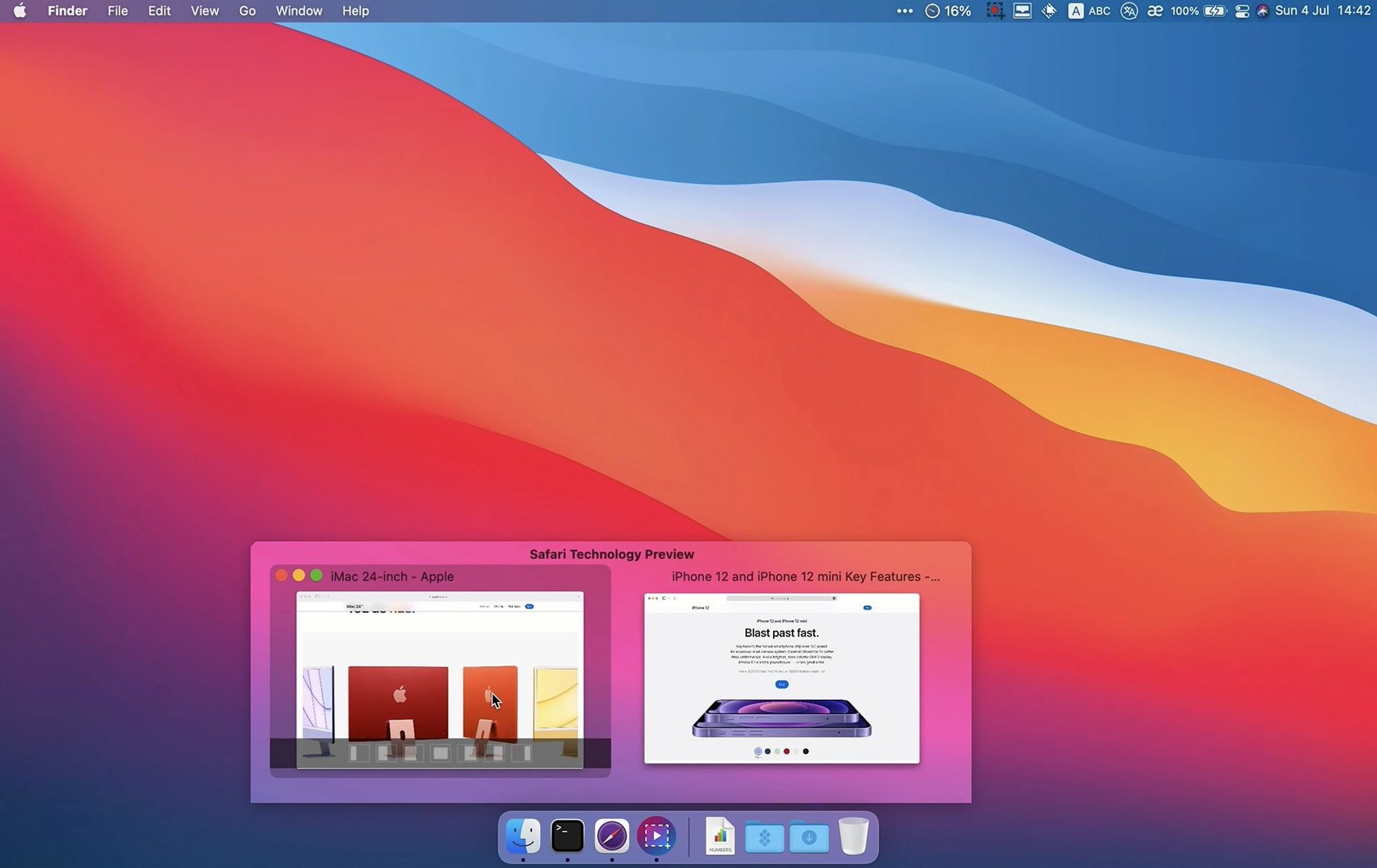
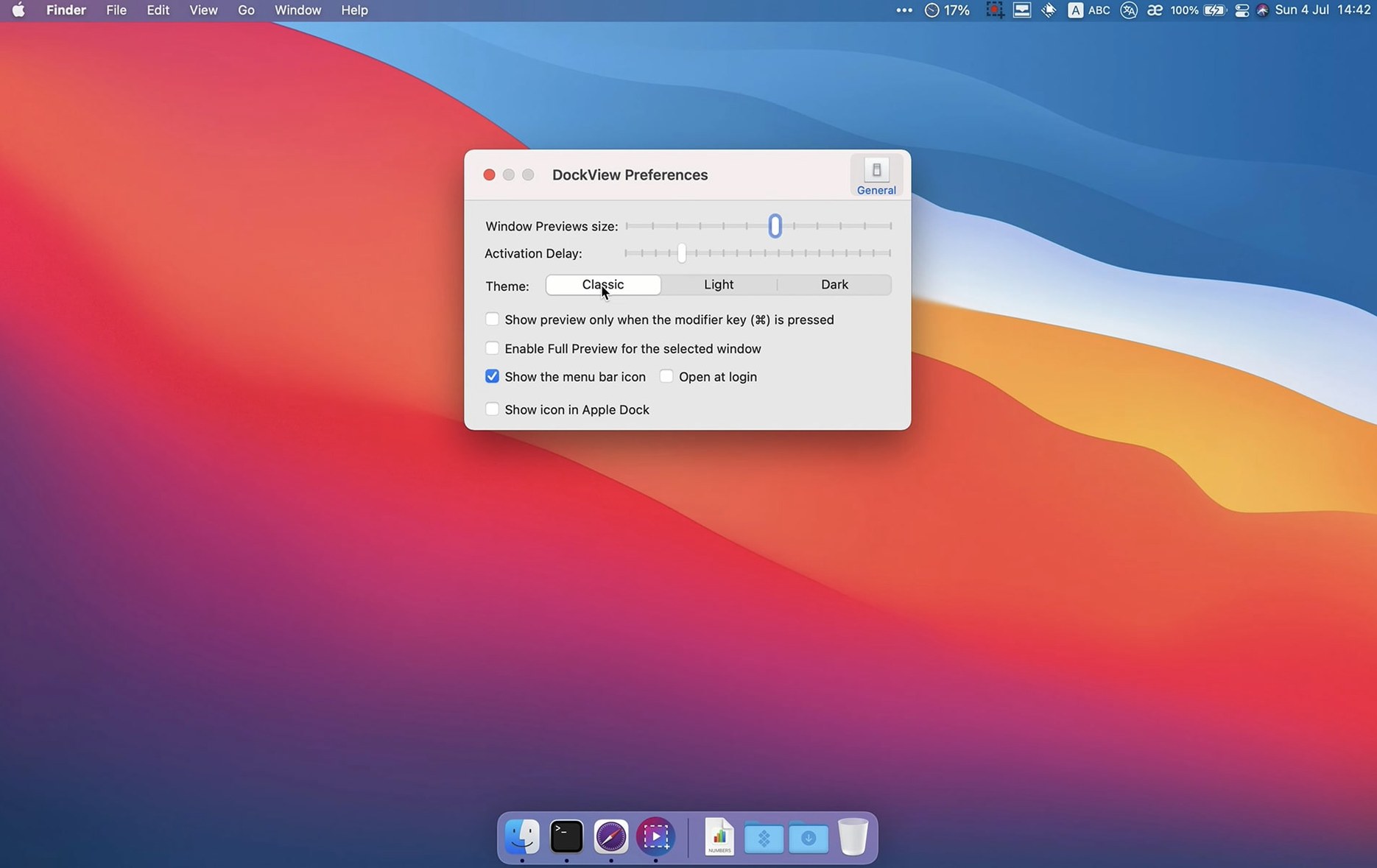
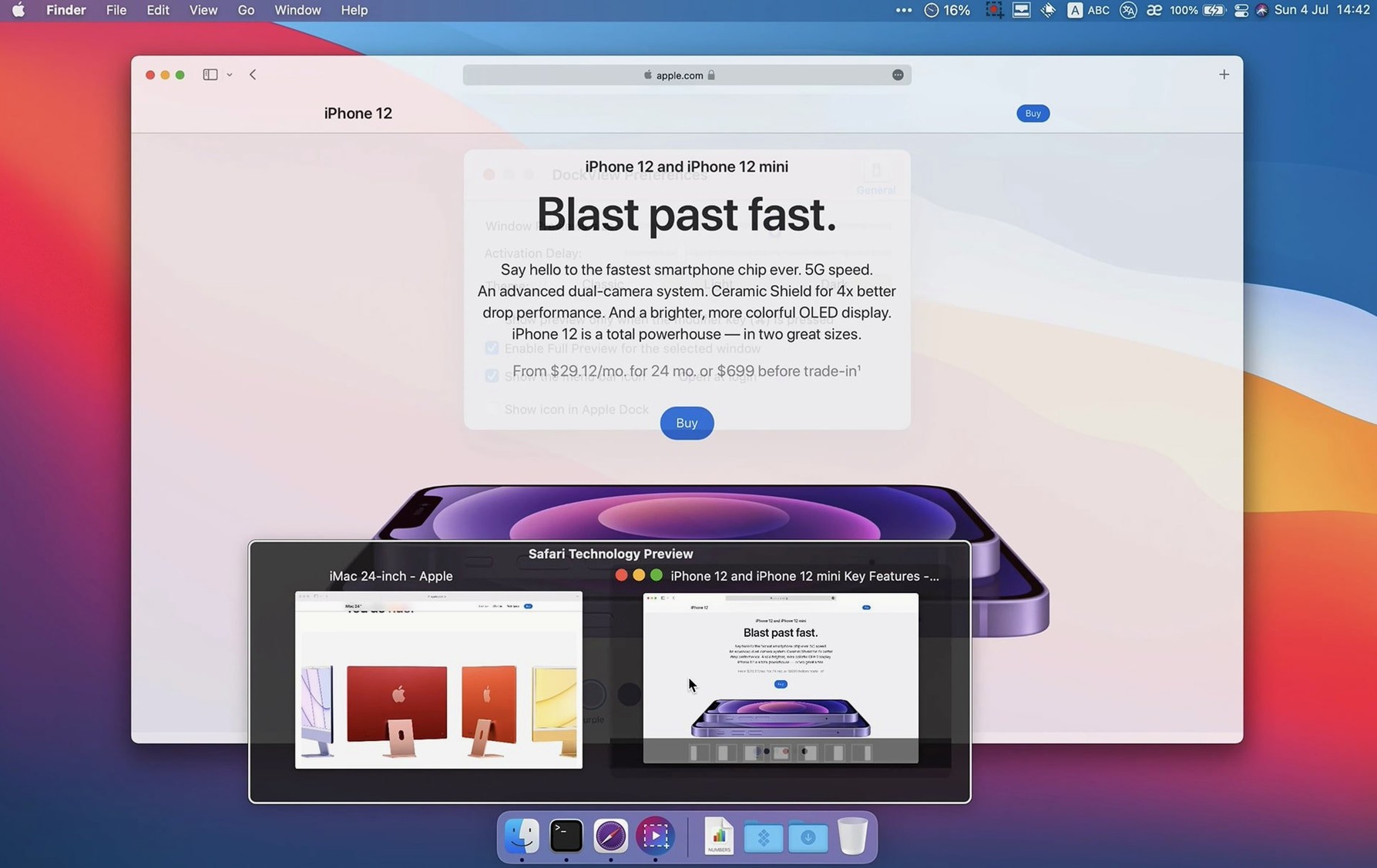
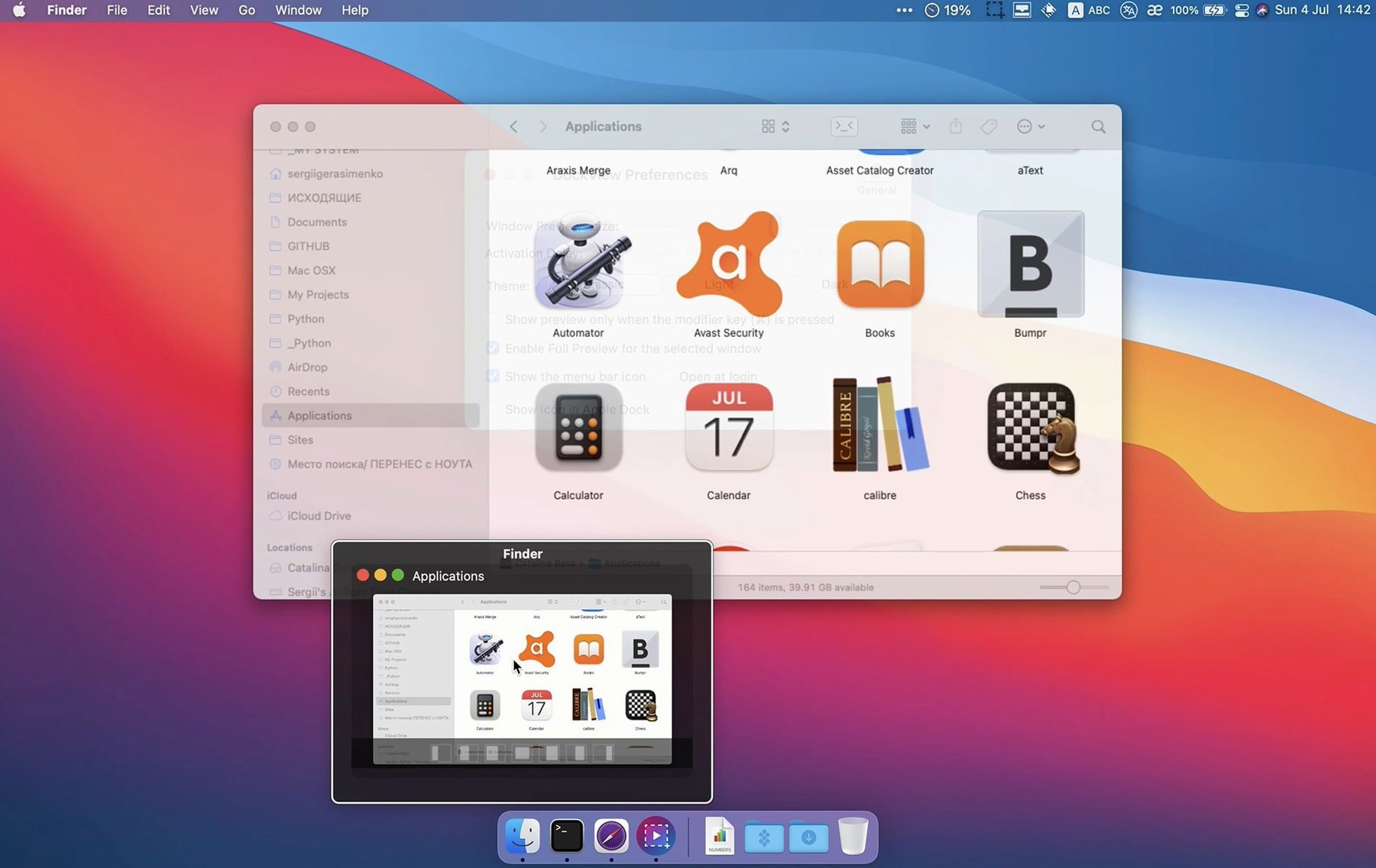
The Dock has always been good at telling you which apps are running. What it doesn't do, out of the box, is tell you what those apps are actually doing. Mission Control fills part of that gap, but it takes you away from whatever you were working on. DockView brings the same idea down to the Dock itself.
How DockView works
- Install DockView and grant permissions. The app needs Accessibility access to switch windows on your behalf, and Screen Recording access to read window titles and generate previews.
- Hover over any app icon in the Dock. A panel appears above the icon showing live thumbnails of every open window belonging to that app.
- Click a thumbnail. DockView switches you straight to that window, even if it was buried behind half a dozen others.
- Manage windows from the preview. You can minimize, maximize, or close any window directly from the preview area without first bringing it to the front.
- Use the Show All Windows button. New in 2.2.4, this button sits in the preview panel and gives you a second way to reveal the full set of windows for the app you're hovering over.
It's worth understanding what DockView isn't. It doesn't replace the Dock, and it doesn't modify any system files. It simply sits alongside the Dock and makes the information already available to macOS more visible and more useful.
Once the permissions are sorted and the preview panel starts popping up, there’s a short period where your muscle memory needs to catch up. You’ve spent years reaching for Mission Control or cycling through windows with Command‑Tab, and DockView asks you to pause on an icon instead. That half‑second hover feels odd at first. Give it a day or two.
One thing that helps enormously during those first days is resisting the urge to hover over every single app. Focus on the two or three applications where you routinely juggle multiple windows — a browser with research scattered across five tabs in separate windows, a Finder with three deep folder views, a word processor with reference material and the main draft side by side. Let DockView earn its keep there first. Once the habit locks in, you’ll naturally start using it for lighter apps too.
If you use a multi‑monitor setup, try positioning the Dock on the screen where you do most of your text work. The preview panel always appears above the Dock, so keeping it out of your secondary display’s way stops it from masking a palette or a timeline. A quick trip to System Settings lets you pin the Dock to the left or right edge instead — DockView follows it faithfully, and a vertical Dock often leaves more breathing room for wide preview thumbnails.
Skipping one permission blanks all previews
The most common early stumble is forgetting the permissions dance. DockView needs both Accessibility and Screen Recording privileges, and if either one is missing you’ll get previews that are blank squares or clicks that do nothing. Every time macOS updates, it’s worth glancing at System Settings > Privacy & Security just to make sure those switches are still on. A surprising number of “DockView has stopped working” moments trace back to a minor system update that quietly tightened a permission.
Another trap is mistaking the preview panel for a full window manager. DockView won’t organise your windows into tidy layouts — that’s what the built‑in window‑tiling introduced in macOS Sequoia is for. New users sometimes hover, click a thumbnail, and then wonder why the other windows didn’t snap into place. Think of DockView as a fast switching and triage tool, not a layout assistant. Close the distraction windows, jump to the one you need, then let the operating system handle the arrangement.
Some people also assume the previews are static screenshots, which leads to confusion when a background upload finishes or a chat message arrives and the thumbnail doesn’t reflect it immediately. The previews are live, but they refresh on a slight cadence rather than streaming at 60 frames per second. If you hover over a video call and the thumbnail looks frozen, just wait a beat — DockView isn’t designed as a real‑time video monitor, and expecting that will only frustrate you.
How DockView fits with other apps and macOS features
DockView plays particularly well with App Exposé. A four‑finger swipe down on a trackpad still gives you the full‑screen spread of windows, but DockView gives you the lightweight version — the quick glance — without leaving your current space. Many people end up using DockView for the day‑to‑day hop and reserving App Exposé for those moments when they genuinely need to see every pixel of every window at once.
It also pairs neatly with Stage Manager. Stage Manager keeps your current window centre stage and tucks the rest into a sidebar; DockView lets you peek into an app’s hidden windows without collapsing the whole stage. If you’ve ever wanted to check a number in a spreadsheet while keeping your design app front and centre, hovering over the spreadsheet’s Dock icon feels far less disruptive than shifting the entire workspace.
For anyone who downloads DockView for Mac alongside clipboard managers or snippet keepers, there’s a nice workflow that emerges: gather text from a background browser window via DockView’s preview, paste it with your clipboard tool’s shortcut, and never once bring the browser to the front. It’s a small thing, but over a working day those saved context‑switches add up.
Spotlight and DockView occupy different layers entirely — one finds files and apps, the other finds windows — so they don’t step on each other’s toes. The same goes for third‑party launchers like Alfred or Raycast. In fact, a common setup among power users is to launch apps via a keyboard launcher and then navigate within them using DockView’s hover‑driven previews, keeping hands on the keyboard for launch and on the mouse for window selection.
DockView 2.2.5 smooths out a handful of bugs and polishes the preview behaviour a little further.
- macOS 11 (Big Sur) or later
- Runs natively on both Apple Silicon and Intel 64-bit Macs
Questions I keep hearing
Does DockView replace the macOS Dock?
No. DockView works alongside the standard Dock and doesn't modify it or any system file.
What permissions does DockView need?
It requires Accessibility permission for window switching and Screen Recording permission for window titles and previews.
Can I close windows from the DockView preview?
Yes. The preview area includes controls for minimizing, maximizing, and closing windows directly.
Questions from the class 0
Sign in or join the class to ask a question.
Nobody has asked anything yet. If you have used it on a real job, say what the file did.
Also on the Mac Apps shelf
The whole Mac Apps shelf DMG Canvas
Builds polished disk-image installers with a custom background and licence window.
DMG Canvas
Builds polished disk-image installers with a custom background and licence window.
 DisplayBuddy
Lets you control every external display’s brightness and colour straight from the menu bar.
DisplayBuddy
Lets you control every external display’s brightness and colour straight from the menu bar.
 Disk Drill
Recovers deleted files and lost data from any drive you connect to your Mac.
Disk Drill
Recovers deleted files and lost data from any drive you connect to your Mac.
 DriveDx
Warns you while a drive is still in the failing stage, before it dies completely.
DriveDx
Warns you while a drive is still in the failing stage, before it dies completely.
 Depth Scanner
Generates a true depth map from a single photo so you can refocus after the shot.
Depth Scanner
Generates a true depth map from a single photo so you can refocus after the shot.
 Dropover
Holds dragged files on a floating shelf so you can gather items before dropping them elsewhere.
Dropover
Holds dragged files on a floating shelf so you can gather items before dropping them elsewhere.
 Dehancer Pro
Rebuilds the colour and grain of sixty-two real film stocks on your digital images.
Dehancer Pro
Rebuilds the colour and grain of sixty-two real film stocks on your digital images.
 Default Folder
Adds a toolbar of favourite folders to every Open and Save dialog.
Default Folder
Adds a toolbar of favourite folders to every Open and Save dialog.