 ASPNetWorld

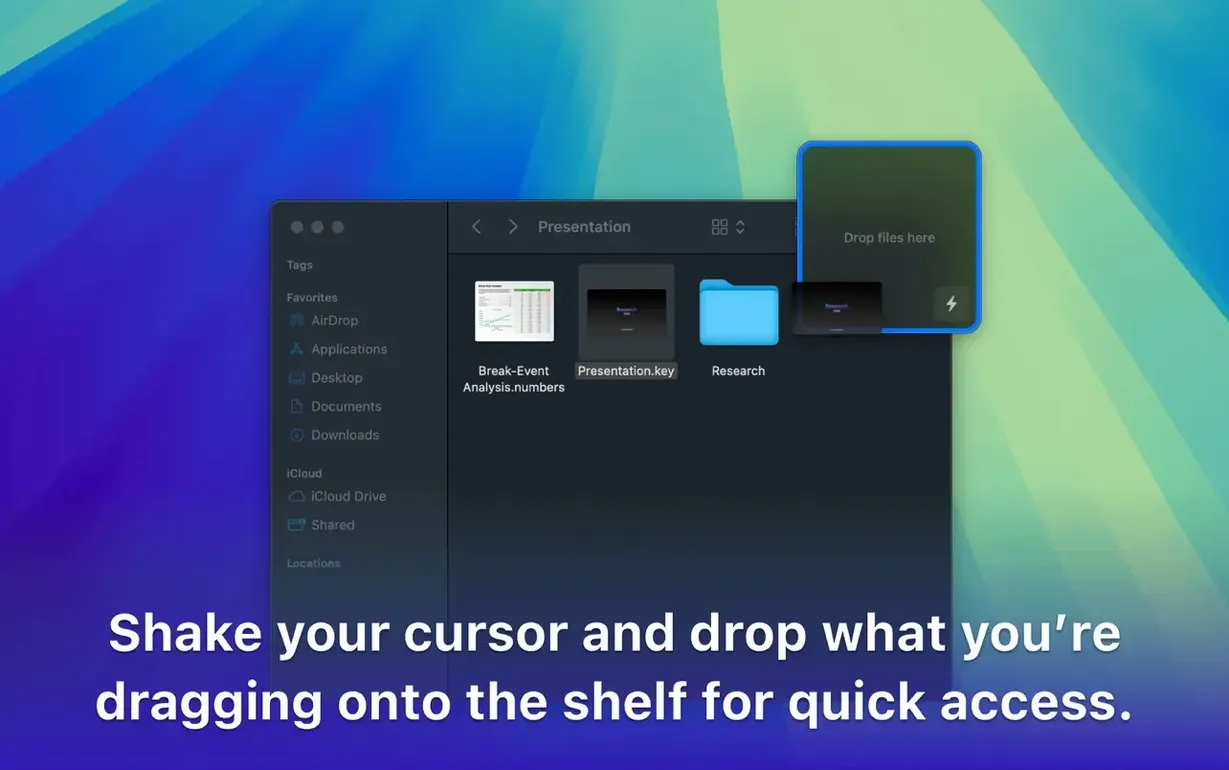
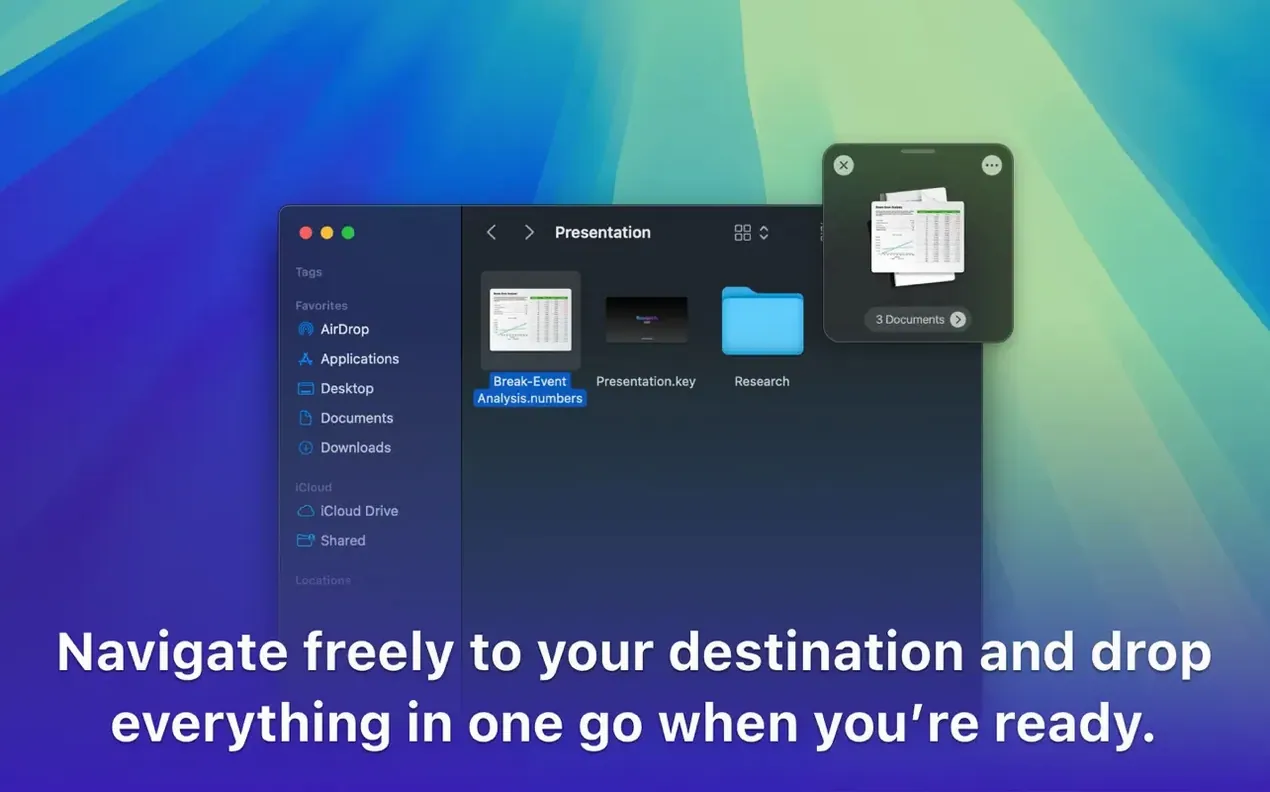
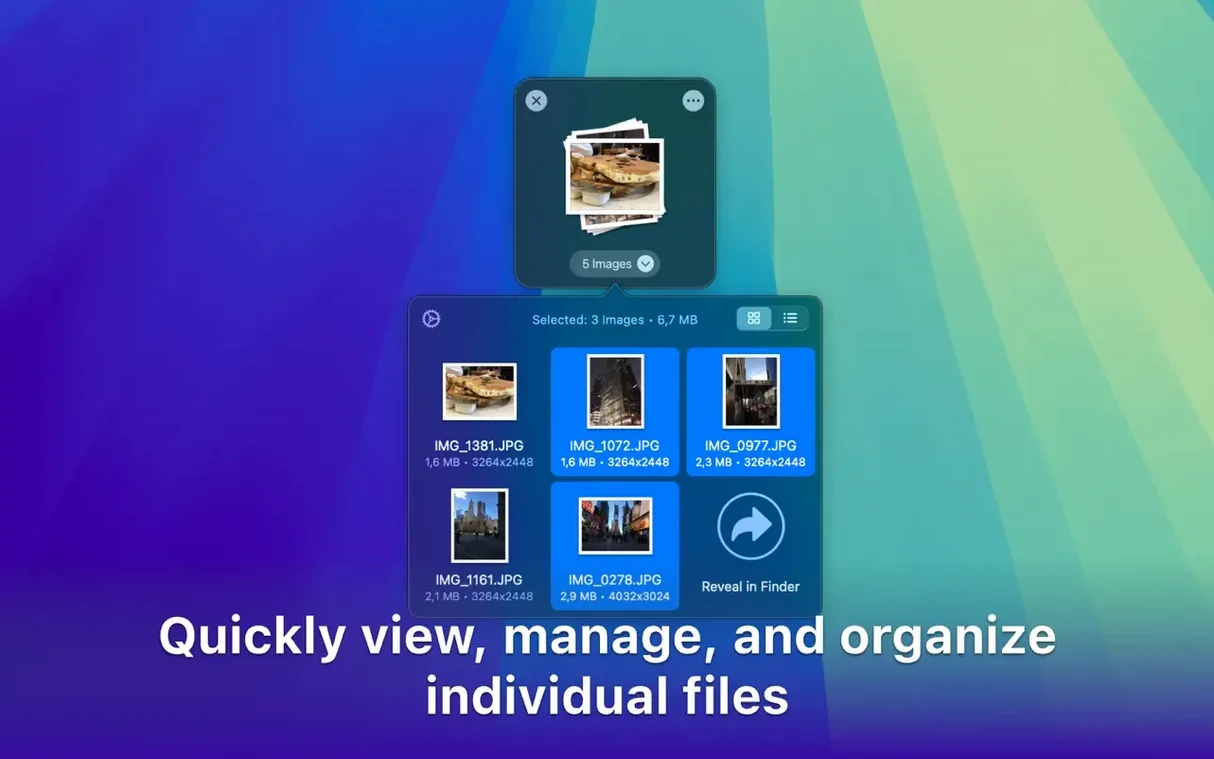
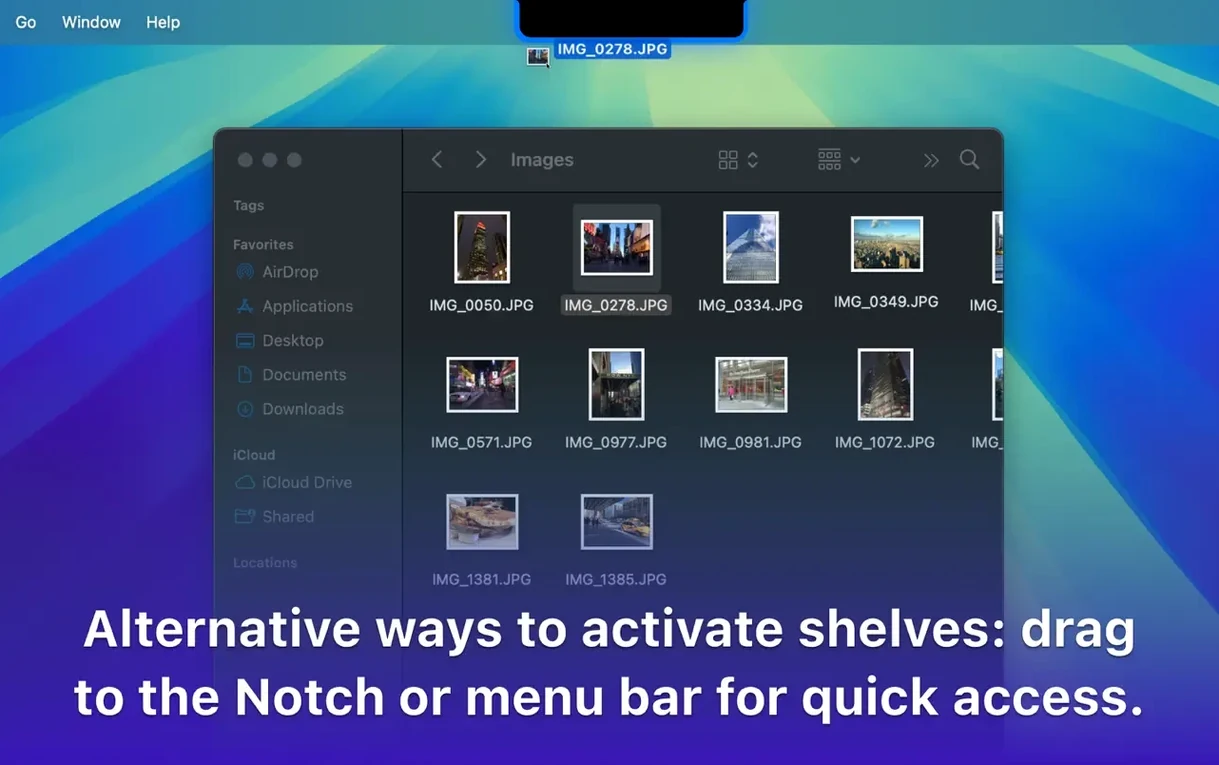
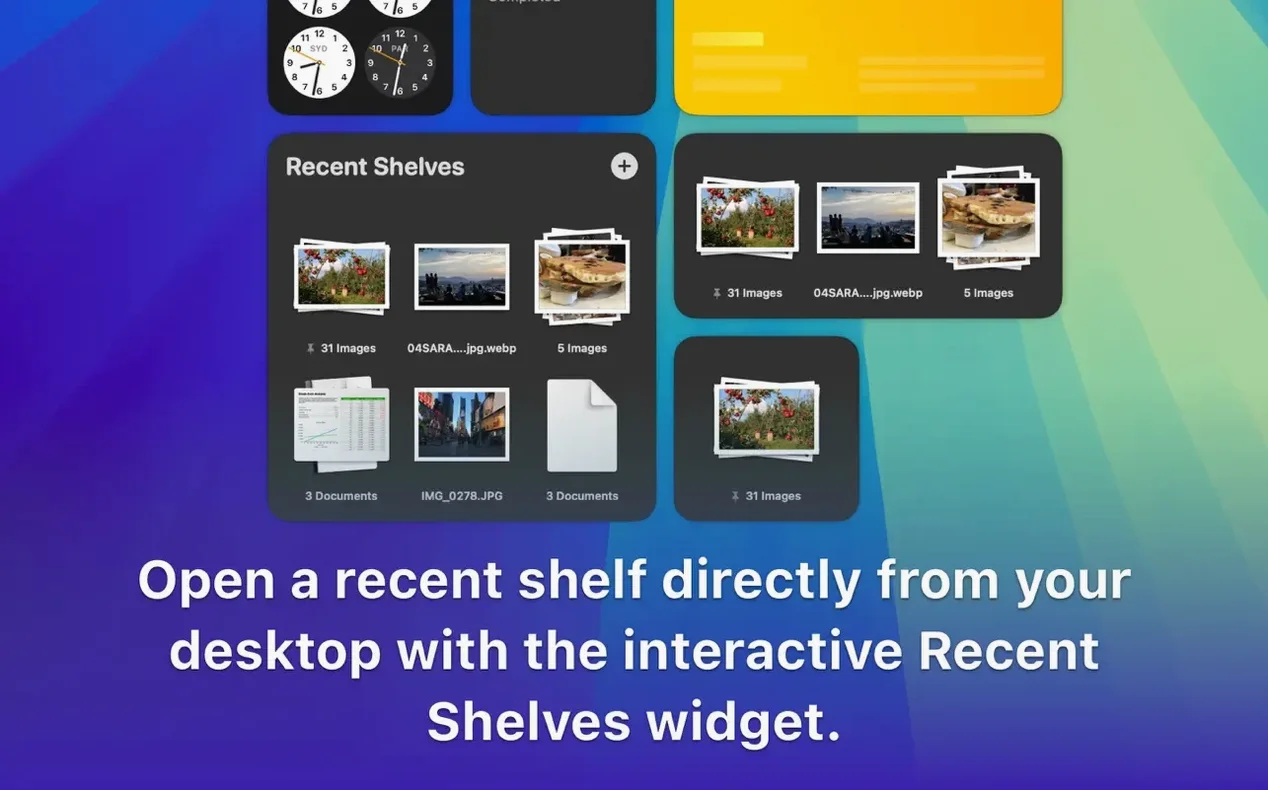
Dropover is a Mac utility that gives you a temporary floating shelf for anything you drag, so gathered items stay available as you move between apps, windows or Finder folders.
Staging shelf — a semi-transparent window that appears when you shake your cursor or hold items briefly over a trigger zone; it holds files, folders, images, links and text clips until you decide where they belong.
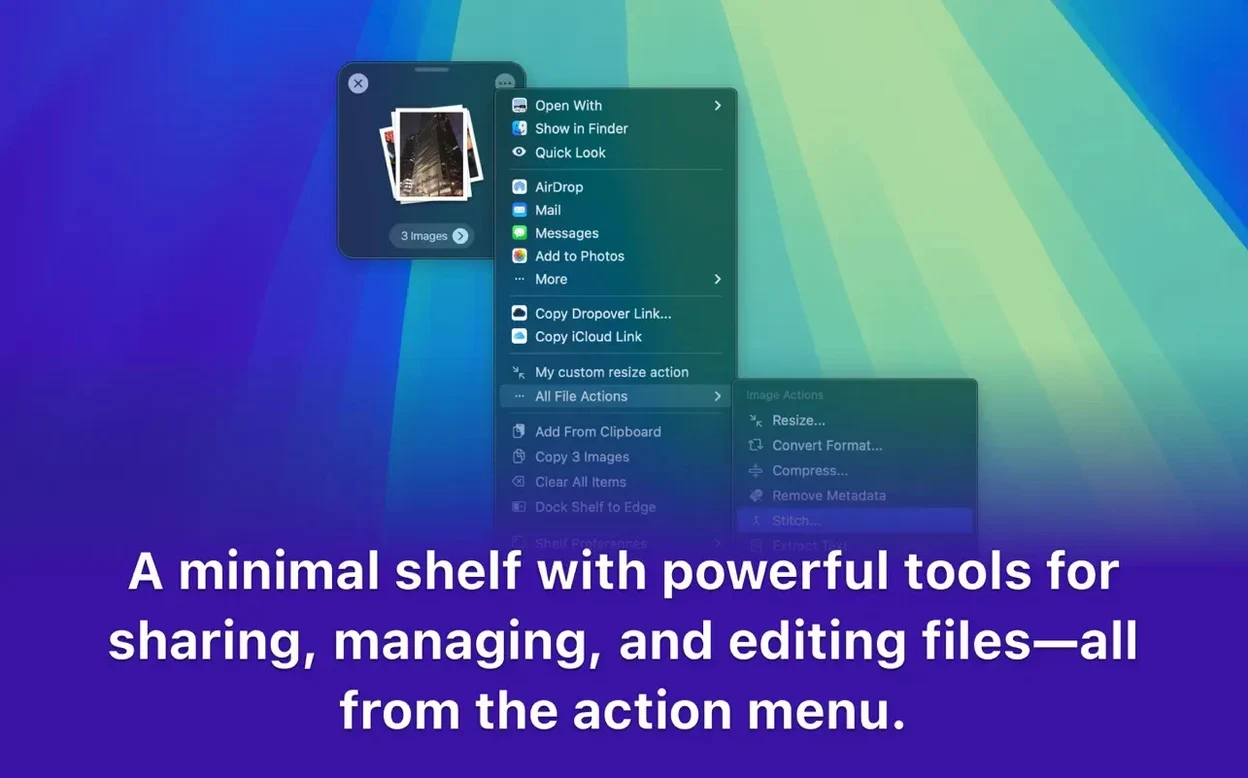
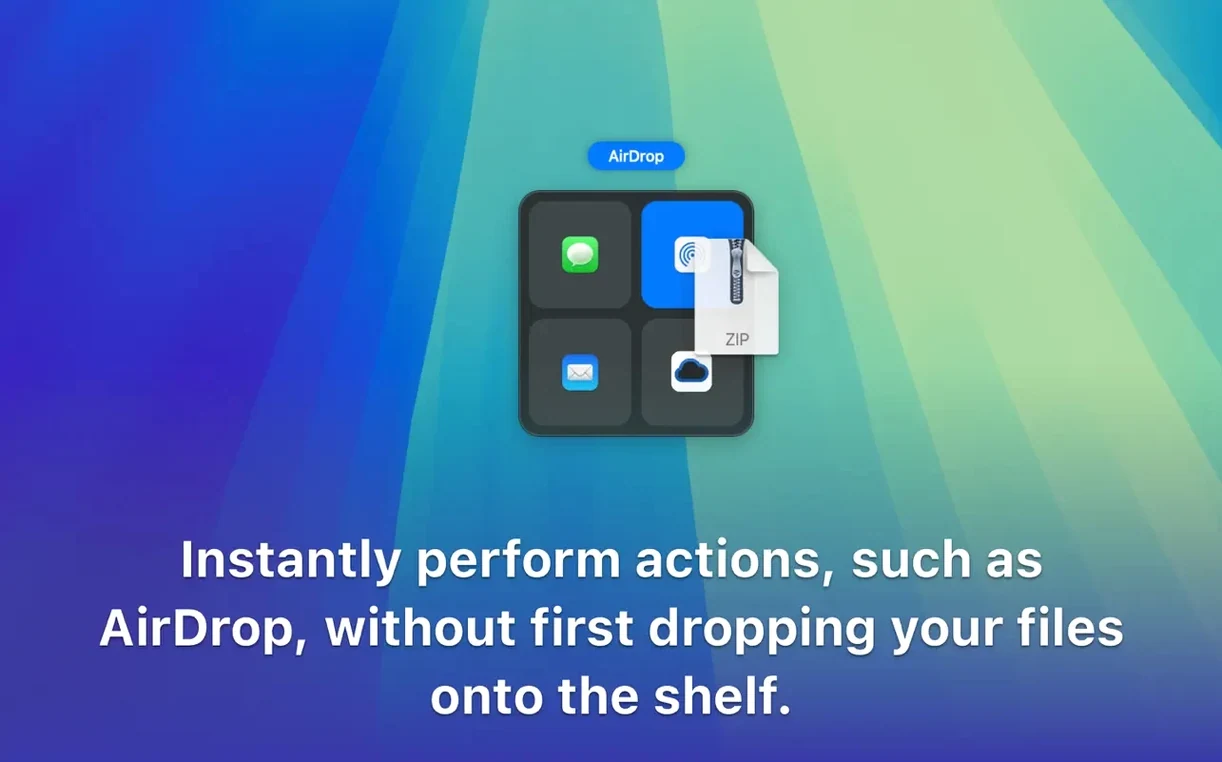
Share sheet — the shelf sits alongside the standard macOS share options, letting you send staged items to AirDrop, Messages, Mail or a cloud service from one place.
Context menu — right-click any file or selection in Finder and send it straight to an existing shelf, which means you can build a collection from several folders without dragging everything across the screen.
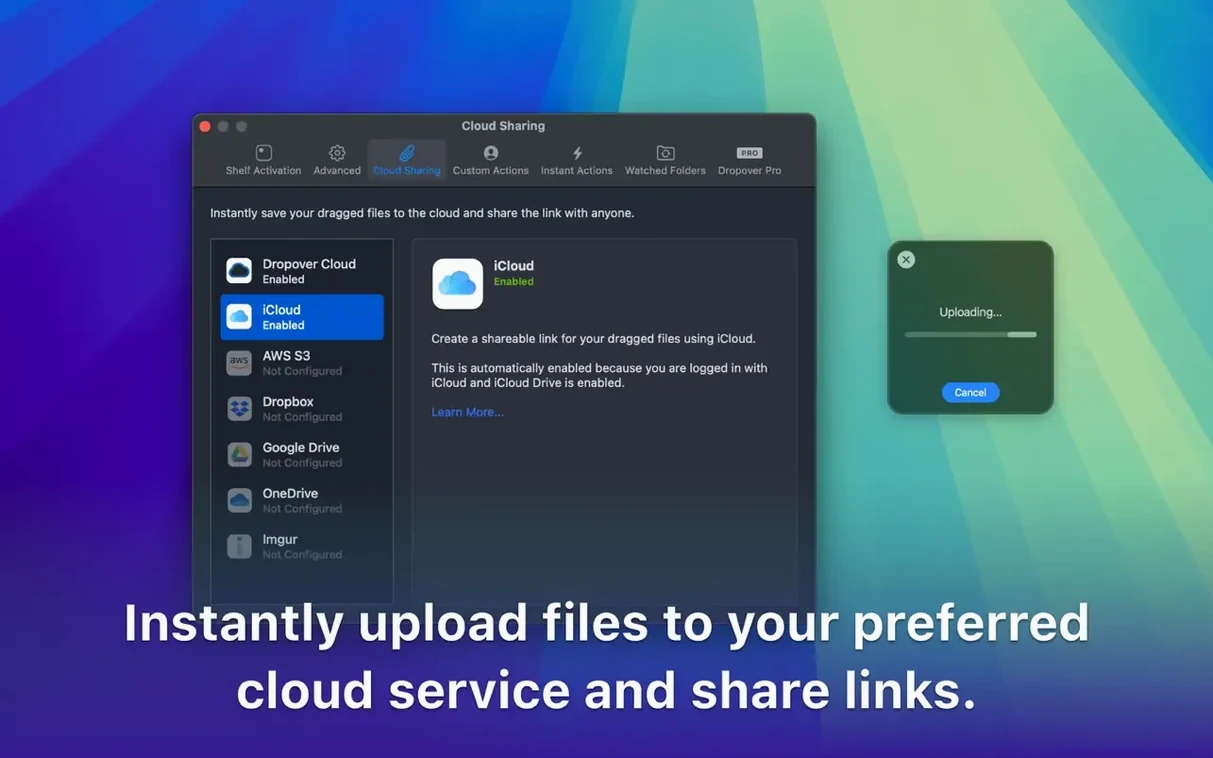
Cloud hand-off — the shelf can talk to Google Drive and Dropbox, so you can upload a mixed batch of gathered assets without opening a browser or syncing folder first.
Hotkeys and sizing — you can summon a shelf, adjust its transparency and set its position with keyboard shortcuts. The whole idea is to sit comfortably next to the other tools you already use, whether that’s the Finder, a design canvas or a project manager, without forcing you into a different way of working.
Treating the shelf like a permanent folder instead of a temporary staging area
The first thing most people do wrong is treat the shelf like a permanent folder. It isn't one — items in a shelf are references to the originals, and the shelf itself disappears when you close it or restart your Mac. If you stage a dozen photos, then quit Dropover before moving them anywhere, those photos are still safe in their original locations, but the shelf is gone and you'll have to gather them again. Think of a shelf as a hand you're using to carry things across the room, not a drawer you can come back to tomorrow.
Another common slip is dragging the shelf itself when you meant to drag an item out of it. Because the shelf floats above other windows and can be set quite transparent, newcomers sometimes grab the edge of the window and reposition it instead of picking up the file inside. A useful habit is to click once on the item you want, see it lift slightly, then drag — the same rhythm you'd use for an icon in the Dock.
Beginners also forget that the shelf accepts links and text clips, not just files. When you're researching something and copying bits from several web pages, you can drop each snippet onto the shelf and keep reading. The mistake is assuming Dropover is only for Finder items, which means missing out on one of its handiest uses: building a tidy pile of mixed research material while you move between a browser, a notes app and your desktop.
Finally, some people set the shelf to be nearly invisible and then can't find it when they need it. A transparent shelf looks elegant, but if you lower the opacity too far and park it in a corner behind another window, you'll spend more time hunting for it than dragging to it. Keep it just visible enough to spot at a glance, at least until the habit is second nature.
Staging assets from multiple apps into one shelf for a single batch drop
Mac users who move between several apps in one sitting tend to notice the biggest difference. A designer collecting icons, colour swatches and reference images from a client folder can stage them all on one shelf, then drop the batch into a layout document without five trips back to the Finder. The shelf removes the need to hold things in your head, or on a cluttered desktop, while you switch contexts.
People who upload or share mixed batches also benefit immediately. If you're sending a folder of invoices, a screenshot and a short text note to a colleague, you can gather all three from different places and then hand them to Mail, Messages or a cloud service in one motion. The shelf becomes the moment where everything is finally in the same place, which is often the part that slows a task down.
Students and researchers get a lot out of the link-and-text staging side. Copying a quote from an article, dropping it on the shelf, copying a URL from another tab, dropping that too — by the time you've finished reading, there's a neat bundle waiting to be pasted into a notes app or a citation manager. It's a small thing, but it quietly removes the copy-paste tennis that normally goes on between a browser and a document.
Users who work with cloud storage and local folders at the same time also find the shelf a natural fit. A staged set of files can be uploaded to Google Drive or Dropbox directly from the shelf, which saves opening a browser, navigating to the right folder and dragging everything over again. The shelf works as a waypoint, not a destination, and that's exactly what makes it so useful in a multi-app workflow.
A workflow: gathering assets for a short video
Imagine you're putting together a short product video and need a mix of clips, stills and a couple of text notes. Without a staging shelf, you'd probably open three or four Finder windows, drag some files to the desktop, copy others, juggle everything around. With Dropover, the process stays calm.
Start in the Finder, inside a project folder where your video clips live. Select the three or four clips you want, then either drag them onto the shelf or right-click and send them there. The shelf appears and holds them while you move on.
Switch to Photos or your image library and find the stills for the opening and closing frames. Drag those two onto the same shelf. Now switch to your browser, select a link to a reference video, and drop that on the shelf as well — it sits alongside the files, not in a separate place.
Open a text editor or notes app, write a quick reminder about which clip goes first, select that text and drop it onto the shelf. Everything you need is now in one floating collection: clips, stills, a link and a note.
Open your video editor, create a new project, and drag the whole shelf into the media bin or timeline area. The files land together, the link and text clip can be dragged into a project notes field or simply read before you delete them from the shelf. Then close the shelf and start editing. The entire gathering stage happened without a single extra Finder window or a desktop full of loose icons.
The shelf feels snappier on any Mac that meets system requirements
Version 5.3.0 keeps the core shelf idea intact while making it feel more settled in daily use. The app still runs natively on both Apple Silicon and Intel Macs, so the shelf responds quickly on any machine that meets the macOS 12 requirement. For most people, the day-to-day change is one of refinement rather than a new way of working: the shelf, the share sheet integration, the context menu and the cloud hand-off all behave as you'd expect, with small improvements to how the shelf appears and disappears during a drag.
What matters in everyday use is that a dropover mac download of the current version brings those existing pieces together smoothly. The shelf doesn't fight for attention when you're not using it, and it's there the moment you need to park something. Users who rely on the share sheet will find that staged items flow through the standard macOS channels without extra steps, while the context menu remains the quickest way to add a file from a folder you don't want to leave.
Shortcuts support continues to be the quiet workhorse for anyone who repeats the same staging task often. You can build a shortcut that gathers a set of files from a known location and puts them on a shelf, ready for you to review before moving them. It's a small automation touch, but it turns Dropover from a purely manual tool into something that can be part of a longer chain of actions.
- macOS 12 or later
- Works on both Intel and Apple Silicon Macs
Questions from the class 0
Sign in or join the class to ask a question.
Nobody has asked anything yet. If you have used it on a real job, say what the file did.
Also on the Mac Apps shelf
The whole Mac Apps shelf DriveDx
Warns you while a drive is still in the failing stage, before it dies completely.
DriveDx
Warns you while a drive is still in the failing stage, before it dies completely.
 Duplicate File Finder Pro
Scans folders for duplicate files and helps you merge similar folders into one tidy library.
Duplicate File Finder Pro
Scans folders for duplicate files and helps you merge similar folders into one tidy library.
 DVDFab
Copies a DVD-9 film onto two standard DVD-5 discs while keeping the original menus.
DVDFab
Copies a DVD-9 film onto two standard DVD-5 discs while keeping the original menus.
 DxO PhotoLab
Processes raw photos with lens-specific corrections and local adjustment masks.
DxO PhotoLab
Processes raw photos with lens-specific corrections and local adjustment masks.
 DxO ViewPoint
Corrects distorted perspective and volume deformation in wide-angle architectural shots.
DxO ViewPoint
Corrects distorted perspective and volume deformation in wide-angle architectural shots.
 DynamicLake Pro
Puts a slim pill-shaped panel near your Mac’s notch for music, calendar, and system toggles.
DynamicLake Pro
Puts a slim pill-shaped panel near your Mac’s notch for music, calendar, and system toggles.
 DockView
Shows a live preview of any app’s open windows when you hover over its Dock icon.
DockView
Shows a live preview of any app’s open windows when you hover over its Dock icon.
 DMG Canvas
Builds polished disk-image installers with a custom background and licence window.
DMG Canvas
Builds polished disk-image installers with a custom background and licence window.