 ASPNetWorld
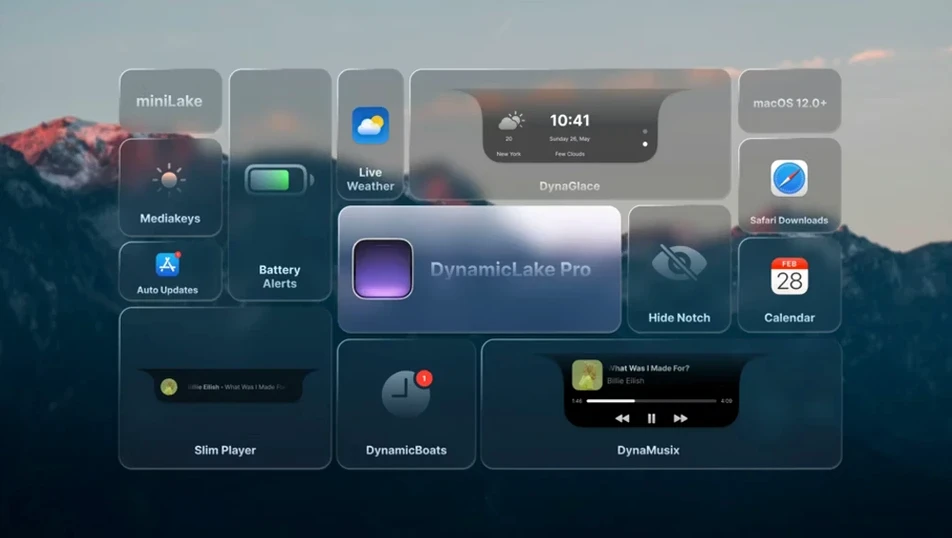
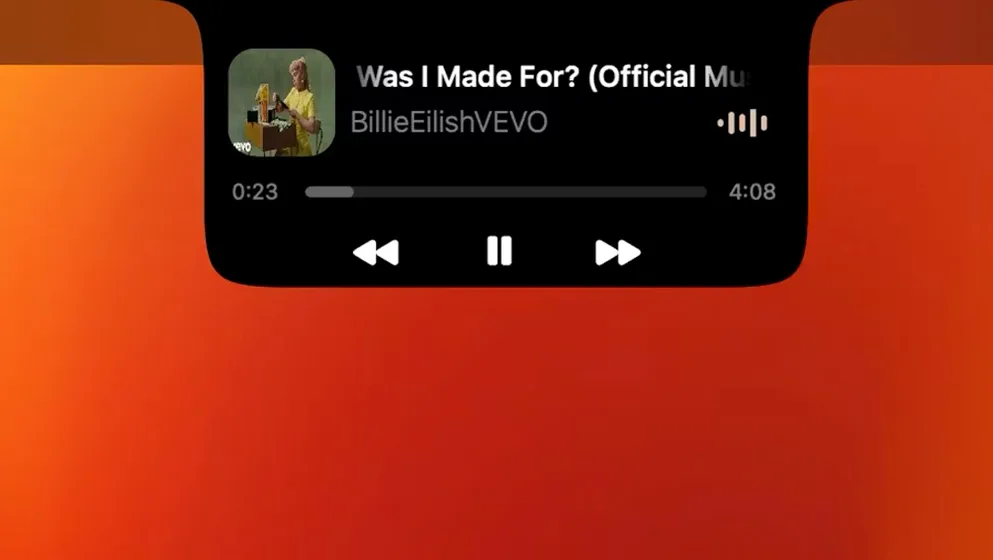
DynamicLake Pro is a macOS app that transplants the iPhone’s Dynamic Island concept onto the desktop — a slim, black pill-shaped panel that lives near the notch or menu bar and surfaces music info, calendar events, weather, and system toggles without pulling you out of your current work.
A music widget, calendar feed, and quiet timer change arrived in one update
Version 1.8 bundles several mini-tools into one persistent panel. You get live music and weather widgets, a calendar feed, plus DynaGlance for at-a-glance schedule and weather updates. The new bit in this release is quiet but handy: any timer you set in the macOS Clock app now pops up inside DynamicLake automatically, so you don’t have to switch windows to check how long is left on the pasta.
Which extras come with the Pro edition?
Two standouts are DynaKeys and DynaSwitcher. DynaKeys gives you on-screen sliders for volume, brightness and keyboard backlight — think of it as a floating Touch Bar that works on any Mac. DynaSwitcher hooks into Option+Tab and shows a visual app switcher in the island, making it easier to see where you’re jumping before you release the keys.
What if the full panel feels too busy?
That’s where miniLake comes in. It’s a scaled-down version of the island that keeps only the core functions visible, so you get the glanceable bits without the full width. You can switch between the two layouts depending on whether you’re deep in focus or want all the controls at hand.
It splits the difference between NotchNook’s polish and MediaMate’s focus
DynamicLake Pro sits in an odd spot — part notification centre, part media controller, part quick‑launcher — so direct comparisons are rare. The closest cousins are NotchNook and MediaMate, though each carves out a different corner of the desk.
NotchNook turns the camera housing into a drop‑zone for files, shortcuts and calendar widgets. It’s clever, and the drag‑and‑drop shelf feels genuinely Mac‑like. What it doesn’t do is music visualisation, Bluetooth alerts or an app switcher. If your day revolves around dropping snippets into a holding bay, NotchNook shines; if you want the island to behave more like a status panel that reacts to what your Mac is doing, DynamicLake Pro reaches further.
MediaMate is a more focused beast — a gorgeous little HUD for volume, brightness and now‑playing that pops up in the top centre of the screen. It does one job beautifully, and the animations are polished. But it stops at media and system levels. DynamicLake Pro’s DynaKeys covers the same ground with a different visual approach, then layers on weather, push notifications, calendar alerts and a Bluetooth connection notifier. You could run MediaMate and a separate calendar app side by side, or you could let one pill do most of it.
A third name worth mentioning is Bartender, though it’s a menu bar manager rather than an island app. People often arrive at DynamicLake Pro after trying Bartender and realising they want something more glanceable than a tidied‑up menu strip. Bartender hides icons; DynamicLake Pro surfaces information. They pair well rather than compete.
What tips the scales for a lot of people is how many small quality‑of‑life features DynamicLake Pro bundles without feeling overstuffed. The Bluetooth connect and disconnect alerts, for instance, are the sort of thing you don’t think about until you’re wearing headphones and wondering whether they actually paired. That single ping in the island has saved more desk‑headphone tangles than I can count.
What people tend to ask before they install
Does it only work on Macs with a notch? Not at all. DynamicLake Pro runs on any Mac with macOS 11 or later, notch or no notch. On a notched machine the island sits neatly below the camera housing; on a flat‑edged display it floats near the top centre of the screen. The positioning is adjustable, so you can nudge it left or right to suit your menu bar layout.
Will it slow down an older Intel Mac? The app is a native build for both Apple Silicon and 64‑bit Intel, and the animations are lightweight enough that you’re unlikely to notice any drag. What you will notice is the fan staying quiet. On a 2019 Intel MacBook Pro, DynaMusic’s waveform visualisation uses about the same resources as a small Dashboard widget — noticeable in Activity Monitor, but not in day‑to‑day feel.
Can I turn off the bits I don’t need? Yes, and you probably will. The settings panel lets you disable individual modules — say, the weather widget or the calendar feed — without touching the rest. If all you want is DynaKeys and DynaSwitcher, you can switch off DynaGlance and the music panel entirely. The island shrinks to fit whatever’s active, so you’re never staring at empty space.
Does it read my notifications from every app? It hooks into a specific set of supported apps for push notifications with quick replies, not everything on your system. Mail, Messages and a handful of others work out of the box. You’re not granting blanket access to your notification stream, and anything unsupported simply doesn’t appear in the island.
A practical workflow: music and timers while writing
Here’s a scenario that shows how the pieces fit together during an actual work session. Say you’re writing a report and want background music, a timer for a break, and a way to glance at your next meeting without touching your phone.
- Start your music playing in Apple Music or Spotify. DynamicLake Pro’s DynaMusic picks it up automatically. The pill now shows album art, track title and a tiny scrubbing bar. A quick tap on the island brings up play‑pause and skip controls without switching apps.
- Open the macOS Clock app — the one that ships with every Mac — and set a 25‑minute timer. As soon as you start it, the countdown appears inside the island. No extra setup; version 1.8 watches for Clock app timers by default.
- While the timer runs, Option+Tab into DynaSwitcher. Instead of the standard macOS app switcher, you see a visual strip inside the island showing each open app’s icon. Release the keys on the one you want, and you’re there. The spatial cue makes it faster to pick the right window when you have six things open.
- DynaGlance sits quietly at the edge of the pill showing the current temperature and your next calendar entry. When the timer ends, the island pulses gently — no loud alert, just a visual nudge — and you can reset it with a click.
- Optionally, switch to miniLake after the session. The island shrinks to a small dot showing only the clock and weather, so it’s still useful but not distracting.
The whole sequence happens without opening a single extra window beyond the Clock app at the start. That’s the real draw: not any one widget, but the way they chain together without friction.
Hold Option and click the island to cycle through miniLake views
Some of the best bits in DynamicLake Pro are the ones that don’t advertise themselves. They sit in the preferences or behind a key combination, quietly making life smoother.
- Hold Option while clicking the island to cycle through miniLake and the full layout without opening preferences. It’s the quickest way to declutter when you need focus.
- DynaKeys responds to scroll gestures. Hover over the volume or brightness bar and use two‑finger scroll on your trackpad to adjust levels in fine increments — much more precise than tapping the ends of the slider.
- The calendar feed supports multiple calendars. If you keep separate work and personal calendars in the stock macOS Calendar app, DynamicLake Pro can show entries from both, colour‑coded, without any extra configuration.
- AirDrop alerts appear in the island when someone sends you a file, so you don’t miss the transient system notification that often vanishes before you can act on it.
- Battery alerts for connected devices. When your Magic Mouse or AirPods dip below a threshold, the island gives you a small nudge. It’s the sort of thing you forget to check until a device dies mid‑call.
- Keyboard backlight control via DynaKeys is surprisingly useful on a desktop Mac with a wired keyboard that lacks dedicated brightness keys. The slider appears right in the island, no function‑key hunt required.
None of these are headliners on their own, but together they add up to an app that feels more like a natural extension of macOS than a third‑party bolt‑on. The trick is spending ten minutes in the preferences pane on day one — every module has a handful of toggles that shape how it behaves, and the defaults are sensibly conservative.
- macOS 11 or newer
- Apple Silicon or 64-bit Intel processor
Questions I keep hearing
Does DynamicLake Pro work on Intel Macs?
Yes, it supports both Apple Silicon and 64-bit Intel machines running macOS 11 or later.
What languages does the interface support?
It speaks thirteen languages, including English, German, French, Spanish, Italian, Japanese, Korean, Simplified Chinese, Russian, Portuguese, Slovak, Turkish, and Hebrew.
Is there a free version I can try first?
The developer offers a free tier called DynamicLake Free that lets you sample the core island concept before upgrading.
Questions from the class 0
Sign in or join the class to ask a question.
Nobody has asked anything yet. If you have used it on a real job, say what the file did.
Also on the Mac Apps shelf
The whole Mac Apps shelf DxO ViewPoint
Corrects distorted perspective and volume deformation in wide-angle architectural shots.
DxO ViewPoint
Corrects distorted perspective and volume deformation in wide-angle architectural shots.
 DxO PhotoLab
Processes raw photos with lens-specific corrections and local adjustment masks.
DxO PhotoLab
Processes raw photos with lens-specific corrections and local adjustment masks.
 Element 3D
Imports true 3D models into After Effects so you can light and animate them on the timeline.
Element 3D
Imports true 3D models into After Effects so you can light and animate them on the timeline.
 DVDFab
Copies a DVD-9 film onto two standard DVD-5 discs while keeping the original menus.
DVDFab
Copies a DVD-9 film onto two standard DVD-5 discs while keeping the original menus.
 Elmedia Player Pro
Plays almost any video or audio file format without needing extra codecs.
Elmedia Player Pro
Plays almost any video or audio file format without needing extra codecs.
 Duplicate File Finder Pro
Scans folders for duplicate files and helps you merge similar folders into one tidy library.
Duplicate File Finder Pro
Scans folders for duplicate files and helps you merge similar folders into one tidy library.
 Dropover
Holds dragged files on a floating shelf so you can gather items before dropping them elsewhere.
Dropover
Holds dragged files on a floating shelf so you can gather items before dropping them elsewhere.
 DriveDx
Warns you while a drive is still in the failing stage, before it dies completely.
DriveDx
Warns you while a drive is still in the failing stage, before it dies completely.