 ASPNetWorld

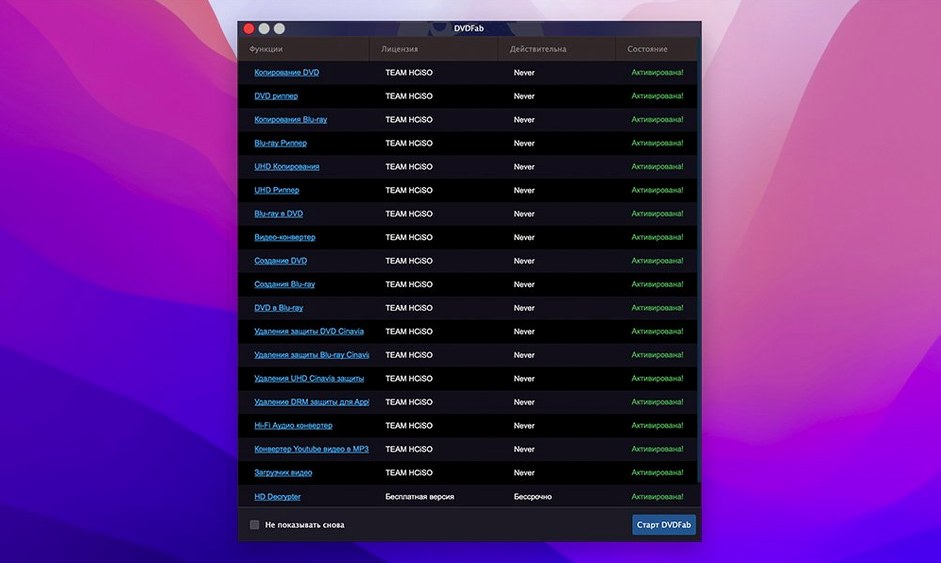
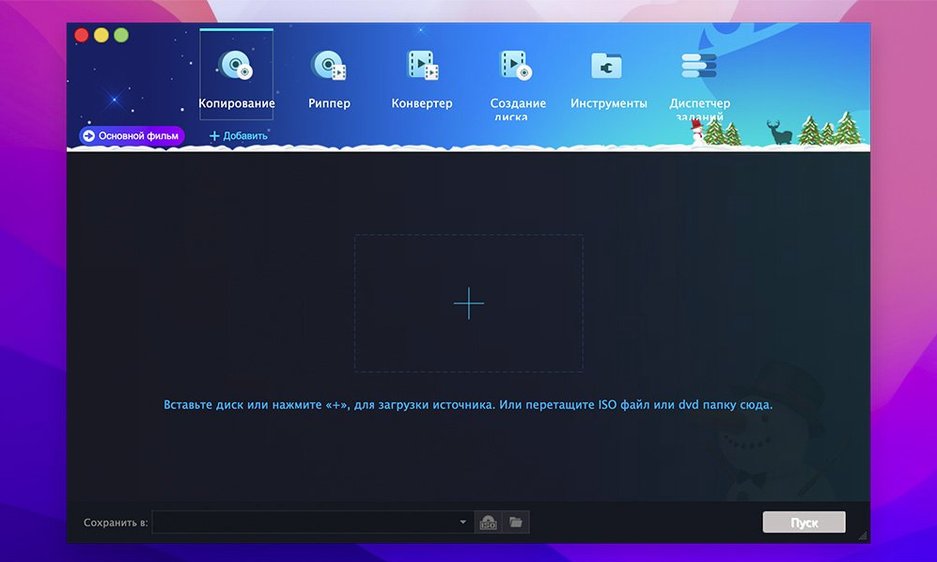
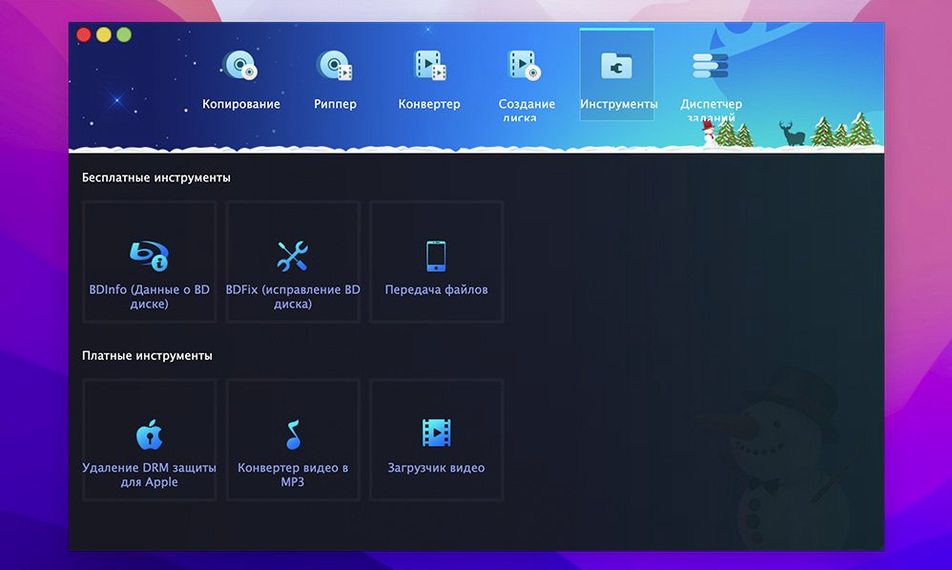
Split Customize is the one I end up showing people most often in class – you pick exactly which titles travel from a DVD-9 source onto two DVD-5 blanks, and you keep the original menu if you want it. That method sits inside a set of eight copy modes that hasn’t changed much in years, and honestly doesn’t need to. Full Disc, Main Movie, Clone, Merge, and Write Data are all still there, covering everything from a quick single-layer backup to stitching titles from multiple discs into one fresh DVD.
What the current build still does unusually well is read discs that would make Finder give up. When the IFO file is scrambled or unreadable, the suite can often reconstruct enough structure to pull off a clean rip. That’s not a headline feature, but it’s the sort of thing that saves an afternoon. Disc formats haven’t moved on either – it still talks to DVD-5, DVD-9, and every common writable variant from DVD+R/RW to dual-layer minus R.
Under the hood the app runs natively on both Apple Silicon and 64-bit Intel Macs, reaching all the way back to OS X 10.10. The interface ships in twenty-six languages, though most of my students stick with English or German. One thing worth knowing: the download centre lists version 12.0.8.2 with no bullet points of newness – it’s a quiet maintenance refresh that keeps the whole disc backup, ripping, burning, and authoring toolset ticking along without drama.
Collectors and home archivists who still reach for a disc
DVDFab suits Mac users who still live with physical discs, and that is a more varied group than people assume. The obvious audience is the collector with shelves of DVD box sets who wants working copies before the original discs pick up another scratch. A close second is anyone digitising a home video archive – weddings, school plays, old camcorder transfers burned to DVD-R years ago. Those discs were often authored in a hurry, with odd menu structures and missing IFO details, which is exactly where the recovery side of the programme earns its keep.
It also makes sense for people who keep older playback hardware around. Converting a DVD for an iPod, PSP, or Xbox 360 sounds like a throwback, but plenty of households still have those devices in a drawer or a child’s room. If you run a car DVD player that only accepts single-layer discs, the Split mode solves that without much thought. And if you teach or present from DVD material, the ability to pull the main title only – leaving menus, trailers, and warnings behind – keeps classroom playback moving.
Power users with a stack of partially damaged discs will probably lean on Clone and the IFO recovery most. Casual users who just want one film off a disc will spend most of their time in Main Movie mode. The suite is broad enough that both groups can ignore the tools they do not need without the interface getting in the way.
It runs on Macs going back to 2013, Intel and Apple Silicon alike
The first question in class is almost always about older Macs. The stated minimum is OS X 10.10, so a machine from 2013 or later is still welcome, and the app handles both Intel and Apple Silicon comfortably. Nobody gets left out because of architecture. The second question is usually whether the copy methods are hard to learn. They are not – Full Disc and Main Movie each take about two minutes to understand, and the more unusual modes like Split Customize reveal themselves naturally once you open the source disc and see the title list.
People also ask whether the programme handles discs from other regions. Region Code removal is built in, along with CSS and RCE, so a disc bought abroad or imported usually reads without complaint. The question that takes longest to answer honestly is about burn speed. The app writes at whatever the blank media and drive support, so results vary. My advice is always the same: use good-quality blanks, let the verification pass finish, and you will rarely see a coaster.
A straightforward backup, start to finish
Here is a workflow I walk through with new users. Suppose a friend hands you a PAL DVD of a documentary that has long been out of print, and you want a safe copy plus a version for a tablet. Start by launching DVDFab and choosing the Full Disc method. Insert the source disc and let the app read it; if the IFO is damaged, the suite will attempt a repair pass before showing you the title layout. Leave the output as DVD-9 if you have dual-layer blanks, or pick DVD-5 and let the compression run if you prefer single-layer media.
Set the target to burn directly to a blank in your drive, or to an ISO image if you want to archive the backup to an external disk first. The latter is my habit – ISOs take up space but are trivial to store and re-burn later. When the copy finishes, eject the original and test the backup in a regular DVD player before filing it away.
For the tablet version, switch to the conversion side of the suite. Choose the Main Movie option so you skip menus and extras. Pick a format that matches the device you use – an MP4 preset works for most modern tablets – and let the app process the film. If you only need one chapter or a specific section, Customize mode lets you tick exactly which titles travel into the final file. That same approach works for a phone, an older PSP, or an Archos media player, as long as you select the right preset.
It is a full workshop while HandBrake handles only conversion
Next to a straightforward ripper like HandBrake, DVDFab feels more like a workshop. HandBrake converts video beautifully, but it does not burn discs, preserve menus, or handle copy methods like Split and Merge. If all you ever do is turn a film into an MP4, a simple converter may be enough. If you still make physical backups, the difference shows quickly.
Compared with MakeMKV, the split goes the other way. MakeMKV is superb at pulling titles into MKV files without fuss, but it stops at ripping – no burning, no authoring, no menu preservation, and no device presets. DVDFab covers that wider territory, though it asks a little more patience when you want a plain MKV rip.
Against Burn, which many Mac users know for disc writing, the roles are clearer. Burn writes files and folders to disc with ease, but it does not decrypt protected DVDs or offer title-level control. DVDFab’s Write Data mode covers the same ground as Burn, and then the rest of the suite extends far beyond it. If your shelf of blank DVDs is mostly for data archives, Burn is lighter. If the discs are films and home videos, DVDFab is the more useful companion.
- macOS 10.10 or later
- Runs on Apple Silicon and 64‑bit Intel Macs
- Writable DVD drive required for burning
Questions from the class 0
Sign in or join the class to ask a question.
Nobody has asked anything yet. If you have used it on a real job, say what the file did.
Also on the Mac Apps shelf
The whole Mac Apps shelf DxO PhotoLab
Processes raw photos with lens-specific corrections and local adjustment masks.
DxO PhotoLab
Processes raw photos with lens-specific corrections and local adjustment masks.
 Duplicate File Finder Pro
Scans folders for duplicate files and helps you merge similar folders into one tidy library.
Duplicate File Finder Pro
Scans folders for duplicate files and helps you merge similar folders into one tidy library.
 DxO ViewPoint
Corrects distorted perspective and volume deformation in wide-angle architectural shots.
DxO ViewPoint
Corrects distorted perspective and volume deformation in wide-angle architectural shots.
 DynamicLake Pro
Puts a slim pill-shaped panel near your Mac’s notch for music, calendar, and system toggles.
DynamicLake Pro
Puts a slim pill-shaped panel near your Mac’s notch for music, calendar, and system toggles.
 Dropover
Holds dragged files on a floating shelf so you can gather items before dropping them elsewhere.
Dropover
Holds dragged files on a floating shelf so you can gather items before dropping them elsewhere.
 DriveDx
Warns you while a drive is still in the failing stage, before it dies completely.
DriveDx
Warns you while a drive is still in the failing stage, before it dies completely.
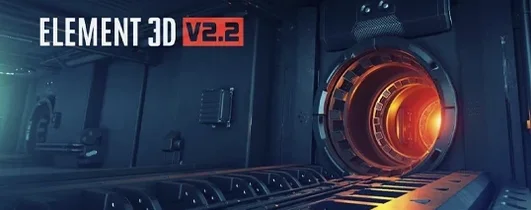 Element 3D
Imports true 3D models into After Effects so you can light and animate them on the timeline.
Element 3D
Imports true 3D models into After Effects so you can light and animate them on the timeline.
 Elmedia Player Pro
Plays almost any video or audio file format without needing extra codecs.
Elmedia Player Pro
Plays almost any video or audio file format without needing extra codecs.