 ASPNetWorld

Version 8.24 of Elmedia Player Pro, released on 5 December 2025, quietly extends its format support again — this time with native playback for M4B audiobook files, alongside better compatibility with macOS 26 and a fix that stops your Mac drifting off mid-stream. If you have been searching for an "elmedia player torrent" or wondering about unofficial versions, it is worth pausing to look at what the software actually handles and the questions that tend to come up before installation.
Common pre-installation questions
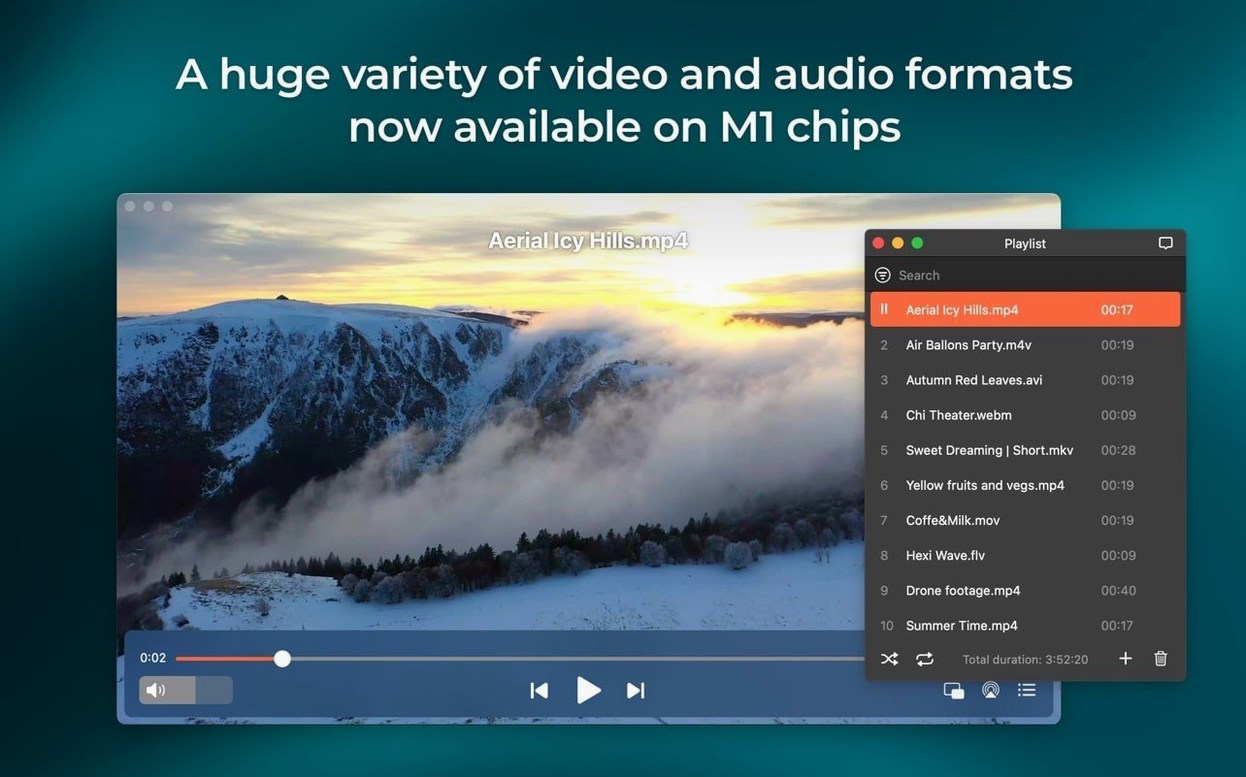
- What file types can I realistically throw at it? The list is long and pleasantly oddball: FLV, SWF, WMV, AVI, MOV, MP4, MP3, DAT, FLAC, M4V, MPG, MKV, and the newly added M4B. It is one of the few Mac players that still treats SWF files as first-class citizens.
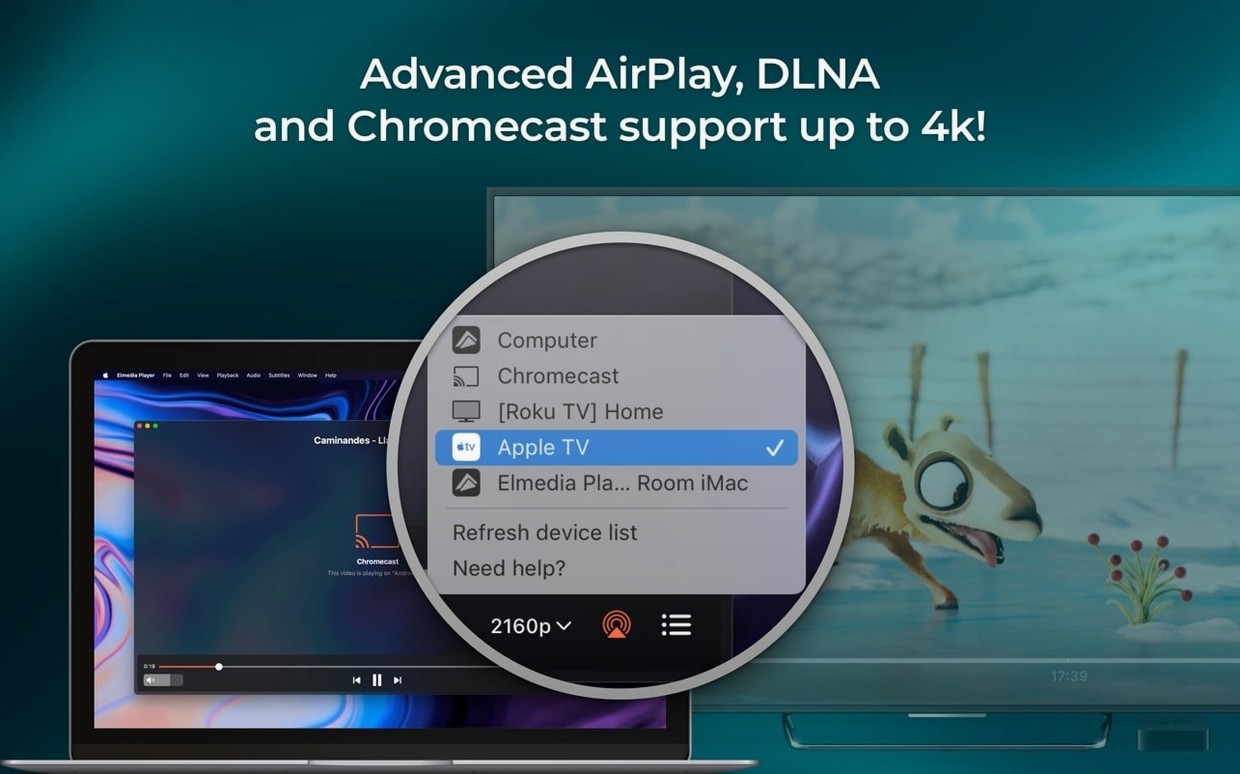
- Can it stream to other devices? Yes, it supports AirPlay streaming between your Mac and AirPlay-capable hardware, or to other Macs running Elmedia. Version 8.24 fixed streaming to certain devices and tidied up the device list behaviour.
- What about online video? You can open and play online video directly inside the player window—no need to download first.
- Does it handle multichannel audio? It can route two, four, or eight audio channels, which is handy for those working with surround sound files or multi-language tracks.
- Will it run on my system? The minimum requirement is now macOS 10.13 or later, on both Intel and Apple Silicon Macs.
Those searching for an "Elmedia Player Pro Mac crack" or "Elmedia Video Player Pro Mac crack" are often simply trying to solve a format problem their default player cannot handle. The legitimate build already opens most of these unusual containers without a fuss, and the latest update makes it friendlier for audiobook listeners and anyone running the newest macOS release.
IINA chases minimalism, Elmedia builds a feature panel over mpv
Put Elmedia Player Pro next to IINA, and the difference is partly philosophical. IINA is a modern, open-source player built on mpv, and it leans hard into minimalism — a single window, dark themed, with touch-bar support and a clean preferences pane. It plays almost everything, but it does not try to download online video, it has no built-in web browser, and SWF files are not its concern. Elmedia takes the opposite route: it is a small suite of playback and capture tools bundled into one app. If your workflow involves grabbing a clip from a streaming source, converting an old Flash projector file, or sending audio to an AirPlay speaker in another room, Elmedia covers that ground without needing a second utility.
VLC is the comparison most people reach for first. VLC plays more formats than any sensible person can name, it is free, and it runs on everything. What Elmedia brings that VLC does not is a tighter macOS integration — AirPlay streaming to and from other Macs, a downloader that understands RTMP streams, and a screenshot tool that saves stills as TIFF, PNG or GIF directly from the playback timeline. VLC can take snapshots, but the format choices are narrower and the process feels less polished on a Mac. Elmedia also handles multichannel audio passthrough for AC-3 and DTS over S/PDIF or HDMI with less fiddling; in VLC you may need to visit the audio output module settings first.
Then there is Movist, a lesser-known Mac-only player that some people prefer for its subtitle rendering and picture quality. Movist is strong on image adjustments during playback, but it lacks the streaming and downloading features entirely. If you only need a beautiful, lightweight player for local files, Movist or IINA might suit you better. If you regularly reach for an "elmedia torrent" to find a player that also acts as a download tool and streaming bridge, Elmedia Player Pro is the one that bundles those jobs together.
Grab a still frame from any video without leaving the player
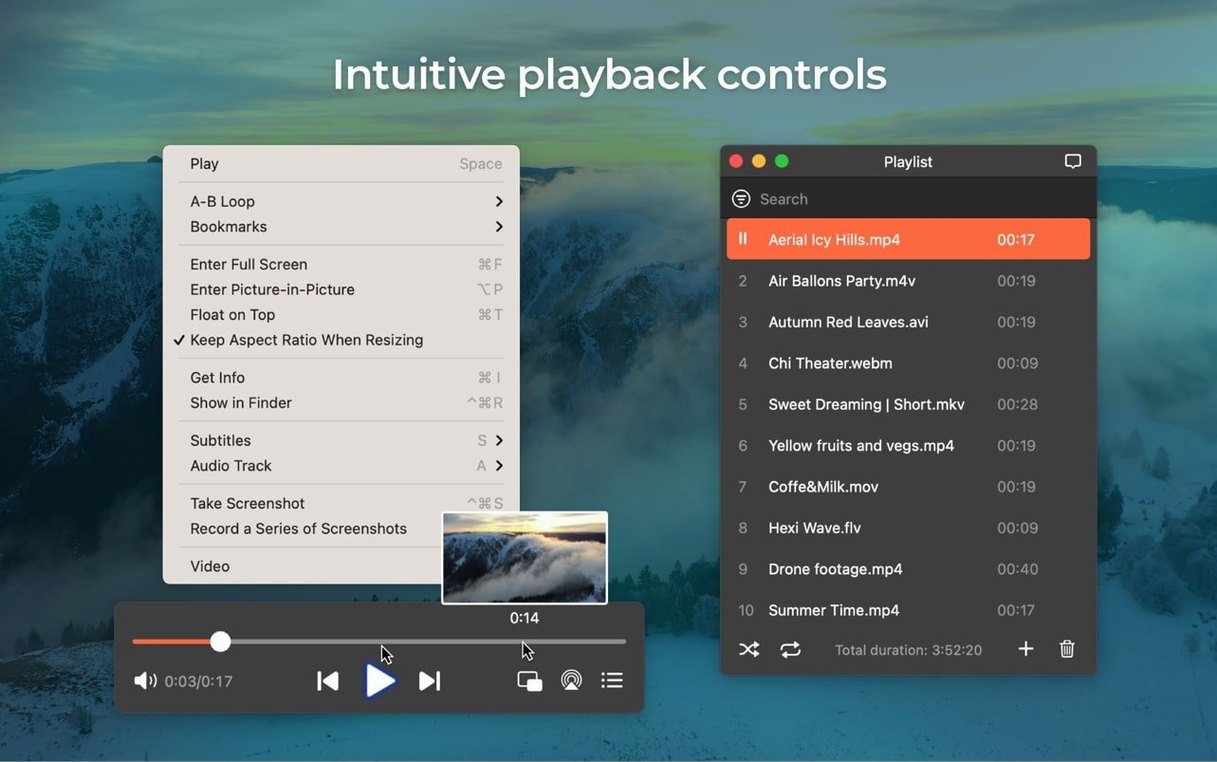
A few features sit just below the surface, and they tend to get overlooked during the first week. The screenshot tool is an obvious one — you can grab a frame from any playing video and save it as a TIFF, PNG or GIF — but what is less obvious is that the screenshot shortcut works while the video is paused, and it captures the exact frame you are parked on, not a slightly offset one. That matters when you are pulling stills from fast-moving footage for documentation or thumbnail work.
The built-in web browser is another quiet workhorse. It is not meant to replace Safari; it is there so you can navigate to a page with embedded video, hit play, and let Elmedia take over the stream. Once the video is playing inside the player, the download option becomes available from the file menu. That sequence — browse, open, download — happens inside one application window, which saves a surprising amount of desktop clutter when you are pulling several clips in a session.
Audio output routing is worth a closer look. From the audio menu you can send sound to any connected device — Bluetooth headphones, a USB DAC, HDMI to a television — without touching the macOS system sound preferences. For multi-channel files, the player can present two, four or eight channels, and you can switch on the fly. If you play a lot of surround-sound material or multi-language MKVs where the commentary track sits on a different channel, this saves repeated trips to Audio MIDI Setup.
One keyboard shortcut that rarely appears in the documentation: holding the Option key while dragging the volume slider gives you finer increments. It is a small thing, but when you are listening on sensitive near-field monitors, that level of control makes a difference.
Throw an old FLV or SWF at it to see what QuickTime abandoned
Start by throwing your strangest file at it. The player’s format list includes FLV, SWF, WMV, DAT and other containers that QuickTime gave up on years ago. If you have an old hard drive full of archived video from the Flash era — perhaps e-learning modules or animation reels — point Elmedia at the folder and let it index. It will likely play more of them than you expect.
Set your preferred screenshot format early. Open the preferences, find the capture section, and choose TIFF if you need lossless frames for print, PNG for a balance of quality and file size, or GIF if you are pulling low-colour reference stills. The choice sticks, and you will forget about it until you wonder why your captures are suddenly thirty megabytes apiece.
If you use AirPlay regularly, the update in version 8.24 matters. The fix that stops the Mac sleeping during streaming means you can queue a long playlist and send it to an AirPlay speaker in another room without your Mac going dark halfway through. In previous builds, the energy-saver settings could interrupt playback unless you manually adjusted them. Now the player handles it internally.
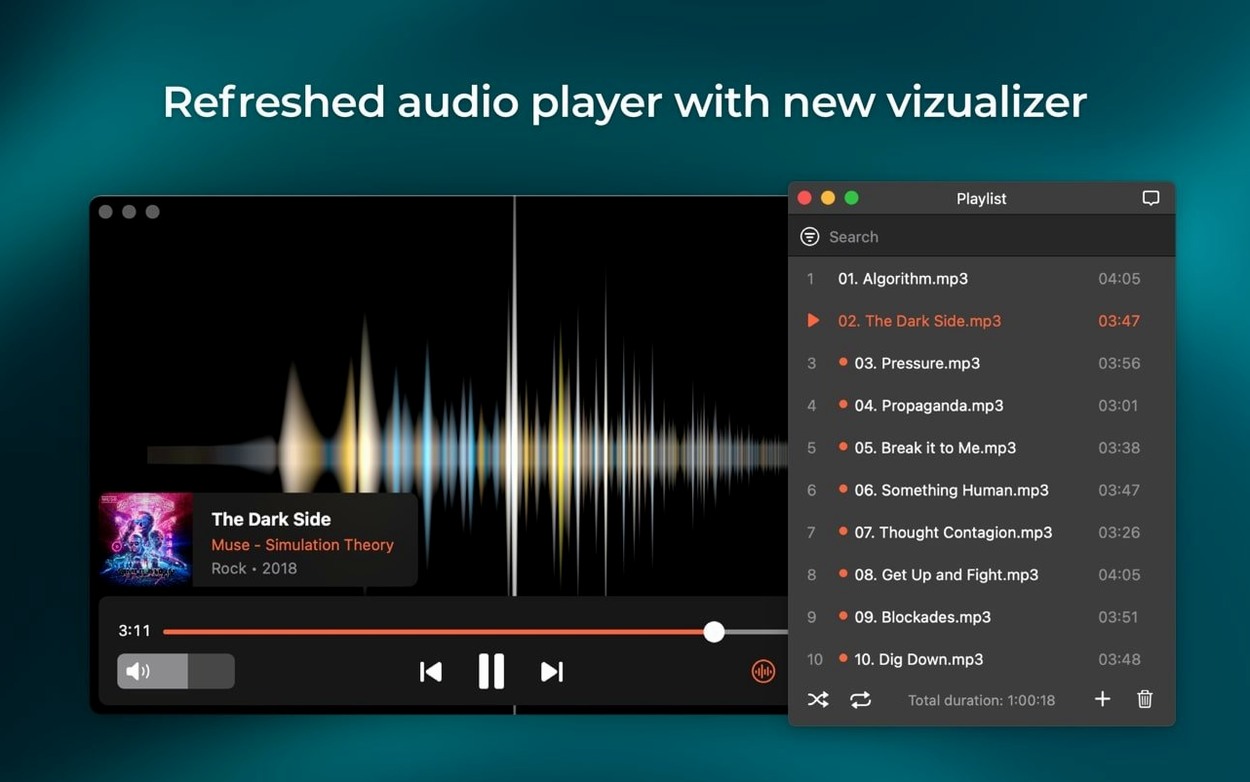
For anyone who works with audiobooks, the new M4B support is worth testing early. Drag an M4B file into the player and the chapter markers should appear in the playback timeline, letting you jump between sections without scrubbing blindly. This is not a dedicated audiobook app, but for quick listening sessions at your desk it works well, especially if you route the output to a pair of good headphones through the player’s audio device selector.
Those who came here after searching for an "elmedia player mac crack" will find that the download and streaming tools are fully functional once the app is running, and they integrate without needing extra plug-ins or browser extensions. The RTMP stream downloader, in particular, is a feature that has quietly survived for years while other players dropped support.
Extract an audio track from a lecture, then grab client stills
Imagine a Tuesday morning. You have three jobs on your list: pull a clean audio track from a video lecture, grab a few still frames from a client’s animation for feedback notes, and queue up an audiobook chapter for the afternoon. Elmedia Player Pro is already in your dock.
You open the lecture video — an FLV file from an old conference recording — by dragging it onto the player window. It opens instantly, and you scrub through to the section you need. From the file menu you choose the audio extraction option, point it at a folder on your desktop, and let it save the track as an MP3. No conversion software needed.
Next, you load the client’s animation, an MKV with several audio channels. You switch the audio output to your studio monitors through the player’s device menu, pause on a keyframe, and tap the screenshot shortcut. You save it as a PNG, then nudge forward a few frames and take another. The stills land on your desktop, named sequentially, ready to drop into an email.
Finally, you locate the M4B audiobook you have been meaning to start. You drag it into the player, see the chapter markers appear along the timeline, and skip to chapter three — right where you left off. You route the audio to your Bluetooth headphones via the output selector, set the volume with Option-drag for a comfortable level, and lock the Mac. The playback continues without interruption, the sleep fix from version 8.24 doing its quiet work.
The whole session runs inside one application. No browser tabs open for downloading, no separate converter app, no system preference trips for audio routing. That is the shape of a working day with Elmedia: a series of small, media-handling tasks that flow into each other without friction.
Version 8.24 delivers a handful of thoughtful fixes alongside one quiet format addition.
- Added playback support for M4B audiobook files, complete with chapter navigation.
- Improved general compatibility with macOS 26.
- Improved sleep prevention while streaming—your Mac now stays awake more reliably during long playback sessions.
- Fixed streaming to certain devices.
- Fixed an error that occurred when opening the device list for streaming.
- macOS 10.13 or later
- Works natively on both Intel and Apple Silicon Macs
Questions I keep hearing
Does Elmedia Player Pro convert old Flash projector files?
Yes, it includes a tool to convert Flash EXE files into SWF format, making legacy interactive content playable again on a Mac.
Will streaming video keep my Mac awake now?
Version 8.24 improved the sleep prevention behaviour while streaming, so your Mac should stay awake during playback more reliably than in previous builds.
Questions from the class 0
Sign in or join the class to ask a question.
Nobody has asked anything yet. If you have used it on a real job, say what the file did.
Also on the Mac Apps shelf
The whole Mac Apps shelf Element 3D
Imports true 3D models into After Effects so you can light and animate them on the timeline.
Element 3D
Imports true 3D models into After Effects so you can light and animate them on the timeline.
 DynamicLake Pro
Puts a slim pill-shaped panel near your Mac’s notch for music, calendar, and system toggles.
DynamicLake Pro
Puts a slim pill-shaped panel near your Mac’s notch for music, calendar, and system toggles.
 Exposure X7
Lets you brush photo adjustments onto selected areas without baking them in.
Exposure X7
Lets you brush photo adjustments onto selected areas without baking them in.
 DxO ViewPoint
Corrects distorted perspective and volume deformation in wide-angle architectural shots.
DxO ViewPoint
Corrects distorted perspective and volume deformation in wide-angle architectural shots.
 DxO PhotoLab
Processes raw photos with lens-specific corrections and local adjustment masks.
DxO PhotoLab
Processes raw photos with lens-specific corrections and local adjustment masks.
 DVDFab
Copies a DVD-9 film onto two standard DVD-5 discs while keeping the original menus.
DVDFab
Copies a DVD-9 film onto two standard DVD-5 discs while keeping the original menus.
 Duplicate File Finder Pro
Scans folders for duplicate files and helps you merge similar folders into one tidy library.
Duplicate File Finder Pro
Scans folders for duplicate files and helps you merge similar folders into one tidy library.
 Dropover
Holds dragged files on a floating shelf so you can gather items before dropping them elsewhere.
Dropover
Holds dragged files on a floating shelf so you can gather items before dropping them elsewhere.