 ASPNetWorld
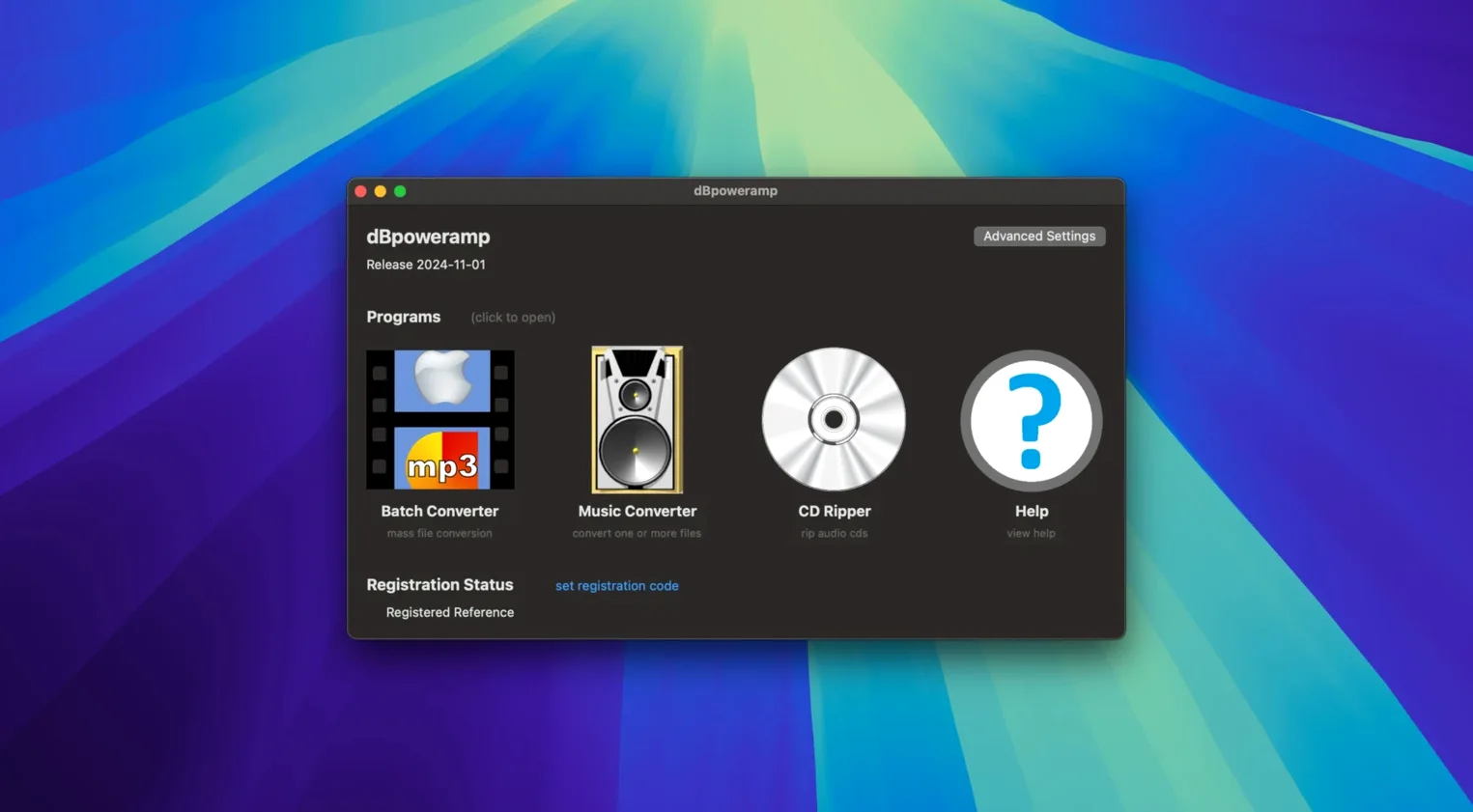
The September 2026 update for dBpoweramp Music Converter brings a handful of welcome refinements. Resampling has been tightened up, a glitch with the Enter key closing the tag editor while autocomplete was visible has been squashed, and an incorrect warning about an Intel-only component on the latest macOS is now gone. It is a maintenance release that keeps the tool feeling solid on modern Apple hardware.
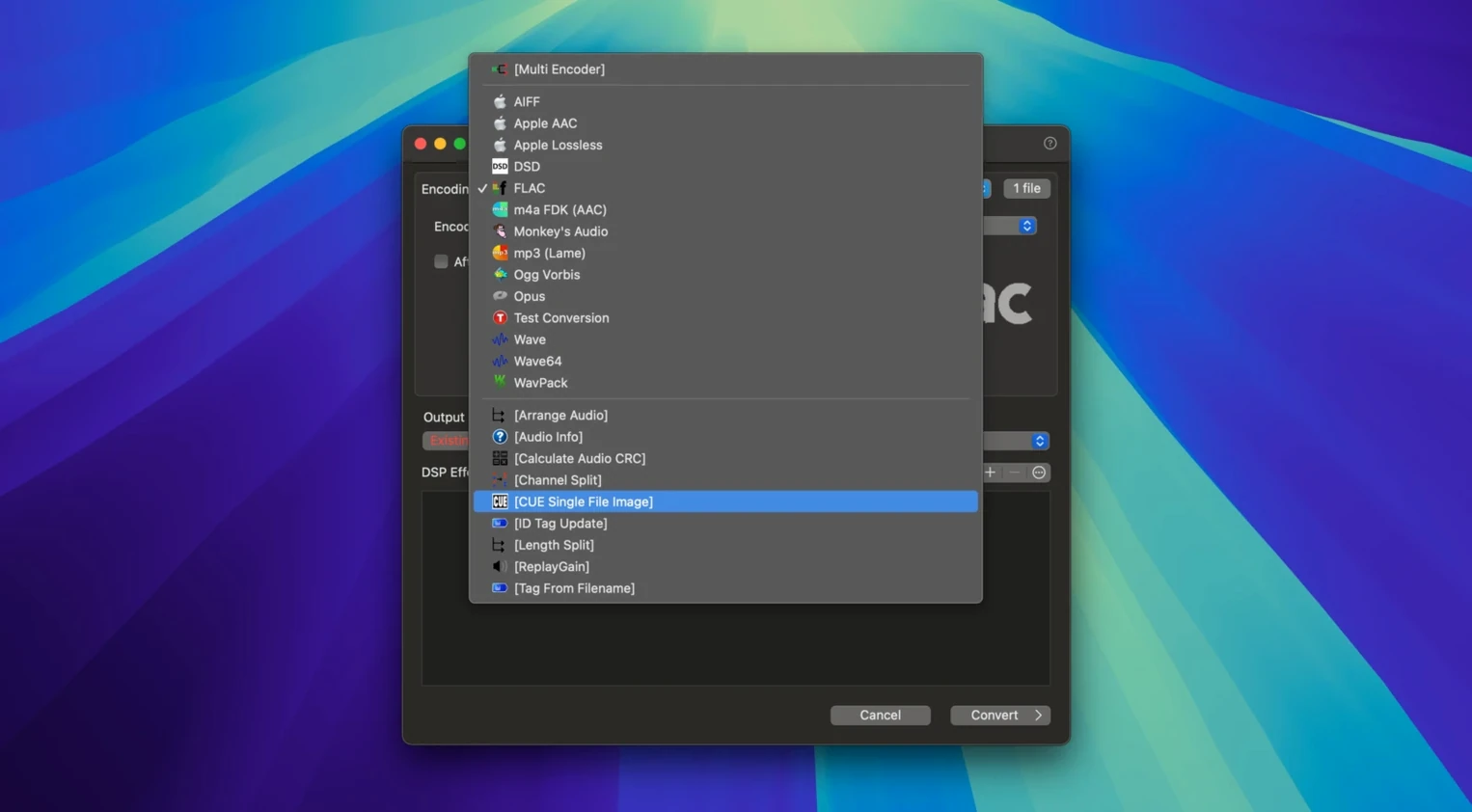
At heart, this is a utility for people who need to move audio between formats without drama. Feed it a folder of WAV files and it will hand you back M4A, MP3, FLAC or Apple Lossless, preserving the folder structure and metadata as it goes. Batch conversion is where it earns its keep — drag in an entire library and let it churn through while you get on with something else. The built-in CD Ripper pulls disc tracks straight into your chosen format, which is handy if you still have a USB optical drive plugged in.
Under the bonnet there is a DSP engine that handles volume normalization, sample-rate conversion and bit-depth changes. This matters when you are preparing files for different playback chains — normalizing a playlist for a car stereo, say, or dithering a high-resolution master down to 16-bit for a portable player. It all runs natively on both Apple Silicon and Intel 64-bit Macs, so there is no Rosetta translation layer to slow things down.
If you have ever inherited a messy music folder full of mixed formats, or you rip CDs for a living-room media server, this is the kind of tool you install once and reach for repeatedly. It does not try to be a media player, a library manager or a streaming client. It converts audio, and it does it with a quiet single-mindedness that is surprisingly rare.
First days with dBpoweramp on a Mac
After you drag the app into Applications and launch it, spend ten minutes setting up your default output format. Open the converter, pick a source file you know well — something with embedded artwork and multi-line tags — and run a short test conversion to FLAC or AAC. Check that the artwork travelled across and that the ID tags read correctly in your usual player. It almost always does, but confirming it early saves head-scratching later when you are halfway through a batch of three hundred files.
Right-click a folder of audio in Finder and you will see the Convert with dBpoweramp option sitting in the contextual menu. That single shortcut becomes the fastest way into the tool once you trust the default settings. I tend to leave the output path set to “same folder as source” for quick one-off jobs, but for bulk work I point it at a dedicated holding directory so I can check a handful of files before deleting the originals. The Batch Converter window gives you the same control with a more visual layout, showing every file in a queue that you can reorder or filter by type before committing.
Forty WAV tracks become AAC in under a minute with the fans staying quiet
On an Apple Silicon Mac the multi-core encoder spreads work across available cores without any drama. A folder of forty WAV tracks transcoded to AAC takes under a minute on a modern machine, and the CPU fans rarely bother spinning up. Memory use stays modest — it is not the sort of app that balloons to several gigabytes during a long session. I have left it chewing through an overnight FLAC-to-MP3 job on an Intel iMac and found it finished quietly, the machine cool and responsive the next morning.
Stability has been solid through the R2026-09-13 release. The resampling improvements mean sample-rate conversions between, say, 96 kHz and 44.1 kHz sound cleaner, and the fixed Intel-component warning removes a nag that was purely cosmetic but annoyed people on the latest macOS builds. When you search for dbpoweramp mac or dbpoweramp music converter mac you will find plenty of long-time users confirming the same thing: this is not an app you need to babysit. It integrates with Finder without hogging system resources, and it has not crashed on me once across several versions.
Rescuing a forgotten drive of scruffy WAV rips on a Sunday afternoon
Imagine it is Sunday afternoon and you have just dug an old USB hard drive out of a drawer. It holds a few hundred CD rips in WAV format, all tagged inconsistently, some with album art missing. You want them as FLAC on your main Mac’s internal drive, metadata cleaned up, volume roughly even across albums.
You plug the drive in and open the Batch Converter. You drag the top-level music folder into the window; dBpoweramp scans it and lists every WAV it finds, keeping the folder tree intact. Before you hit Convert, you open the DSP tab and add Volume Normalize — EBU R128 is your preferred flavour — and tick the option to preserve source bit-depth and sample rate. You also set the encoder to FLAC level 5, a reasonable balance of size and encoding time.
You click Convert and walk away to make coffee. When you return, the queue is done. You open the ID Tag Editor on a few albums and spot that some artist names are in all caps. The editor’s search-and-replace across selected files fixes that in seconds. You drag in missing artwork from a scanned folder, and the editor writes it straight into the FLAC files. By the time the kettle boils again, the library is tidy and ready for your media server. It is a quiet, satisfying workflow that feels like tidying a workshop — everything ends up where it should be, in the right shape.
If you came across dBpoweramp Music Converter torrent or dBpoweramp torrent while searching, you already know the tool has a long reputation. What the R2026-09-13 build proves is that it still gets meaningful maintenance, the kind that keeps a converter feeling native and reliable on the latest macOS without adding bloat.
The R2026-09-13 release focuses on stability and polish. Resampling gets a quality bump, the Edit Tags dialog no longer closes prematurely when autocomplete suggestions are visible, and a spurious Intel-component warning on the latest macOS has been fixed.
- macOS 11 or later
- Apple Silicon or Intel 64-bit Mac
- Interface language: English
Questions from the class 0
Sign in or join the class to ask a question.
Nobody has asked anything yet. If you have used it on a real job, say what the file did.
Also on the Mac Apps shelf
The whole Mac Apps shelf DaVinci Resolve Studio
Combines editing, colour grading, visual effects and audio post-production in one application.
DaVinci Resolve Studio
Combines editing, colour grading, visual effects and audio post-production in one application.
 DaisyDisk
Scans your drive and draws an interactive map so you can spot the files eating your space.
DaisyDisk
Scans your drive and draws an interactive map so you can spot the files eating your space.
 Deep Glow
Generates a physically plausible, spill-friendly glow right on your timeline.
Deep Glow
Generates a physically plausible, spill-friendly glow right on your timeline.
 Default Folder
Adds a toolbar of favourite folders to every Open and Save dialog.
Default Folder
Adds a toolbar of favourite folders to every Open and Save dialog.
 Cursor Pro
Highlights your Mac pointer with a configurable glow so an audience never loses it on screen.
Cursor Pro
Highlights your Mac pointer with a configurable glow so an audience never loses it on screen.
 Dehancer Pro
Rebuilds the colour and grain of sixty-two real film stocks on your digital images.
Dehancer Pro
Rebuilds the colour and grain of sixty-two real film stocks on your digital images.
 Depth Scanner
Generates a true depth map from a single photo so you can refocus after the shot.
Depth Scanner
Generates a true depth map from a single photo so you can refocus after the shot.
 Disk Drill
Recovers deleted files and lost data from any drive you connect to your Mac.
Disk Drill
Recovers deleted files and lost data from any drive you connect to your Mac.