 ASPNetWorld

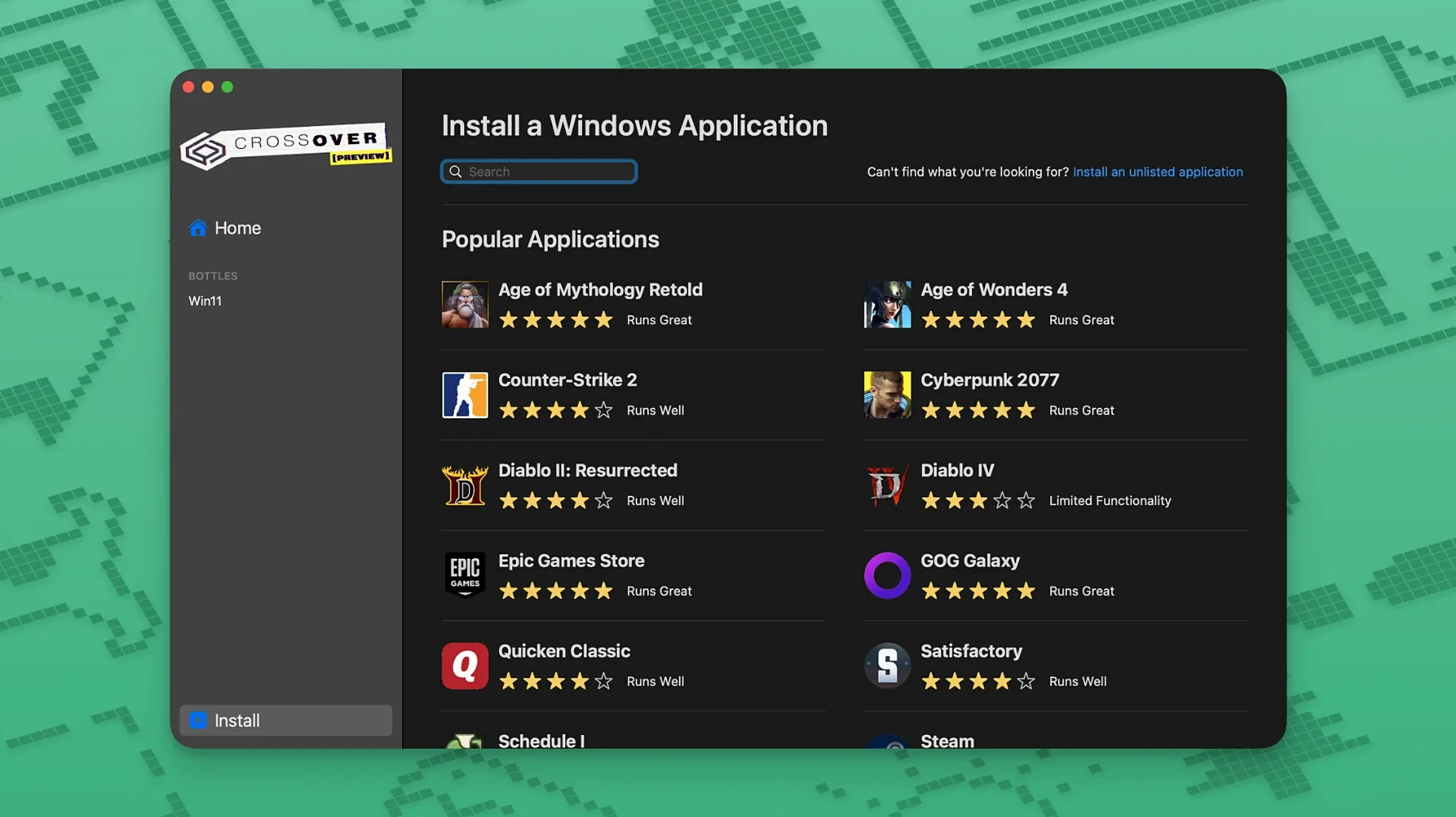
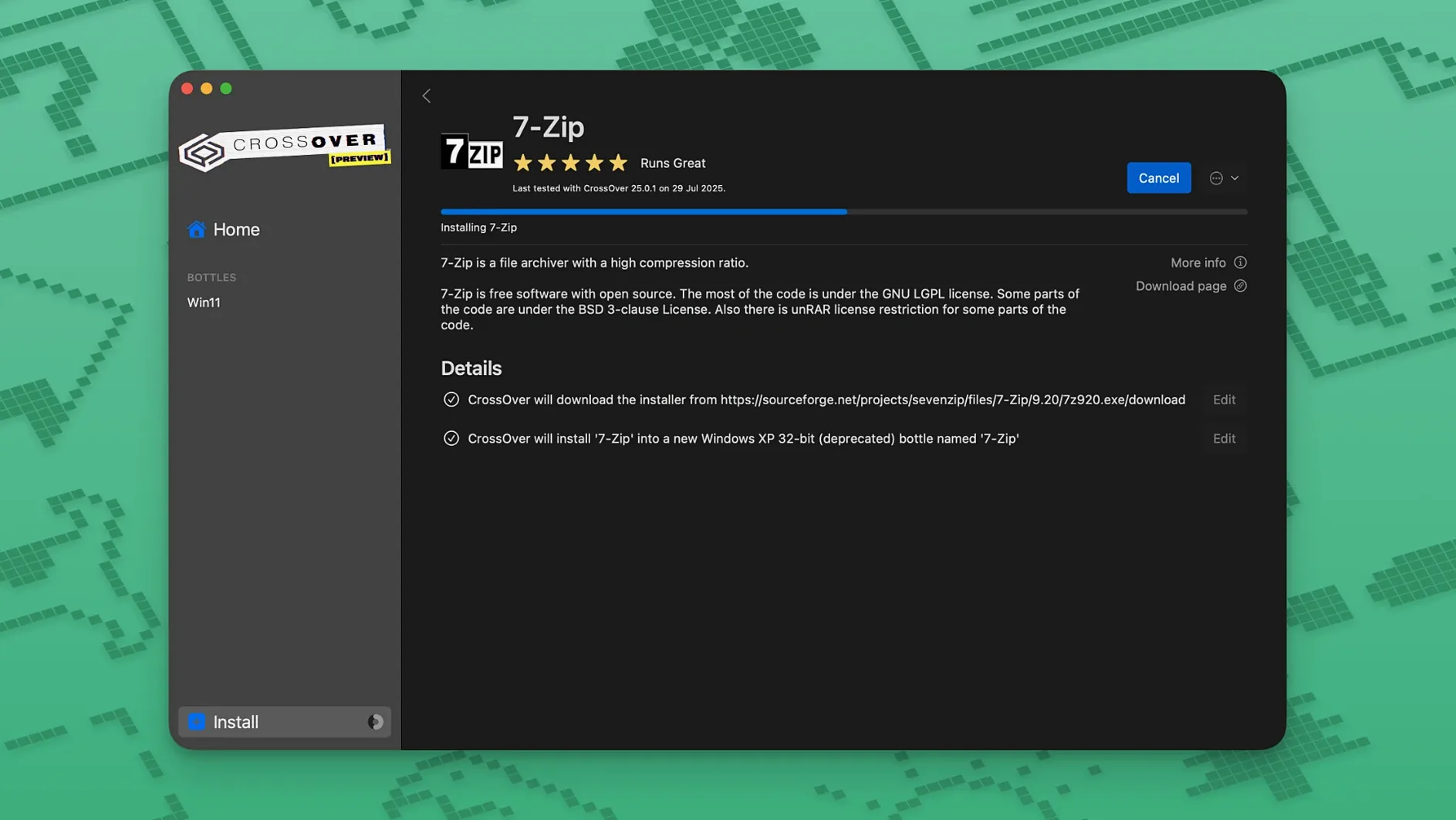
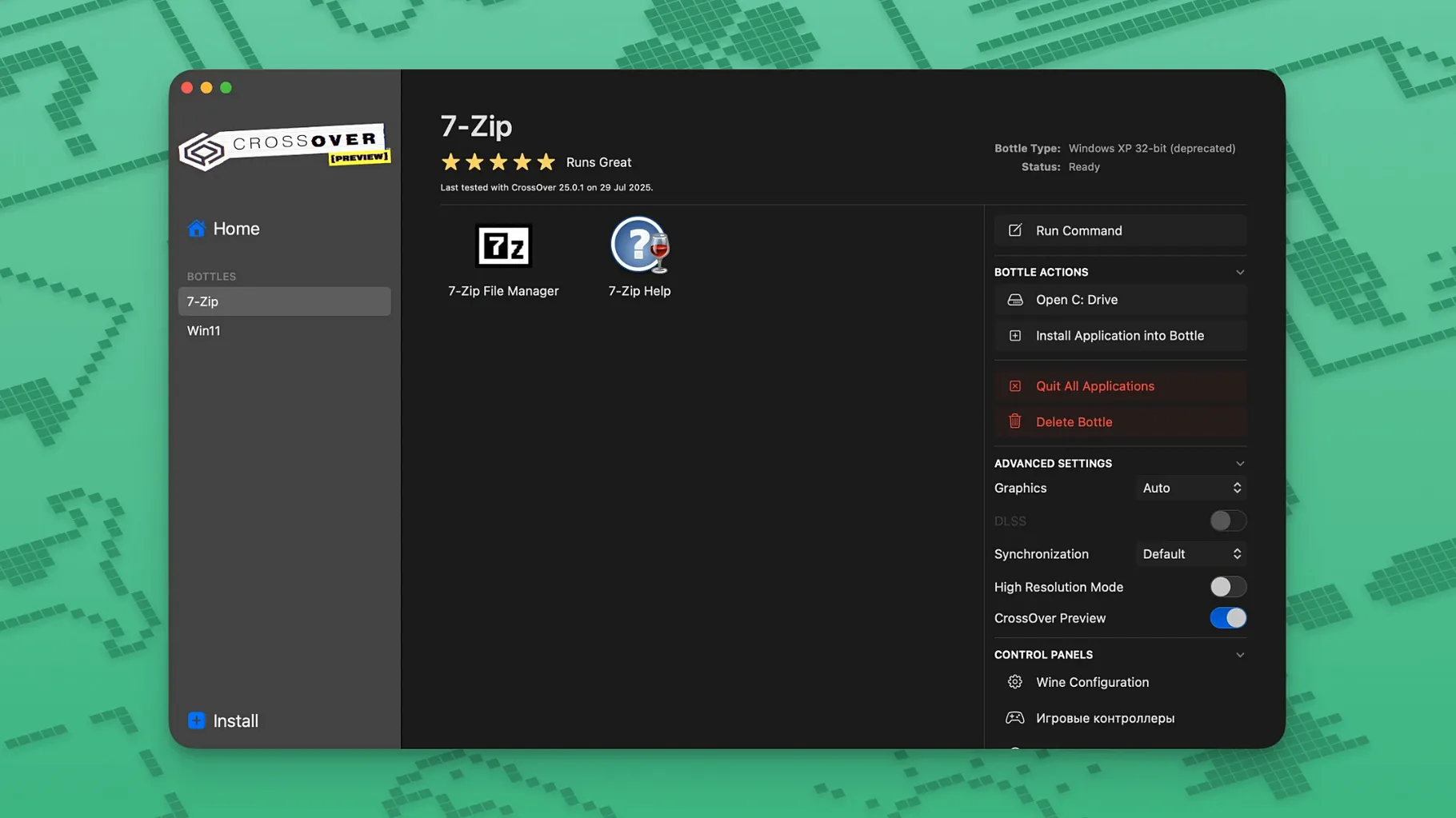
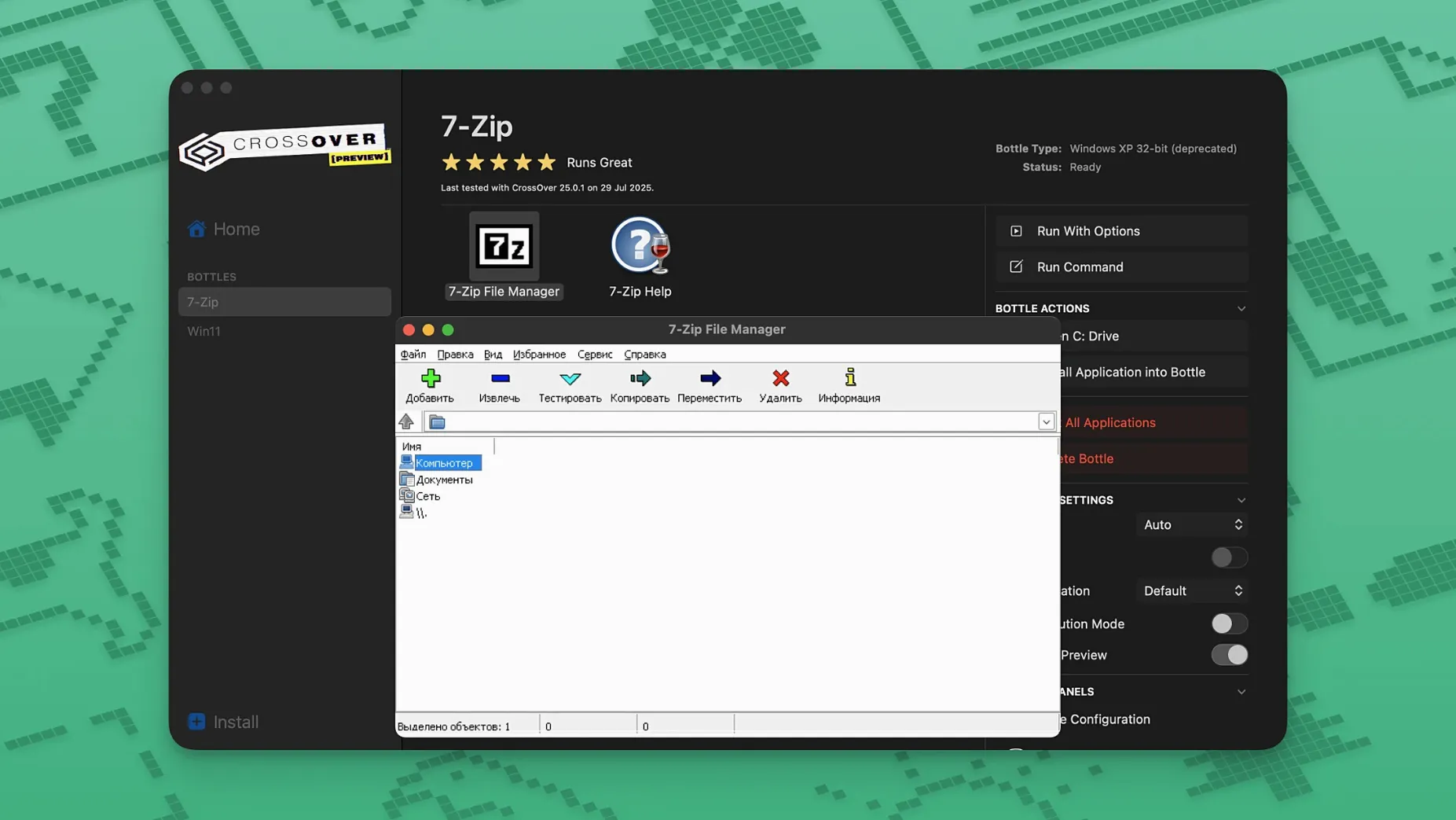
CrossOver is a compatibility layer that lets you run a curated set of Windows applications on a Mac without installing Windows itself.
Wine — the open-source translation engine under the bonnet that turns Windows API calls into something macOS can understand.
Bottle — a self-contained folder pretending to be a miniature Windows drive, where each program lives with its own settings and dependencies.
Because CrossOver works by translation rather than emulation, it never runs a full copy of Windows. That keeps it light, though it also means the list of well-behaved applications is hand-picked. Some titles need their own installer run inside a bottle, and pushing unsupported software into the mix tends to produce wobbly results or outright silence. For the programs on the official compatibility list, however, the experience is remarkably close to clicking a normal Mac app.
How CrossOver Sits Alongside Your Other Tools
CrossOver doesn’t demand that you reshuffle how you work. It slots in as a Mac app that launches other apps, much like a virtual machine manager would, but without the overhead of a full operating system. When you install a Windows program through CrossOver, it registers that program as a regular application bundle your Mac can see. You can drag it to the Dock, summon it with Spotlight, or group it in a folder alongside your native Mac utilities. The Windows executable stays hidden inside its bottle, and macOS treats the wrapper like any other .app.
This quiet integration extends to the Finder. Bottles live in ~/Library/Application Support/CrossOver/Bottles, each one a tidy folder tree with its own drive_c, Program Files hierarchy, and a .reg file holding the registry. If you need to copy a saved game or fish out a config file, you can walk right in with Finder. There is no proprietary disk image to mount. Some users lean on this to pipe files between a Windows app and a Mac-native editor — open a document in the Windows app, save it into a shared folder mapped inside the bottle, then pick it up on the Mac side. It is not quite drag-and-drop between worlds, but it is close enough once you set up a folder that both sides can see.
CrossOver also plays nicely with macOS’s accessibility and keyboard features. The standard Mac shortcuts for switching spaces, summoning Mission Control, and using text replacements work over the top of Windows applications. If you have invested time in customising Keyboard Shortcuts in System Settings, those overrides will fire before the Windows app ever sees the keystroke. That means you can remap awkward Windows key combinations to something your fingers already know, without touching the application’s own preferences.
Running a Windows-only spreadsheet inside a native Mac CAD workflow
Imagine a late afternoon in a small architecture practice. You have been sketching in a native Mac CAD tool all day, but the structural spreadsheet your engineer sent over lives inside an old Windows-only application — one that has never been rewritten for anything else. You have already set up a bottle called “Engineering” a week ago, so today’s session starts with a click on the CrossOver-made alias sitting in your Dock.
The bottle wakes in a couple of seconds. There is no Windows desktop, no Start menu animation, just the application window appearing on your Mac desktop as if it belonged there. CrossOver translates the application’s GDI drawing calls into Quartz, so the spreadsheet’s slightly dated-looking toolbar renders with sharp text on a Retina display. You open the file the engineer sent, which you dropped into the bottle’s drive_c/users/crossover/My Documents earlier that morning via Finder. The file opens without complaint.
You spend twenty minutes adjusting load values. The scroll performance is a fraction less fluid than a native Mac spreadsheet — there is a faint stutter when you wheel through a hundred rows quickly — but it is perfectly usable. When you hit File > Print, CrossOver routes the print job through the standard macOS print dialogue. Your office’s network printer appears in the list automatically, because CrossOver borrows CUPS from the host. The printed sheet looks identical to what a Windows machine would produce.
Halfway through, you remember you need a figure from a Windows-only structural library. You launch the library browser from the same bottle. CrossOver manages inter-process communication between the two Windows apps inside the shared bottle, so the library can push a data snippet directly into the spreadsheet. The two apps talk to each other as if they were running on a Windows machine, while Activity Monitor on your Mac shows two Wine processes ticking along under the CrossOver parent.
When the calculations are done, you save the spreadsheet, quit both applications, and the bottle goes quiet. The Mac never felt warm, the fans stayed off, and you did not once see a Windows desktop or a licence agreement. That is the rhythm CrossOver aims for: brief, focused sessions inside a Windows context, then back to the Mac.
Graphics and disk access patterns that reveal the translation layer
Because CrossOver translates API calls on the fly rather than emulating an x86 processor, the performance penalty for most productivity software is modest. You might notice it in two places: graphics-heavy operations and disk access patterns that Windows handles differently from macOS. A CAD application that relies on DirectX 9 might render a frame 15–20% slower than it would on equivalent bare-metal Windows hardware. For office tools, databases, and utilities, the gap is frequently undetectable.
Memory usage depends almost entirely on the application inside the bottle. CrossOver itself idles at around 120 MB of RAM with no bottles open. Launch a medium-weight Windows program and the combined Wine processes might sit between 300 and 600 MB — comparable to running a modern web browser with a handful of tabs. The system’s memory pressure stays green on any Mac with 8 GB or more, provided you are not trying to run several bottles simultaneously alongside a dozen other heavy apps.
Stability is a mixed picture, as the developers are candid about. Applications on the official compatibility list — the ones CodeWeavers actively tests and patches for — run with a reliability that feels close to native. The fixes in version 26.3.0 for Diablo IV, the Epic Games Launcher, and GOG Galaxy are a good example: a game update on the Windows side broke something, and CrossOver shipped a targeted correction. If you stick to the supported catalogue, crashes are rare and usually traceable to a known quirk documented in the community forums.
Push unsupported software into a bottle, and you become the tester. Some programs install cleanly but fail on a specific dialogue box that relies on an unimplemented Windows component. Others run for hours and then freeze when they try to write to a registry key the translation layer handles imperfectly. The community around CrossOver is active, and for many titles you will find a forum post detailing which Wine library override makes things cooperate, but it is worth treating those experiments as tinkering rather than dependable work.
Launching a .exe without creating a permanent launcher first
CrossOver hides a handful of thoughtful touches that are easy to miss during the first few days. One is the Run Command dialogue, tucked under the Bottle menu. It lets you launch a specific .exe inside a bottle without creating a permanent launcher — useful for one-off utilities or testing whether an installer’s bundled helper tool actually works before you commit to a full installation.
Another is the ability to assign different Wine configurations to different bottles. You might have one bottle running the stable Wine build for a line-of-business application that must not break, and another bottle on the experimental branch for a game that benefits from the latest DirectX translation improvements. Right-click a bottle, choose Settings, and you can toggle the Wine version independently. The same panel lets you turn on DXVK (DirectX over Vulkan) for bottles that need better 3D performance, though it requires a Metal-capable Mac and a bit of trial and error with specific game settings.
There are keyboard shortcuts worth memorising. Command-T inside the CrossOver main window opens the bottle’s drive_c in Finder, bypassing the need to dig through Library folders. Control-Command-F toggles full-screen mode for the Windows application, and unlike some virtual machine tools, CrossOver hands the full-screen transition over to macOS’s native space management, so swiping between desktops stays smooth.
If you find yourself reaching for the same Windows app repeatedly, you can create a dedicated launcher that skips the CrossOver main window entirely. Select the installed program in CrossOver, choose Create Launcher, and drop the resulting .app wherever you like. That launcher wakes the bottle silently and goes straight to the application, reducing the whole affair to a single click.
Using a taxonomic database on a MacBook Air in remote locations
Consider a field biologist who spends summers collecting data in remote locations with intermittent internet. She runs a lightweight MacBook Air and needs to access a Windows-only taxonomic database — a specialised piece of software maintained by a small research institute that has never produced a Mac version. The database is not graphically demanding, but it relies on a handful of Windows forms controls and an old Microsoft Access runtime.
She installs CrossOver and creates a bottle called “Taxonomy.” The database installer runs without a hitch, and within ten minutes she has the application open and her reference dataset loaded. Because the bottle is self-contained, she copies the entire bottle folder onto an external SSD as a backup. If her MacBook needs a wipe before the next field season, she can drop the bottle back into place and carry on — no Windows licence key to reactivate, no installer to hunt down.
In the field, the database app uses the Mac’s system clock and language settings correctly, because CrossOver maps locale information from macOS into the Windows environment. The biologist enters specimens, runs queries, and exports CSV files to a folder that syncs with her Mac-native GIS software. The whole setup draws less battery than she expected; running the database through CrossOver consumes roughly as much power as Safari with a dozen tabs open, giving her a full day of work on a single charge.
Back at base, she needs to share data with a colleague who uses the same Windows database on a PC. She copies the bottle’s database file — just a standard .mdb sitting inside drive_c/Program Files/Taxonomy/data — onto a USB stick, and the colleague opens it natively on Windows. No export step, no format conversion. The bottle is just a folder, and the files inside are standard Windows files.
It is not a flashy use case. There are no high frame rates to benchmark, no complex graphics settings to tweak. But for a researcher who needs one stubborn Windows application to behave like a good Mac citizen, CrossOver removes a logistical headache that would otherwise mean carrying a second laptop or wrestling with a full virtual machine in places where electricity is precious. That quiet, practical fit is where the software earns its keep.
Version 26.3.0 is a maintenance release that patches three recent breakages caused by upstream game-launcher updates.
- Diablo IV starts again after the latest game patch.
- Epic Games Launcher downloads now complete on Mac instead of stalling.
- The GOG Galaxy client loads properly after its own update.
- macOS 10.15 Catalina or later
- Intel processor (Apple Silicon not officially supported in this release)
Questions I keep hearing
Can I run any Windows program with CrossOver?
No — only supported applications are tested for stability, and forcing unsupported ones may lead to crashes or features that simply never load.
Do I need a Windows licence to use CrossOver?
You do not install Windows at all. CrossOver translates commands directly, so a Windows licence is not required.
Questions from the class 0
Sign in or join the class to ask a question.
Nobody has asked anything yet. If you have used it on a real job, say what the file did.
Also on the Mac Apps shelf
The whole Mac Apps shelf CorelDRAW
Handles complex vector illustrations and multi-page layouts for professional print and screen work.
CorelDRAW
Handles complex vector illustrations and multi-page layouts for professional print and screen work.
 Cursor Pro
Highlights your Mac pointer with a configurable glow so an audience never loses it on screen.
Cursor Pro
Highlights your Mac pointer with a configurable glow so an audience never loses it on screen.
 CorelCAD
Produces detailed 2D technical drawings and 3D solid models on a Mac.
CorelCAD
Produces detailed 2D technical drawings and 3D solid models on a Mac.
 Compressor
Acts as a background rendering engine that other Apple pro apps hand off their export jobs to.
Compressor
Acts as a background rendering engine that other Apple pro apps hand off their export jobs to.
 Commander One PRO
Puts two folder views side by side for dragging, copying and comparing files without flipping windows.
Commander One PRO
Puts two folder views side by side for dragging, copying and comparing files without flipping windows.
 DaisyDisk
Scans your drive and draws an interactive map so you can spot the files eating your space.
DaisyDisk
Scans your drive and draws an interactive map so you can spot the files eating your space.
 DaVinci Resolve Studio
Combines editing, colour grading, visual effects and audio post-production in one application.
DaVinci Resolve Studio
Combines editing, colour grading, visual effects and audio post-production in one application.
 Color Finale
Lets you colour-grade video directly inside Final Cut Pro without leaving the timeline.
Color Finale
Lets you colour-grade video directly inside Final Cut Pro without leaving the timeline.