 ASPNetWorld

Commander One PRO runs on any Mac from macOS 10.13 High Sierra upwards, on both Intel and Apple Silicon machines, and takes up a modest 52.82 MB of space.
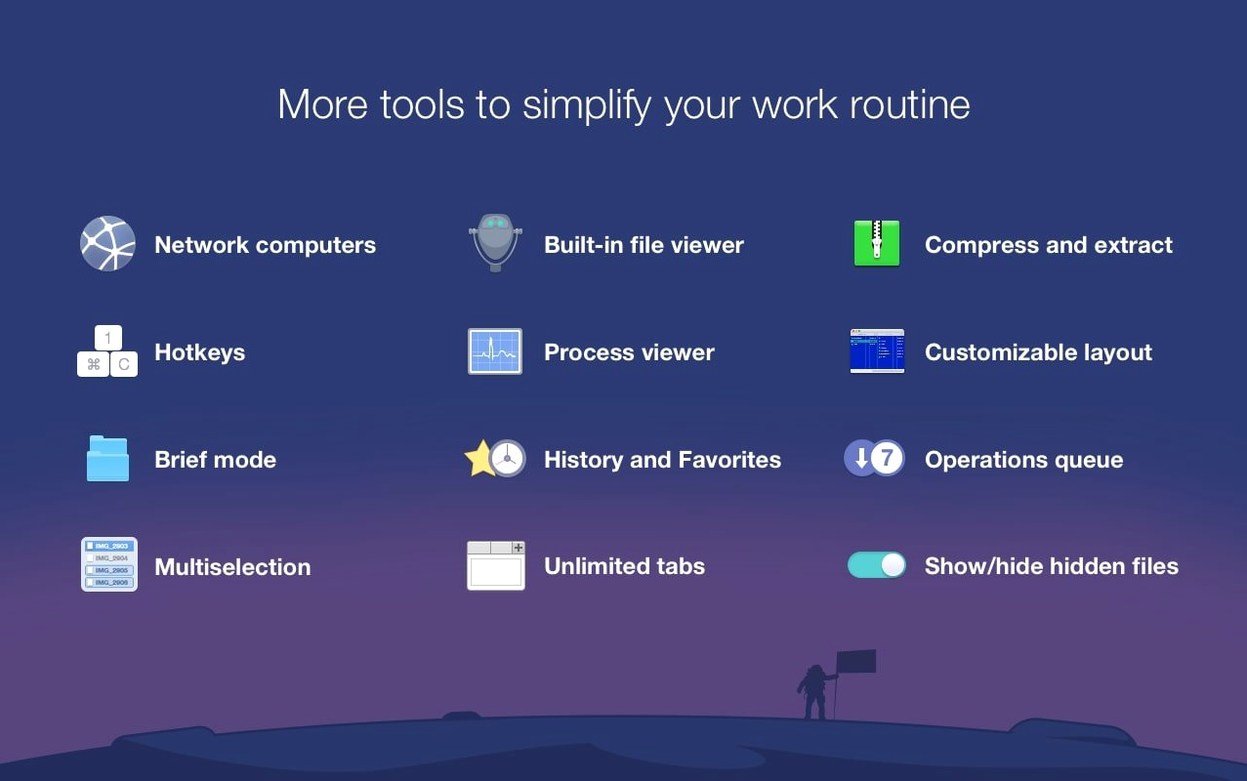
Dual-pane interface — two folder views side by side, so you can drag, copy, and compare without flipping between Finder windows.
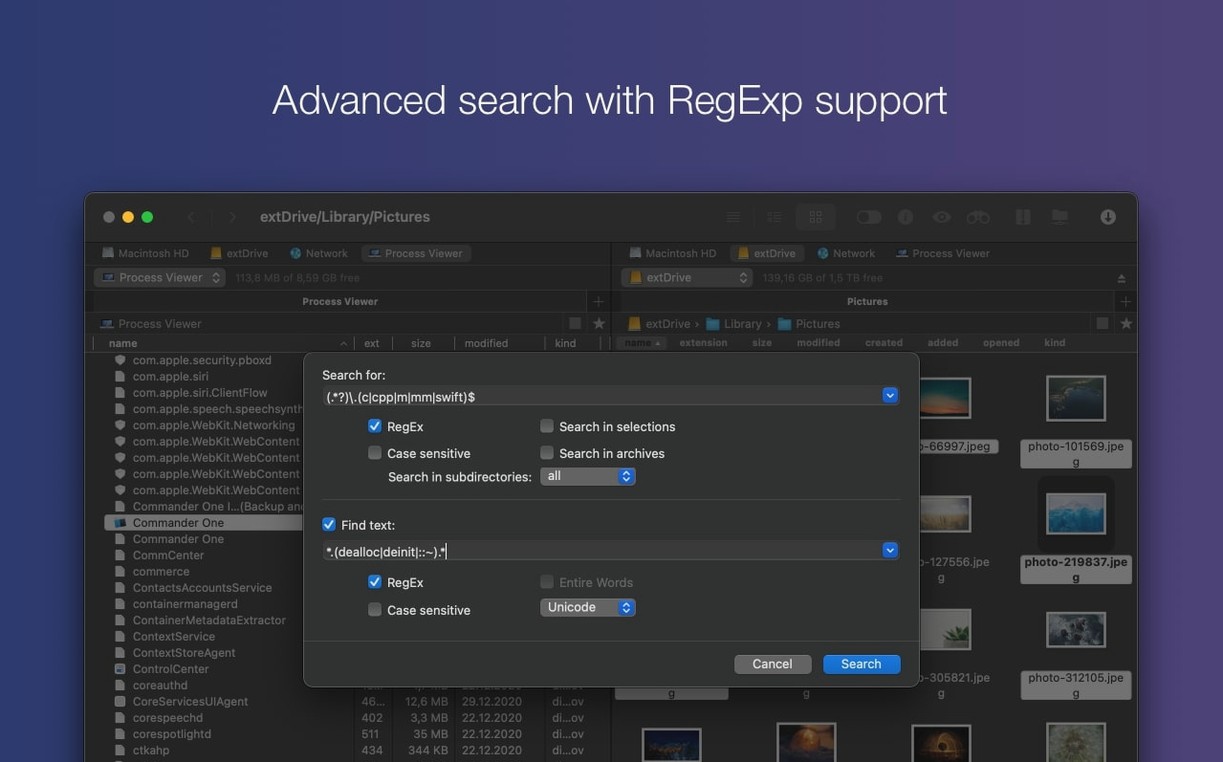
Regular expression search — pattern-based file hunting that goes far beyond a simple name match. Find every PDF modified last Tuesday, or all files containing a specific string structure.
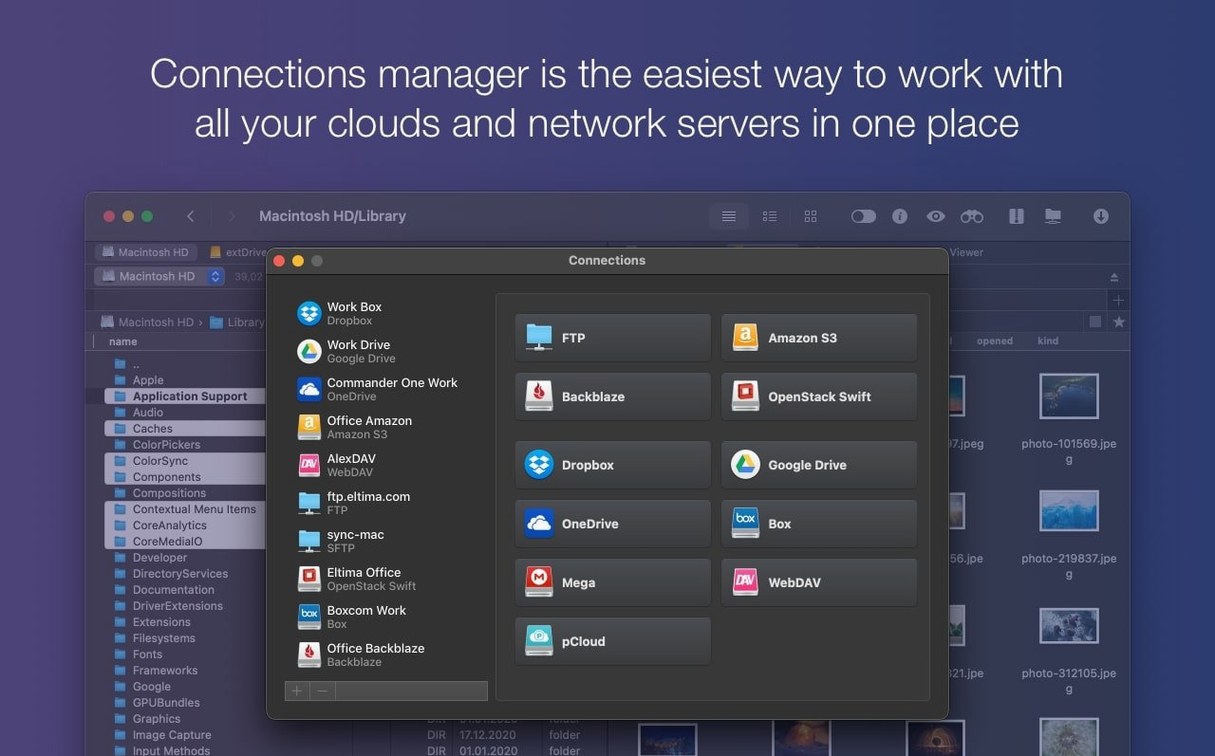
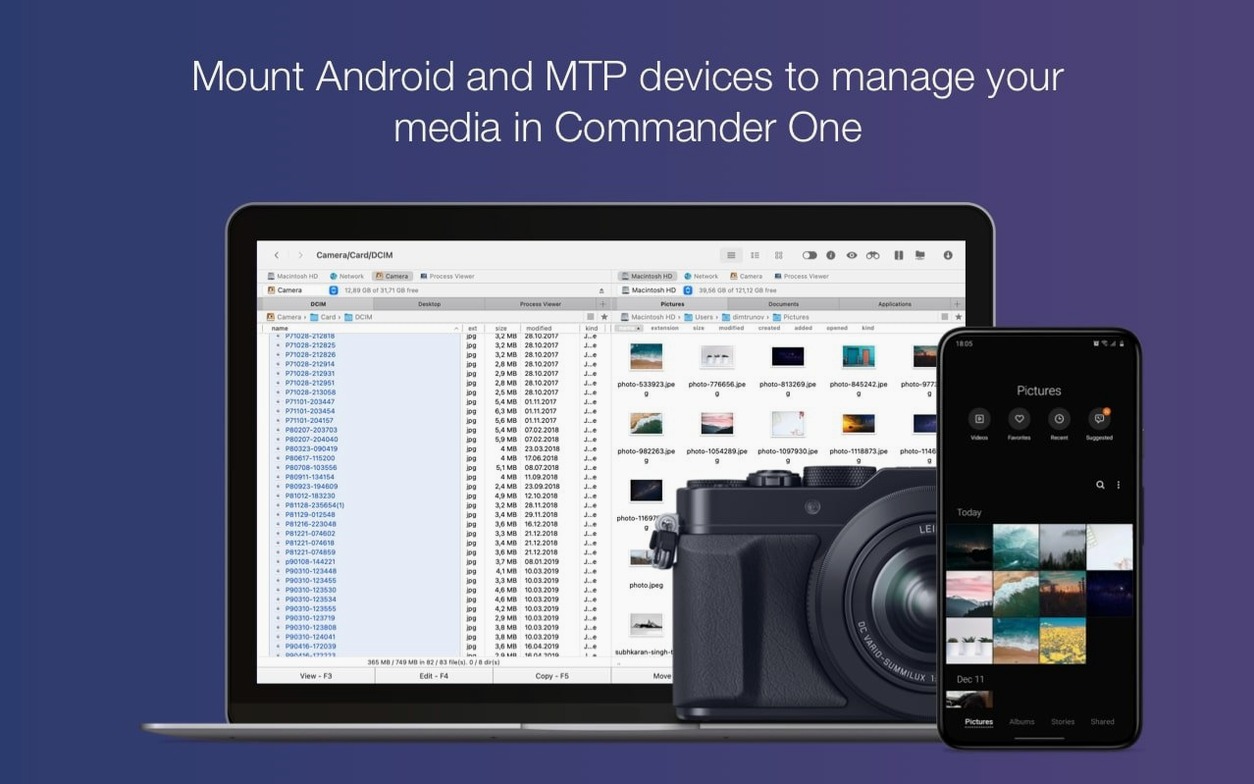
Cloud and remote connections — Dropbox and Google Drive accounts appear as local folders. The built-in FTP client lets you connect to network servers directly, and you can mount iOS, Android, and MTP devices to browse their file systems.
Archive handling — ZIP, RAR, TBZ, TGZ, and 7z files are treated like ordinary folders. You can unpack or browse inside them without a separate utility.
Process Viewer — a running list of active processes on your Mac, giving you a quick look at what's consuming resources without opening Activity Monitor.
Hidden files toggle — a one-click switch to reveal dotfiles and system folders, then hide them again when you're done.
Culling three SD cards and a cloud folder in one dual‑pane view
Imagine a photographer back from a shoot with three SD cards, each holding around two thousand RAW files, plus a Google Drive folder the client has been topping up with location stills from a phone. The Finder alone would make this a slow afternoon of repeated window juggling. With Commander One PRO, the left pane shows Card A, the right pane shows Card B, and a quick Cmd-T opens Card C in a new tab. Hidden files stay hidden — no stray .DS_Store clutter — and the photographer can set a regex filter like IMG_7[2-5].*\.CR3$ to pull out the burst sequences that actually matter. A few keystrokes drag the keepers into a dated folder on the working SSD, while the cloud pane shows the client’s uploads already unpacked from a 7z archive, because Commander One PRO reads 7z natively. Twenty minutes, three sources, one app.
Switch to vertical split so the layout feels like yours, not borrowed
Out of the box, the app is already more capable than Finder, but a few tweaks make it feel personal rather than borrowed.
Switch the default pane layout to vertical split. The horizontal split is fine on a 27-inch display, but on a MacBook screen a side-by-side view uses the available width far better. You’ll find the toggle under View → Dual Panel Position.
Turn on “Show system files” only when you need it. The hidden-files toggle is a switch, not a permanent state. Map it to a hotkey you won’t hit by accident — Cmd-Shift-. is the Finder convention, and Commander One PRO can mirror it so muscle memory transfers straight across.
Set the archive behaviour to “Browse inside.” By default, double-clicking a ZIP or RAR opens it in a temporary tab. It is much quicker than extracting a whole folder just to check one readme. You can change this in Preferences → Archiver so archives behave like ordinary folders every time.
Colour-tag cloud accounts. If you connect Dropbox and Google Drive, assign each a distinct label colour in the Connections list. It sounds trivial until you have three remote folders open and need to spot the live client folder at a glance. The colour strip beside the pane heading is surprisingly hard to miss.
Brief Mode as the default view. For anyone who manages large file sets, the compact list rows of Brief Mode surface far more items per screen than the icon view. It feels like the list view in a classic file manager, and clicking a column header sorts instantly — something Finder can do but hides behind multiple steps.
How Commander One PRO fits with other apps and macOS features
The app does not try to replace every tool on the Mac; it slots into a workflow alongside them. The Process Viewer, for instance, is not a full Activity Monitor replacement, but it’s a lightweight sidekick. If a file copy hangs, you can pop open the Process Viewer inside Commander One PRO, spot the stalled cp or cloud sync daemon, and kill it without leaving the file manager. That is a small but meaningful bridge between file operations and system awareness.
Archive integration plays nicely with Quick Look. Highlight a photo inside a ZIP or 7z archive and tap the spacebar — the preview pops up as if the file were sitting on your desktop. The same applies to files inside connected iOS and Android devices, which means you can browse a phone’s DCIM folder and preview images full-size before deciding what to pull across.
For people who live in Terminal, the regex search is a natural partner to command-line tools. You can build a pattern in Commander One PRO’s search field to visually confirm which files match, then drop into find or grep with the same expression. The app gives you a graphical safety net so you do not accidentally run a destructive command against the wrong file set.
Cloud folders behave like first-class citizens in macOS’s Open and Save dialogs once Commander One PRO has mounted them. A Google Drive folder that appears in the file manager is also available to any app that uses the standard file picker, so Logic Pro can bounce a mix straight to a shared folder without an extra drag-and-drop step. The FTP client extends the same idea: when you connect to a remote server, that connection appears as a local volume, and other apps can read from or write to it as if it were a plugged-in drive.
For those looking at a commander one pro full mac setup, the breadth of connections matters. The app pulls together local drives, network servers, cloud storage, and mobile devices under one twin-pane roof, so you spend less time switching contexts between Finder, a separate FTP client, and a cloud-sync utility. That consolidation is where the time saving quietly accumulates.
Fix a cloud login failure by clearing one stray keychain entry
Cloud accounts won’t authenticate after a macOS update. This is almost always a keychain permissions hiccup. Open Keychain Access, search for the cloud service name, delete the stored entry, and re-add the connection inside Commander One PRO. The fresh OAuth token usually sorts it. If you’re using a commander one pro mac build from outside the App Store, also check that System Settings → Privacy & Security → Full Disk Access includes the app — without it, the keychain bridge sometimes stalls silently.
FTP connections time out on large transfers. The default timeout is conservative. In the connection settings, bump the keep-alive interval to 30 seconds and disable passive mode only if your server explicitly requires it. For especially flaky Wi-Fi, queue the transfer rather than dragging a folder all at once; Commander One PRO can queue operations and retry individual files without restarting the whole batch.
Android devices show as “Connected” but no files appear. This usually means the phone is in charge-only mode. Unlock the screen, swipe down the USB notification, and switch to File Transfer (MTP). If the device still appears empty, try a different USB port — some hubs and dongles do not pass MTP negotiation cleanly, especially on Apple Silicon Macs.
Regex search returns zero results when you know the file exists. Escape characters trip people up more than the pattern itself. On macOS, file names can contain characters that are special in regex, like parentheses from a camera’s naming scheme. Wrap literal strings in \Q…\E to treat them as plain text, or enable the “Case sensitive” checkbox only when you genuinely need it — leaving it off by default avoids half the false negatives.
The Process Viewer shows high CPU for the app itself during cloud syncs. This is normal when Commander One PRO is indexing a large remote folder for the first time. Let the initial scan complete; subsequent access is cached and the CPU load drops to near idle. If it persists, limit the number of simultaneous connections in the cloud account settings — dropping from four to two usually flattens the spike without a noticeable speed penalty.
People occasionally search for a commander one pro crack to skip the licence step, and that route often ships an older build where bugs like the macOS 27 drag-and-drop fix do not exist. The current 3.18.0 version resolves several edge-case issues that earlier releases handled poorly, particularly around non-English keyboard hotkeys and the Gatekeeper dance on newer versions of macOS—so do check which patch level you're getting.
Version 3.18.0 tidies up the experience on the latest macOS. Compatibility with macOS 27 has been improved, a drag-and-drop bug on that same system is now fixed, and several hotkey problems on non-English keyboard layouts have been ironed out.
- macOS 10.13 (High Sierra) or later
- Runs natively on both Apple Silicon and Intel 64-bit Macs
Questions I keep hearing
Can Commander One PRO access my Android phone files?
Yes, it supports MTP and Android-connected devices, so you can browse and transfer files directly from the dual-pane interface.
Does the file search support regular expressions?
Absolutely — the built-in search accepts regex patterns, letting you construct precise queries for complex file-finding tasks.
What cloud services does it work with?
Dropbox and Google Drive are both supported, appearing as standard folders you can manage alongside your local files.
Questions from the class 0
Sign in or join the class to ask a question.
Nobody has asked anything yet. If you have used it on a real job, say what the file did.
Also on the Mac Apps shelf
The whole Mac Apps shelf Color Finale
Lets you colour-grade video directly inside Final Cut Pro without leaving the timeline.
Color Finale
Lets you colour-grade video directly inside Final Cut Pro without leaving the timeline.
 Compressor
Acts as a background rendering engine that other Apple pro apps hand off their export jobs to.
Compressor
Acts as a background rendering engine that other Apple pro apps hand off their export jobs to.
 Coherence X
Creates isolated, standalone desktop apps for each of your web accounts and services.
Coherence X
Creates isolated, standalone desktop apps for each of your web accounts and services.
 CorelCAD
Produces detailed 2D technical drawings and 3D solid models on a Mac.
CorelCAD
Produces detailed 2D technical drawings and 3D solid models on a Mac.
 coconutBattery Plus
Charts the invisible decline of your MacBook battery so you can replace it before it fails.
coconutBattery Plus
Charts the invisible decline of your MacBook battery so you can replace it before it fails.
 CorelDRAW
Handles complex vector illustrations and multi-page layouts for professional print and screen work.
CorelDRAW
Handles complex vector illustrations and multi-page layouts for professional print and screen work.
 Cocktail Sequoia Edition
Clears cached files, repairs permissions and sweeps away the digital clutter that slows a Mac.
Cocktail Sequoia Edition
Clears cached files, repairs permissions and sweeps away the digital clutter that slows a Mac.
 CloudMounter
Mounts cloud storage and remote servers as local drives in your Finder sidebar.
CloudMounter
Mounts cloud storage and remote servers as local drives in your Finder sidebar.