 ASPNetWorld

CorelCAD is a native Mac application for producing detailed 2D technical drawings and 3D solid models, sitting comfortably alongside its Windows counterpart. If you have just installed it, the sheer number of tool palettes can feel a little like walking into an organised workshop where you do not yet know which drawer holds the chisels. A gentle way in is to focus on two things: understanding the coordinate readout and making your first simple 3D extrusion.
Watch the property bar like a hawk
Most drawing tools place geometry using coordinates you type or click, and the property bar at the top of the window is your honest companion here. It shows the current cursor position, length, and angle in real time. Before you draw anything ambitious, select the Line tool and click a start point. Now move the mouse slowly and watch the distance and angle fields update. Tap the Tab key to jump between these fields and type a precise value—say, 100 mm for length. The line snaps to that exact dimension. This direct keyboard entry is the secret to accuracy from day one, and it works the same way for circles, rectangles, and polygons.
Extrude a sketch into a solid
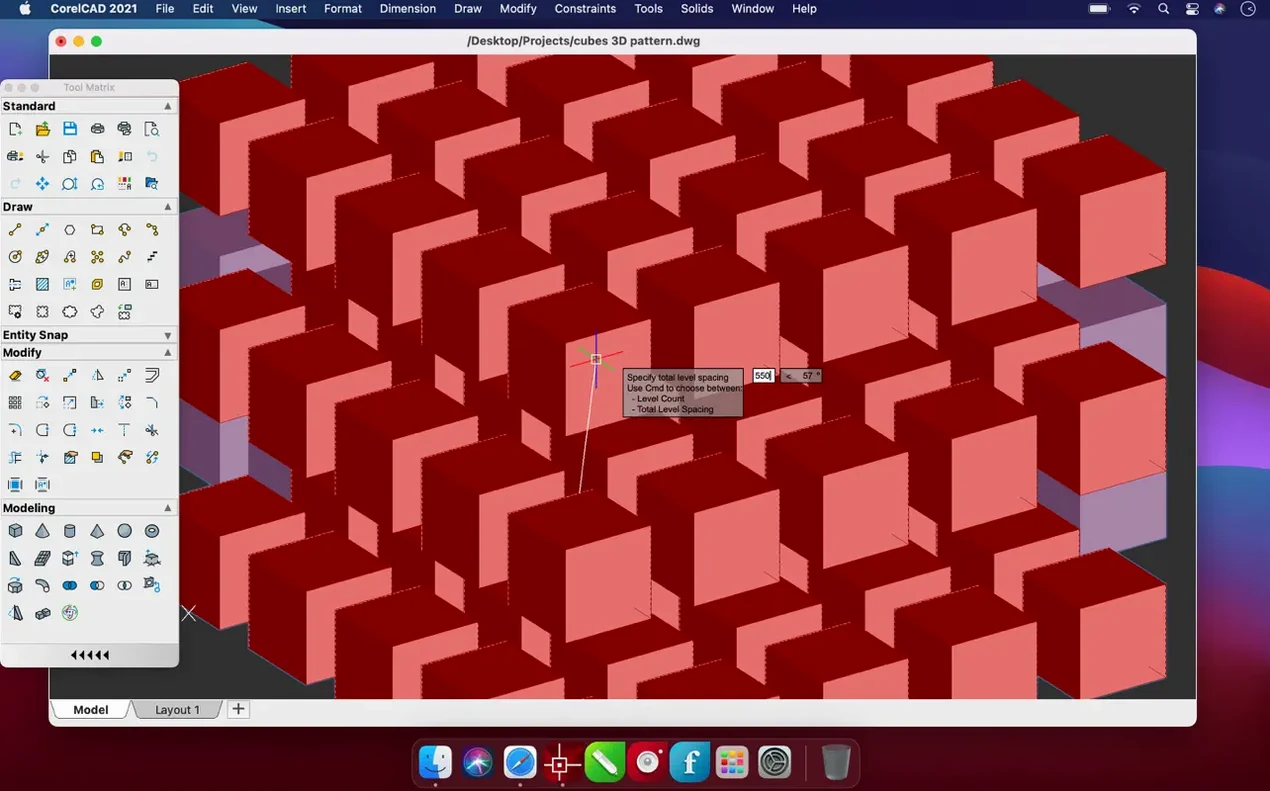
Once you have a closed shape—a rectangle you drew with precision is perfect—switch to the 3D modeling workspace. Select your shape, find the Extrude tool, and drag upward. CorelCAD pushes that flat profile into a solid block before your eyes. While the extrusion is still active, the property bar lets you type a specific height. Accept it, and you are looking at your first parametric 3D object. Orbit around it with a two-finger drag on the trackpad to check the solid from different angles. That small loop—draw accurately, extrude, orbit—is the foundation of most projects you will build later.
How CorelCAD sits among Mac CAD rivals
People hunting for corelcad mac are often weighing it against two other names that dominate CAD conversations on the Apple platform: AutoCAD for Mac and BricsCAD. They share the same native DWG format, yet the everyday experience differs in ways that matter once the trial period ends and real deadlines appear.
AutoCAD for Mac feels like the polished establishment choice, and it brings a deep ecosystem of vertical toolsets—electrical, mechanical, architectural—that CorelCAD does not attempt to match. The trade-off is weight. AutoCAD demands more from your Mac and launches with a noticeably longer splash-screen pause. CorelCAD starts briskly, and the interface stays closer to the classic Windows-style CAD layout some drafters actually prefer. If your work revolves around clean 2D documentation and occasional 3D parts rather than enormous building-information models, CorelCAD shoulders the job without the heft.
BricsCAD comes closer in spirit. It also runs natively on Apple Silicon, also speaks DWG as its mother tongue, and also bundles sheet-metal and 3D direct-modeling tools in higher tiers. Where CorelCAD pulls ahead is in the sheer tidiness of its Mac adaptation. The palettes snap to screen edges without ghosting, the font scaling on Retina displays looks crisp out of the box, and the optional dark interface theme does not leave unreadable grey text lurking in obscure dialogue corners—a small thing that becomes large after eight hours of drafting.
A 15 MB drawing pans and zooms without hesitation
On an Apple Silicon Mac, launching CorelCAD takes roughly four seconds from a cold start—about half what a comparable DWG editor typically needs. Once open, a 15-megabyte drawing with fifty layers and a handful of 3D solids pans and zooms smoothly at 60 frames per second, even with the shaded visual style turned on. Memory use sits modestly around 400 to 600 MB for moderate projects, creeping toward 1.2 GB only when you open multiple viewports with rendered materials. The application rarely touches the swap file during ordinary drafting sessions.
Stability has been a quiet strength across recent builds. Crashes are uncommon, and when they do occur—typically after an over-ambitious Boolean operation on badly coplanar faces—the automatic recovery file appears within seconds of relaunching. The autosave interval defaults to ten minutes, which is sensible, though I suggest tightening it to five in the preferences if you tend to model fast and undo often.
The one area worth monitoring is the hatch preview. On older Intel machines, dragging a complex associative hatch across a large boundary can stutter while the engine recalculates. A practical workaround is to turn off the live preview in the Hatch dialogue and rely on the property bar instead, which keeps the fans quiet on machines nearing retirement age.
Click and drag gets you an empty selection box
The first instinct of anyone migrating from illustration software is to click and drag immediately. CorelCAD wants a start point, not a click-drag gesture, and nothing appears until you click a second time or release after the drag completes. Early frustration often lives in that half-second pause before the muscle memory adjusts.
A deeper trap is ignoring the Entity Snap settings. Out of the box, CorelCAD enables only a few snaps—endpoint, center, and intersection are usually active, but midpoint and perpendicular sit dormant. A beginner draws what looks like a connected polyline, then discovers gaps of 0.02 mm when filleting later. The fix is a one-time visit to the Snap toolbar: right-click it, choose Settings, and tick the snaps you actually need. The extra half-dozen ticks save hours of zooming in to fix invisible breaks.
The third classic mistake concerns layers and the active layer. New geometry lands on whichever layer is highlighted, and CorelCAD does not flash a warning when that layer is frozen or locked in another viewport. You draw half a dozen lines, see nothing appear, and assume the tool is broken. The layers palette sits innocently at the left; keeping one eye on its highlighted row while you draw prevents that particular cold sweat.
The rendering pipeline got faster in 2023
The corelcad torrent crowd may not read update notes, but the changes since the 2022 builds are worth knowing for anyone who uses the software daily. The 2023.5 update brought performance and stability improvements that touched the rendering pipeline directly. In practice, that means the viewport no longer flickers when switching between wireframe and shaded views on a multi-monitor setup—a long-standing annoyance that had users toggling the graphics acceleration checkbox back and forth.
Behind the scenes, DWG compatibility kept pace with AutoCAD's newer object types. Files that arrived with annotative scaling intact came through without the warning dialogues that earlier versions sometimes threw up. The PDF underlay snapping also tightened: points that previously required a squint and a zoom-extents dance now snap cleanly on the first click.
Another subtle shift arrived in the trim and extend tools. The selection behaviour now respects the current selection set more predictably, meaning you can pick multiple cutting edges, hit Enter, and trim away without the tool resetting halfway through. It is a workflow detail that removes a small, cumulative friction from an editing session. None of these changes rewrote CorelCAD into something unrecognisable—the toolbar arrangement and keyboard shortcuts remain stubbornly familiar—but they shaved off the rough edges that used to make a long drafting day feel longer than it needed to be.
Version 2022.5, build 22.3.1.4090, brings a collection of under-the-hood improvements. Expect smoother navigation in complex drawings and greater stability during longer sessions.
- General performance and stability enhancements throughout the application.
- macOS 10.14 or later
- Apple Silicon or 64-bit Intel processor
Questions I keep hearing
Does CorelCAD work natively on Apple Silicon Macs?
Yes, CorelCAD provides native support for ARM architecture alongside 64-bit Intel processors, so it runs efficiently on both M-series and older Intel-based Macs running macOS 10.14 or later.
Questions from the class 0
Sign in or join the class to ask a question.
Nobody has asked anything yet. If you have used it on a real job, say what the file did.
Also on the Mac Apps shelf
The whole Mac Apps shelf Compressor
Acts as a background rendering engine that other Apple pro apps hand off their export jobs to.
Compressor
Acts as a background rendering engine that other Apple pro apps hand off their export jobs to.
 CorelDRAW
Handles complex vector illustrations and multi-page layouts for professional print and screen work.
CorelDRAW
Handles complex vector illustrations and multi-page layouts for professional print and screen work.
 Commander One PRO
Puts two folder views side by side for dragging, copying and comparing files without flipping windows.
Commander One PRO
Puts two folder views side by side for dragging, copying and comparing files without flipping windows.
 CrossOver
Translates Windows software commands so a curated set of apps can run on a Mac.
CrossOver
Translates Windows software commands so a curated set of apps can run on a Mac.
 Color Finale
Lets you colour-grade video directly inside Final Cut Pro without leaving the timeline.
Color Finale
Lets you colour-grade video directly inside Final Cut Pro without leaving the timeline.
 Coherence X
Creates isolated, standalone desktop apps for each of your web accounts and services.
Coherence X
Creates isolated, standalone desktop apps for each of your web accounts and services.
 coconutBattery Plus
Charts the invisible decline of your MacBook battery so you can replace it before it fails.
coconutBattery Plus
Charts the invisible decline of your MacBook battery so you can replace it before it fails.
 Cocktail Sequoia Edition
Clears cached files, repairs permissions and sweeps away the digital clutter that slows a Mac.
Cocktail Sequoia Edition
Clears cached files, repairs permissions and sweeps away the digital clutter that slows a Mac.