 ASPNetWorld

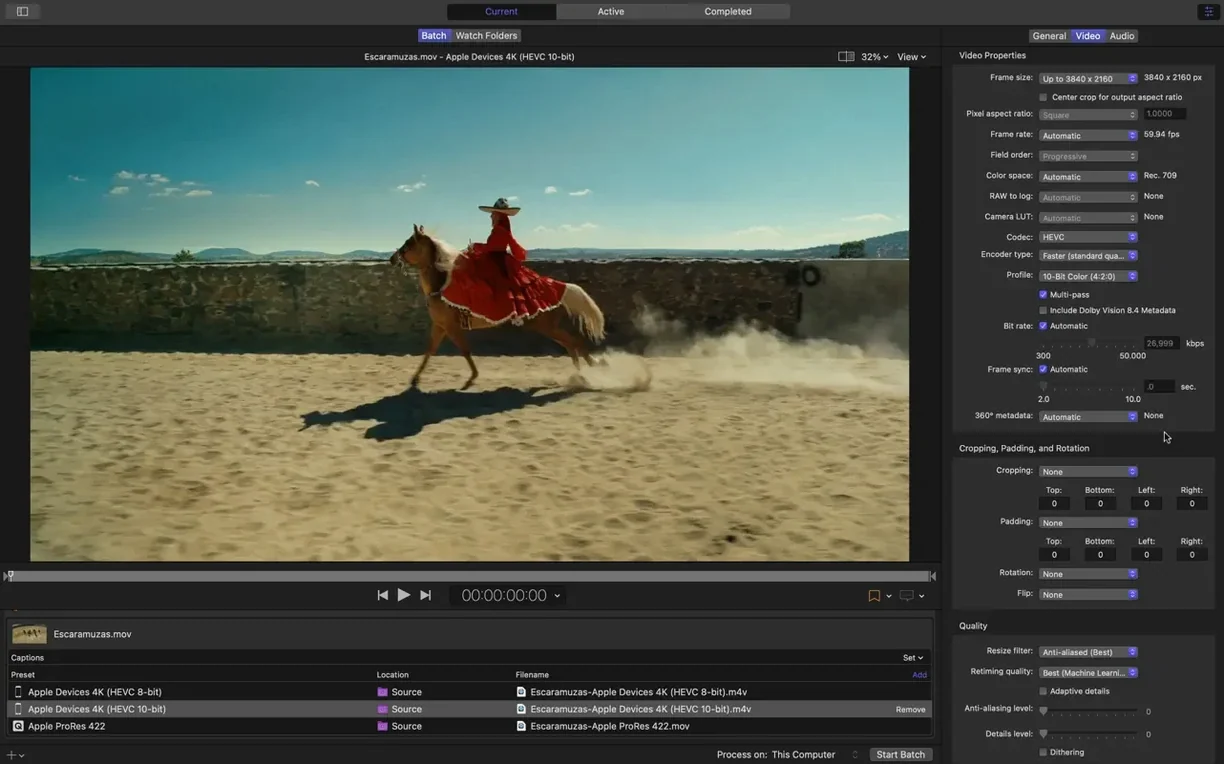
The distributed encoding setup, tucked away in the sharing preferences, is the feature that reveals where Compressor really sits in a Mac workflow. It isn't just a standalone converter you reach for when a file won't play — it's a background rendering engine that your other Apple pro apps can tap into. When you send a project from Final Cut Pro, Compressor inherits the same rendering pipeline, so the pixels and colour transforms stay consistent, but it can spread the crunch across multiple cores or even multiple machines on the network while you carry on editing.
Alongside the editing suite
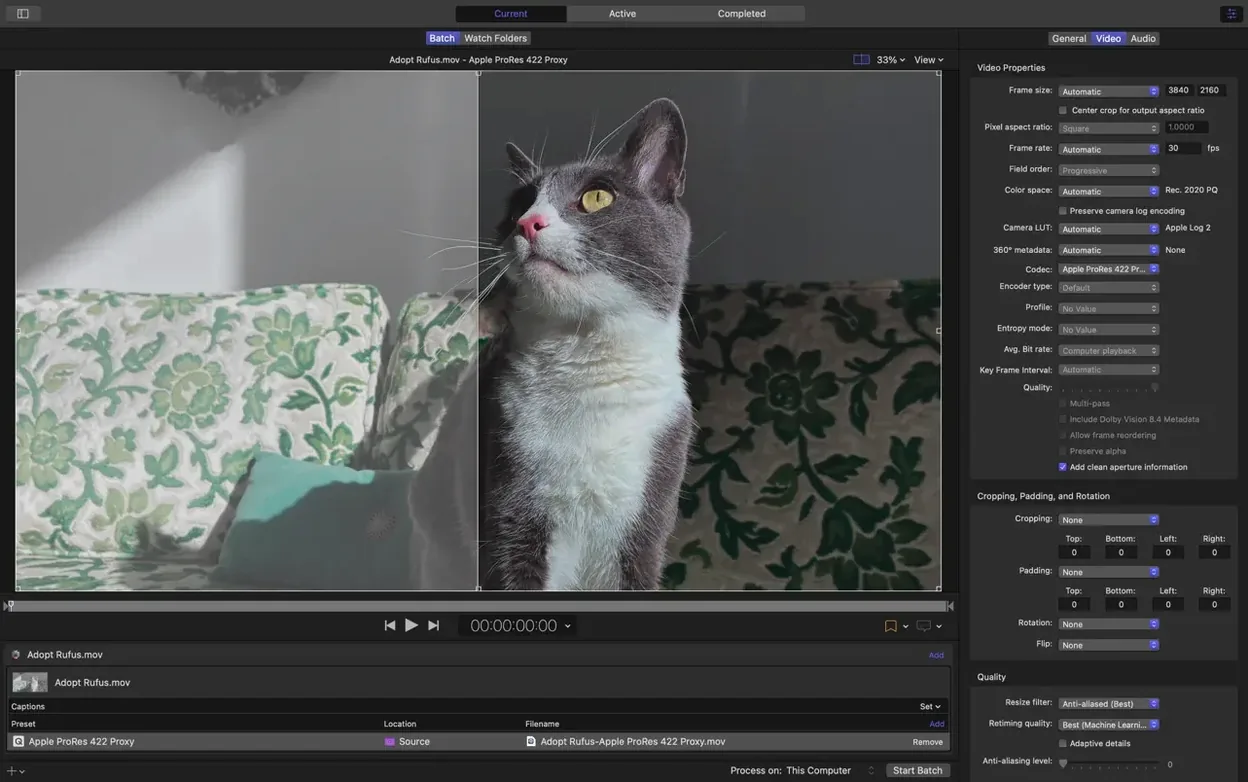
Think of it as the export wing of your video toolkit. Inside Final Cut Pro, you set up a job and hand it off; from that moment, the batch list in Compressor takes over. The side panel holds encoding settings — everything from Apple Devices with the new 5.1 AAC option to professional broadcast formats — while the inspector lets you dial in specific audio and video properties per clip. Because the app uses the dedicated hardware encoders for H.264 and HEVC on Apple silicon, a full timeline gets turned around noticeably faster than exporting directly from the timeline, and you can queue up several versions at once without the interface slowing down.
When a file needs a different life
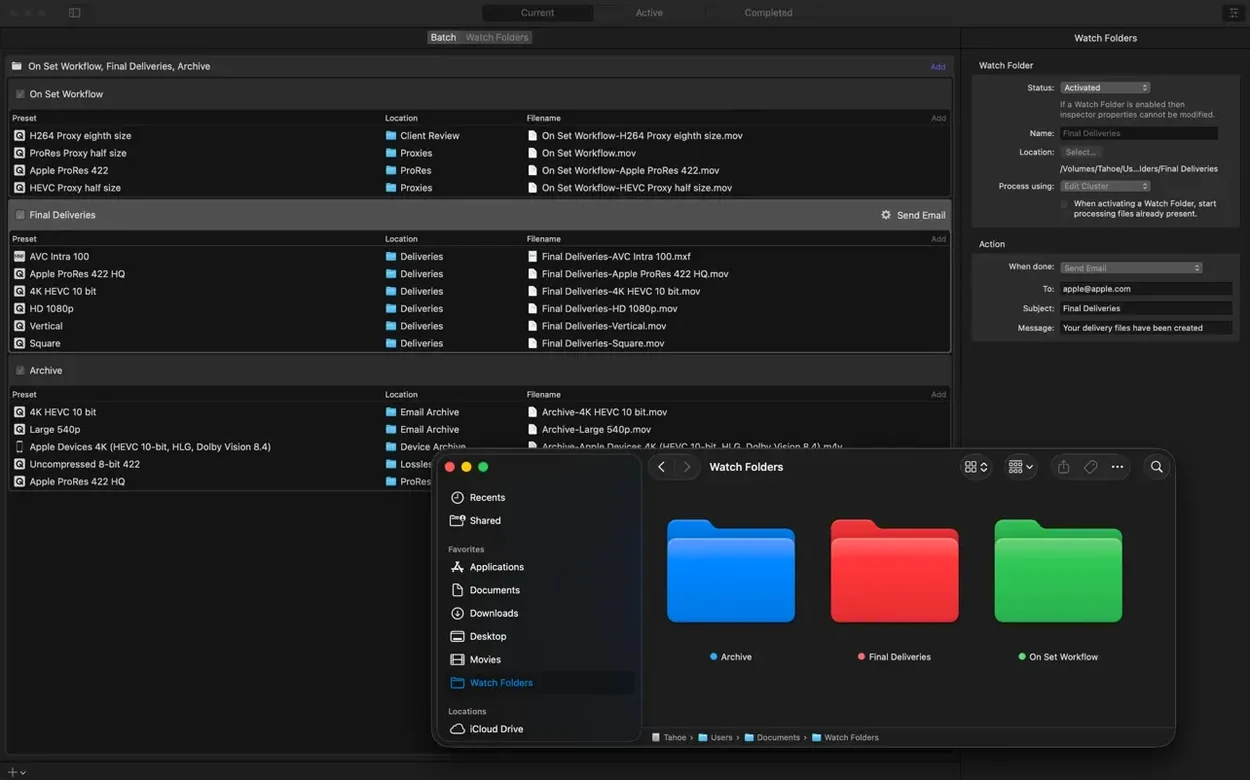
Beyond the tight integration with Final Cut Pro and Motion, Compressor works just as well with a stack of files sitting in a folder that need to become something else. You drop them in, assign settings, and can attach post-encode actions — copying the result to a watched folder, firing off an email notification, or running a custom script. The new immersive metadata viewer in 5.3 means you can inspect spatial video properties before you commit to a long transcode, and the anaglyph preview option gives you a quick way to check stereoscopic material on an ordinary display.
A practical pipeline: from timeline to multiple deliverables
Picture a typical Friday afternoon. You have a four-minute product reel sitting in Final Cut Pro, graded for HDR, with a 5.1 mix and a stereo downmix already in the timeline. The client needs three things by the end of the day: a clean 4K HEVC master for the archive, an H.264 version with burnt-in timecode for the legal team to review, and a compact clip optimised for the company’s iOS app. Doing those exports one by one inside Final Cut Pro would tie up the machine for an hour and prevent any last-minute trim changes. Instead, you send the project to Compressor from the Share menu, choosing a droplet-like preset you built months ago and forgot you had, then you walk over to the kettle.
In the batch window, three rows appear almost instantly. The first job gets a 4K HEVC 10-bit setting, pulling from the wide-gamut timeline with no extra colour conversion because Compressor and Final Cut Pro share the same rendering engine. The second row applies a standard H.264 setting, and you use the inspector to overlay a timecode generator filter — just a tick box and a position offset. The third row uses the Apple Devices destination, taking advantage of the new 5.1 AAC option so the app promo sounds full on an iPad with headphones. You click Submit and the encoding queue lights up. Because you ticked the distributed rendering option in preferences, your Mac Studio taps all its performance cores, and the hardware encoder on the M-series chip chews through the HEVC work in the background. You keep working on the next project in Motion without any interface lag. That is the kind of quiet, parallel throughput Compressor adds to a studio day.
Apple silicon hardware encoders carry the heavy lifting
Transcoding is rarely the most glamorous part of the job, so the measure of a good engine is how little you notice it. On a Mac with Apple silicon, the H.264 and HEVC hardware encoders do the heavy lifting — a 10-minute 4K project can finish while you make a cup of tea, and the fans barely stir. Software-based encodes for formats like MXF or older codecs take longer, as you would expect, but Compressor spreads the load across available cores without the beachball appearing. I have left batches of thirty or more clips running overnight, mixed with post-encode actions that copy the results onto a NAS, and never found a stalled job in the morning.
Memory use is modest for a media app. Watching Activity Monitor while a batch runs, Compressor typically sits under 2 GB, even with a queue full of 8K sources. The real resource cost is disk I/O — it reads and writes heavily, so working from a fast internal SSD makes a tangible difference. Attaching a slow external drive as the destination folder can turn a brisk encode into a sluggish one, because the encoder waits on writes. Stability has been solid across the 5.x releases; the only quirk I occasionally see is a shared computer dropping off the network encoding cluster after a router reboot, and the interface flags that clearly rather than failing silently.
One quiet improvement in recent versions is how the app handles interrupted jobs. Pull the plug in the middle of a transcode and Compressor picks up from where it left off, not from the beginning — a small mercy when you are ninety percent through a two-hour programme and a thunderstorm hits.
Sixty mixed-format clips arrive on a portable drive
Let me walk you through a real working session. A producer friend drops by with a portable drive containing sixty clips from a documentary shoot: a mix of Log-encoded ProRes files from an FX6, some drone footage in H.265, and a handful of interview clips recorded on an external recorder as uncompressed WAV with matching timecode. The brief is simple — make them all editable in Final Cut Pro, with synced audio, and keep the folder structure tidy so the assistant editor can start logging on Monday.
I launch Compressor and drag the entire folder into the batch area. The clips appear as a long list, and I select the first group — the S-Log3 ProRes files — and assign a custom setting I keep for dailies: ProRes 422 Proxy at 1080p, with a LUT baked in to convert Log to Rec. 709 so the editor sees a natural image straight away. The inspector shows me the data rate, frame size and audio channels I am about to write, and I can tweak the LUT intensity with a slider. For the drone H.265 clips, I use a different setting that also strips the silent audio track, because the drone footage came in with an empty channel that confuses FCP’s waveform view. The interview clips need a different treatment: I pair each video file with its matching WAV using the audio passthrough option, so the final proxy carries the location sound embedded, no sync work required later.
Before I hit Submit, I set up two post-encode actions. The first copies every finished proxy into a dated folder on the edit server. The second runs a short shell script that generates a text log of every encode, with timecodes and durations, so the assistant editor can scan through a single document instead of opening sixty files blind. I click the big Start Batch button, and the queue begins to churn. The hardware encoder on my MacBook Pro handles the H.265 sources, while the CPU cores work through the ProRes transcodes. Halfway through, I remember that the producer also needs a reference MP4 of the entire set with burnt-in filenames. I can add that job to the running batch without pausing the queue — I drop a new setting onto the whole list, enable the timecode and filename overlay filters in the inspector, and it slots into the processing order. An hour later, the server folder is populated, the log file is waiting, and the reference MP4 is sitting on the producer’s desktop, ready for a quick skim.
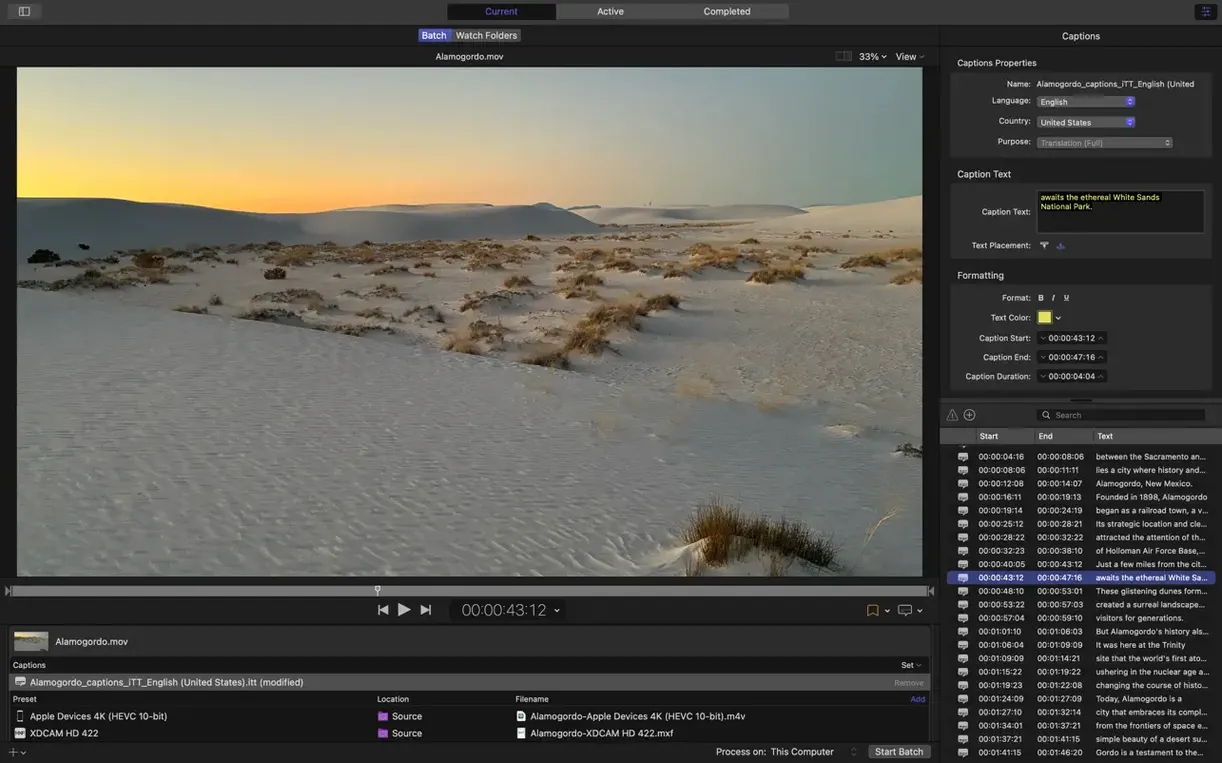
Version 5.3 focuses on spatial and immersive video workflows alongside modern audio delivery. New tools help you preview and encode complex stereoscopic material before the final render.
- An immersive metadata viewer lets you inspect spatial properties directly in the app before encoding.
- Output support now includes 180° Apple Projected Media Profile, with an anaglyph preview option for checking stereoscopic video on a standard screen.
- Transcoding of immersive sources to Apple Immersive outputs no longer requires separate WAV files.
- Apple Device export settings gain a 5.1 AAC option, and HEVC data rate limits are now supported on Apple silicon.
- macOS 15.6 or later
- 8 GB memory
- 1.2 GB available disk space
- Apple silicon and Intel Macs supported
Questions I keep hearing
Does Compressor work independently of Final Cut Pro?
Yes, it's a full standalone transcoding app. You can drag in any source files, apply encoding settings and run batch jobs without opening Final Cut Pro or Motion.
Questions from the class 0
Sign in or join the class to ask a question.
Nobody has asked anything yet. If you have used it on a real job, say what the file did.
Also on the Mac Apps shelf
The whole Mac Apps shelf CorelCAD
Produces detailed 2D technical drawings and 3D solid models on a Mac.
CorelCAD
Produces detailed 2D technical drawings and 3D solid models on a Mac.
 Commander One PRO
Puts two folder views side by side for dragging, copying and comparing files without flipping windows.
Commander One PRO
Puts two folder views side by side for dragging, copying and comparing files without flipping windows.
 CorelDRAW
Handles complex vector illustrations and multi-page layouts for professional print and screen work.
CorelDRAW
Handles complex vector illustrations and multi-page layouts for professional print and screen work.
 Color Finale
Lets you colour-grade video directly inside Final Cut Pro without leaving the timeline.
Color Finale
Lets you colour-grade video directly inside Final Cut Pro without leaving the timeline.
 Coherence X
Creates isolated, standalone desktop apps for each of your web accounts and services.
Coherence X
Creates isolated, standalone desktop apps for each of your web accounts and services.
 CrossOver
Translates Windows software commands so a curated set of apps can run on a Mac.
CrossOver
Translates Windows software commands so a curated set of apps can run on a Mac.
 coconutBattery Plus
Charts the invisible decline of your MacBook battery so you can replace it before it fails.
coconutBattery Plus
Charts the invisible decline of your MacBook battery so you can replace it before it fails.
 Cocktail Sequoia Edition
Clears cached files, repairs permissions and sweeps away the digital clutter that slows a Mac.
Cocktail Sequoia Edition
Clears cached files, repairs permissions and sweeps away the digital clutter that slows a Mac.