 ASPNetWorld

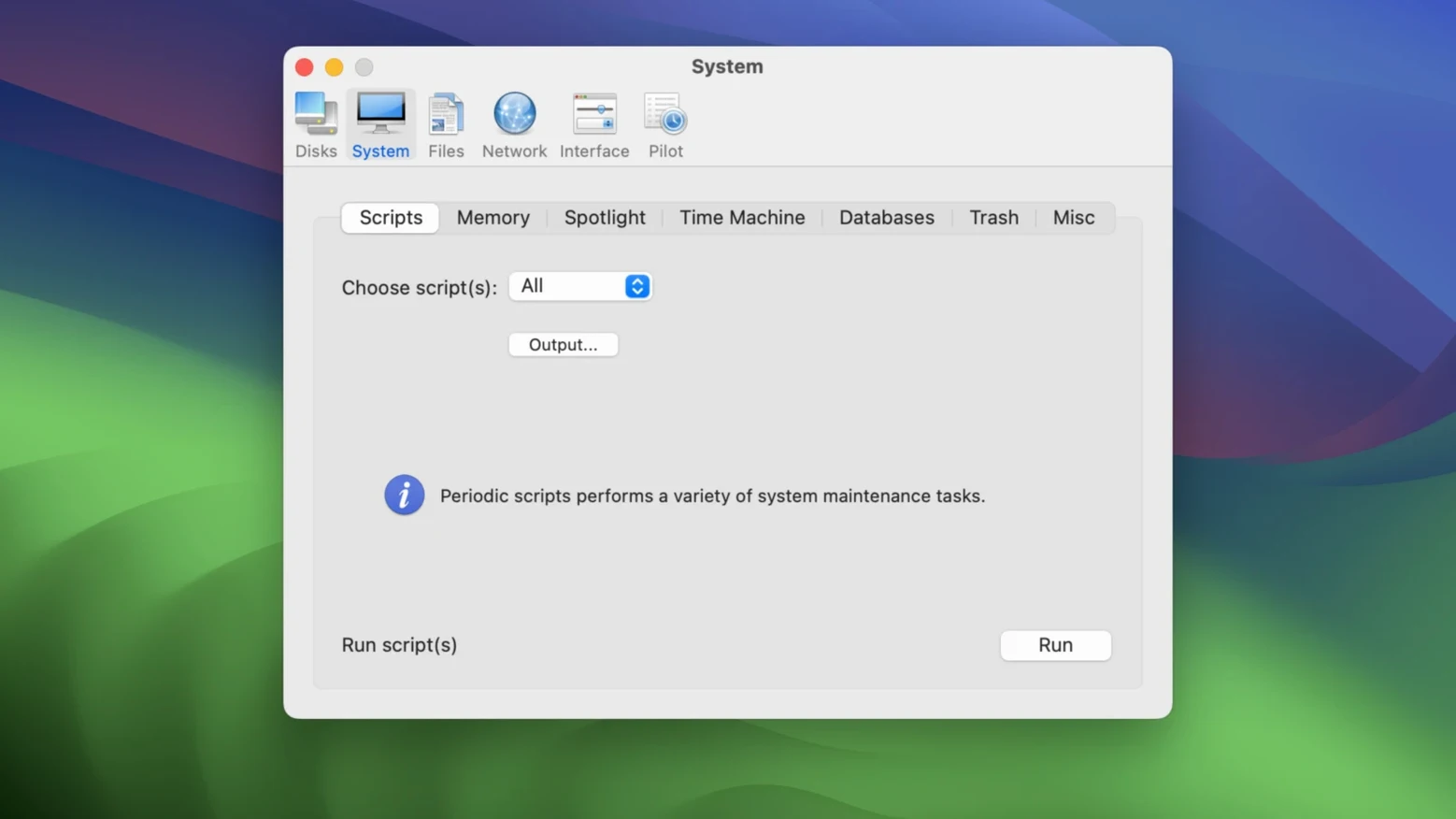
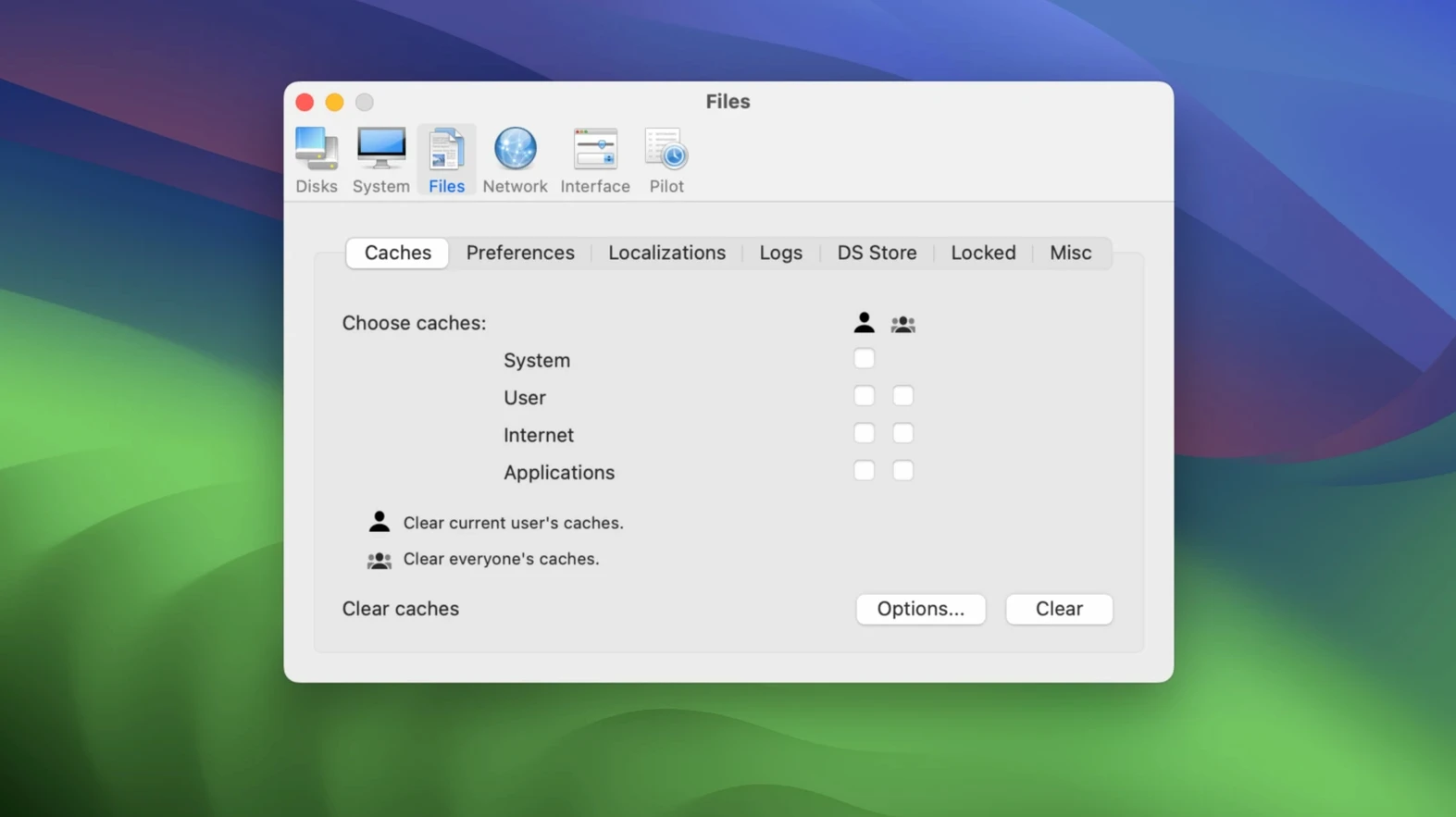
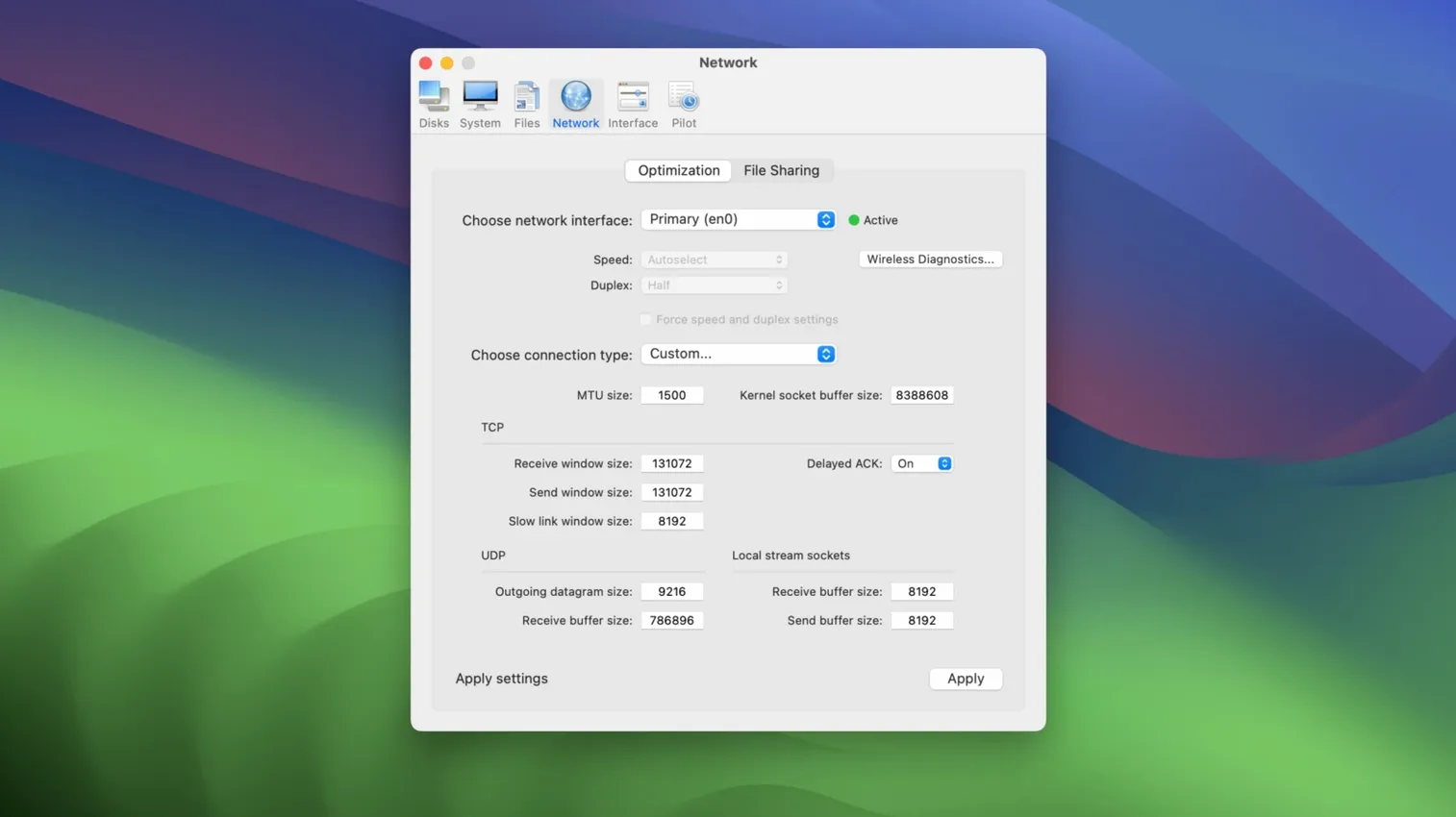
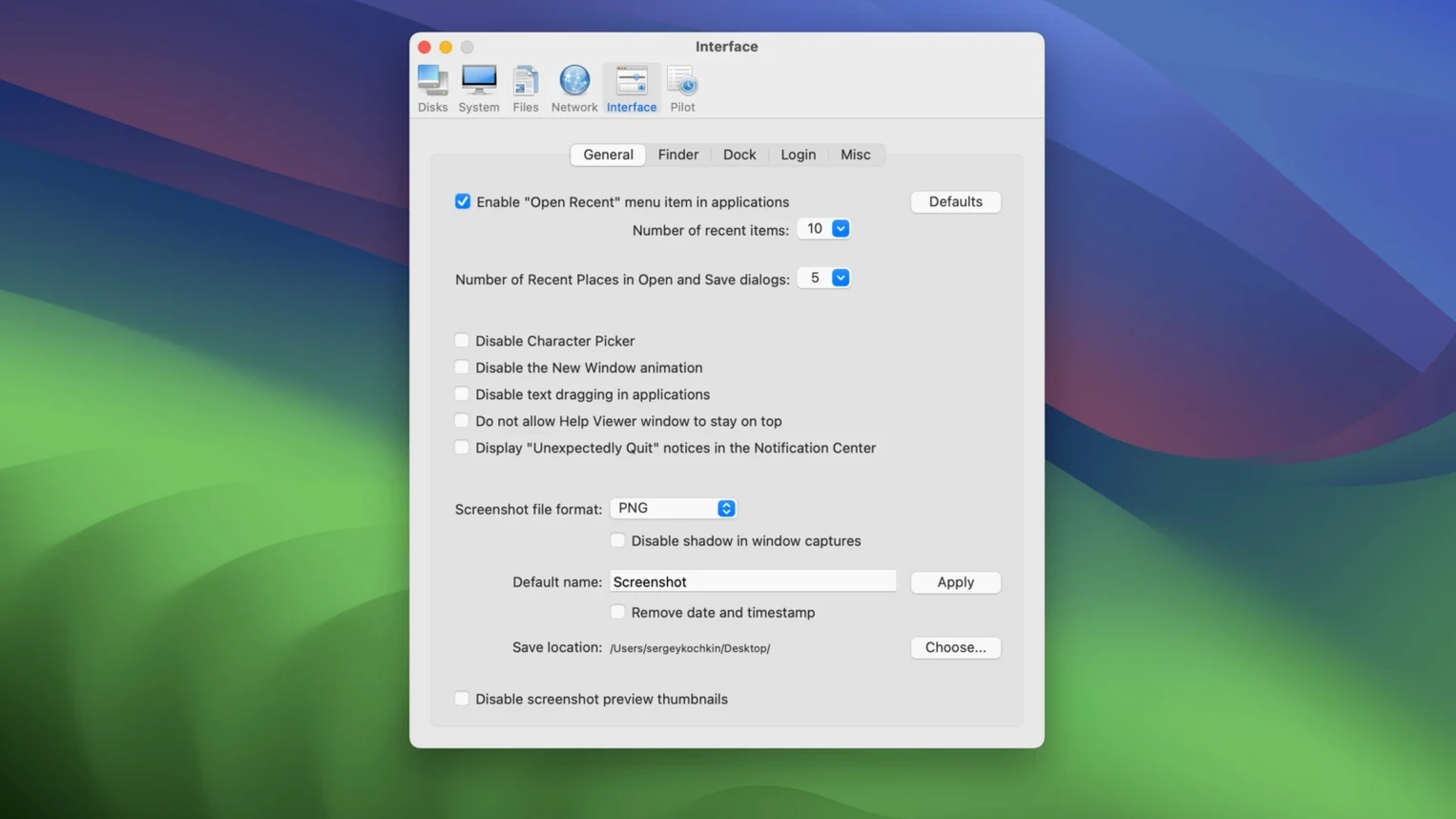
Over time, a Mac collects cached files, permission irregularities and background clutter that can slow things to a crawl. Cocktail Sequoia Edition is the current version of maintain's long-running utility, built to sweep that lot away.
Cleaning — clearing system, user and application caches, plus log files and temporary items that eat disk space.
Repairing — running routine disk checks and fixing file permissions without needing to touch Terminal.
Optimising — re-binding the system to directory services, clearing virtual memory swap files, and forcing periodic background housekeeping scripts to run on demand.
Interface — five clearly labelled function groups that keep everything a couple of clicks away, with no hidden preference panes to decode.
Edition model — each major macOS release gets its own Cocktail build, so the Sequoia Edition stays lean and matched to your system rather than carrying baggage for older OS versions.
How Cocktail fits into a wider Mac toolkit
Cocktail Sequoia Edition doesn't try to replace every utility on your machine, and it's most comfortable when it isn't the only maintenance tool in the shed. Think of it as the deep-cleaning specialist: it scrubs what Disk Utility's First Aid doesn't touch, rebuilds databases that mdutil misses, and kicks off background routines without you needing to remember whether daily scripts run at three in the morning or three in the afternoon.
In practice, it pairs neatly with macOS's own storage management tools. You might let the system's built-in recommendations handle large file deletions and iCloud offloading, then bring Cocktail in for the layer beneath — the cache folders that don't show up in System Settings, the swap files that have ballooned after a week of heavy rendering, and the Launch Services database that's making every Open With menu lag. Spotlight rebuilding from the Pilot tab often sorts search problems that a simple re-index from System Settings doesn't catch, because Cocktail goes deeper into the metadata store.
Where people sometimes go wrong is running Cocktail alongside another heavyweight cleaner that covers the same ground. Two apps clearing caches on the same afternoon won't hurt anything, but you'll waste time watching progress bars for work that has already been done. The smarter approach is to let Cocktail handle the periodic deep cleans and use a lightweight, real-time monitor — something like a menubar stats utility — to keep an eye on memory pressure and disk throughput between those deeper sweeps.
The Sequoia Edition also respects macOS 15's tightened security model. You'll see the expected permission prompts when it accesses full disk areas, and that's a good sign: it means the app is working within the modern TCC framework rather than trying to sidestep it. If you're a user who has already tweaked privacy settings for other utilities, the prompts will feel familiar rather than alarming.
When macOS gatekeeps login items from Cocktail
Most trouble with Cocktail isn't actually Cocktail — it's macOS being cautious about what it lets third-party tools touch. Here are the situations that crop up repeatedly, and what's actually going on.
Login items and launch daemons don't appear to change. You've cleared them in Cocktail, rebooted, and a helper app you thought you'd banished is still loading. The culprit is usually a newer launch agent stored in ~/Library/LaunchAgents that Cocktail, in its current edition, doesn't yet know to look for. A quick manual check in that folder sorts it. This isn't a bug — it's a cat-and-mouse game every maintenance tool plays with software that installs background helpers in slightly different locations each year.
Permission repairs take longer than expected. On Apple Silicon, the Sequoia Edition runs under Rosetta 2, which adds a thin translation layer. A full permission sweep can take several minutes. Let it finish — interrupting it mid-stream has left users with partially corrected permissions in the past, and while that's fixable with a second pass, it's an unnecessary headache.
Pilot mode clears something you didn't want cleared. The one-click Pilot is a blunt instrument by design, and it will happily delete browser caches even if you were keeping those around for offline reading. Before running Pilot at full throttle, spend two minutes in the Cleaning tab unchecking anything you'd rather preserve.
Some features are greyed out. If a disk check or repair option is unavailable, Cocktail has likely detected that your startup volume is a sealed system on Apple Silicon. Certain low-level repairs are genuinely off-limits now, and no utility — Cocktail included — can override that without disabling SIP, which it won't do. The greyed-out buttons are a feature, not a failure.
Turn on the Pilot schedule before your first run
Out of the box, Cocktail Sequoia Edition is conservative. That's sensible for a first launch, but most people benefit from a handful of tweaks before they trust it with a scheduled clean.
Toggle on the automatic Pilot schedule. The Scheduler tab is easy to overlook, but it transforms Cocktail from a tool you remember to run when things feel sluggish into something that quietly keeps the system tidy. A weekly run on a Sunday evening works well for most machines; daily is overkill for cache clearing and will just wear your SSD with unnecessary writes.
Adjust cache-clearing depth. Under the Cleaning section, you'll find per-user and system-wide cache options. The defaults skip some application caches that are genuinely safe to remove. Unless you're using software that explicitly warns against cache clearing — some audio plug-in managers do — tick the extra boxes for user application caches and gain back visible disk space.
Switch on the network optimisation test. The Network tab includes a quick optimisation that adjusts TCP settings for your connection type. It's not going to double your broadband speed, but on machines that have been upgraded through several macOS versions, old network preference files sometimes leave behind parameters tuned for a different era. Running this once after installing Cocktail often irons out small but persistent connectivity quirks.
Leave the virtual memory clearing unchecked by default. Clearing swap files sounds dramatic and freeing, but macOS re-creates them almost immediately if you're running memory-hungry apps. Ticking it for a one-off clean before a large export or render makes sense; leaving it in your standard Pilot recipe doesn't.
Running every cleaning task at once makes your Mac slower
The steepest part of Cocktail's learning curve isn't the interface — it's the assumption that more cleaning equals better performance. New users frequently run every cleaning task in one sitting, notice the system feels slower for the next hour, and blame the tool. What's actually happening is that every cache that macOS and your applications lean on for speed has just been emptied, and the system is busily rebuilding them all at once. A bloated cache is a problem; a freshly emptied one is also a problem, just a temporary one. Run your deep clean, then use the machine normally for an hour before judging the result.
Another classic misstep is treating Cocktail as a malware scanner. It doesn't look for malware, doesn't monitor network traffic for suspicious connections, and won't alert you to phishing attempts. It's a maintenance utility. Pairing it with a dedicated security tool, if that's a concern, fills the gap, but expecting Cocktail to do both jobs leads to a false sense of safety.
Beginners also tend to ignore the log that Cocktail generates after each run. It's not exciting reading, but when something does go wrong — a repair that won't complete, a cache that refuses to clear — the log tells you exactly which file or process caused the stall. Skipping it means you'll spend longer guessing.
Finally, there's the temptation to run Cocktail as root via sudo from Terminal because someone on a forum said it unlocks extra power. It doesn't. The app requests the permissions it needs through the standard macOS prompt system. Forcing it into a higher privilege context can leave behind files owned by root that your user account then struggles to modify later.
Comfortable with macOS but happy to skip Terminal
The user who benefits most isn't necessarily the power user who lives in Terminal. Those people often write their own maintenance scripts and don't need a graphical front end. Cocktail shines for someone in between: comfortable enough with macOS to know that periodic maintenance helps, but not interested in memorising periodic daily weekly monthly syntax or manually pruning /var/log.
Mac users who run heavy creative software — video editors, audio producers, photographers with large Lightroom catalogues — see the biggest practical gains. These workflows generate enormous cache files and temporary render data that macOS doesn't always reclaim efficiently. A Cocktail clean before starting a large project frees up surprising amounts of space and, in some cases, resolves odd application behaviour caused by corrupted cache entries. If you've ever had a DAW refuse to load a plug-in until you manually cleared its cache folder, you've lived the problem Cocktail automates.
Users who dual-boot or run virtual machines also benefit. Cocktail's ability to target specific volumes means you can clean a secondary macOS install without booting into it, which is handy when that secondary system is a test environment you'd rather not spend time maintaining.
There's also a quieter audience: people who update macOS annually and carry their setup across without a clean install. Over several upgrade cycles, preference files accumulate cruft, and Launch Services databases can reference applications that no longer exist. Cocktail's database rebuilding — particularly for Launch Services and Spotlight — often fixes those niggling "why does my Mac think this file opens in an app I deleted two years ago" moments that a fresh install would solve, but without the fresh-install hassle.
- macOS 15 (Sequoia)
- Intel 64-bit processor
Questions I keep hearing
Does Cocktail Sequoia Edition run on Apple Silicon Macs?
The current version is built for Intel 64-bit Macs running macOS 15. Apple Silicon users should check the developer's site for native support details.
Why does Cocktail have separate editions for each macOS?
maintain releases a dedicated edition for each major macOS version to keep the tool lightweight and precisely matched to the system architecture of that release.
Can I use an older Cocktail edition with macOS Sequoia?
No, you need the Sequoia Edition specifically. Older Cocktail editions are provided for earlier macOS releases and won't be configured for macOS 15.
Questions from the class 0
Sign in or join the class to ask a question.
Nobody has asked anything yet. If you have used it on a real job, say what the file did.
Also on the Mac Apps shelf
The whole Mac Apps shelf coconutBattery Plus
Charts the invisible decline of your MacBook battery so you can replace it before it fails.
coconutBattery Plus
Charts the invisible decline of your MacBook battery so you can replace it before it fails.
 CloudMounter
Mounts cloud storage and remote servers as local drives in your Finder sidebar.
CloudMounter
Mounts cloud storage and remote servers as local drives in your Finder sidebar.
 Coherence X
Creates isolated, standalone desktop apps for each of your web accounts and services.
Coherence X
Creates isolated, standalone desktop apps for each of your web accounts and services.
 Color Finale
Lets you colour-grade video directly inside Final Cut Pro without leaving the timeline.
Color Finale
Lets you colour-grade video directly inside Final Cut Pro without leaving the timeline.
 Clip Studio Paint
Gives animators a traditional light-table view to reference previous frames while drawing.
Clip Studio Paint
Gives animators a traditional light-table view to reference previous frames while drawing.
 CLion
Maps a C or C++ codebase into a living structure you can refactor and navigate with confidence.
CLion
Maps a C or C++ codebase into a living structure you can refactor and navigate with confidence.
 Commander One PRO
Puts two folder views side by side for dragging, copying and comparing files without flipping windows.
Commander One PRO
Puts two folder views side by side for dragging, copying and comparing files without flipping windows.
 CleanShot X
Snaps a screenshot or recording, then lets you annotate, hide sensitive bits, and share the result.
CleanShot X
Snaps a screenshot or recording, then lets you annotate, hide sensitive bits, and share the result.