 ASPNetWorld
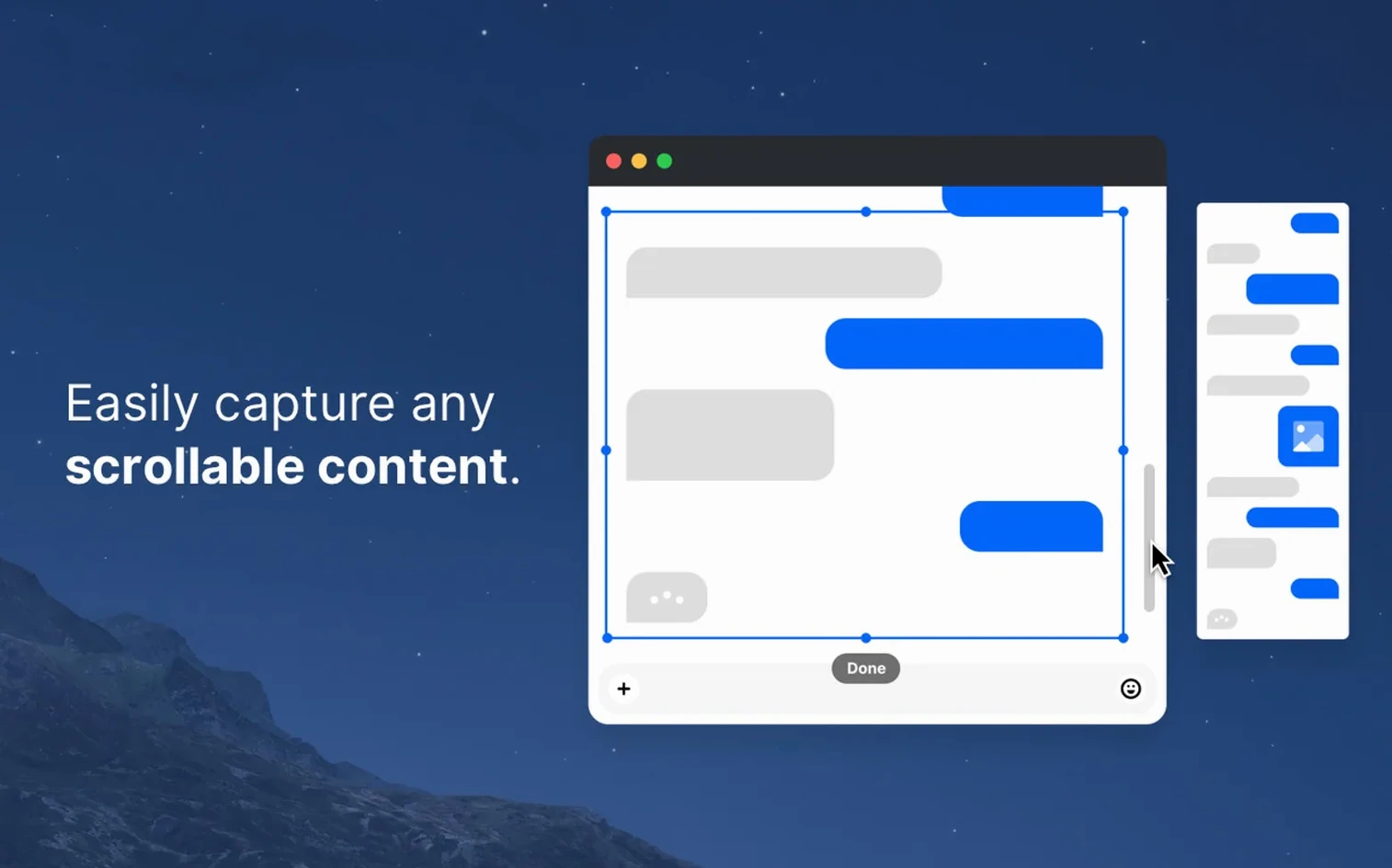
You have just recorded a short walkthrough of a settings panel for a colleague, and now you need to blank out an email address before sending it over. CleanShot X handles both halves of that job without leaving the capture window. It sits alongside the tools macOS already provides, but bundles the annotation and recording steps that usually mean opening two or three separate apps.
- Capture an area, a full screen, a single window, or a scrolling window in one pass.
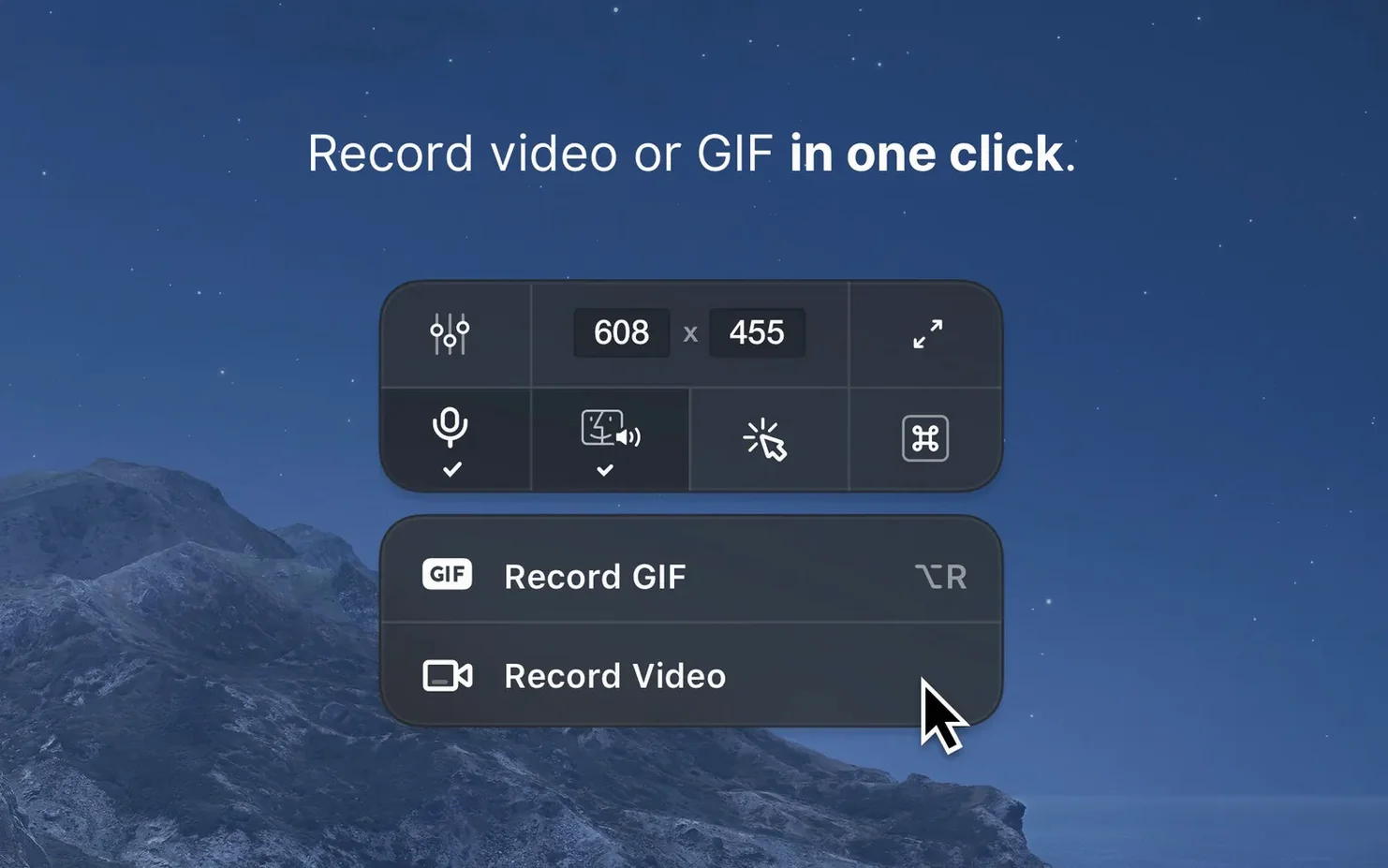
- Record video or GIF during capture, which suits quick how-to clips.
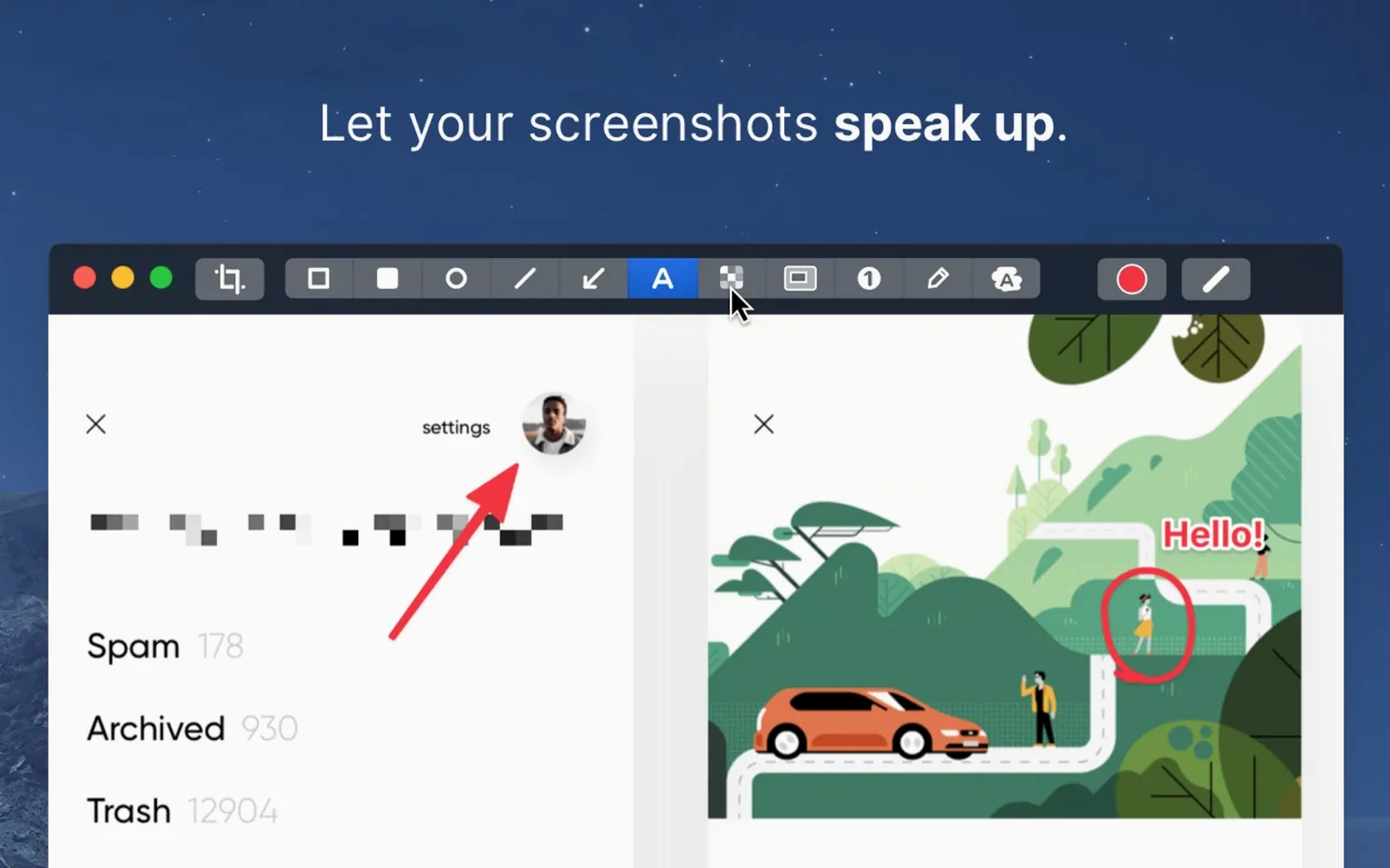
- Use the built-in editor to highlight, hide, or comment on screenshots before sharing.
- Switch between Retina and standard resolution depending on where the image will end up.
- Set a screenshot background to a solid colour or an image when the raw capture looks too bare.
Because the editor is part of the same app, the gap between grabbing a screen and marking it up is short. That makes CleanShot X feel less like a utility and more like a small workflow of its own — one that fits around Preview, QuickTime, and the other tools already living on a Mac.
Version 5 brought a snappier capture engine on Apple Silicon
The jump to version 5.0 in September 2026 was labelled a major update by MakeTheWeb, and the everyday difference shows mostly under the hood. The capture engine feels snappier on Apple Silicon machines — the quarter-second pause that sometimes appeared when invoking the crosshair on an external 4K display is gone, at least on M2 and M3 Macs I have seen it run on. Scrolling captures also handle tall browser windows more reliably; earlier builds occasionally stitched a misaligned slice near the bottom of a long page.
What did not change is the interface layout. Menu bar access, keyboard shortcuts, and the floating capture toolbar are all where returning users expect them. That matters for muscle memory. Version 5.0.1 is a maintenance release — minor bug fixes and improvements — so anyone updating from 5.0 will not notice a visual shift, just slightly cleaner behaviour around the edges. One quiet fix worth mentioning: the Do Not Disturb toggle during recording now respects Focus modes introduced in newer macOS releases, rather than only silencing the older notification centre.
For anyone still hunting for a cleanshot x dmg to get started, the disk image route remains the standard install. You open the downloaded file, drag the app into the Applications folder shortcut, and launch it from Launchpad once copying finishes. No extra frameworks or kernel extensions to approve.
It layers on top of the built-in screenshot tool, not replacing it
CleanShot X does not try to replace Preview, QuickTime, or the built-in screenshot tool (Shift-Command-5). It layers on top of them. You can still use the system shortcut for a quick full-screen grab; CleanShot X is there for the moments when you need markup immediately or a recording that is not a full-scale screen movie. In practice, that means it coexists with QuickTime Player rather than competing with it. QuickTime handles long-form screen recordings with audio commentary; CleanShot X handles the thirty-second GIF for a Slack thread.
The real integration strength is how it hands off to other Mac apps once a capture is done. A screenshot can be dragged straight into a Mail compose window, dropped onto a Finder folder, or pasted into a Keynote slide without an intermediate save dialog. The annotation editor also respects standard macOS colour pickers and font palettes, so any custom palette you have set up system-wide appears inside CleanShot X without extra configuration. For teams that rely on cloud storage, the share sheet hooks into any service that registers with the macOS share extension — Dropbox, Things, Messages, and third-party uploaders all show up in the same list.
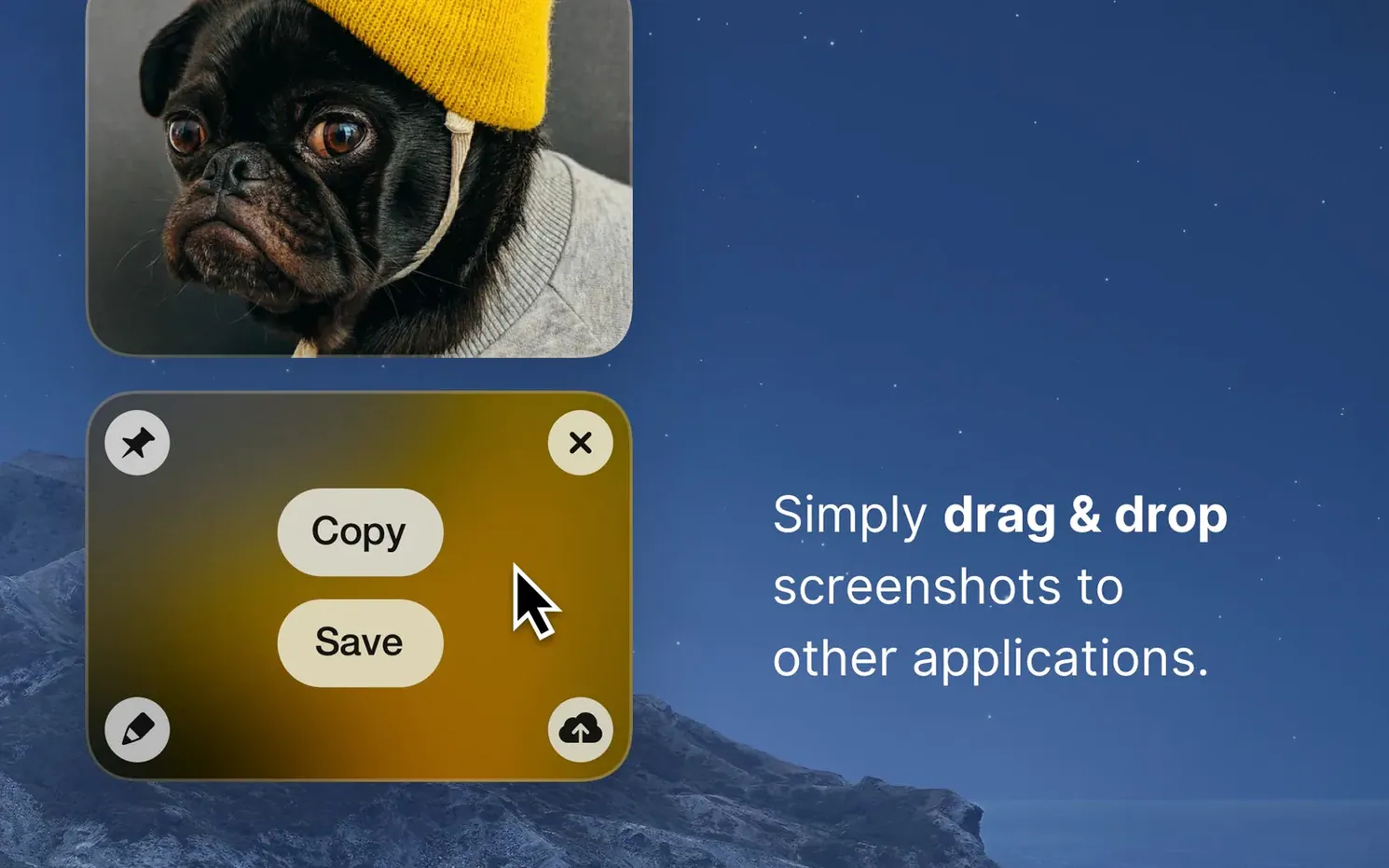
One workflow I see in evening classes a lot: a student records a short GIF of a Logic Pro arrangement, pins it above the DAW window, and tweaks settings while watching the reference. That combination of recording and pinning is something neither the system screenshot tool nor QuickTime can do in one go.
Support engineers grabbing scrolling logs and hiding customer data fast
The obvious audience is anyone creating tutorials, documentation, or bug reports. A support engineer who needs to grab a scrolling window of a log file, obscure a customer email address, and send the result in under a minute will use CleanShot X differently from a designer who wants a Retina capture of a Figma layout with a coloured background. Both are well served, but for slightly different reasons — speed for the former, pixel control for the latter.
Less obvious are the productivity users who treat screenshots as external memory. Pinning a screenshot above other windows turns a capture into a temporary sticky note, which is useful when transcribing data from a web page into a spreadsheet. Hiding desktop icons before capture saves the five seconds of tidying up that otherwise interrupts a train of thought. These are small friction removals, but they add up across a working day.
If you have arrived at this page after searching for cleanshot x for mac free download or clean shot x free, it is worth knowing that the feature set described here is the full application — the scrolling capture, the video recording, the pinning, and the background options all come in one package from the moment you install it. There is no pared-back free tier that quietly removes the editor or limits recording length.
Idle memory sits around 90 MB on an M1 MacBook Air
On an M1 MacBook Air with 16 GB of RAM, CleanShot X sits at roughly 90–110 MB of memory when idle and climbs to around 180 MB during a full-screen video recording. That is modest for a tool that combines capture, encoding, and annotation. The menu bar helper draws almost no CPU when it is not active; I have left it running for weeks between restarts without noticing a battery hit. On Intel machines, the same processes run a little heavier — expect 120–140 MB idle — but still within the range where you would not think to quit it to free up resources.
Stability has been uneventful in the best sense. Across the 5.0 and 5.0.1 builds, I have not seen a crash triggered by a routine capture, though forcing a scrolling capture on a window that redraws itself mid-scroll (a live-updating dashboard, for instance) can produce a garbled result rather than an error message. That is more of a physics problem than a software bug — the app can only capture what the window paints. Video encoding uses hardware acceleration where available, so exporting a two-minute 60 fps recording to H.264 finishes in seconds rather than minutes on Apple Silicon. GIF encoding is inherently slower because of the format, but even a ten-second GIF exports in about the time it takes to check a notification.
The one resource quirk worth knowing: if you set a custom background image for every screenshot, the app keeps that file in its working set. A 40 MB TIFF background will bloat memory use a little. Stick to solid colours or modest JPEGs unless you specifically need a textured backdrop.
Remap every capture action so shortcuts do not clash with system defaults
Spend ten minutes on the first day setting up shortcuts that do not clash with the system defaults. CleanShot X lets you remap every capture action to a custom key combination. If you are used to Shift-Command-4 for area screenshots, either reassign CleanShot X to something else or disable the system shortcut in System Settings so the two do not fight over the same key press. The same goes for the recording shortcuts — QuickTime does not use a global hotkey by default, so there is less conflict there.
The second thing to do is decide where captures land. By default they float as previews and wait for a click, but you can change the behaviour so every capture saves automatically to a folder or copies straight to the clipboard. I set mine to copy to clipboard for quick pastes and only save when I click the preview thumbnail. That cuts down on desktop clutter without losing anything I might want later.
Third, try the Do Not Disturb toggle during recording before you actually need it. When you are about to record a client walkthrough, you do not want a Slack notification banner rolling across the top of the screen. Test it once with a short recording to confirm your Focus mode settings and CleanShot X are playing nicely together. That ten-second check saves a re-record later.
Finally, explore the annotation editor early, even if you do not think you will use it much. The blur tool for hiding sensitive text is faster than opening Preview and drawing rectangles, and the step-by-step numbering stamps are useful for creating quick instruction sequences. Knowing those tools are there means you reach for them sooner when a capture needs more than a crop — and that is the whole point of having the editor inside the capture app rather than in a separate program.
Version 5.0.1 is a maintenance update, with minor bug fixes and small improvements rather than new features.
- macOS 11 or later
- Works on both Intel and Apple Silicon Macs
- Interface language: English
Questions from the class 0
Sign in or join the class to ask a question.
Nobody has asked anything yet. If you have used it on a real job, say what the file did.
Also on the Mac Apps shelf
The whole Mac Apps shelf CleanMyMac
Scans for system junk, old caches, and stray files, then clears them out in one pass.
CleanMyMac
Scans for system junk, old caches, and stray files, then clears them out in one pass.
 CLion
Maps a C or C++ codebase into a living structure you can refactor and navigate with confidence.
CLion
Maps a C or C++ codebase into a living structure you can refactor and navigate with confidence.
 Clip Studio Paint
Gives animators a traditional light-table view to reference previous frames while drawing.
Clip Studio Paint
Gives animators a traditional light-table view to reference previous frames while drawing.
 CloudMounter
Mounts cloud storage and remote servers as local drives in your Finder sidebar.
CloudMounter
Mounts cloud storage and remote servers as local drives in your Finder sidebar.
 Cocktail Sequoia Edition
Clears cached files, repairs permissions and sweeps away the digital clutter that slows a Mac.
Cocktail Sequoia Edition
Clears cached files, repairs permissions and sweeps away the digital clutter that slows a Mac.
 coconutBattery Plus
Charts the invisible decline of your MacBook battery so you can replace it before it fails.
coconutBattery Plus
Charts the invisible decline of your MacBook battery so you can replace it before it fails.
 Coherence X
Creates isolated, standalone desktop apps for each of your web accounts and services.
Coherence X
Creates isolated, standalone desktop apps for each of your web accounts and services.
 CCleaner Pro
Sweeps away browser caches, logs, and leftover files that macOS's own tools leave behind.
CCleaner Pro
Sweeps away browser caches, logs, and leftover files that macOS's own tools leave behind.