 ASPNetWorld
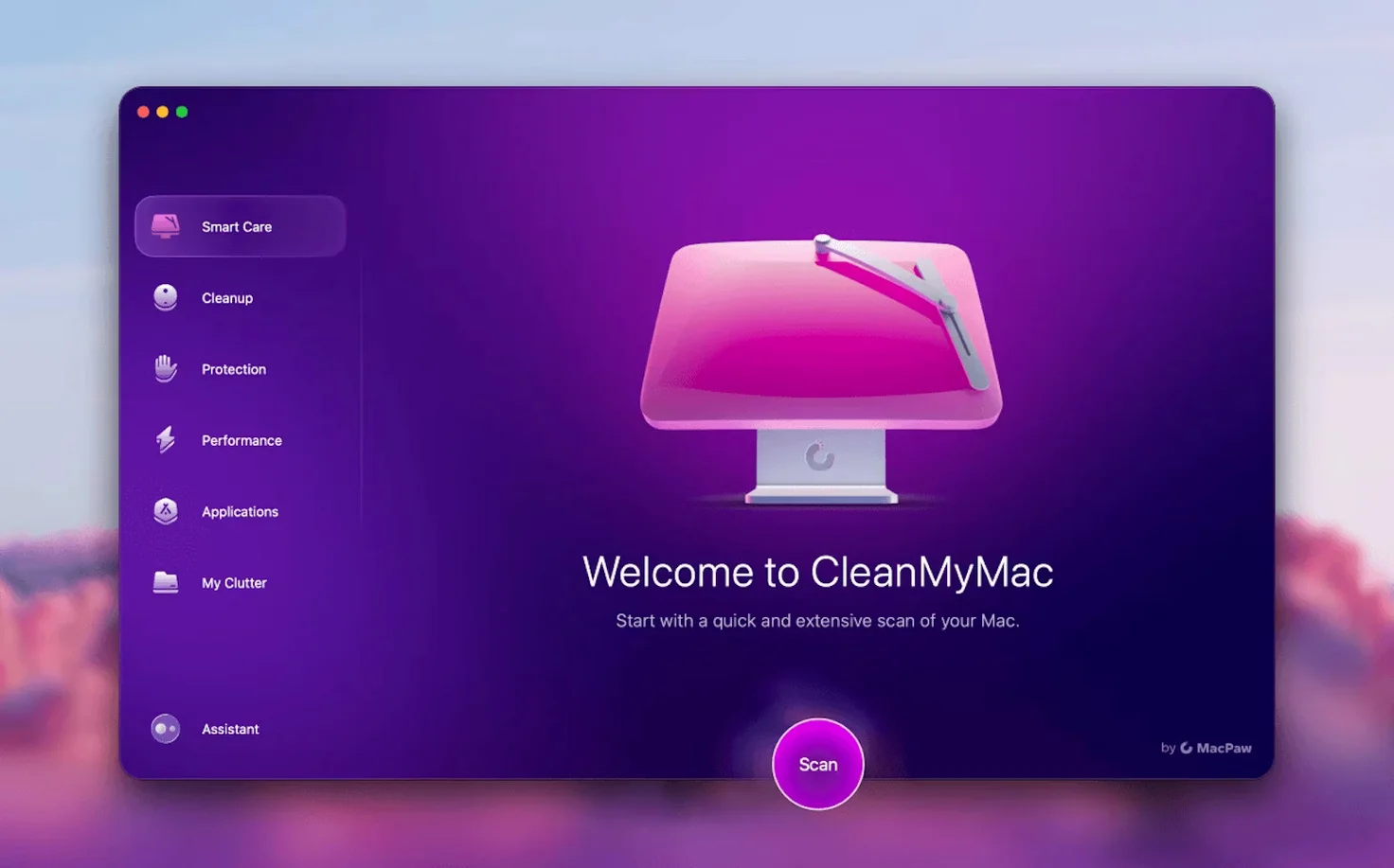
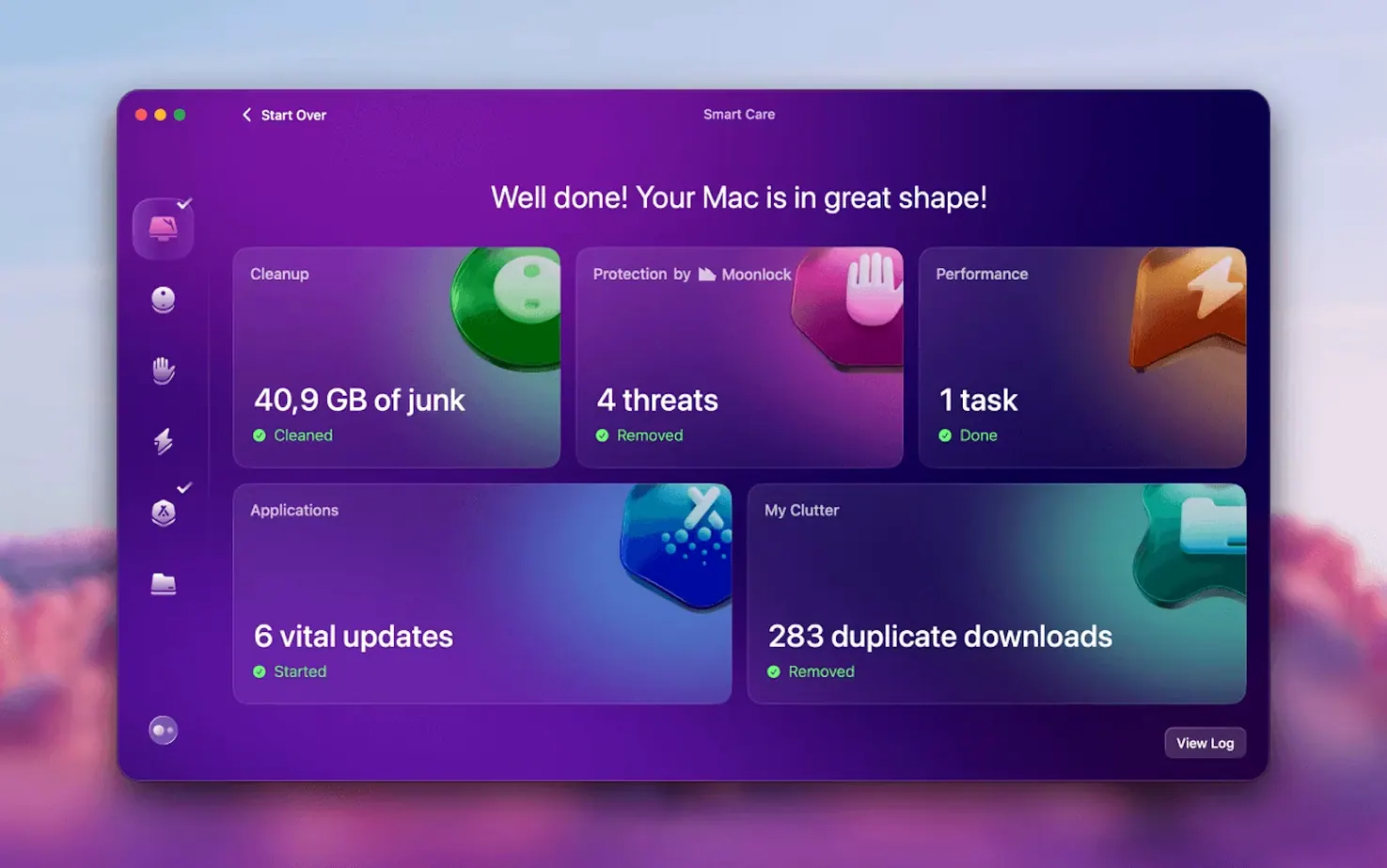
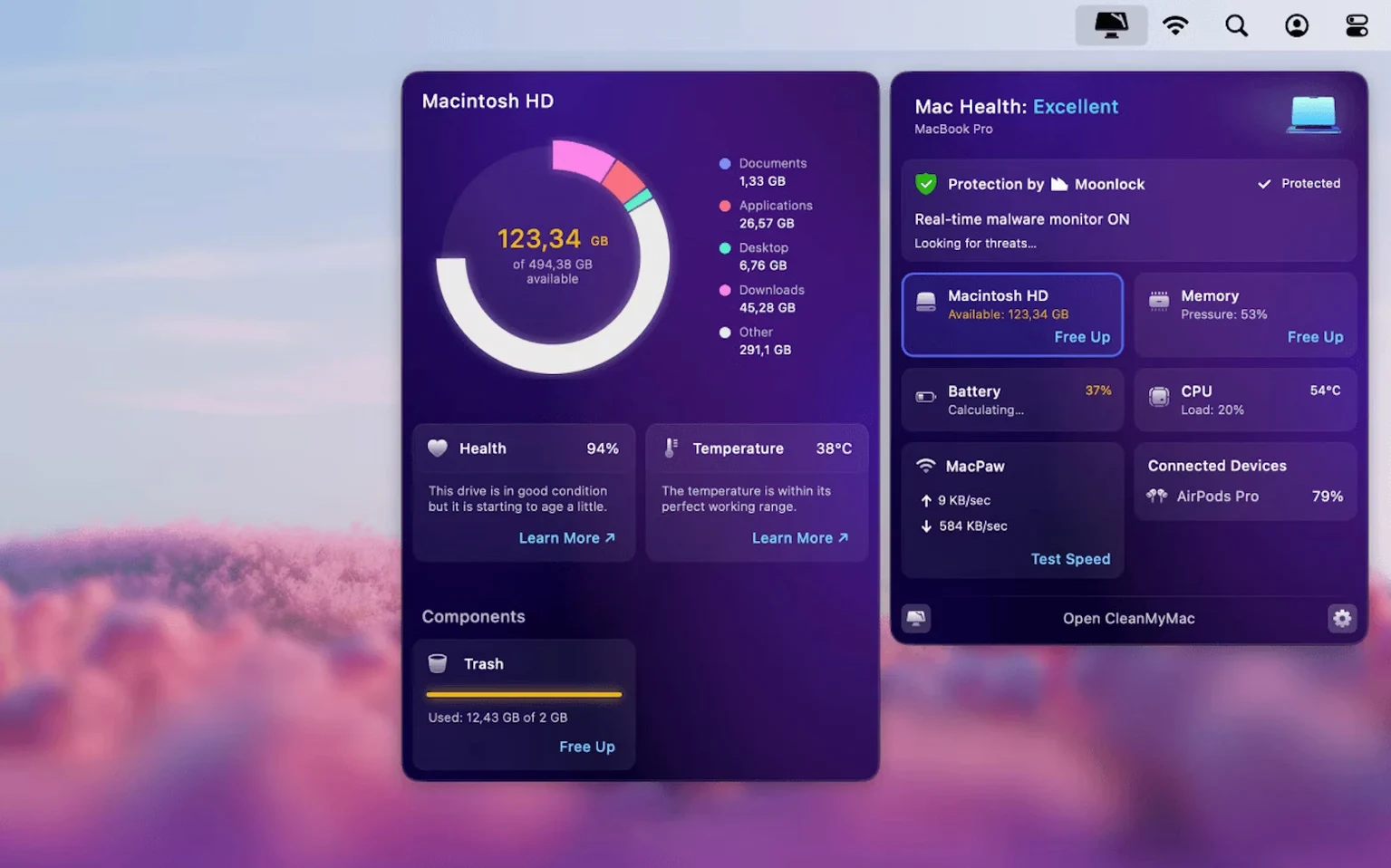
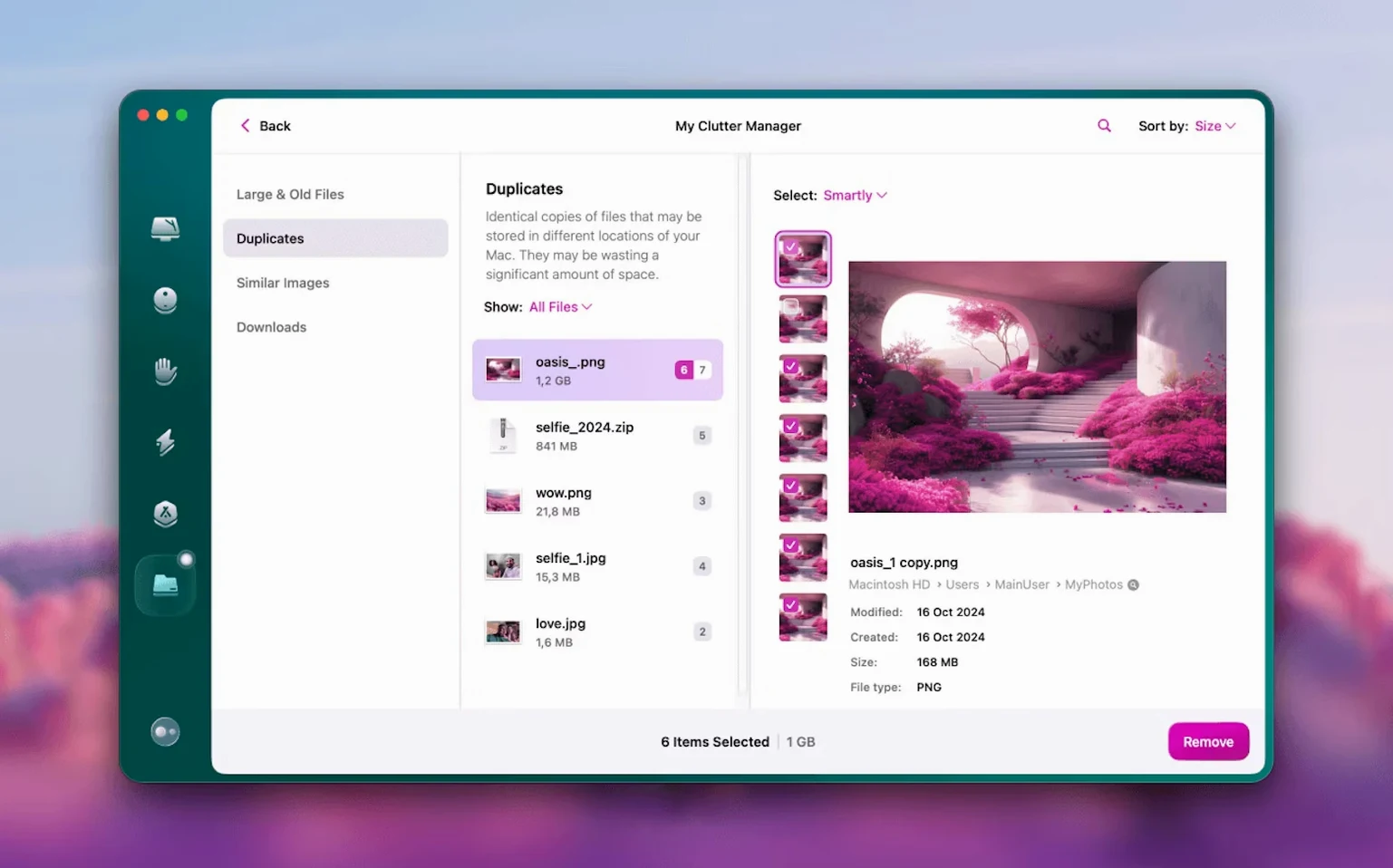
Smart Scan, the one-button check that most people reach for first, lives somewhere between a spring clean and a routine service.
System Junk — temporary files, localised language packs you don't speak, and leftovers from apps that didn't clear up after themselves. This is the bread and butter of CleanMyMac, and the part that overlaps least with macOS's own housekeeping.
Mail Attachments — a newer addition that reaches into the local caches created by Apple Mail. It doesn't touch your Gmail server-side; that's handled elsewhere. Think of it as tidying the downloaded clutter your mail client hoards without asking.
Shredder — a tool for permanently deleting files so they can't be recovered by disk utilities. This is the digital equivalent of a cross-cut shredder, and it's a feature the Finder simply doesn't offer.
App Cleaner & Uninstaller — actually a separate MacPaw utility, not part of this download. It's worth knowing about because macOS's drag-to-trash method often leaves preference panes and caches behind. CleanMyMac handles the routine sweep; the sibling app handles the deep uninstall.
Language files eat up space but free none on disk
The first thing that trips people up is a scan that claims to free enormous amounts of space but leaves the system feeling no different. The culprit is almost always Localised language files. These are the Spanish, Korean, or Ukrainian interface resources for apps you only ever use in English. A fresh install of an app like GarageBand or Logic Pro ships with localisations for a dozen languages, and CleanMyMac flags them all. They're harmless to remove, but they don't affect performance — only free space. If your Mac still feels sluggish after a cleanup, the problem is likely somewhere else, such as a background process or a disk approaching full capacity.
Another regular headache is the Full Disk Access prompt on newer versions of macOS. When you first launch the app, it asks for permission to read your drive. If you dismiss the dialogue by accident, the scanner opens but reports oddly low numbers — sometimes showing only a few megabytes of junk on a cluttered system. The fix is simple: open System Settings, navigate to Privacy & Security > Full Disk Access, and toggle CleanMyMac on. Restart the app afterwards. Without this permission, the utility is essentially scanning with one eye closed.
People also occasionally report that the Shredder hangs on large folders. This isn't a crash — it's the secure overwrite taking its time. A single pass on a 20GB folder can take several minutes, and while the progress bar doesn't always animate smoothly, the process is still running. If it genuinely stalls for more than ten minutes, quit the app and run the shred again on a smaller batch first, just to confirm the mechanism is working.
Gmail attachments and mail caches now separate in scans
Version 5.7.0 introduced tools for cleaning and managing mail in Gmail, alongside broader email cleanup functionality. In practice, this means the scanner now distinguishes between local Mail caches and the clutter that accumulates inside Gmail accounts accessed through a browser or Apple Mail. The tool doesn't log into your Google account remotely — it works on the cached copies stored on your Mac — but the distinction matters. Earlier versions treated all mail attachments as one undifferentiated mass; the new release separates what's safe to clear locally from what might affect your Gmail account if you're syncing through Apple Mail.
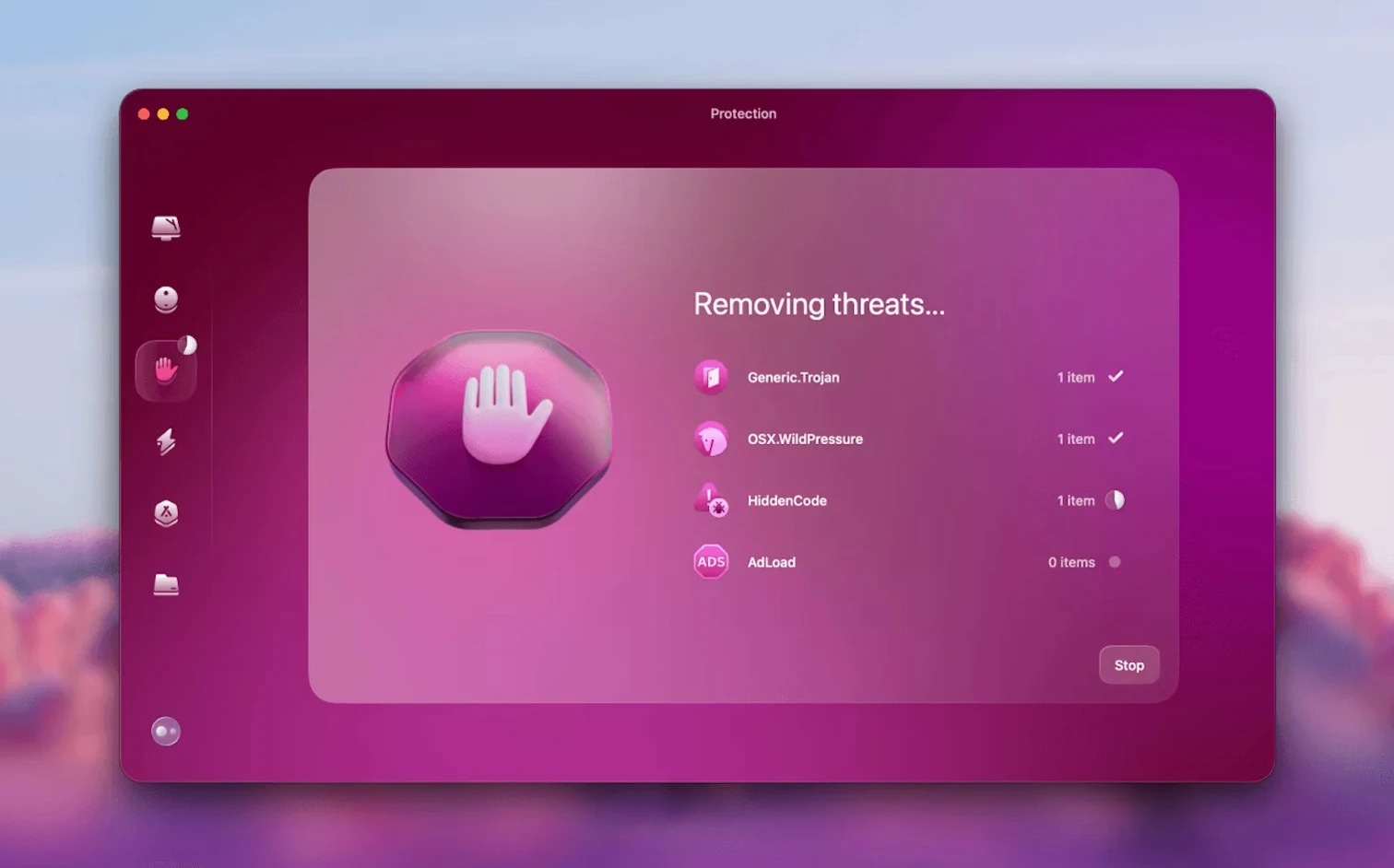
The protection module has quietly grown more assertive over recent point releases. Where older versions scanned only when you ran a manual check, the current build keeps an eye on launch agents and login items in near real time. You'll notice a small notification if an installer tries to add a persistent background process — the sort of thing that legitimate software sometimes does without asking clearly, and that less scrupulous programs rely on. It's a small shift in day-to-day behaviour, but it means you spend less time digging through System Settings after installing new apps.
Daily Smart Scan wears your SSD for no benefit
The most common mistake is treating the Smart Scan button like a vacuum cleaner that should be run daily. It isn't necessary, and it wears down the solid-state drive slightly with every pass — nothing dramatic, but cumulatively pointless. Once a fortnight is plenty for most people. If you're a developer who compiles code frequently, or a photographer importing raw files daily, weekly might make more sense, but the idea that more frequent scanning equals better performance is a misunderstanding of how SSDs work.
Another beginner error involves the Large & Old Files section. The tool lists files by size and last-opened date, which is genuinely useful, but new users sometimes delete things without checking the file path. A 12GB file called "Library.sparsebundle" sitting untouched for six months might look like junk; it's also how Time Machine stores local snapshots. Delete it, and your backup history goes with it. Always click the small magnifying glass icon to reveal the file in Finder before committing to removal.
Finally, there's a tendency to assume that Shredder works on external drives formatted as exFAT or FAT32. It doesn't, not reliably. The secure overwrite protocol depends on the macOS file system's journaling, and non-Apple formats don't support the necessary low-level commands. If you need to shred files on an external drive formatted for Windows compatibility, reformat it as APFS first or use a dedicated third-party eraser that works at the block level.
Review every scan category manually before your first clean
Start with the Smart Scan, but skip the automatic fix. Let it complete, then review each category by hand before clicking the clean button. This does two things: it teaches you what CleanMyMac considers junk, and it prevents you from deleting browser cookies that keep you logged into websites you actually use. The scan flags all cookies equally, and the first run often lists several hundred. Untick the ones from your email provider, your project management tool, and anything else you'd rather not re-authenticate on.
Set the protection module to run in the background immediately. The toggle is in the app's preferences, under the Protection tab. The malware definitions update silently, and you'll rarely notice it's there — which is exactly the point. It's not a replacement for a full antivirus suite if you regularly exchange files with Windows users, but it catches the most common Mac adware and cryptominers that slip through browser downloads.
One overlooked feature worth enabling early is the menu bar widget. It's not enabled by default, but flipping it on from the app's preferences puts a small status icon in the menu bar that shows available RAM, disk activity, and a shortcut to the trash emptying tool. It's lightweight and gives you a sense of what your system is doing without opening Activity Monitor. On a MacBook Air with 8GB of memory, it's a genuinely useful early-warning system for when you're about to hit the swap file too hard.
Workflow: Preparing a Mac for Hand-off to a New User
Imagine a 2021 MacBook Pro that's been in daily use for three years and is about to be passed to a colleague. The goal isn't a factory reset — some apps and files need to stay — but a thorough clean that removes personal traces, stale caches, and anything that would slow down the next person's first week.
Start with the Smart Scan and let it run the full sweep. When it finishes, go directly to the System Junk section and select everything except the localised language files for languages the colleague actually speaks. If they work in German and English, keep those two and clear the rest. This alone can free several gigabytes on a machine with Adobe Creative Cloud installed, since each app ships with a dozen localisations.
Next, move to the Mail Attachments section. If the Mac has Apple Mail configured, it will have cached every inline image and PDF received over three years. Tick all of them — they're local copies, not the originals on the mail server — and clear them. This step often surprises people: a 2GB mail cache on a machine that was only used for text-heavy correspondence is perfectly normal, and it's all safe to remove.
Now open the Large & Old Files tool. Sort by size descending and look for files in the Downloads folder, the Desktop, and any folders that are clearly personal rather than work-related. A folder called "Wedding Photos 2022" sitting in the user's home directory is an obvious candidate for removal. Use the Shredder on anything containing personal documents; a simple Finder delete leaves the data recoverable, which isn't appropriate for a hand-off. For work files that should stay, leave them alone or move them to a shared folder first.
The final step is the Privacy module. Run a scan and clear all browsing history, cookies, and chat logs. This removes the previous user's session data from Safari, Chrome, and any messaging apps that store conversation transcripts locally. It's the digital equivalent of wiping down the kitchen surfaces — quick, thorough, and leaves no trace of the previous occupant.
After the cleanup, restart the Mac and open System Settings to confirm that only the necessary user account remains and that Full Disk Access permissions are configured for the apps the new user will need. The Mac should now feel noticeably snappier, with the previous user's digital footprint erased and the system caches rebuilt from scratch on next launch.
Version 5.7.0 extends the cleanup reach into email. New tools target Gmail caches and attachments stored locally by your mail client, helping reclaim space taken by years of forgotten newsletters and file copies.
- Gmail-specific cleaning for local mail caches and attachment downloads
- New email cleanup functionality integrated into the main scan
- macOS 11 or later
- Apple Silicon or 64-bit Intel processor
Questions I keep hearing
Does CleanMyMac replace the need to manually empty the Trash or clear browser caches?
It can — the app bundles those actions into a single scan alongside deeper system-level tasks, but macOS still handles its own basic Trash emptying perfectly well. Think of it as a consolidated dashboard rather than a replacement for individual manual steps.
Is the Shredder tool different from emptying the Trash securely?
Yes. The Shredder overwrites files multiple times before deletion, making recovery practically impossible, whereas a standard Trash empty simply marks the space as available for reuse.
Questions from the class 0
Sign in or join the class to ask a question.
Nobody has asked anything yet. If you have used it on a real job, say what the file did.
Also on the Mac Apps shelf
The whole Mac Apps shelf CleanShot X
Snaps a screenshot or recording, then lets you annotate, hide sensitive bits, and share the result.
CleanShot X
Snaps a screenshot or recording, then lets you annotate, hide sensitive bits, and share the result.
 CLion
Maps a C or C++ codebase into a living structure you can refactor and navigate with confidence.
CLion
Maps a C or C++ codebase into a living structure you can refactor and navigate with confidence.
 Clip Studio Paint
Gives animators a traditional light-table view to reference previous frames while drawing.
Clip Studio Paint
Gives animators a traditional light-table view to reference previous frames while drawing.
 CloudMounter
Mounts cloud storage and remote servers as local drives in your Finder sidebar.
CloudMounter
Mounts cloud storage and remote servers as local drives in your Finder sidebar.
 Cocktail Sequoia Edition
Clears cached files, repairs permissions and sweeps away the digital clutter that slows a Mac.
Cocktail Sequoia Edition
Clears cached files, repairs permissions and sweeps away the digital clutter that slows a Mac.
 coconutBattery Plus
Charts the invisible decline of your MacBook battery so you can replace it before it fails.
coconutBattery Plus
Charts the invisible decline of your MacBook battery so you can replace it before it fails.
 CCleaner Pro
Sweeps away browser caches, logs, and leftover files that macOS's own tools leave behind.
CCleaner Pro
Sweeps away browser caches, logs, and leftover files that macOS's own tools leave behind.
 Coherence X
Creates isolated, standalone desktop apps for each of your web accounts and services.
Coherence X
Creates isolated, standalone desktop apps for each of your web accounts and services.