 ASPNetWorld

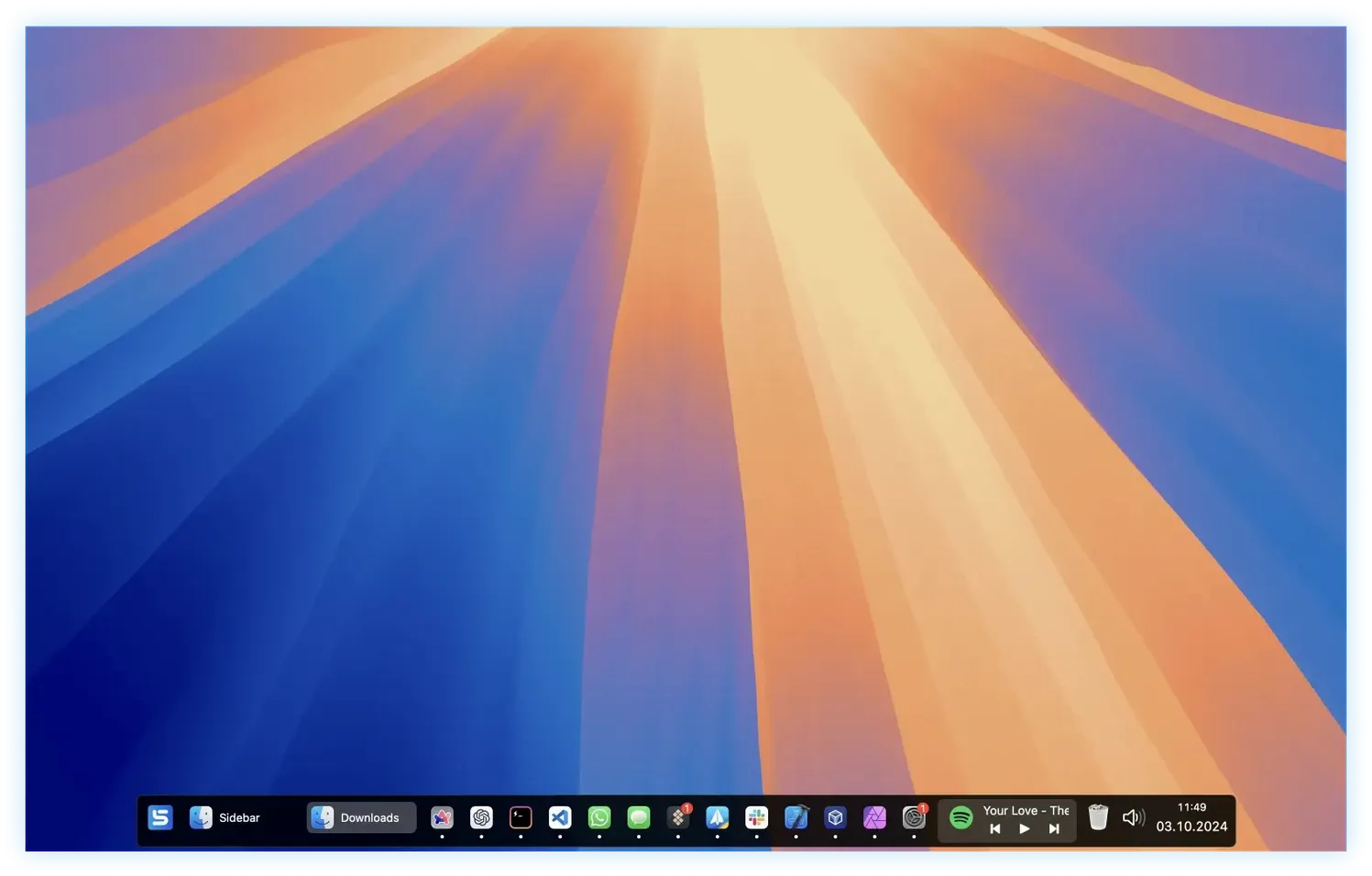
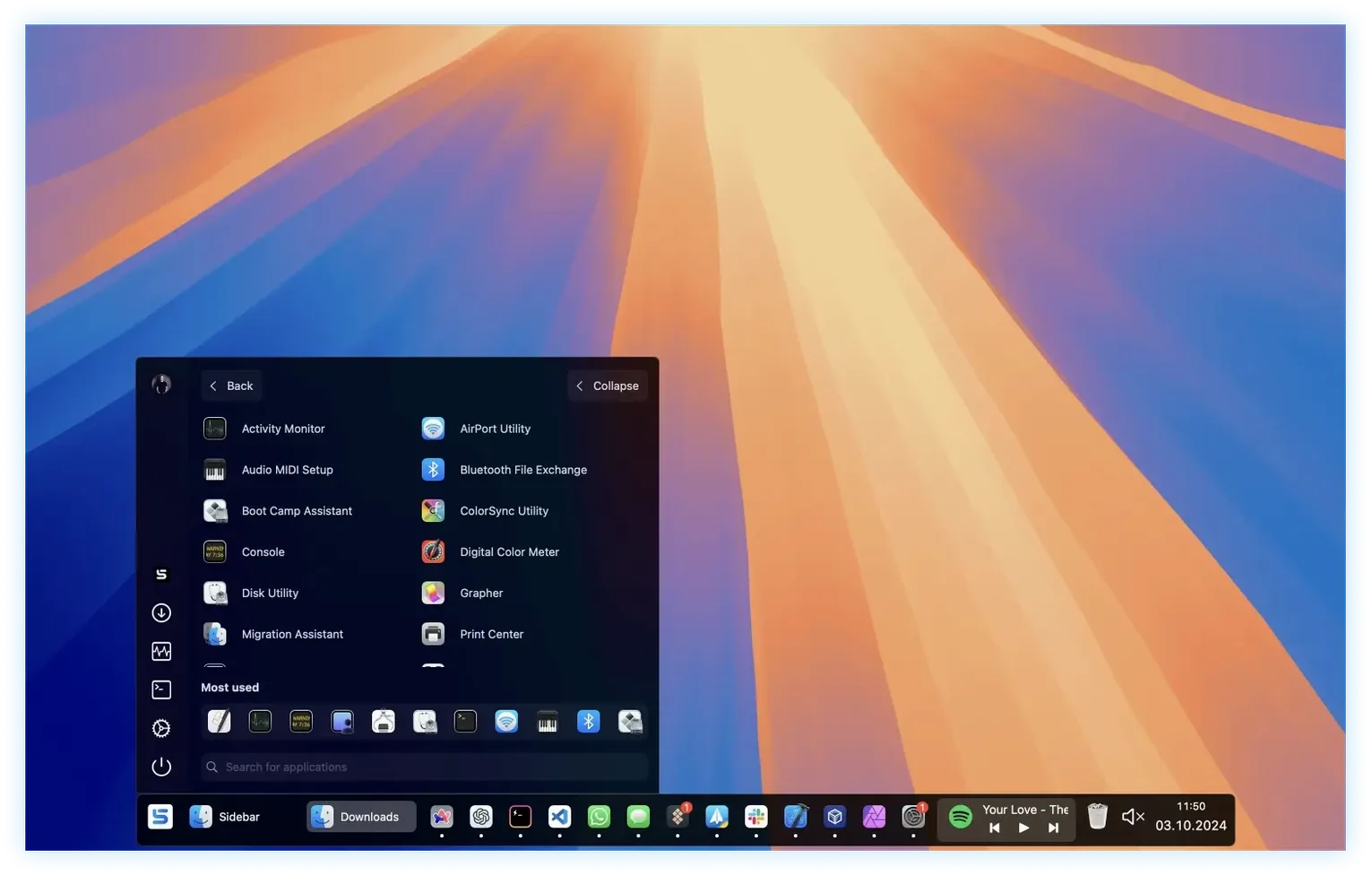
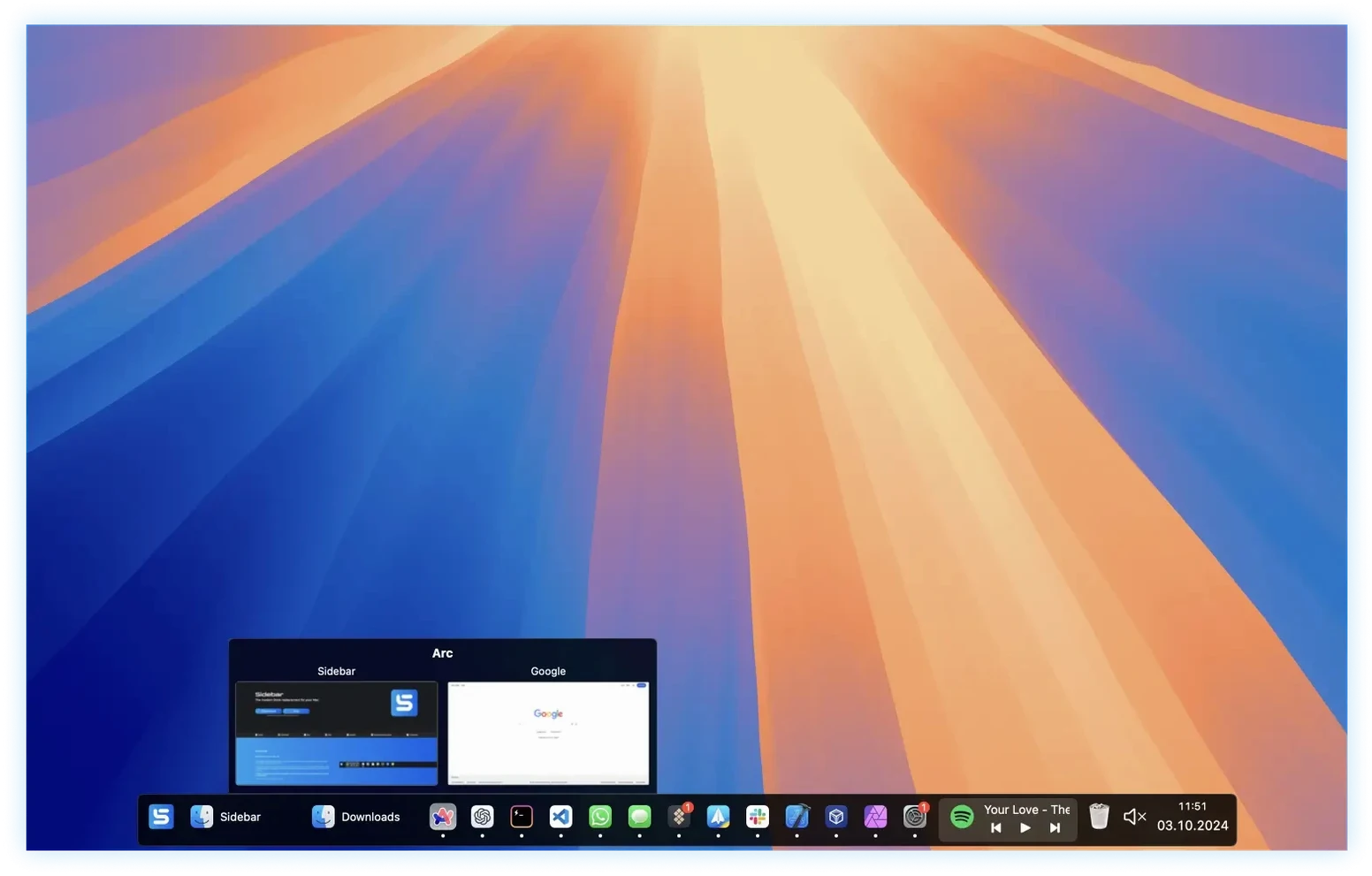
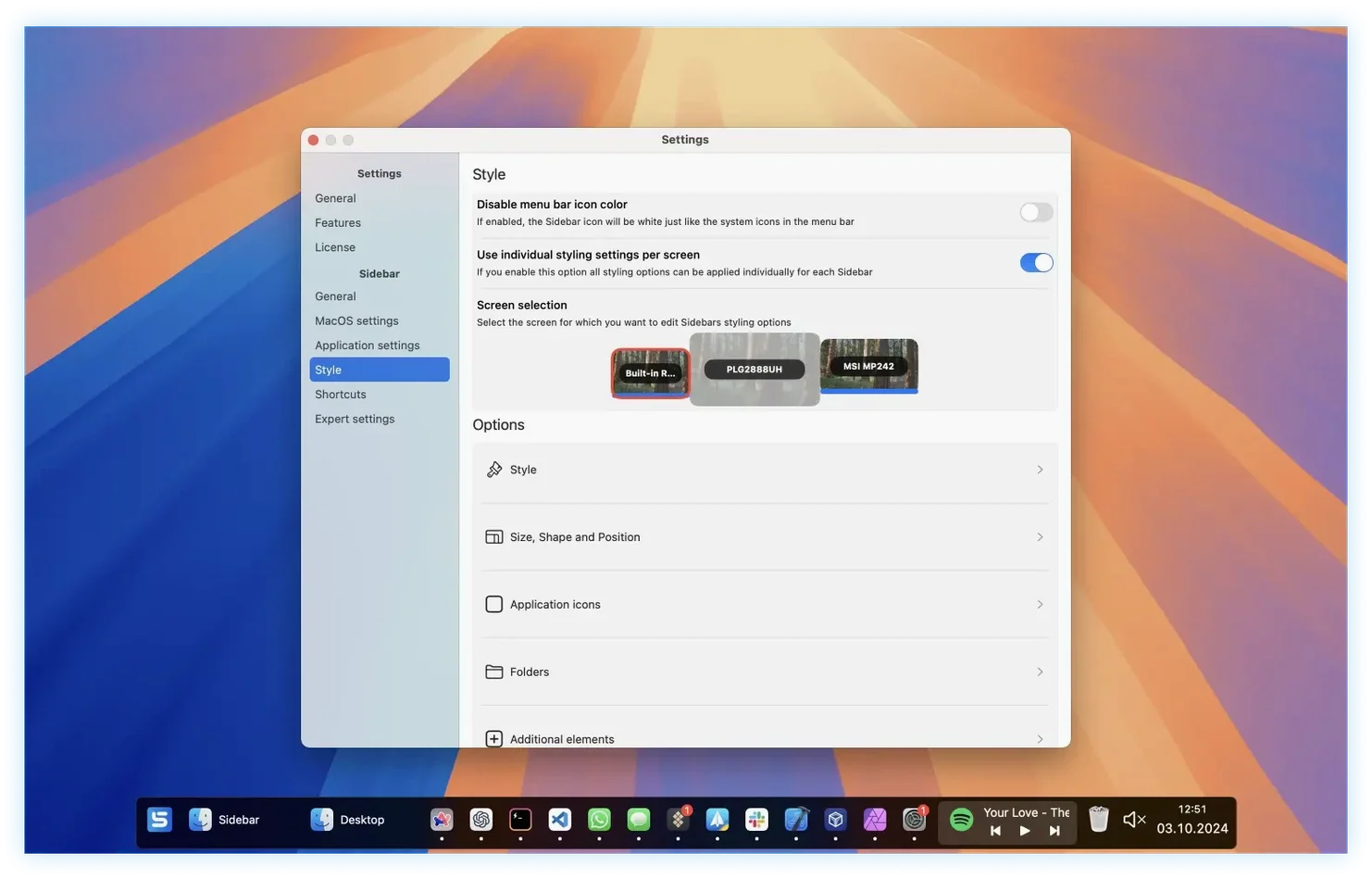
Window previews are the feature that makes the most difference day to day. Hover over an app icon, and instead of guessing which document is hiding behind a generic tile, you see a live thumbnail of every open window. It’s like peeking into each room before you walk through the door. That one gesture shifts Sidebar from being merely an alternative app launcher into something that genuinely changes how you organise your screen time.
- Set up your sidebar on the main screen first — drag in frequently used apps, then group related ones into stacks. A stack behaves like a folder in the Dock, but you define what goes in it, so you might keep all your writing tools together regardless of where they live on disk.
- Hop over to the second screen and build a different layout. Because Sidebar supports multiple screens and per-display configuration, your laptop’s built-in panel can show communication apps while the external monitor holds design tools.
- Assign keyboard shortcuts to the apps you launch most. One keypress later, you’re in. It sits nicely next to Spotlight and the existing Dock — Sidebar isn’t trying to delete the tools you already know, just give you a faster, more visual lane alongside them.
- Slide your cursor to the volume control baked into the sidebar. It handles system volume, and there’s a quick mute toggle for those moments when a video autoplays at the wrong time. The tiny calendar tucked in there is a bonus: click it and you see the month without opening a full calendar app.
It runs natively on both Apple Silicon and Intel Macs from macOS 12 onward, so there is no Rosetta translation overhead to think about. The whole thing feels like a considered addition to the desktop rather than a drastic overhaul — more like adding a well-placed shelf than knocking down a wall.
Finishing a piece of writing across two screens, three apps, and a podcast
Imagine Tuesday morning, two screens on the desk. You have a piece of writing to finish, research notes scattered across three apps, and a podcast playing in the background. Here's how Sidebar earns its keep.
You start on the main display. The sidebar sits vertically on the left, reserving a slim strip of screen space so no window ever slides behind it. A quick hover over Safari shows four open tabs as live thumbnails — you spot the article you need and click straight into it, bypassing the browser's own tab bar entirely. That's one click where there used to be three.
Next, you glance at the stack you labelled "Writing." Inside are Pages, Notes, and a thesaurus app you keep meaning to use more. You drag a PDF from the desktop onto the Pages icon inside the stack; Sidebar opens it in the right app. No Dock spring-loading, no awkward hold-and-wait.
On the second screen, your sidebar is shorter and tuned for quick controls. The volume slider sits at the bottom — you nudge it down slightly with the cursor. Further up, the music playback control shows the podcast name; one tap pauses it when a colleague pops their head around the door. The mute toggle is right there too, and you flick it on without hunting for a keyboard function key.
Mid-morning, you remember the calendar. A single click on the sidebar's date display reveals the month grid. You spot a deadline two days out, close it, and get back to work — no separate app launched, no menu bar interaction. The session flows without the Dock ever making an appearance.
Layouts now survive sleep on multi‑monitor setups
Version 2.2.5 brought stability improvements that matter in daily use, particularly on multi-monitor setups where earlier builds could occasionally forget a display's configuration after waking from sleep. That sore point is now largely smoothed over, which means your per-screen layouts stick.
Looking ahead, version 2.2.6 introduces a new System Controls widget. In practice, this gives you a compact panel for things like display brightness and playback state, tucked into the sidebar rather than spread across the menu bar. For anyone running sidebar 2.2.5 for mac right now, the jump to the next build will feel like gaining a remote control for the Mac's own hardware functions — no third-party hacks required. The developer has kept the release notes refreshingly free of marketing fluff, so when they list a new widget, that's exactly what you get.
How Sidebar compares with similar Mac apps
Put it next to uBar, and the philosophical difference is immediate. uBar closely mimics the Windows taskbar, complete with grouped window labels and a Start-menu-style launcher. It's for people who want their Mac to feel like a PC. Sidebar takes the opposite approach: it's vertical, visually quieter, and treats screen-edge space as precious real estate rather than copying a horizontal bar. If uBar is a transplant, Sidebar is more like a custom-built extension.
Then there's DockMate, which layers extra previews and controls on top of the existing Dock rather than replacing it. DockMate is lighter in ambition — you keep the Dock, and it adds window previews and a few quality-of-life tweaks. Sidebar replaces the Dock entirely, so the comparison isn't like-for-like. A sidebar crack mac search might surface older patched versions that enthusiasts have tweaked for compatibility, and the real thing from the developer works cleanly on macOS 12 and above with no activation dances — a rarity in this corner of the Mac utility world.
Compared with Station, which bundles multiple web apps into one window, Sidebar doesn't try to consolidate your apps inside itself. It stays at the edge, organising what's already running rather than becoming another container. That restraint keeps it fast and keeps your Mac feeling like a Mac.
- macOS 12 or later
- Works on both Apple Silicon and Intel 64-bit Macs
Questions I keep hearing
Can I use Sidebar on more than one screen?
Yes, it supports multiple screens and you can configure a completely different set of apps and stacks for each display.
Does Sidebar replace the macOS Dock?
It is designed as a modern replacement for the Dock, but it runs alongside it, so you can ease in gradually rather than committing to a full switch.
What happens when I hover over an app icon?
Sidebar shows live previews of all open windows for that application, letting you jump directly to the one you need.
Questions from the class 0
Sign in or join the class to ask a question.
Nobody has asked anything yet. If you have used it on a real job, say what the file did.
Also on the Mac Apps shelf
The whole Mac Apps shelf Shadowrocket
Routes your network traffic through different proxies based on rules you set up.
Shadowrocket
Routes your network traffic through different proxies based on rules you set up.
 Sip
Collects colours from anywhere on your screen and organises them into shareable palettes.
Sip
Collects colours from anywhere on your screen and organises them into shareable palettes.
 Sketch
Designs every screen of an app or website in one vector document before a developer touches it.
Sketch
Designs every screen of an app or website in one vector document before a developer touches it.
 Session Pomodoro Focus Timer
Times your work blocks and breaks so you can concentrate on one thing at a time.
Session Pomodoro Focus Timer
Times your work blocks and breaks so you can concentrate on one thing at a time.
 SketchUp Pro
Draws and extrudes 3D models as freely as you might sketch a shape on paper.
SketchUp Pro
Draws and extrudes 3D models as freely as you might sketch a shape on paper.
 Sensei
Shows you exactly what your Mac is doing right now and helps you tidy it up.
Sensei
Shows you exactly what your Mac is doing right now and helps you tidy it up.
 ScreenFlow
Captures and edits screen recordings, then turns your clicks and taps into animated callouts.
ScreenFlow
Captures and edits screen recordings, then turns your clicks and taps into animated callouts.
 Screen Studio
Records your screen while automatically smoothing cursor movement and trimming silence.
Screen Studio
Records your screen while automatically smoothing cursor movement and trimming silence.