 ASPNetWorld

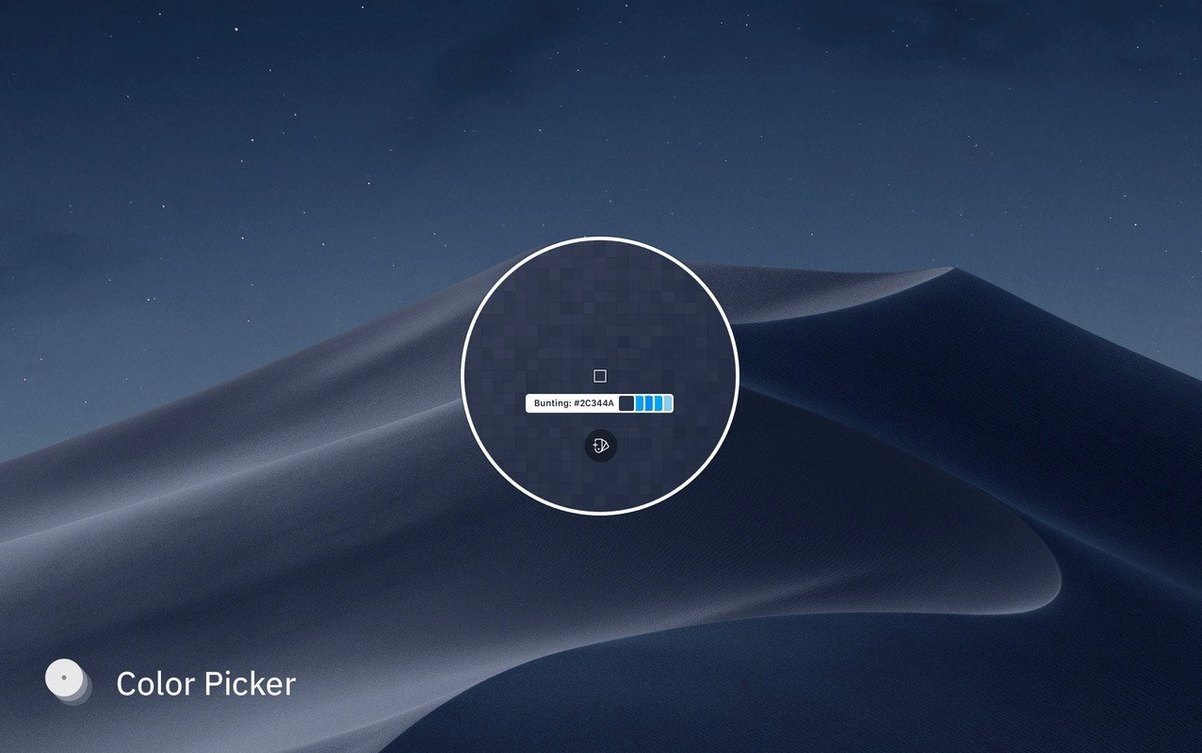
Every palette you build in Sip can hold an unlimited number of colours, which is both a freedom and a challenge when you are first staring at a blank window. The best way to get your bearings is to stop thinking about hex codes and start treating the app as a scrapbook. Click the menubar icon and choose the magnifying glass; the loupe that appears lets you sample anything on screen with a single click. Hold Shift to grab a handful of related tones from a photograph, or Cmd-click to pick a colour without dismissing the loupe, so you can build a mood board in seconds rather than minutes.
A colour library that remembers every pick, right down to the source app
- Building a personal colour library — folders and tags keep client palettes separate from weekend experiments, and the snapshot tool remembers every colour you have ever picked, complete with the source app and a timestamp.
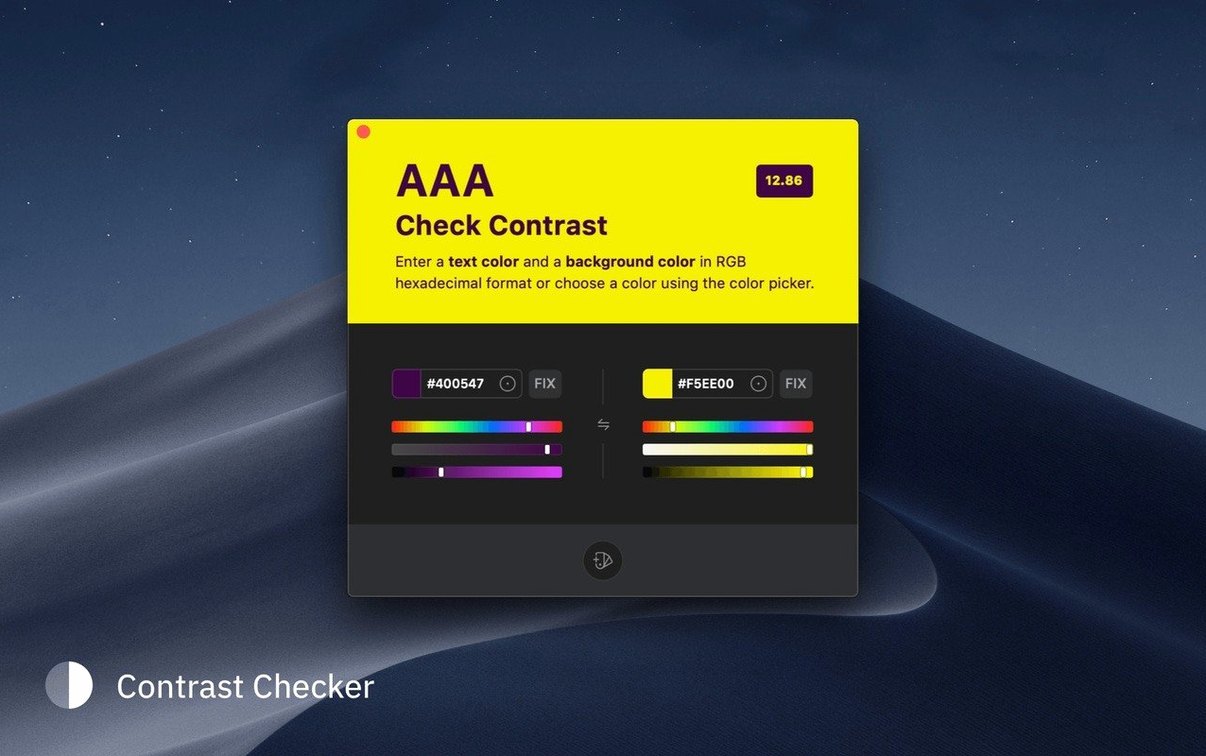
- Quick contrast checks — select two swatches and Sip calculates the WCAG ratio instantly. If the pairing fails, the auto-correct slider nudges one colour towards compliance without you having to guess.
- Handing off to other apps — Sip can push a colour directly into Sketch, Figma or Xcode, so the shade you sampled from a reference image arrives in your design file without a trip through the clipboard.
No live cloud sync, so collaborators get a static snapshot of your palette
- Palettes are shareable by email, but there is no live cloud sync — collaborators get a static file, not a link that updates as you edit.
- The contrast corrector works on a single pair at a time; checking a whole palette still involves selecting swatches manually.
- Linking colours across tools requires the companion plugin for each design app, which you install separately.
Fitting Sip into your wider workflow
Where Sip really earns its keep is the way it threads colour through several apps without you feeling like a courier. The integration plugins for Sketch and Figma turn Sip into a live palette docked inside the design canvas, so a swatch picked from a client’s branding PDF lands directly in your component library. Xcode developers get the same treatment: a sampled colour can populate an asset catalog entry without retyping hex values. Beyond the official plugins, the system-wide colour panel — the one you see in TextEdit or Pages — also respects Sip’s clipboard. Copy a swatch inside Sip, and pasting into any standard macOS colour well drops the value straight in. It’s a small thing, but it means even apps without a plugin feel like they are part of the same colour pipeline.
On the sharing side, emailing a palette file is not the whole story. You can also copy a colour as a Swift UIColor or NSColor initializer, which saves a developer colleague from looking up the hex-to-decimal conversion. And because Sip stores snapshots with the originating application name, retracing where you found that particular grey becomes a search task rather than a memory test — useful when a project drags on for months.
Dock the panel for a week to make sampling a one-click reflex
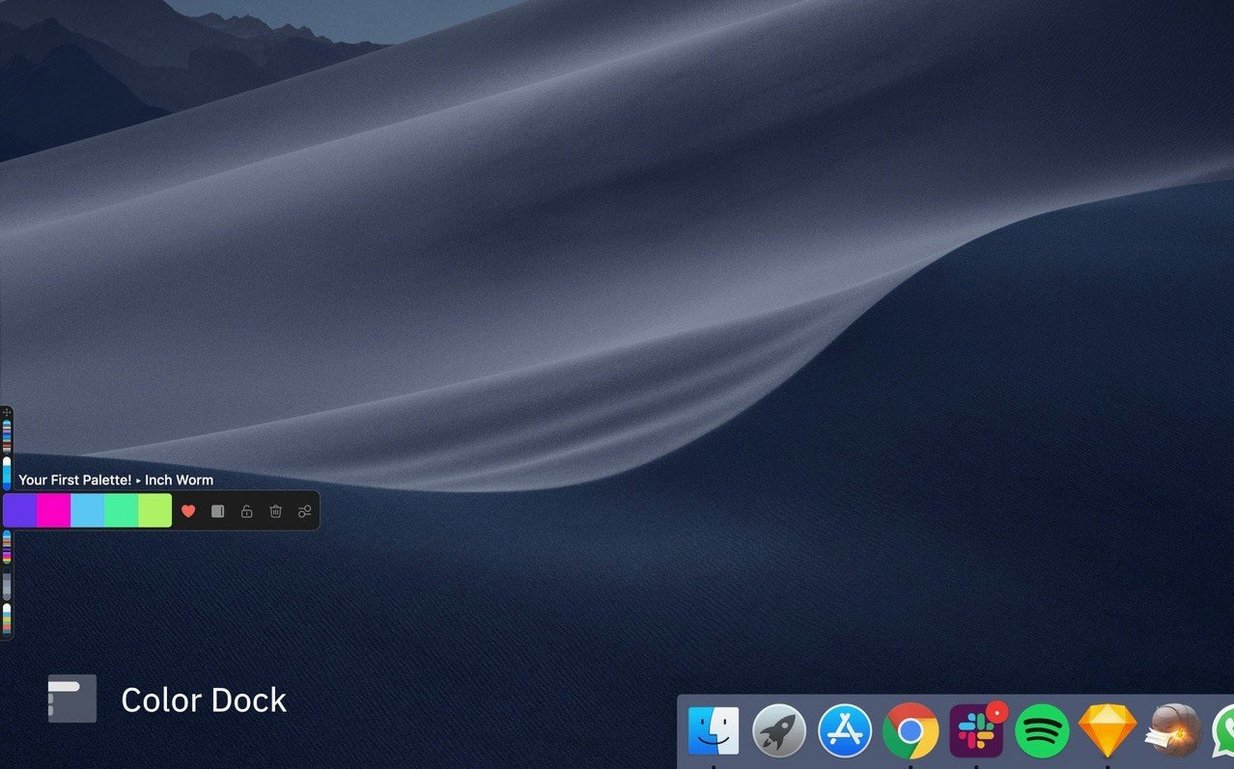
Start by pinning the colour panel to the right edge of your screen for the first week. The docked panel stays visible above other windows and turns sampling into a one-click action rather than a trip to the menubar. During that week, resist the urge to create a dozen folders. Instead, let everything land in the default palette and use tags — client:brookfield, mood:warm, project:rebrand — to impose order retrospectively. Tags are easier to rename than a folder tree, and Sip’s search bar responds to them instantly.
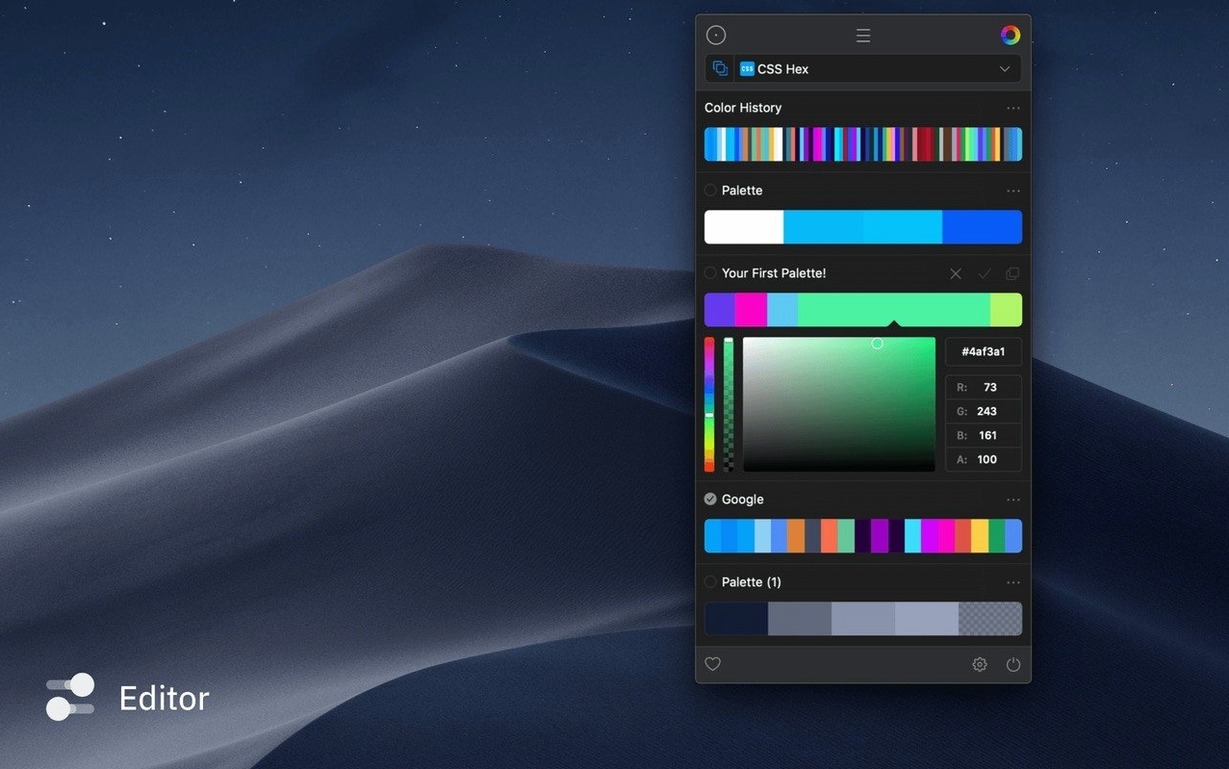
Another habit worth forming early: set up a custom format that matches exactly how your team writes colour values. If your CSS always uses uppercase hex with a leading hash, define that once in Preferences under the Formats tab. It sounds trivial, but it eliminates the low-grade friction of manually capitalising pasted values a dozen times a day. And if you occasionally grab a colour from a torrent app’s icon while checking a sip torrent macos reference design, the snapshot log will capture it with a timestamp, so you can trace the source later without scratching your head.
Rarely crosses 80 MB of memory, even with hundreds of swatches
Sip runs as a lightweight menubar agent, and on an Apple Silicon Mac it barely registers in Activity Monitor — typically under 80 MB of memory even with a few hundred swatches loaded. Launching the full palette window is snappy, and the loupe tracks the cursor at screen-refresh speed without the stutter some older colour tools suffer on Retina displays. I have left it running for two weeks straight without noticing any creeping memory pressure, though the snapshot database does grow steadily; clearing snapshots older than a month once a quarter keeps the search index tight.
Intel machines see similar stability, though the loupe’s magnification overlay can dip a frame or two when the GPU is already busy with a heavy Sketch file. The only real pause comes when exporting a snapshots archive — a few seconds for a year’s worth of colour history — but that is an end-of-project task, not a daily interruption. Overall, Sip behaves like a utility that has settled into macOS properly, using native panels and the system colour picker APIs rather than bolting on its own interface layer. That restraint is what makes it feel like a feature Monterey forgot to include, rather than a third-party bolt-on.
- macOS 12.3 or later
- Works natively on both Intel and Apple Silicon Macs
- Interface available in English
Questions I keep hearing
Can I pick more than one colour without reopening the loupe?
Yes — hold Shift to add colours to your selection, or use Cmd-click to sample repeatedly while the loupe stays open.
Questions from the class 0
Sign in or join the class to ask a question.
Nobody has asked anything yet. If you have used it on a real job, say what the file did.
Also on the Mac Apps shelf
The whole Mac Apps shelf Sketch
Designs every screen of an app or website in one vector document before a developer touches it.
Sketch
Designs every screen of an app or website in one vector document before a developer touches it.
 SketchUp Pro
Draws and extrudes 3D models as freely as you might sketch a shape on paper.
SketchUp Pro
Draws and extrudes 3D models as freely as you might sketch a shape on paper.
 Sidebar
Lets you peek at every open window by hovering over an app in your Dock.
Sidebar
Lets you peek at every open window by hovering over an app in your Dock.
 Shadowrocket
Routes your network traffic through different proxies based on rules you set up.
Shadowrocket
Routes your network traffic through different proxies based on rules you set up.
 Session Pomodoro Focus Timer
Times your work blocks and breaks so you can concentrate on one thing at a time.
Session Pomodoro Focus Timer
Times your work blocks and breaks so you can concentrate on one thing at a time.
 Sensei
Shows you exactly what your Mac is doing right now and helps you tidy it up.
Sensei
Shows you exactly what your Mac is doing right now and helps you tidy it up.
 ScreenFlow
Captures and edits screen recordings, then turns your clicks and taps into animated callouts.
ScreenFlow
Captures and edits screen recordings, then turns your clicks and taps into animated callouts.
 Screen Studio
Records your screen while automatically smoothing cursor movement and trimming silence.
Screen Studio
Records your screen while automatically smoothing cursor movement and trimming silence.