 ASPNetWorld

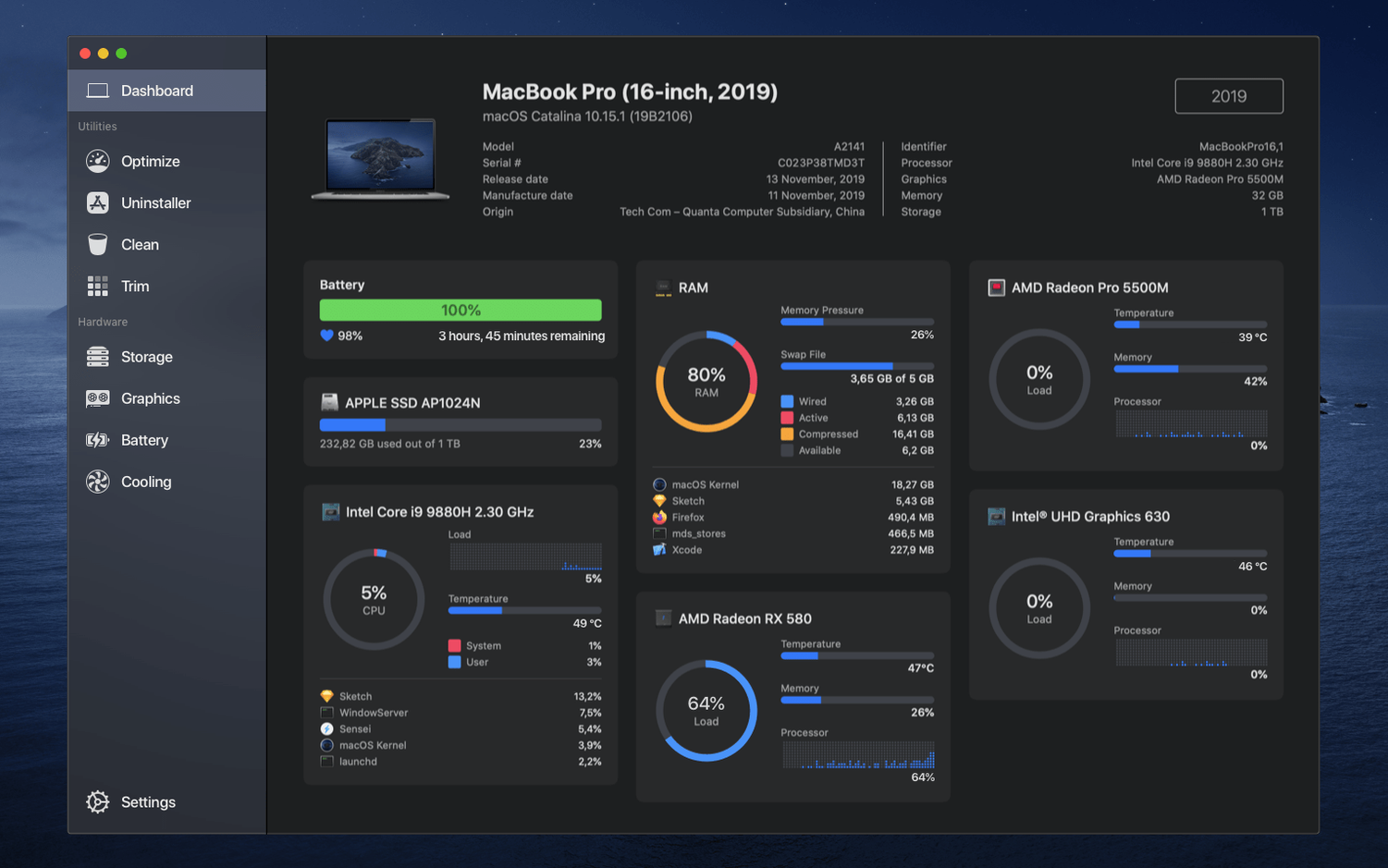
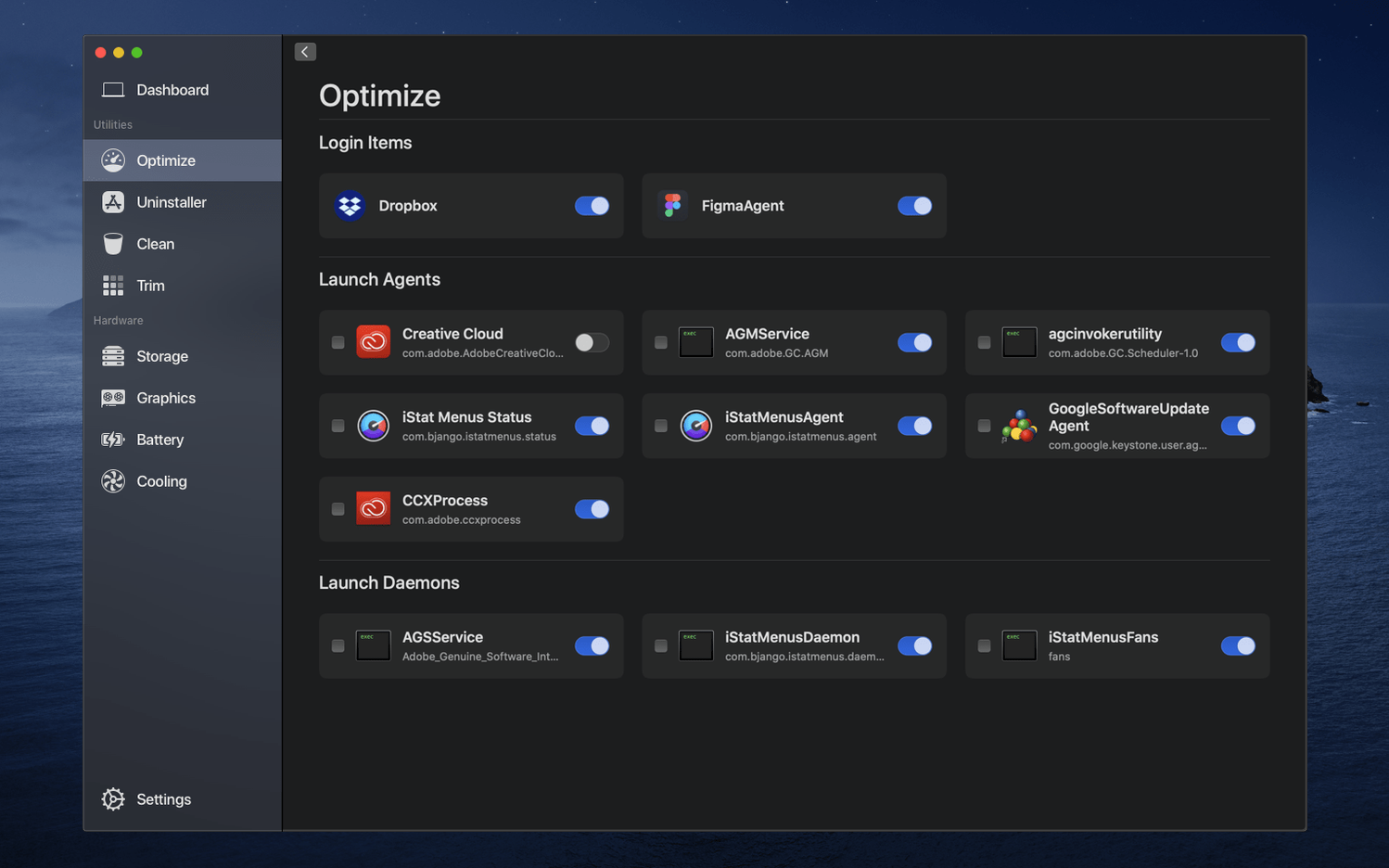
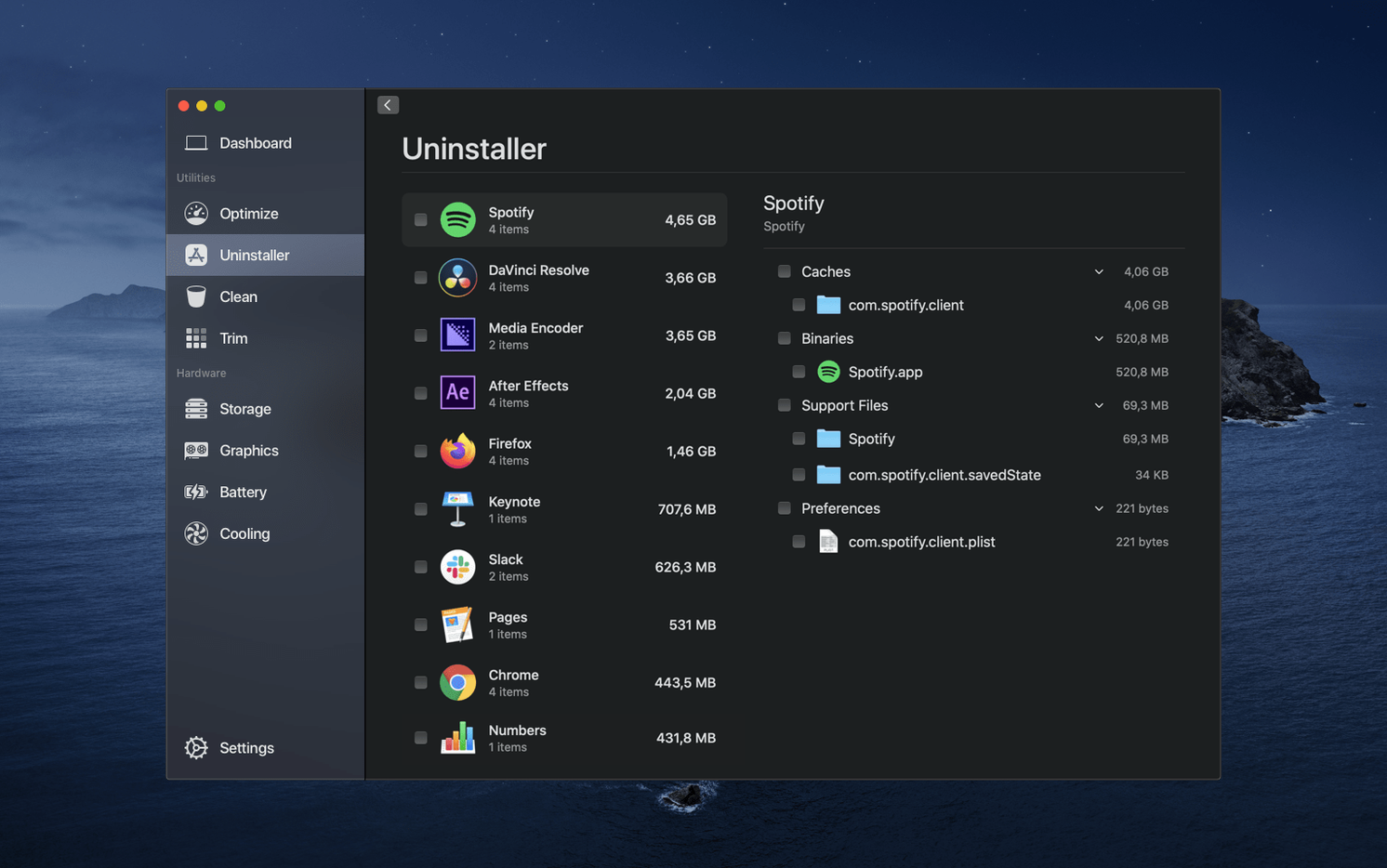
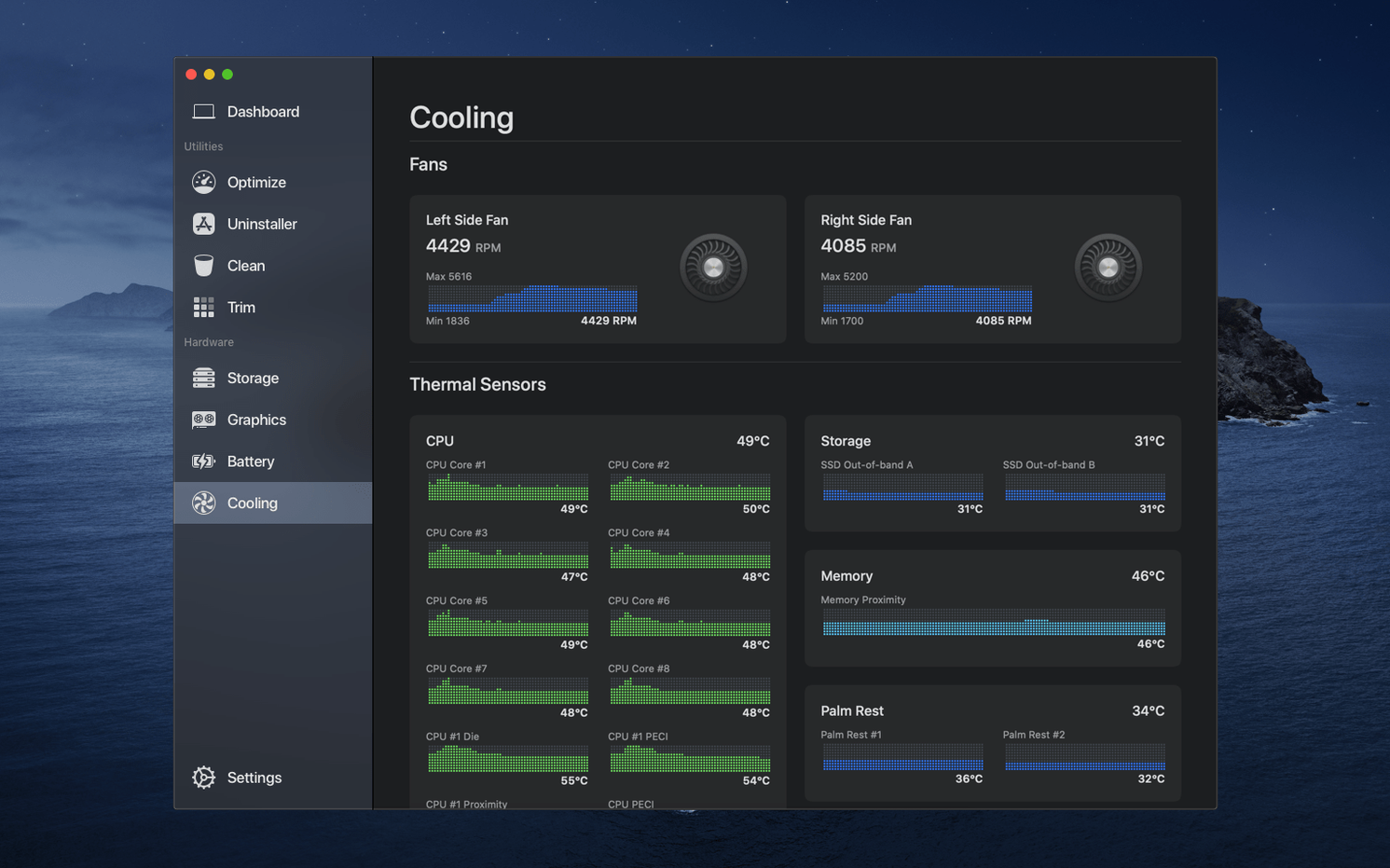
Sensei is an all-in-one utility that puts the vital signs of your Mac right on the desktop, pairing real-time performance monitoring with practical cleanup and optimisation tools.
Dashboard — A single-window overview of CPU load, memory pressure, storage usage and network activity, so you can spot a bottleneck the moment it happens without opening half a dozen Apple menus.
Menu Bar Monitor — A glanceable system monitor that lives in the menu bar, showing live performance stats without pulling you away from whatever you're working on.
Temperature Tracking — A sensor readout that shows how hot the internals are running. Useful for catching a fan that's on its way out or a workload that's pushing the machine harder than expected.
SSD TRIM Enabler — TRIM tells a solid-state drive which blocks of data are no longer in use, so the drive can tidy up in the background. Sensei can switch this on for third-party SSDs where macOS leaves it off by default, helping to keep write speeds from degrading over time.
Battery Health — A dedicated section that reports the current charge capacity against the original specification, along with cycle count. It gives you an early warning before a swelling battery or a short runtime catches you by surprise.
Disk Cleanup — A set of tools for hunting down large, forgotten files, clearing caches and removing application leftovers — the kind of digital clutter that creeps back no matter how tidy you try to be.
Option-click disk cleanup for a deeper scan
Some of Sensei's best touches are the ones that sit just off the main path — shortcuts and behaviours that take a few sessions to discover. When you launch the Disk Cleanup tool, for instance, you can hold the Option key while clicking a category to reveal a Select All command, which turns an otherwise tedious multi-click chore into a single gesture. The menu bar Monitor, meanwhile, responds to a right-click by switching between a compact icon view and a running graph of the last sixty seconds of CPU history, so you can tailor the footprint to whatever else is crowding the bar.
There is also a quiet integration with the Trim Enabler that is easy to miss: after you toggle TRIM on, the app silently checks the drive's firmware compatibility in the background and surfaces a note only if something looks off. No pop-up parade, just a small amber badge on the Dashboard the next time you open it. And in the Applications uninstaller, dragging a group of apps onto the window at once queues them all for removal, complete with a combined preview of the freed space — a small thing, but a real time-saver when you are clearing out a folder of abandoned utilities.
How Sensei Compares with Similar Mac Apps
Sensei occupies a space that a handful of Mac utilities have tried to claim over the years, but it draws its own boundary lines. Put it next to CleanMyMac X, and the difference in philosophy becomes clear straight away. Where CleanMyMac wraps every function in a guided, almost conversational interface, Sensei treats you like someone who already knows what a cache file is and would rather get straight to the numbers. CleanMyMac leans heavily on automation — one button to "Smart Scan" everything — while Sensei gives you separate, ungated access to monitoring, cleaning and hardware tools, which suits a more hands-on workflow.
iStat Menus is the obvious reference for system monitoring, and it is still the deeper instrument if you want to build custom menu bar graphs with historical logging. Sensei does not try to match that granularity; instead it wraps monitoring inside the same app that also handles cleanup and TRIM, so you are not juggling two separate purchases and two separate memory footprints. The trade-off is that Sensei's menu bar Monitor offers fewer configuration options, but it covers the essentials — CPU, memory, network and disk — in a cleaner, more modern visual style.
Then there is DaisyDisk, which purely scans and visualises disk usage. Sensei's Disk Cleanup does not attempt a radial sunburst map; it sticks to a straightforward, sortable file list. That makes it less theatrical but quicker to act on, especially when you simply want to find and delete a forgotten 12 GB virtual machine image from two macOS upgrades ago.
Cooling a MacBook Pro during a 4K export crunch
Picture a freelance video editor working on a fifteen-minute 4K project in DaVinci Resolve. Exports have been running hotter than usual — the MacBook Pro's fans are screaming by the forty-minute mark, and an export that should take twelve minutes is stretching to eighteen. Instead of guessing, she opens Sensei's Dashboard and sees the GPU temperature hovering at 93°C with occasional thermal throttling flags. A quick check of the Battery Health section confirms the cycle count is still reasonable, so the machine itself is not failing; it is simply clogged.
She switches to Disk Cleanup and finds 87 GB of render caches left behind by a project she wrapped three weeks ago, plus 22 GB of old Time Machine local snapshots that never cleared out. After purging those, she runs the Trim Enabler check on her external SSD scratch disk — TRIM was off, so she flips it on — then uses the fan control to set a slightly more aggressive curve for the duration of the next export. The next run completes in eleven minutes, and the fans settle down sooner. No terminal commands, no restart, no calling a technician. That is the kind of afternoon where Sensei earns its place in the Dock.
Show two performance stats in the menu bar
Out of the box, Sensei works with sensible defaults, but a couple of tweaks make it feel more like your own. The first stop should be the Menu Bar Monitor preferences: by default the icon shows a single stat, but switching it to the combined view lets you see CPU percentage, memory pressure and a tiny disk activity indicator all at once. It takes a few pixels more space and rewards you with a much fuller picture every time you glance up.
Next, head to the Disk Cleanup settings and adjust the minimum file size filter. The factory setting of 10 MB is fine for a first pass, but if you are hunting for true space hogs — old disk images, archived projects, downloaded installers — raising it to 100 MB or 500 MB cuts the noise dramatically. While you are there, add any external editing drives to the exclusion list so you do not accidentally sweep up active media assets.
For SSD owners, the Trim Enabler tab deserves a visit even if you think macOS has it covered. Sensei shows a clear status line for every connected drive, and you would be surprised how often an external enclosure reports TRIM as unsupported when the drive inside is perfectly capable. A single click here can save months of gradual write-speed decay. Finally, in the Thermal section, consider setting a custom fan curve if you regularly push the machine with sustained renders or compilations — the default Apple curve prioritises silence, and a slightly steeper ramp from around 70°C can claw back performance during long sessions without making the machine uncomfortably loud.
- macOS 14 or later
- Apple Silicon and Intel Macs
Questions from the class 0
Sign in or join the class to ask a question.
Nobody has asked anything yet. If you have used it on a real job, say what the file did.
Also on the Mac Apps shelf
The whole Mac Apps shelf ScreenFlow
Captures and edits screen recordings, then turns your clicks and taps into animated callouts.
ScreenFlow
Captures and edits screen recordings, then turns your clicks and taps into animated callouts.
 Screen Studio
Records your screen while automatically smoothing cursor movement and trimming silence.
Screen Studio
Records your screen while automatically smoothing cursor movement and trimming silence.
 Session Pomodoro Focus Timer
Times your work blocks and breaks so you can concentrate on one thing at a time.
Session Pomodoro Focus Timer
Times your work blocks and breaks so you can concentrate on one thing at a time.
 Shadowrocket
Routes your network traffic through different proxies based on rules you set up.
Shadowrocket
Routes your network traffic through different proxies based on rules you set up.
 Sidebar
Lets you peek at every open window by hovering over an app in your Dock.
Sidebar
Lets you peek at every open window by hovering over an app in your Dock.
 RightFont
Manages and previews fonts directly from the menu bar.
RightFont
Manages and previews fonts directly from the menu bar.
 Rider
Builds .NET and Unity projects in a cross-platform IDE.
Rider
Builds .NET and Unity projects in a cross-platform IDE.
 Sip
Collects colours from anywhere on your screen and organises them into shareable palettes.
Sip
Collects colours from anywhere on your screen and organises them into shareable palettes.