 ASPNetWorld

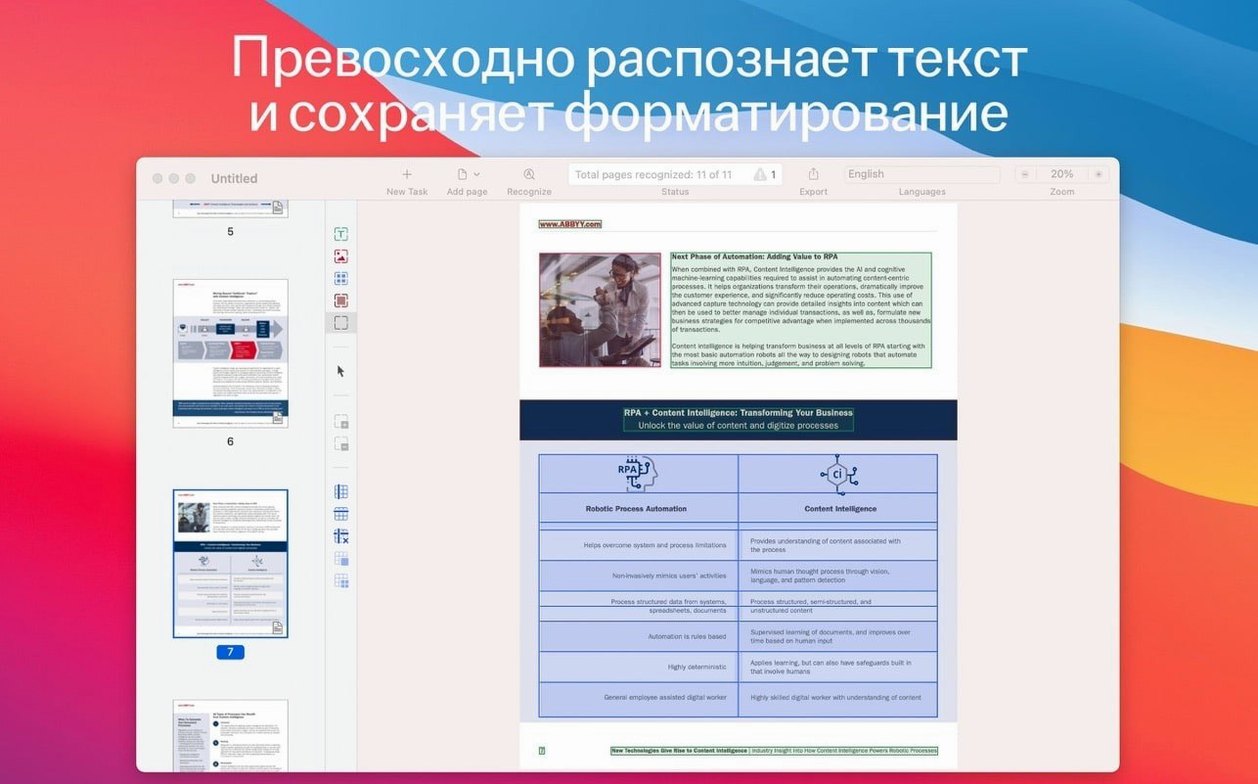
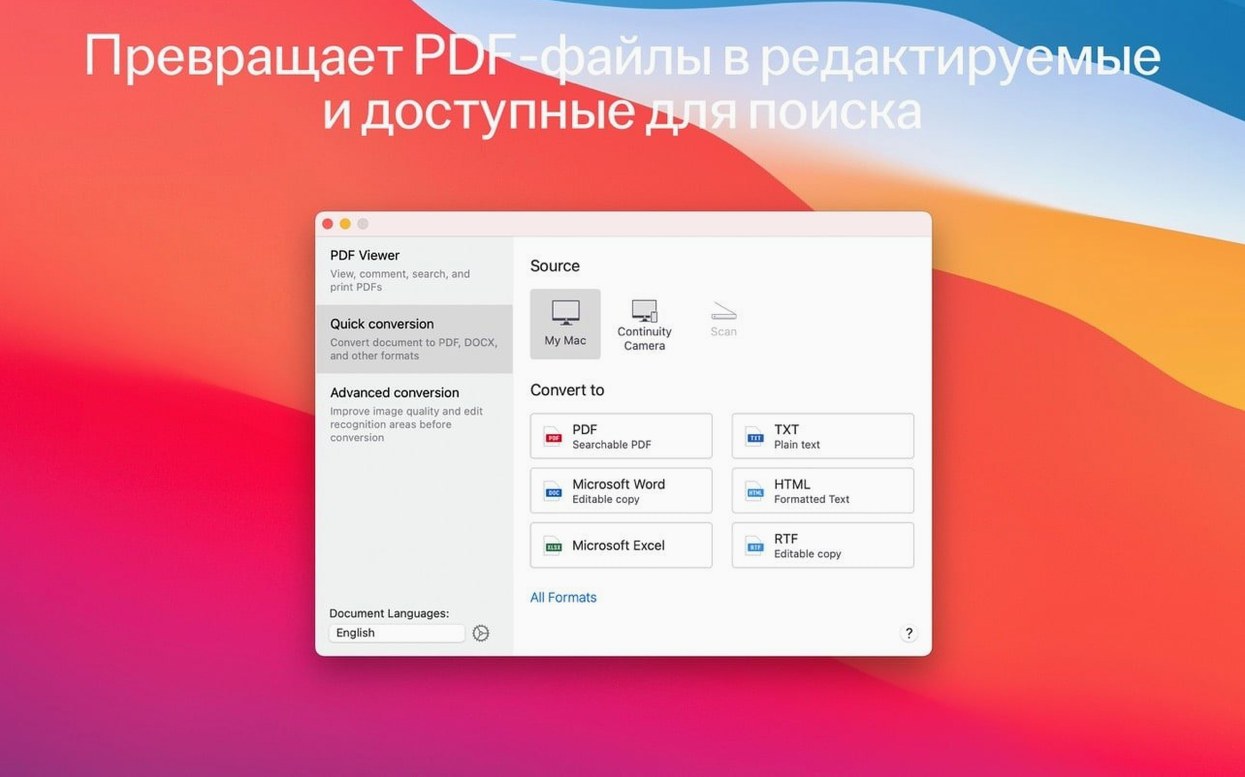
You’ve scanned a thirty-page contract on the office multifunction printer, and the resulting PDF is just a stack of silent images — you can’t search for a clause, copy a paragraph for an email, or even check the spelling of a client’s name. FineReader PDF steps into that gap. It reads the picture of text and turns it back into actual text, neatly layered onto the page, ready to edit or archive.
Recompose PDFs instead of just viewing them
- Alongside Preview and Quick Look. Preview shows you a PDF; FineReader lets you recompose it. You can extract a fragment for a translator, copy a citation, or correct a typo in the original scan without leaving the app.
- Next to your iPhone camera roll. Snap a document with your iPhone and import it directly via Continuity Camera. The app recognises the text in the image and hands you an editable version, which is far quicker than retyping a printed handout.
- As a bridge to long-term storage. When a document needs to outlast a software version, you save it as a PDF/A — a self-contained archival format. FineReader can also wrap the result in a password before it leaves your desk.
Languages and the editing view
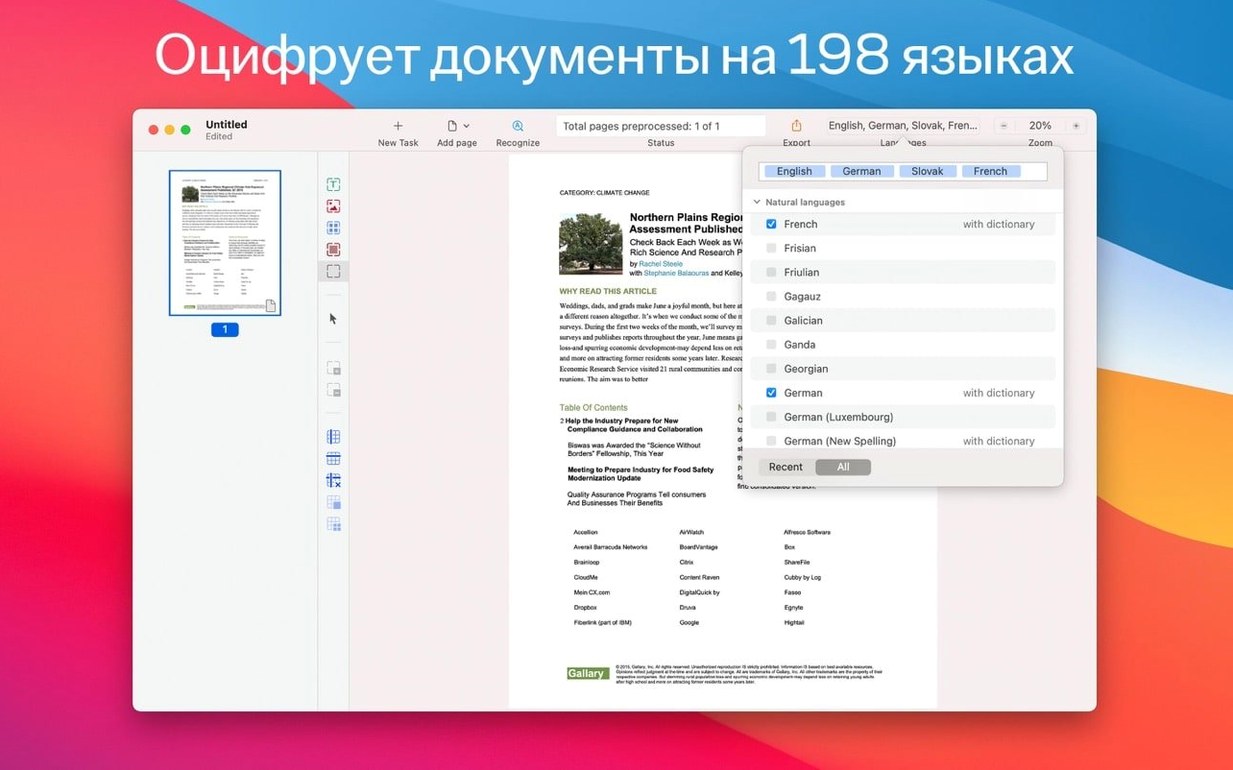
With support for 198 recognition languages, the engine can handle a multilingual stack of paperwork without you switching profiles manually. The interface itself speaks Russian, English, German, Italian, French, and Simplified Chinese. Once the recognition pass finishes, the built-in OCR editor shows you the suspect words against the original scan, so you can proofread sensitive figures before sharing the document.
A creased page or faint photocopy won’t stop you for long
Even a polished OCR engine occasionally trips over reality — a creased page, a faint photocopy, or a table that refuses to line up. Most issues trace back to a few simple causes, and the fix is rarely more than a setting tweak away.
Blurry scans producing gibberish. If the source image is under 300 dpi, FineReader has to guess letter shapes from too few dots. The cure is to rescan at 300 or 400 dpi, or — if you’re stuck with the file you have — open the image quality settings and switch the recognition mode to detailed rather than fast. The engine then spends a fraction longer analysing each character boundary, which often salvages a marginal scan.
Tables that export as a jumble. Scanned tables can confuse the layout analysis, especially when cell borders are faint or missing. In the OCR editor, select the table area and mark it explicitly as a table zone before running recognition. That tells the app to preserve the grid structure rather than treating rows and columns as ordinary paragraphs. After conversion to XLSX, a quick spot-check of merged cells usually catches anything that slipped through.
Mixed-language documents. A contract with a preamble in English and legal citations in French can come out garbled if the recognition language is set to a single tongue. FineReader can auto-detect multiple languages within one document — you just need to tick the relevant languages in the document languages panel rather than picking only one. The engine then switches mid-page as the script changes.
Password-protected PDFs that won’t open. If the original PDF has an open password, FineReader prompts you for it. If it has a permissions password (restricting printing or editing but not viewing), the app may refuse to process the file unless that restriction is lifted externally first. In those cases, the simplest workaround is to print the PDF to a new, unencrypted file and feed that to FineReader instead.
The choice turns on what you need the text for next
No single OCR tool fits every desk, so the choice usually comes down to what you need the text for after recognition. Here’s how FineReader PDF sits alongside three alternatives on the Mac.
Adobe Acrobat Pro
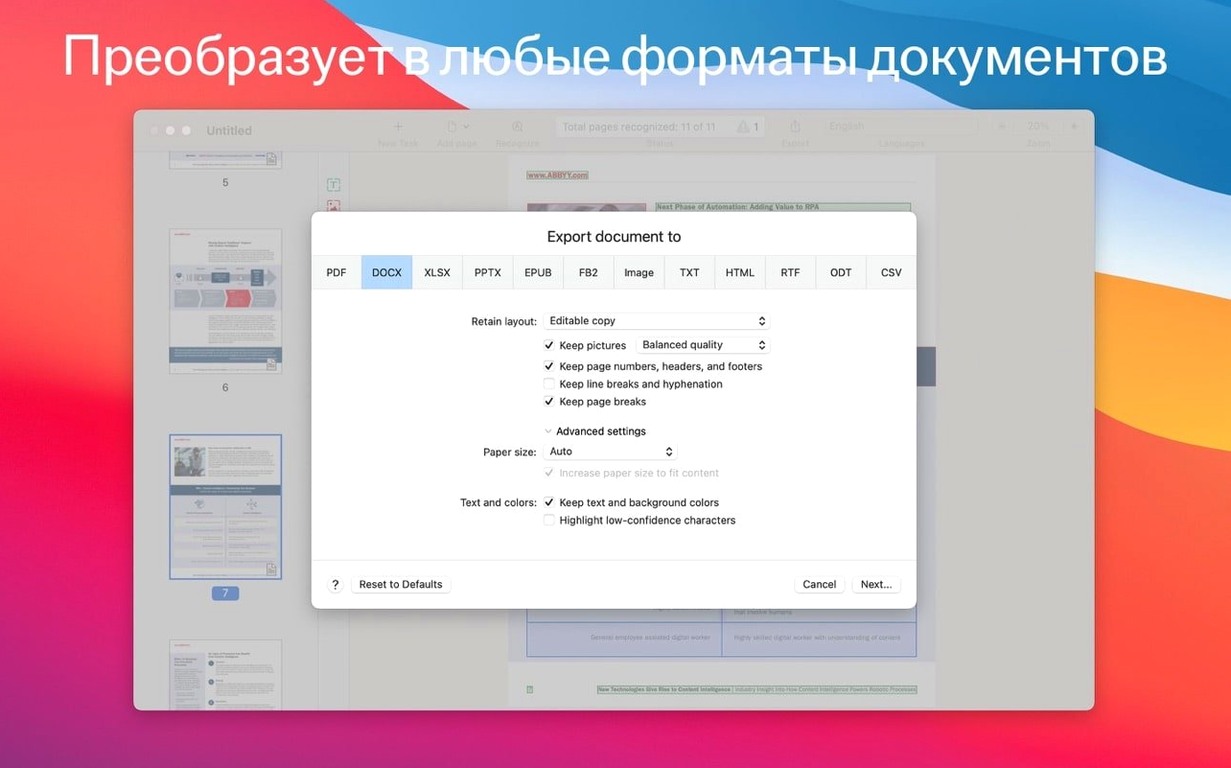
Acrobat Pro bundles OCR into a broader suite of PDF editing, form creation and e-signature tools. Its recognition engine is solid with mainstream languages, but it doesn’t match FineReader’s depth of 198 recognition languages or its forensic proofreading view. Where Acrobat leads is in collaborative review workflows — shared commenting and tracked changes — while FineReader’s strength remains the raw accuracy of the text it extracts and its ability to preserve complex layouts during export to DOCX or XLSX. If your day revolves around editing scans rather than annotating born-digital PDFs, FineReader often feels the sharper tool.
Readiris
Readiris from I.R.I.S. runs on the Mac and handles batch processing of large document sets well. It supports a healthy list of languages and can route output directly to cloud services. In side-by-side tests on low-contrast scans — think faded receipts or old library documents — FineReader tends to produce fewer character substitution errors, particularly with accented letters and Cyrillic scripts. Readiris counters with a lighter system footprint, so it has appeal on older Intel machines where every CPU cycle counts, but for absolute fidelity to the original page layout, FineReader pulls ahead.
Prizmo
Prizmo, from Creaceed, is a native Mac app with a clean, modern interface and a clever built-in voiceover feature for reading documents aloud. It handles camera-based capture elegantly and does good work with clean, well-lit photos. Where it steps back is with densely formatted material — legal pleadings with numbered paragraphs and footnotes, or academic papers with multi-level headings. FineReader’s layout retention engine is more meticulous about preserving that hierarchy during export, which saves you from reassembling the document structure afterwards. Prizmo suits quick, single-page captures from a phone; FineReader suits the multi-page, high-stakes document you must get right the first time.
Pinpoint a single phrase across a thousand-page discovery bundle
Legal professionals and paralegals. A discovery bundle might arrive as hundreds of scanned PDFs. FineReader can batch-recognise them into searchable text, letting you pinpoint a phrase across thousands of pages. The ability to export to DOCX preserving paragraph numbering and indentation means you can cite sources without retyping the clause. The PDF/A output also covers the archiving requirements some courts demand for electronic filings.
Academics and translators. When a research paper exists only as a photocopy from a journal, FineReader pulls the text into an editable format ready for annotation or translation. The 198-language support handles scripts ranging from Latin to Cyrillic to simplified Chinese, so a comparative literature scholar working with sources in three alphabets doesn’t need three separate OCR tools. The proofreading panel lets you verify technical terminology against the original scan, which matters enormously when a mistranslated term could alter the argument.
Archivists and records managers. Anyone responsible for turning filing cabinets into searchable digital archives will lean on the PDF/A creation feature. Making a document searchable while locking it into a long-term preservation format is a two-birds-one-stone operation. The password protection adds a layer of access control before the file reaches the archive server, which is handy for personnel records or confidential correspondence.
Small business owners without a dedicated IT department. If you handle your own invoices, contracts and correspondence, FineReader fills the gap between the scanner and your accounts software. A photographed receipt becomes an editable spreadsheet line; a supplier’s terms-and-conditions PDF becomes a text you can pull clauses from for your own documentation. The Continuity Camera import means you can even skip the scanner entirely and work straight from your iPhone, which suits a desk that’s more kitchen table than corporate office.
A logo marked as text can scramble your output
Running recognition without checking the zones. FineReader automatically draws blue zones around what it thinks are text, tables and images, but it doesn’t always guess right — a logo might be marked as text, or a sidebar might be ignored. Taking thirty seconds to adjust the zone rectangles before hitting Recognize saves a much longer cleanup later.
Exporting straight to the final format without proofing. The recognition confidence indicators in the OCR editor exist for a reason. Suspicious words — typically anything below 90% confidence — deserve a glance alongside the original image. A missed decimal point in a financial table or a misread date on a certificate can slip through if you export blind.
Forgetting to set the document language. The engine defaults to the language in your system preferences, which might be English even when the scanned page is in German. Recognition still runs, but the dictionary-based correction stage can’t help, so errors multiply. Selecting the correct language — or languages — before starting the recognition pass is the single easiest way to boost accuracy.
Scanning at too low a resolution to save file space. Beginners sometimes dial the scanner down to 150 dpi to keep files small, then wonder why the text output looks like a crossword puzzle of wrong letters. Disk space is cheap compared with the time it takes to manually correct a poor recognition pass. Stick to 300 dpi for standard documents and 400–600 dpi for anything with small type or fine print.
- macOS 11 or later
- Intel processor (x86 64-bit)
Questions I keep hearing
Can FineReader PDF create archival-quality files?
Yes, it can save recognised documents as PDF/A files, a format specifically designed for long-term digital archiving.
Which languages does the recognition engine cover?
The app supports text recognition in 198 languages, and the on-screen interface is available in Russian, English, German, Italian, French and Simplified Chinese.
Questions from the class 0
Sign in or join the class to ask a question.
Nobody has asked anything yet. If you have used it on a real job, say what the file did.
Also on the Office shelf
The whole Office shelf Adobe Acrobat Pro
Edits, signs and combines PDFs across desktop, mobile and web.
Adobe Acrobat Pro
Edits, signs and combines PDFs across desktop, mobile and web.
 Antinote
Captures fleeting thoughts and performs inline maths from a floating scratchpad.
Antinote
Captures fleeting thoughts and performs inline maths from a floating scratchpad.
 Bear
Writes and organises private notes in plain Markdown, with optional formatting preview and flexible tags.
Bear
Writes and organises private notes in plain Markdown, with optional formatting preview and flexible tags.
 Cardhop
Lets you search, add, or email a contact by typing a single plain-English sentence.
Cardhop
Lets you search, add, or email a contact by typing a single plain-English sentence.
 Complete Anatomy
Reveals the true spatial dance of nerves and organs that a flat textbook page cannot show.
Complete Anatomy
Reveals the true spatial dance of nerves and organs that a flat textbook page cannot show.
 DjVu Reader Pro
Opens and lets you read archived DjVu documents and scanned books reliably.
DjVu Reader Pro
Opens and lets you read archived DjVu documents and scanned books reliably.
 EndNote
Collects, organises, and cites your research references inside a word processor.
EndNote
Collects, organises, and cites your research references inside a word processor.
 Final Draft
Formats your screenplay as you type, keeping character names and cues tidy.
Final Draft
Formats your screenplay as you type, keeping character names and cues tidy.