 ASPNetWorld


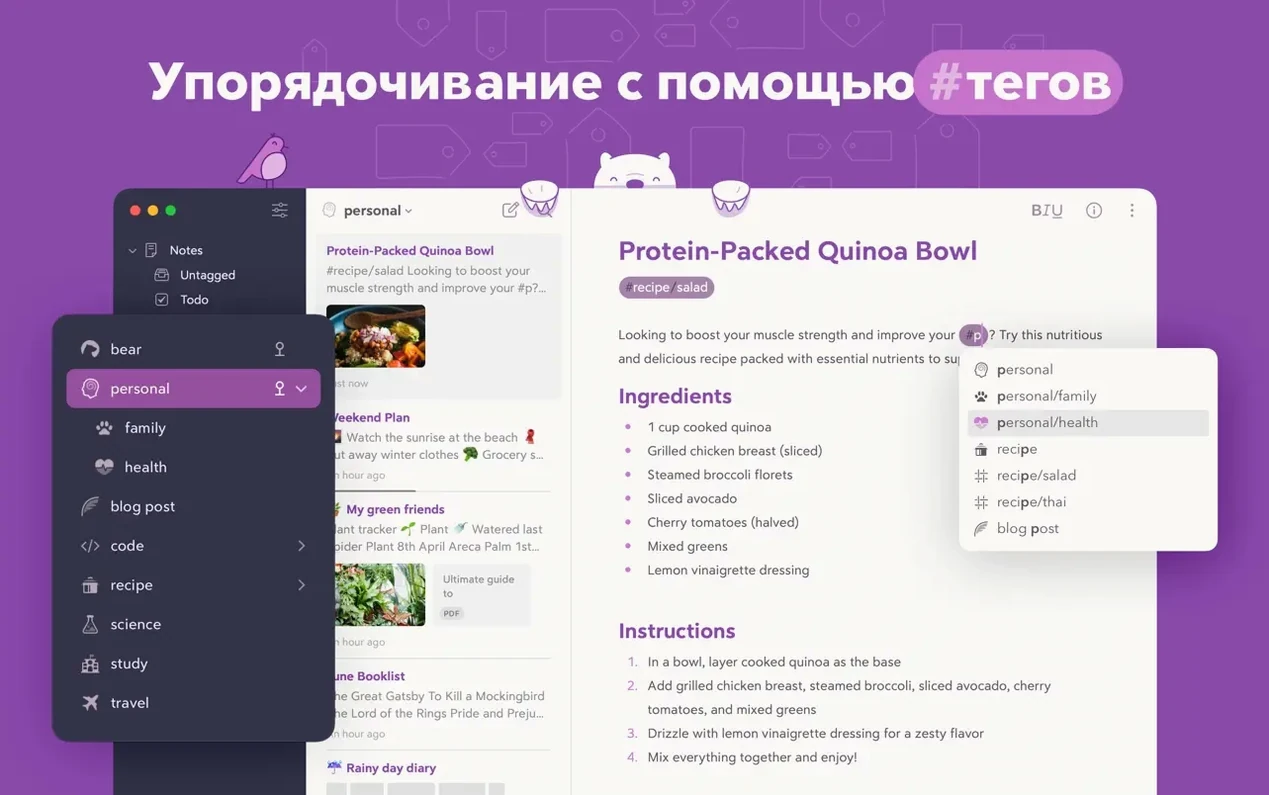





Bear for macOS is a private Markdown note-taking app where your writing lives in simple, readable plain text.
Markdown — a way to add formatting (bold, italics, headings) to plain text using simple symbols, which Bear can optionally hide for a cleaner reading view.
Tags — labels you type anywhere in a note, even mid-sentence, to organise work without a formal folder structure. Multi-word tags like #project ideas and nested tags like #work/meetings are both supported.
Backlinks — a panel that shows you which other notes link to the one you are currently reading, helping you trace connections between ideas.
Say you are planning a small garden project. You open Bear and hit the new-note shortcut. The first line becomes the title. Below it, you rough out a list of tasks, using a dash and a space for each. You add a #garden/planning tag at the bottom, which instantly appears in the sidebar, and nest #garden/budget inside a second note for costs. A few days later, you mention the budget note from inside your main plan by typing its title in double brackets. When you reopen the plan, the info panel shows that backlink — you can jump straight to the figures without searching. If you need to draft a shopping list while walking, you dictate a quick line on your Apple Watch, and it slots into a recent note. The whole project stays in one place, readable as plain text but structured enough to find anything later. Bear Pro adds iCloud sync, so the same notes wait on your iPad when you get home, plus encryption and export options like PDF and DocX.
How Bear compares with a few other Mac note-takers
Place Bear next to something like UpNote and you spot the difference in philosophy fairly quickly. UpNote gives you notebooks, a rich-text toolbar and a busier left panel — it feels more like a traditional document organiser. Bear strips that back. You get tags instead of folders and Markdown instead of a formatting ribbon. The trade-off is real: UpNote's approach can feel more familiar on day one, while Bear's rewards take a little longer to surface because the tagging system asks you to think in connections rather than filing cabinets.
Simplenote sits at the other end of the spectrum — clean, fast and entirely plain text, with no image support and no formatting beyond the basics. Bear lands in a comfortable middle ground. You get the speed and clarity of plain text but can drop in photos, tables and task lists, and the info panel with its table of contents gives you a sense of structure that Simplenote deliberately avoids. If Simplenote is a stack of index cards, Bear is a well-indexed notebook that still fits in your pocket.
Neither alternative quite matches Bear's approach to backlinks and nested tagging — those two features together turn a collection of notes into something closer to a personal wiki, which is where the app really starts to earn its keep for longer projects.
Tags are case‑sensitive, so #garden and #Garden split into separate buckets
One early frustration is typing a tag and not seeing it appear in the sidebar. Bear treats tags as case-sensitive, so #garden and #Garden live in separate buckets. The fix is to pick a convention — all lowercase with hyphens for spaces, for example — and stick to it from the start. If you have already scattered inconsistent tags, a quick search for the offending capital letter usually flushes them out.
Another common head-scratcher involves the web clipper. When a clipped page arrives as a bare link rather than a formatted article, the culprit is almost always a site that loads content dynamically with JavaScript. The clipper grabs what the server sends before scripts run. The workaround is to switch to Reader view in Safari first, then clip — that forces the browser to extract the article text before Bear sees it.
People also sometimes assume Bear syncs automatically between devices without realising that requires Bear Pro. Without it, notes stay local to each Mac. The app does not nudge you about this, so discovering it after you have already written a dozen notes on your phone can be mildly annoying. Checking the sync status in preferences early on saves the scramble later.
Three council agendas land in #council/march before the kettle boils
Imagine a freelance journalist covering local politics. She starts her day by clipping three council meeting agendas from Safari into Bear — the browser extension drops each one into a new note tagged #council/march. While the kettle boils, she taps out a few follow-up questions on her phone, and they land in a pinned note called "Questions for Cllr Davies" that syncs across via iCloud. Back at the Mac, she opens the info panel on her main story draft. The backlinks list shows two older notes she had forgotten about — an interview from November and a budget breakdown from the previous summer. She links both into the draft with double-bracket shortcuts, checks her task list for the morning, and exports a clean PDF to send to her editor. By lunchtime, everything she needs for the piece lives inside one tag tree, and she never once opened a folder.
Version 2.10 is a quiet maintenance update that sharpens the app's diagnostic tools under the hood.
- Improved internal error logging helps the development team spot and fix rare issues faster.
- macOS 12.4 or later
- Apple Silicon or Intel processor
- No registration or account required to begin
Questions I keep hearing
Can Bear sync notes between a Mac and an iPhone?
Yes — Bear Pro unlocks iCloud sync, keeping notes, tags and attachments up to date across Mac, iPad, iPhone and Apple Watch.
Questions from the class 0
Sign in or join the class to ask a question.
Nobody has asked anything yet. If you have used it on a real job, say what the file did.
Also on the Office shelf
The whole Office shelf Cardhop
Lets you search, add, or email a contact by typing a single plain-English sentence.
Cardhop
Lets you search, add, or email a contact by typing a single plain-English sentence.
 Antinote
Captures fleeting thoughts and performs inline maths from a floating scratchpad.
Antinote
Captures fleeting thoughts and performs inline maths from a floating scratchpad.
 Complete Anatomy
Reveals the true spatial dance of nerves and organs that a flat textbook page cannot show.
Complete Anatomy
Reveals the true spatial dance of nerves and organs that a flat textbook page cannot show.
 DjVu Reader Pro
Opens and lets you read archived DjVu documents and scanned books reliably.
DjVu Reader Pro
Opens and lets you read archived DjVu documents and scanned books reliably.
 Adobe Acrobat Pro
Edits, signs and combines PDFs across desktop, mobile and web.
Adobe Acrobat Pro
Edits, signs and combines PDFs across desktop, mobile and web.
 ABBYY FineReader PDF
Turns a scanned page image into searchable, editable text.
ABBYY FineReader PDF
Turns a scanned page image into searchable, editable text.
 EndNote
Collects, organises, and cites your research references inside a word processor.
EndNote
Collects, organises, and cites your research references inside a word processor.
 Final Draft
Formats your screenplay as you type, keeping character names and cues tidy.
Final Draft
Formats your screenplay as you type, keeping character names and cues tidy.