 ASPNetWorld

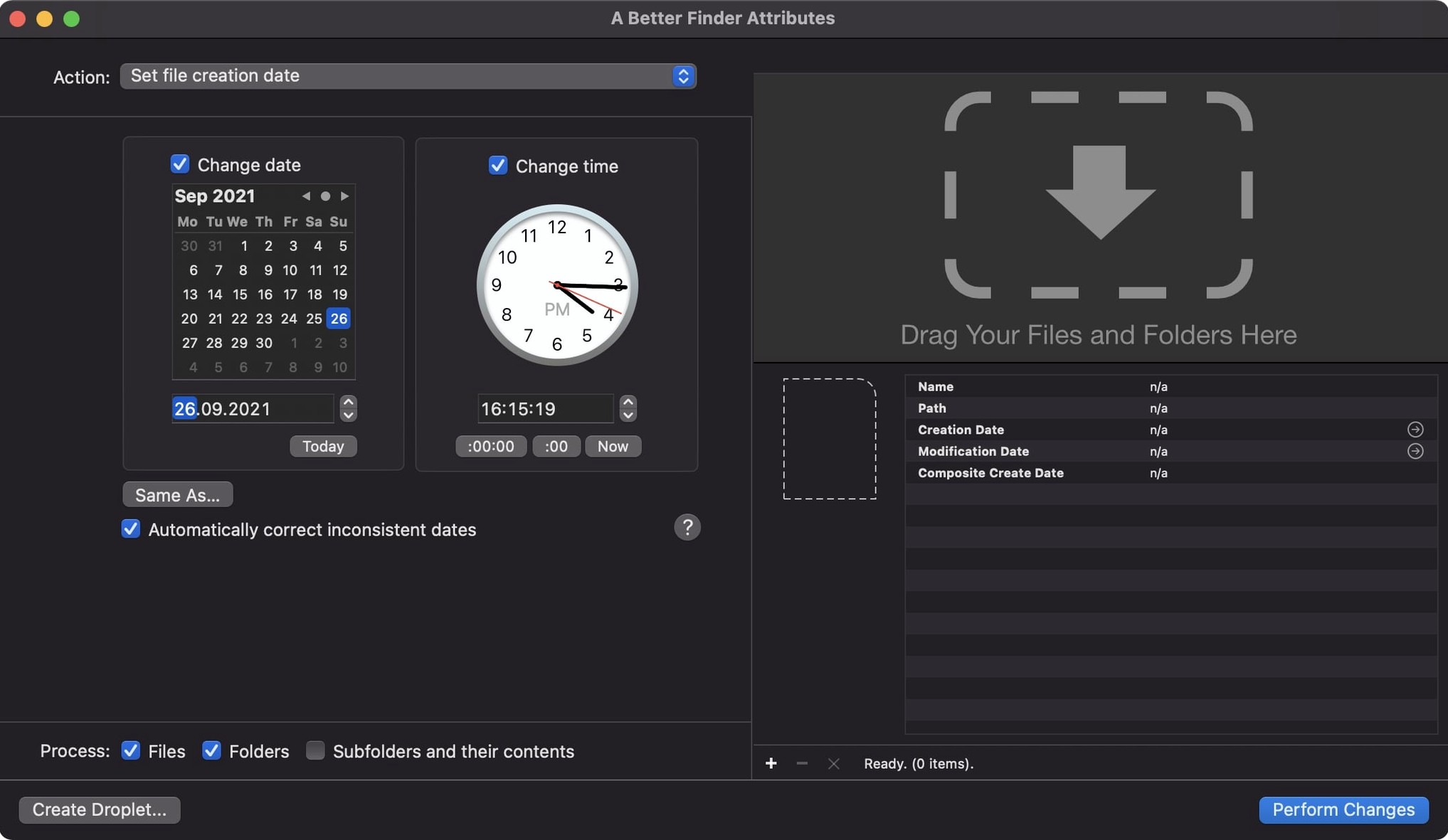
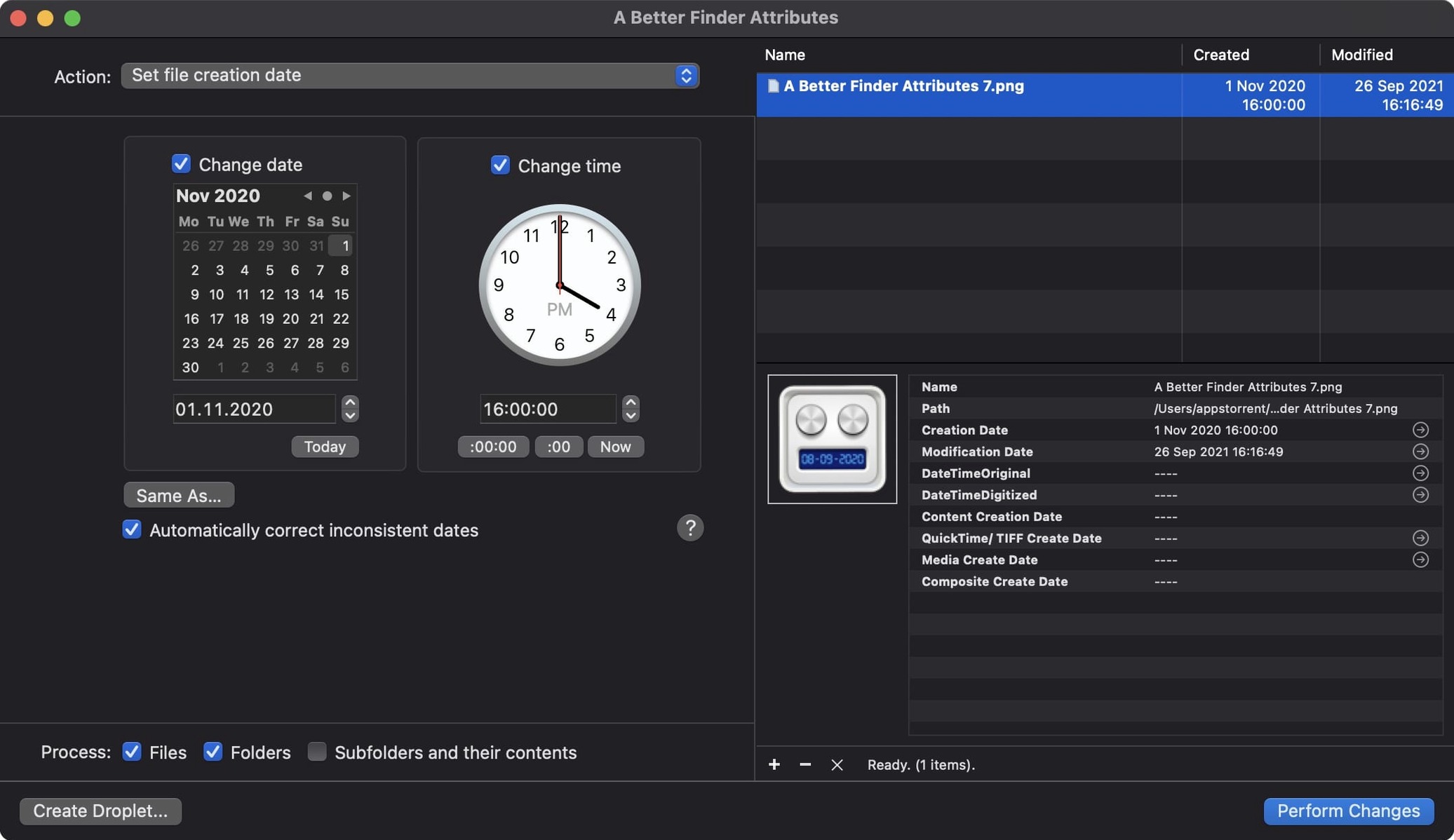
Files carry a surprising amount of hidden history: creation dates, modification timestamps, and for photos, a whole layer of EXIF data that records exactly when a shot was taken. When that data is wrong—perhaps after a clumsy import, a time-zone shift, or a camera clock that drifted—it can throw your entire library into chronological chaos. A Better Finder Attributes is the tool that puts you back in control, letting you rewrite those timestamps and attributes with precision, so a file's metadata actually matches reality again.
- Batch-change creation and modification dates. Select a group of files and set their timestamps to any date and time you need, compensating for time-zone offsets or simply enforcing a consistent sort order across projects.
- Rewrite JPEG EXIF and RAW shooting dates. The app reaches inside JPEG, CR2 and other RAW formats to adjust the embedded date and time data—perfect for correcting a camera whose internal clock was set incorrectly during a whole shoot.
- Keep IPTC and EXIF time zones in sync. Version 7.50 ensures that when you set an embedded date, the IPTC Date Created field and the EXIF time-zone offset move together, preventing the dreaded one-hour discrepancy in cataloguing software.
- Fix QuickTime and Photoshop file dates. The latest release squashes a daylight-saving bug that could shift QuickTime movie timestamps by an hour, and restores the ability to write shooting dates directly into Photoshop files that had been overlooked in recent macOS changes.
- Work in a familiar Mac interface. The utility integrates with the Finder via a contextual menu and a dedicated window, so you can adjust attributes without leaving your normal workflow.
It is a focused, unflashy tool: no media library, no catalogue, just precise control over the timestamps that keep your files sensibly ordered. Whether you are sorting a decade of family scans or preparing assets for a client delivery, it removes the guesswork from file dating.
Common Snags and How to Sort Them
The interface is straightforward, but dates are slippery things, and a few scenarios trip people up more often than they expect. The good news is that once you know what is happening, the fix is usually a single checkbox or a different action.
The most frequent head-scratcher is a file that stubbornly refuses to show its new creation date in the Finder. You have applied the change, the app says it succeeded, yet the column still displays the old timestamp. Nine times out of ten this is not a failure—it is the Finder lagging. The file system has accepted the new date, but the Finder caches metadata aggressively. A quick relaunch of the Finder (Option-right-click the Finder icon in the Dock and choose Relaunch) or simply moving the file to a different folder and back again forces macOS to refresh its display.
Another regular support-queue topic involves photo libraries that seem to ignore the EXIF changes. If you are adjusting dates on images that already live inside a Photos or Lightroom library, the edits may not stick in the way you expect. These applications often store metadata in their own database rather than reading it fresh from the file each time. The safest route is to apply the date changes before importing, or to re-import the corrected copies afterwards. For Lightroom users, the "Read Metadata from File" command can pull the updated EXIF back into the catalogue without a full re-import.
Time-zone confusion deserves its own paragraph. The EXIF specification stores date and time without explicit zone information in the main fields, while the IPTC Date Created can carry a zone offset. If you adjust a shooting date but the result drifts by exactly an hour in your cataloguing software, the culprit is almost always a mismatch between the EXIF time, the IPTC offset, and your Mac's current time zone. A Better Finder Attributes 7.50 handles this intelligently by keeping the two in step when you use the Set EXIF/IPTC Date & Time action, so start there rather than adjusting fields individually.
Beginner Mistakes Worth Avoiding Early
Nobody reads the manual, and that is fine—until a batch operation overwrites data you did not mean to touch. The first mistake new users make is diving straight into a large folder without testing on a copy. Grab three or four files, duplicate them into a sandbox folder, and run your intended action there. The preview panel in the main window shows exactly what will change, but a quick dry run on expendable copies builds confidence faster than any amount of staring at columns.
Another early slip is confusing the creation date with the content created date—they are not the same thing. The creation date is a file-system attribute that records when the file first appeared on a particular volume; the content created date is embedded metadata that records when a photo was shot or a document was authored. If you want your images to sort correctly in Photos or Final Cut Pro, you need to target the shooting date, not the file creation date. The app labels these clearly, but it is easy to glance past the distinction when you are in a hurry.
Beginners also tend to ignore the preset system. If you regularly fix camera-clock drift of, say, plus two hours and seventeen minutes, save that offset as a named preset. It transforms a repetitive five-click task into a two-click one, and it removes the risk of mistyping a number on the fourth batch of the afternoon.
How It Compares with Similar Mac Apps
The Mac has a small handful of utilities that touch file timestamps, and they each lean in a different direction. Knowing the landscape helps you understand where A Better Finder Attributes fits.
A Better Finder Attributes vs. GraphicConverter. GraphicConverter is a Swiss Army knife for images, and buried in its deep menus is a capable batch date-adjustment feature for EXIF data. If you already own it and only occasionally need to fix a photo's shooting date, it may be all you need. Where A Better Finder Attributes pulls ahead is in sheer focus: it handles not just photos but any file type, and it gives you file-system creation and modification dates alongside EXIF, IPTC and QuickTime metadata in one coherent window rather than spread across several dialogue boxes. For a photographer who also needs to timestamp PDF invoices or video rushes, the dedicated tool is the more natural fit.
A Better Finder Attributes vs. SetFile. SetFile is a command-line utility that ships with Apple's developer tools and can alter creation and modification dates with a terminal command. It is free, fast, and utterly indifferent to your comfort. For a single file on a machine where you already have Xcode installed, it works beautifully. The moment you need to shift hundreds of files, compensate for time zones, or reach inside EXIF data, SetFile falls silent. A Better Finder Attributes wraps that power in a visual batch processor and adds the media-metadata layer that the command line cannot touch.
A Better Finder Attributes vs. exiftool. Exiftool is the undisputed heavyweight champion of metadata manipulation—it can read and write practically every tag in existence. It is also a command-line tool with a syntax that rewards careful study. For complex, scripted workflows it is unbeatable. A Better Finder Attributes occupies the friendlier end of the spectrum: it does not try to expose every conceivable tag, but it gives you the ones that matter for file sorting—dates, times, some GPS coordinates—in an interface you can hand to a colleague without a Terminal primer. Many professionals use both: exiftool for deep metadata surgery, A Better Finder Attributes for the quick batch-fix that needs doing before coffee.
- macOS 14.6 or later
- 64-bit Intel or Apple Silicon Mac
Questions I keep hearing
Can A Better Finder Attributes adjust dates inside RAW photo files?
Yes, it can modify the embedded date and time data in JPEG EXIF headers, CR2 files, and all common RAW formats, not just the file's Finder-level timestamps.
Questions from the class 0
Sign in or join the class to ask a question.
Nobody has asked anything yet. If you have used it on a real job, say what the file did.
Also on the Mac Apps shelf
The whole Mac Apps shelf 1Password
Watches your vault for weak, reused or breached passwords.
1Password
Watches your vault for weak, reused or breached passwords.
 ACDSee Photo Studio
Helps you cull, adjust and organise RAW photos from your card.
ACDSee Photo Studio
Helps you cull, adjust and organise RAW photos from your card.
 Adguard
Blocks ads and trackers across your browsers and apps.
Adguard
Blocks ads and trackers across your browsers and apps.
 Adobe Premiere Rush
Trims phone footage into a finished video with minimal fuss.
Adobe Premiere Rush
Trims phone footage into a finished video with minimal fuss.
 Affinity Designer
Turns rough sketches into crisp, scalable vector artwork and layouts.
Affinity Designer
Turns rough sketches into crisp, scalable vector artwork and layouts.
 Affinity Photo
Edits photos nondestructively with selective adjustments and raw processing.
Affinity Photo
Edits photos nondestructively with selective adjustments and raw processing.
 Affinity Publisher
Lays out multi-page documents combining text and high-res images for print.
Affinity Publisher
Lays out multi-page documents combining text and high-res images for print.
 AI Transcription
Converts batches of spoken recordings into searchable written text.
AI Transcription
Converts batches of spoken recordings into searchable written text.